How to Build your first form with MakeForms?
If you're new to MakeForms, creating your first form is quick and simple. Whether you let AI build it for you or prefer setting it up yourself, this guide will help you get started in just a few minutes
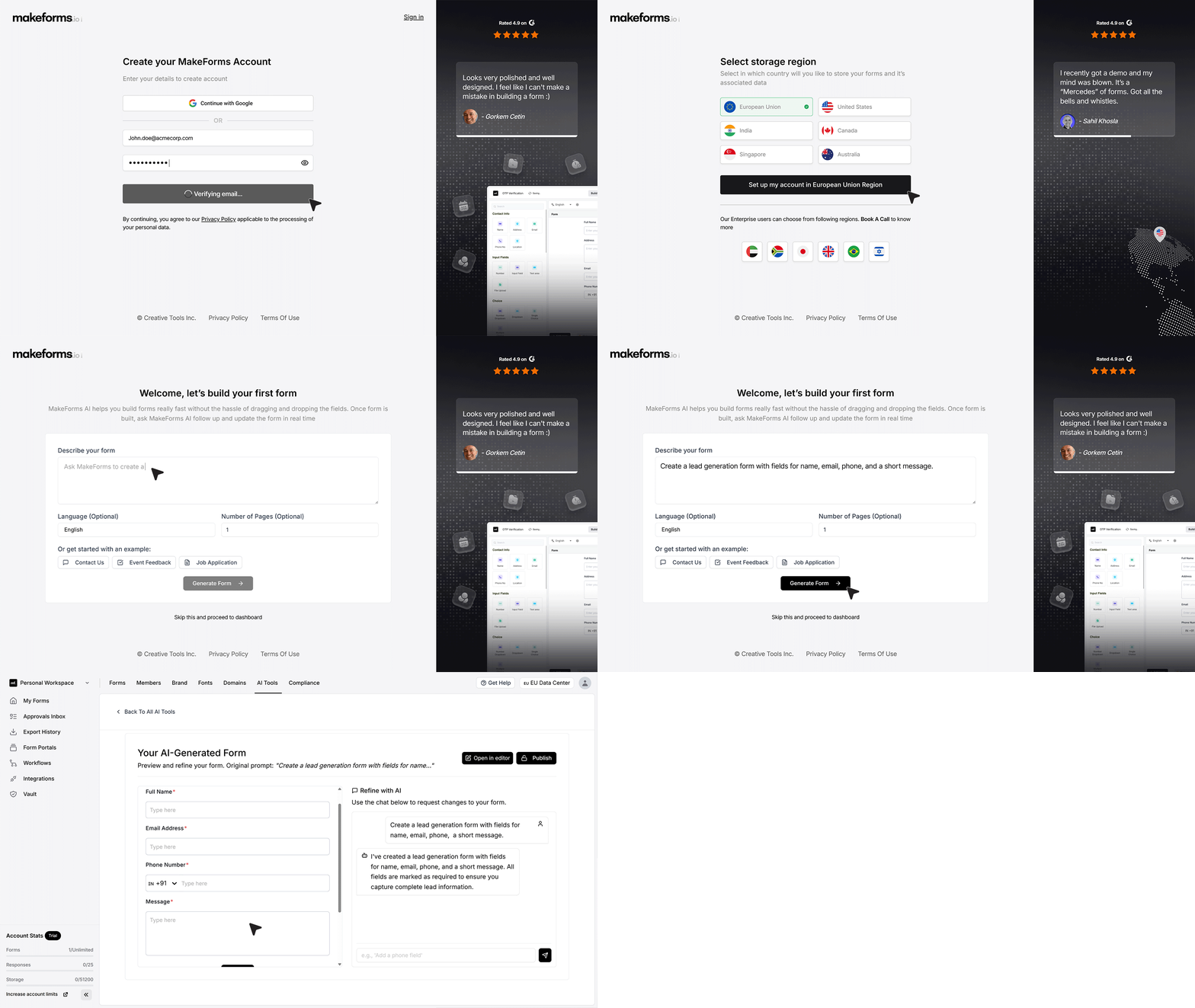
- During sign-up, MakeForms displays a quick setup screen to help you create your first form. This screen asks for a short description of the form you want, the preferred language, and whether it should be a single-page or multi-step layout. After confirming these details, MakeForms generates a ready-to-edit form with the structure already in place.
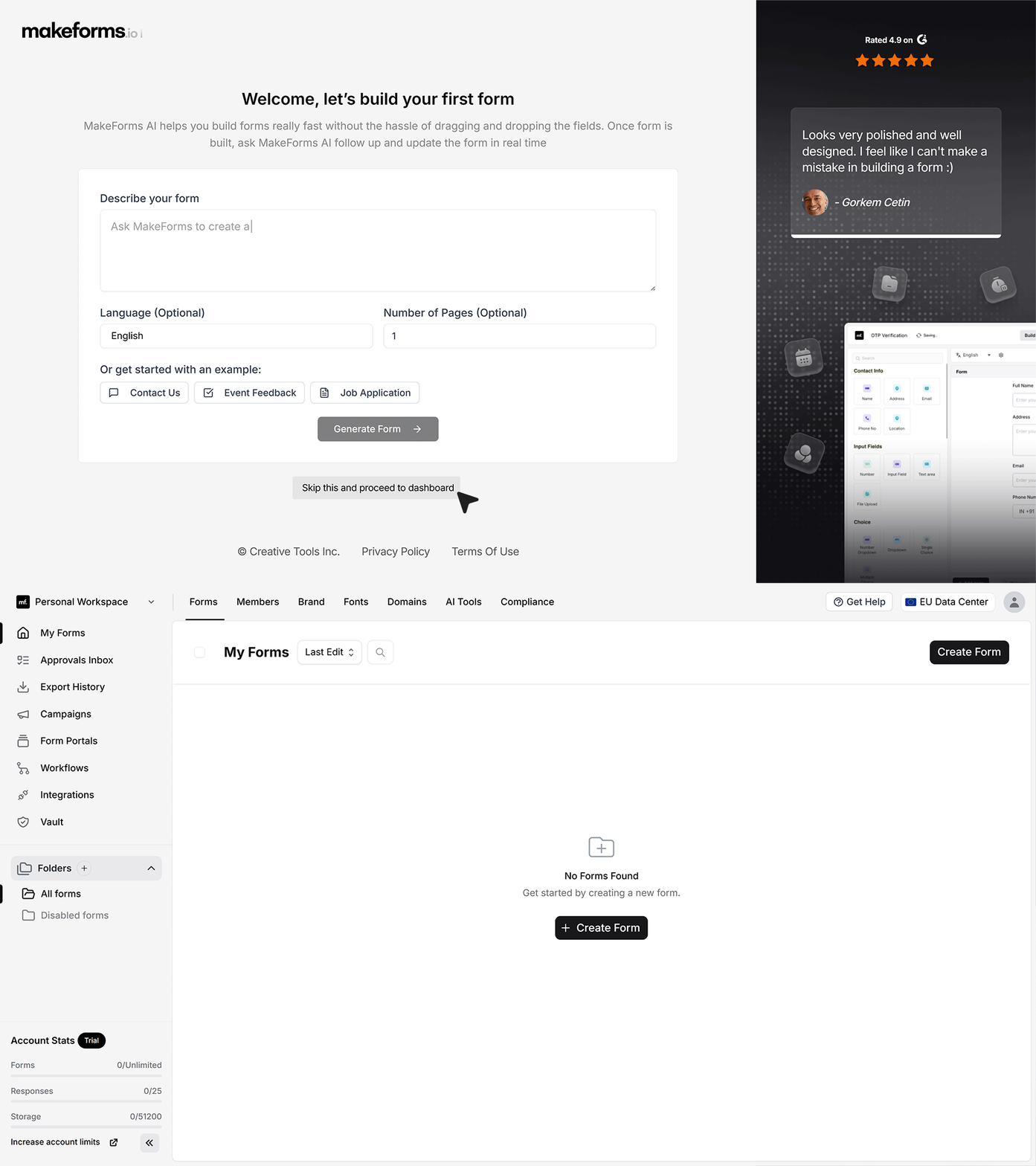
- If you prefer not to use the AI builder, simply click Skip. This will take you straight into the Form Builder, where you can start building it yourself.
- You can build your form from scratch by selecting Create Form from the dashboard. A set of five creation options appears, and for a simple start, the Standard Form option is the best choice. Once selected, name your form clearly and continue to the builder.
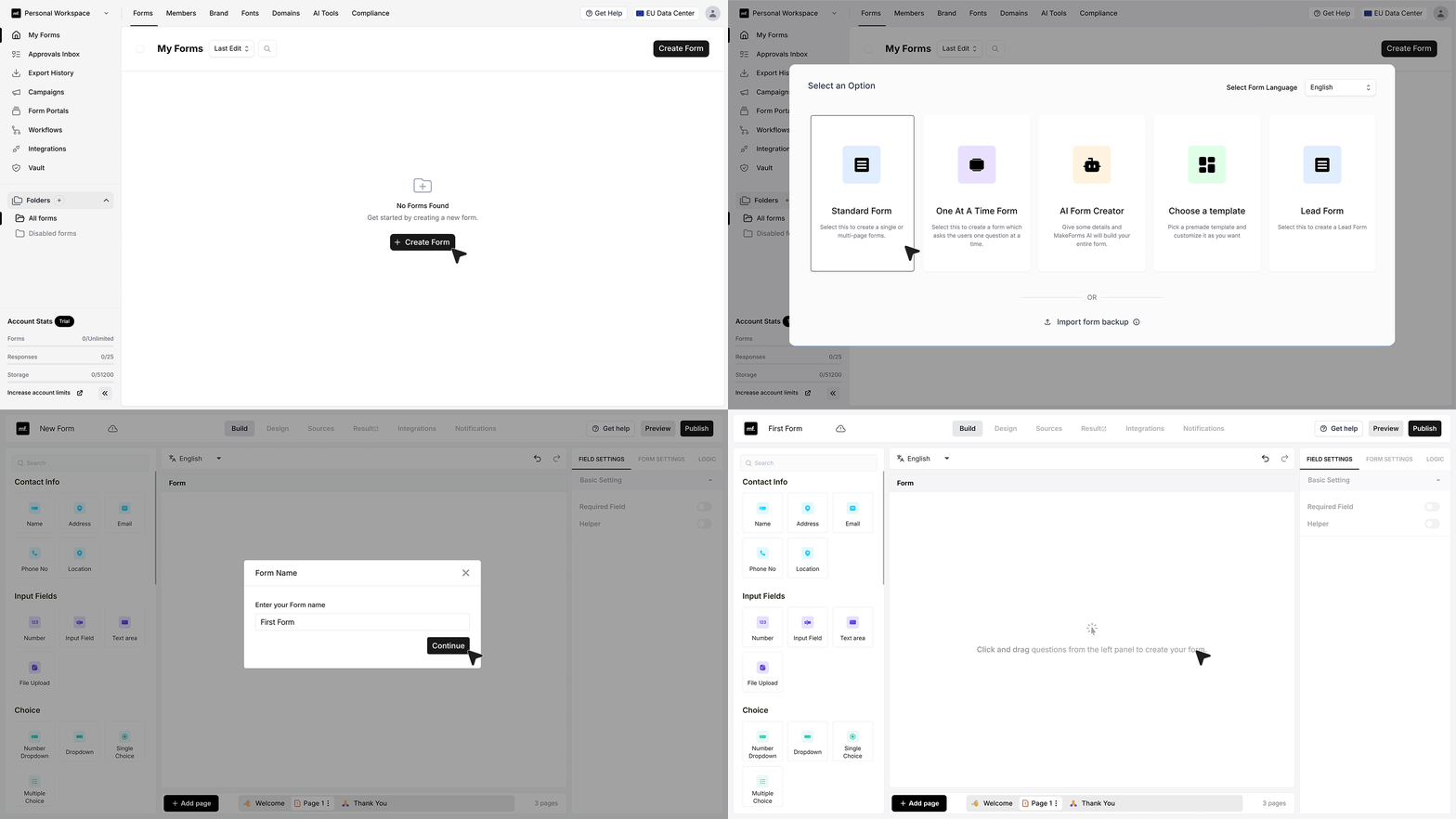
- The Form Builder layout is organized into three main sections. The left panel lists all available fields, the center canvas displays the structure of your form as you assemble it, and the right panel contains field properties, form settings, and logic controls.
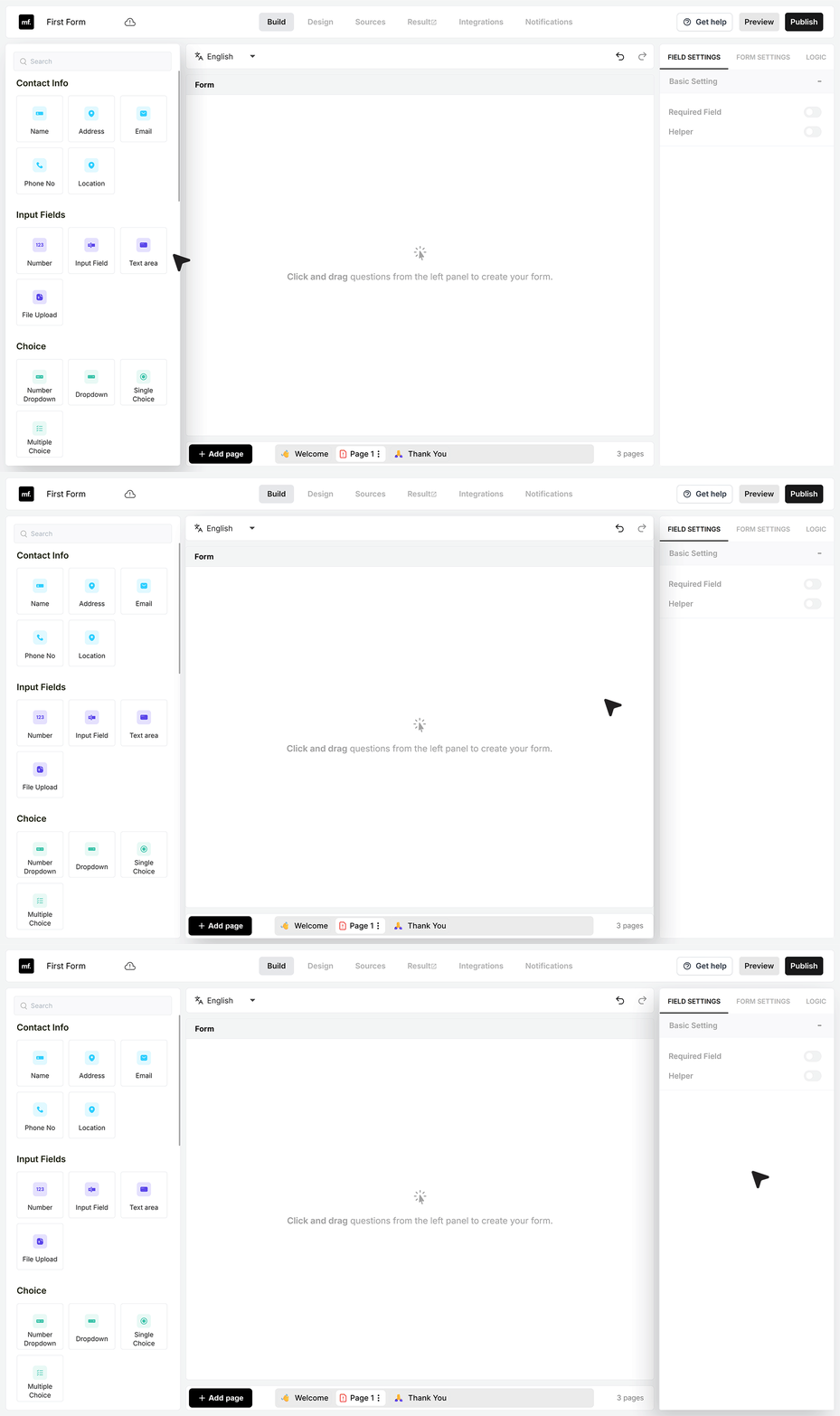
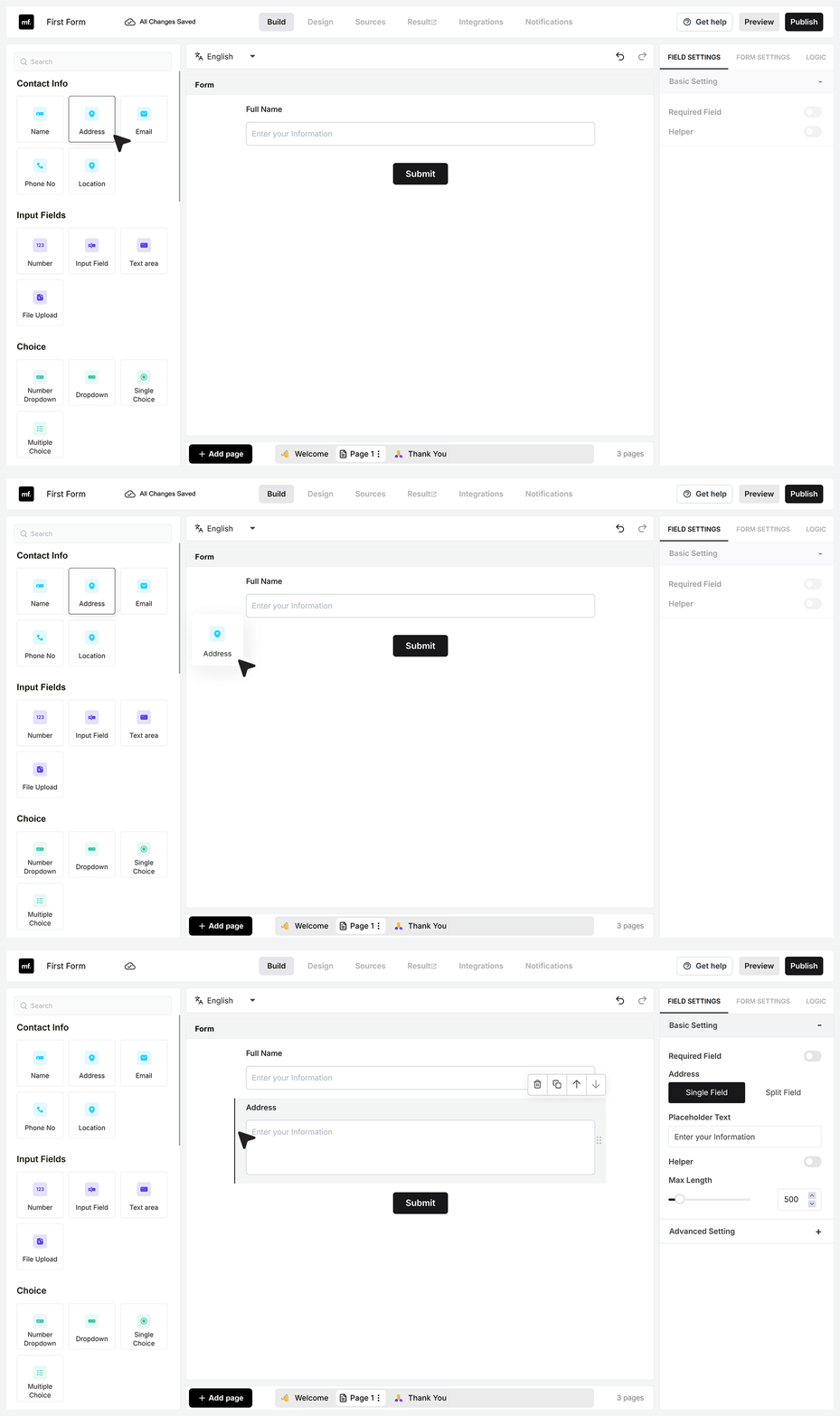
- You can begin creating your form by clicking or dragging fields onto the canvas. For example, adding fields like Name and Address is as simple as placing them onto the center area.
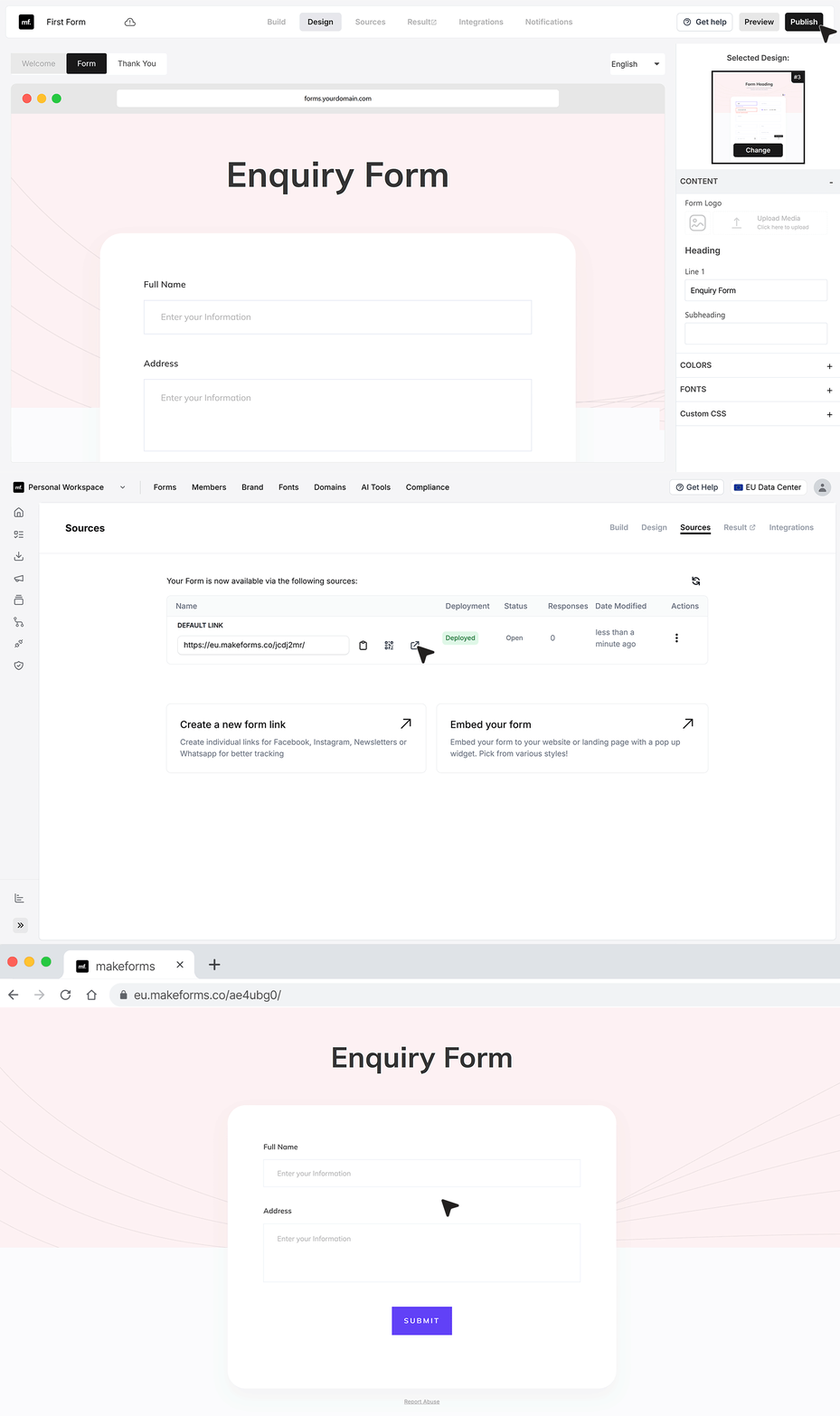
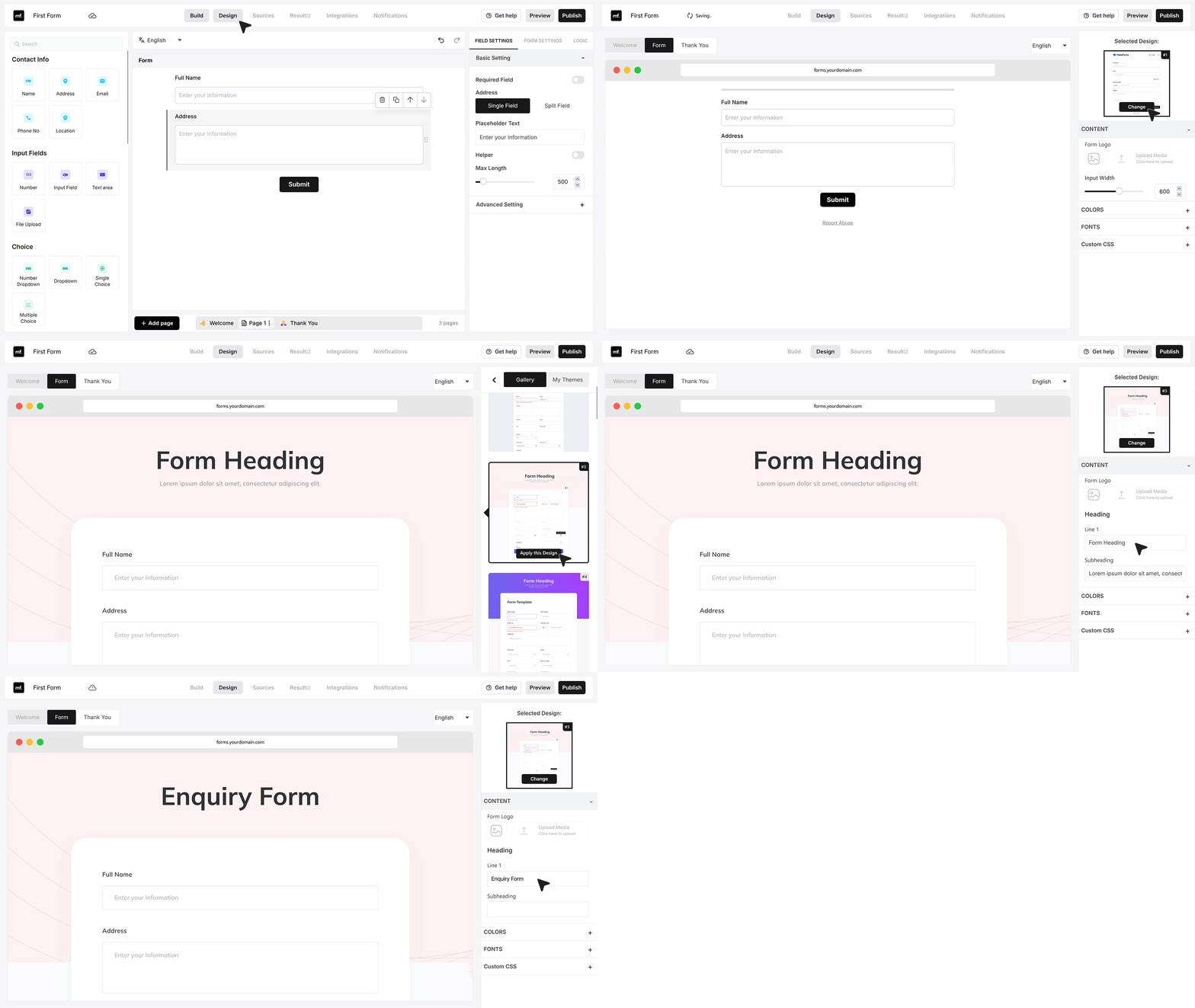
- After adding fields, you can switch to Design Mode to customize the appearance of your form. MakeForms applies a default style, but you can change it anytime by selecting Change on the right side and choosing from the available templates. Each template allows customization of text and other elements so you can refine the design to match your needs.
- When your form is ready, you can make it live by selecting Publish at the top right. This takes you to the Sources page, where you can access the live form link. Opening this link shows you the final version of your form exactly as respondents will see it.