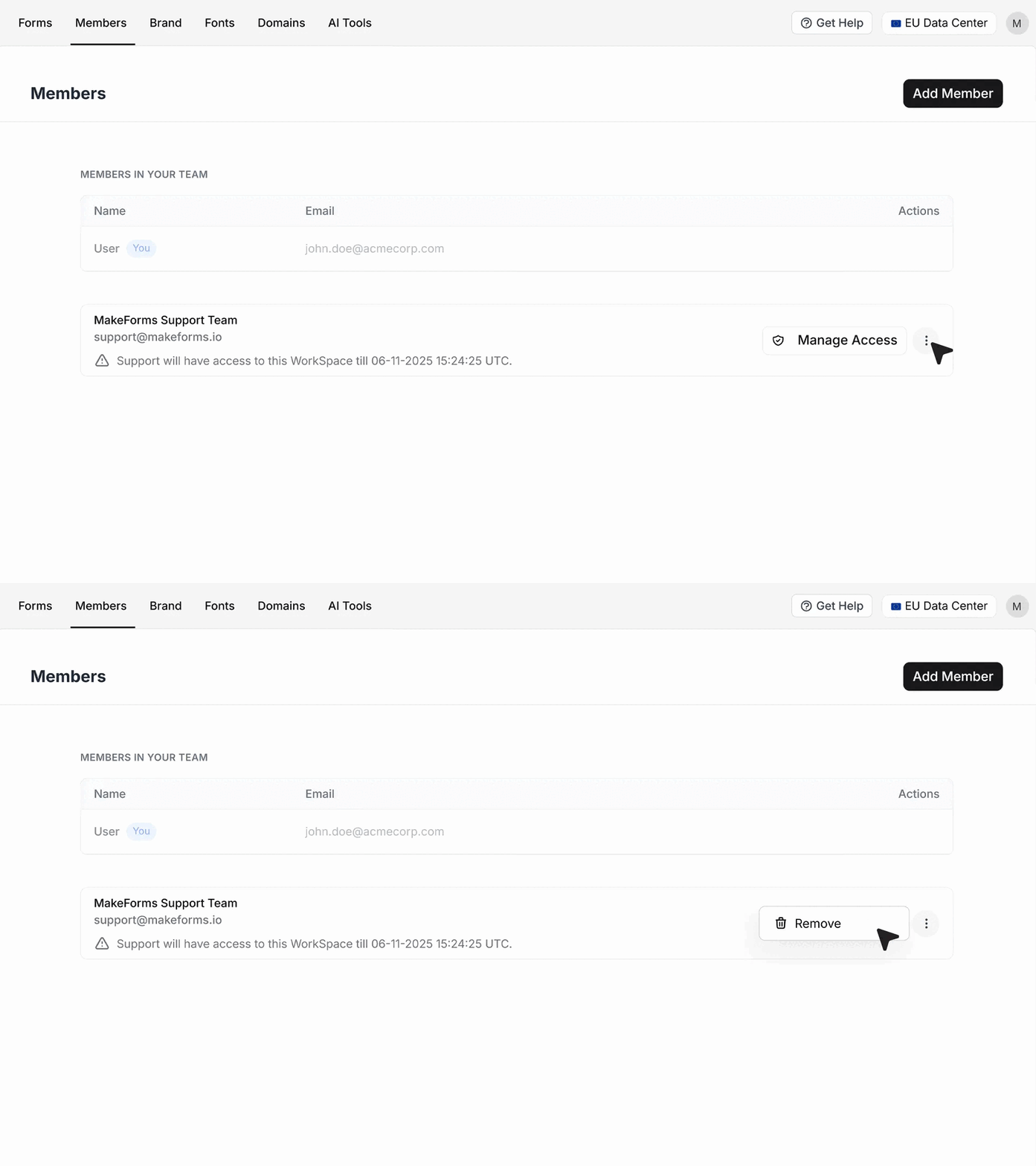
How to Enable Support Access for Your MakeForms Workspace
- When you encounter an issue that requires assistance from our support team, you may be asked to grant them temporary access to your workspace.Enabling Support Access provides the MakeForms team with secure, limited access to a specific workspace, allowing them to troubleshoot and resolve your issue efficiently.
- To enable support access, open the workspace where you want to grant permission.
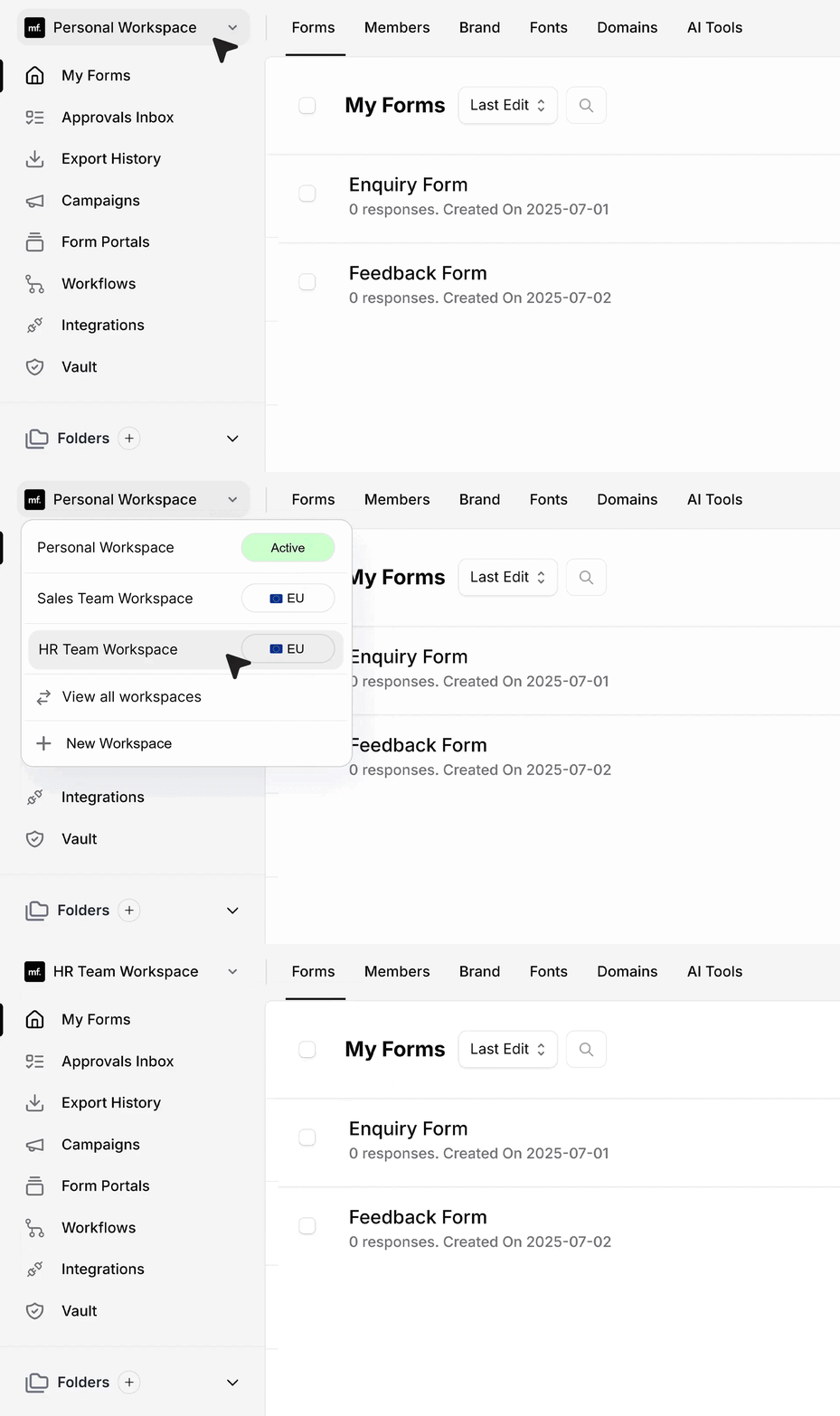
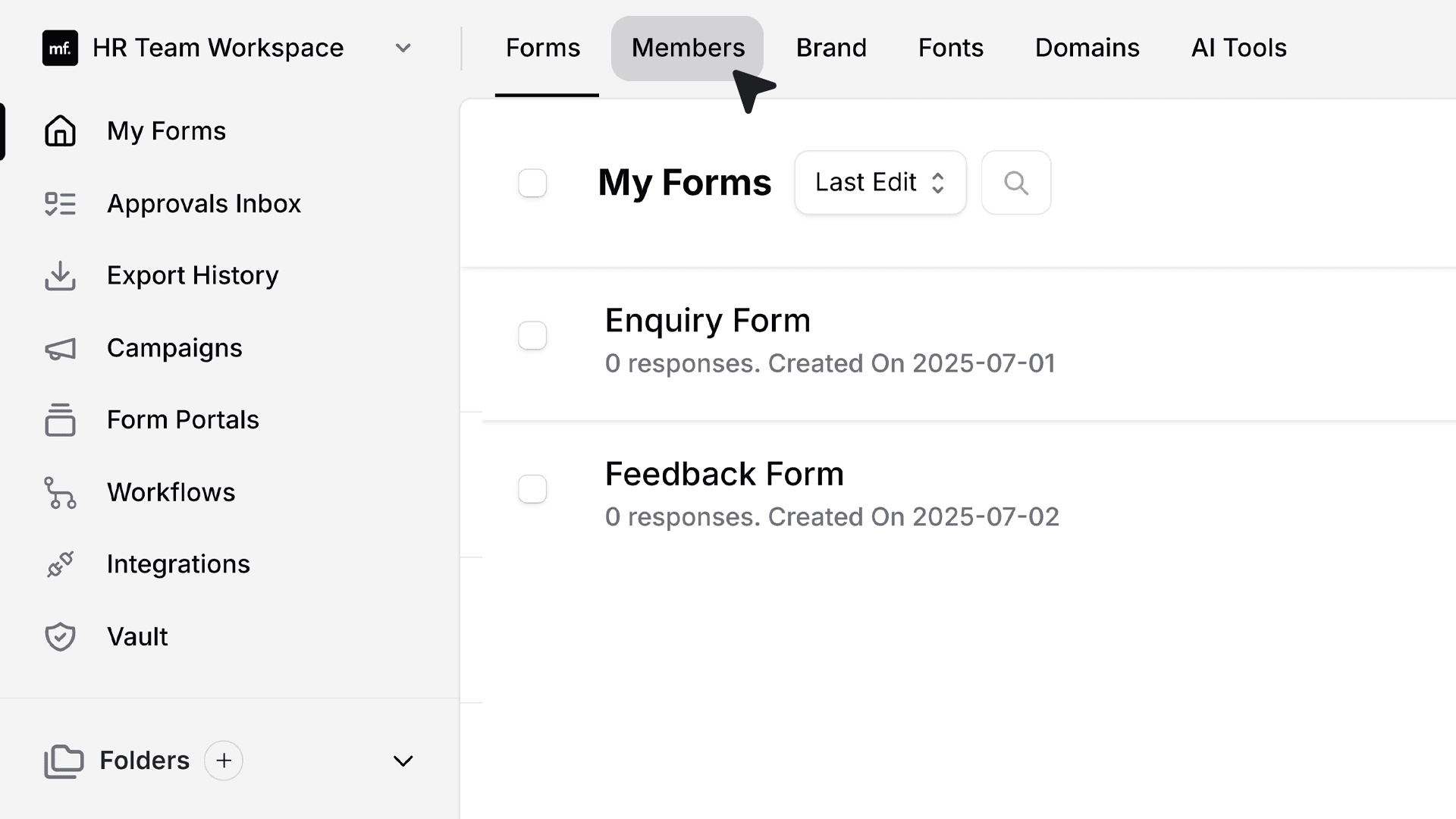
- From the top menu, click Members to open the list of users associated with that workspace.
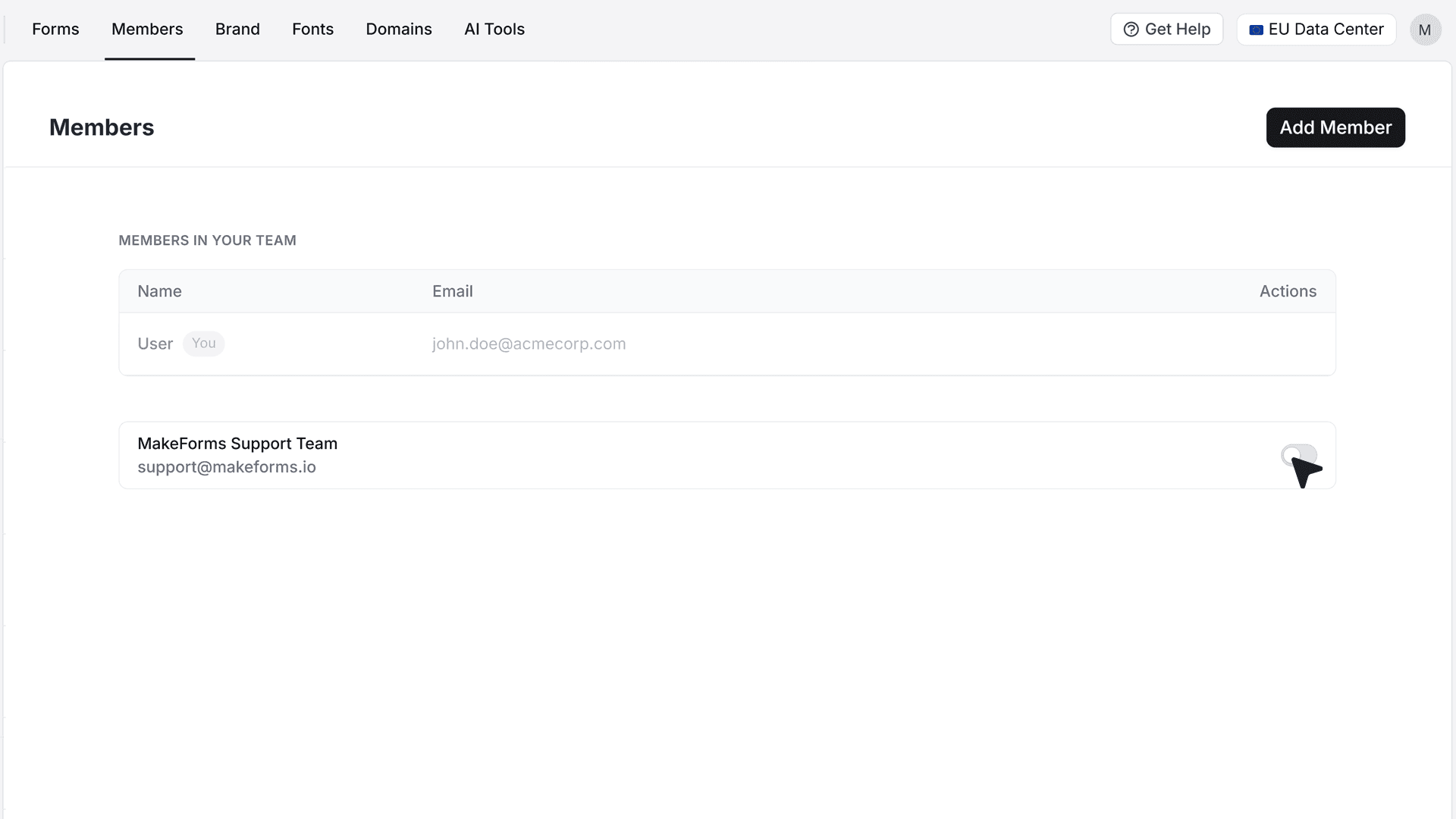
- In the Members section, you’ll see an option labeled MakeForms Support Team. Toggle the switch ON to grant access.
- Once you do this, a confirmation window will appear where you can choose the level of access to provide — Full Access, View Only, or Manage. Select the desired option and click Save.
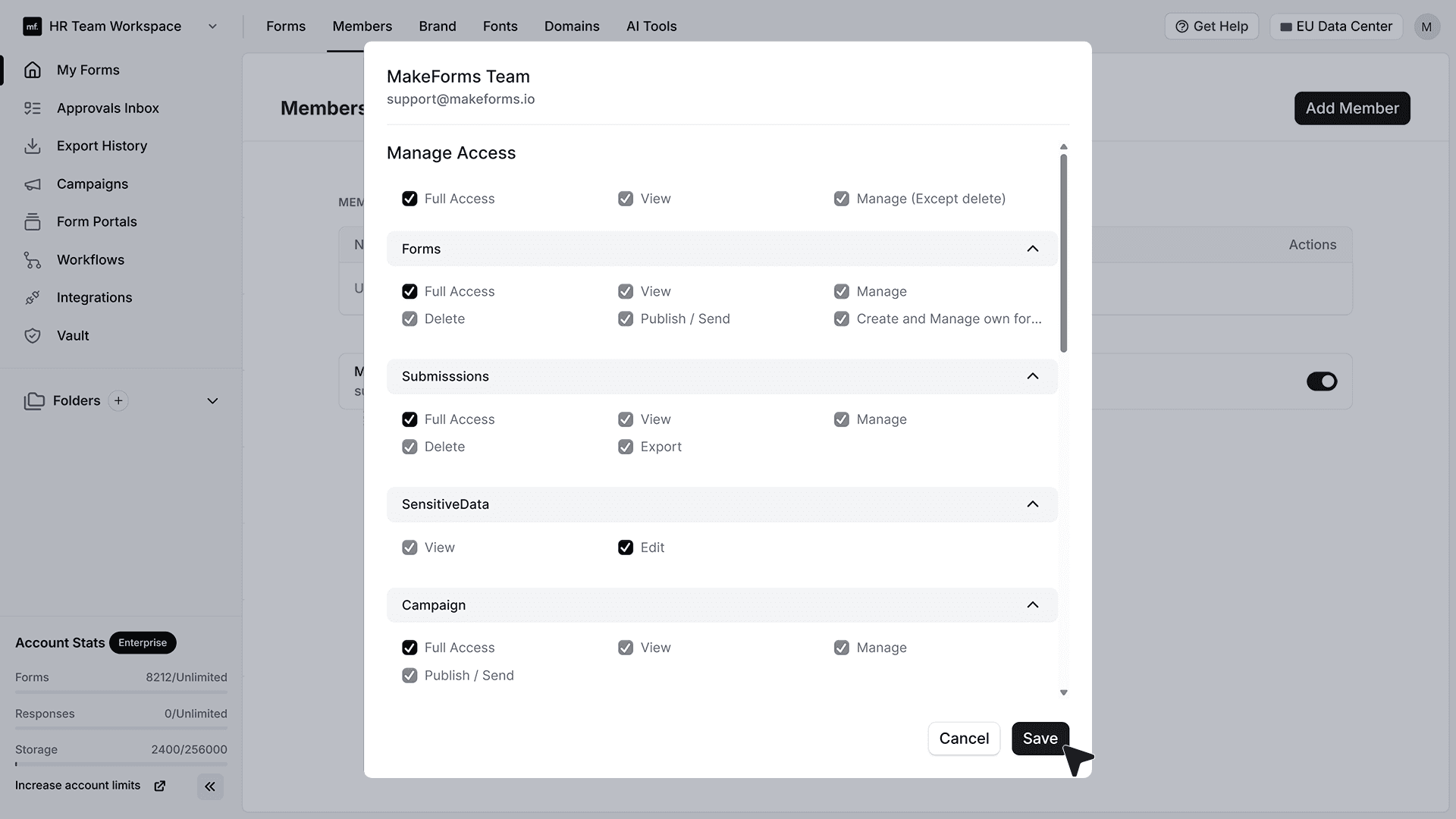
- After you confirm, the MakeForms support team will automatically gain access to that workspace for up to one week. During this period, they can securely review your settings and troubleshoot any issues you’ve reported.
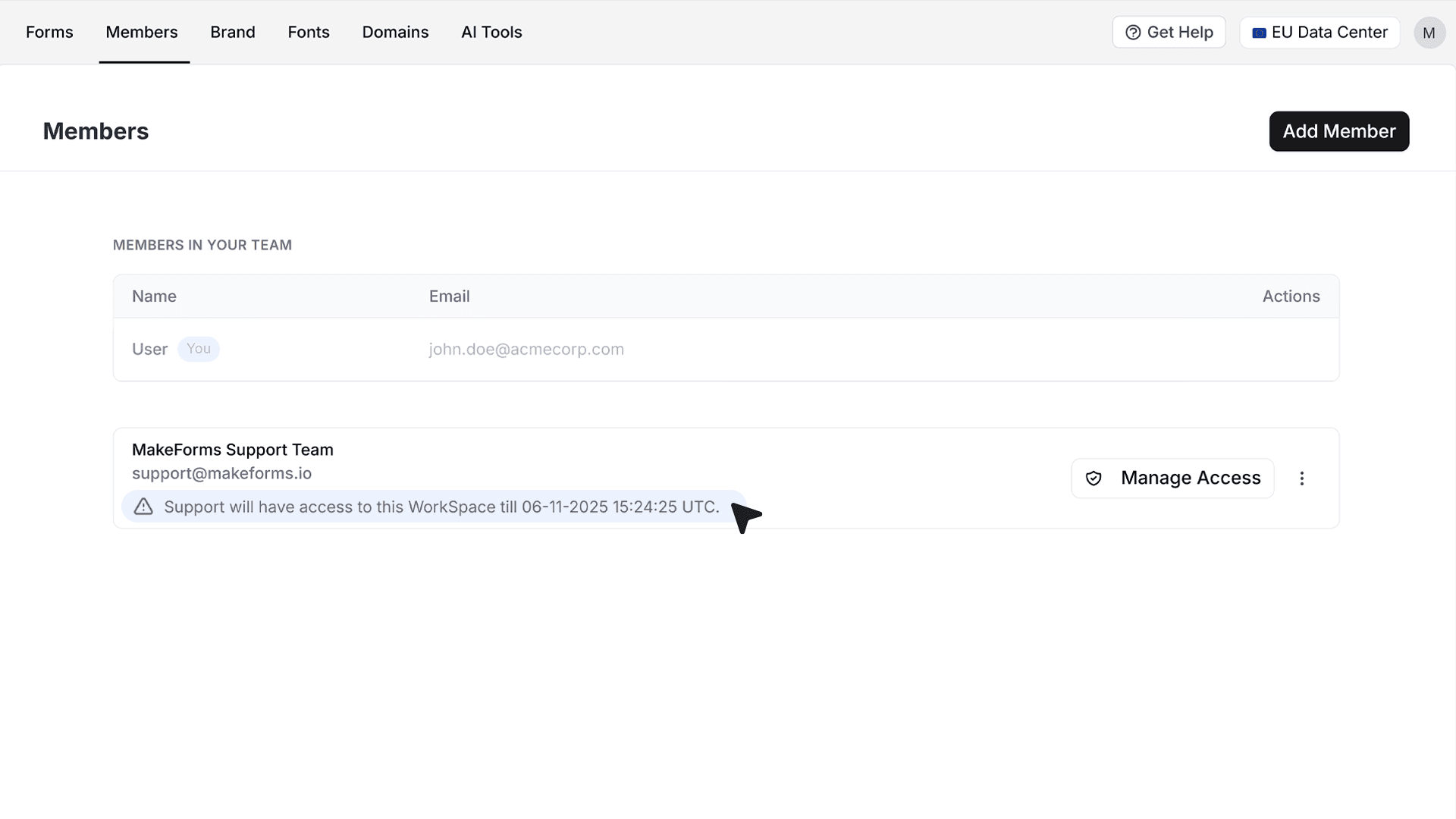
- If you want to end access before the one-week period ends, click Remove Access — the change takes effect instantly, and the support team’s access will be revoked right away.