Adding and Using Custom Fonts in MakeForms
MakeForms allows you to configure and manage custom fonts, helping you maintain visual consistency and align your form’s design with your brand identity.
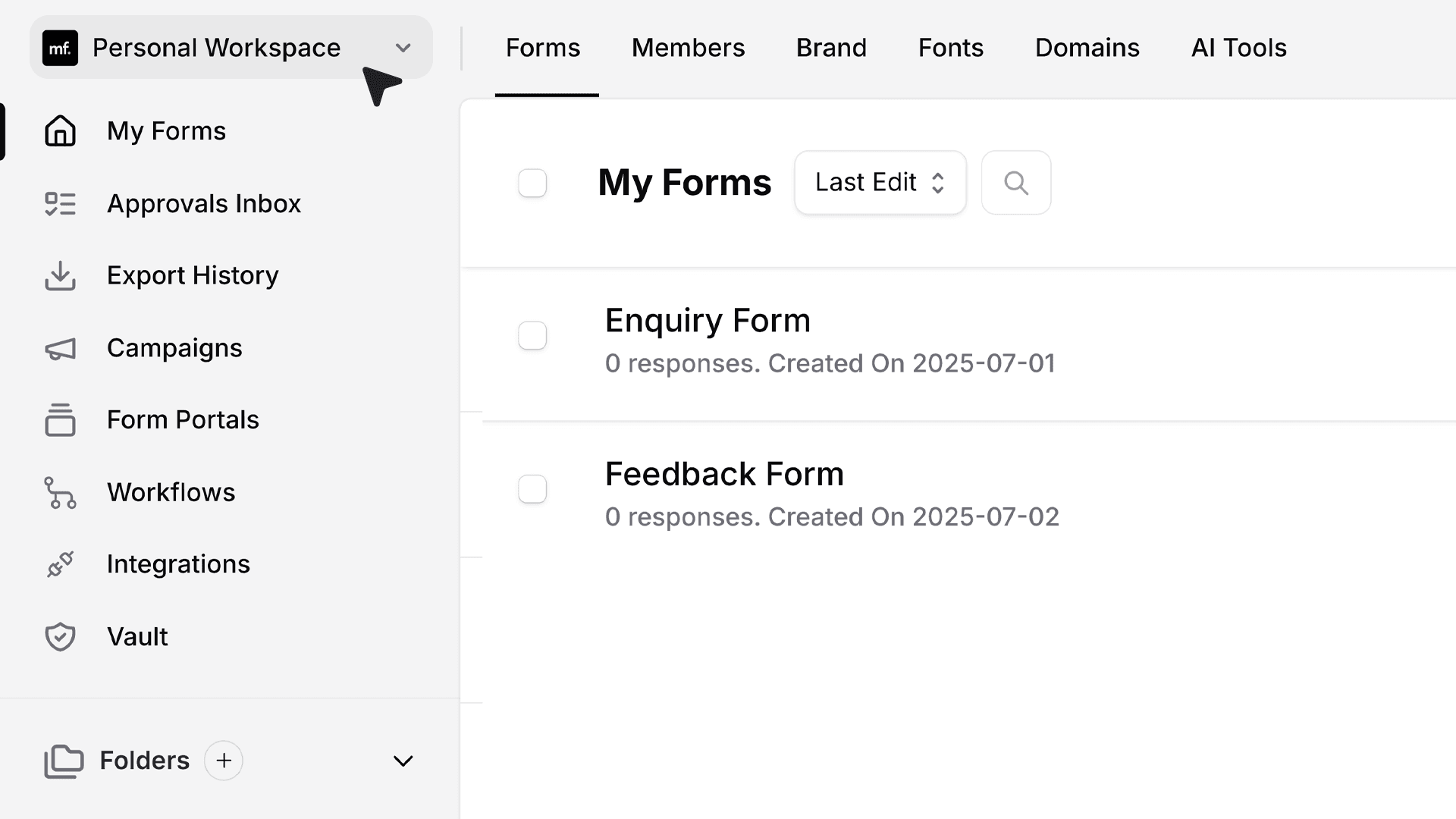
- To begin, navigate to your dashboard and select the workspace where you wish to upload your custom fonts. Fonts are managed at the workspace level, not the account level.
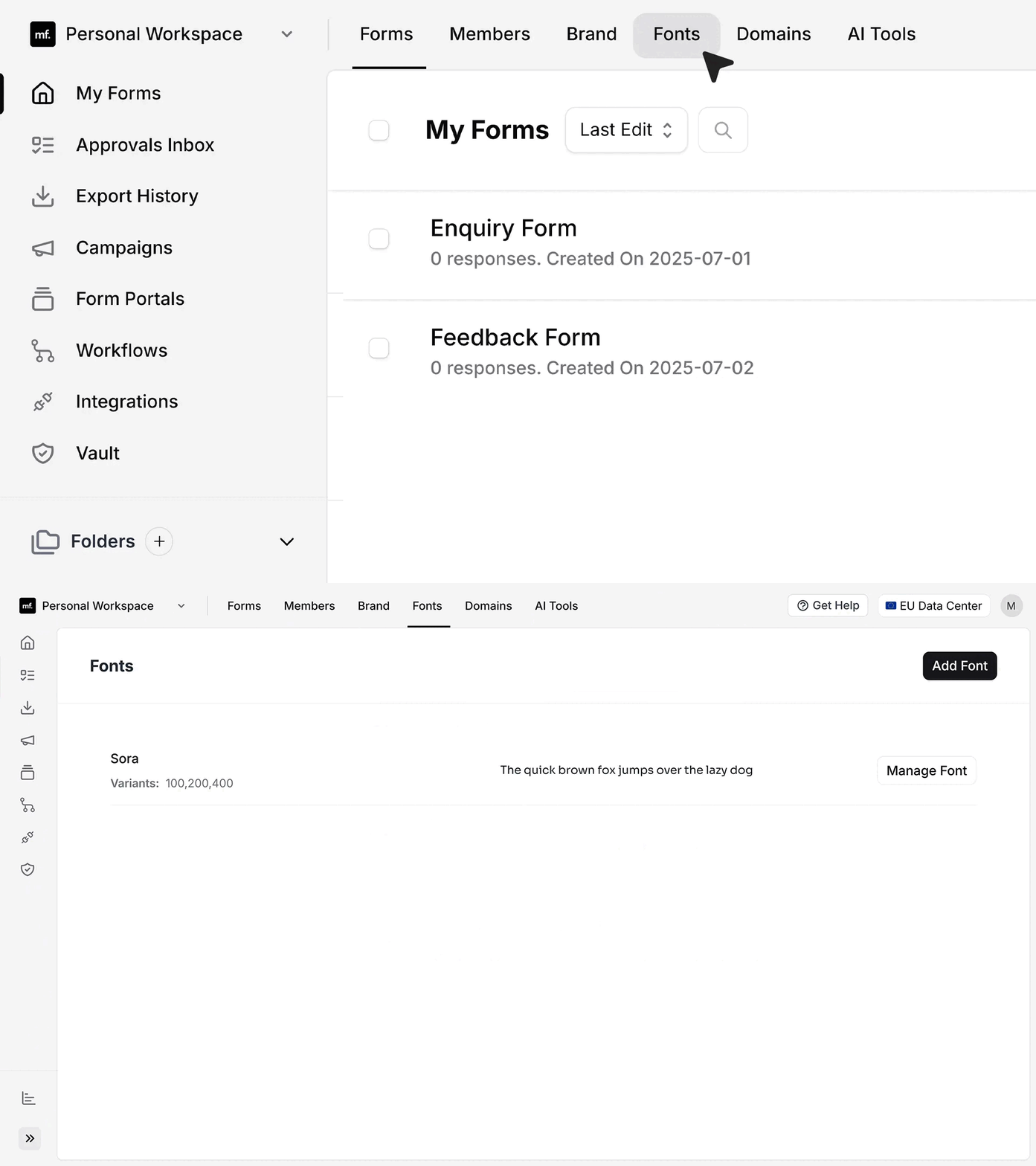
- To get started, open the Fonts section from the top menu. This page displays all the fonts currently available in your workspace and allows you to add new ones.
- Click Add Font to create a new font entry. A side panel will appear where you can enter the name of your font.
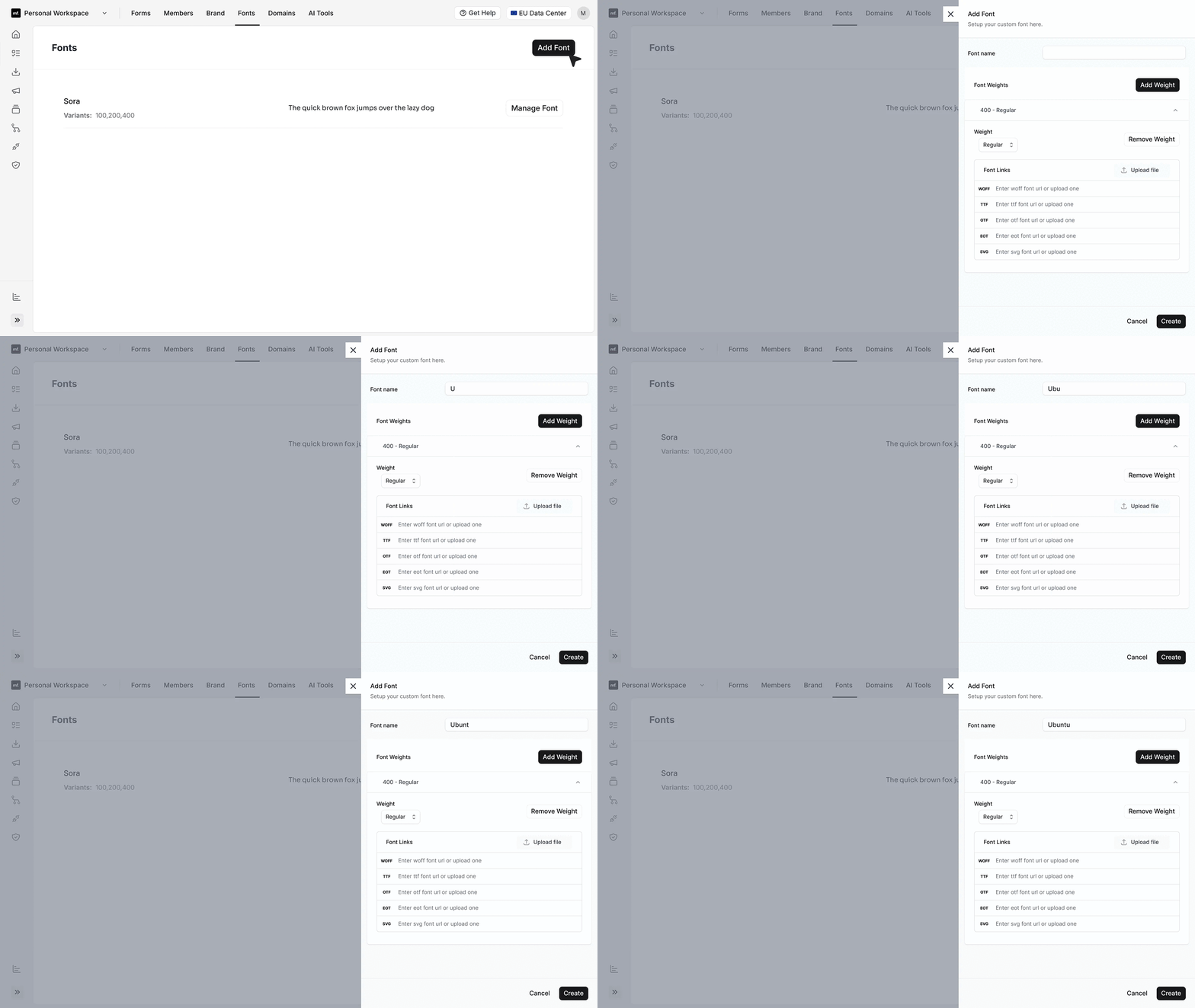
- By default, MakeForms creates a single Regular weight. To configure this Regular variant, upload your font file. You can either paste a hosted link or upload the file directly from your computer. MakeForms automatically detects the font format — whether it’s .woff, .ttf, or .otf — and places it correctly.
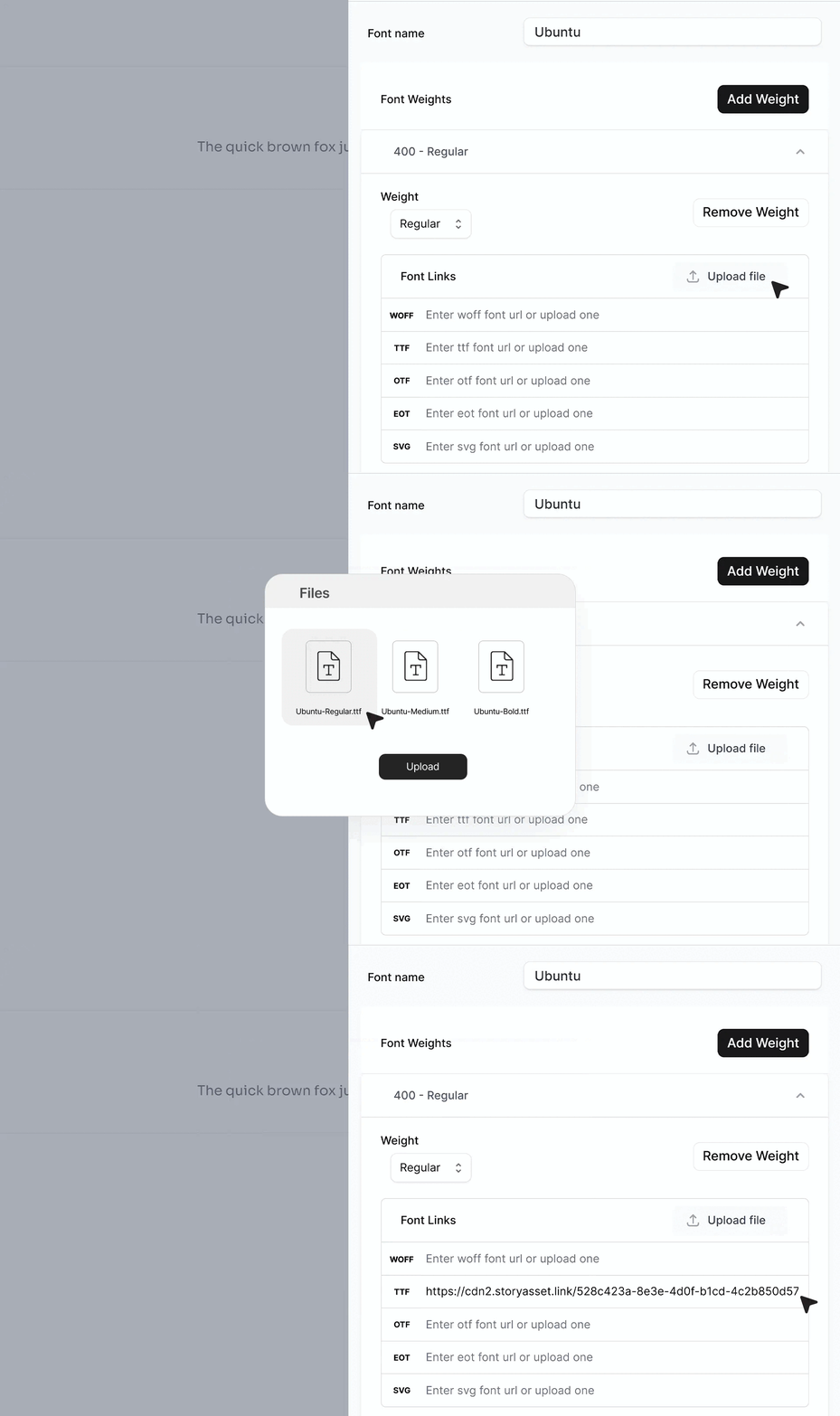
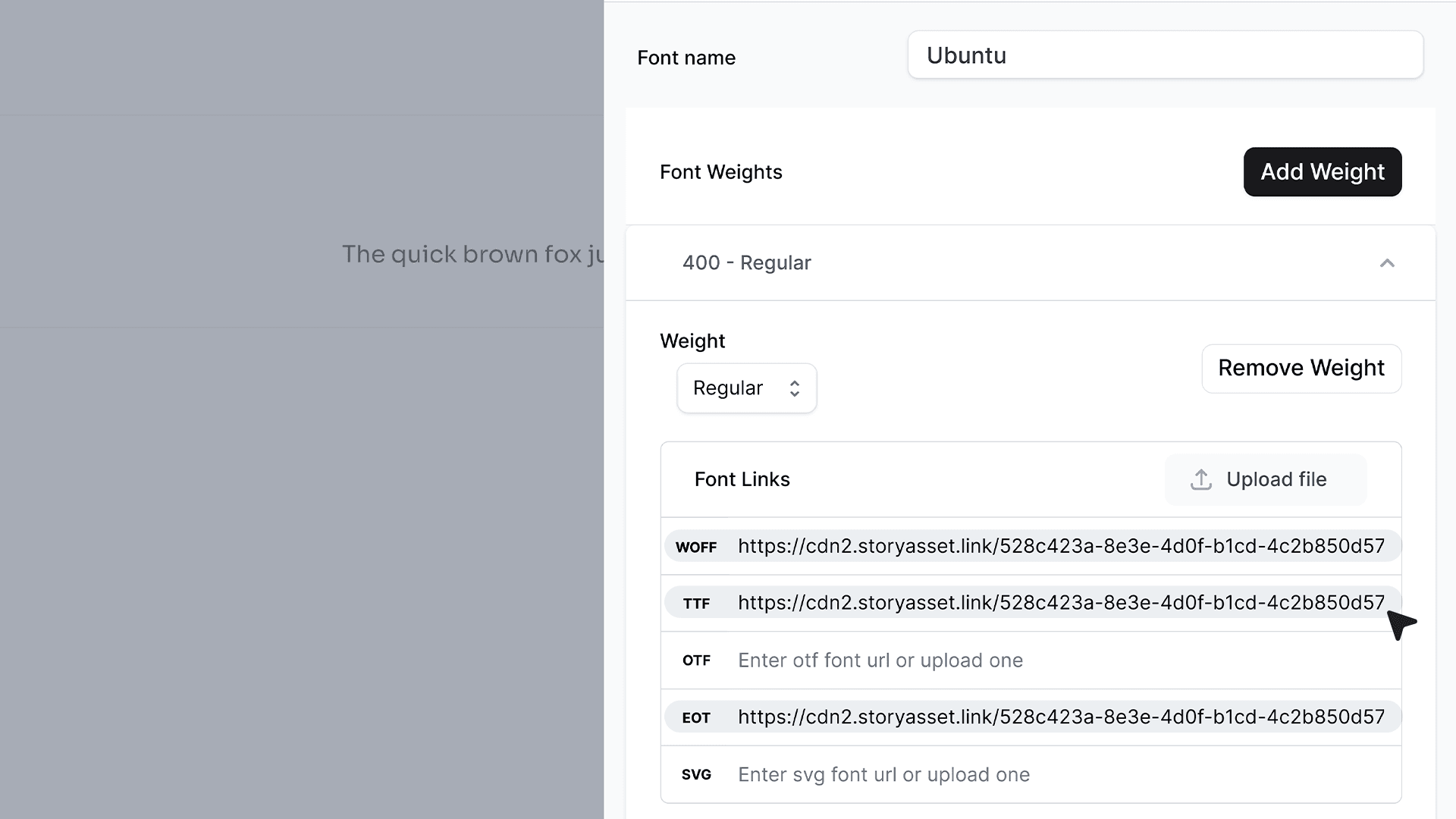
- In this example, we have uploaded .woff, .ttf, and .eot versions of the Ubuntu font to ensure compatibility across different browsers and platforms.
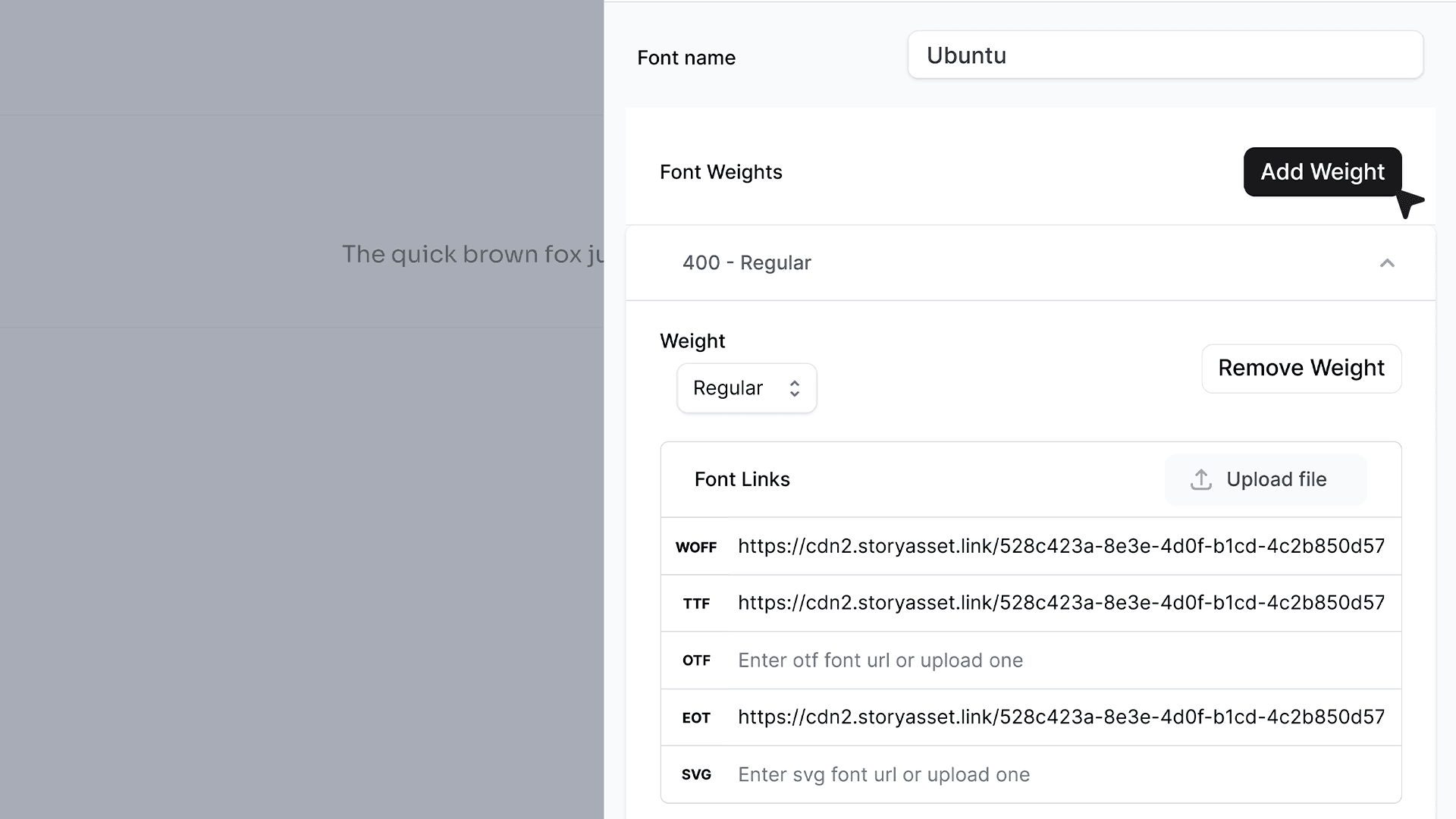
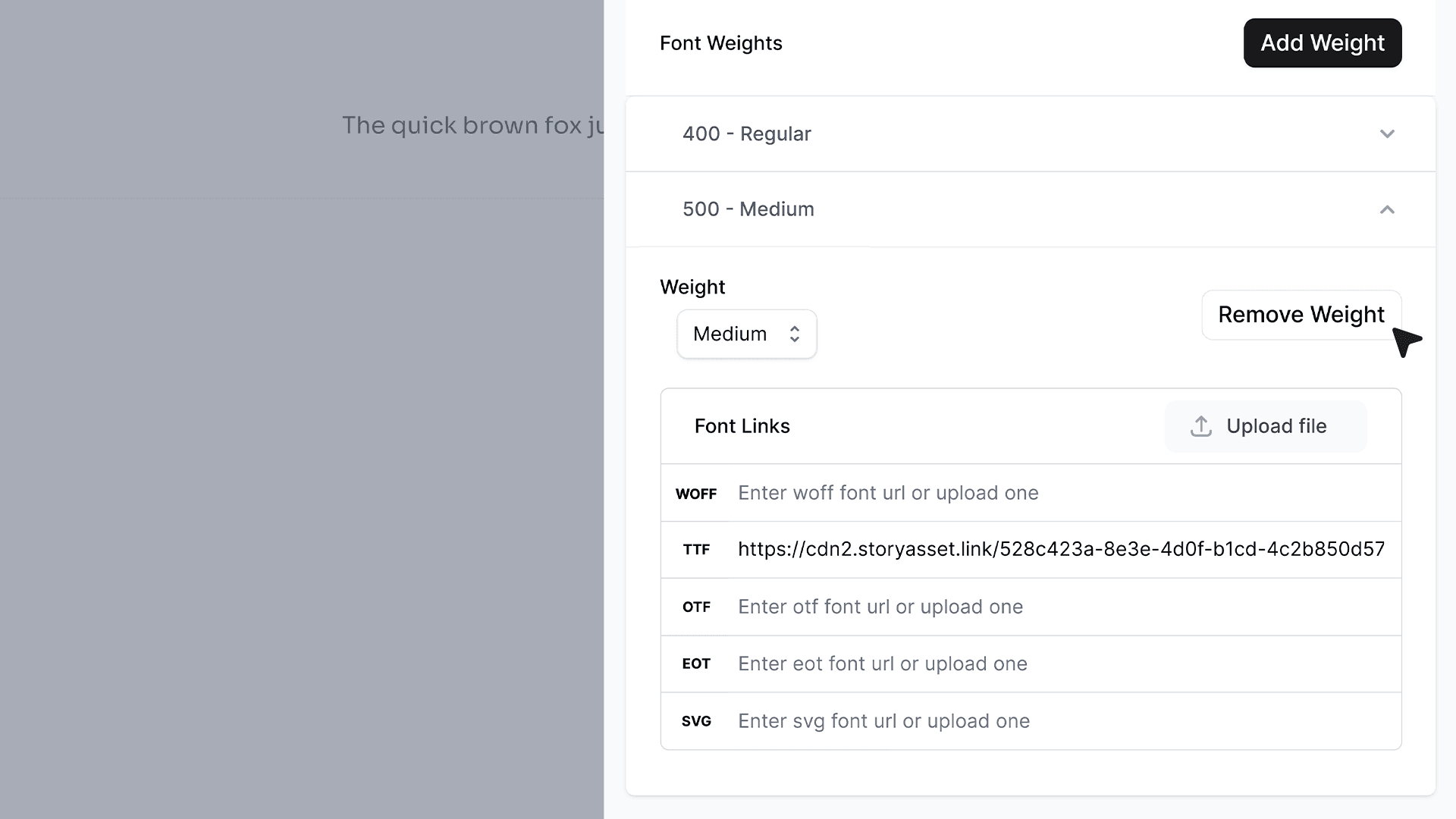
- If your font includes additional weights such as Medium, Bold, or Light, click Add Weight to create them.
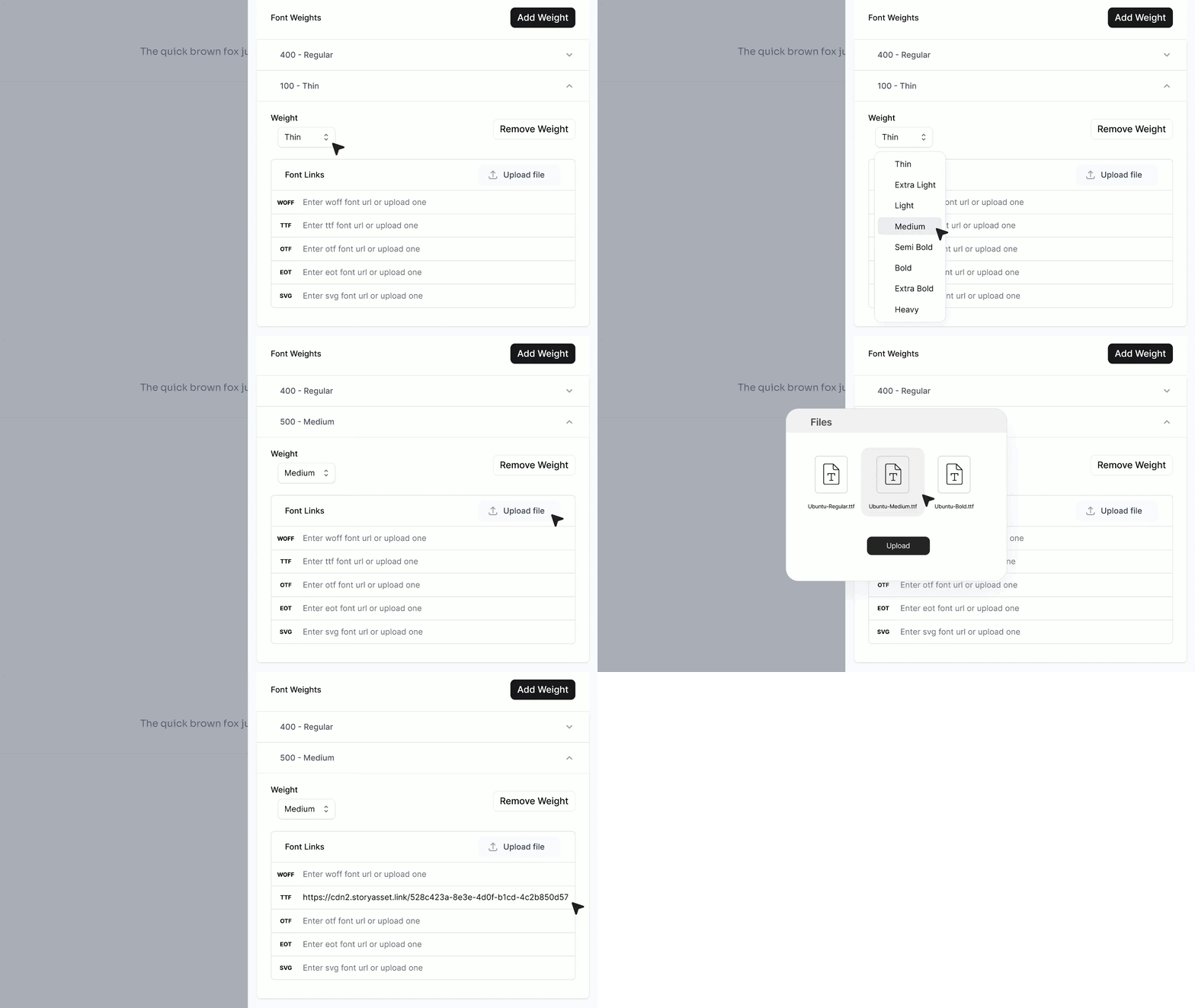
- For each added weight, choose the weight type from the dropdown and upload the respective font file.
- You can remove any specific weight by clicking Remove Weight next to it.
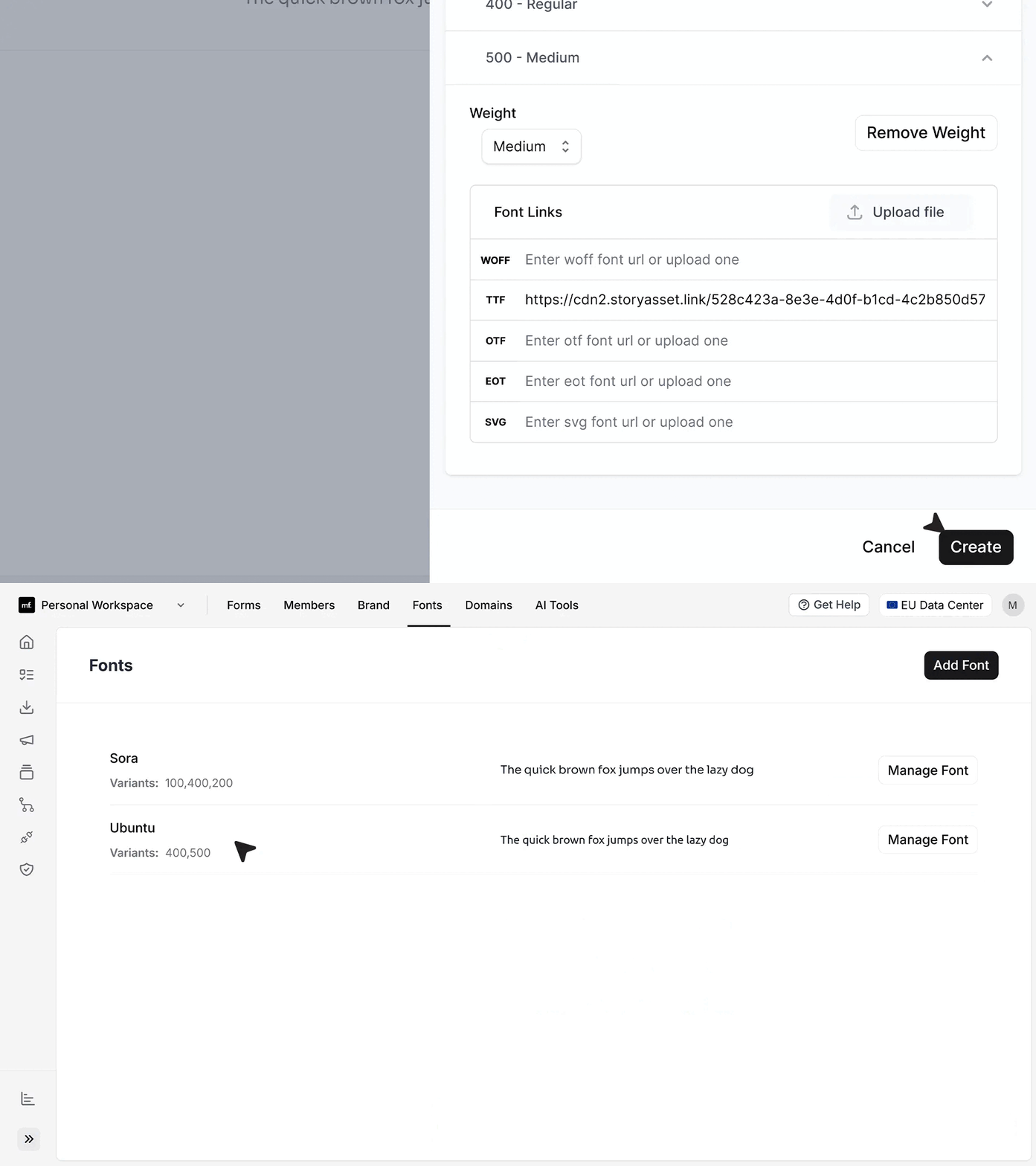
- Once all required font weights are uploaded, click Create to save your font. Once created, you can observe that the Ubuntu font has been successfully added to your workspace and is now available for use in your forms.
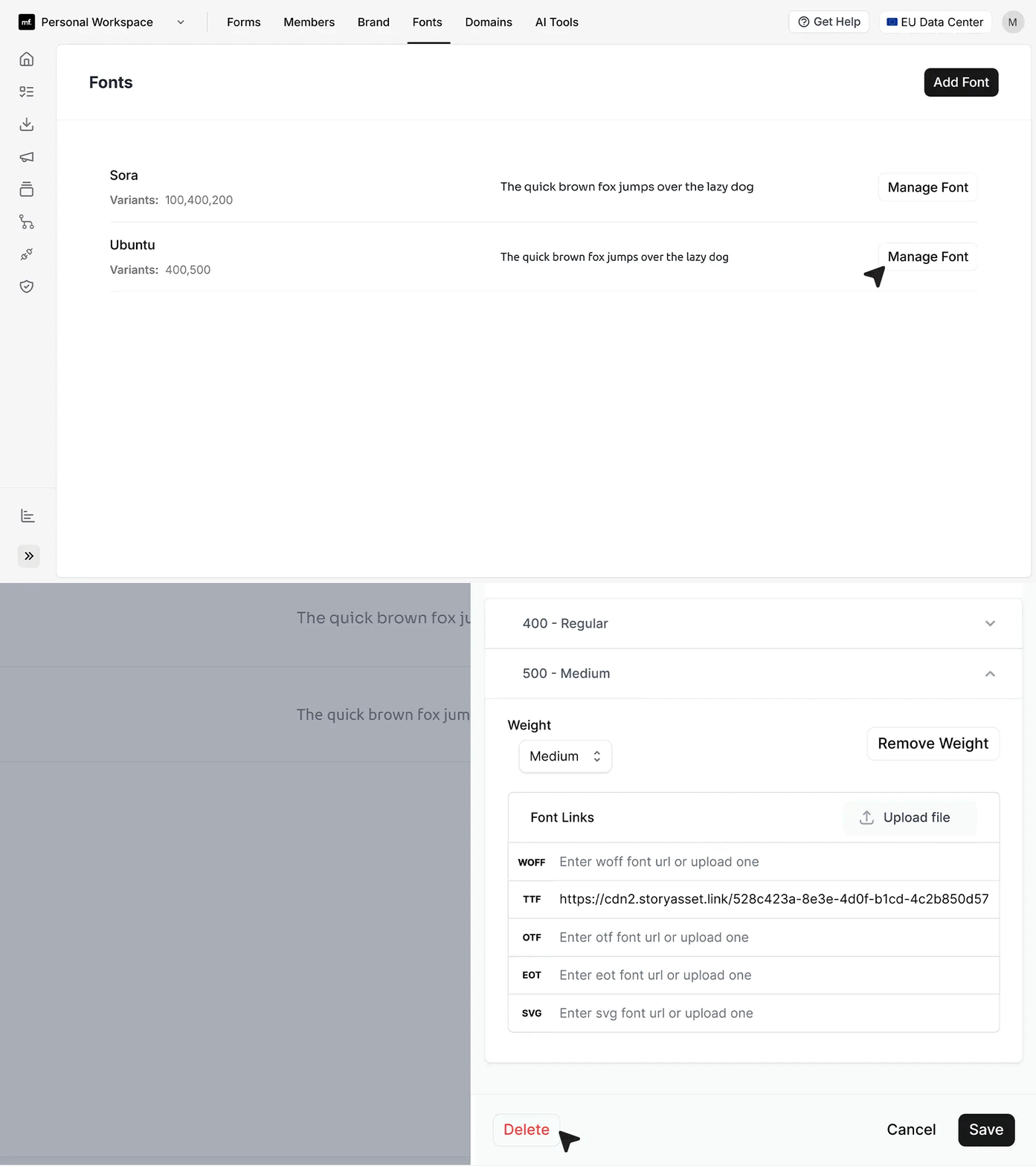
- To delete a font, go to Manage Font and click Delete. This action will permanently remove the font along with all its associated weights.
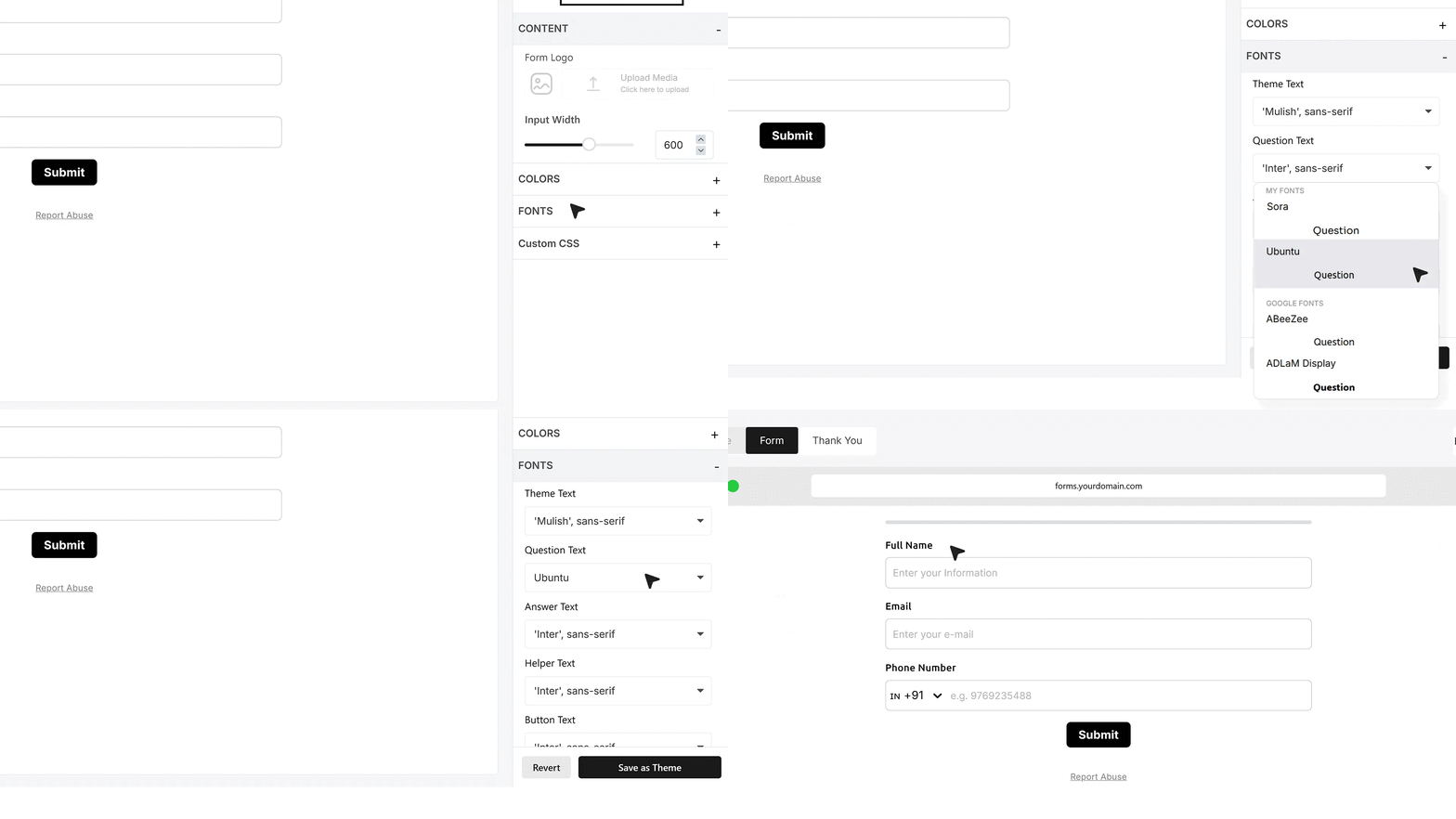
- To apply your custom font, open any form and navigate to the Design tab.
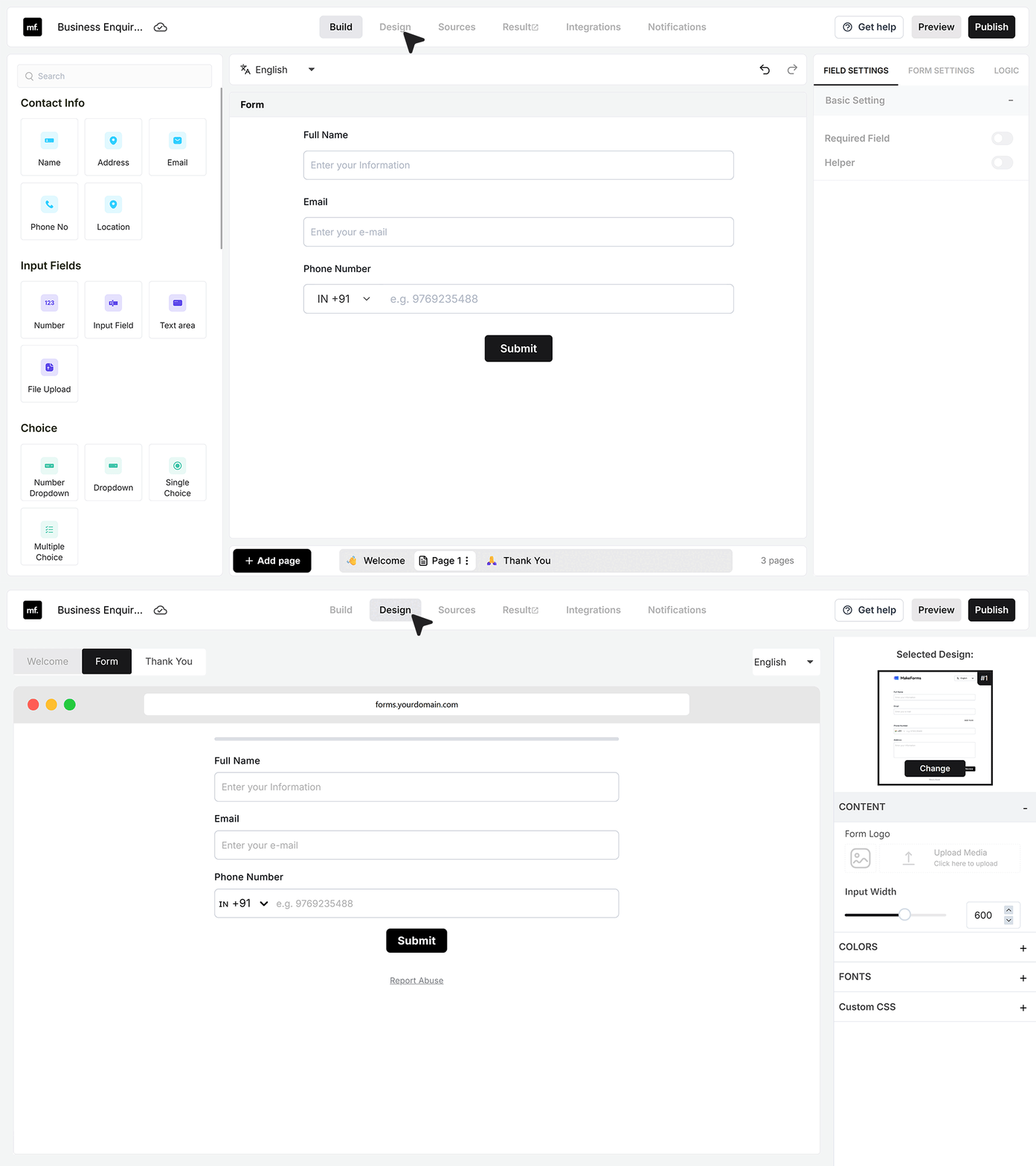
- Under Fonts, you’ll find your uploaded fonts listed under My Fonts. Select your font, and it will instantly update your form’s text.