Brand settings in MakeForms
Brand settings help you keep every form in line with your visual style. You can set your fonts, logo, favicon, and main brand color in one place, then use the same look across all new forms
- In your workspace, look at the top bar and select Brand. This will open your branding dashboard. Everything you need to control your workspace style lives here.
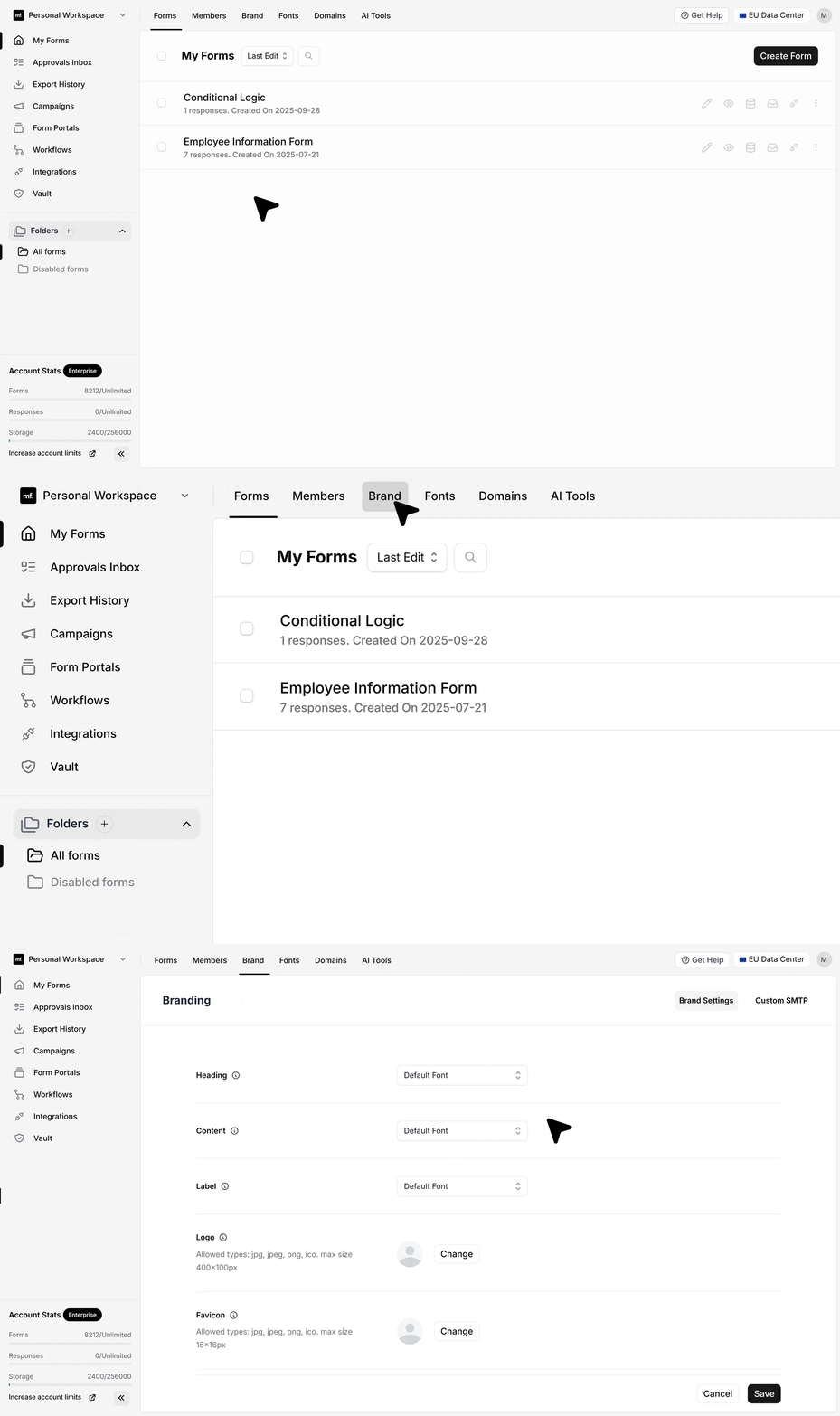
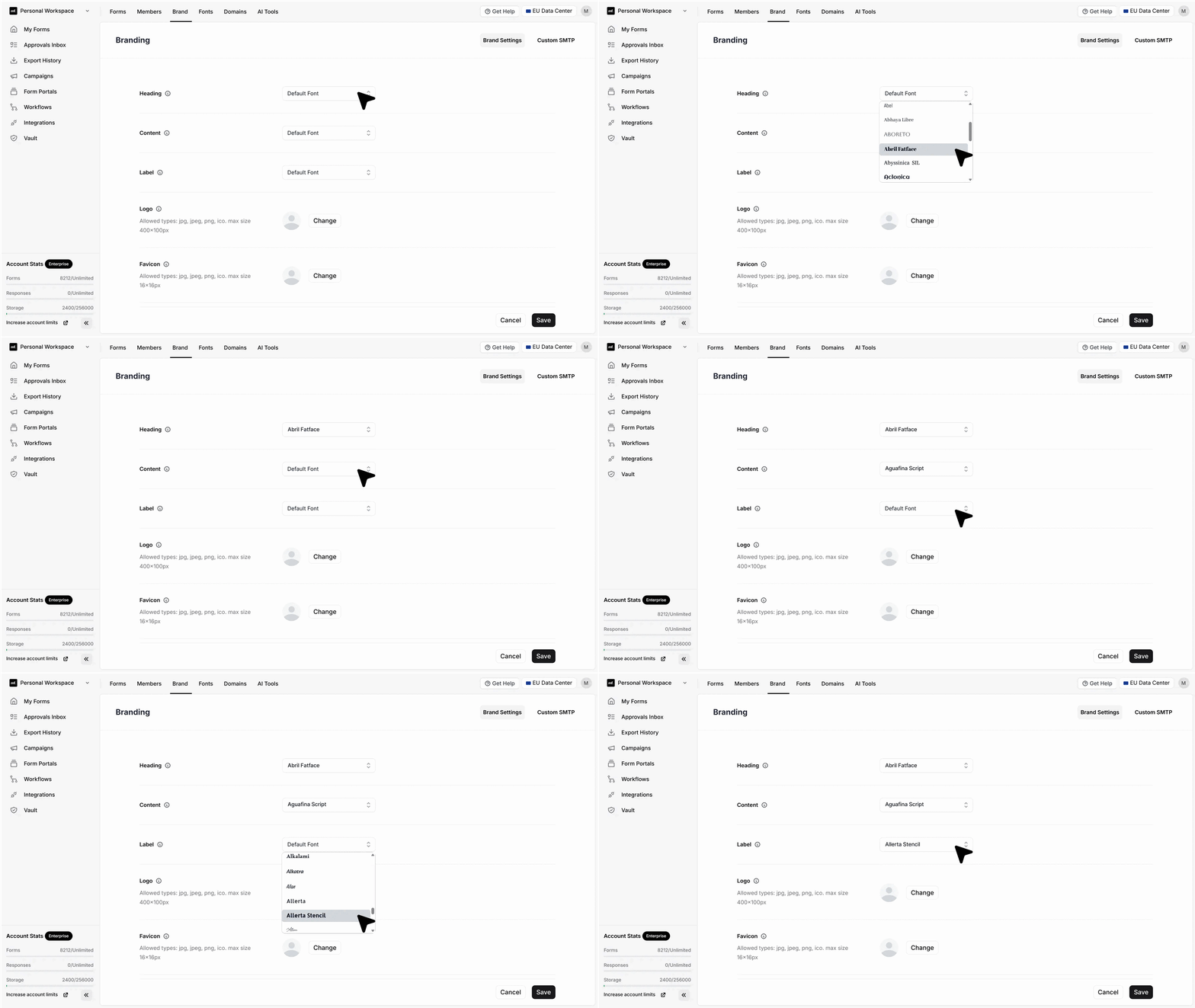
- There are three font fields on this page: heading font, content font, and label font. You can pick the same font for all three if you want a uniform style, or choose different ones to create contrast. The moment you save, your workspace theme updates.
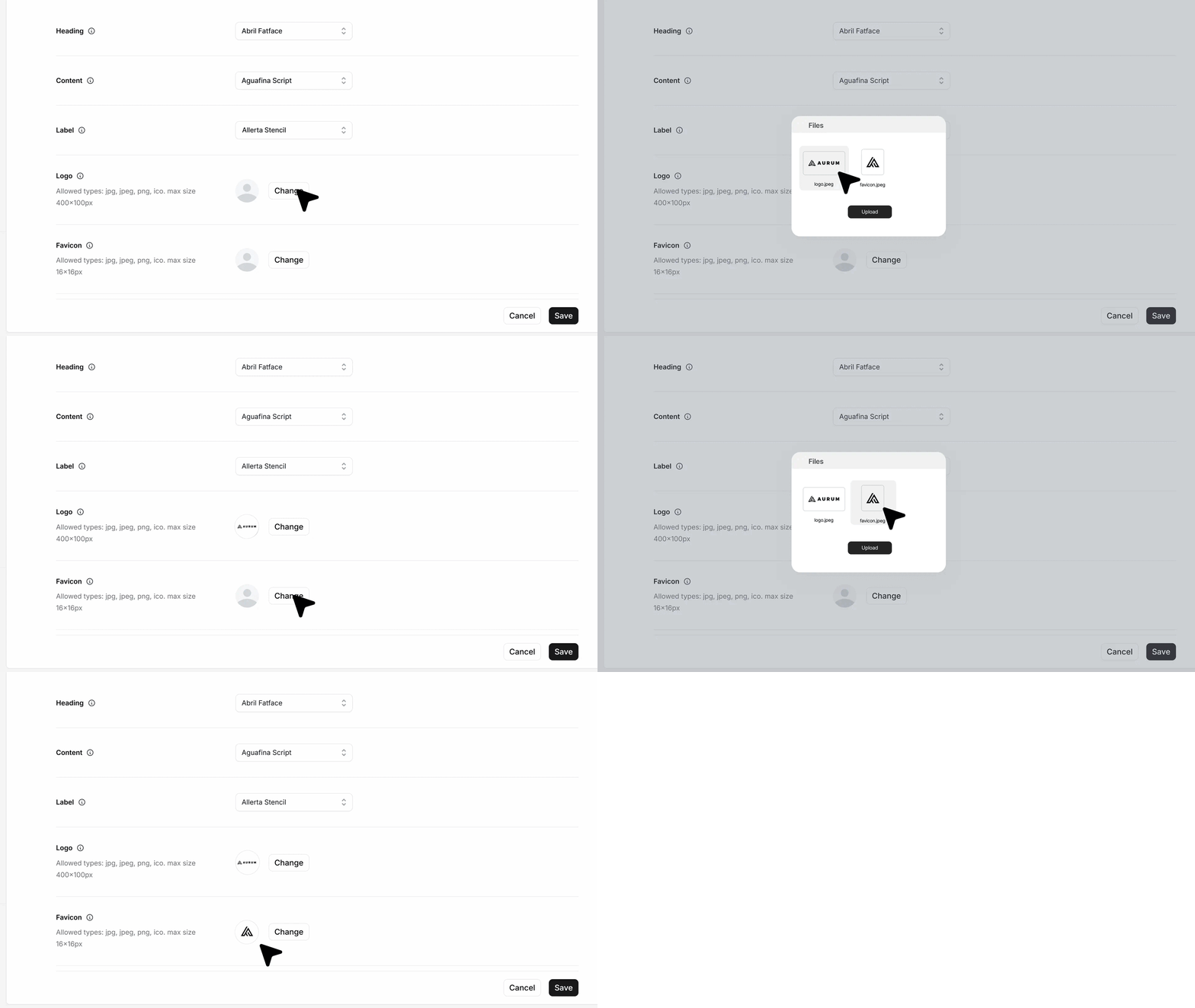
- You can upload your logo so it appears on your forms. You can also upload your favicon, which is the small icon shown in the browser tab. Click upload, select your files, and save. Your changes take effect right away.
- If you turn on Use above as Default styling, MakeForms will apply these brand settings to every new form you create in this workspace. This will not update any form you already built. Older forms will keep their current styling unless you edit them one by one.
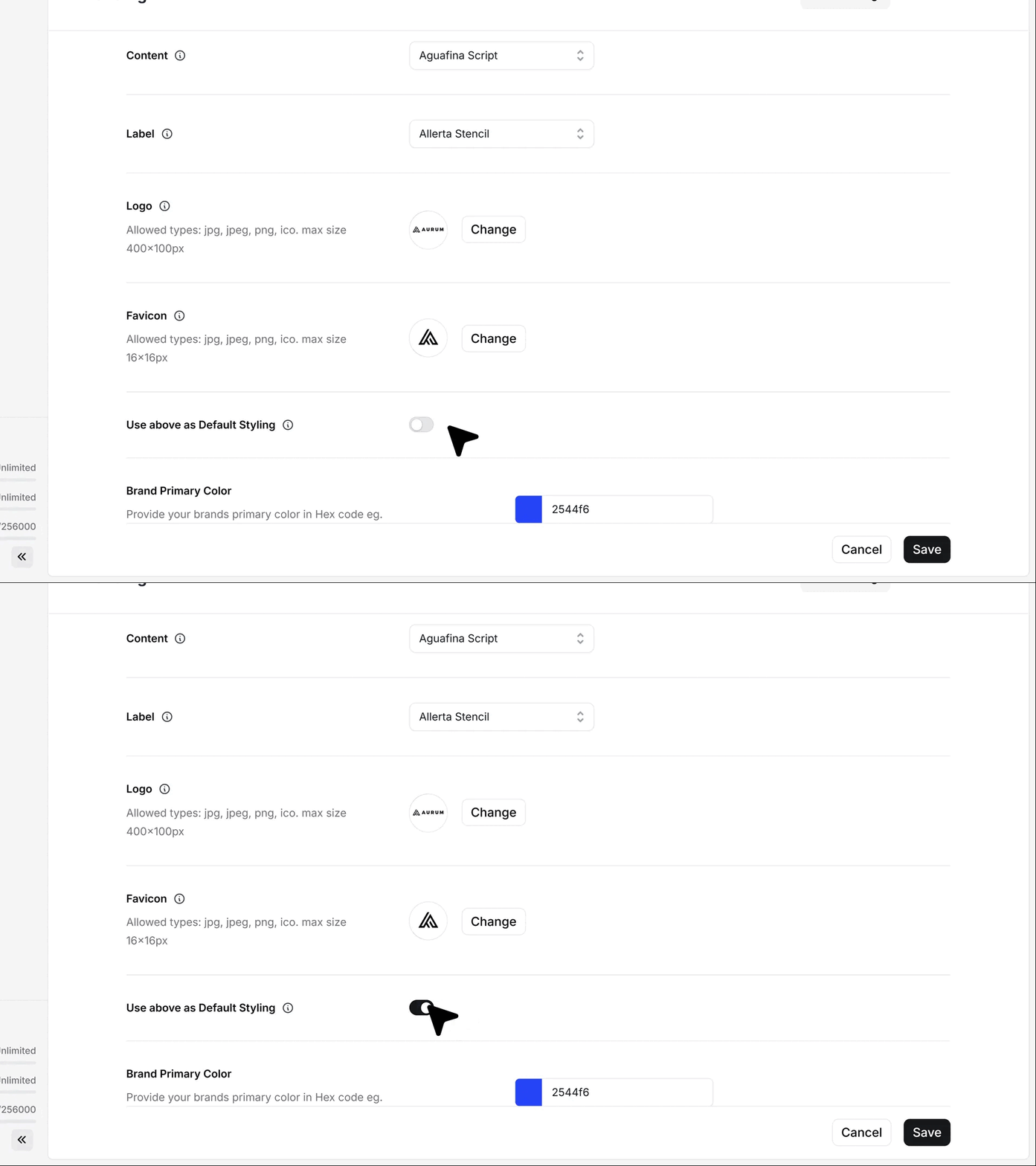
- Your brand color sets the tone for your forms. It is used for buttons, highlights, and key form elements. Select the shade that matches your brand identity.