
 Form Builder
 OTP Verification Forms
 PDF Forms
%22%3E%20%3Cpath%20d%3D%22M16.3464%2010.3097C16.1306%2010.3097%2015.9147%2010.233%2015.7112%2010.1695C15.3045%2010.0427%2014.8437%209.89891%2014.3235%2010.1085C14.222%2010.1492%2014.1077%2010.072%2014.1077%209.96304V8.49583C14.1077%208.45428%2014.1243%208.41445%2014.1536%208.38505C14.9567%207.58171%2015.6825%208.04348%2016.3845%208.48995C16.8981%208.81663%2017.4291%209.1546%2018.038%209.06562C18.1341%209.05175%2018.2093%209.12403%2018.2122%209.21818C18.2158%209.33155%2018.1127%209.45369%2018.0405%209.53099C17.8874%209.69476%2017.6725%209.75427%2017.4531%209.75113C17.5072%209.81793%2017.5818%209.89115%2017.5435%209.98523C17.5143%2010.0568%2017.4299%2010.0873%2017.36%2010.1018C17.1198%2010.1517%2016.8839%2010.0756%2016.6694%209.97104C16.7123%2010.0608%2016.7449%2010.1872%2016.6526%2010.2587C16.5713%2010.3216%2016.4432%2010.3097%2016.3464%2010.3097Z%22%20fill%3D%22%235B49E9%22%2F%3E%20%3Cpath%20d%3D%22M10.6778%2010.2488C10.5855%2010.1773%2010.6182%2010.051%2010.661%209.96119C10.4465%2010.0658%2010.2106%2010.1418%209.97044%2010.092C9.90051%2010.0775%209.81615%2010.047%209.78691%209.97538C9.74857%209.8813%209.82328%209.80815%209.8773%209.74128C9.65794%209.74442%209.44298%209.68491%209.28995%209.52114C9.21774%209.44384%209.11465%209.3217%209.11818%209.20833C9.12108%209.11418%209.19634%209.0419%209.29238%209.05577C9.90129%209.14475%2010.4324%208.80678%2010.9459%208.4801C11.6478%208.03355%2012.3737%207.57186%2013.1768%208.3752C13.2061%208.4046%2013.2227%208.44443%2013.2227%208.48598V9.95319C13.2227%2010.0622%2013.1085%2010.1393%2013.0069%2010.0986C12.4868%209.88906%2012.0259%2010.0328%2011.6192%2010.1597C11.4157%2010.2232%2011.1998%2010.2999%2010.984%2010.2999C10.8874%2010.2999%2010.7593%2010.3119%2010.6778%2010.2488Z%22%20fill%3D%22%235B49E9%22%2F%3E%20%3Cpath%20d%3D%22M15.3632%2012.6782C15.3111%2012.4884%2015.1869%2012.332%2015.0312%2012.2148C14.7556%2012.007%2014.3926%2011.8931%2014.0601%2011.8112C13.9831%2011.7923%2013.9054%2011.7785%2013.8274%2011.7681V8.1195C14.2643%208.04541%2014.5982%207.6691%2014.5982%207.21628C14.5982%206.71046%2014.182%206.29895%2013.6704%206.29895C13.1589%206.29895%2012.7426%206.71046%2012.7426%207.21628C12.7426%207.6691%2013.0765%208.04541%2013.5134%208.1195V11.7457C13.4456%2011.7447%2013.3778%2011.7457%2013.3099%2011.7485C13.0812%2011.7581%2012.8465%2011.7924%2012.6186%2011.7557C12.2212%2011.6918%2011.8191%2011.2901%2011.9296%2010.8638C11.972%2010.7002%2012.0789%2010.5584%2012.2046%2010.4485C12.2648%2010.3958%2012.3152%2010.3367%2012.2854%2010.2506C12.2495%2010.1465%2012.1271%2010.1171%2012.0404%2010.1774C11.7572%2010.3741%2011.5694%2010.7478%2011.6002%2011.0901C11.6374%2011.5052%2011.9769%2011.878%2012.3625%2012.0145C12.7304%2012.1447%2013.1269%2012.0649%2013.5133%2012.0627V13.3484C13.4123%2013.3471%2013.3172%2013.3525%2013.2272%2013.3579C12.9859%2013.3727%2012.8115%2013.3833%2012.6425%2013.2538C12.5619%2013.1919%2012.4262%2013.0614%2012.4229%2012.8824C12.4191%2012.6761%2012.5973%2012.5268%2012.633%2012.4989C12.7013%2012.4457%2012.7136%2012.3472%2012.6603%2012.2789C12.607%2012.2106%2012.5083%2012.1983%2012.44%2012.2516C12.3606%2012.3133%2012.1025%2012.5416%2012.109%2012.8881C12.1148%2013.1985%2012.326%2013.4062%2012.4513%2013.5024C12.7135%2013.7033%2012.9844%2013.6868%2013.2464%2013.6708C13.3334%2013.6655%2013.4218%2013.6606%2013.5133%2013.6621V14.7633C13.4409%2014.762%2013.3738%2014.7657%2013.3133%2014.7694C13.1444%2014.7795%2013.052%2014.7817%2012.9594%2014.7108C12.9223%2014.6824%2012.8358%2014.6054%2012.8339%2014.5044C12.8318%2014.3897%2012.9409%2014.3015%2012.9533%2014.2917C13.0217%2014.2385%2013.0341%2014.14%2012.9807%2014.0717C12.9274%2014.0032%2012.8288%2013.9911%2012.7604%2014.0442C12.7028%2014.0891%2012.5152%2014.2551%2012.52%2014.5102C12.5242%2014.7389%2012.6774%2014.8899%2012.7683%2014.9595C12.9583%2015.1052%2013.1485%2015.0936%2013.3325%2015.0824C13.3915%2015.0788%2013.4514%2015.0754%2013.5134%2015.0768V15.8635C13.5134%2015.95%2013.5837%2016.0203%2013.6704%2016.0203C13.7571%2016.0203%2013.8274%2015.95%2013.8274%2015.8635V15.1377C13.9494%2015.1765%2014.1181%2015.2382%2014.1486%2015.3431C14.1715%2015.4222%2014.1182%2015.5188%2014.0844%2015.5694C14.0161%2015.6714%2014.0914%2015.8133%2014.2148%2015.8133C14.2654%2015.8133%2014.3152%2015.7888%2014.3455%2015.7436C14.4579%2015.5756%2014.4941%2015.4069%2014.4502%2015.2557C14.3696%2014.9779%2014.0534%2014.8794%2013.8836%2014.8264L13.8526%2014.8167C13.8441%2014.8139%2013.8359%2014.8121%2013.8275%2014.8097V13.7002C13.8557%2013.7071%2013.8844%2013.7149%2013.9136%2013.7242L13.9626%2013.7396C14.1604%2013.8012%2014.4914%2013.9044%2014.5538%2014.1193C14.5951%2014.2614%2014.5186%2014.4184%2014.4471%2014.5252C14.3789%2014.6273%2014.4541%2014.7691%2014.5775%2014.7691C14.6281%2014.7691%2014.6779%2014.7446%2014.7082%2014.6994C14.8637%2014.4669%2014.9146%2014.2361%2014.8553%2014.0319C14.7459%2013.6552%2014.3141%2013.5205%2014.056%2013.4402L14.0089%2013.4254C13.9462%2013.4055%2013.8862%2013.3913%2013.8275%2013.3798V12.0848C14.0138%2012.1147%2014.1962%2012.174%2014.374%2012.2358C14.5557%2012.299%2014.743%2012.3759%2014.8892%2012.5043C15.0644%2012.6582%2015.1144%2012.8708%2015.0444%2013.0928C15.0249%2013.1547%2014.9982%2013.2142%2014.9675%2013.2712C14.9421%2013.3183%2014.9043%2013.3628%2014.8846%2013.4124C14.8446%2013.5134%2014.9188%2013.6283%2015.0296%2013.6282C15.1588%2013.6282%2015.2224%2013.4661%2015.2702%2013.369C15.3746%2013.1561%2015.4271%2012.9113%2015.3632%2012.6782Z%22%20fill%3D%22%235B49E9%22%2F%3E%20%3Cpath%20d%3D%22M15.0288%2013.6282C14.9989%2013.6283%2015.0794%2013.6282%2015.0288%2013.6282V13.6282Z%22%20fill%3D%22%235B49E9%22%2F%3E%20%3Cpath%20d%3D%22M15.1131%2011.8283C14.9421%2011.8283%2014.899%2011.5821%2015.0597%2011.5241C15.3009%2011.437%2015.4591%2011.2351%2015.4631%2011.0096C15.4667%2010.7958%2015.3265%2010.5944%2015.1057%2010.4965C15.0264%2010.4614%2014.9906%2010.3687%2015.0258%2010.2895C15.061%2010.2104%2015.1539%2010.1749%2015.233%2010.2098C15.5693%2010.3589%2015.7828%2010.6749%2015.777%2011.015C15.7708%2011.3717%2015.5311%2011.6873%2015.1664%2011.8189C15.1488%2011.8253%2015.1308%2011.8283%2015.1131%2011.8283Z%22%20fill%3D%22%235B49E9%22%2F%3E%20%3Cpath%20d%3D%22M13.168%2015.9001C12.9396%2015.9001%2012.7461%2015.6907%2012.79%2015.4613C12.8212%2015.298%2013.0403%2015.075%2013.221%2015.1728C13.3065%2015.2191%2013.3297%2015.3348%2013.2676%2015.41C13.2288%2015.4571%2013.1879%2015.4488%2013.1396%2015.4719C13.0927%2015.4944%2013.0818%2015.5508%2013.1327%2015.5778C13.1765%2015.6012%2013.2299%2015.5784%2013.2769%2015.6057C13.3185%2015.6299%2013.3473%2015.6731%2013.3536%2015.7208C13.3685%2015.835%2013.2706%2015.9001%2013.168%2015.9001Z%22%20fill%3D%22%235B49E9%22%2F%3E%20%3C%2Fg%3E%20%3Cpath%20d%3D%22M8.48837%2020.701V17.9173H9.06381V19.0345H10.2464V17.9173H10.82V20.701H10.2464V19.5277H9.06381V20.701H8.48837Z%22%20fill%3D%22%235B49E9%22%2F%3E%20%3Cpath%20d%3D%22M11.6609%2017.9173V20.701H11.0855V17.9173H11.6609Z%22%20fill%3D%22%235B49E9%22%2F%3E%20%3Cpath%20d%3D%22M11.9226%2020.701V17.9173H13.0212C13.2304%2017.9173%2013.411%2017.9546%2013.563%2018.0293C13.7149%2018.1028%2013.832%2018.2081%2013.9142%2018.3451C13.9977%2018.4809%2014.0394%2018.6428%2014.0394%2018.8309C14.0394%2019.0177%2013.9977%2019.1796%2013.9142%2019.3166C13.8308%2019.4524%2013.7118%2019.5576%2013.5574%2019.6324C13.4042%2019.7071%2013.2229%2019.7444%2013.0137%2019.7444H12.2421V19.2624H12.9838C13.0859%2019.2624%2013.1737%2019.245%2013.2472%2019.2101C13.3207%2019.174%2013.3774%2019.1236%2013.4172%2019.0588C13.4571%2018.994%2013.477%2018.918%2013.477%2018.8309C13.477%2018.7412%2013.4571%2018.6646%2013.4172%2018.601C13.3774%2018.5375%2013.3207%2018.4883%2013.2472%2018.4535C13.1737%2018.4173%2013.0859%2018.3993%2012.9838%2018.3993H12.498V20.701H11.9226Z%22%20fill%3D%22%235B49E9%22%2F%3E%20%3Cpath%20d%3D%22M13.679%2020.701L14.6561%2017.9173H15.3959L16.373%2020.701H15.736L15.2988%2019.3465C15.2452%2019.1684%2015.1898%2018.9853%2015.1325%2018.7972C15.0764%2018.6079%2015.0154%2018.393%2014.9494%2018.1527H15.1082C15.0397%2018.393%2014.9768%2018.6079%2014.9195%2018.7972C14.8635%2018.9853%2014.8074%2019.1684%2014.7514%2019.3465L14.2992%2020.701H13.679ZM14.2992%2020.0938V19.6342H15.7546V20.0938H14.2992Z%22%20fill%3D%22%235B49E9%22%2F%3E%20%3Cpath%20d%3D%22M16.3059%2020.701L17.2831%2017.9173H18.0229L19%2020.701H18.3629L17.9257%2019.3465C17.8722%2019.1684%2017.8168%2018.9853%2017.7595%2018.7972C17.7034%2018.6079%2017.6424%2018.393%2017.5764%2018.1527H17.7352C17.6667%2018.393%2017.6038%2018.6079%2017.5465%2018.7972C17.4904%2018.9853%2017.4344%2019.1684%2017.3783%2019.3465L16.9262%2020.701H16.3059ZM16.9262%2020.0938V19.6342H18.3816V20.0938H16.9262Z%22%20fill%3D%22%235B49E9%22%2F%3E%20%3Cdefs%3E%20%3CclipPath%20id%3D%22clip0_3848_1030%22%3E%20%3Crect%20width%3D%229.7213%22%20height%3D%229.7213%22%20fill%3D%22white%22%20transform%3D%22translate(8.80527%206.29896)%22%2F%3E%20%3C%2FclipPath%3E%20%3C%2Fdefs%3E%20%3C%2Fsvg%3E) HIPAA Forms
HIPAA Forms Lead Generation
 Workflows
%22%3E%3Cpath%20fill-rule%3D%22evenodd%22%20clip-rule%3D%22evenodd%22%20d%3D%22M43.8024%2028.0412C46.3525%2025.3865%2049.9017%2023.7426%2053.8226%2023.7426C59.0506%2023.7426%2063.5814%2026.6471%2066.0212%2030.9746C68.1868%2030.0065%2070.5324%2029.5067%2072.9046%2029.5079C82.3149%2029.5079%2089.9535%2037.2046%2089.9535%2046.702C89.9535%2056.1994%2082.3149%2063.8961%2072.9046%2063.8961C71.7545%2063.8961%2070.6334%2063.7805%2069.5355%2063.5621C67.4008%2067.3669%2063.32%2069.9518%2058.673%2069.9518C56.781%2069.9556%2054.9133%2069.5264%2053.2127%2068.6971C51.0489%2073.7798%2046.0098%2077.3523%2040.1428%2077.3523C34.0145%2077.3523%2028.8156%2073.4894%2026.8116%2068.0582C25.9196%2068.2464%2025.0105%2068.341%2024.0989%2068.3405C16.8088%2068.3405%2010.9128%2062.3574%2010.9128%2055.0092C10.9128%2050.0717%2013.5675%2045.7732%2017.5059%2043.4497C16.6703%2041.5249%2016.2403%2039.4487%2016.2424%2037.3504C16.2424%2028.8695%2023.1259%2022.0151%2031.6068%2022.0151C36.5733%2022.0151%2041.0171%2024.3822%2043.8053%2028.0563%22%20fill%3D%22%2300A1E0%22%2F%3E%3C%2Fg%3E%3Cpath%20fill-rule%3D%22evenodd%22%20clip-rule%3D%22evenodd%22%20d%3D%22M22.4259%2050.6956C22.3763%2050.8251%2022.4436%2050.8521%2022.4596%2050.8751C22.608%2050.9825%2022.7588%2051.0604%2022.9098%2051.1478C23.7172%2051.5748%2024.4782%2051.6996%2025.274%2051.6996C26.8947%2051.6996%2027.9025%2050.837%2027.9025%2049.4487V49.4214C27.9025%2048.1377%2026.764%2047.6701%2025.7009%2047.3361L25.5618%2047.291C24.7573%2047.0302%2024.0631%2046.8031%2024.0631%2046.2745V46.2475C24.0631%2045.7944%2024.4698%2045.4604%2025.0971%2045.4604C25.7942%2045.4604%2026.6248%2045.6924%2027.1563%2045.9861C27.1563%2045.9861%2027.3138%2046.0877%2027.371%2045.9358C27.4021%2045.8536%2027.673%2045.1284%2027.7021%2045.0471C27.7329%2044.962%2027.6788%2044.8978%2027.6234%2044.8647C27.0134%2044.4929%2026.1712%2044.2402%2025.2998%2044.2402L25.1381%2044.2408C23.6539%2044.2408%2022.617%2045.1383%2022.617%2046.422V46.4496C22.617%2047.8031%2023.7614%2048.2446%2024.8302%2048.5495L25.0021%2048.603C25.7805%2048.8423%2026.4543%2049.0502%2026.4543%2049.5963V49.6236C26.4543%2050.126%2026.0158%2050.5007%2025.3129%2050.5007C25.0396%2050.5007%2024.1686%2050.4961%2023.2246%2049.8995C23.1105%2049.833%2023.0454%2049.7851%2022.9574%2049.7313C22.911%2049.7032%2022.7948%2049.6523%2022.7442%2049.8045L22.4248%2050.6933M46.1538%2050.6933C46.1041%2050.8228%2046.1715%2050.8498%2046.1881%2050.8728C46.3359%2050.9802%2046.4872%2051.0581%2046.6383%2051.1455C47.4457%2051.5724%2048.2066%2051.6973%2049.0025%2051.6973C50.6231%2051.6973%2051.6309%2050.8347%2051.6309%2049.4464V49.4191C51.6309%2048.1353%2050.4953%2047.6677%2049.4294%2047.3337L49.2903%2047.2887C48.4858%2047.0279%2047.7916%2046.8008%2047.7916%2046.2722V46.2452C47.7916%2045.7921%2048.1982%2045.4581%2048.8256%2045.4581C49.5226%2045.4581%2050.3504%2045.6901%2050.8848%2045.9838C50.8848%2045.9838%2051.0422%2046.0854%2051.0997%2045.9335C51.1305%2045.8513%2051.4018%2045.1261%2051.4279%2045.0448C51.459%2044.9597%2051.4047%2044.8955%2051.3495%2044.8624C50.7396%2044.4906%2049.8973%2044.2379%2049.026%2044.2379L48.8639%2044.2385C47.3798%2044.2385%2046.3429%2045.136%2046.3429%2046.4197V46.4473C46.3429%2047.8008%2047.4872%2048.2422%2048.556%2048.5472L48.7277%2048.6006C49.509%2048.84%2050.1799%2049.0479%2050.1799%2049.5939V49.6212C50.1799%2050.1237%2049.7413%2050.4984%2049.0385%2050.4984C48.7646%2050.4984%2047.8912%2050.4937%2046.9502%2049.8972C46.836%2049.8307%2046.7692%2049.7848%2046.6827%2049.729C46.6534%2049.7104%2046.5166%2049.657%2046.4698%2049.8022L46.1503%2050.6909M62.3569%2047.9724C62.3569%2048.7566%2062.2106%2049.3752%2061.9242%2049.8138C61.6384%2050.2466%2061.2068%2050.4586%2060.6056%2050.4586C60.0044%2050.4586%2059.5745%2050.2483%2059.2928%2049.8167C59.009%2049.3811%2058.8658%2048.7595%2058.8658%2047.9753C58.8658%2047.1911%2059.0099%2046.5754%2059.2928%2046.1426C59.5739%2045.7128%2060.0015%2045.5066%2060.6056%2045.5066C61.2097%2045.5066%2061.6395%2045.7148%2061.9242%2046.1426C62.2123%2046.5754%2062.3569%2047.1911%2062.3569%2047.9753M63.7104%2046.5202C63.5771%2046.07%2063.3706%2045.675%2063.0947%2045.3439C62.8184%2045.0128%2062.4702%2044.7456%2062.0549%2044.5539C61.6425%2044.3608%2061.1545%2044.2635%2060.6027%2044.2635C60.0508%2044.2635%2059.5658%2044.3614%2059.1505%2044.5539C58.738%2044.7468%2058.3866%2045.0128%2058.1107%2045.3439C57.8354%2045.675%2057.6286%2046.07%2057.495%2046.5202C57.3628%2046.9675%2057.2957%2047.4554%2057.2957%2047.9753C57.2957%2048.4952%2057.3628%2048.9831%2057.495%2049.4304C57.6277%2049.8806%2057.8348%2050.2756%2058.1107%2050.6067C58.3869%2050.9378%2058.738%2051.2021%2059.1505%2051.3909C59.5658%2051.5791%2060.0537%2051.675%2060.6027%2051.675C61.1516%2051.675%2061.6395%2051.5791%2062.052%2051.3909C62.4644%2051.2027%2062.8158%2050.9378%2063.0918%2050.6067C63.3674%2050.2756%2063.5739%2049.8806%2063.7075%2049.4304C63.8393%2048.9831%2063.9064%2048.4952%2063.9064%2047.9753C63.9064%2047.4583%2063.8393%2046.9675%2063.7075%2046.5202M74.8314%2050.2379C74.7869%2050.1063%2074.6586%2050.1559%2074.6586%2050.1559C74.4619%2050.2312%2074.252%2050.3009%2074.0283%2050.3357C73.8029%2050.3712%2073.552%2050.3889%2073.2877%2050.3889C72.6342%2050.3889%2072.1114%2050.194%2071.7396%2049.808C71.365%2049.4217%2071.1559%2048.8002%2071.1588%2047.9579C71.1608%2047.1911%2071.3461%2046.6161%2071.6786%2046.1746C72.0068%2045.7389%2072.5122%2045.5124%2073.1802%2045.5124C73.7379%2045.5124%2074.1648%2045.5771%2074.6121%2045.7171C74.6121%2045.7171%2074.7181%2045.7633%2074.7689%2045.6236C74.8877%2045.2954%2074.9754%2045.0602%2075.1029%2044.7C75.139%2044.5969%2075.0507%2044.5533%2075.0184%2044.5408C74.843%2044.4723%2074.4288%2044.3599%2074.1152%2044.3126C73.8218%2044.2678%2073.482%2044.2446%2073.0986%2044.2446C72.5293%2044.2446%2072.024%2044.3419%2071.5912%2044.5347C71.1585%2044.7273%2070.7925%2044.9936%2070.5021%2045.3247C70.2116%2045.6559%2069.9909%2046.0509%2069.8428%2046.501C69.6961%2046.9483%2069.622%2047.4392%2069.622%2047.9591C69.622%2049.0802%2069.9241%2049.9892%2070.5224%2050.6543C71.1207%2051.3224%2072.0211%2051.6593%2073.1945%2051.6593C73.8886%2051.6593%2074.6002%2051.519%2075.1114%2051.3166C75.1114%2051.3166%2075.209%2051.2695%2075.1666%2051.1556L74.8325%2050.2379M77.1996%2047.2173C77.2644%2046.7816%2077.3838%2046.4185%2077.5714%2046.1368C77.8523%2045.707%2078.2801%2045.4717%2078.8813%2045.4717C79.4825%2045.4717%2079.8804%2045.7081%2080.165%2046.1368C80.3538%2046.42%2080.4363%2046.7961%2080.4671%2047.2173L77.1851%2047.2167L77.1996%2047.2173ZM81.7596%2046.2588C81.6443%2045.8261%2081.3588%2045.3875%2081.1729%2045.1871C80.8766%2044.8705%2080.5891%2044.6469%2080.3016%2044.5249C79.8864%2044.3484%2079.4399%2044.2578%2078.9888%2044.2585C78.4166%2044.2585%2077.8967%2044.3553%2077.4756%2044.5519C77.0544%2044.75%2076.7001%2045.0195%2076.4213%2045.3564C76.1427%2045.6933%2075.9333%2046.0912%2075.7997%2046.5472C75.6661%2046.9974%2075.5987%2047.4911%2075.5987%2048.0081C75.5987%2048.5367%2075.6687%2049.0276%2075.8064%2049.472C75.9455%2049.9192%2076.1695%2050.3113%2076.4715%2050.6366C76.7736%2050.9648%2077.1599%2051.2204%2077.6246%2051.4005C78.0864%2051.5791%2078.6469%2051.6718%2079.2888%2051.6697C80.6132%2051.6654%2081.3103%2051.3706%2081.5949%2051.2108C81.6457%2051.1824%2081.6936%2051.1333%2081.6338%2050.9918L81.3347%2050.1525C81.2888%2050.0273%2081.1621%2050.0726%2081.1621%2050.0726C80.8339%2050.1952%2080.3692%2050.4153%2079.2801%2050.4124C78.5685%2050.4112%2078.0428%2050.2013%2077.7117%2049.8722C77.3748%2049.5353%2077.2063%2049.0444%2077.1802%2048.3474L81.7692%2048.3509C81.7692%2048.3509%2081.89%2048.3497%2081.9025%2048.2318C81.9074%2048.183%2082.0596%2047.2907%2081.7657%2046.2597L81.7596%2046.2588ZM40.5169%2047.2173C40.5817%2046.7816%2040.7014%2046.4185%2040.8887%2046.1368C41.1698%2045.707%2041.5974%2045.4717%2042.1986%2045.4717C42.7998%2045.4717%2043.1977%2045.7081%2043.4823%2046.1368C43.6708%2046.42%2043.7533%2046.7961%2043.7844%2047.2173L40.5024%2047.2167L40.5169%2047.2173ZM45.0768%2046.2588C44.9618%2045.8261%2044.676%2045.3875%2044.4902%2045.1871C44.1939%2044.8705%2043.9064%2044.6469%2043.6188%2044.5249C43.2037%2044.3484%2042.7571%2044.2578%2042.306%2044.2585C41.7339%2044.2585%2041.214%2044.3553%2040.7928%2044.5519C40.3717%2044.75%2040.0174%2045.0195%2039.7385%2045.3564C39.4606%2045.6933%2039.2506%2046.0912%2039.117%2046.5472C38.9837%2046.9974%2038.9166%2047.4911%2038.9166%2048.0081C38.9166%2048.5367%2038.986%2049.0276%2039.1245%2049.472C39.2634%2049.9192%2039.4876%2050.3113%2039.7868%2050.6366C40.0888%2050.9648%2040.4751%2051.2204%2040.9398%2051.4005C41.4016%2051.5791%2041.9593%2051.6718%2042.604%2051.6697C43.9284%2051.6654%2044.6255%2051.3706%2044.9101%2051.2108C44.9607%2051.1824%2045.0089%2051.1333%2044.9488%2050.9918L44.6496%2050.1525C44.6034%2050.0273%2044.4768%2050.0726%2044.4768%2050.0726C44.1486%2050.1952%2043.6839%2050.4153%2042.5947%2050.4124C41.8861%2050.4112%2041.3575%2050.2013%2041.0264%2049.8722C40.6894%2049.5353%2040.521%2049.0444%2040.4948%2048.3474L45.0838%2048.3509C45.0838%2048.3509%2045.2046%2048.3497%2045.2171%2048.2318C45.2221%2048.183%2045.3743%2047.2907%2045.08%2046.2597L45.0768%2046.2588ZM30.6129%2050.2088C30.4331%2050.0653%2030.4081%2050.0302%2030.3486%2049.937C30.2577%2049.7967%2030.2112%2049.5971%2030.2112%2049.3416C30.2112%2048.9407%2030.3448%2048.6503%2030.6207%2048.4557C30.6178%2048.4563%2031.0157%2048.113%2031.9509%2048.1246C32.3672%2048.1321%2032.7825%2048.1675%2033.194%2048.2306V50.3131H33.1946C33.1946%2050.3131%2032.6137%2050.4383%2031.9573%2050.4778C31.025%2050.5338%2030.6126%2050.2094%2030.6155%2050.2103L30.6129%2050.2088ZM32.4368%2046.9849C32.251%2046.9713%2032.0099%2046.9646%2031.7224%2046.9646C31.3303%2046.9646%2030.9498%2047.0134%2030.5955%2047.1092C30.2382%2047.2056%2029.9158%2047.3549%2029.6399%2047.5536C29.3632%2047.751%2029.1357%2048.0094%2028.9748%2048.3087C28.8124%2048.6108%2028.7297%2048.9651%2028.7297%2049.3659C28.7297%2049.7726%2028.8002%2050.124%2028.9396%2050.4115C29.0763%2050.6967%2029.2819%2050.9433%2029.538%2051.1289C29.7927%2051.3142%2030.1072%2051.4513%2030.4703%2051.5326C30.8304%2051.6148%2031.237%2051.6564%2031.6843%2051.6564C32.1548%2051.6564%2032.6224%2051.6169%2033.0755%2051.5405C33.4614%2051.4739%2033.8459%2051.3992%2034.2286%2051.3163C34.3814%2051.2811%2034.551%2051.2349%2034.551%2051.2349C34.6642%2051.2062%2034.6555%2051.0851%2034.6555%2051.0851L34.6529%2046.9027C34.6529%2045.9849%2034.4078%2045.3024%2033.9239%2044.8812C33.4418%2044.4601%2032.736%2044.2481%2031.8211%2044.2481C31.4784%2044.2481%2030.9236%2044.2946%2030.5925%2044.3611C30.5925%2044.3611%2029.5934%2044.5551%2029.181%2044.878C29.181%2044.878%2029.0904%2044.9338%2029.1398%2045.0602L29.4651%2045.9315C29.5054%2046.0445%2029.6155%2046.0058%2029.6155%2046.0058C29.6155%2046.0058%2029.6501%2045.9922%2029.6907%2045.9681C30.5708%2045.4888%2031.6861%2045.5034%2031.6861%2045.5034C32.1798%2045.5034%2032.5632%2045.6036%2032.8188%2045.7996C33.0688%2045.9916%2033.1964%2046.2818%2033.1964%2046.8917V47.0854C32.8043%2047.0285%2032.4412%2046.9957%2032.4412%2046.9957L32.4368%2046.9849ZM69.3229%2044.6236C69.3295%2044.6083%2069.3329%2044.5918%2069.333%2044.5751C69.3331%2044.5585%2069.3299%2044.5419%2069.3235%2044.5265C69.317%2044.5111%2069.3076%2044.4972%2069.2957%2044.4855C69.2837%2044.4739%2069.2696%2044.4647%2069.254%2044.4587C69.1759%2044.429%2068.7864%2044.3468%2068.4873%2044.3282C67.9122%2044.2922%2067.5927%2044.3892%2067.3052%2044.5182C67.0211%2044.6463%2066.7069%2044.8522%2066.5326%2045.0904L66.532%2044.5327C66.532%2044.456%2066.4777%2044.3942%2066.4005%2044.3942H65.2271C65.151%2044.3942%2065.0958%2044.456%2065.0958%2044.5327V51.3581C65.0959%2051.395%2065.1106%2051.4303%2065.1366%2051.4564C65.1627%2051.4824%2065.198%2051.4971%2065.2349%2051.4972H66.4373C66.4742%2051.4971%2066.5095%2051.4824%2066.5355%2051.4564C66.5616%2051.4303%2066.5762%2051.3949%2066.5762%2051.3581V47.9309C66.5762%2047.472%2066.6267%2047.016%2066.7275%2046.7285C66.8268%2046.4441%2066.9619%2046.2173%2067.1283%2046.0546C67.2871%2045.8975%2067.4813%2045.781%2067.6947%2045.7148C67.8949%2045.6574%2068.1021%2045.6282%2068.3104%2045.6283C68.55%2045.6283%2068.8129%2045.6898%2068.8129%2045.6898C68.9012%2045.6997%2068.9502%2045.6457%2068.9802%2045.5661C69.0589%2045.3567%2069.2822%2044.7296%2069.3258%2044.6047%22%20fill%3D%22%23FFFFFE%22%2F%3E%3Cpath%20fill-rule%3D%22evenodd%22%20clip-rule%3D%22evenodd%22%20d%3D%22M58.0926%2041.4735C57.9439%2041.4286%2057.7927%2041.3927%2057.6398%2041.366C57.434%2041.3317%2057.2256%2041.3156%2057.0171%2041.3178C56.1884%2041.3178%2055.5352%2041.5519%2055.0766%2042.0143C54.6212%2042.4732%2054.3113%2043.1723%2054.1559%2044.0921L54.0999%2044.4026H53.0598C53.0598%2044.4026%2052.9329%2044.3974%2052.9061%2044.5359L52.7354%2045.4886C52.7235%2045.5798%2052.7627%2045.6367%2052.8847%2045.6361H53.8971L52.8698%2051.3703C52.7894%2051.8321%2052.6973%2052.212%2052.5954%2052.4998C52.4949%2052.7839%2052.3967%2052.9968%2052.2759%2053.1513C52.1588%2053.3008%2052.0479%2053.4109%2051.8565%2053.4751C51.6985%2053.5283%2051.5167%2053.5527%2051.3174%2053.5527C51.2065%2053.5527%2051.0589%2053.5341%2050.95%2053.5123C50.8411%2053.4908%2050.7845%2053.4664%2050.7029%2053.4321C50.7029%2053.4321%2050.5841%2053.3868%2050.5373%2053.5059C50.4993%2053.6032%2050.2294%2054.3453%2050.1975%2054.4371C50.165%2054.5277%2050.2106%2054.5991%2050.2681%2054.6197C50.4028%2054.668%2050.503%2054.6987%2050.6866%2054.742C50.9416%2054.8021%2051.1565%2054.8059%2051.3578%2054.8059C51.7795%2054.8059%2052.1638%2054.7467%2052.4824%2054.6316C52.803%2054.5158%2053.0822%2054.3139%2053.329%2054.0406C53.5959%2053.7458%2053.7638%2053.4371%2053.9244%2053.0159C54.0833%2052.5986%2054.2187%2052.0804%2054.327%2051.4766L55.3592%2045.6361H56.8683C56.8683%2045.6361%2056.9956%2045.6407%2057.022%2045.5028L57.1928%2044.5501C57.2047%2044.4589%2057.1658%2044.402%2057.0432%2044.4026H55.5785C55.5858%2044.3695%2055.6523%2043.8542%2055.8204%2043.3692C55.8922%2043.1621%2056.0272%2042.9951%2056.1417%2042.8804C56.2485%2042.7711%2056.3801%2042.6892%2056.5253%2042.6417C56.6845%2042.5924%2056.8504%2042.5685%2057.0171%2042.5708C57.155%2042.5708%2057.2904%2042.5873%2057.3935%2042.6088C57.5355%2042.639%2057.5907%2042.655%2057.6279%2042.6661C57.7771%2042.7117%2057.7972%2042.6675%2057.8265%2042.5952L58.1768%2041.6332C58.2128%2041.5298%2058.1251%2041.4863%2058.0926%2041.4735ZM37.624%2051.3825C37.624%2051.4592%2037.5694%2051.5216%2037.4927%2051.5216H36.2778C36.2008%2051.5216%2036.1462%2051.4592%2036.1462%2051.3825V41.6039C36.1462%2041.5275%2036.2008%2041.4657%2036.2778%2041.4657H37.4927C37.5694%2041.4657%2037.624%2041.5275%2037.624%2041.6039V51.3825Z%22%20fill%3D%22%23FFFFFE%22%2F%3E%3C%2Fsvg%3E) Salesforce forms
Salesforce forms Conditional Logic
 Collaboration
 KYC Forms
 Form Embeds
%22%3E%20%3Cpath%20d%3D%22M20.5117%2014.3242L17.4492%2013.2824C17.3582%2013.2509%2017.259%2013.2509%2017.168%2013.2824L14.1055%2014.3242C13.9276%2014.3843%2013.8086%2014.5506%2013.8086%2014.7384V17.0822C13.8086%2019.9429%2017.0017%2021.3336%2017.1377%2021.3913C17.1925%2021.4141%2017.2502%2021.4257%2017.3086%2021.4257C17.3669%2021.4257%2017.4247%2021.4141%2017.4795%2021.3907C17.6154%2021.333%2020.8086%2019.9429%2020.8086%2017.0822V14.7384C20.8086%2014.5506%2020.6896%2014.3843%2020.5117%2014.3242ZM19.2254%2016.5362L17.6212%2018.5779C17.4171%2018.8386%2017.0344%2018.8766%2016.783%2018.6607L15.7622%2017.7857C15.5172%2017.5763%2015.4886%2017.2076%2015.6992%2016.9632C15.9086%2016.7188%2016.2772%2016.6908%2016.5211%2016.9002L17.0799%2017.3791L18.3078%2015.8164C18.5067%2015.5632%2018.8731%2015.5183%2019.1268%2015.7184C19.3806%2015.9161%2019.4249%2016.2831%2019.2254%2016.5362Z%22%20fill%3D%22%235B49E9%22%2F%3E%20%3Cpath%20d%3D%22M17.8919%207.42572H8.55858C7.592%207.42572%206.80858%208.20914%206.80858%209.17572C6.80858%2010.1423%207.592%2010.9257%208.55858%2010.9257H17.8919C18.8585%2010.9257%2019.6419%2010.1423%2019.6419%209.17572C19.6419%208.20914%2018.8585%207.42572%2017.8919%207.42572ZM8.55858%209.75905C8.23658%209.75905%207.97525%209.49772%207.97525%209.17572C7.97525%208.85372%208.23658%208.59239%208.55858%208.59239C8.88058%208.59239%209.14191%208.85372%209.14191%209.17572C9.14191%209.49772%208.88058%209.75905%208.55858%209.75905ZM10.8919%209.75905C10.5699%209.75905%2010.3086%209.49772%2010.3086%209.17572C10.3086%208.85372%2010.5699%208.59239%2010.8919%208.59239C11.2139%208.59239%2011.4752%208.85372%2011.4752%209.17572C11.4752%209.49772%2011.2139%209.75905%2010.8919%209.75905Z%22%20fill%3D%22%235B49E9%22%2F%3E%20%3Cpath%20d%3D%22M8.55858%2012.0924C7.59025%2012.0924%206.80858%2012.874%206.80858%2013.8424C6.80858%2014.8107%207.59025%2015.5924%208.55858%2015.5924H12.6419V14.7407C12.6419%2014.0524%2013.0794%2013.4399%2013.7327%2013.2182L16.7894%2012.1799C16.9586%2012.1215%2017.1336%2012.0924%2017.3086%2012.0924H8.55858ZM8.55858%2014.4257C8.23775%2014.4257%207.97525%2014.1632%207.97525%2013.8424C7.97525%2013.5215%208.23775%2013.259%208.55858%2013.259C8.87941%2013.259%209.14191%2013.5215%209.14191%2013.8424C9.14191%2014.1632%208.87941%2014.4257%208.55858%2014.4257ZM10.8919%2014.4257C10.5711%2014.4257%2010.3086%2014.1632%2010.3086%2013.8424C10.3086%2013.5215%2010.5711%2013.259%2010.8919%2013.259C11.2127%2013.259%2011.4752%2013.5215%2011.4752%2013.8424C11.4752%2014.1632%2011.2127%2014.4257%2010.8919%2014.4257Z%22%20fill%3D%22%235B49E9%22%2F%3E%20%3Cpath%20d%3D%22M12.6419%2017.0799V16.7591H8.55858C7.59025%2016.7591%206.80858%2017.5407%206.80858%2018.5091C6.80858%2019.4774%207.59025%2020.2591%208.55858%2020.2591H13.7911C13.1202%2019.4074%2012.6419%2018.3399%2012.6419%2017.0799ZM8.55858%2019.0924C8.23775%2019.0924%207.97525%2018.8299%207.97525%2018.5091C7.97525%2018.1882%208.23775%2017.9257%208.55858%2017.9257C8.87941%2017.9257%209.14191%2018.1882%209.14191%2018.5091C9.14191%2018.8299%208.87941%2019.0924%208.55858%2019.0924ZM10.8919%2019.0924C10.5711%2019.0924%2010.3086%2018.8299%2010.3086%2018.5091C10.3086%2018.1882%2010.5711%2017.9257%2010.8919%2017.9257C11.2127%2017.9257%2011.4752%2018.1882%2011.4752%2018.5091C11.4752%2018.8299%2011.2127%2019.0924%2010.8919%2019.0924Z%22%20fill%3D%22%235B49E9%22%2F%3E%20%3C%2Fg%3E%20%3Cdefs%3E%20%3CclipPath%20id%3D%22clip0_3848_1105%22%3E%20%3Crect%20width%3D%2214%22%20height%3D%2214%22%20fill%3D%22white%22%20transform%3D%22translate(6.80858%207.42572)%22%2F%3E%20%3C%2FclipPath%3E%20%3C%2Fdefs%3E%20%3C%2Fsvg%3E) Data Residency
Data Residency Notifications
 Multi Step Form Builder
Lead forms once existed just to gather data. Now, users expect personalization, in fact, according to McKinsey & Company, 71% of customers now expect personalized interactions from brands, so if your form is not flowing like a conversation, you can say goodbye to a potential lead!
That’s why it’s essential to understand how to leverage the full range of features modern form tools offer. By combining smart logic, step forms, AI, and form analytics, you can design lead forms that truly understand user behavior and help them complete lead forms, happily.
In this article we discuss how to take your lead forms into the future by using form tools already available to you:
Here’s what you can take away:
- How to use smart logic to keep forms relevant
- How to break long forms into simple steps
- How to use pre-fill known info for returning leads
- How to track form analytics to understand user preferences
- How to write like a human, not a form.
The Evolution of Lead Forms
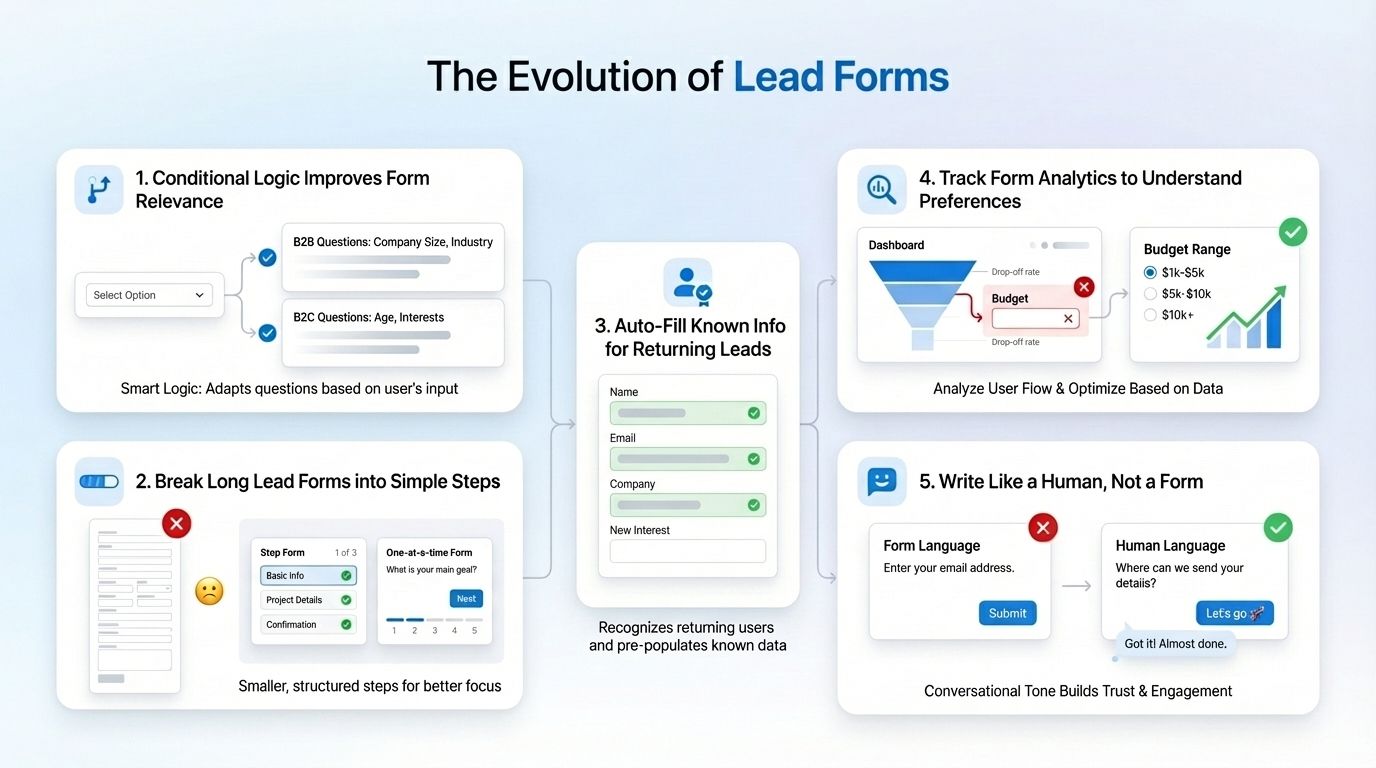
Drag-and-drop builders made it simple to create lead forms, but the structure stayed static and the experience lacked personalization. As user expectations grew, people began to want more context-forms that show only what matters, skip irrelevant fields, and understand their intent.
This shift has led to a new generation of lead forms that do more than collect data. Here are our recommended strategies on creating forms that feel like conversation while bagging you a lead.
1. Conditional Logic Improves Form Relevance
Smart logic, or conditional logic, makes a form truly interactive. It adapts questions based on user input so every response leads to the next relevant step.
Instead of asking everyone the same 10 questions, logic-based lead forms can be preset to show only the questions that apply based on earlier responses.
For instance,
- In a healthcare form: If a patient answers “No” to “Do you have any allergies?”, the allergy details section won’t appear.
- In a real estate form: If a lead selects “Looking to rent”, the form skips all “buying property” questions.
- In an event registration form: If someone chooses “Speaker” as their role, they’ll see extra fields about their topic and bio, not general attendee questions.
This approach is a game changer for the user experience - it saves time and keeps users engaged as if it’s a personalized conversation.
In MakeForms’ form builder, we have a “Logic Builder”
You can easily mark rules that must match, like the examples above. A few simple steps and your team can capture better quality data! Here’s a quick youtube tutorial to see how that works on our platform.
2. Break Long Lead Forms into Simple Steps
A long, scroll-heavy form feels like work. Breaking it into smaller, structured steps helps users focus on one thing at a time. You can choose to do it 2 ways.
- A step form, which breaks forms up into sections. Eg: Basic Info → Project Details → Preferences → Confirmation.
- One-at-a-time form, which shows only 1 question at time. Eg: Shipping Info → Payment Method → Add-ons → Order Summary
This strategy feels less intimidating, more interactive, and easier to complete for potential leads.
3. Auto-Fill Known Info for Returning Leads
A returning visitor shouldn’t have to start from scratch. If your form can recognize a logged-in user or retrieve previous data, auto-fill what you already know, like their name, email, or company.
For example,
Imagine a customer who recently took a home loan from your organization, is receiving a promotional email about a new investment plan beneficial for new home owners.
When they click through, the form already knows their name, city, and income bracket.
Instead of starting with basic details, the form begins with, “Hi Ron, ready to grow your savings after your home investment? Here are a few plans that might fit your profile.”
It’s very simple to execute this on MakeForms, click on the form field, go to settings, and turn on the auto-fill feature.
Here’s a quick tutorial on how to pre-fill what you already know about your customer and acknowledge their journey.
4. Track Form Analytics to Understand User Preferences
Data never lies. Every interaction with your form tells a story. Let’s say, your analytics show that users abandon the form at the “Budget” question, you might want to replace it with a friendly multiple-choice range instead of an open field.
Now that making forms has become easier, you can also spend a lot more time on form analytics to help you see where users hesitate, what fields cause drop-offs, and which steps drive the most completions.
And what’s more, MakeForms presents analytics to you in 2 very convenient ways.
- Summary View which includes graphs, charts, and statistics
- Business Intelligence view which includes pivot tables, where you can sort data by specific criteria like gender, age, income. And you can even use data filters, that lets you hide form information
So you don’t have to go through sheets and sheets of excel cells, MakeForms’s analytics make it easy to understand and improve your lead forms.
5. Write Like a Human, Not a Form
And finally, language defines the tone of your form. Good form language builds connection. It helps users relax, trust your brand, and engage with a lead form more naturally.
Example:
Instead of “Enter your email address,” say “Where can we send your details?”
Swap “Submit” for “Let’s go” or “Get started.”
Add light conversational cues like “Got it,” “Almost done,” or “Thanks for sharing”
Do you see the difference? When your questions sound human, the interaction feels more like a chat than a checklist.
Now imagine doing all of this with one AI prompt
With Makeforms, everything we described above - you can do with one prompt. So you don’t have to actually create these fields one by one.
Here’s an example:
“Create a multi step lead capture form for a financial company promoting a new investment plan for existing home loan customers.
The form should feel conversational and personal, not like a static questionnaire.
Use conditional logic to adapt questions, for example, if the user selects “New customer,” show basic details like name, city, and income; if they select “Existing home loan customer,” skip those and go straight to investment-related questions.
Structure the form as a multi-step flow with these steps, Step 1: Basic Info → Step 2: Financial Goals → Step 3: Risk Preferences → Step 4: Recommended Plans → Step 5: Confirmation.
Enable auto-fill for returning users based on previous data (e.g., name, city, income bracket).
Use friendly, natural language throughout.”
We just turned your lead form into a true connection point, within seconds.
Don’t wait anymore. Transform how you capture leads. Build smarter, AI-powered forms with MakeForms today.