
 Form Builder
 OTP Verification Forms
 PDF Forms
%22%3E%20%3Cpath%20d%3D%22M16.3464%2010.3097C16.1306%2010.3097%2015.9147%2010.233%2015.7112%2010.1695C15.3045%2010.0427%2014.8437%209.89891%2014.3235%2010.1085C14.222%2010.1492%2014.1077%2010.072%2014.1077%209.96304V8.49583C14.1077%208.45428%2014.1243%208.41445%2014.1536%208.38505C14.9567%207.58171%2015.6825%208.04348%2016.3845%208.48995C16.8981%208.81663%2017.4291%209.1546%2018.038%209.06562C18.1341%209.05175%2018.2093%209.12403%2018.2122%209.21818C18.2158%209.33155%2018.1127%209.45369%2018.0405%209.53099C17.8874%209.69476%2017.6725%209.75427%2017.4531%209.75113C17.5072%209.81793%2017.5818%209.89115%2017.5435%209.98523C17.5143%2010.0568%2017.4299%2010.0873%2017.36%2010.1018C17.1198%2010.1517%2016.8839%2010.0756%2016.6694%209.97104C16.7123%2010.0608%2016.7449%2010.1872%2016.6526%2010.2587C16.5713%2010.3216%2016.4432%2010.3097%2016.3464%2010.3097Z%22%20fill%3D%22%235B49E9%22%2F%3E%20%3Cpath%20d%3D%22M10.6778%2010.2488C10.5855%2010.1773%2010.6182%2010.051%2010.661%209.96119C10.4465%2010.0658%2010.2106%2010.1418%209.97044%2010.092C9.90051%2010.0775%209.81615%2010.047%209.78691%209.97538C9.74857%209.8813%209.82328%209.80815%209.8773%209.74128C9.65794%209.74442%209.44298%209.68491%209.28995%209.52114C9.21774%209.44384%209.11465%209.3217%209.11818%209.20833C9.12108%209.11418%209.19634%209.0419%209.29238%209.05577C9.90129%209.14475%2010.4324%208.80678%2010.9459%208.4801C11.6478%208.03355%2012.3737%207.57186%2013.1768%208.3752C13.2061%208.4046%2013.2227%208.44443%2013.2227%208.48598V9.95319C13.2227%2010.0622%2013.1085%2010.1393%2013.0069%2010.0986C12.4868%209.88906%2012.0259%2010.0328%2011.6192%2010.1597C11.4157%2010.2232%2011.1998%2010.2999%2010.984%2010.2999C10.8874%2010.2999%2010.7593%2010.3119%2010.6778%2010.2488Z%22%20fill%3D%22%235B49E9%22%2F%3E%20%3Cpath%20d%3D%22M15.3632%2012.6782C15.3111%2012.4884%2015.1869%2012.332%2015.0312%2012.2148C14.7556%2012.007%2014.3926%2011.8931%2014.0601%2011.8112C13.9831%2011.7923%2013.9054%2011.7785%2013.8274%2011.7681V8.1195C14.2643%208.04541%2014.5982%207.6691%2014.5982%207.21628C14.5982%206.71046%2014.182%206.29895%2013.6704%206.29895C13.1589%206.29895%2012.7426%206.71046%2012.7426%207.21628C12.7426%207.6691%2013.0765%208.04541%2013.5134%208.1195V11.7457C13.4456%2011.7447%2013.3778%2011.7457%2013.3099%2011.7485C13.0812%2011.7581%2012.8465%2011.7924%2012.6186%2011.7557C12.2212%2011.6918%2011.8191%2011.2901%2011.9296%2010.8638C11.972%2010.7002%2012.0789%2010.5584%2012.2046%2010.4485C12.2648%2010.3958%2012.3152%2010.3367%2012.2854%2010.2506C12.2495%2010.1465%2012.1271%2010.1171%2012.0404%2010.1774C11.7572%2010.3741%2011.5694%2010.7478%2011.6002%2011.0901C11.6374%2011.5052%2011.9769%2011.878%2012.3625%2012.0145C12.7304%2012.1447%2013.1269%2012.0649%2013.5133%2012.0627V13.3484C13.4123%2013.3471%2013.3172%2013.3525%2013.2272%2013.3579C12.9859%2013.3727%2012.8115%2013.3833%2012.6425%2013.2538C12.5619%2013.1919%2012.4262%2013.0614%2012.4229%2012.8824C12.4191%2012.6761%2012.5973%2012.5268%2012.633%2012.4989C12.7013%2012.4457%2012.7136%2012.3472%2012.6603%2012.2789C12.607%2012.2106%2012.5083%2012.1983%2012.44%2012.2516C12.3606%2012.3133%2012.1025%2012.5416%2012.109%2012.8881C12.1148%2013.1985%2012.326%2013.4062%2012.4513%2013.5024C12.7135%2013.7033%2012.9844%2013.6868%2013.2464%2013.6708C13.3334%2013.6655%2013.4218%2013.6606%2013.5133%2013.6621V14.7633C13.4409%2014.762%2013.3738%2014.7657%2013.3133%2014.7694C13.1444%2014.7795%2013.052%2014.7817%2012.9594%2014.7108C12.9223%2014.6824%2012.8358%2014.6054%2012.8339%2014.5044C12.8318%2014.3897%2012.9409%2014.3015%2012.9533%2014.2917C13.0217%2014.2385%2013.0341%2014.14%2012.9807%2014.0717C12.9274%2014.0032%2012.8288%2013.9911%2012.7604%2014.0442C12.7028%2014.0891%2012.5152%2014.2551%2012.52%2014.5102C12.5242%2014.7389%2012.6774%2014.8899%2012.7683%2014.9595C12.9583%2015.1052%2013.1485%2015.0936%2013.3325%2015.0824C13.3915%2015.0788%2013.4514%2015.0754%2013.5134%2015.0768V15.8635C13.5134%2015.95%2013.5837%2016.0203%2013.6704%2016.0203C13.7571%2016.0203%2013.8274%2015.95%2013.8274%2015.8635V15.1377C13.9494%2015.1765%2014.1181%2015.2382%2014.1486%2015.3431C14.1715%2015.4222%2014.1182%2015.5188%2014.0844%2015.5694C14.0161%2015.6714%2014.0914%2015.8133%2014.2148%2015.8133C14.2654%2015.8133%2014.3152%2015.7888%2014.3455%2015.7436C14.4579%2015.5756%2014.4941%2015.4069%2014.4502%2015.2557C14.3696%2014.9779%2014.0534%2014.8794%2013.8836%2014.8264L13.8526%2014.8167C13.8441%2014.8139%2013.8359%2014.8121%2013.8275%2014.8097V13.7002C13.8557%2013.7071%2013.8844%2013.7149%2013.9136%2013.7242L13.9626%2013.7396C14.1604%2013.8012%2014.4914%2013.9044%2014.5538%2014.1193C14.5951%2014.2614%2014.5186%2014.4184%2014.4471%2014.5252C14.3789%2014.6273%2014.4541%2014.7691%2014.5775%2014.7691C14.6281%2014.7691%2014.6779%2014.7446%2014.7082%2014.6994C14.8637%2014.4669%2014.9146%2014.2361%2014.8553%2014.0319C14.7459%2013.6552%2014.3141%2013.5205%2014.056%2013.4402L14.0089%2013.4254C13.9462%2013.4055%2013.8862%2013.3913%2013.8275%2013.3798V12.0848C14.0138%2012.1147%2014.1962%2012.174%2014.374%2012.2358C14.5557%2012.299%2014.743%2012.3759%2014.8892%2012.5043C15.0644%2012.6582%2015.1144%2012.8708%2015.0444%2013.0928C15.0249%2013.1547%2014.9982%2013.2142%2014.9675%2013.2712C14.9421%2013.3183%2014.9043%2013.3628%2014.8846%2013.4124C14.8446%2013.5134%2014.9188%2013.6283%2015.0296%2013.6282C15.1588%2013.6282%2015.2224%2013.4661%2015.2702%2013.369C15.3746%2013.1561%2015.4271%2012.9113%2015.3632%2012.6782Z%22%20fill%3D%22%235B49E9%22%2F%3E%20%3Cpath%20d%3D%22M15.0288%2013.6282C14.9989%2013.6283%2015.0794%2013.6282%2015.0288%2013.6282V13.6282Z%22%20fill%3D%22%235B49E9%22%2F%3E%20%3Cpath%20d%3D%22M15.1131%2011.8283C14.9421%2011.8283%2014.899%2011.5821%2015.0597%2011.5241C15.3009%2011.437%2015.4591%2011.2351%2015.4631%2011.0096C15.4667%2010.7958%2015.3265%2010.5944%2015.1057%2010.4965C15.0264%2010.4614%2014.9906%2010.3687%2015.0258%2010.2895C15.061%2010.2104%2015.1539%2010.1749%2015.233%2010.2098C15.5693%2010.3589%2015.7828%2010.6749%2015.777%2011.015C15.7708%2011.3717%2015.5311%2011.6873%2015.1664%2011.8189C15.1488%2011.8253%2015.1308%2011.8283%2015.1131%2011.8283Z%22%20fill%3D%22%235B49E9%22%2F%3E%20%3Cpath%20d%3D%22M13.168%2015.9001C12.9396%2015.9001%2012.7461%2015.6907%2012.79%2015.4613C12.8212%2015.298%2013.0403%2015.075%2013.221%2015.1728C13.3065%2015.2191%2013.3297%2015.3348%2013.2676%2015.41C13.2288%2015.4571%2013.1879%2015.4488%2013.1396%2015.4719C13.0927%2015.4944%2013.0818%2015.5508%2013.1327%2015.5778C13.1765%2015.6012%2013.2299%2015.5784%2013.2769%2015.6057C13.3185%2015.6299%2013.3473%2015.6731%2013.3536%2015.7208C13.3685%2015.835%2013.2706%2015.9001%2013.168%2015.9001Z%22%20fill%3D%22%235B49E9%22%2F%3E%20%3C%2Fg%3E%20%3Cpath%20d%3D%22M8.48837%2020.701V17.9173H9.06381V19.0345H10.2464V17.9173H10.82V20.701H10.2464V19.5277H9.06381V20.701H8.48837Z%22%20fill%3D%22%235B49E9%22%2F%3E%20%3Cpath%20d%3D%22M11.6609%2017.9173V20.701H11.0855V17.9173H11.6609Z%22%20fill%3D%22%235B49E9%22%2F%3E%20%3Cpath%20d%3D%22M11.9226%2020.701V17.9173H13.0212C13.2304%2017.9173%2013.411%2017.9546%2013.563%2018.0293C13.7149%2018.1028%2013.832%2018.2081%2013.9142%2018.3451C13.9977%2018.4809%2014.0394%2018.6428%2014.0394%2018.8309C14.0394%2019.0177%2013.9977%2019.1796%2013.9142%2019.3166C13.8308%2019.4524%2013.7118%2019.5576%2013.5574%2019.6324C13.4042%2019.7071%2013.2229%2019.7444%2013.0137%2019.7444H12.2421V19.2624H12.9838C13.0859%2019.2624%2013.1737%2019.245%2013.2472%2019.2101C13.3207%2019.174%2013.3774%2019.1236%2013.4172%2019.0588C13.4571%2018.994%2013.477%2018.918%2013.477%2018.8309C13.477%2018.7412%2013.4571%2018.6646%2013.4172%2018.601C13.3774%2018.5375%2013.3207%2018.4883%2013.2472%2018.4535C13.1737%2018.4173%2013.0859%2018.3993%2012.9838%2018.3993H12.498V20.701H11.9226Z%22%20fill%3D%22%235B49E9%22%2F%3E%20%3Cpath%20d%3D%22M13.679%2020.701L14.6561%2017.9173H15.3959L16.373%2020.701H15.736L15.2988%2019.3465C15.2452%2019.1684%2015.1898%2018.9853%2015.1325%2018.7972C15.0764%2018.6079%2015.0154%2018.393%2014.9494%2018.1527H15.1082C15.0397%2018.393%2014.9768%2018.6079%2014.9195%2018.7972C14.8635%2018.9853%2014.8074%2019.1684%2014.7514%2019.3465L14.2992%2020.701H13.679ZM14.2992%2020.0938V19.6342H15.7546V20.0938H14.2992Z%22%20fill%3D%22%235B49E9%22%2F%3E%20%3Cpath%20d%3D%22M16.3059%2020.701L17.2831%2017.9173H18.0229L19%2020.701H18.3629L17.9257%2019.3465C17.8722%2019.1684%2017.8168%2018.9853%2017.7595%2018.7972C17.7034%2018.6079%2017.6424%2018.393%2017.5764%2018.1527H17.7352C17.6667%2018.393%2017.6038%2018.6079%2017.5465%2018.7972C17.4904%2018.9853%2017.4344%2019.1684%2017.3783%2019.3465L16.9262%2020.701H16.3059ZM16.9262%2020.0938V19.6342H18.3816V20.0938H16.9262Z%22%20fill%3D%22%235B49E9%22%2F%3E%20%3Cdefs%3E%20%3CclipPath%20id%3D%22clip0_3848_1030%22%3E%20%3Crect%20width%3D%229.7213%22%20height%3D%229.7213%22%20fill%3D%22white%22%20transform%3D%22translate(8.80527%206.29896)%22%2F%3E%20%3C%2FclipPath%3E%20%3C%2Fdefs%3E%20%3C%2Fsvg%3E) HIPAA Forms
HIPAA Forms Lead Generation
 Workflows
%22%3E%3Cpath%20fill-rule%3D%22evenodd%22%20clip-rule%3D%22evenodd%22%20d%3D%22M43.8024%2028.0412C46.3525%2025.3865%2049.9017%2023.7426%2053.8226%2023.7426C59.0506%2023.7426%2063.5814%2026.6471%2066.0212%2030.9746C68.1868%2030.0065%2070.5324%2029.5067%2072.9046%2029.5079C82.3149%2029.5079%2089.9535%2037.2046%2089.9535%2046.702C89.9535%2056.1994%2082.3149%2063.8961%2072.9046%2063.8961C71.7545%2063.8961%2070.6334%2063.7805%2069.5355%2063.5621C67.4008%2067.3669%2063.32%2069.9518%2058.673%2069.9518C56.781%2069.9556%2054.9133%2069.5264%2053.2127%2068.6971C51.0489%2073.7798%2046.0098%2077.3523%2040.1428%2077.3523C34.0145%2077.3523%2028.8156%2073.4894%2026.8116%2068.0582C25.9196%2068.2464%2025.0105%2068.341%2024.0989%2068.3405C16.8088%2068.3405%2010.9128%2062.3574%2010.9128%2055.0092C10.9128%2050.0717%2013.5675%2045.7732%2017.5059%2043.4497C16.6703%2041.5249%2016.2403%2039.4487%2016.2424%2037.3504C16.2424%2028.8695%2023.1259%2022.0151%2031.6068%2022.0151C36.5733%2022.0151%2041.0171%2024.3822%2043.8053%2028.0563%22%20fill%3D%22%2300A1E0%22%2F%3E%3C%2Fg%3E%3Cpath%20fill-rule%3D%22evenodd%22%20clip-rule%3D%22evenodd%22%20d%3D%22M22.4259%2050.6956C22.3763%2050.8251%2022.4436%2050.8521%2022.4596%2050.8751C22.608%2050.9825%2022.7588%2051.0604%2022.9098%2051.1478C23.7172%2051.5748%2024.4782%2051.6996%2025.274%2051.6996C26.8947%2051.6996%2027.9025%2050.837%2027.9025%2049.4487V49.4214C27.9025%2048.1377%2026.764%2047.6701%2025.7009%2047.3361L25.5618%2047.291C24.7573%2047.0302%2024.0631%2046.8031%2024.0631%2046.2745V46.2475C24.0631%2045.7944%2024.4698%2045.4604%2025.0971%2045.4604C25.7942%2045.4604%2026.6248%2045.6924%2027.1563%2045.9861C27.1563%2045.9861%2027.3138%2046.0877%2027.371%2045.9358C27.4021%2045.8536%2027.673%2045.1284%2027.7021%2045.0471C27.7329%2044.962%2027.6788%2044.8978%2027.6234%2044.8647C27.0134%2044.4929%2026.1712%2044.2402%2025.2998%2044.2402L25.1381%2044.2408C23.6539%2044.2408%2022.617%2045.1383%2022.617%2046.422V46.4496C22.617%2047.8031%2023.7614%2048.2446%2024.8302%2048.5495L25.0021%2048.603C25.7805%2048.8423%2026.4543%2049.0502%2026.4543%2049.5963V49.6236C26.4543%2050.126%2026.0158%2050.5007%2025.3129%2050.5007C25.0396%2050.5007%2024.1686%2050.4961%2023.2246%2049.8995C23.1105%2049.833%2023.0454%2049.7851%2022.9574%2049.7313C22.911%2049.7032%2022.7948%2049.6523%2022.7442%2049.8045L22.4248%2050.6933M46.1538%2050.6933C46.1041%2050.8228%2046.1715%2050.8498%2046.1881%2050.8728C46.3359%2050.9802%2046.4872%2051.0581%2046.6383%2051.1455C47.4457%2051.5724%2048.2066%2051.6973%2049.0025%2051.6973C50.6231%2051.6973%2051.6309%2050.8347%2051.6309%2049.4464V49.4191C51.6309%2048.1353%2050.4953%2047.6677%2049.4294%2047.3337L49.2903%2047.2887C48.4858%2047.0279%2047.7916%2046.8008%2047.7916%2046.2722V46.2452C47.7916%2045.7921%2048.1982%2045.4581%2048.8256%2045.4581C49.5226%2045.4581%2050.3504%2045.6901%2050.8848%2045.9838C50.8848%2045.9838%2051.0422%2046.0854%2051.0997%2045.9335C51.1305%2045.8513%2051.4018%2045.1261%2051.4279%2045.0448C51.459%2044.9597%2051.4047%2044.8955%2051.3495%2044.8624C50.7396%2044.4906%2049.8973%2044.2379%2049.026%2044.2379L48.8639%2044.2385C47.3798%2044.2385%2046.3429%2045.136%2046.3429%2046.4197V46.4473C46.3429%2047.8008%2047.4872%2048.2422%2048.556%2048.5472L48.7277%2048.6006C49.509%2048.84%2050.1799%2049.0479%2050.1799%2049.5939V49.6212C50.1799%2050.1237%2049.7413%2050.4984%2049.0385%2050.4984C48.7646%2050.4984%2047.8912%2050.4937%2046.9502%2049.8972C46.836%2049.8307%2046.7692%2049.7848%2046.6827%2049.729C46.6534%2049.7104%2046.5166%2049.657%2046.4698%2049.8022L46.1503%2050.6909M62.3569%2047.9724C62.3569%2048.7566%2062.2106%2049.3752%2061.9242%2049.8138C61.6384%2050.2466%2061.2068%2050.4586%2060.6056%2050.4586C60.0044%2050.4586%2059.5745%2050.2483%2059.2928%2049.8167C59.009%2049.3811%2058.8658%2048.7595%2058.8658%2047.9753C58.8658%2047.1911%2059.0099%2046.5754%2059.2928%2046.1426C59.5739%2045.7128%2060.0015%2045.5066%2060.6056%2045.5066C61.2097%2045.5066%2061.6395%2045.7148%2061.9242%2046.1426C62.2123%2046.5754%2062.3569%2047.1911%2062.3569%2047.9753M63.7104%2046.5202C63.5771%2046.07%2063.3706%2045.675%2063.0947%2045.3439C62.8184%2045.0128%2062.4702%2044.7456%2062.0549%2044.5539C61.6425%2044.3608%2061.1545%2044.2635%2060.6027%2044.2635C60.0508%2044.2635%2059.5658%2044.3614%2059.1505%2044.5539C58.738%2044.7468%2058.3866%2045.0128%2058.1107%2045.3439C57.8354%2045.675%2057.6286%2046.07%2057.495%2046.5202C57.3628%2046.9675%2057.2957%2047.4554%2057.2957%2047.9753C57.2957%2048.4952%2057.3628%2048.9831%2057.495%2049.4304C57.6277%2049.8806%2057.8348%2050.2756%2058.1107%2050.6067C58.3869%2050.9378%2058.738%2051.2021%2059.1505%2051.3909C59.5658%2051.5791%2060.0537%2051.675%2060.6027%2051.675C61.1516%2051.675%2061.6395%2051.5791%2062.052%2051.3909C62.4644%2051.2027%2062.8158%2050.9378%2063.0918%2050.6067C63.3674%2050.2756%2063.5739%2049.8806%2063.7075%2049.4304C63.8393%2048.9831%2063.9064%2048.4952%2063.9064%2047.9753C63.9064%2047.4583%2063.8393%2046.9675%2063.7075%2046.5202M74.8314%2050.2379C74.7869%2050.1063%2074.6586%2050.1559%2074.6586%2050.1559C74.4619%2050.2312%2074.252%2050.3009%2074.0283%2050.3357C73.8029%2050.3712%2073.552%2050.3889%2073.2877%2050.3889C72.6342%2050.3889%2072.1114%2050.194%2071.7396%2049.808C71.365%2049.4217%2071.1559%2048.8002%2071.1588%2047.9579C71.1608%2047.1911%2071.3461%2046.6161%2071.6786%2046.1746C72.0068%2045.7389%2072.5122%2045.5124%2073.1802%2045.5124C73.7379%2045.5124%2074.1648%2045.5771%2074.6121%2045.7171C74.6121%2045.7171%2074.7181%2045.7633%2074.7689%2045.6236C74.8877%2045.2954%2074.9754%2045.0602%2075.1029%2044.7C75.139%2044.5969%2075.0507%2044.5533%2075.0184%2044.5408C74.843%2044.4723%2074.4288%2044.3599%2074.1152%2044.3126C73.8218%2044.2678%2073.482%2044.2446%2073.0986%2044.2446C72.5293%2044.2446%2072.024%2044.3419%2071.5912%2044.5347C71.1585%2044.7273%2070.7925%2044.9936%2070.5021%2045.3247C70.2116%2045.6559%2069.9909%2046.0509%2069.8428%2046.501C69.6961%2046.9483%2069.622%2047.4392%2069.622%2047.9591C69.622%2049.0802%2069.9241%2049.9892%2070.5224%2050.6543C71.1207%2051.3224%2072.0211%2051.6593%2073.1945%2051.6593C73.8886%2051.6593%2074.6002%2051.519%2075.1114%2051.3166C75.1114%2051.3166%2075.209%2051.2695%2075.1666%2051.1556L74.8325%2050.2379M77.1996%2047.2173C77.2644%2046.7816%2077.3838%2046.4185%2077.5714%2046.1368C77.8523%2045.707%2078.2801%2045.4717%2078.8813%2045.4717C79.4825%2045.4717%2079.8804%2045.7081%2080.165%2046.1368C80.3538%2046.42%2080.4363%2046.7961%2080.4671%2047.2173L77.1851%2047.2167L77.1996%2047.2173ZM81.7596%2046.2588C81.6443%2045.8261%2081.3588%2045.3875%2081.1729%2045.1871C80.8766%2044.8705%2080.5891%2044.6469%2080.3016%2044.5249C79.8864%2044.3484%2079.4399%2044.2578%2078.9888%2044.2585C78.4166%2044.2585%2077.8967%2044.3553%2077.4756%2044.5519C77.0544%2044.75%2076.7001%2045.0195%2076.4213%2045.3564C76.1427%2045.6933%2075.9333%2046.0912%2075.7997%2046.5472C75.6661%2046.9974%2075.5987%2047.4911%2075.5987%2048.0081C75.5987%2048.5367%2075.6687%2049.0276%2075.8064%2049.472C75.9455%2049.9192%2076.1695%2050.3113%2076.4715%2050.6366C76.7736%2050.9648%2077.1599%2051.2204%2077.6246%2051.4005C78.0864%2051.5791%2078.6469%2051.6718%2079.2888%2051.6697C80.6132%2051.6654%2081.3103%2051.3706%2081.5949%2051.2108C81.6457%2051.1824%2081.6936%2051.1333%2081.6338%2050.9918L81.3347%2050.1525C81.2888%2050.0273%2081.1621%2050.0726%2081.1621%2050.0726C80.8339%2050.1952%2080.3692%2050.4153%2079.2801%2050.4124C78.5685%2050.4112%2078.0428%2050.2013%2077.7117%2049.8722C77.3748%2049.5353%2077.2063%2049.0444%2077.1802%2048.3474L81.7692%2048.3509C81.7692%2048.3509%2081.89%2048.3497%2081.9025%2048.2318C81.9074%2048.183%2082.0596%2047.2907%2081.7657%2046.2597L81.7596%2046.2588ZM40.5169%2047.2173C40.5817%2046.7816%2040.7014%2046.4185%2040.8887%2046.1368C41.1698%2045.707%2041.5974%2045.4717%2042.1986%2045.4717C42.7998%2045.4717%2043.1977%2045.7081%2043.4823%2046.1368C43.6708%2046.42%2043.7533%2046.7961%2043.7844%2047.2173L40.5024%2047.2167L40.5169%2047.2173ZM45.0768%2046.2588C44.9618%2045.8261%2044.676%2045.3875%2044.4902%2045.1871C44.1939%2044.8705%2043.9064%2044.6469%2043.6188%2044.5249C43.2037%2044.3484%2042.7571%2044.2578%2042.306%2044.2585C41.7339%2044.2585%2041.214%2044.3553%2040.7928%2044.5519C40.3717%2044.75%2040.0174%2045.0195%2039.7385%2045.3564C39.4606%2045.6933%2039.2506%2046.0912%2039.117%2046.5472C38.9837%2046.9974%2038.9166%2047.4911%2038.9166%2048.0081C38.9166%2048.5367%2038.986%2049.0276%2039.1245%2049.472C39.2634%2049.9192%2039.4876%2050.3113%2039.7868%2050.6366C40.0888%2050.9648%2040.4751%2051.2204%2040.9398%2051.4005C41.4016%2051.5791%2041.9593%2051.6718%2042.604%2051.6697C43.9284%2051.6654%2044.6255%2051.3706%2044.9101%2051.2108C44.9607%2051.1824%2045.0089%2051.1333%2044.9488%2050.9918L44.6496%2050.1525C44.6034%2050.0273%2044.4768%2050.0726%2044.4768%2050.0726C44.1486%2050.1952%2043.6839%2050.4153%2042.5947%2050.4124C41.8861%2050.4112%2041.3575%2050.2013%2041.0264%2049.8722C40.6894%2049.5353%2040.521%2049.0444%2040.4948%2048.3474L45.0838%2048.3509C45.0838%2048.3509%2045.2046%2048.3497%2045.2171%2048.2318C45.2221%2048.183%2045.3743%2047.2907%2045.08%2046.2597L45.0768%2046.2588ZM30.6129%2050.2088C30.4331%2050.0653%2030.4081%2050.0302%2030.3486%2049.937C30.2577%2049.7967%2030.2112%2049.5971%2030.2112%2049.3416C30.2112%2048.9407%2030.3448%2048.6503%2030.6207%2048.4557C30.6178%2048.4563%2031.0157%2048.113%2031.9509%2048.1246C32.3672%2048.1321%2032.7825%2048.1675%2033.194%2048.2306V50.3131H33.1946C33.1946%2050.3131%2032.6137%2050.4383%2031.9573%2050.4778C31.025%2050.5338%2030.6126%2050.2094%2030.6155%2050.2103L30.6129%2050.2088ZM32.4368%2046.9849C32.251%2046.9713%2032.0099%2046.9646%2031.7224%2046.9646C31.3303%2046.9646%2030.9498%2047.0134%2030.5955%2047.1092C30.2382%2047.2056%2029.9158%2047.3549%2029.6399%2047.5536C29.3632%2047.751%2029.1357%2048.0094%2028.9748%2048.3087C28.8124%2048.6108%2028.7297%2048.9651%2028.7297%2049.3659C28.7297%2049.7726%2028.8002%2050.124%2028.9396%2050.4115C29.0763%2050.6967%2029.2819%2050.9433%2029.538%2051.1289C29.7927%2051.3142%2030.1072%2051.4513%2030.4703%2051.5326C30.8304%2051.6148%2031.237%2051.6564%2031.6843%2051.6564C32.1548%2051.6564%2032.6224%2051.6169%2033.0755%2051.5405C33.4614%2051.4739%2033.8459%2051.3992%2034.2286%2051.3163C34.3814%2051.2811%2034.551%2051.2349%2034.551%2051.2349C34.6642%2051.2062%2034.6555%2051.0851%2034.6555%2051.0851L34.6529%2046.9027C34.6529%2045.9849%2034.4078%2045.3024%2033.9239%2044.8812C33.4418%2044.4601%2032.736%2044.2481%2031.8211%2044.2481C31.4784%2044.2481%2030.9236%2044.2946%2030.5925%2044.3611C30.5925%2044.3611%2029.5934%2044.5551%2029.181%2044.878C29.181%2044.878%2029.0904%2044.9338%2029.1398%2045.0602L29.4651%2045.9315C29.5054%2046.0445%2029.6155%2046.0058%2029.6155%2046.0058C29.6155%2046.0058%2029.6501%2045.9922%2029.6907%2045.9681C30.5708%2045.4888%2031.6861%2045.5034%2031.6861%2045.5034C32.1798%2045.5034%2032.5632%2045.6036%2032.8188%2045.7996C33.0688%2045.9916%2033.1964%2046.2818%2033.1964%2046.8917V47.0854C32.8043%2047.0285%2032.4412%2046.9957%2032.4412%2046.9957L32.4368%2046.9849ZM69.3229%2044.6236C69.3295%2044.6083%2069.3329%2044.5918%2069.333%2044.5751C69.3331%2044.5585%2069.3299%2044.5419%2069.3235%2044.5265C69.317%2044.5111%2069.3076%2044.4972%2069.2957%2044.4855C69.2837%2044.4739%2069.2696%2044.4647%2069.254%2044.4587C69.1759%2044.429%2068.7864%2044.3468%2068.4873%2044.3282C67.9122%2044.2922%2067.5927%2044.3892%2067.3052%2044.5182C67.0211%2044.6463%2066.7069%2044.8522%2066.5326%2045.0904L66.532%2044.5327C66.532%2044.456%2066.4777%2044.3942%2066.4005%2044.3942H65.2271C65.151%2044.3942%2065.0958%2044.456%2065.0958%2044.5327V51.3581C65.0959%2051.395%2065.1106%2051.4303%2065.1366%2051.4564C65.1627%2051.4824%2065.198%2051.4971%2065.2349%2051.4972H66.4373C66.4742%2051.4971%2066.5095%2051.4824%2066.5355%2051.4564C66.5616%2051.4303%2066.5762%2051.3949%2066.5762%2051.3581V47.9309C66.5762%2047.472%2066.6267%2047.016%2066.7275%2046.7285C66.8268%2046.4441%2066.9619%2046.2173%2067.1283%2046.0546C67.2871%2045.8975%2067.4813%2045.781%2067.6947%2045.7148C67.8949%2045.6574%2068.1021%2045.6282%2068.3104%2045.6283C68.55%2045.6283%2068.8129%2045.6898%2068.8129%2045.6898C68.9012%2045.6997%2068.9502%2045.6457%2068.9802%2045.5661C69.0589%2045.3567%2069.2822%2044.7296%2069.3258%2044.6047%22%20fill%3D%22%23FFFFFE%22%2F%3E%3Cpath%20fill-rule%3D%22evenodd%22%20clip-rule%3D%22evenodd%22%20d%3D%22M58.0926%2041.4735C57.9439%2041.4286%2057.7927%2041.3927%2057.6398%2041.366C57.434%2041.3317%2057.2256%2041.3156%2057.0171%2041.3178C56.1884%2041.3178%2055.5352%2041.5519%2055.0766%2042.0143C54.6212%2042.4732%2054.3113%2043.1723%2054.1559%2044.0921L54.0999%2044.4026H53.0598C53.0598%2044.4026%2052.9329%2044.3974%2052.9061%2044.5359L52.7354%2045.4886C52.7235%2045.5798%2052.7627%2045.6367%2052.8847%2045.6361H53.8971L52.8698%2051.3703C52.7894%2051.8321%2052.6973%2052.212%2052.5954%2052.4998C52.4949%2052.7839%2052.3967%2052.9968%2052.2759%2053.1513C52.1588%2053.3008%2052.0479%2053.4109%2051.8565%2053.4751C51.6985%2053.5283%2051.5167%2053.5527%2051.3174%2053.5527C51.2065%2053.5527%2051.0589%2053.5341%2050.95%2053.5123C50.8411%2053.4908%2050.7845%2053.4664%2050.7029%2053.4321C50.7029%2053.4321%2050.5841%2053.3868%2050.5373%2053.5059C50.4993%2053.6032%2050.2294%2054.3453%2050.1975%2054.4371C50.165%2054.5277%2050.2106%2054.5991%2050.2681%2054.6197C50.4028%2054.668%2050.503%2054.6987%2050.6866%2054.742C50.9416%2054.8021%2051.1565%2054.8059%2051.3578%2054.8059C51.7795%2054.8059%2052.1638%2054.7467%2052.4824%2054.6316C52.803%2054.5158%2053.0822%2054.3139%2053.329%2054.0406C53.5959%2053.7458%2053.7638%2053.4371%2053.9244%2053.0159C54.0833%2052.5986%2054.2187%2052.0804%2054.327%2051.4766L55.3592%2045.6361H56.8683C56.8683%2045.6361%2056.9956%2045.6407%2057.022%2045.5028L57.1928%2044.5501C57.2047%2044.4589%2057.1658%2044.402%2057.0432%2044.4026H55.5785C55.5858%2044.3695%2055.6523%2043.8542%2055.8204%2043.3692C55.8922%2043.1621%2056.0272%2042.9951%2056.1417%2042.8804C56.2485%2042.7711%2056.3801%2042.6892%2056.5253%2042.6417C56.6845%2042.5924%2056.8504%2042.5685%2057.0171%2042.5708C57.155%2042.5708%2057.2904%2042.5873%2057.3935%2042.6088C57.5355%2042.639%2057.5907%2042.655%2057.6279%2042.6661C57.7771%2042.7117%2057.7972%2042.6675%2057.8265%2042.5952L58.1768%2041.6332C58.2128%2041.5298%2058.1251%2041.4863%2058.0926%2041.4735ZM37.624%2051.3825C37.624%2051.4592%2037.5694%2051.5216%2037.4927%2051.5216H36.2778C36.2008%2051.5216%2036.1462%2051.4592%2036.1462%2051.3825V41.6039C36.1462%2041.5275%2036.2008%2041.4657%2036.2778%2041.4657H37.4927C37.5694%2041.4657%2037.624%2041.5275%2037.624%2041.6039V51.3825Z%22%20fill%3D%22%23FFFFFE%22%2F%3E%3C%2Fsvg%3E) Salesforce forms
Salesforce forms Conditional Logic
 Collaboration
 KYC Forms
 Form Embeds
%22%3E%20%3Cpath%20d%3D%22M20.5117%2014.3242L17.4492%2013.2824C17.3582%2013.2509%2017.259%2013.2509%2017.168%2013.2824L14.1055%2014.3242C13.9276%2014.3843%2013.8086%2014.5506%2013.8086%2014.7384V17.0822C13.8086%2019.9429%2017.0017%2021.3336%2017.1377%2021.3913C17.1925%2021.4141%2017.2502%2021.4257%2017.3086%2021.4257C17.3669%2021.4257%2017.4247%2021.4141%2017.4795%2021.3907C17.6154%2021.333%2020.8086%2019.9429%2020.8086%2017.0822V14.7384C20.8086%2014.5506%2020.6896%2014.3843%2020.5117%2014.3242ZM19.2254%2016.5362L17.6212%2018.5779C17.4171%2018.8386%2017.0344%2018.8766%2016.783%2018.6607L15.7622%2017.7857C15.5172%2017.5763%2015.4886%2017.2076%2015.6992%2016.9632C15.9086%2016.7188%2016.2772%2016.6908%2016.5211%2016.9002L17.0799%2017.3791L18.3078%2015.8164C18.5067%2015.5632%2018.8731%2015.5183%2019.1268%2015.7184C19.3806%2015.9161%2019.4249%2016.2831%2019.2254%2016.5362Z%22%20fill%3D%22%235B49E9%22%2F%3E%20%3Cpath%20d%3D%22M17.8919%207.42572H8.55858C7.592%207.42572%206.80858%208.20914%206.80858%209.17572C6.80858%2010.1423%207.592%2010.9257%208.55858%2010.9257H17.8919C18.8585%2010.9257%2019.6419%2010.1423%2019.6419%209.17572C19.6419%208.20914%2018.8585%207.42572%2017.8919%207.42572ZM8.55858%209.75905C8.23658%209.75905%207.97525%209.49772%207.97525%209.17572C7.97525%208.85372%208.23658%208.59239%208.55858%208.59239C8.88058%208.59239%209.14191%208.85372%209.14191%209.17572C9.14191%209.49772%208.88058%209.75905%208.55858%209.75905ZM10.8919%209.75905C10.5699%209.75905%2010.3086%209.49772%2010.3086%209.17572C10.3086%208.85372%2010.5699%208.59239%2010.8919%208.59239C11.2139%208.59239%2011.4752%208.85372%2011.4752%209.17572C11.4752%209.49772%2011.2139%209.75905%2010.8919%209.75905Z%22%20fill%3D%22%235B49E9%22%2F%3E%20%3Cpath%20d%3D%22M8.55858%2012.0924C7.59025%2012.0924%206.80858%2012.874%206.80858%2013.8424C6.80858%2014.8107%207.59025%2015.5924%208.55858%2015.5924H12.6419V14.7407C12.6419%2014.0524%2013.0794%2013.4399%2013.7327%2013.2182L16.7894%2012.1799C16.9586%2012.1215%2017.1336%2012.0924%2017.3086%2012.0924H8.55858ZM8.55858%2014.4257C8.23775%2014.4257%207.97525%2014.1632%207.97525%2013.8424C7.97525%2013.5215%208.23775%2013.259%208.55858%2013.259C8.87941%2013.259%209.14191%2013.5215%209.14191%2013.8424C9.14191%2014.1632%208.87941%2014.4257%208.55858%2014.4257ZM10.8919%2014.4257C10.5711%2014.4257%2010.3086%2014.1632%2010.3086%2013.8424C10.3086%2013.5215%2010.5711%2013.259%2010.8919%2013.259C11.2127%2013.259%2011.4752%2013.5215%2011.4752%2013.8424C11.4752%2014.1632%2011.2127%2014.4257%2010.8919%2014.4257Z%22%20fill%3D%22%235B49E9%22%2F%3E%20%3Cpath%20d%3D%22M12.6419%2017.0799V16.7591H8.55858C7.59025%2016.7591%206.80858%2017.5407%206.80858%2018.5091C6.80858%2019.4774%207.59025%2020.2591%208.55858%2020.2591H13.7911C13.1202%2019.4074%2012.6419%2018.3399%2012.6419%2017.0799ZM8.55858%2019.0924C8.23775%2019.0924%207.97525%2018.8299%207.97525%2018.5091C7.97525%2018.1882%208.23775%2017.9257%208.55858%2017.9257C8.87941%2017.9257%209.14191%2018.1882%209.14191%2018.5091C9.14191%2018.8299%208.87941%2019.0924%208.55858%2019.0924ZM10.8919%2019.0924C10.5711%2019.0924%2010.3086%2018.8299%2010.3086%2018.5091C10.3086%2018.1882%2010.5711%2017.9257%2010.8919%2017.9257C11.2127%2017.9257%2011.4752%2018.1882%2011.4752%2018.5091C11.4752%2018.8299%2011.2127%2019.0924%2010.8919%2019.0924Z%22%20fill%3D%22%235B49E9%22%2F%3E%20%3C%2Fg%3E%20%3Cdefs%3E%20%3CclipPath%20id%3D%22clip0_3848_1105%22%3E%20%3Crect%20width%3D%2214%22%20height%3D%2214%22%20fill%3D%22white%22%20transform%3D%22translate(6.80858%207.42572)%22%2F%3E%20%3C%2FclipPath%3E%20%3C%2Fdefs%3E%20%3C%2Fsvg%3E) Data Residency
Data Residency Notifications
 Multi Step Form Builder
Approval means someone has reviewed a request and authorized it to move forward. A signature formally executes or acknowledges the document. They can be part of the same overall process, but they serve different purposes.
Forms
How to Automate Document Approval Workflows [Step-by-Step]
Step-by-step document approval workflow automation - map approvals, set routing and rules, add eSignature, and slash approval turnaround time.
Pratik Ghela . September 07, 2026 . 8 minutes
![How to Automate Document Approval Workflows [Step-by-Step]](/_next/image?url=https%3A%2F%2Fwebsite-assets.makeforms.io%2Fhow_to_automate_document_approval_workflows_step_by_step_e337c203c2.png&w=3840&q=75)
If approving a document means sending an email, waiting for a reply, forwarding it to the next person, and then chasing someone for a signature, that's not really a process. It's just a chain of endless waiting and annoying follow-ups.
Technology in this area has come a long way. It's time for you to upgrade to document approval workflow automation.
Automation removes those manual handoffs. It creates a clear digital process instead. This process follows set steps, rather than people passing documents by hand. Everything, and we mean everything, can happen without you having to follow up by hand.
In this guide, we'll show you how to create an approval workflow from the ground up. We'll cover several steps. First, you'll map your current process. Then you'll define approval rules and add reminders. Next, you'll build paths that change based on decisions. You'll also add an eSignature workflow, which lets people sign documents online. Finally, you'll test the finished process.
Manual Document Approvals Cost More Than You Think
Manual approvals don't always look inefficient at first. That's because it's what we're used to. But look closer. You'll see that manual approval processes create many unnecessary bottlenecks.
- Requests can get buried in email. This makes it hard to track the latest version. It also makes it hard to know who still needs to act.
- If a key approver is unavailable, documents can sit for days. These delays can hold up purchases, contracts, and onboarding.
Document workflow automation gives teams a clearer view. They can see the status of each document at a glance. It replaces these manual handoffs with a process that is easier to predict and track.

So, What Does Approval Workflow Automation Actually Do?
An approval workflow defines what happens to a request from submission to its final outcome. It does more than just pass a document from one person to another. Instead, an automated process can react differently at each stage, based on what happens there. It does this without any human or manual work.
For example:
Submit request → Approver → Approve / Decline / Hold → Review or notification → Sign → Complete
The best part is that MakeForms handles all of this for you, smoothly and without extra effort.
How to Automate a Document Approval Workflow with MakeForms
Step 1: Start With a Response
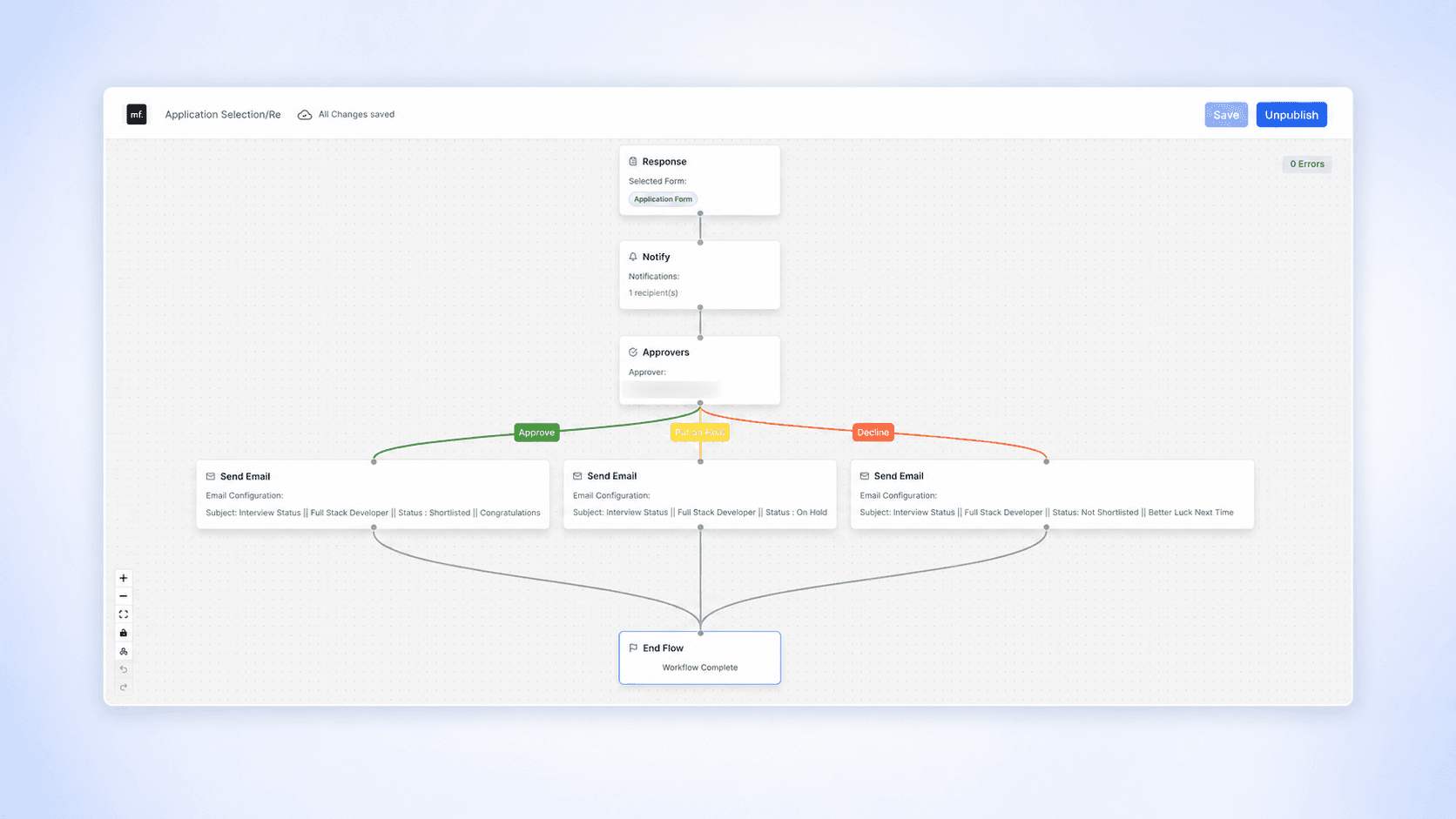
Set the Response as the starting point and select the form or request that should trigger the workflow. For example, an employee onboarding form can start the approval process on its own. This happens as soon as someone submits the form.
Step 2: Add an Approver
Add the person who will make the approval decision. You can assign this approver using their email address. You can also define what happens based on their response.
Step 3: Create Approval Paths
An approver can Approve, Decline, or Put the request on hold, with each outcome leading to a different step.
For example:
- Approve → Reviewer
- Put on hold → Notify
- Decline → Wait → Send Email
This is where document approval workflow automation truly shows its strength. The workflow can react to the decision right away, automatically and in real time.
Step 4: Add Actions
You can also add actions such as Notify, Send Email, Send Form to manage what happens at each stage. These automated emails can pull in details from the original form. This makes each notification more relevant to the person receiving it.
Step 5: Add Conditions Where Needed
Use an If/Else Condition when the workflow needs to make another decision based on the information or outcome. This lets you create different paths instead of forcing every request through the same sequence.
For example, if you only want applications only from gmail.com IDs, then you can add that as a condition.
Step 6: Track and Keep the Record
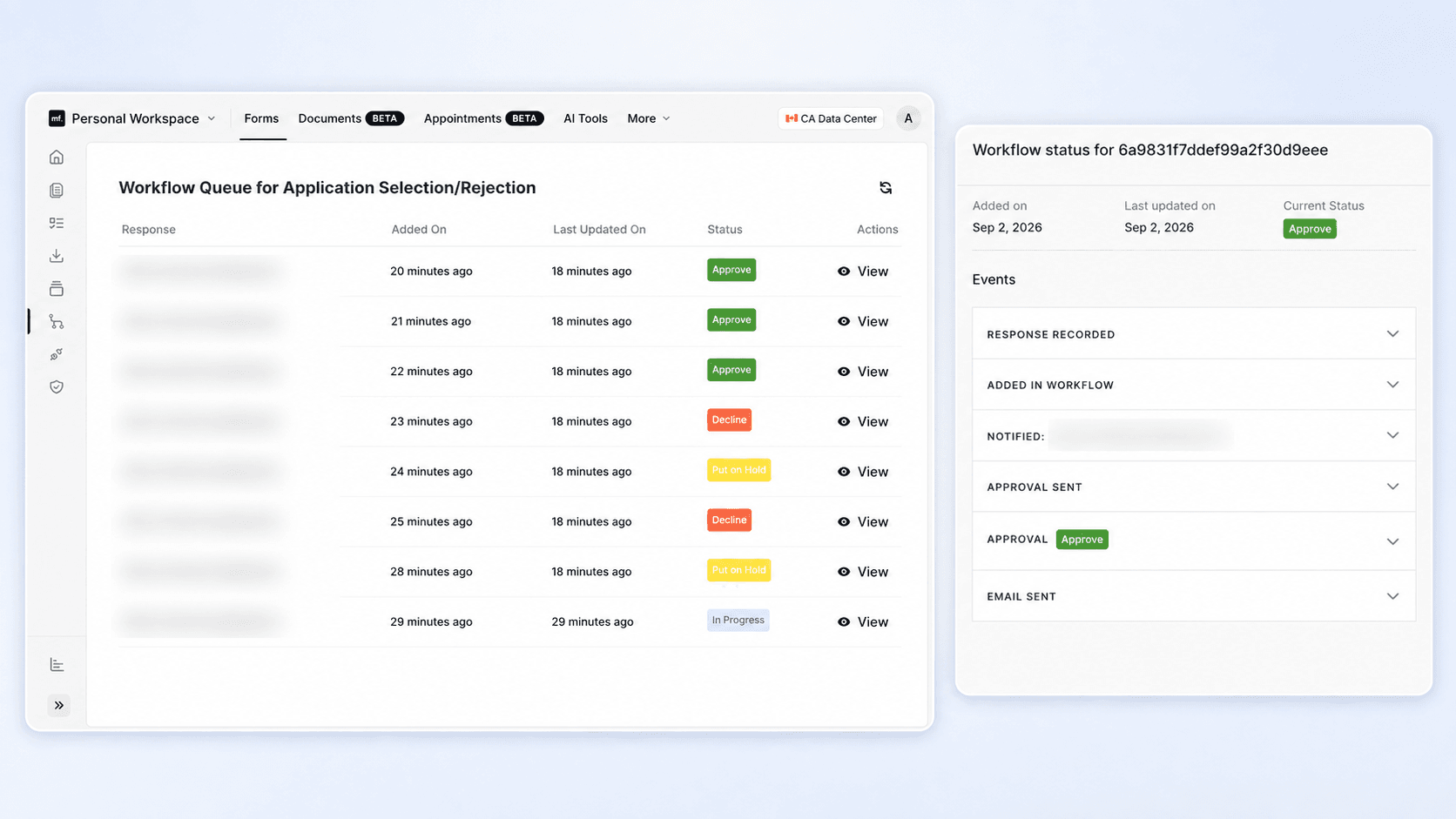
You may have multiple approvals in the works, but don’t worry, you can see the queue for every workflow.
MakeForms tracks the status of each document. It also gives you real-time activity updates and audit reports (records that show who did what, and when). This gives your team a clear record of the process. Approval history no longer stays scattered across email threads.
Common Mistakes in Document Approval Automation
Automating too many steps:
Yes, there is such a thing as too much automation. Don't automate an approval just because it already exists. Instead, remove any unnecessary reviews before you build the workflow.
Making everyone an approver:
Reviewers, approvers, and signers can each have different jobs to do. Keep those roles clear.
No clear rejection path:
Your workflow should define what happens when someone declines a request. Otherwise, the process stops without a clear next step.
How MakeForms Supports the Approval-to-Signature Process
A good document approval software setup should cut down the manual work around a document. Large organizations often handle thousands of documents every month. These include things like purchase requests, vendor agreements, HR documents, and contracts.
Without an automated process, each document needs someone to check it. That person must find the right approver. Then they must email it to that approver. Next, someone has to follow up and collect the approval. After that, they must send the document for signature. At that scale, even a few minutes of manual work per document can add up. This can mean hours of admin work every week.
MakeForms brings together several tools in one place. These tools include document workflows, streamlined approvals, and e-signatures. MakeForms also offers automatic reminders. It tracks progress in real time. And it creates audit reports too.
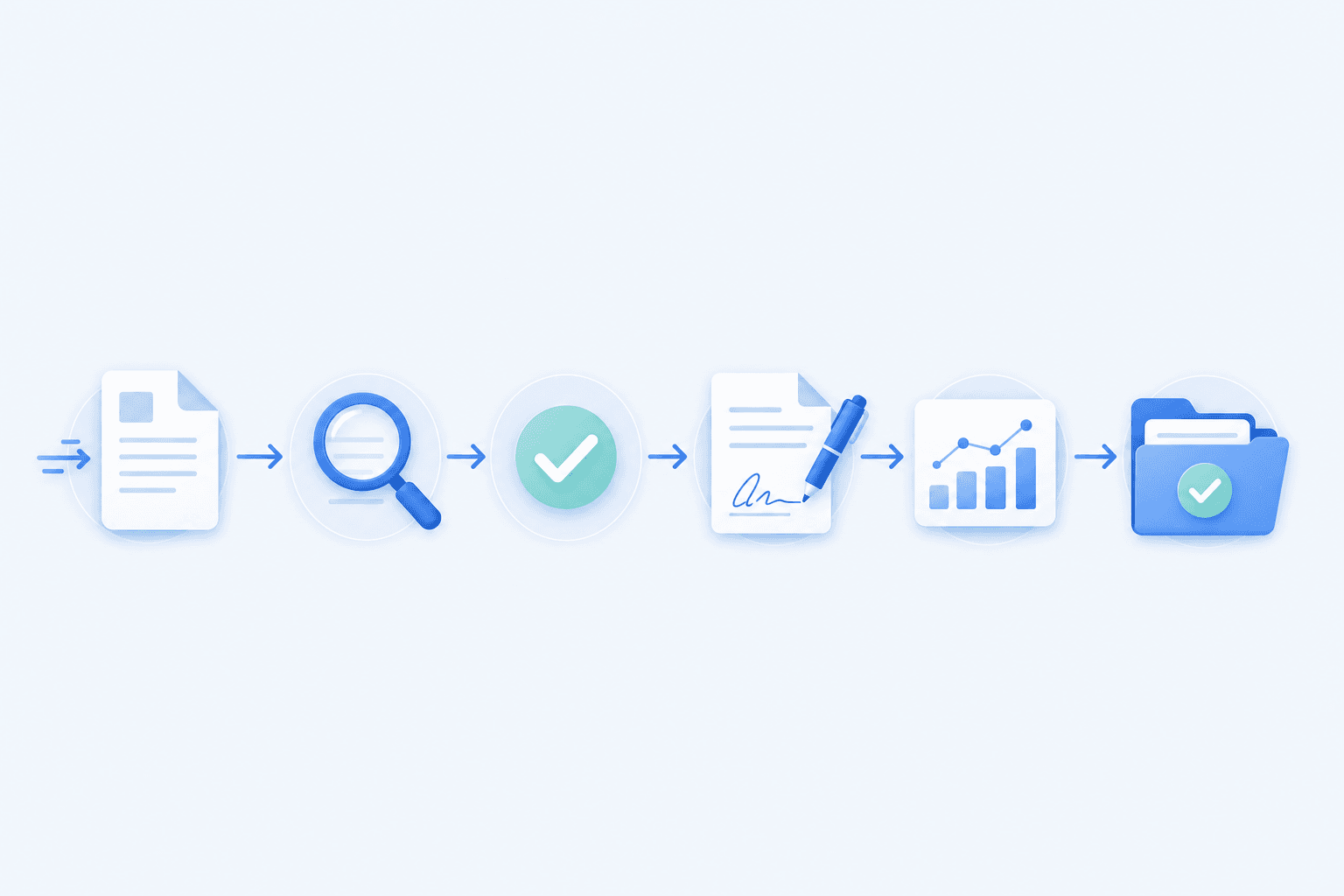
The result is a process that can look like this:
Request → Review → Approval → eSignature → Tracking → Completed document
FAQs
Automate Your Document Approval Workflow
Automate document approvals and eSignatures seamlessly with MakeForms.