
 Form Builder
 OTP Verification Forms
 PDF Forms
%22%3E%20%3Cpath%20d%3D%22M16.3464%2010.3097C16.1306%2010.3097%2015.9147%2010.233%2015.7112%2010.1695C15.3045%2010.0427%2014.8437%209.89891%2014.3235%2010.1085C14.222%2010.1492%2014.1077%2010.072%2014.1077%209.96304V8.49583C14.1077%208.45428%2014.1243%208.41445%2014.1536%208.38505C14.9567%207.58171%2015.6825%208.04348%2016.3845%208.48995C16.8981%208.81663%2017.4291%209.1546%2018.038%209.06562C18.1341%209.05175%2018.2093%209.12403%2018.2122%209.21818C18.2158%209.33155%2018.1127%209.45369%2018.0405%209.53099C17.8874%209.69476%2017.6725%209.75427%2017.4531%209.75113C17.5072%209.81793%2017.5818%209.89115%2017.5435%209.98523C17.5143%2010.0568%2017.4299%2010.0873%2017.36%2010.1018C17.1198%2010.1517%2016.8839%2010.0756%2016.6694%209.97104C16.7123%2010.0608%2016.7449%2010.1872%2016.6526%2010.2587C16.5713%2010.3216%2016.4432%2010.3097%2016.3464%2010.3097Z%22%20fill%3D%22%235B49E9%22%2F%3E%20%3Cpath%20d%3D%22M10.6778%2010.2488C10.5855%2010.1773%2010.6182%2010.051%2010.661%209.96119C10.4465%2010.0658%2010.2106%2010.1418%209.97044%2010.092C9.90051%2010.0775%209.81615%2010.047%209.78691%209.97538C9.74857%209.8813%209.82328%209.80815%209.8773%209.74128C9.65794%209.74442%209.44298%209.68491%209.28995%209.52114C9.21774%209.44384%209.11465%209.3217%209.11818%209.20833C9.12108%209.11418%209.19634%209.0419%209.29238%209.05577C9.90129%209.14475%2010.4324%208.80678%2010.9459%208.4801C11.6478%208.03355%2012.3737%207.57186%2013.1768%208.3752C13.2061%208.4046%2013.2227%208.44443%2013.2227%208.48598V9.95319C13.2227%2010.0622%2013.1085%2010.1393%2013.0069%2010.0986C12.4868%209.88906%2012.0259%2010.0328%2011.6192%2010.1597C11.4157%2010.2232%2011.1998%2010.2999%2010.984%2010.2999C10.8874%2010.2999%2010.7593%2010.3119%2010.6778%2010.2488Z%22%20fill%3D%22%235B49E9%22%2F%3E%20%3Cpath%20d%3D%22M15.3632%2012.6782C15.3111%2012.4884%2015.1869%2012.332%2015.0312%2012.2148C14.7556%2012.007%2014.3926%2011.8931%2014.0601%2011.8112C13.9831%2011.7923%2013.9054%2011.7785%2013.8274%2011.7681V8.1195C14.2643%208.04541%2014.5982%207.6691%2014.5982%207.21628C14.5982%206.71046%2014.182%206.29895%2013.6704%206.29895C13.1589%206.29895%2012.7426%206.71046%2012.7426%207.21628C12.7426%207.6691%2013.0765%208.04541%2013.5134%208.1195V11.7457C13.4456%2011.7447%2013.3778%2011.7457%2013.3099%2011.7485C13.0812%2011.7581%2012.8465%2011.7924%2012.6186%2011.7557C12.2212%2011.6918%2011.8191%2011.2901%2011.9296%2010.8638C11.972%2010.7002%2012.0789%2010.5584%2012.2046%2010.4485C12.2648%2010.3958%2012.3152%2010.3367%2012.2854%2010.2506C12.2495%2010.1465%2012.1271%2010.1171%2012.0404%2010.1774C11.7572%2010.3741%2011.5694%2010.7478%2011.6002%2011.0901C11.6374%2011.5052%2011.9769%2011.878%2012.3625%2012.0145C12.7304%2012.1447%2013.1269%2012.0649%2013.5133%2012.0627V13.3484C13.4123%2013.3471%2013.3172%2013.3525%2013.2272%2013.3579C12.9859%2013.3727%2012.8115%2013.3833%2012.6425%2013.2538C12.5619%2013.1919%2012.4262%2013.0614%2012.4229%2012.8824C12.4191%2012.6761%2012.5973%2012.5268%2012.633%2012.4989C12.7013%2012.4457%2012.7136%2012.3472%2012.6603%2012.2789C12.607%2012.2106%2012.5083%2012.1983%2012.44%2012.2516C12.3606%2012.3133%2012.1025%2012.5416%2012.109%2012.8881C12.1148%2013.1985%2012.326%2013.4062%2012.4513%2013.5024C12.7135%2013.7033%2012.9844%2013.6868%2013.2464%2013.6708C13.3334%2013.6655%2013.4218%2013.6606%2013.5133%2013.6621V14.7633C13.4409%2014.762%2013.3738%2014.7657%2013.3133%2014.7694C13.1444%2014.7795%2013.052%2014.7817%2012.9594%2014.7108C12.9223%2014.6824%2012.8358%2014.6054%2012.8339%2014.5044C12.8318%2014.3897%2012.9409%2014.3015%2012.9533%2014.2917C13.0217%2014.2385%2013.0341%2014.14%2012.9807%2014.0717C12.9274%2014.0032%2012.8288%2013.9911%2012.7604%2014.0442C12.7028%2014.0891%2012.5152%2014.2551%2012.52%2014.5102C12.5242%2014.7389%2012.6774%2014.8899%2012.7683%2014.9595C12.9583%2015.1052%2013.1485%2015.0936%2013.3325%2015.0824C13.3915%2015.0788%2013.4514%2015.0754%2013.5134%2015.0768V15.8635C13.5134%2015.95%2013.5837%2016.0203%2013.6704%2016.0203C13.7571%2016.0203%2013.8274%2015.95%2013.8274%2015.8635V15.1377C13.9494%2015.1765%2014.1181%2015.2382%2014.1486%2015.3431C14.1715%2015.4222%2014.1182%2015.5188%2014.0844%2015.5694C14.0161%2015.6714%2014.0914%2015.8133%2014.2148%2015.8133C14.2654%2015.8133%2014.3152%2015.7888%2014.3455%2015.7436C14.4579%2015.5756%2014.4941%2015.4069%2014.4502%2015.2557C14.3696%2014.9779%2014.0534%2014.8794%2013.8836%2014.8264L13.8526%2014.8167C13.8441%2014.8139%2013.8359%2014.8121%2013.8275%2014.8097V13.7002C13.8557%2013.7071%2013.8844%2013.7149%2013.9136%2013.7242L13.9626%2013.7396C14.1604%2013.8012%2014.4914%2013.9044%2014.5538%2014.1193C14.5951%2014.2614%2014.5186%2014.4184%2014.4471%2014.5252C14.3789%2014.6273%2014.4541%2014.7691%2014.5775%2014.7691C14.6281%2014.7691%2014.6779%2014.7446%2014.7082%2014.6994C14.8637%2014.4669%2014.9146%2014.2361%2014.8553%2014.0319C14.7459%2013.6552%2014.3141%2013.5205%2014.056%2013.4402L14.0089%2013.4254C13.9462%2013.4055%2013.8862%2013.3913%2013.8275%2013.3798V12.0848C14.0138%2012.1147%2014.1962%2012.174%2014.374%2012.2358C14.5557%2012.299%2014.743%2012.3759%2014.8892%2012.5043C15.0644%2012.6582%2015.1144%2012.8708%2015.0444%2013.0928C15.0249%2013.1547%2014.9982%2013.2142%2014.9675%2013.2712C14.9421%2013.3183%2014.9043%2013.3628%2014.8846%2013.4124C14.8446%2013.5134%2014.9188%2013.6283%2015.0296%2013.6282C15.1588%2013.6282%2015.2224%2013.4661%2015.2702%2013.369C15.3746%2013.1561%2015.4271%2012.9113%2015.3632%2012.6782Z%22%20fill%3D%22%235B49E9%22%2F%3E%20%3Cpath%20d%3D%22M15.0288%2013.6282C14.9989%2013.6283%2015.0794%2013.6282%2015.0288%2013.6282V13.6282Z%22%20fill%3D%22%235B49E9%22%2F%3E%20%3Cpath%20d%3D%22M15.1131%2011.8283C14.9421%2011.8283%2014.899%2011.5821%2015.0597%2011.5241C15.3009%2011.437%2015.4591%2011.2351%2015.4631%2011.0096C15.4667%2010.7958%2015.3265%2010.5944%2015.1057%2010.4965C15.0264%2010.4614%2014.9906%2010.3687%2015.0258%2010.2895C15.061%2010.2104%2015.1539%2010.1749%2015.233%2010.2098C15.5693%2010.3589%2015.7828%2010.6749%2015.777%2011.015C15.7708%2011.3717%2015.5311%2011.6873%2015.1664%2011.8189C15.1488%2011.8253%2015.1308%2011.8283%2015.1131%2011.8283Z%22%20fill%3D%22%235B49E9%22%2F%3E%20%3Cpath%20d%3D%22M13.168%2015.9001C12.9396%2015.9001%2012.7461%2015.6907%2012.79%2015.4613C12.8212%2015.298%2013.0403%2015.075%2013.221%2015.1728C13.3065%2015.2191%2013.3297%2015.3348%2013.2676%2015.41C13.2288%2015.4571%2013.1879%2015.4488%2013.1396%2015.4719C13.0927%2015.4944%2013.0818%2015.5508%2013.1327%2015.5778C13.1765%2015.6012%2013.2299%2015.5784%2013.2769%2015.6057C13.3185%2015.6299%2013.3473%2015.6731%2013.3536%2015.7208C13.3685%2015.835%2013.2706%2015.9001%2013.168%2015.9001Z%22%20fill%3D%22%235B49E9%22%2F%3E%20%3C%2Fg%3E%20%3Cpath%20d%3D%22M8.48837%2020.701V17.9173H9.06381V19.0345H10.2464V17.9173H10.82V20.701H10.2464V19.5277H9.06381V20.701H8.48837Z%22%20fill%3D%22%235B49E9%22%2F%3E%20%3Cpath%20d%3D%22M11.6609%2017.9173V20.701H11.0855V17.9173H11.6609Z%22%20fill%3D%22%235B49E9%22%2F%3E%20%3Cpath%20d%3D%22M11.9226%2020.701V17.9173H13.0212C13.2304%2017.9173%2013.411%2017.9546%2013.563%2018.0293C13.7149%2018.1028%2013.832%2018.2081%2013.9142%2018.3451C13.9977%2018.4809%2014.0394%2018.6428%2014.0394%2018.8309C14.0394%2019.0177%2013.9977%2019.1796%2013.9142%2019.3166C13.8308%2019.4524%2013.7118%2019.5576%2013.5574%2019.6324C13.4042%2019.7071%2013.2229%2019.7444%2013.0137%2019.7444H12.2421V19.2624H12.9838C13.0859%2019.2624%2013.1737%2019.245%2013.2472%2019.2101C13.3207%2019.174%2013.3774%2019.1236%2013.4172%2019.0588C13.4571%2018.994%2013.477%2018.918%2013.477%2018.8309C13.477%2018.7412%2013.4571%2018.6646%2013.4172%2018.601C13.3774%2018.5375%2013.3207%2018.4883%2013.2472%2018.4535C13.1737%2018.4173%2013.0859%2018.3993%2012.9838%2018.3993H12.498V20.701H11.9226Z%22%20fill%3D%22%235B49E9%22%2F%3E%20%3Cpath%20d%3D%22M13.679%2020.701L14.6561%2017.9173H15.3959L16.373%2020.701H15.736L15.2988%2019.3465C15.2452%2019.1684%2015.1898%2018.9853%2015.1325%2018.7972C15.0764%2018.6079%2015.0154%2018.393%2014.9494%2018.1527H15.1082C15.0397%2018.393%2014.9768%2018.6079%2014.9195%2018.7972C14.8635%2018.9853%2014.8074%2019.1684%2014.7514%2019.3465L14.2992%2020.701H13.679ZM14.2992%2020.0938V19.6342H15.7546V20.0938H14.2992Z%22%20fill%3D%22%235B49E9%22%2F%3E%20%3Cpath%20d%3D%22M16.3059%2020.701L17.2831%2017.9173H18.0229L19%2020.701H18.3629L17.9257%2019.3465C17.8722%2019.1684%2017.8168%2018.9853%2017.7595%2018.7972C17.7034%2018.6079%2017.6424%2018.393%2017.5764%2018.1527H17.7352C17.6667%2018.393%2017.6038%2018.6079%2017.5465%2018.7972C17.4904%2018.9853%2017.4344%2019.1684%2017.3783%2019.3465L16.9262%2020.701H16.3059ZM16.9262%2020.0938V19.6342H18.3816V20.0938H16.9262Z%22%20fill%3D%22%235B49E9%22%2F%3E%20%3Cdefs%3E%20%3CclipPath%20id%3D%22clip0_3848_1030%22%3E%20%3Crect%20width%3D%229.7213%22%20height%3D%229.7213%22%20fill%3D%22white%22%20transform%3D%22translate(8.80527%206.29896)%22%2F%3E%20%3C%2FclipPath%3E%20%3C%2Fdefs%3E%20%3C%2Fsvg%3E) HIPAA Forms
HIPAA Forms Lead Generation
 Workflows
%22%3E%3Cpath%20fill-rule%3D%22evenodd%22%20clip-rule%3D%22evenodd%22%20d%3D%22M43.8024%2028.0412C46.3525%2025.3865%2049.9017%2023.7426%2053.8226%2023.7426C59.0506%2023.7426%2063.5814%2026.6471%2066.0212%2030.9746C68.1868%2030.0065%2070.5324%2029.5067%2072.9046%2029.5079C82.3149%2029.5079%2089.9535%2037.2046%2089.9535%2046.702C89.9535%2056.1994%2082.3149%2063.8961%2072.9046%2063.8961C71.7545%2063.8961%2070.6334%2063.7805%2069.5355%2063.5621C67.4008%2067.3669%2063.32%2069.9518%2058.673%2069.9518C56.781%2069.9556%2054.9133%2069.5264%2053.2127%2068.6971C51.0489%2073.7798%2046.0098%2077.3523%2040.1428%2077.3523C34.0145%2077.3523%2028.8156%2073.4894%2026.8116%2068.0582C25.9196%2068.2464%2025.0105%2068.341%2024.0989%2068.3405C16.8088%2068.3405%2010.9128%2062.3574%2010.9128%2055.0092C10.9128%2050.0717%2013.5675%2045.7732%2017.5059%2043.4497C16.6703%2041.5249%2016.2403%2039.4487%2016.2424%2037.3504C16.2424%2028.8695%2023.1259%2022.0151%2031.6068%2022.0151C36.5733%2022.0151%2041.0171%2024.3822%2043.8053%2028.0563%22%20fill%3D%22%2300A1E0%22%2F%3E%3C%2Fg%3E%3Cpath%20fill-rule%3D%22evenodd%22%20clip-rule%3D%22evenodd%22%20d%3D%22M22.4259%2050.6956C22.3763%2050.8251%2022.4436%2050.8521%2022.4596%2050.8751C22.608%2050.9825%2022.7588%2051.0604%2022.9098%2051.1478C23.7172%2051.5748%2024.4782%2051.6996%2025.274%2051.6996C26.8947%2051.6996%2027.9025%2050.837%2027.9025%2049.4487V49.4214C27.9025%2048.1377%2026.764%2047.6701%2025.7009%2047.3361L25.5618%2047.291C24.7573%2047.0302%2024.0631%2046.8031%2024.0631%2046.2745V46.2475C24.0631%2045.7944%2024.4698%2045.4604%2025.0971%2045.4604C25.7942%2045.4604%2026.6248%2045.6924%2027.1563%2045.9861C27.1563%2045.9861%2027.3138%2046.0877%2027.371%2045.9358C27.4021%2045.8536%2027.673%2045.1284%2027.7021%2045.0471C27.7329%2044.962%2027.6788%2044.8978%2027.6234%2044.8647C27.0134%2044.4929%2026.1712%2044.2402%2025.2998%2044.2402L25.1381%2044.2408C23.6539%2044.2408%2022.617%2045.1383%2022.617%2046.422V46.4496C22.617%2047.8031%2023.7614%2048.2446%2024.8302%2048.5495L25.0021%2048.603C25.7805%2048.8423%2026.4543%2049.0502%2026.4543%2049.5963V49.6236C26.4543%2050.126%2026.0158%2050.5007%2025.3129%2050.5007C25.0396%2050.5007%2024.1686%2050.4961%2023.2246%2049.8995C23.1105%2049.833%2023.0454%2049.7851%2022.9574%2049.7313C22.911%2049.7032%2022.7948%2049.6523%2022.7442%2049.8045L22.4248%2050.6933M46.1538%2050.6933C46.1041%2050.8228%2046.1715%2050.8498%2046.1881%2050.8728C46.3359%2050.9802%2046.4872%2051.0581%2046.6383%2051.1455C47.4457%2051.5724%2048.2066%2051.6973%2049.0025%2051.6973C50.6231%2051.6973%2051.6309%2050.8347%2051.6309%2049.4464V49.4191C51.6309%2048.1353%2050.4953%2047.6677%2049.4294%2047.3337L49.2903%2047.2887C48.4858%2047.0279%2047.7916%2046.8008%2047.7916%2046.2722V46.2452C47.7916%2045.7921%2048.1982%2045.4581%2048.8256%2045.4581C49.5226%2045.4581%2050.3504%2045.6901%2050.8848%2045.9838C50.8848%2045.9838%2051.0422%2046.0854%2051.0997%2045.9335C51.1305%2045.8513%2051.4018%2045.1261%2051.4279%2045.0448C51.459%2044.9597%2051.4047%2044.8955%2051.3495%2044.8624C50.7396%2044.4906%2049.8973%2044.2379%2049.026%2044.2379L48.8639%2044.2385C47.3798%2044.2385%2046.3429%2045.136%2046.3429%2046.4197V46.4473C46.3429%2047.8008%2047.4872%2048.2422%2048.556%2048.5472L48.7277%2048.6006C49.509%2048.84%2050.1799%2049.0479%2050.1799%2049.5939V49.6212C50.1799%2050.1237%2049.7413%2050.4984%2049.0385%2050.4984C48.7646%2050.4984%2047.8912%2050.4937%2046.9502%2049.8972C46.836%2049.8307%2046.7692%2049.7848%2046.6827%2049.729C46.6534%2049.7104%2046.5166%2049.657%2046.4698%2049.8022L46.1503%2050.6909M62.3569%2047.9724C62.3569%2048.7566%2062.2106%2049.3752%2061.9242%2049.8138C61.6384%2050.2466%2061.2068%2050.4586%2060.6056%2050.4586C60.0044%2050.4586%2059.5745%2050.2483%2059.2928%2049.8167C59.009%2049.3811%2058.8658%2048.7595%2058.8658%2047.9753C58.8658%2047.1911%2059.0099%2046.5754%2059.2928%2046.1426C59.5739%2045.7128%2060.0015%2045.5066%2060.6056%2045.5066C61.2097%2045.5066%2061.6395%2045.7148%2061.9242%2046.1426C62.2123%2046.5754%2062.3569%2047.1911%2062.3569%2047.9753M63.7104%2046.5202C63.5771%2046.07%2063.3706%2045.675%2063.0947%2045.3439C62.8184%2045.0128%2062.4702%2044.7456%2062.0549%2044.5539C61.6425%2044.3608%2061.1545%2044.2635%2060.6027%2044.2635C60.0508%2044.2635%2059.5658%2044.3614%2059.1505%2044.5539C58.738%2044.7468%2058.3866%2045.0128%2058.1107%2045.3439C57.8354%2045.675%2057.6286%2046.07%2057.495%2046.5202C57.3628%2046.9675%2057.2957%2047.4554%2057.2957%2047.9753C57.2957%2048.4952%2057.3628%2048.9831%2057.495%2049.4304C57.6277%2049.8806%2057.8348%2050.2756%2058.1107%2050.6067C58.3869%2050.9378%2058.738%2051.2021%2059.1505%2051.3909C59.5658%2051.5791%2060.0537%2051.675%2060.6027%2051.675C61.1516%2051.675%2061.6395%2051.5791%2062.052%2051.3909C62.4644%2051.2027%2062.8158%2050.9378%2063.0918%2050.6067C63.3674%2050.2756%2063.5739%2049.8806%2063.7075%2049.4304C63.8393%2048.9831%2063.9064%2048.4952%2063.9064%2047.9753C63.9064%2047.4583%2063.8393%2046.9675%2063.7075%2046.5202M74.8314%2050.2379C74.7869%2050.1063%2074.6586%2050.1559%2074.6586%2050.1559C74.4619%2050.2312%2074.252%2050.3009%2074.0283%2050.3357C73.8029%2050.3712%2073.552%2050.3889%2073.2877%2050.3889C72.6342%2050.3889%2072.1114%2050.194%2071.7396%2049.808C71.365%2049.4217%2071.1559%2048.8002%2071.1588%2047.9579C71.1608%2047.1911%2071.3461%2046.6161%2071.6786%2046.1746C72.0068%2045.7389%2072.5122%2045.5124%2073.1802%2045.5124C73.7379%2045.5124%2074.1648%2045.5771%2074.6121%2045.7171C74.6121%2045.7171%2074.7181%2045.7633%2074.7689%2045.6236C74.8877%2045.2954%2074.9754%2045.0602%2075.1029%2044.7C75.139%2044.5969%2075.0507%2044.5533%2075.0184%2044.5408C74.843%2044.4723%2074.4288%2044.3599%2074.1152%2044.3126C73.8218%2044.2678%2073.482%2044.2446%2073.0986%2044.2446C72.5293%2044.2446%2072.024%2044.3419%2071.5912%2044.5347C71.1585%2044.7273%2070.7925%2044.9936%2070.5021%2045.3247C70.2116%2045.6559%2069.9909%2046.0509%2069.8428%2046.501C69.6961%2046.9483%2069.622%2047.4392%2069.622%2047.9591C69.622%2049.0802%2069.9241%2049.9892%2070.5224%2050.6543C71.1207%2051.3224%2072.0211%2051.6593%2073.1945%2051.6593C73.8886%2051.6593%2074.6002%2051.519%2075.1114%2051.3166C75.1114%2051.3166%2075.209%2051.2695%2075.1666%2051.1556L74.8325%2050.2379M77.1996%2047.2173C77.2644%2046.7816%2077.3838%2046.4185%2077.5714%2046.1368C77.8523%2045.707%2078.2801%2045.4717%2078.8813%2045.4717C79.4825%2045.4717%2079.8804%2045.7081%2080.165%2046.1368C80.3538%2046.42%2080.4363%2046.7961%2080.4671%2047.2173L77.1851%2047.2167L77.1996%2047.2173ZM81.7596%2046.2588C81.6443%2045.8261%2081.3588%2045.3875%2081.1729%2045.1871C80.8766%2044.8705%2080.5891%2044.6469%2080.3016%2044.5249C79.8864%2044.3484%2079.4399%2044.2578%2078.9888%2044.2585C78.4166%2044.2585%2077.8967%2044.3553%2077.4756%2044.5519C77.0544%2044.75%2076.7001%2045.0195%2076.4213%2045.3564C76.1427%2045.6933%2075.9333%2046.0912%2075.7997%2046.5472C75.6661%2046.9974%2075.5987%2047.4911%2075.5987%2048.0081C75.5987%2048.5367%2075.6687%2049.0276%2075.8064%2049.472C75.9455%2049.9192%2076.1695%2050.3113%2076.4715%2050.6366C76.7736%2050.9648%2077.1599%2051.2204%2077.6246%2051.4005C78.0864%2051.5791%2078.6469%2051.6718%2079.2888%2051.6697C80.6132%2051.6654%2081.3103%2051.3706%2081.5949%2051.2108C81.6457%2051.1824%2081.6936%2051.1333%2081.6338%2050.9918L81.3347%2050.1525C81.2888%2050.0273%2081.1621%2050.0726%2081.1621%2050.0726C80.8339%2050.1952%2080.3692%2050.4153%2079.2801%2050.4124C78.5685%2050.4112%2078.0428%2050.2013%2077.7117%2049.8722C77.3748%2049.5353%2077.2063%2049.0444%2077.1802%2048.3474L81.7692%2048.3509C81.7692%2048.3509%2081.89%2048.3497%2081.9025%2048.2318C81.9074%2048.183%2082.0596%2047.2907%2081.7657%2046.2597L81.7596%2046.2588ZM40.5169%2047.2173C40.5817%2046.7816%2040.7014%2046.4185%2040.8887%2046.1368C41.1698%2045.707%2041.5974%2045.4717%2042.1986%2045.4717C42.7998%2045.4717%2043.1977%2045.7081%2043.4823%2046.1368C43.6708%2046.42%2043.7533%2046.7961%2043.7844%2047.2173L40.5024%2047.2167L40.5169%2047.2173ZM45.0768%2046.2588C44.9618%2045.8261%2044.676%2045.3875%2044.4902%2045.1871C44.1939%2044.8705%2043.9064%2044.6469%2043.6188%2044.5249C43.2037%2044.3484%2042.7571%2044.2578%2042.306%2044.2585C41.7339%2044.2585%2041.214%2044.3553%2040.7928%2044.5519C40.3717%2044.75%2040.0174%2045.0195%2039.7385%2045.3564C39.4606%2045.6933%2039.2506%2046.0912%2039.117%2046.5472C38.9837%2046.9974%2038.9166%2047.4911%2038.9166%2048.0081C38.9166%2048.5367%2038.986%2049.0276%2039.1245%2049.472C39.2634%2049.9192%2039.4876%2050.3113%2039.7868%2050.6366C40.0888%2050.9648%2040.4751%2051.2204%2040.9398%2051.4005C41.4016%2051.5791%2041.9593%2051.6718%2042.604%2051.6697C43.9284%2051.6654%2044.6255%2051.3706%2044.9101%2051.2108C44.9607%2051.1824%2045.0089%2051.1333%2044.9488%2050.9918L44.6496%2050.1525C44.6034%2050.0273%2044.4768%2050.0726%2044.4768%2050.0726C44.1486%2050.1952%2043.6839%2050.4153%2042.5947%2050.4124C41.8861%2050.4112%2041.3575%2050.2013%2041.0264%2049.8722C40.6894%2049.5353%2040.521%2049.0444%2040.4948%2048.3474L45.0838%2048.3509C45.0838%2048.3509%2045.2046%2048.3497%2045.2171%2048.2318C45.2221%2048.183%2045.3743%2047.2907%2045.08%2046.2597L45.0768%2046.2588ZM30.6129%2050.2088C30.4331%2050.0653%2030.4081%2050.0302%2030.3486%2049.937C30.2577%2049.7967%2030.2112%2049.5971%2030.2112%2049.3416C30.2112%2048.9407%2030.3448%2048.6503%2030.6207%2048.4557C30.6178%2048.4563%2031.0157%2048.113%2031.9509%2048.1246C32.3672%2048.1321%2032.7825%2048.1675%2033.194%2048.2306V50.3131H33.1946C33.1946%2050.3131%2032.6137%2050.4383%2031.9573%2050.4778C31.025%2050.5338%2030.6126%2050.2094%2030.6155%2050.2103L30.6129%2050.2088ZM32.4368%2046.9849C32.251%2046.9713%2032.0099%2046.9646%2031.7224%2046.9646C31.3303%2046.9646%2030.9498%2047.0134%2030.5955%2047.1092C30.2382%2047.2056%2029.9158%2047.3549%2029.6399%2047.5536C29.3632%2047.751%2029.1357%2048.0094%2028.9748%2048.3087C28.8124%2048.6108%2028.7297%2048.9651%2028.7297%2049.3659C28.7297%2049.7726%2028.8002%2050.124%2028.9396%2050.4115C29.0763%2050.6967%2029.2819%2050.9433%2029.538%2051.1289C29.7927%2051.3142%2030.1072%2051.4513%2030.4703%2051.5326C30.8304%2051.6148%2031.237%2051.6564%2031.6843%2051.6564C32.1548%2051.6564%2032.6224%2051.6169%2033.0755%2051.5405C33.4614%2051.4739%2033.8459%2051.3992%2034.2286%2051.3163C34.3814%2051.2811%2034.551%2051.2349%2034.551%2051.2349C34.6642%2051.2062%2034.6555%2051.0851%2034.6555%2051.0851L34.6529%2046.9027C34.6529%2045.9849%2034.4078%2045.3024%2033.9239%2044.8812C33.4418%2044.4601%2032.736%2044.2481%2031.8211%2044.2481C31.4784%2044.2481%2030.9236%2044.2946%2030.5925%2044.3611C30.5925%2044.3611%2029.5934%2044.5551%2029.181%2044.878C29.181%2044.878%2029.0904%2044.9338%2029.1398%2045.0602L29.4651%2045.9315C29.5054%2046.0445%2029.6155%2046.0058%2029.6155%2046.0058C29.6155%2046.0058%2029.6501%2045.9922%2029.6907%2045.9681C30.5708%2045.4888%2031.6861%2045.5034%2031.6861%2045.5034C32.1798%2045.5034%2032.5632%2045.6036%2032.8188%2045.7996C33.0688%2045.9916%2033.1964%2046.2818%2033.1964%2046.8917V47.0854C32.8043%2047.0285%2032.4412%2046.9957%2032.4412%2046.9957L32.4368%2046.9849ZM69.3229%2044.6236C69.3295%2044.6083%2069.3329%2044.5918%2069.333%2044.5751C69.3331%2044.5585%2069.3299%2044.5419%2069.3235%2044.5265C69.317%2044.5111%2069.3076%2044.4972%2069.2957%2044.4855C69.2837%2044.4739%2069.2696%2044.4647%2069.254%2044.4587C69.1759%2044.429%2068.7864%2044.3468%2068.4873%2044.3282C67.9122%2044.2922%2067.5927%2044.3892%2067.3052%2044.5182C67.0211%2044.6463%2066.7069%2044.8522%2066.5326%2045.0904L66.532%2044.5327C66.532%2044.456%2066.4777%2044.3942%2066.4005%2044.3942H65.2271C65.151%2044.3942%2065.0958%2044.456%2065.0958%2044.5327V51.3581C65.0959%2051.395%2065.1106%2051.4303%2065.1366%2051.4564C65.1627%2051.4824%2065.198%2051.4971%2065.2349%2051.4972H66.4373C66.4742%2051.4971%2066.5095%2051.4824%2066.5355%2051.4564C66.5616%2051.4303%2066.5762%2051.3949%2066.5762%2051.3581V47.9309C66.5762%2047.472%2066.6267%2047.016%2066.7275%2046.7285C66.8268%2046.4441%2066.9619%2046.2173%2067.1283%2046.0546C67.2871%2045.8975%2067.4813%2045.781%2067.6947%2045.7148C67.8949%2045.6574%2068.1021%2045.6282%2068.3104%2045.6283C68.55%2045.6283%2068.8129%2045.6898%2068.8129%2045.6898C68.9012%2045.6997%2068.9502%2045.6457%2068.9802%2045.5661C69.0589%2045.3567%2069.2822%2044.7296%2069.3258%2044.6047%22%20fill%3D%22%23FFFFFE%22%2F%3E%3Cpath%20fill-rule%3D%22evenodd%22%20clip-rule%3D%22evenodd%22%20d%3D%22M58.0926%2041.4735C57.9439%2041.4286%2057.7927%2041.3927%2057.6398%2041.366C57.434%2041.3317%2057.2256%2041.3156%2057.0171%2041.3178C56.1884%2041.3178%2055.5352%2041.5519%2055.0766%2042.0143C54.6212%2042.4732%2054.3113%2043.1723%2054.1559%2044.0921L54.0999%2044.4026H53.0598C53.0598%2044.4026%2052.9329%2044.3974%2052.9061%2044.5359L52.7354%2045.4886C52.7235%2045.5798%2052.7627%2045.6367%2052.8847%2045.6361H53.8971L52.8698%2051.3703C52.7894%2051.8321%2052.6973%2052.212%2052.5954%2052.4998C52.4949%2052.7839%2052.3967%2052.9968%2052.2759%2053.1513C52.1588%2053.3008%2052.0479%2053.4109%2051.8565%2053.4751C51.6985%2053.5283%2051.5167%2053.5527%2051.3174%2053.5527C51.2065%2053.5527%2051.0589%2053.5341%2050.95%2053.5123C50.8411%2053.4908%2050.7845%2053.4664%2050.7029%2053.4321C50.7029%2053.4321%2050.5841%2053.3868%2050.5373%2053.5059C50.4993%2053.6032%2050.2294%2054.3453%2050.1975%2054.4371C50.165%2054.5277%2050.2106%2054.5991%2050.2681%2054.6197C50.4028%2054.668%2050.503%2054.6987%2050.6866%2054.742C50.9416%2054.8021%2051.1565%2054.8059%2051.3578%2054.8059C51.7795%2054.8059%2052.1638%2054.7467%2052.4824%2054.6316C52.803%2054.5158%2053.0822%2054.3139%2053.329%2054.0406C53.5959%2053.7458%2053.7638%2053.4371%2053.9244%2053.0159C54.0833%2052.5986%2054.2187%2052.0804%2054.327%2051.4766L55.3592%2045.6361H56.8683C56.8683%2045.6361%2056.9956%2045.6407%2057.022%2045.5028L57.1928%2044.5501C57.2047%2044.4589%2057.1658%2044.402%2057.0432%2044.4026H55.5785C55.5858%2044.3695%2055.6523%2043.8542%2055.8204%2043.3692C55.8922%2043.1621%2056.0272%2042.9951%2056.1417%2042.8804C56.2485%2042.7711%2056.3801%2042.6892%2056.5253%2042.6417C56.6845%2042.5924%2056.8504%2042.5685%2057.0171%2042.5708C57.155%2042.5708%2057.2904%2042.5873%2057.3935%2042.6088C57.5355%2042.639%2057.5907%2042.655%2057.6279%2042.6661C57.7771%2042.7117%2057.7972%2042.6675%2057.8265%2042.5952L58.1768%2041.6332C58.2128%2041.5298%2058.1251%2041.4863%2058.0926%2041.4735ZM37.624%2051.3825C37.624%2051.4592%2037.5694%2051.5216%2037.4927%2051.5216H36.2778C36.2008%2051.5216%2036.1462%2051.4592%2036.1462%2051.3825V41.6039C36.1462%2041.5275%2036.2008%2041.4657%2036.2778%2041.4657H37.4927C37.5694%2041.4657%2037.624%2041.5275%2037.624%2041.6039V51.3825Z%22%20fill%3D%22%23FFFFFE%22%2F%3E%3C%2Fsvg%3E) Salesforce forms
Salesforce forms Conditional Logic
 Collaboration
 KYC Forms
 Form Embeds
%22%3E%20%3Cpath%20d%3D%22M20.5117%2014.3242L17.4492%2013.2824C17.3582%2013.2509%2017.259%2013.2509%2017.168%2013.2824L14.1055%2014.3242C13.9276%2014.3843%2013.8086%2014.5506%2013.8086%2014.7384V17.0822C13.8086%2019.9429%2017.0017%2021.3336%2017.1377%2021.3913C17.1925%2021.4141%2017.2502%2021.4257%2017.3086%2021.4257C17.3669%2021.4257%2017.4247%2021.4141%2017.4795%2021.3907C17.6154%2021.333%2020.8086%2019.9429%2020.8086%2017.0822V14.7384C20.8086%2014.5506%2020.6896%2014.3843%2020.5117%2014.3242ZM19.2254%2016.5362L17.6212%2018.5779C17.4171%2018.8386%2017.0344%2018.8766%2016.783%2018.6607L15.7622%2017.7857C15.5172%2017.5763%2015.4886%2017.2076%2015.6992%2016.9632C15.9086%2016.7188%2016.2772%2016.6908%2016.5211%2016.9002L17.0799%2017.3791L18.3078%2015.8164C18.5067%2015.5632%2018.8731%2015.5183%2019.1268%2015.7184C19.3806%2015.9161%2019.4249%2016.2831%2019.2254%2016.5362Z%22%20fill%3D%22%235B49E9%22%2F%3E%20%3Cpath%20d%3D%22M17.8919%207.42572H8.55858C7.592%207.42572%206.80858%208.20914%206.80858%209.17572C6.80858%2010.1423%207.592%2010.9257%208.55858%2010.9257H17.8919C18.8585%2010.9257%2019.6419%2010.1423%2019.6419%209.17572C19.6419%208.20914%2018.8585%207.42572%2017.8919%207.42572ZM8.55858%209.75905C8.23658%209.75905%207.97525%209.49772%207.97525%209.17572C7.97525%208.85372%208.23658%208.59239%208.55858%208.59239C8.88058%208.59239%209.14191%208.85372%209.14191%209.17572C9.14191%209.49772%208.88058%209.75905%208.55858%209.75905ZM10.8919%209.75905C10.5699%209.75905%2010.3086%209.49772%2010.3086%209.17572C10.3086%208.85372%2010.5699%208.59239%2010.8919%208.59239C11.2139%208.59239%2011.4752%208.85372%2011.4752%209.17572C11.4752%209.49772%2011.2139%209.75905%2010.8919%209.75905Z%22%20fill%3D%22%235B49E9%22%2F%3E%20%3Cpath%20d%3D%22M8.55858%2012.0924C7.59025%2012.0924%206.80858%2012.874%206.80858%2013.8424C6.80858%2014.8107%207.59025%2015.5924%208.55858%2015.5924H12.6419V14.7407C12.6419%2014.0524%2013.0794%2013.4399%2013.7327%2013.2182L16.7894%2012.1799C16.9586%2012.1215%2017.1336%2012.0924%2017.3086%2012.0924H8.55858ZM8.55858%2014.4257C8.23775%2014.4257%207.97525%2014.1632%207.97525%2013.8424C7.97525%2013.5215%208.23775%2013.259%208.55858%2013.259C8.87941%2013.259%209.14191%2013.5215%209.14191%2013.8424C9.14191%2014.1632%208.87941%2014.4257%208.55858%2014.4257ZM10.8919%2014.4257C10.5711%2014.4257%2010.3086%2014.1632%2010.3086%2013.8424C10.3086%2013.5215%2010.5711%2013.259%2010.8919%2013.259C11.2127%2013.259%2011.4752%2013.5215%2011.4752%2013.8424C11.4752%2014.1632%2011.2127%2014.4257%2010.8919%2014.4257Z%22%20fill%3D%22%235B49E9%22%2F%3E%20%3Cpath%20d%3D%22M12.6419%2017.0799V16.7591H8.55858C7.59025%2016.7591%206.80858%2017.5407%206.80858%2018.5091C6.80858%2019.4774%207.59025%2020.2591%208.55858%2020.2591H13.7911C13.1202%2019.4074%2012.6419%2018.3399%2012.6419%2017.0799ZM8.55858%2019.0924C8.23775%2019.0924%207.97525%2018.8299%207.97525%2018.5091C7.97525%2018.1882%208.23775%2017.9257%208.55858%2017.9257C8.87941%2017.9257%209.14191%2018.1882%209.14191%2018.5091C9.14191%2018.8299%208.87941%2019.0924%208.55858%2019.0924ZM10.8919%2019.0924C10.5711%2019.0924%2010.3086%2018.8299%2010.3086%2018.5091C10.3086%2018.1882%2010.5711%2017.9257%2010.8919%2017.9257C11.2127%2017.9257%2011.4752%2018.1882%2011.4752%2018.5091C11.4752%2018.8299%2011.2127%2019.0924%2010.8919%2019.0924Z%22%20fill%3D%22%235B49E9%22%2F%3E%20%3C%2Fg%3E%20%3Cdefs%3E%20%3CclipPath%20id%3D%22clip0_3848_1105%22%3E%20%3Crect%20width%3D%2214%22%20height%3D%2214%22%20fill%3D%22white%22%20transform%3D%22translate(6.80858%207.42572)%22%2F%3E%20%3C%2FclipPath%3E%20%3C%2Fdefs%3E%20%3C%2Fsvg%3E) Data Residency
Data Residency Notifications
 Multi Step Form Builder
You can connect Microsoft Forms to Salesforce using automation tools like Power Automate or Zapier. These tools trigger an action when a new form response is submitted and create a corresponding record in Salesforce, such as a lead or contact. Another option is using a native Salesforce form builder like MakeForms to sync form data directly with Salesforce.
Salesforce
How to Sync Microsoft Forms With Salesforce Automatically (And a Better Way to Do It)
Learn how to sync Microsoft Forms with Salesforce using Power Automate or Zapier-plus a better no-code alternative with MakeForms' native Salesforce integration.
MakeForms Team . 9 minutes

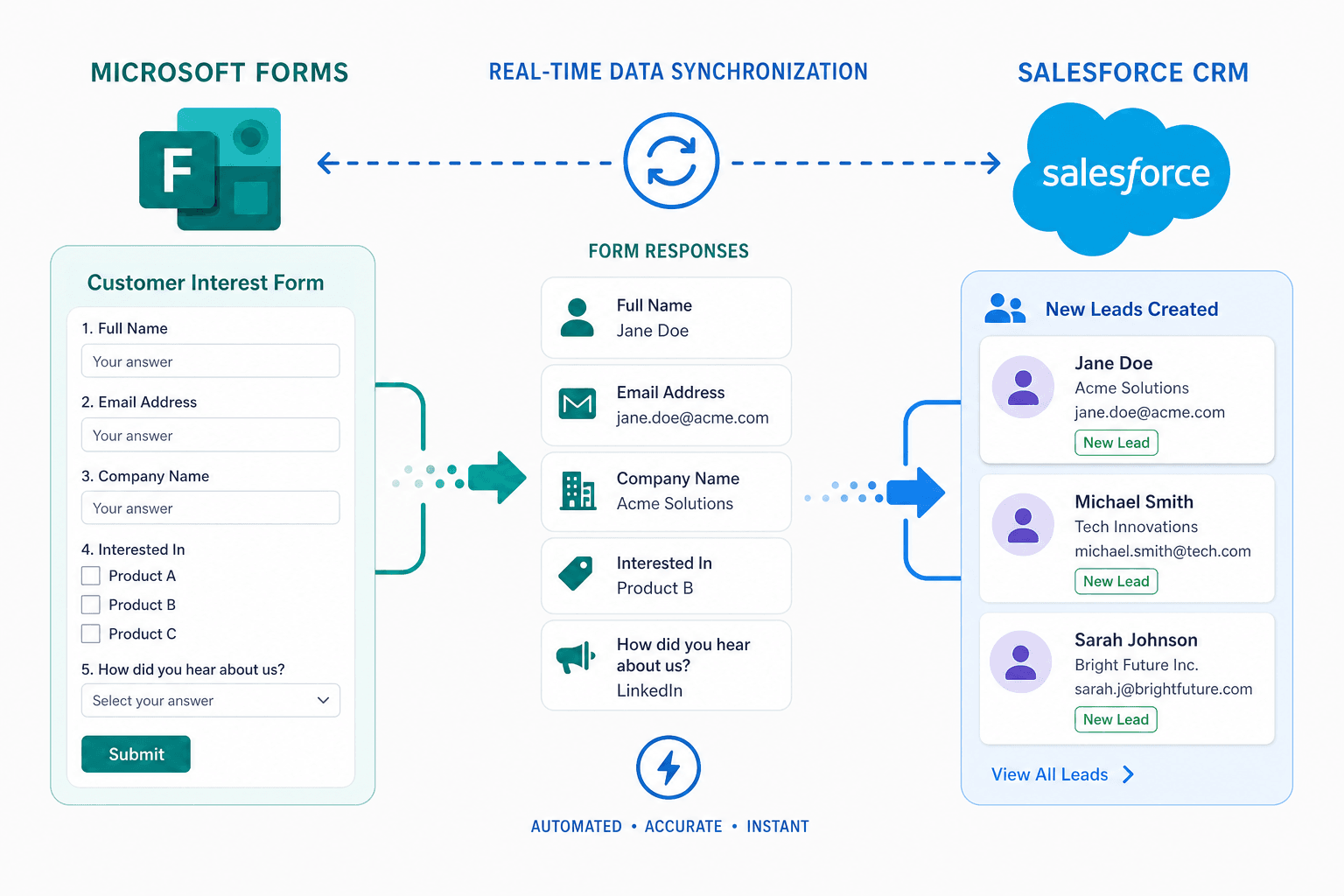
Microsoft Forms is widely used by teams running inside the Microsoft 365 ecosystem. It's simple, free for many organizations, and quick to deploy for surveys, registrations, and lead capture.
However, when businesses start using Salesforce as their CRM, a major challenge appears: how do you sync Microsoft Forms with Salesforce automatically?
Without an integration, every form submission would have to be manually copied into Salesforce as a lead. And that is the ideal case for no one.
To solve this, organizations rely on integration middleware like Power Automate or Zapier. These tools connect Microsoft Forms responses to Salesforce objects. It isn't always as smooth as it sounds, but we'll come to that later. First let's show you how to connect them to Salesforce.
In this guide, we'll walk you through:
- How to connect Microsoft Forms to Salesforce using Power Automate
- How to build a Microsoft Forms Salesforce integration with Zapier
- The common limitations of middleware-based integrations
- A simpler no-code alternative using a native Salesforce integration
Why Teams Want to Connect Microsoft Forms to Salesforce
If you're already in the Microsoft universe, it's only natural to prefer using Microsoft forms for lead generation, surveys, and more.
But once you bring a Salesforce CRM into your universe, you don't want your form responses trapped inside Microsoft Forms. You want to create a seamless workflow between the two.
That's why there are ways to sync Microsoft Forms with Salesforce automatically. The most common problems you would avoid by doing this, include:
- Eliminate Manual Data Entry
Without automation, someone must export form responses and manually create records in Salesforce. This creates several issues, like data entry errors, missed or delayed leads, inconsistent formatting across records. Can you imagine doing this for a high-volume form requirement like event registrations? Completely unsustainable.
By syncing the two together, you'll have leads triggered automatically into Salesforce.
2. Delayed Lead Follow-Up
Speed matters in sales. Research shows that leads contacted within five minutes are 21 times more likely to qualify compared to those contacted later. So if form responses take hours or days to reach Salesforce, the opportunity window shrinks significantly. Automating Microsoft Forms to Salesforce leads ensures the right team is notified immediately.
3. Fragmented Data Systems
If Microsoft Forms operates separately from Salesforce, teams lose the benefit of centralized CRM data. This leads to duplicate records, incomplete customer profiles, and broken reporting dashboards
A proper Microsoft Forms Salesforce integration ensures form submissions automatically create or update Salesforce records.
Method 1 - Using Power Automate to Sync Microsoft Forms With Salesforce
Many Microsoft 365 users first attempt integration using Power Automate, which is Microsoft's workflow automation platform. Power Automate can monitor new Microsoft Forms responses and push that data into Salesforce.
Here's the basic step-by-step workflow for creating a flow.
Step-by-step Power Automate Setup
1. Create and Configure Your Microsoft Form
Start by creating the form that will collect your data.
- Go to Microsoft Forms.
- Click New Form and create your form.
Once the form is ready:
- Click Collect responses
- Copy and share the form link
- Submit a test response to ensure the form works correctly
This test submission will also help validate the integration later.
2. Set Up a Power Automate Flow
Next, create the automation that sends form responses to Salesforce.
- Go to Power Automate.
- Click Create - Automated cloud flow.
- Give your flow a name (for example: Microsoft Forms to Salesforce Lead Creation).
- Search for Microsoft Forms as the trigger.
- Select When a new response is submitted.
- Choose your form from the dropdown list.
- Click Create.
This trigger ensures the automation runs every time someone submits the form.
3. Configure the Microsoft Forms Connection
Now you'll retrieve the actual form data.
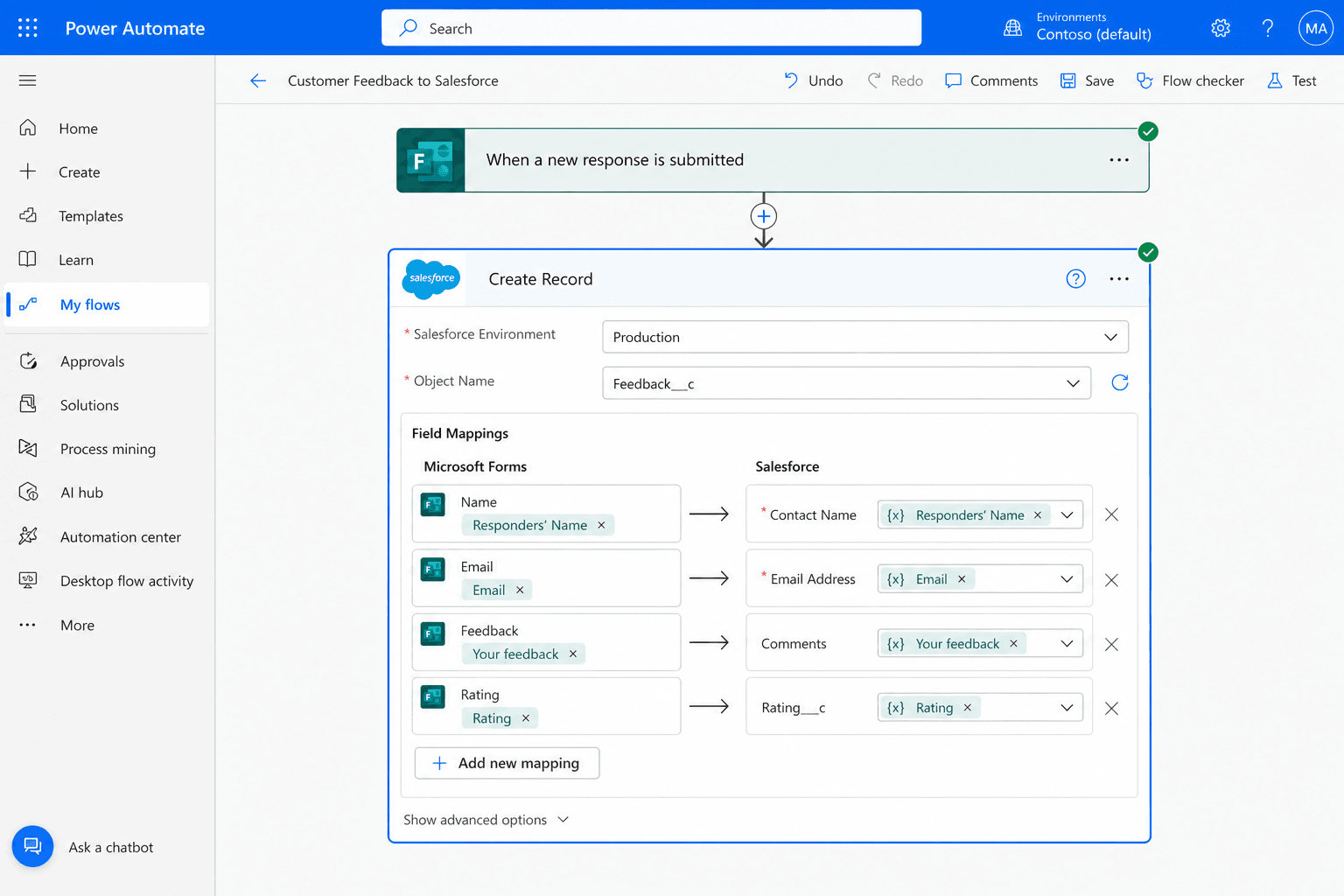
- Click + New step.
- Search for Microsoft Forms and select Get response details.
- In Form ID, choose your form from the dropdown list.
- In Response ID, select Response Id from the dynamic content generated by the trigger.
If the option doesn't appear automatically, click Add dynamic content and choose the correct field. Once configured, Power Automate will pull all submitted form fields so they can be amapped to Salesforce.
4. Connect Power Automate to Salesforce
Now configure the step that creates records inside Salesforce.
- Click + New step.
- Search for Salesforce.
- Select Create record.
- Sign in to your Salesforce account when prompted.
- Choose the object you want to create, such as:
- Lead
- Contact
- Case
Next, map the fields from Microsoft Forms to the corresponding Salesforce fields.
Example:
| Microsoft Forms Field | Salesforce Field |
|---|---|
| First Name | First Name |
| Last Name | Last Name |
| Email Address | |
| Company | Company |
| Phone Number | Phone |
Correct field mapping ensures submissions appear properly inside Salesforce.
5. Test and Deploy the Integration
Before relying on the automation, run a full test.
- Click Save and then Test your flow.
- Submit a test response through Microsoft Forms.
- Check Salesforce to confirm a new record was created.
- Make sure your flow is turned on.
Once activated, every form submission should automatically create a record in Salesforce.
Limitations of Power Automate for Salesforce Integration
While Power Automate seems convenient, there are several limitations that quickly appear.
- Premium Licensing Required: First and foremost, Salesforce connectors require Power Automate Premium licensing, which is $15.00 user/month, for organizations with many users, this can be a major expense.
- No Native Salesforce Form Builder: Power Automate simply moves data between systems. It does not act as a Salesforce form builder. That means you still rely on Microsoft Forms' for your form creation, which has limited customization capabilities.
- Complex Field Mapping: Salesforce field structures can be complicated. Power Automate flows often break when dealing with: Multi-picklists, Record types, and Validation rules
- Limited Error Handling: If the flow fails due to a Salesforce validation error, submissions get lost or require manual troubleshooting. For mission-critical lead capture, this is a huge risk.
Watch out
Power Automate's Salesforce connector requires a Premium license. For teams with many users, this cost can add up quickly - and that's before accounting for Zapier fees on top of your existing Salesforce subscription.
Method 2 - Using Zapier for Microsoft Forms Salesforce Integration
Another common solution is using Zapier, a popular automation platform. Zapier connects thousands of apps through event-based workflows called "Zaps." A Zapier Microsoft Forms Salesforce integration follows a simple trigger-action structure.
Here's how a typical Zap works.
- Create a Zapier account.
- Click Create Zap.
- Select Microsoft Forms as the trigger app.
- Choose New Response as the trigger event.
- Connect your Microsoft Forms account.
- Add Salesforce as the action app.
- Select an action like Create Lead or Create Contact.
- Map your form fields to Salesforce fields.
- Test the Zap and activate it.
Once enabled, Zapier will automatically create Salesforce records whenever someone submits the form.
Zapier Limitations
Although it definitely feels easier to set up than Power Automate, Zapier still has limitations.
- Pricing Tiers: Zapier charges based on tasks per month. Every form submission counts as a task. If your business has high-volume lead forms it can very quickly exceed lower-tier plans, forcing you to upgrade constantly.
- No Real-Time Sync: Zapier runs on polling intervals depending on the plan. That means some submissions may take minutes to appear in Salesforce, which further means lead routing workflows are delayed.
- No Bi-Directional Sync: Zapier workflows are typically one-way. You cannot easily prefill forms from Salesforce or even update existing records via the form.
The Problem With Middleware-Based Integrations
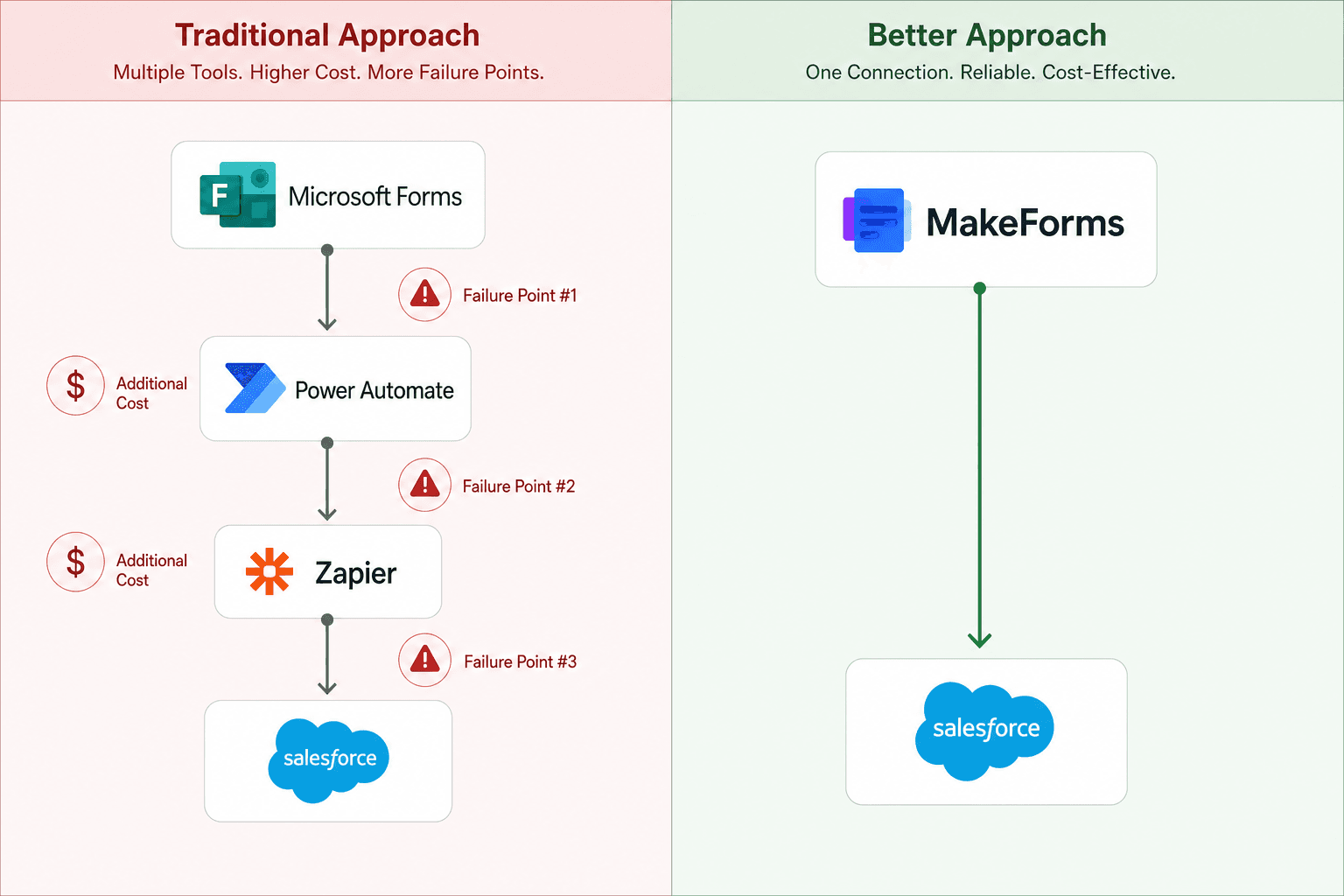
As we've just discussed, both Power Automate Salesforce integrations and Zapier workflows rely on middleware. While middleware connects systems, it introduces several structural problems.
Added Cost
Middleware platforms charge subscription fees. You may end up paying for:
- Microsoft Forms
- Salesforce
- Power Automate or Zapier
Maintenance Overhead
Automation flows must be maintained. Changes to Salesforce fields or form structures often break integrations. So you must have someone who is constantly monitoring and updating workflows.
Single Point of Failure
If the middleware service fails or the automation stops running:
- Form submissions stop syncing
- Leads may be lost
No Advanced Salesforce Features
Middleware integrations rarely support advanced Salesforce capabilities such as:
- Prefilling forms with existing CRM data
- Editing existing records
- OTP-based lead verification
What's A Better Way? MakeForms' Native Salesforce Integration
Instead of relying on middleware, many teams now choose native integrations. This means the form platform connects directly to Salesforce without requiring additional tools or automation layers.
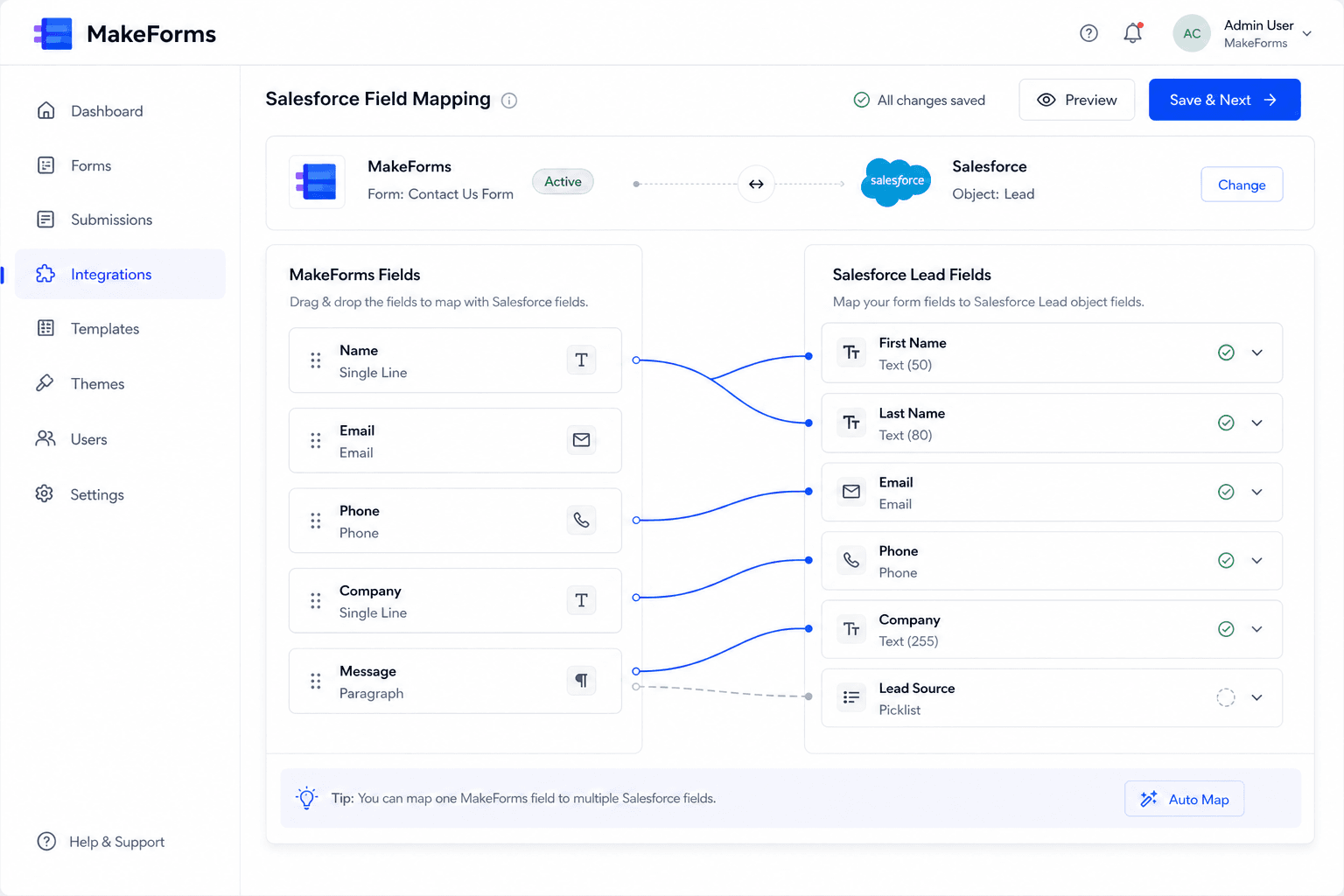
MakeForms, is one such professional form builder that offers a no-code Salesforce forms platform that connects directly to Salesforce. This completely eliminates the complexity of external automation tools, and adds in the value of being purpose-built for form creation, lead organization, and tracking.
How MakeForms Connects to Salesforce Without Middleware
One of MakeForms' most fundamental use-case is being a form builder for Salesforce. Many of our clients operate within the Microsoft ecosystem for productivity tools but use Salesforce as their CRM, and choose MakeForms to handle form creation and lead capture that syncs directly with Salesforce. And the reason is simple, they want the best tool for each job.
Here are some of the benefits of using MakeForms as your form builder tool.
Drag-and-Drop Form Builder: Teams can design forms visually without coding.
Real-Time Sync: Form submissions instantly create Salesforce records.
Salesforce Field Mapping: MakeForms allows direct field mapping within the interface.
Prefill From Salesforce: Forms can automatically load existing customer data from Salesforce.
Edit Existing Records: Submissions can update existing Salesforce records instead of always creating new ones.
OTP Verification: For sensitive forms, MakeForms supports one-time password verification.
Advanced Conditional Logic: Forms can change dynamically based on user input.
Compliance and Security: MakeForms supports HIPAA, GDPR, PIPEDA, Australian DPA, CCPA, and more. This makes it suitable for regulated industries.
Custom Domains: Organizations can host forms under their own domain for consistent branding.
PDF Generation: After submission, forms can automatically generate PDF copies of the responses.
Quick Comparison: Microsoft Forms + Middleware vs. MakeForms
For teams serious about CRM automation, a native Salesforce form builder delivers better long-term results. Here's a simple comparison.
| Feature | Microsoft Forms + Middleware | MakeForms |
|---|---|---|
| Native Salesforce Integration | ❌ | ✅ |
| Real-Time Sync | Limited | ✅ |
| Prefill From Salesforce | ❌ | ✅ |
| Edit Existing Records | ❌ | ✅ |
| OTP Verification | ❌ | ✅ |
| Compliance Features | Limited | Advanced |
| Maintenance | Requires monitoring | Minimal |
| Cost Efficiency | Multiple tools | Single platform |
When Should You Switch From Microsoft Forms?
Microsoft Forms works well for simple surveys and internal forms. But many organizations outgrow it when their CRM processes mature.
You should consider switching if:
- You need real-time CRM lead capture
- Your forms must update existing Salesforce records
- You want verified lead submissions
- Compliance requirements demand stronger security
- Middleware costs are becoming too high
If you said yes to most of the above, it's time to switch from Microsoft Forms to MakeForms.
Start your free MakeForms trial today and see how easy it is to capture, verify, and sync form data directly with your CRM.
Build your first Salesforce-integrated form in minutes.
Ready to Ditch the Middleware?
MakeForms connects directly to Salesforce - no Power Automate, no Zapier, no extra cost. Build your first Salesforce-integrated form in minutes.