Address Field
The Address Field in MakeForms helps you capture complete location details from users — whether as a single line or a fully structured format with street, city, state, ZIP code, and country. It’s ideal for forms that require accurate addresses, such as shipping forms, order details, or registration forms.
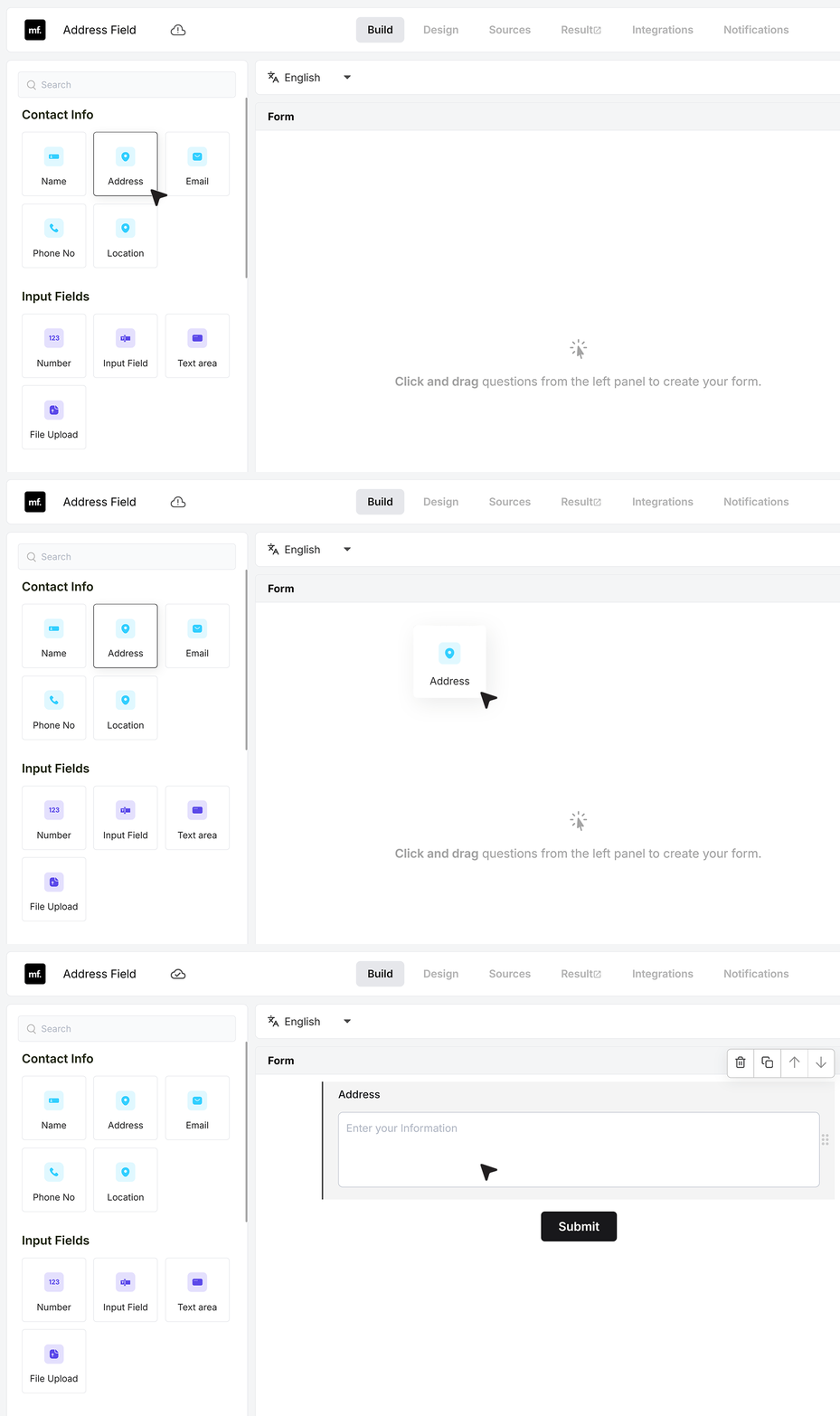
To get started, add an Address field to your form by dragging it from the field list or clicking to insert it.
Basic Settings
Required Field
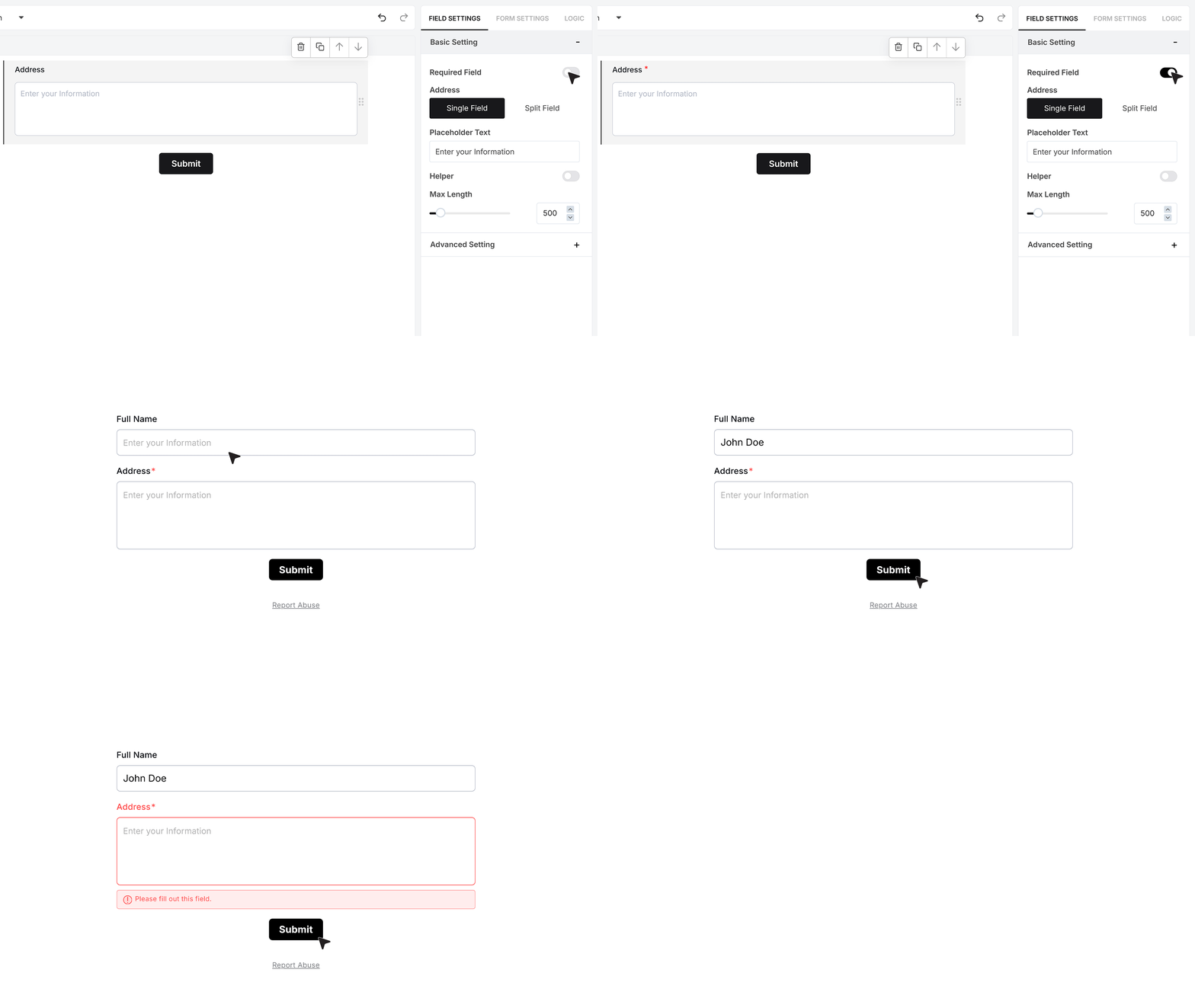
At the top of the settings panel, you’ll see the Required Field toggle. When enabled, the form will not submit unless this field is filled in. If left blank, users will see an error message asking them to complete the address before continuing.
Split Field
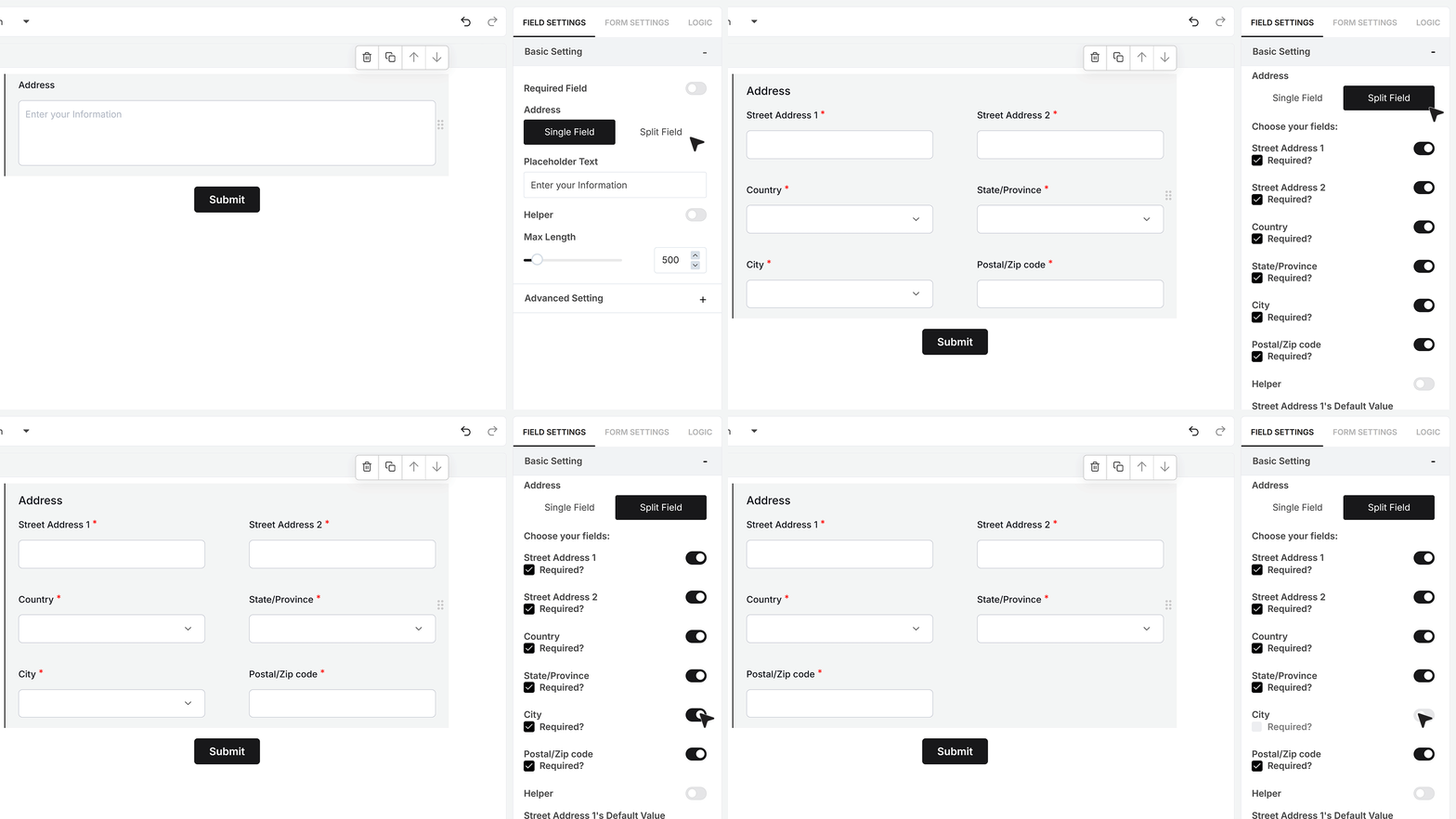
By default, the Address field appears as a single-line input — useful when you want users to enter their entire address in one box. If you turn on the Split Field toggle, the field expands into six parts: Street Address 1, Street Address 2, Country, State, City, and ZIP Code. You can turn off any section you don’t need, giving you full control over which address components are required for your form.
Default Value for Split Field
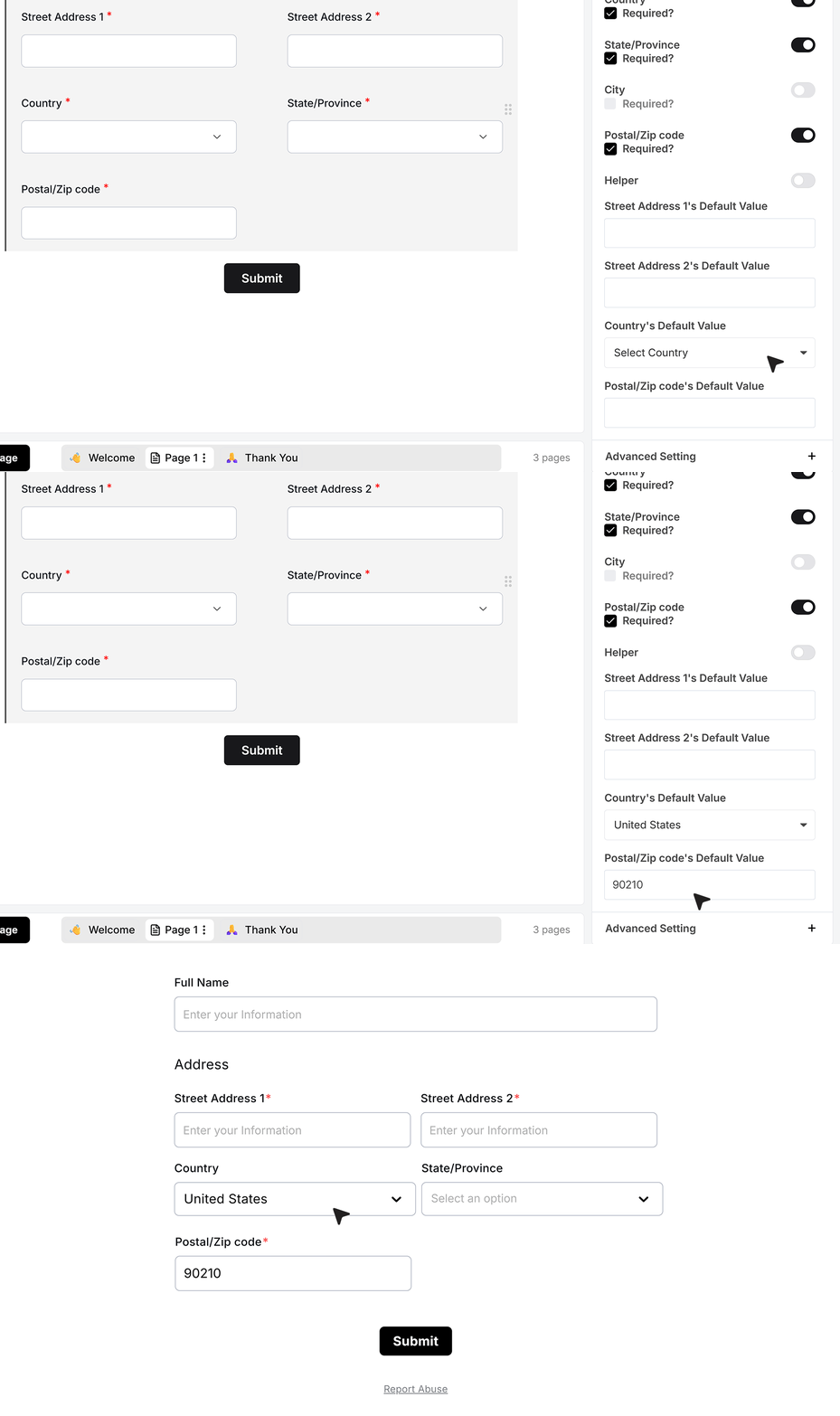
When Split Field is enabled, you’ll see individual Default Value boxes for Street Address 1, Street Address 2, Country, and ZIP Code. These allow you to pre-fill consistent information — for example, setting “United States” as the Country or “90210” as the ZIP Code. Users can edit these values while filling the form unless the fields are disabled.
Placeholder Text
In single-field mode, you can use Placeholder Text to show an example inside the input — such as “Enter your full address.” This helps guide users on what type of information to enter.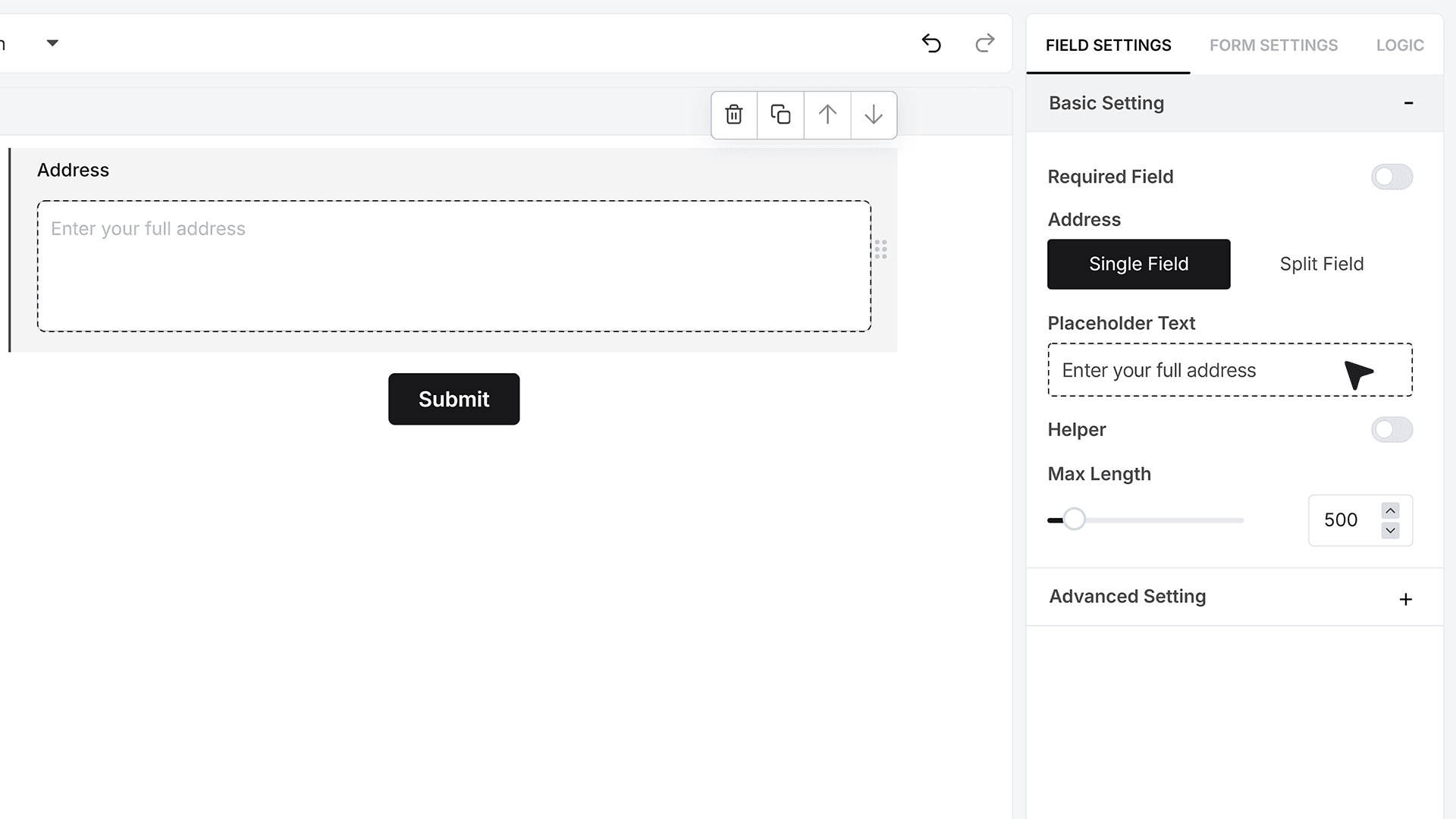
Helper Text
The Helper Text toggle allows you to add additional guidance for users. Once enabled, you can write a helper message — for example, “Enter your complete mailing address.” You can also choose where this message appears, either as an info icon beside the field or below the input box.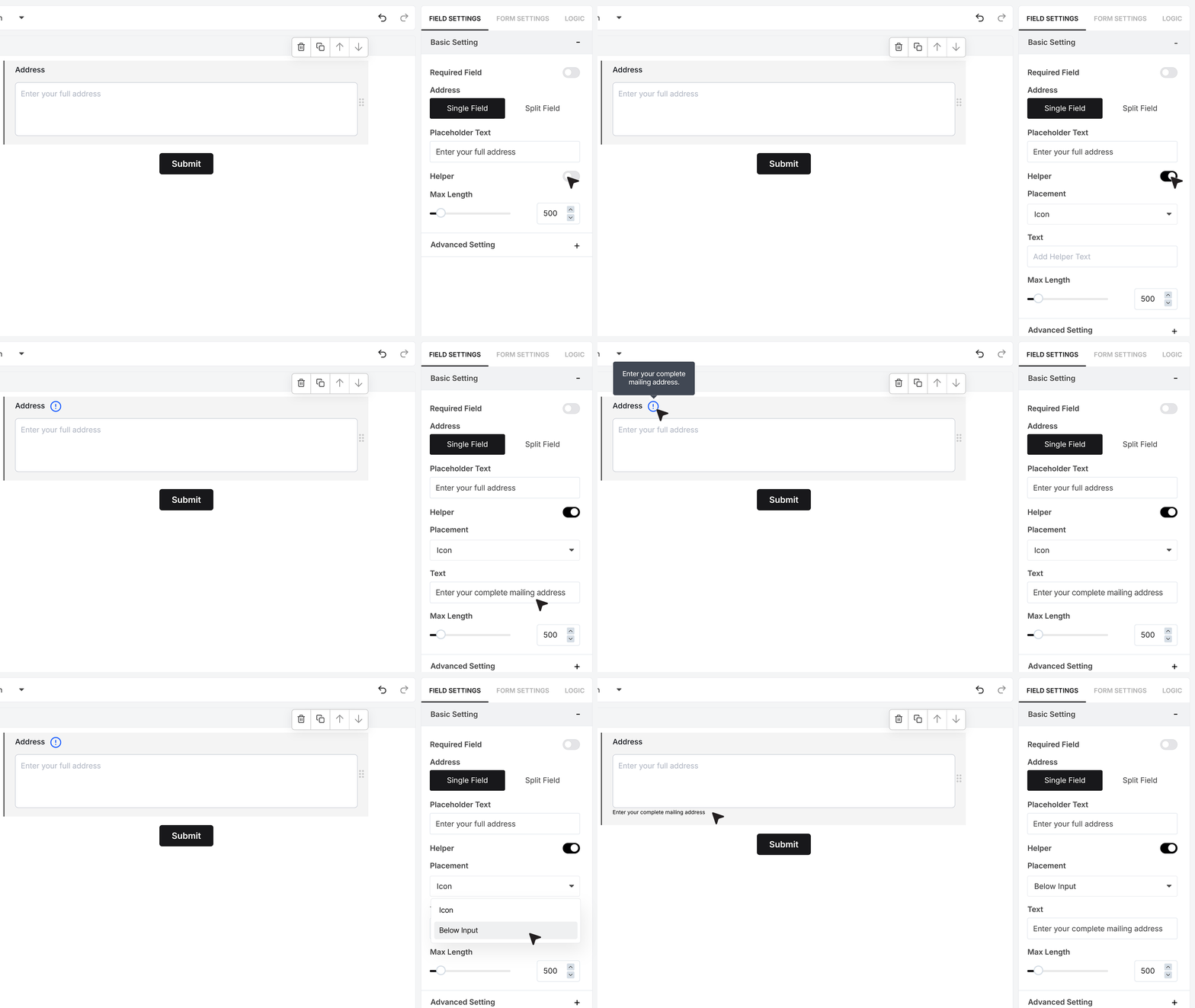
Maximum Length
You can set the Maximum Length for the single-field layout to control how long the entered address can be. This is useful when you want to limit excessively long inputs.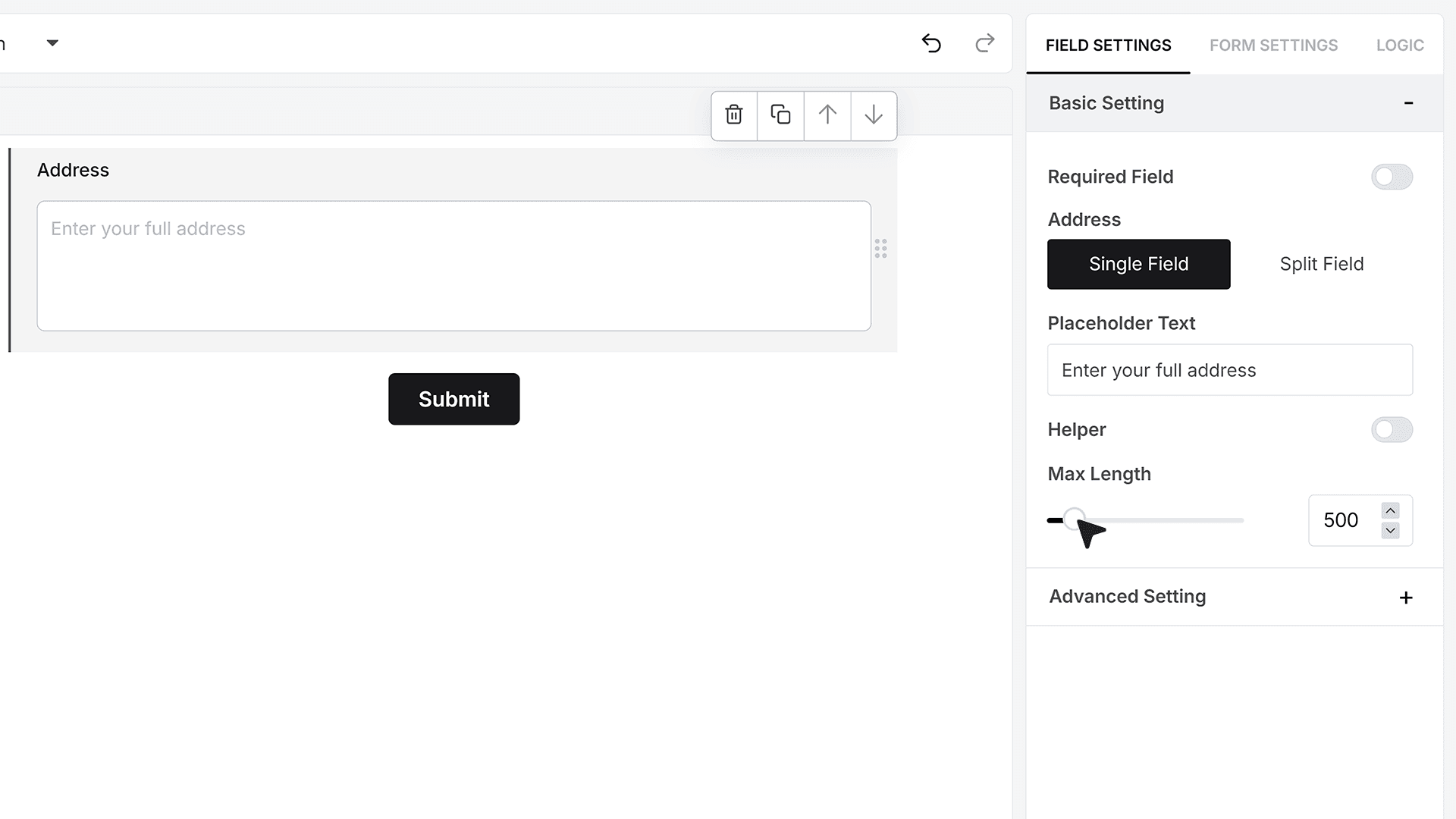
Advanced Settings
Repeat This Field
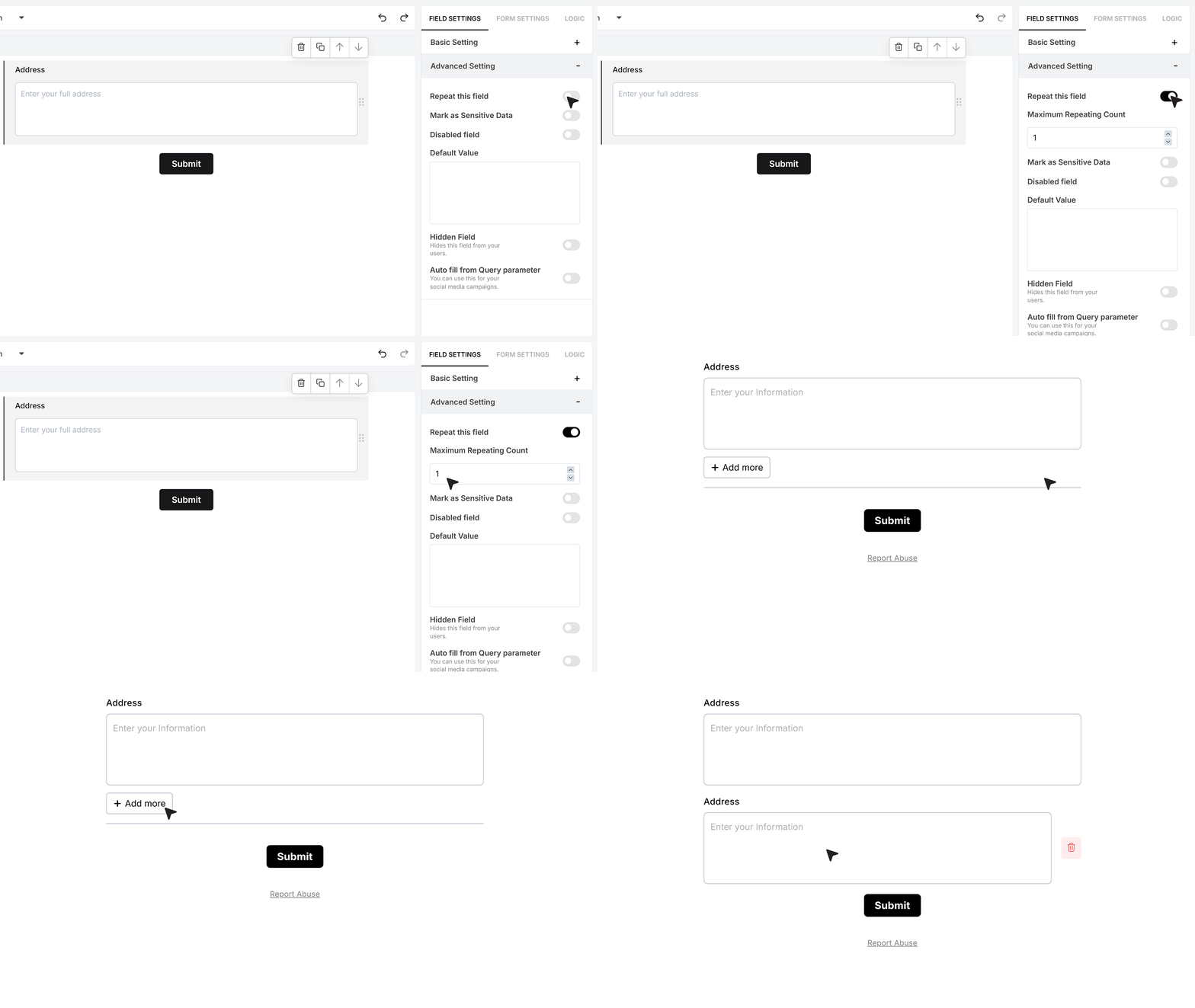
In the Advanced Settings section, you’ll find the option to Repeat This Field. Turning this on allows users to submit more than one address. You can define how many times the field can repeat, and users will see an option to add entries — for example, entering both a Home Address and an Office Address.
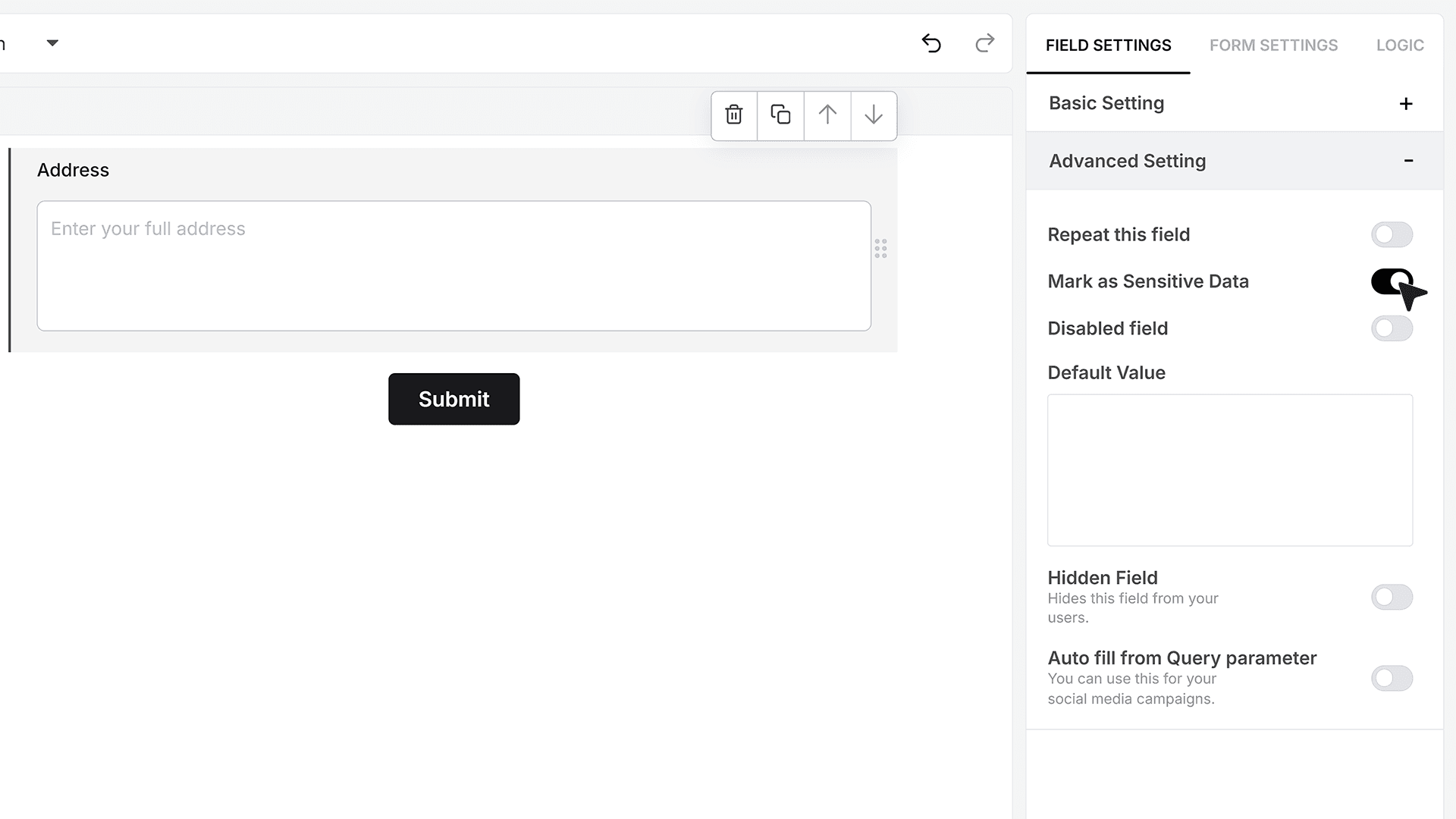
Mark as Sensitive Data
Enable Mark as Sensitive Data if the address contains personal or confidential information. When turned on, the address will be hidden from general team members and visible only to those with permission to view sensitive data.
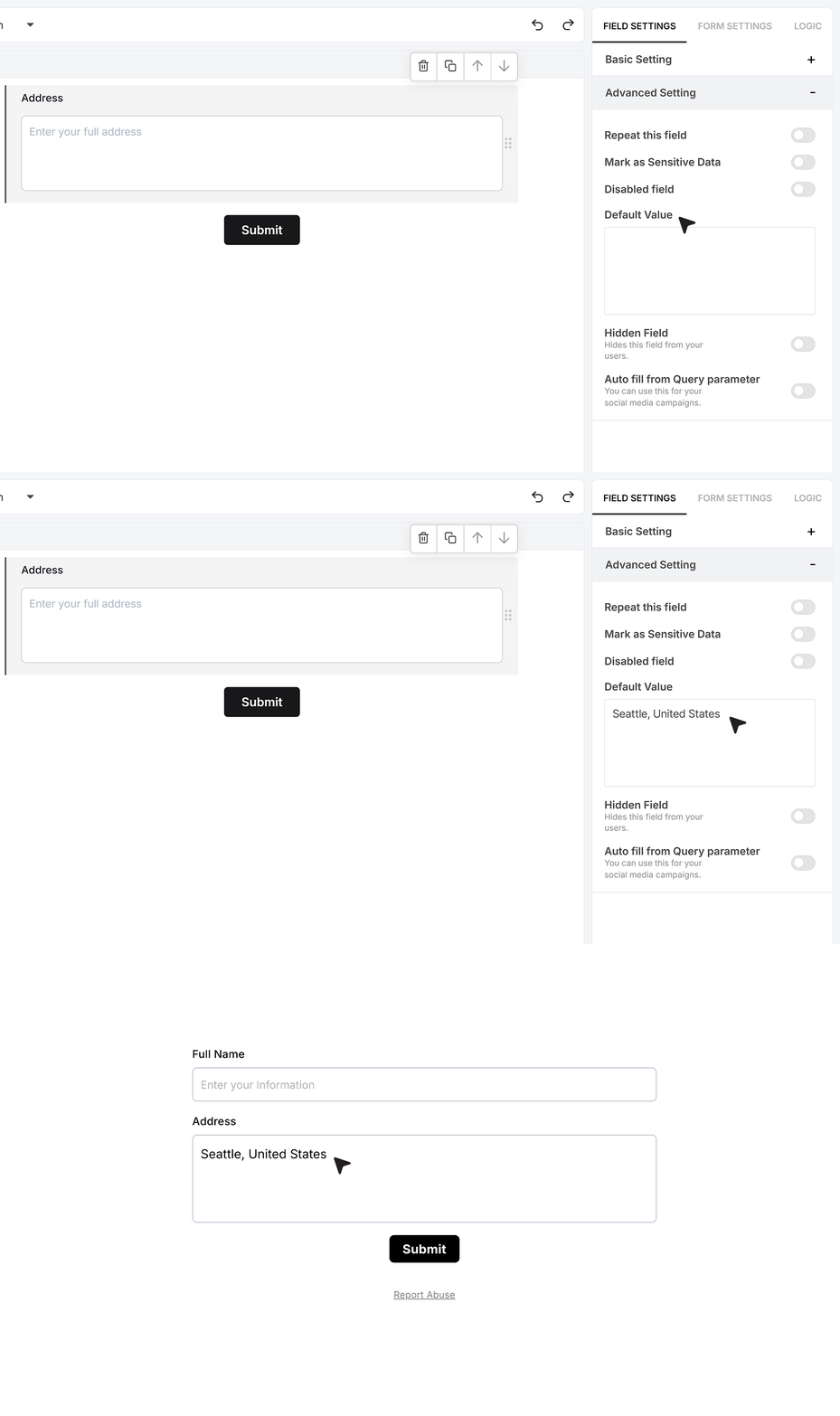
Default Value
The Default Value option allows you to pre-fill the Address field when the form loads. This is helpful when certain information remains constant across submissions.
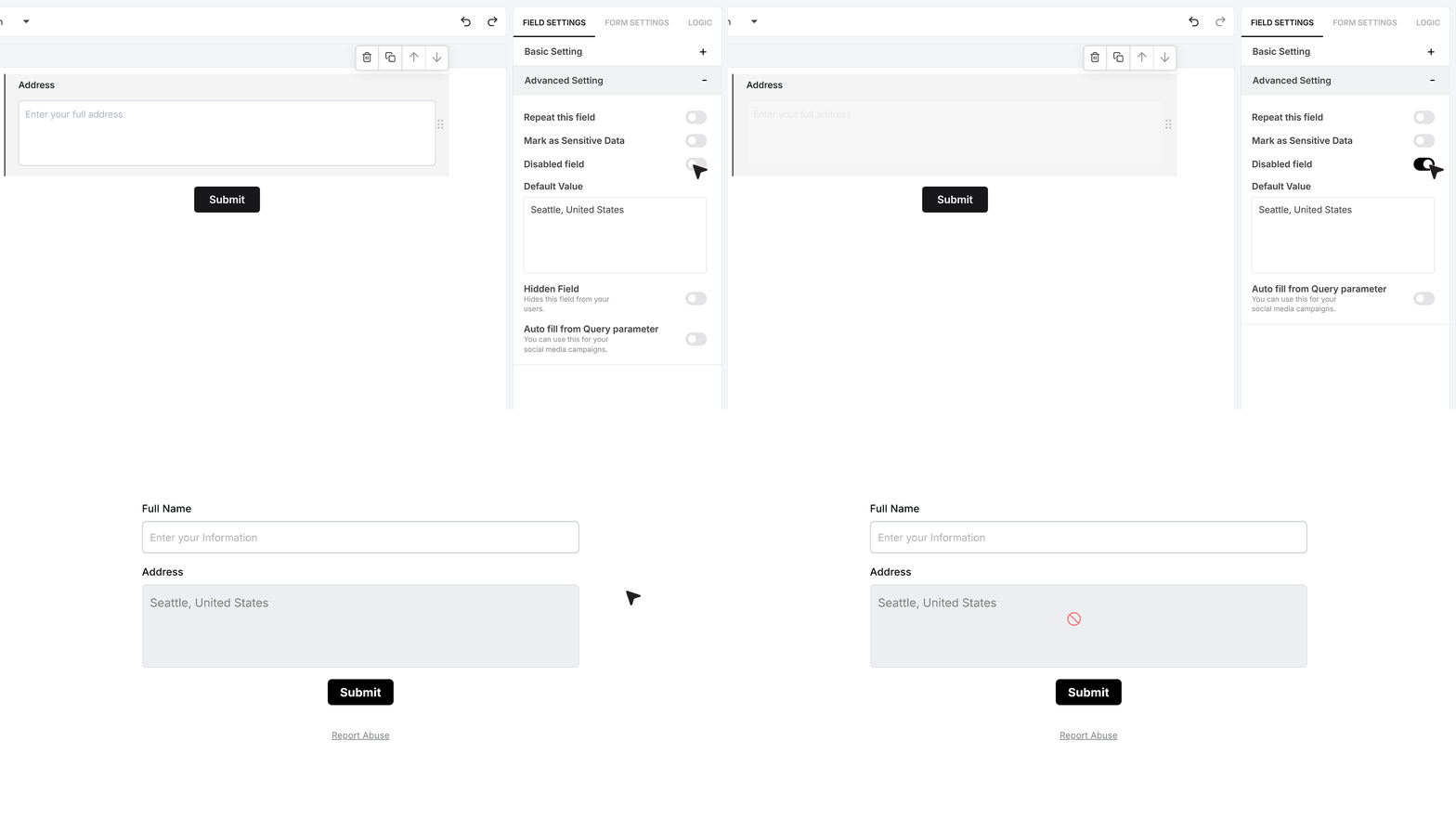
Disable Field
The Disable Field option makes the field visible but non-editable. This is useful when you want to display pre-filled information that users should not be able to modify.
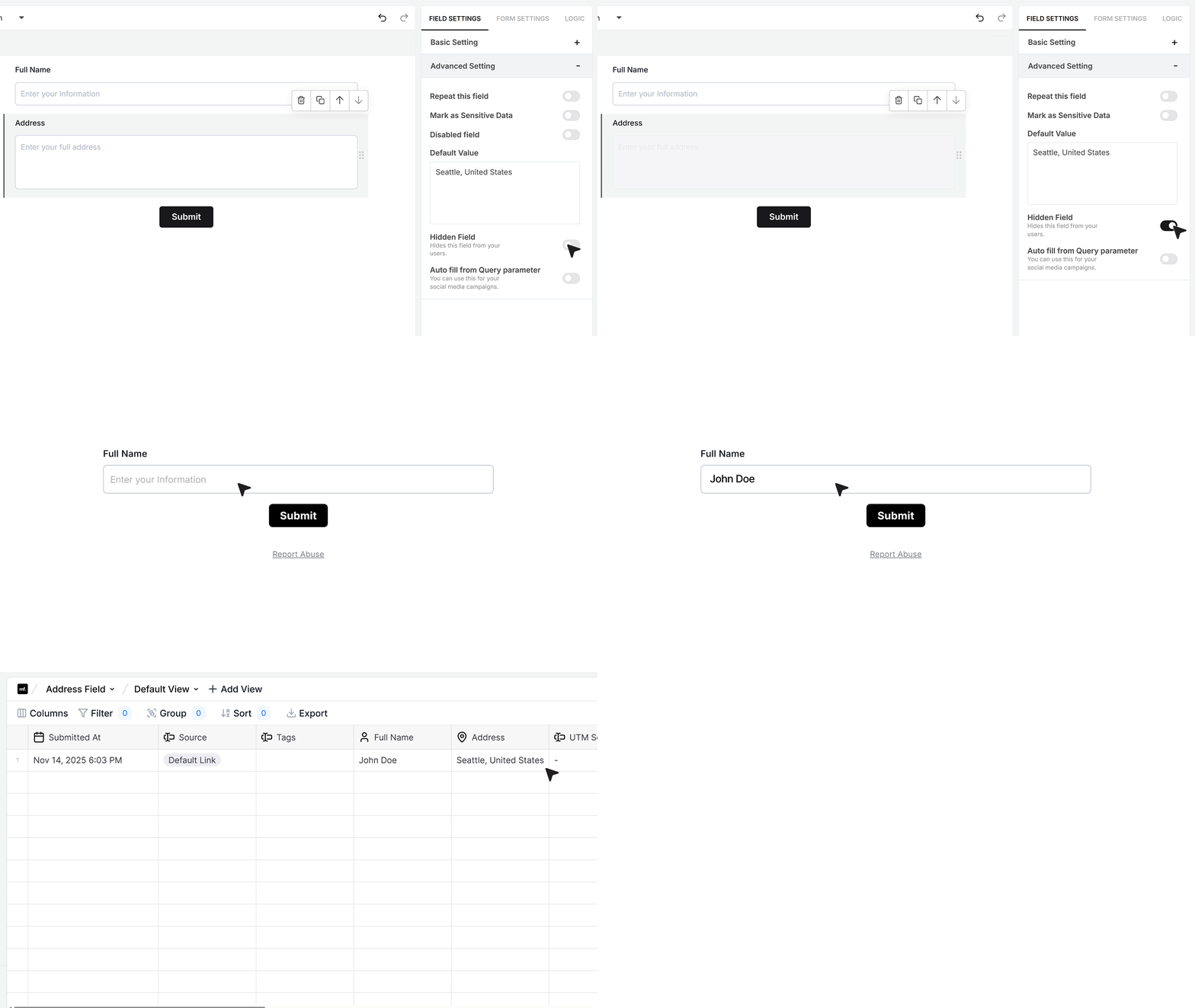
Hidden Field
Hidden Fields remain invisible on the live form, so users cannot see or interact with them. However, any value assigned to the field — including Default Values or values passed through query parameters — will still be recorded in form submissions.
Note that you must include at least one visible field before publishing a form containing hidden fields.
Autofill from Query Parameter
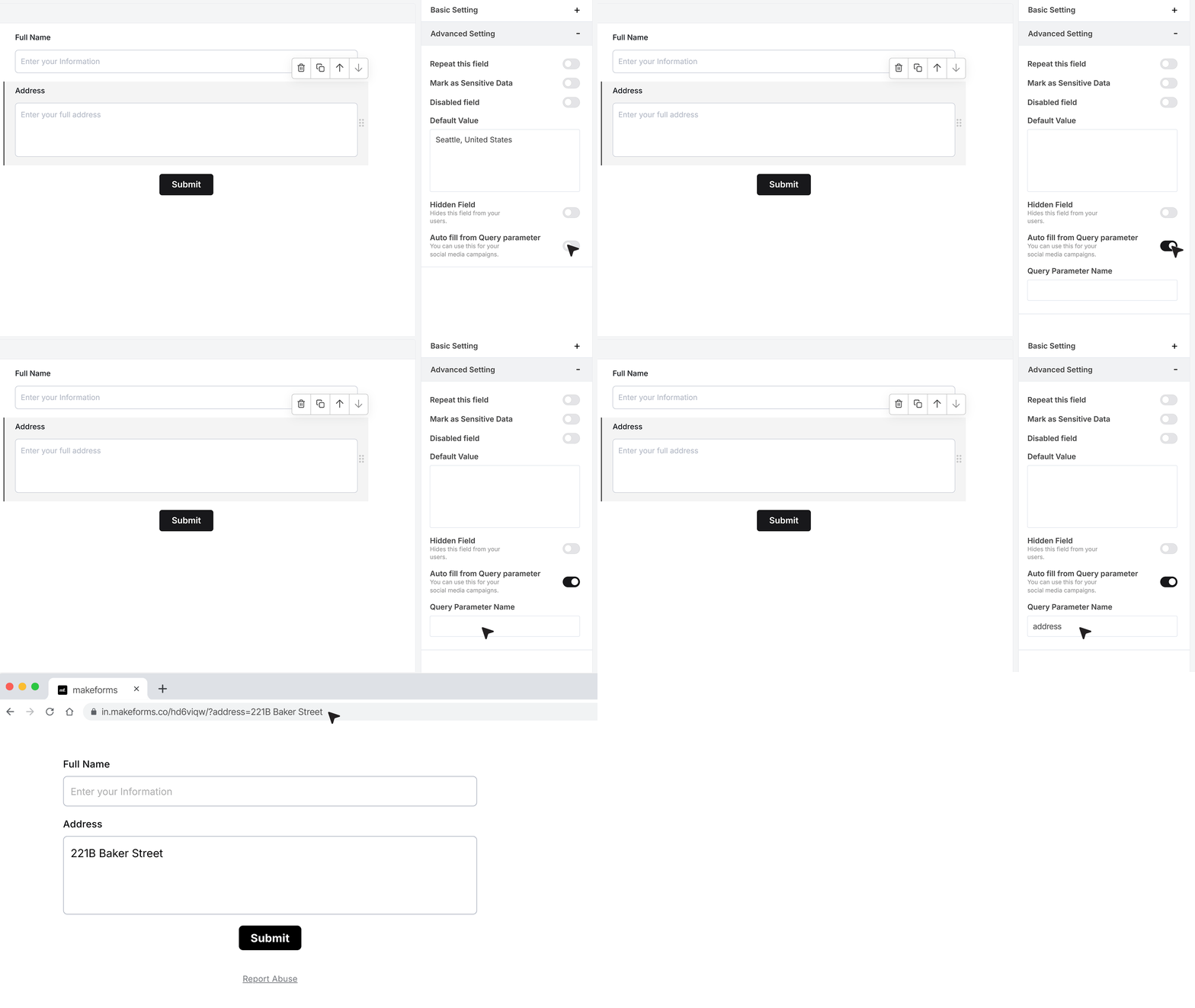
The Autofill from Query Parameter option allows you to automatically fill the Address field using data passed through the URL. For example, if you share a link like ?address=221B Baker Street, the Address field will display “221B Baker Street” when the form loads. Users can keep this value or edit it before submitting the form.
Mark as Unique
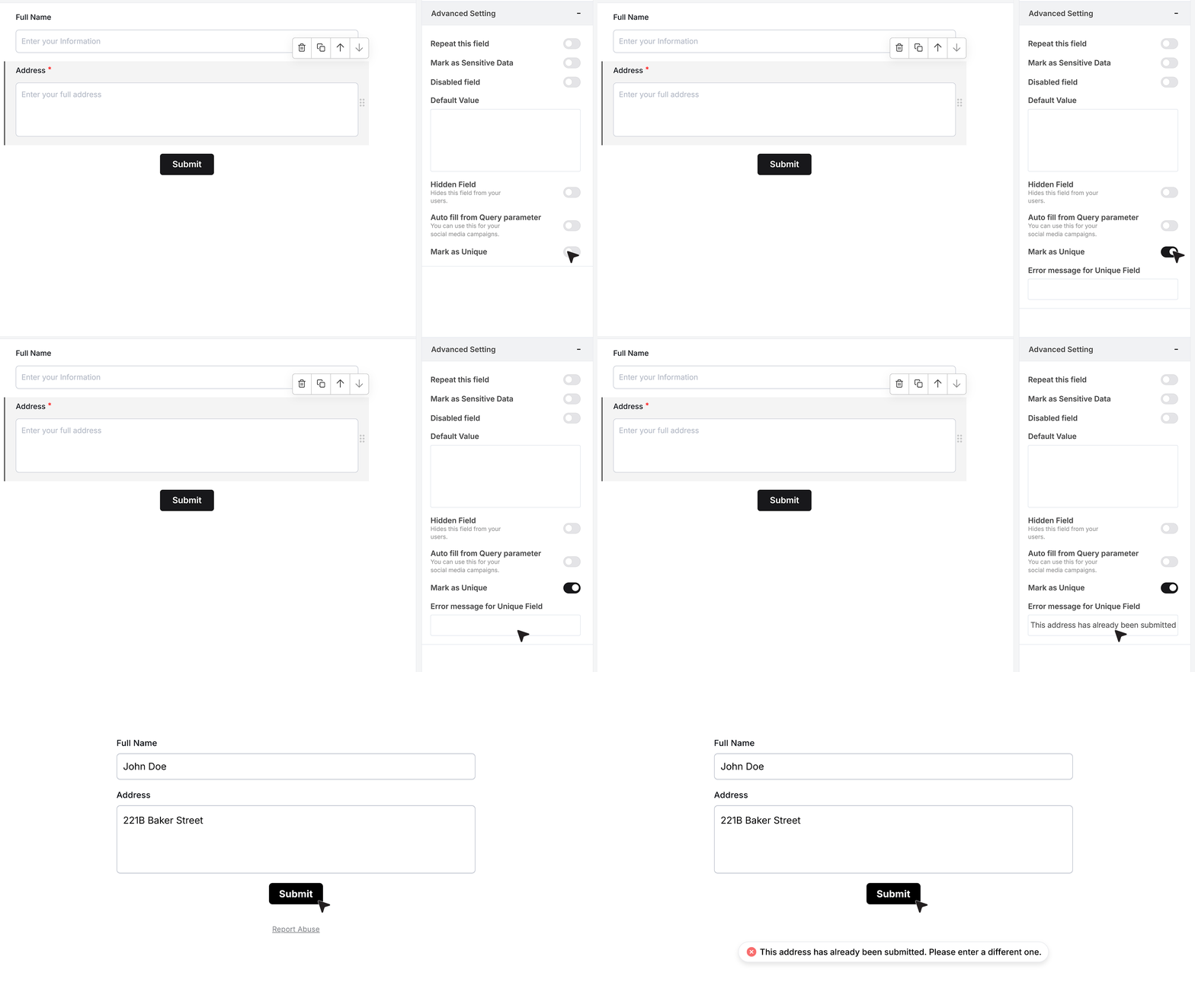
The Mark as Unique option is available only in the single-field layout and appears when the Required Field toggle is turned on. Once enabled, you’ll see a box labeled Error Message for Unique Field, where you can write the message shown when someone enters an address that already exists in your responses. If a user submits a duplicate address, this message will appear and prevent the submission.
FAQ's
In MakeForms, an address field is added by dragging the Address Field from the field list into the form editor. No code is required. The field can be used as a single input or split into structured parts like street, city, state, ZIP code, and country.
Yes. MakeForms allows switching the address field to Split Field mode. In this mode, you can enable only the parts needed for US addresses such as Street Address, City, State, and ZIP Code. Country can be preset to United States using default values.
In MakeForms, validation is handled using required field rules, maximum length limits, and unique value checks. For split fields, each part like ZIP code or state can be marked as required. Duplicate address submissions can be blocked using the Mark as Unique option.
MakeForms exports address field data through native integrations and webhooks. When split fields are used, each address part is sent as a structured value, making it easy to map street, city, state, and ZIP code fields directly into CRM address objects.
In MakeForms, ZIP Code is a separate input in Split Field mode. You can mark it as required and restrict input length. For advanced postal code checks, validation is usually handled at the integration layer or through connected systems after submission.
MakeForms address fields can be used alongside payment fields in the same form. The address data is submitted with the payment response and can be passed to payment providers for billing or verification through integrations or webhooks.
Yes. MakeForms allows address fields to be marked as Sensitive Data. When enabled, the address values are hidden from general team members and visible only to users with permission to access sensitive fields.
Common address verification API providers include Google Places API, Smarty, Loqate, and USPS APIs. These services are often connected to form builders like MakeForms through custom integrations or middleware.
MakeForms supports address lookup through external APIs using integrations, webhooks, or embedded scripts. Other platforms like Formstack and Jotform also support address lookup using third-party services.
MakeForms supports multi-language forms at the field level. Address field labels, helper text, and placeholders can be translated, allowing the same address structure to be shown in different languages while keeping the stored data consistent.
In MakeForms, address data can be sent to marketing tools using native integrations or automation workflows. Structured address fields are exported as separate values, which can be mapped to contact or lead properties in marketing systems.
MakeForms allows address values to be passed to external systems through webhooks and APIs. These systems can then validate the address against national databases such as USPS and return verification results as part of a follow-up process.
MakeForms integrates with e-commerce platforms through automation tools and APIs. Address fields are commonly used in order forms, checkout flows, and shipping data sync. Platforms like Shopify also support similar address field handling.
Address fields in MakeForms are separate from phone number fields. Phone number validation is handled by the dedicated Phone Field. This separation ensures clear validation rules and structured data for both address and contact information.