Calculated Field
Use the Calculated Field when you want to automatically calculate a value based on other fields in the form. This is useful for things like interest calculations, total scores, pricing, or any situation where numbers depend on user input.
The Calculated Field updates in real time and does not require the user to type anything.
Form inputs used
In this example, we are calculating simple interest.
The formula for simple interest is:
Simple Interest = (Principal Amount × Rate of Interest × Number of Years) ÷ 100
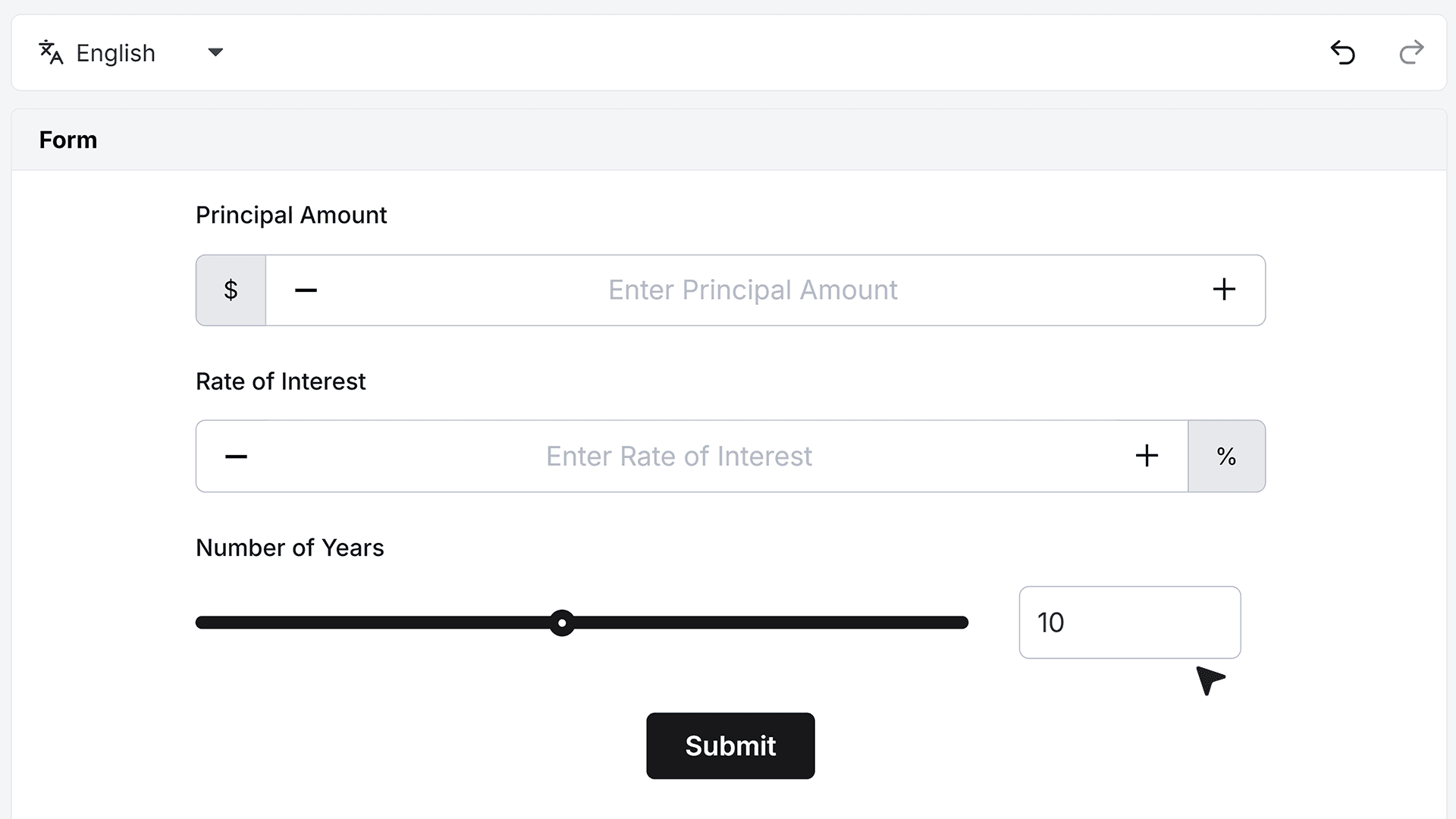
To calculate simple interest, the form needs three input values: Principal Amount, Rate of Interest, Number of Years
The form already includes the required input fields:
- Principal Amount : This field uses a Number field. A $ prefix is added so users clearly understand the value represents money.
- Rate of Interest: This also uses a Number field. A % postfix is added to indicate that the value should be entered as a percentage.
- Number of Years: This field uses a Slider. Users can select a duration between 1 and 20 years, one year at a time. The slider makes it easy to adjust the time period without typing.
Adding the Calculated Field
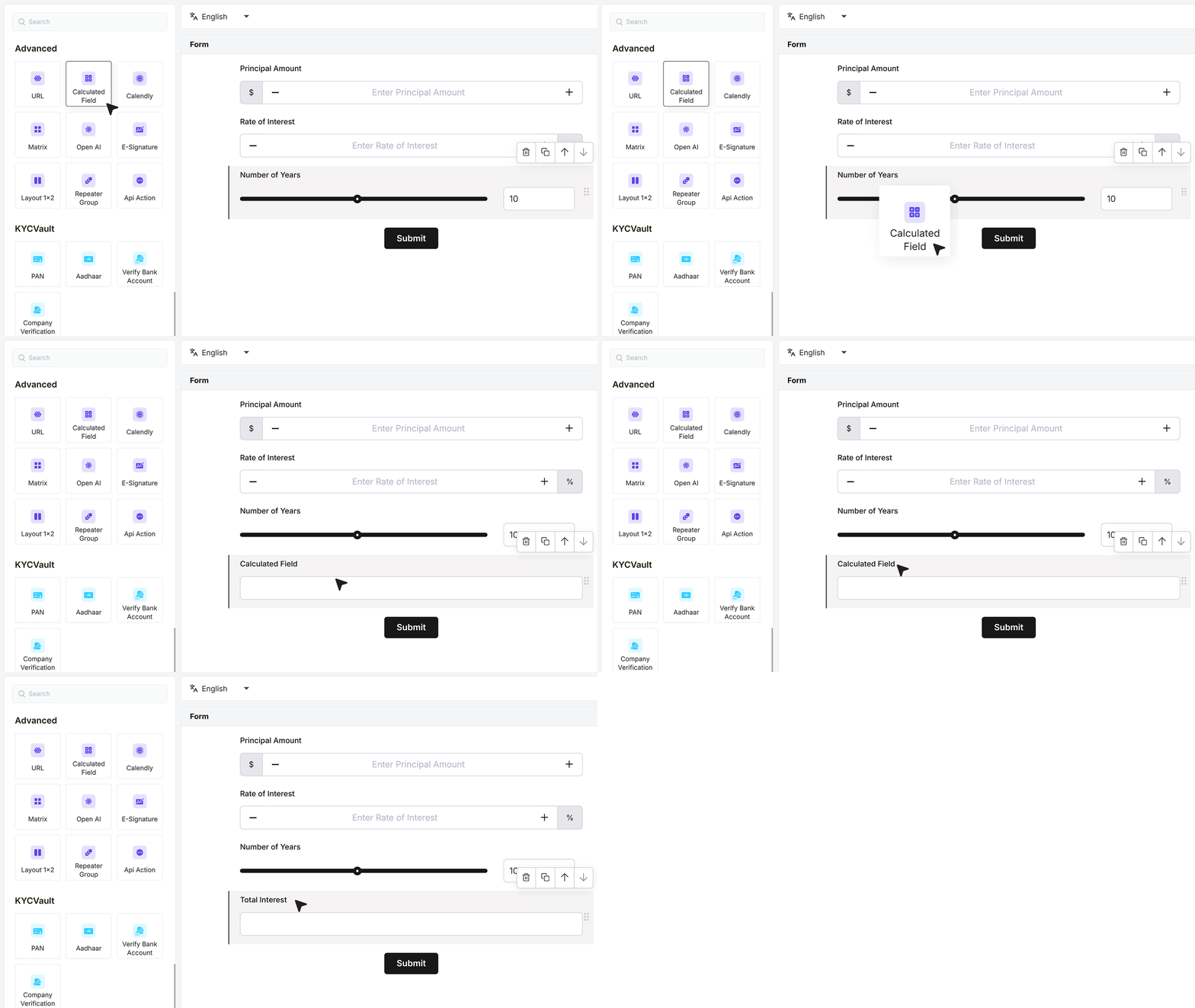
Open your form in the builder. From the field list, drag the Calculated Field into your form and place it below the fields you want to calculate from. Click the field label and rename it based on your use case. For example, you can name it Total Interest.
Calculator
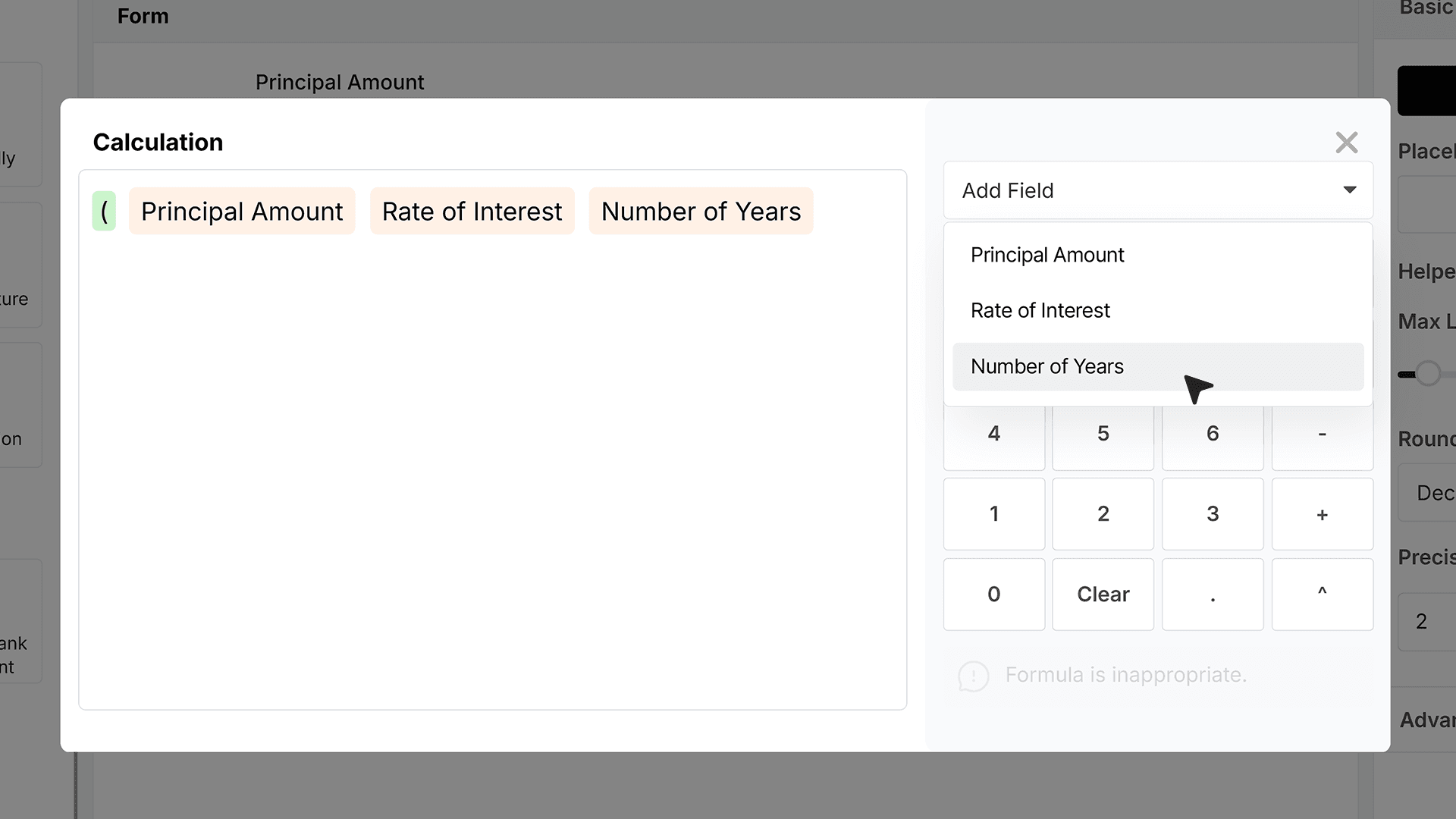
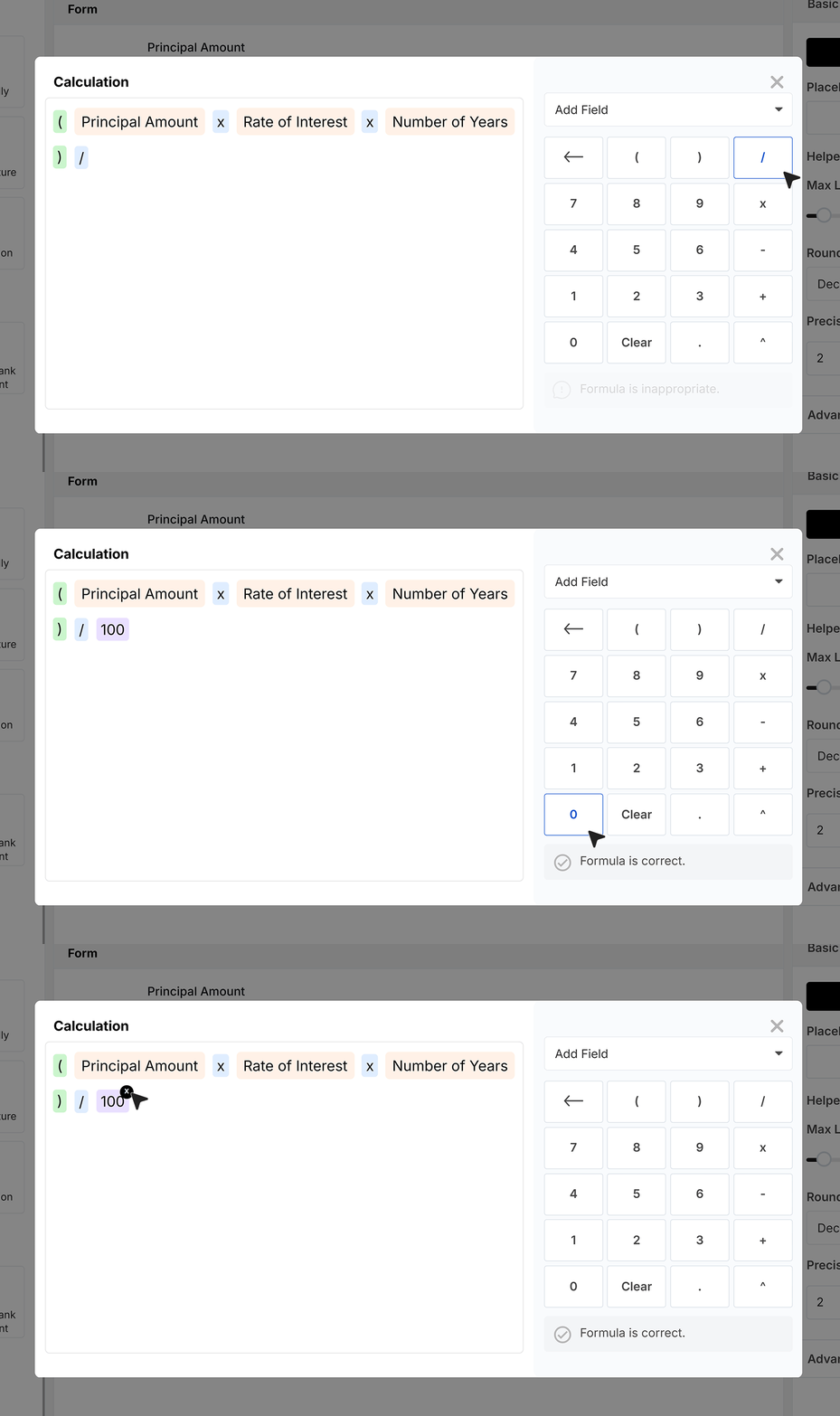
- The Calculator is where you build the formula for your calculation. Start by adding brackets if you want to group values. Inside the calculator, insert the fields you want to calculate with, such as Principal Amount, Rate of Interest, and Number of Years.
- Add operators like multiply between the fields. You can drag fields and operators to change the order if needed.
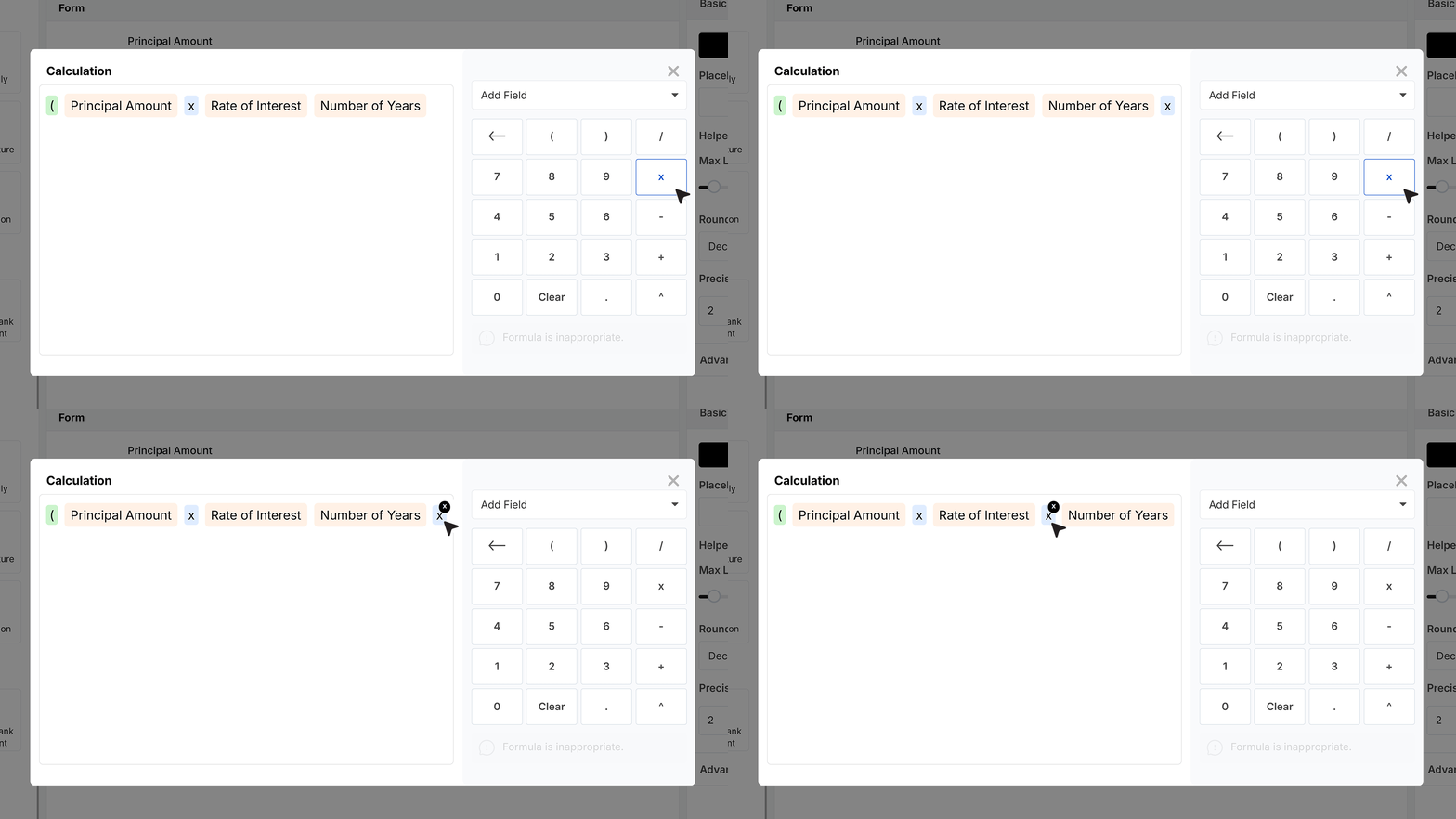
- After grouping the three values, add the divide operator and enter 100. If you add anything by mistake, use the remove icon to delete it.
Placeholder Text
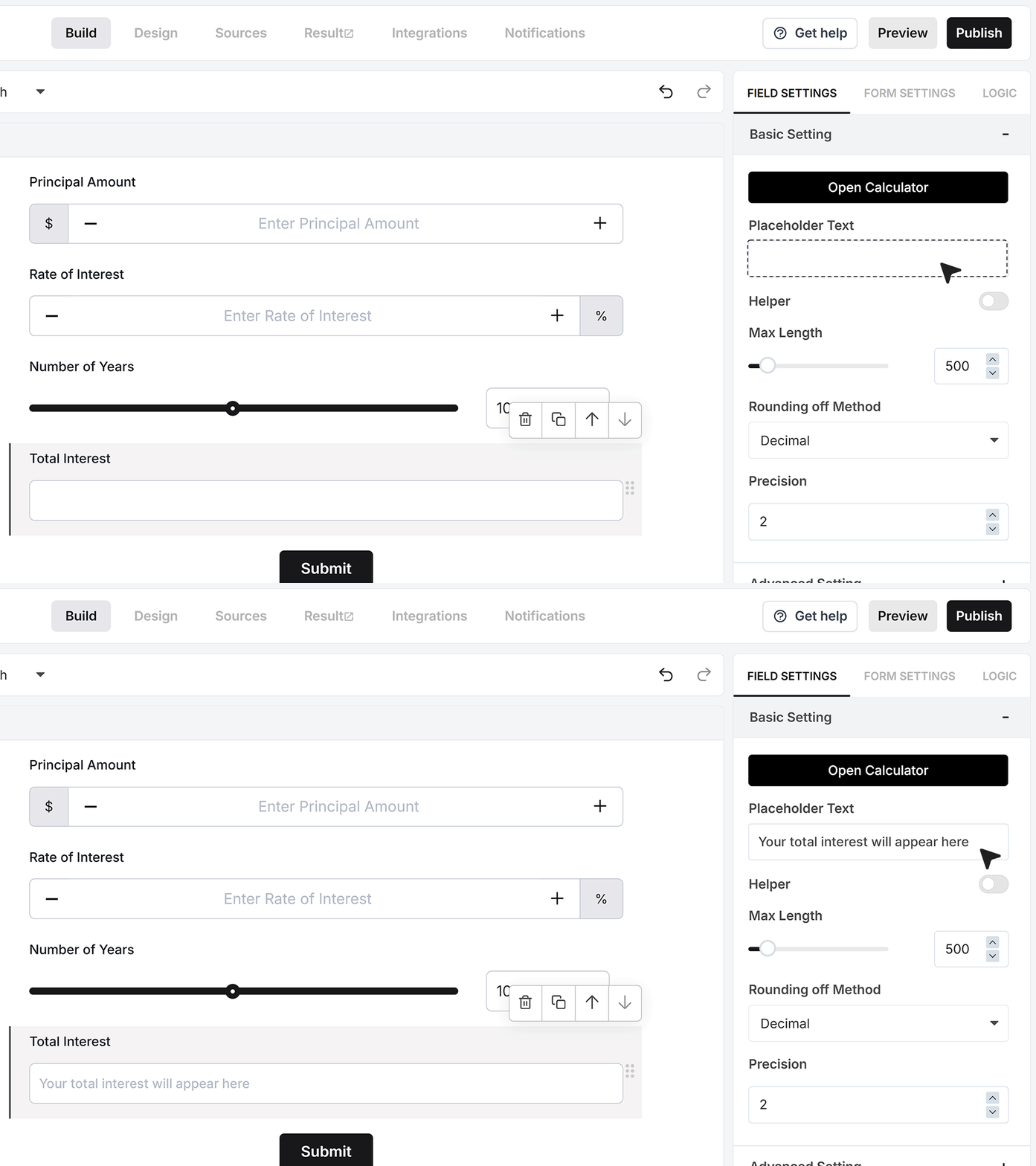
Placeholder Text lets you show a hint before the calculated value appears. For example, you can write: Your total interest will appear here. This helps users understand what the field will show once values are entered.
Helper Text
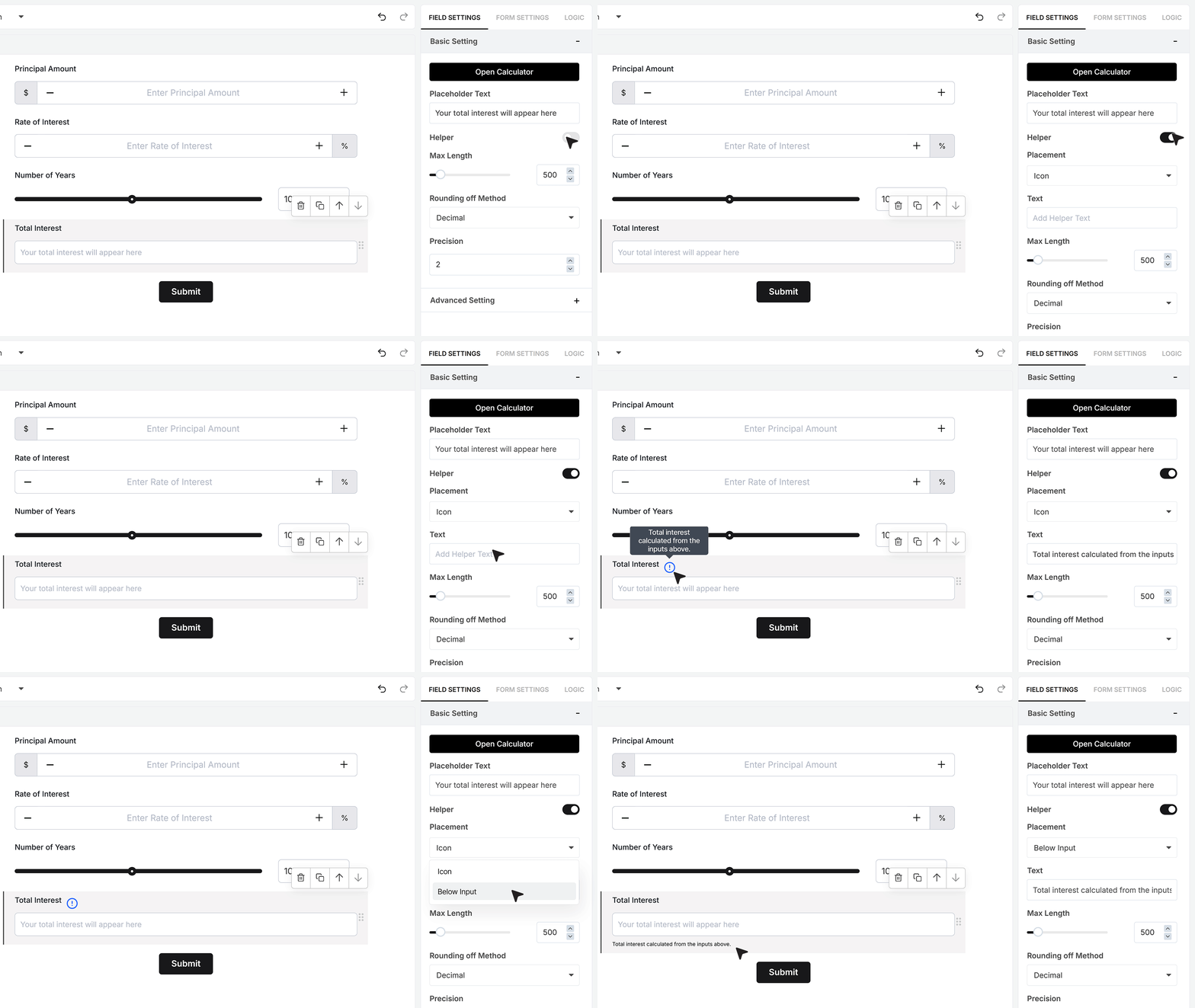
Helper Text is used to explain what the calculated number represents. For example, you can add: Total interest calculated from the inputs above.
You can show this text as a small info icon that reveals the message on hover, or as a visible line of text under the calculated field. Choose the style that keeps your form clear and easy to read.
Max Length
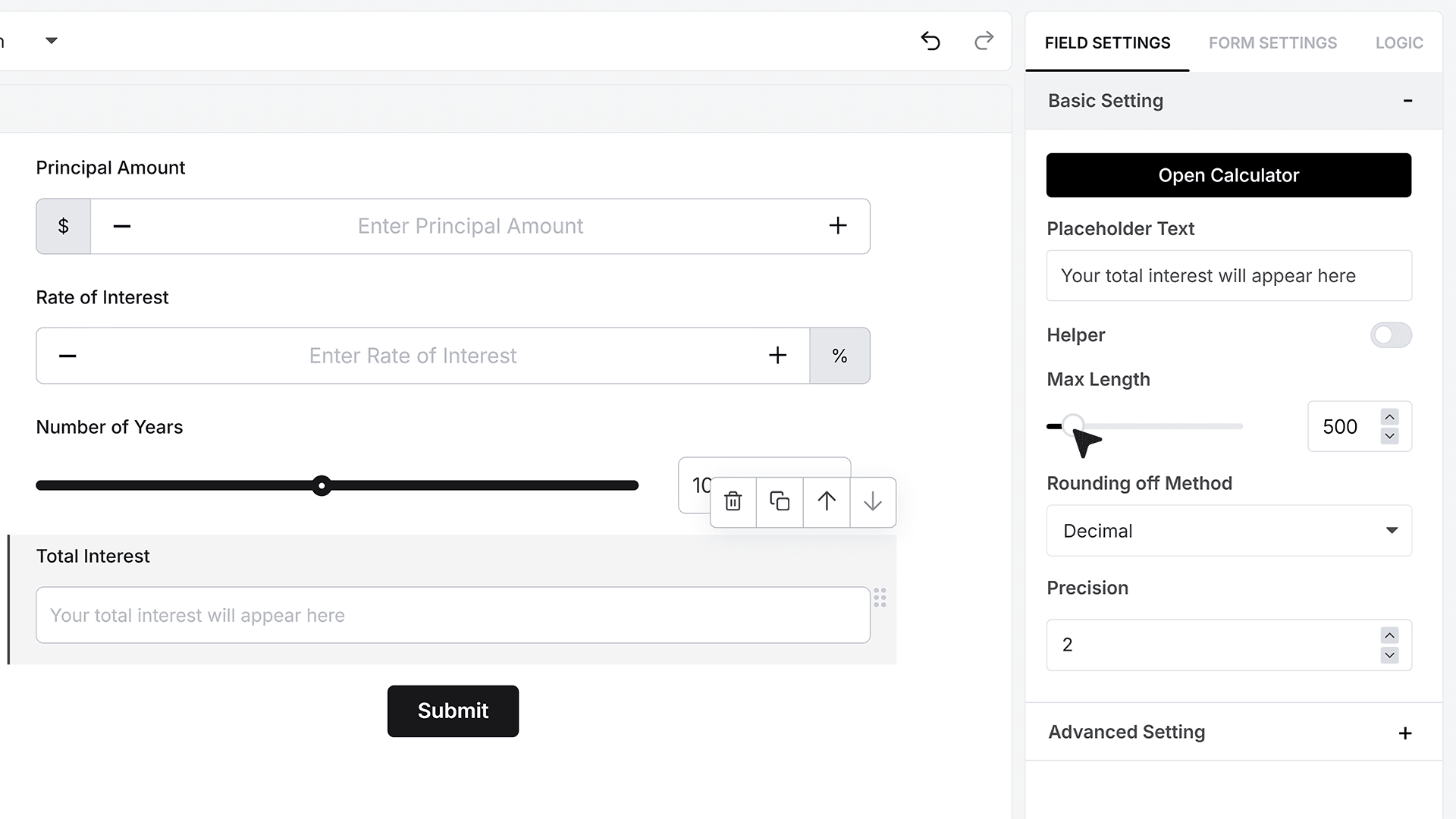
Max Length controls how many characters the calculated value can display.
This is useful when you want to prevent long numbers from stretching your form layout.
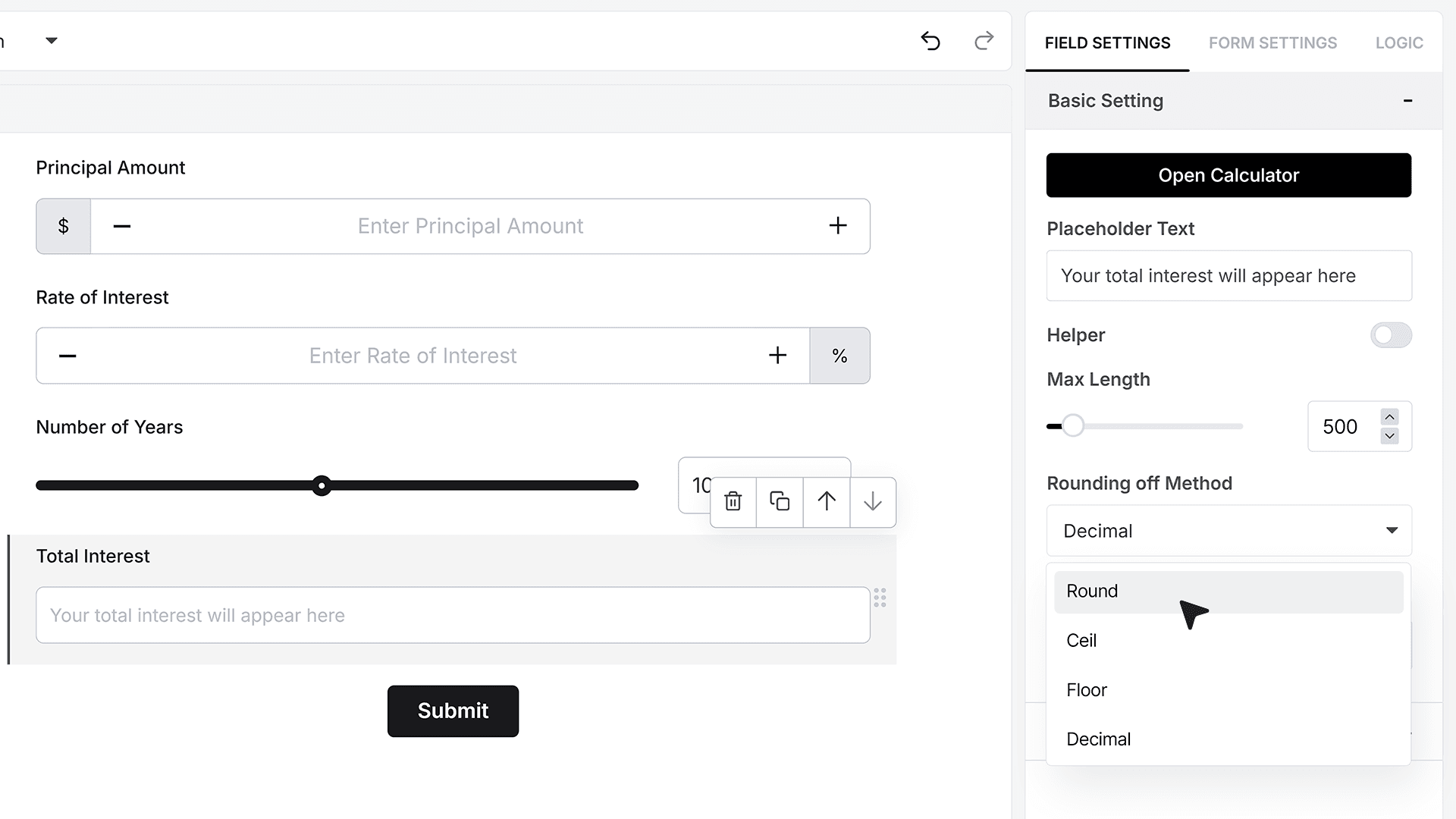
Rounding Method
The Rounding Method controls how the calculated value is shown.
- Round shows the nearest value based on the next digit. If the next digit is 5 or more, the number rounds up. If it is less than 5, the number stays the same.
- Ceil always rounds the value up to the next whole number.
- Floor always rounds the value down to the nearest whole number.
- Decimal keeps decimal places based on the precision setting.
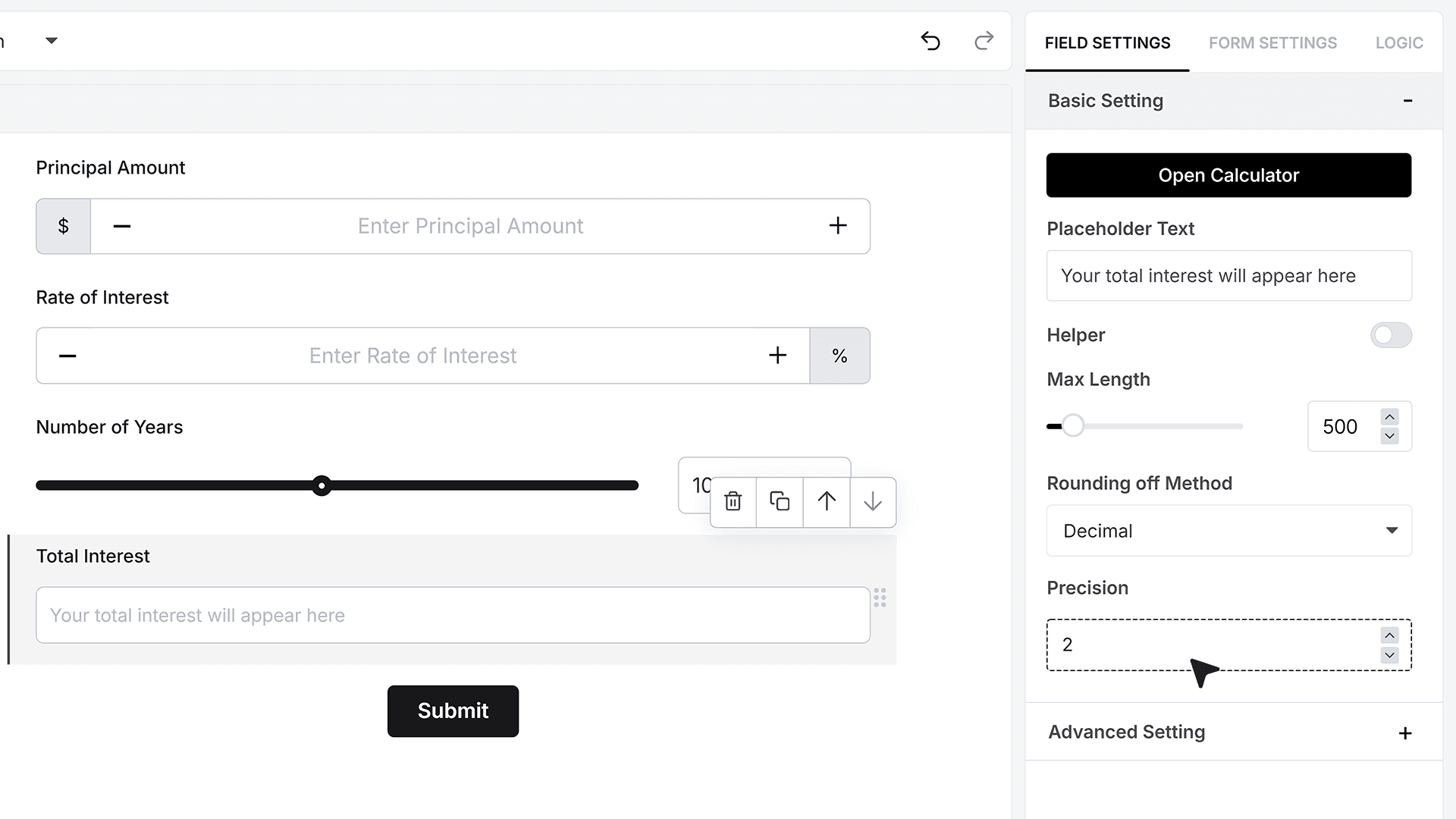
Precision
Precision controls how many decimal places are shown when using the Decimal rounding method. For example, setting precision to 2 shows two digits after the decimal. Setting it to 0 shows a whole number.
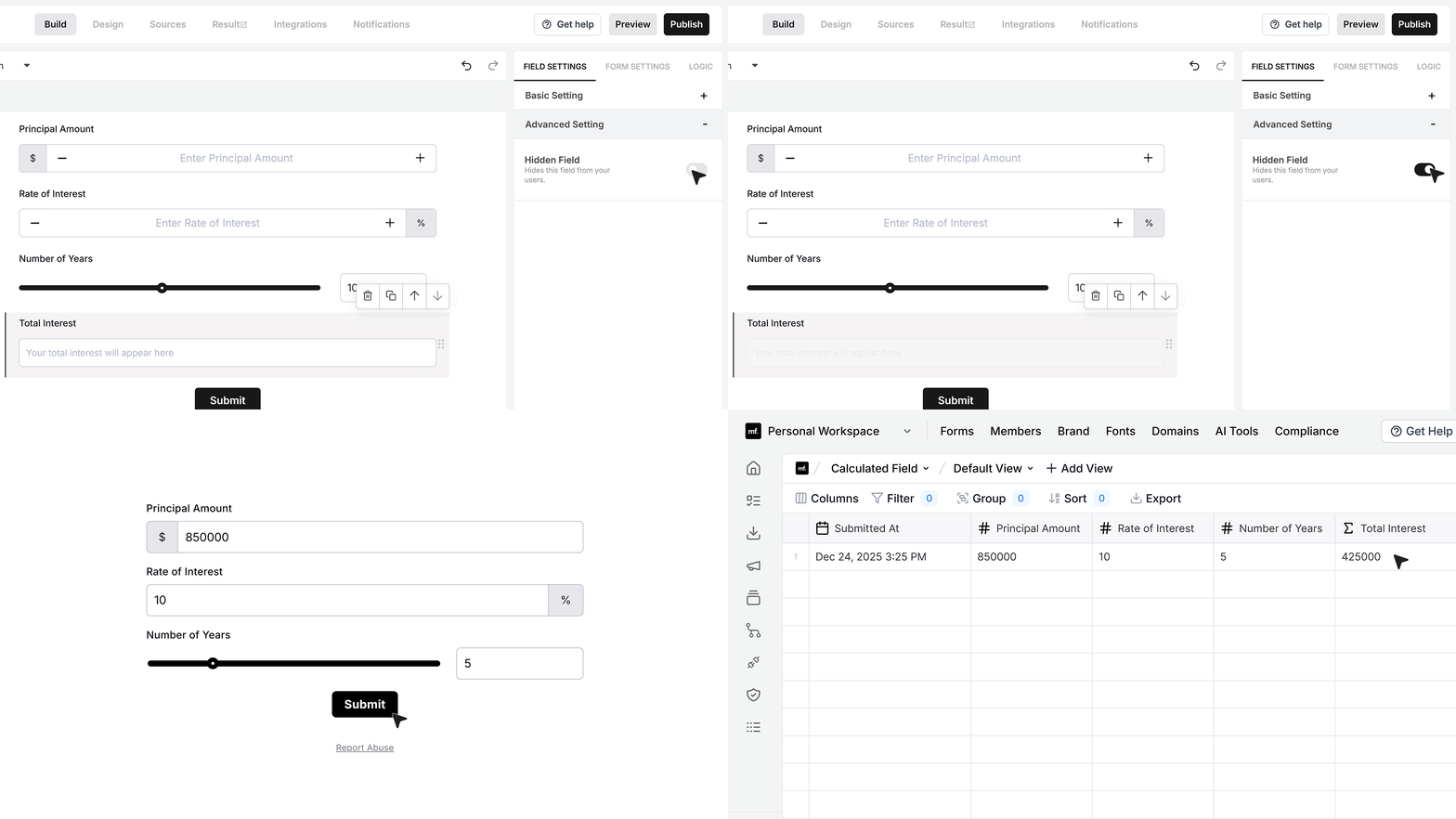
Advanced Settings
Hidden Field
The Hidden Field option lets the calculation run in the background without showing the value on the form. When enabled, users will not see the calculated result while filling the form, but the value is still saved and available in form responses.
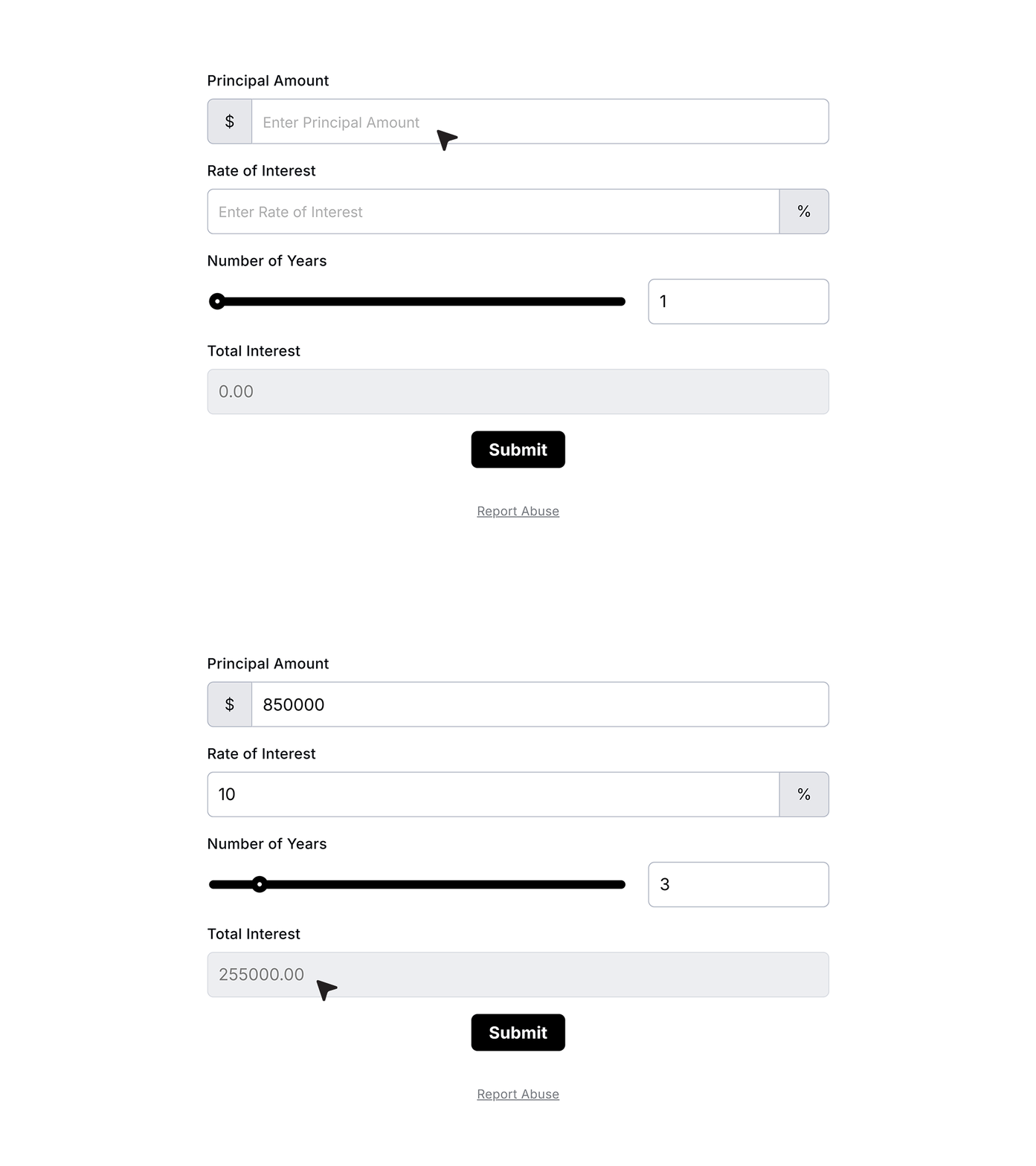
Testing the Calculation
After setting up the Calculated Field, enter values in the related fields such as principal amount, interest rate, and number of years. The calculated value updates instantly as the inputs change, without requiring any action from the user.
FAQ's
A calculated field is a form field that automatically calculates values based on user input. It removes the need for manual math and updates results in real time as users fill the form.
To create a calculated field, open your form builder, drag the calculated field into your form, and add a formula using other fields like number inputs or sliders. You can combine fields using operators like add, subtract, multiply, or divide.
Yes, MakeForms supports automatic calculations in forms. The calculated field updates instantly when users enter or change values, so the result is always accurate without extra steps.
You can build many types of calculations such as totals, pricing, interest, scores, discounts, taxes, and more. Any formula that uses numbers from form inputs can be set up using the calculated field.
Yes, the calculated field updates in real time. As soon as a user changes any input value, the result is recalculated instantly without needing to submit the form.
Yes, you can enable the hidden field option. This allows the calculation to run in the background while still saving the result in form responses, even though users do not see it.
You can control decimal values using the precision setting. This lets you decide how many digits appear after the decimal point, making your results clean and easy to read.
MakeForms offers multiple rounding options:
- Round for standard rounding
- Ceil to always round up
- Floor to always round down
- Decimal for exact values with precision control
Yes, calculated fields are ideal for pricing forms. You can calculate totals based on quantity, price, discounts, or taxes, making them useful for order forms and payment flows.
You can use number fields, sliders, and any input that provides numeric values. These fields can be combined in the calculator to create custom formulas.
Yes, you can use placeholder text to guide users. For example, you can display a message like “Your total will appear here” before the calculation is shown.
You can add helper text to describe the result. This text can appear below the field or as an info icon, helping users understand what the calculated value represents.
Yes, you can set a max length to control how many characters the result can display. This helps keep your form layout clean and prevents long numbers from breaking the design.
Yes, you can easily create formulas like simple interest using the calculated field. Just combine the required inputs like principal, rate, and time using the correct formula.
Calculated fields save time, reduce errors, and improve user experience. They remove manual work and make forms more interactive and useful for real-world use cases like pricing, scoring, and estimates.