E-Signature Field
The E-Signature field lets users sign your form digitally. It is useful when you need clear consent, approval, or confirmation before a form is submitted.
Adding the E-Signature Field
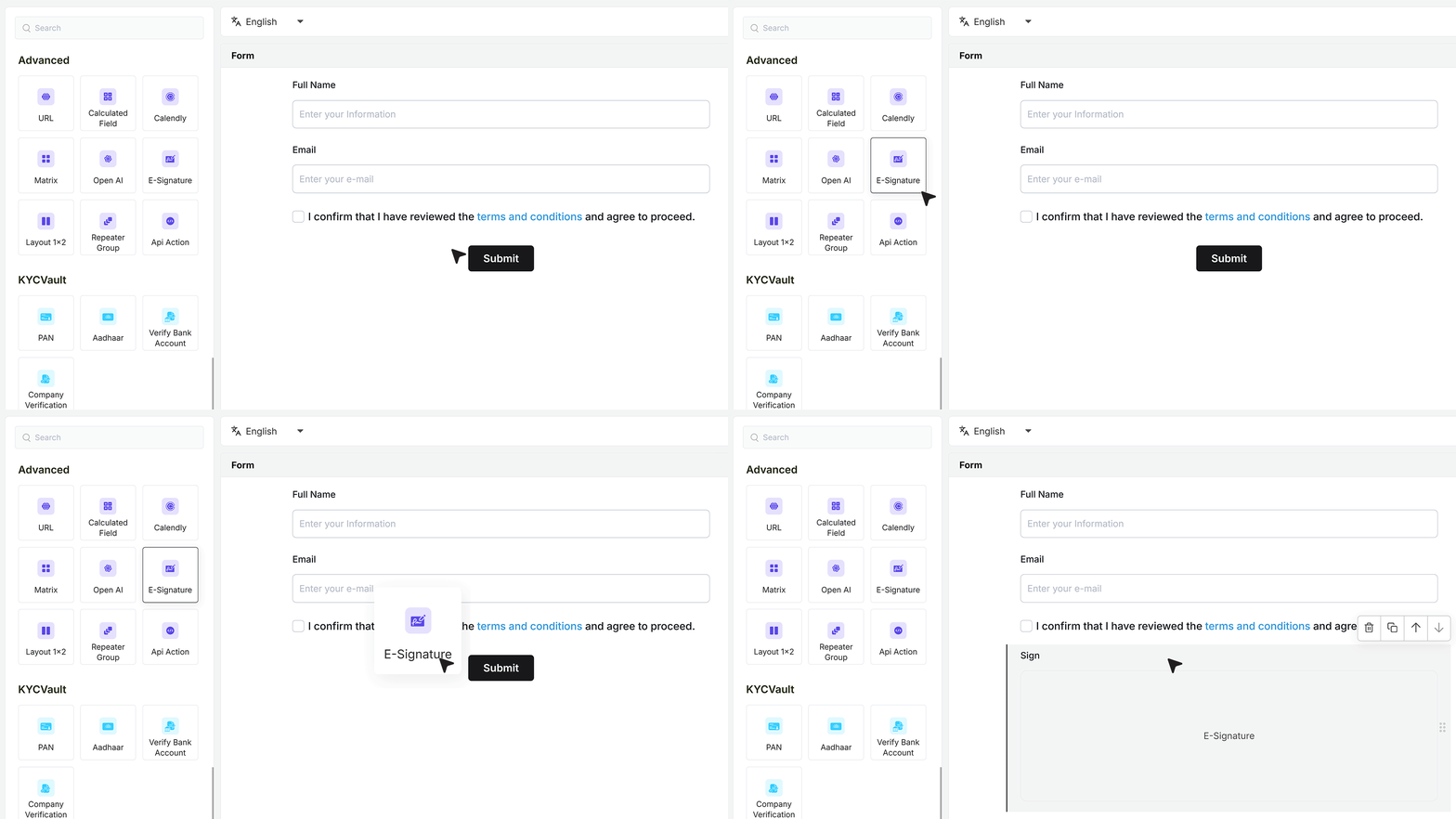
Open your form in the editor. If your form already has fields like Name and Email, the next step is to add the E-Signature field.
From the field list, drag the E-Signature field into your form.
Place it after the consent or confirmation field so users clearly understand what they are agreeing to before signing.
Basic Settings
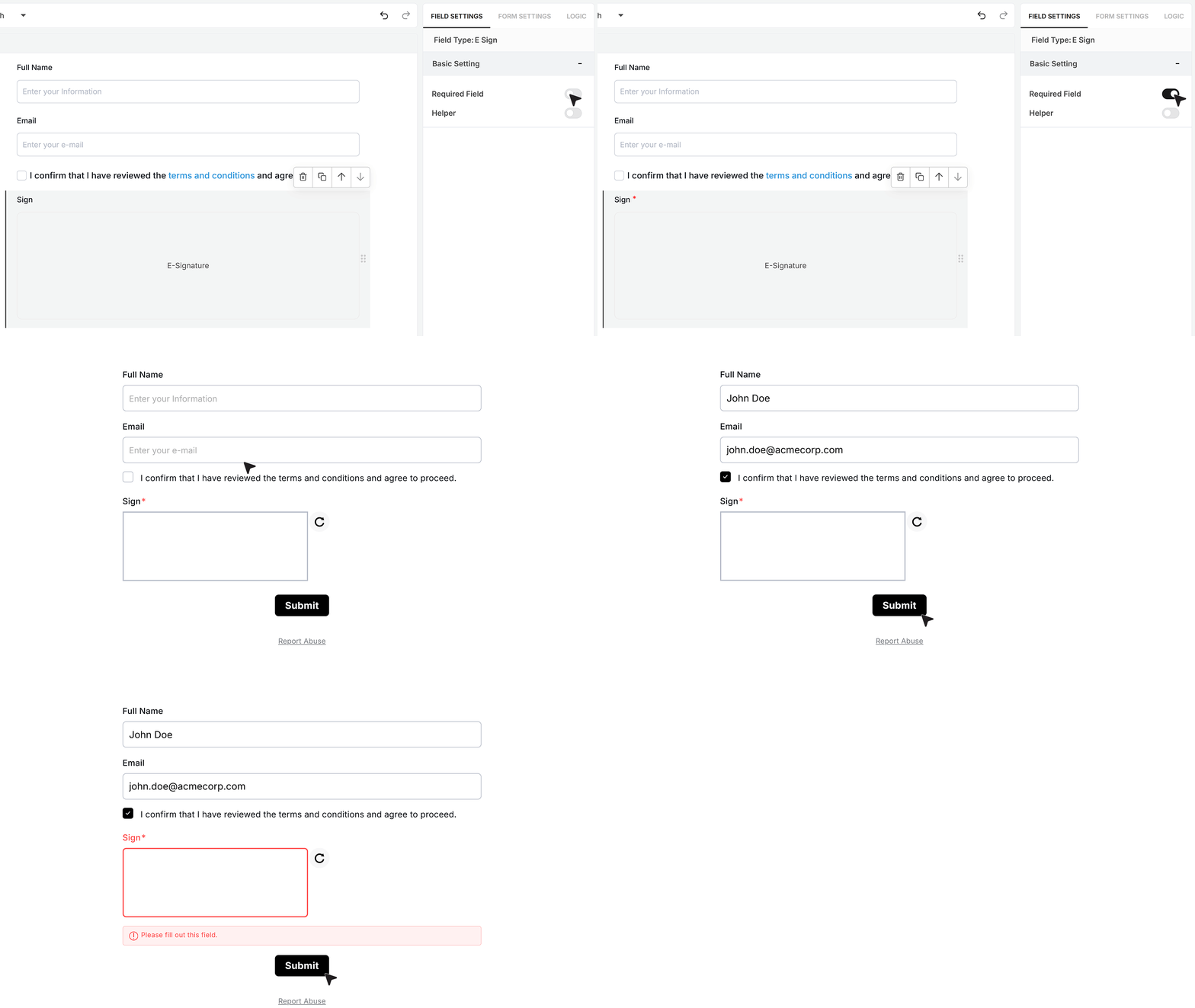
Required Field
At the top of the settings panel, you will find the Required Field toggle. Enable this option if the user must sign the form before submitting it. If the user tries to submit the form without adding a signature, MakeForms will show an error and block the submission until the signature is provided.
Helper Text
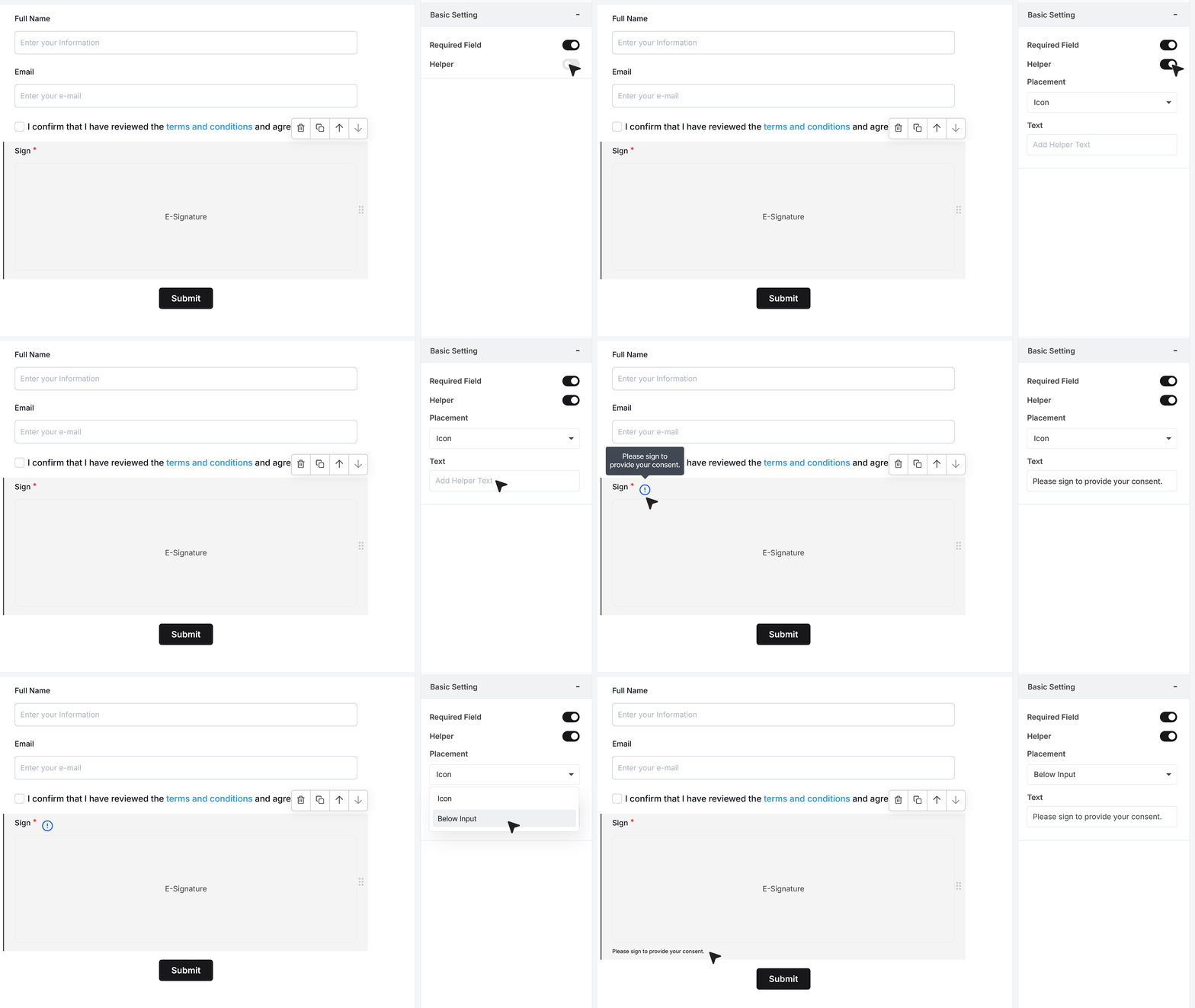
Below this, you will see the Helper Text option. Use this to briefly explain why the user is being asked to sign. For example, you can add a message such as, “Please sign to provide your consent.” The helper text can be displayed either as a small info icon that appears on hover, or as a short line of text shown below the signature field. Choose the display style that best fits your form layout.
How the E-Signature Works for Users
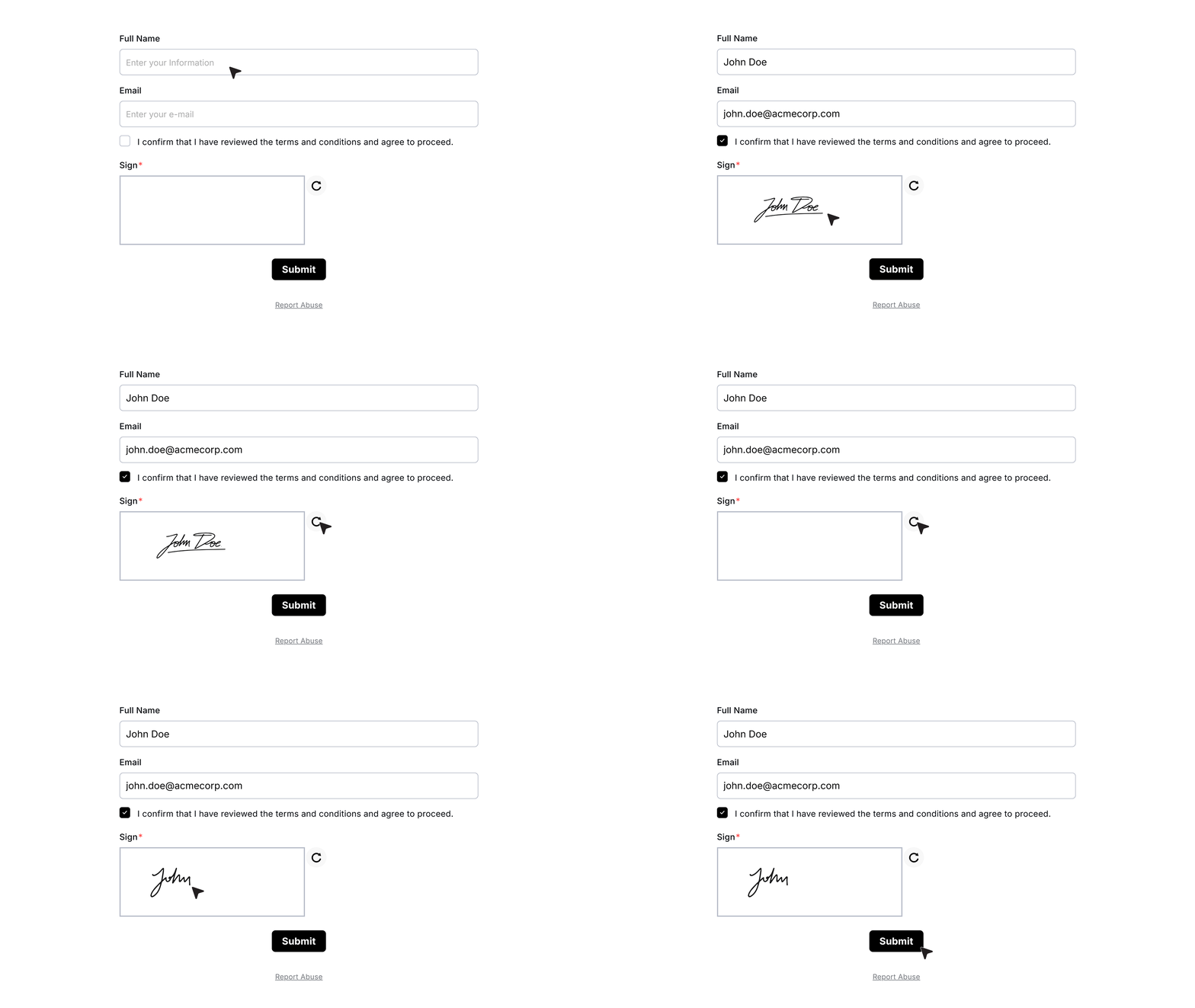
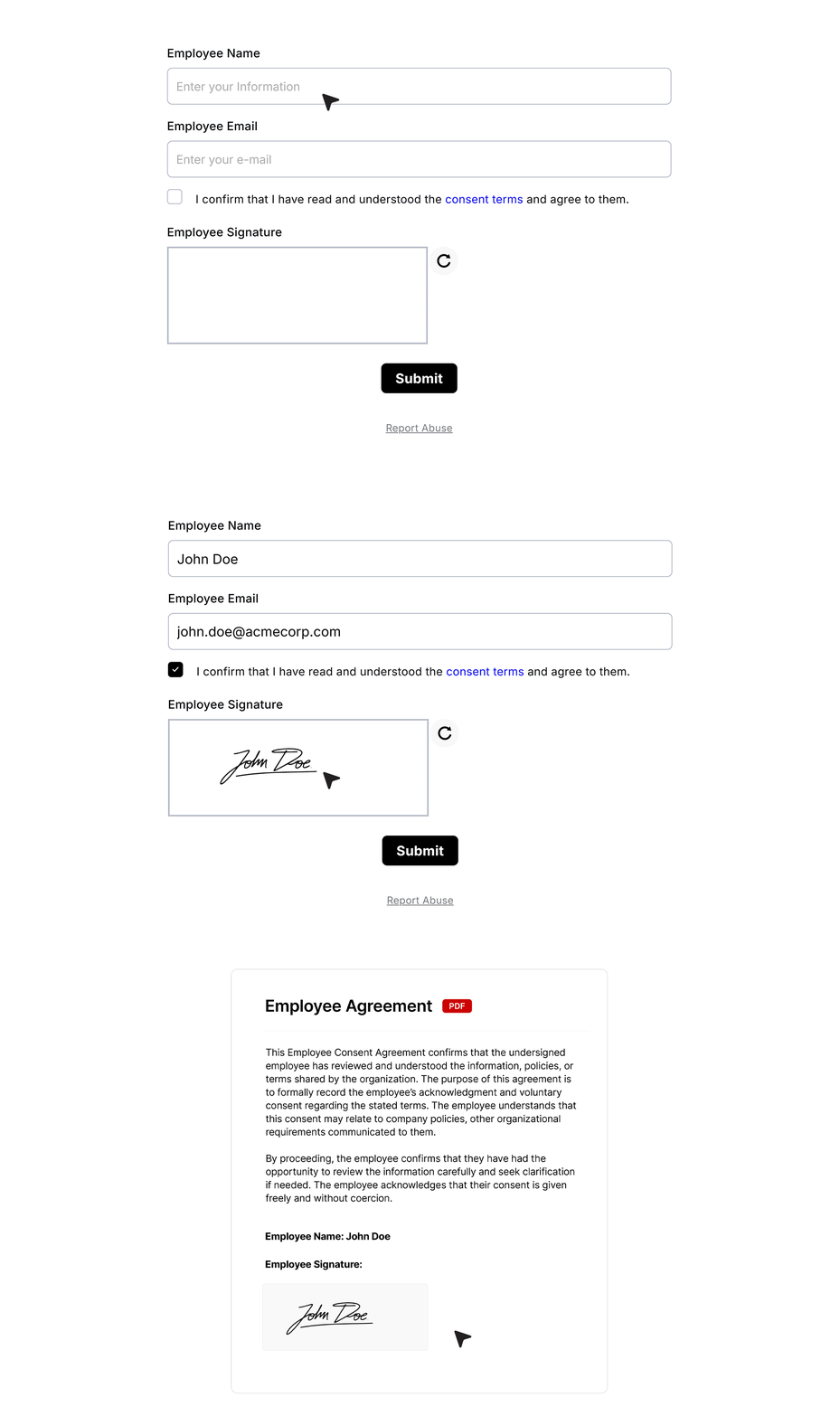
When the form is live, users will see a dedicated signature area. They can draw their signature using a mouse, trackpad, or touch screen. If needed, they can clear the signature and sign again before submitting the form.
Once the signature is added, the form can be submitted normally.
Response Tab
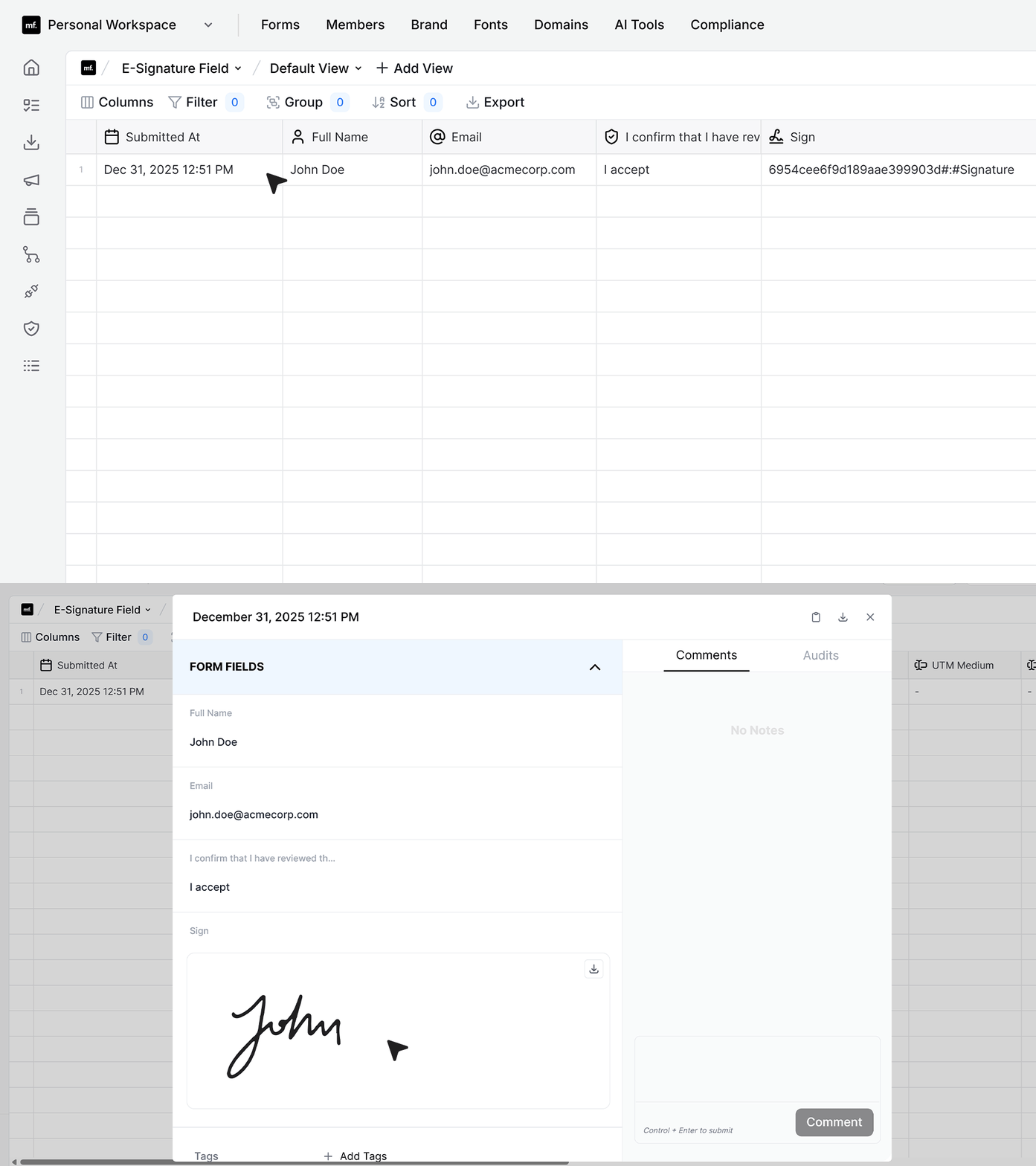
After the form is submitted, the signature is saved along with the response. This ensures you have a complete record of the submission, including the user’s signed consent.
Using E-Signature in Document Generation
The E-Signature field can also be used within the Document Generator to automatically create signed documents from form submissions. This is useful for agreements, consent forms, or any document that requires a user’s signature.
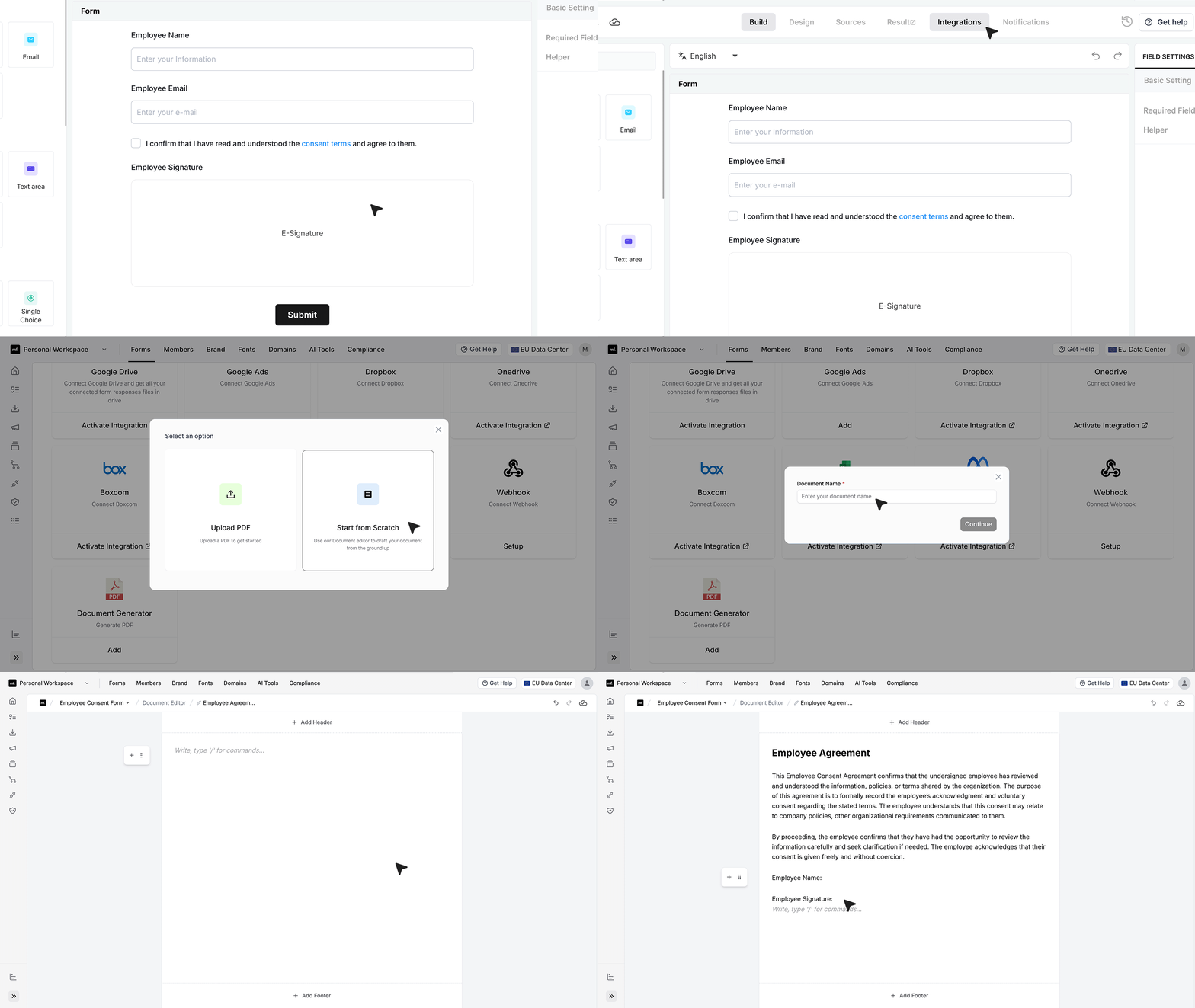
- Imagine you have a consent form that collects the employee’s name, email, a consent confirmation, and their signature. Navigate to Integrations and add the Document Generator integration. Select Start from scratch, enter a name for the document, and continue to open the document editor. In the editor, paste the content of your employee consent agreement. This will serve as the base template for all generated documents.
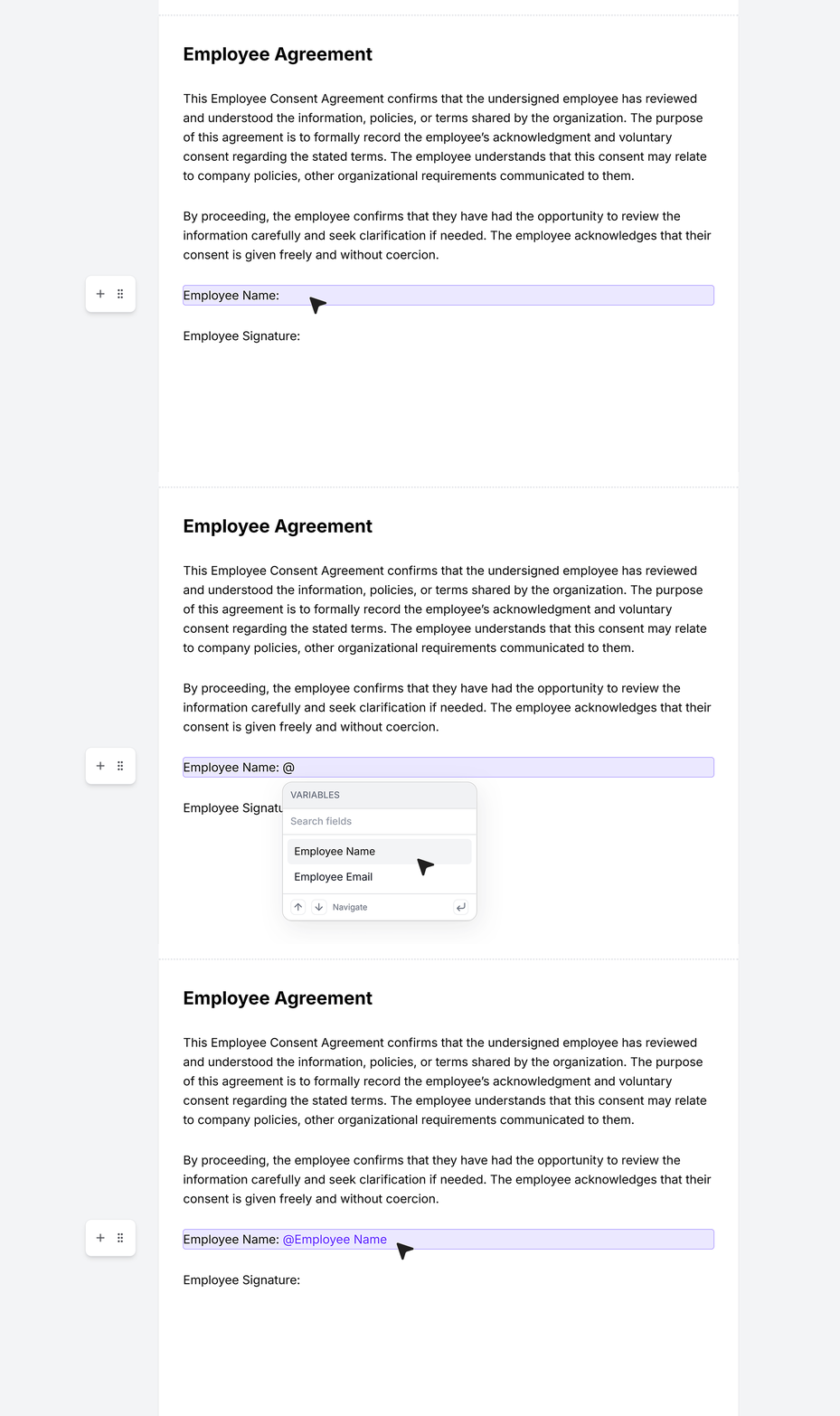
- Form fields can be dynamically inserted into the document template. To map a field, type the “@” symbol and select the required field, such as Employee Name, from the list. The selected field will be embedded directly into the agreement.
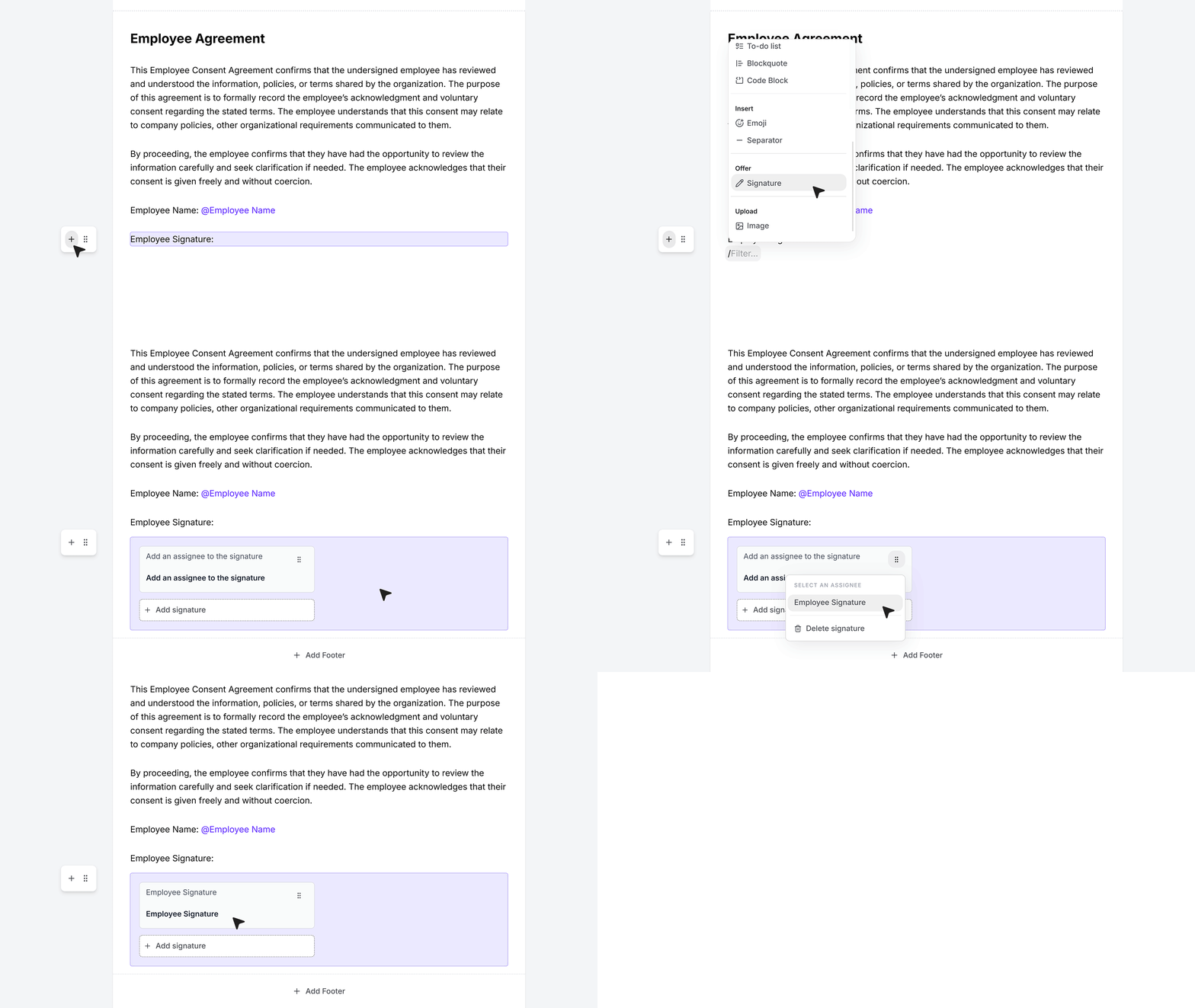
- To include the submitted signature in the document, insert a new element using the plus icon inside the editor. The Signature option becomes available only if the form contains an E-Signature field. After selecting Signature, a signature section is added to the document. Within that section, choose the existing E-Signature field from the form to link it to the document template.
Multiple signature sections can be added if required by clicking the Add signature button.
- Once the form is submitted, MakeForms automatically generates a completed document based on the configured template. All mapped fields are populated with the submitted data, and the user’s signature is embedded directly into the designated signature section.
FAQ's
An e-signature field lets users sign a form digitally before submitting it. It is used to collect consent, approval, or confirmation directly within the form.
Users see a signature area where they can draw their signature using a mouse, touch screen, or trackpad. They can clear and redraw before submitting the form. Once submitted, the signature is saved with the response.
Yes. You can enable the “Required Field” option so users must sign before submitting the form. If they skip it, the form will not submit.
You should use it when you need clear user consent or approval. Common use cases include agreements, consent forms, contracts, onboarding forms, and approvals.
E-signatures are widely accepted in many regions when proper consent and intent are captured. You should still check your local laws and compliance needs for legal use cases.
Yes. Users can clear the signature and sign again before submitting the form. This helps avoid mistakes.
The signature is saved along with the form response. This gives you a complete record of the user’s submission and consent.
Yes. You can add helper text to tell users why they need to sign. This can appear as a short note below the field or as an info icon.
Yes. You can include the e-signature in generated documents using the Document Generator. The submitted signature will be added automatically to the final document.
Inside the document editor, you can insert a signature section and link it to your e-signature field. When the form is submitted, the signature is placed in the document automatically.
Yes. You can add multiple signature sections in your document template if needed, depending on your use case.
Users can sign using any device that supports input, including desktop (mouse), laptop (trackpad), tablet, or mobile (touch screen).
Common use cases include employee consent forms, client agreements, NDAs, onboarding forms, approval workflows, and service contracts.
No. The signing process is quick and happens within the form. It does not require external tools or redirects.
Yes. You can drag and place the e-signature field anywhere in the form. It is best placed after consent or agreement text so users understand what they are signing.