Open AI Field
The OpenAI Field in MakeForms allows you to generate dynamic, personalized outputs directly inside your forms. Instead of collecting data and responding manually, you can automatically generate intelligent responses at the time of submission.
This can be used for workout plans, travel itineraries, meal schedules, study plans, custom business strategies, and more.
To demonstrate how it works, we will build a simple Diet Plan Generator form that creates a personalized diet plan for each submission.
Form Setup
Start by creating a basic form. Add fields for Name, Gender, Age, Primary Goal, and Dietary Preference. These inputs will collect the necessary user information required to generate a personalized response.
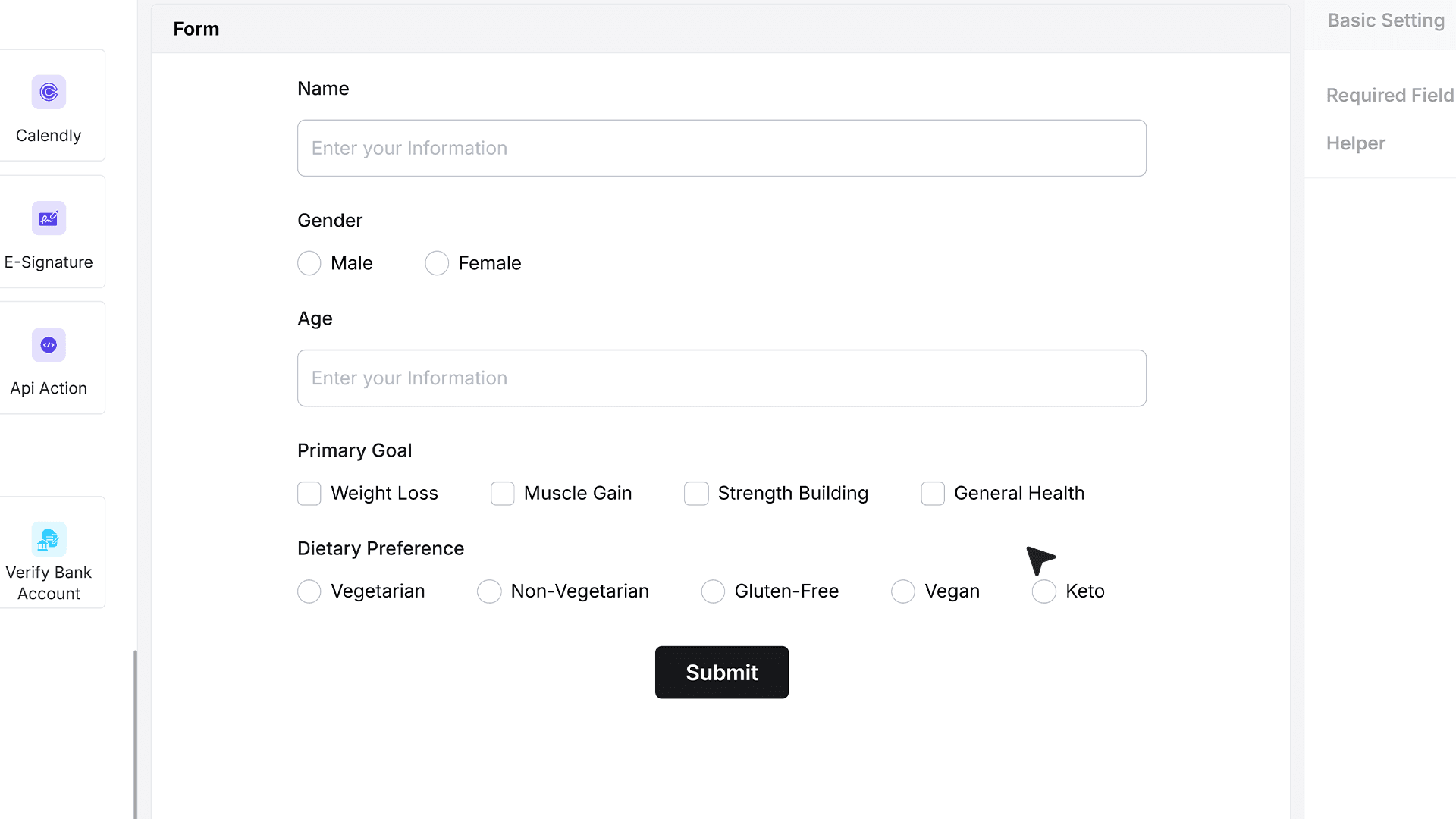
Adding the Open AI Field
Instead of manually reviewing each submission and creating diet plans individually, the OpenAI Field will use these responses to automatically generate a customized output for every user.
From the field panel, drag the Open AI Field into your form. Place it after the user input fields so it can access the submitted data. Once added, click the field to open its settings panel.
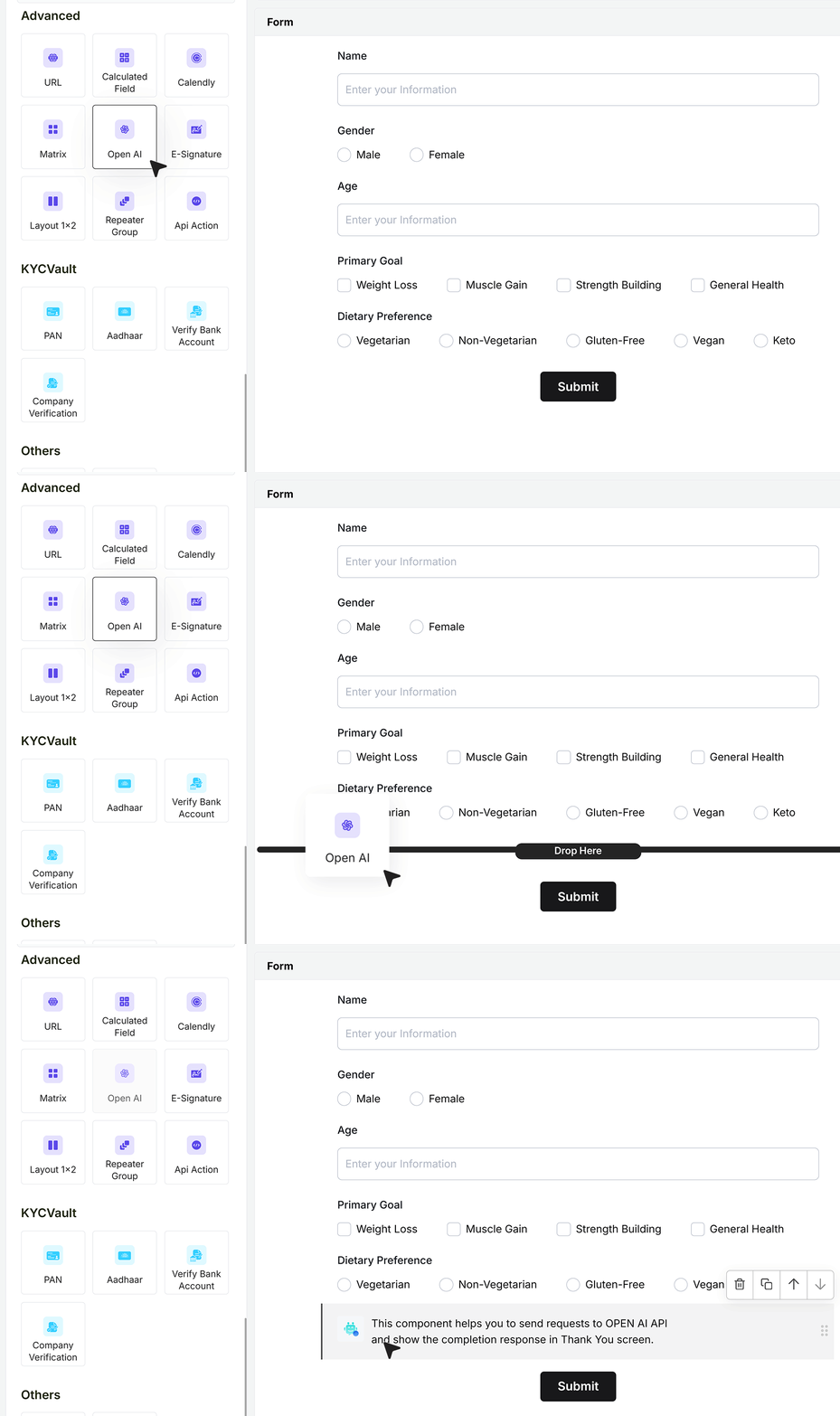
Basic Settings
Temperature
Temperature controls how creative or controlled the AI response will be. Lower values such as 0.2 or 0.3 produce more structured and predictable outputs. Higher values such as 0.7 or 0.8 generate more creative and varied responses. For structured outputs like diet plans, a balanced setting around 0.5 works well.
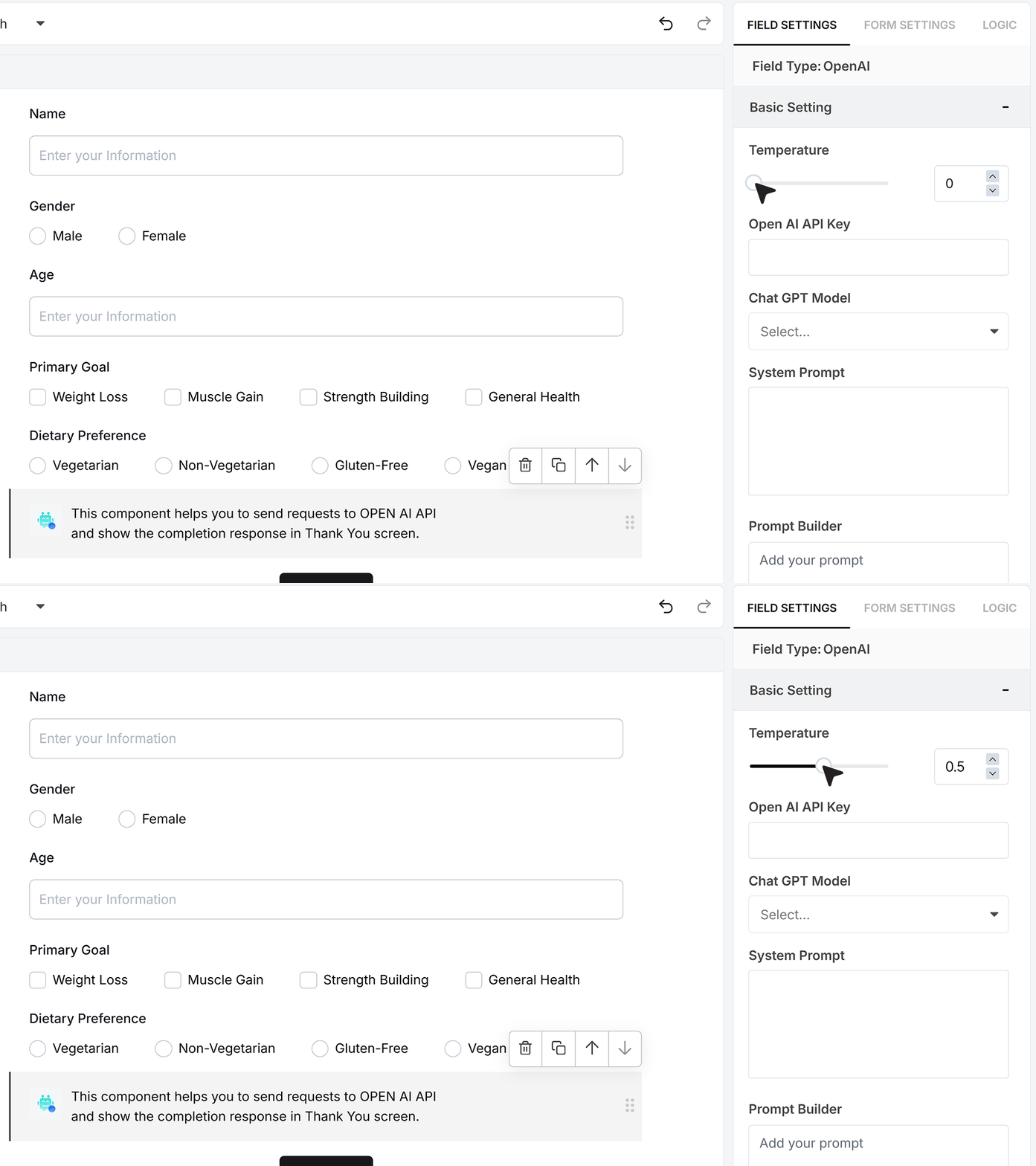
API Key
Enter your OpenAI API key in this field. This connects your form to your OpenAI account and enables response generation. Ensure the key is valid and has sufficient usage limits.
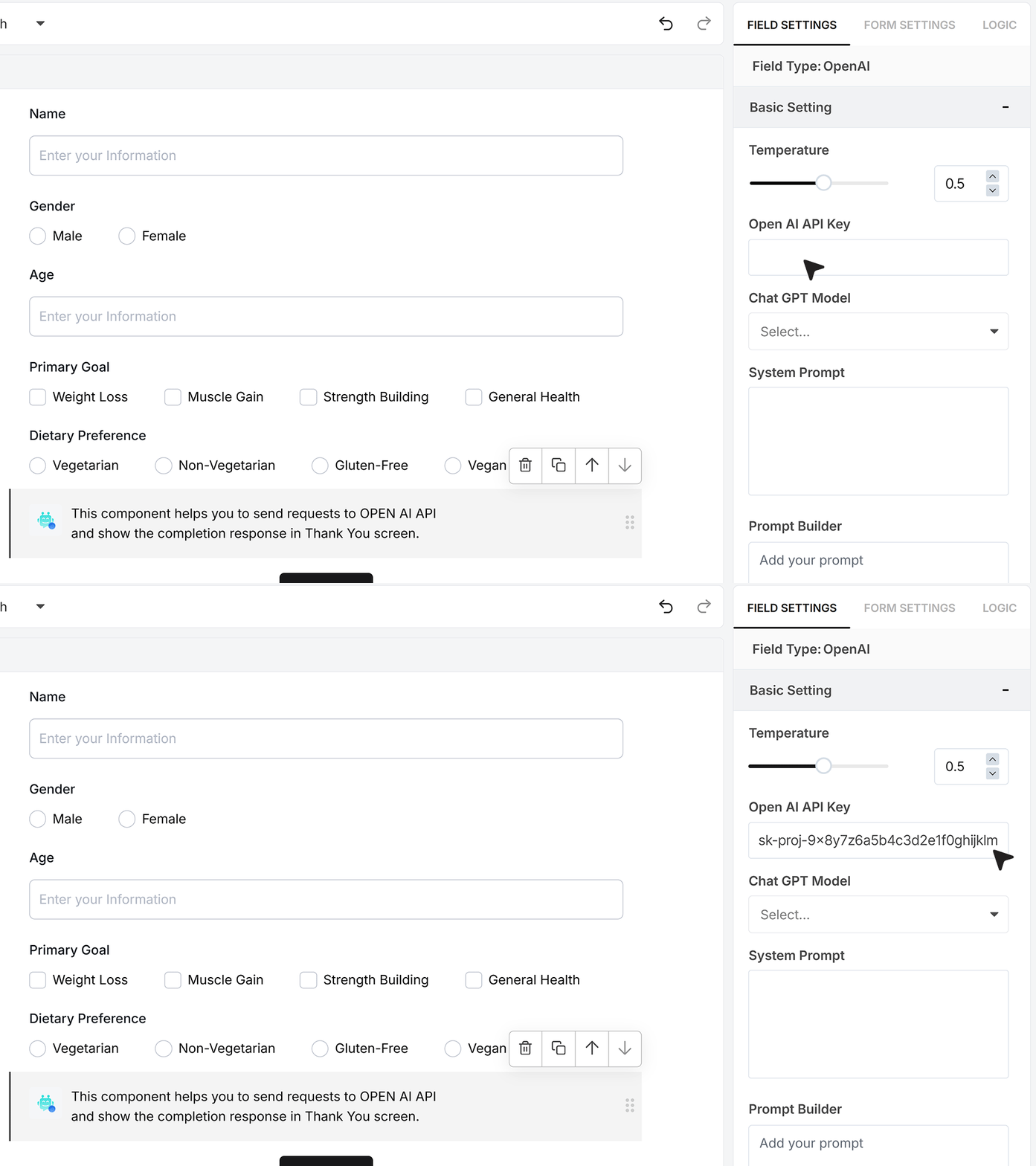
Model Selection
Select the ChatGPT model you want to use. For generating structured and high-quality outputs such as diet plans, GPT-4.1 is recommended for reliable and well-formatted responses.
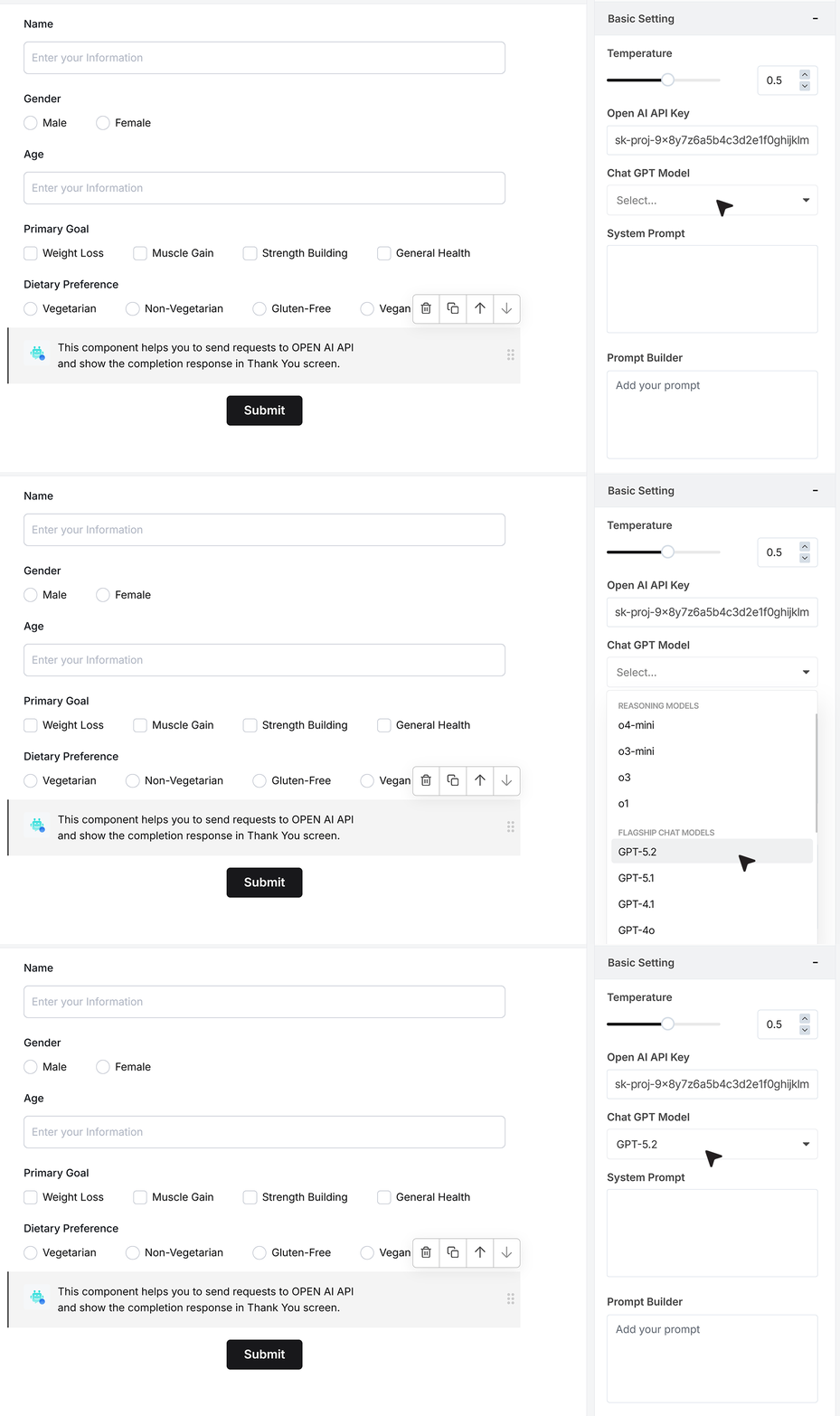
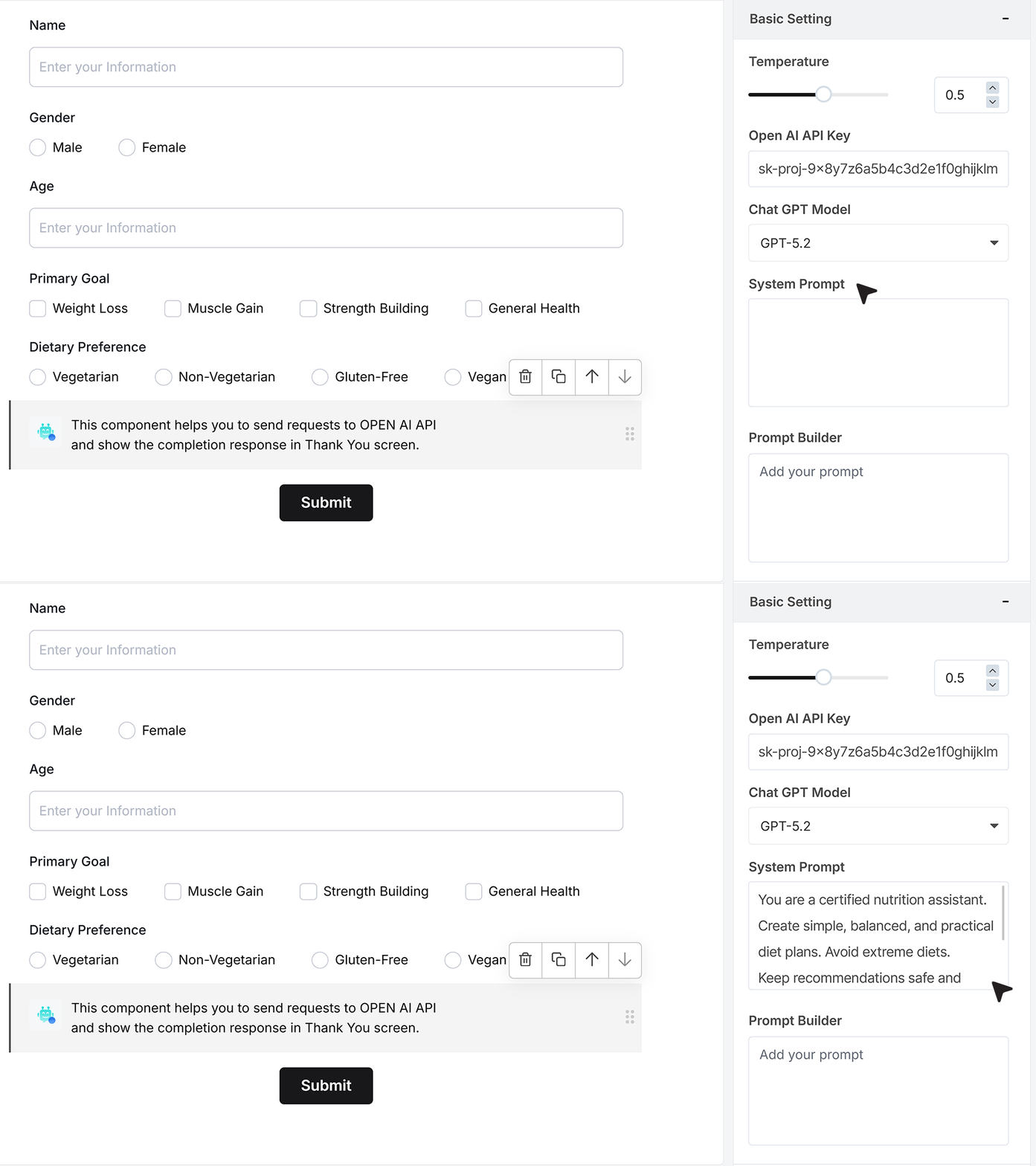
System Prompt
The System Prompt defines the AI’s role, tone, and response behavior. By clearly defining expectations here, you ensure the output remains focused, professional, and aligned with your use case. If the output feels off topic or too generic, refine the system prompt to be more specific. The clearer your instructions here, the better the results.
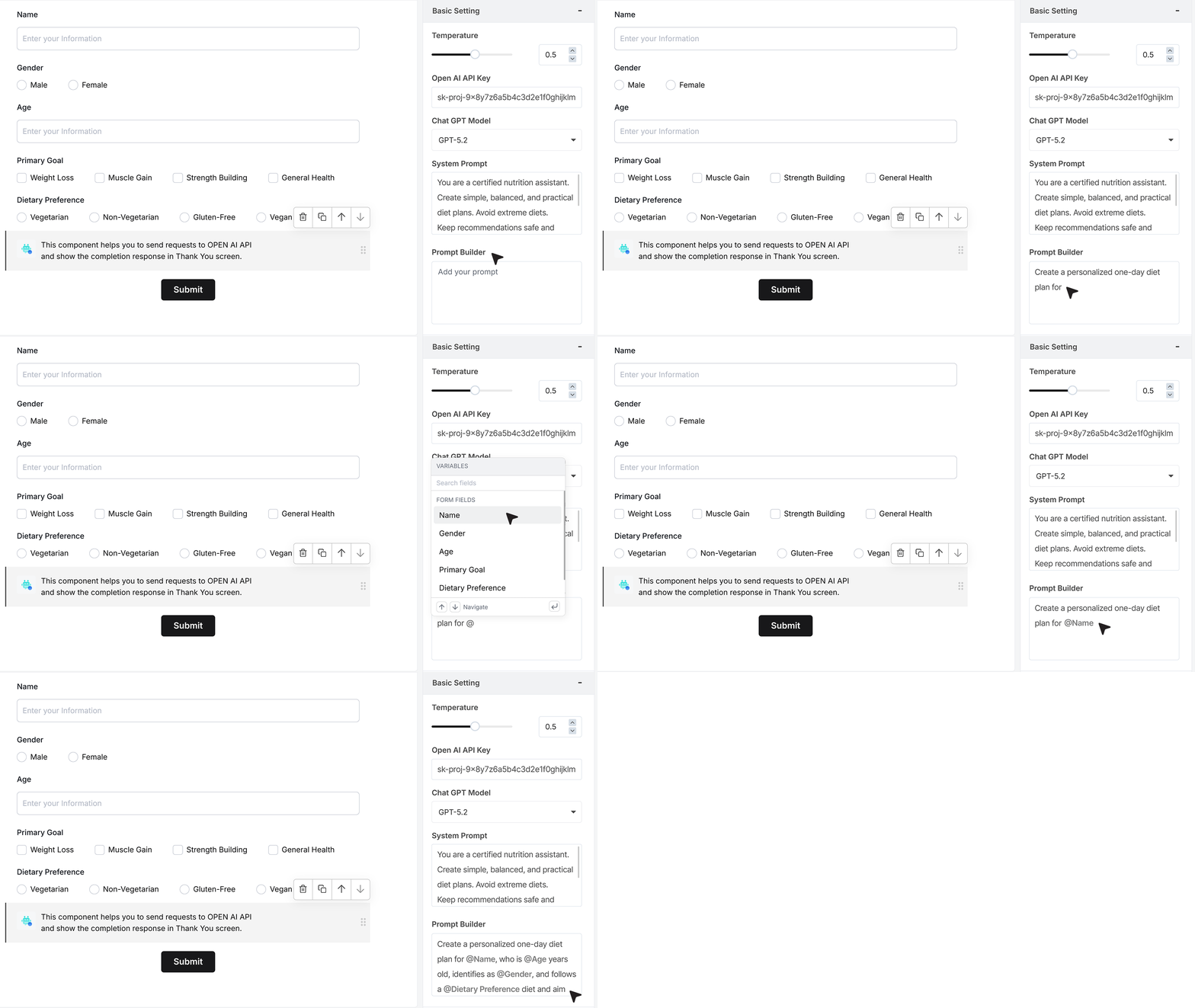
Prompt Builder
The Prompt Builder is where you combine user inputs with instructions. You can insert form field values dynamically into the prompt. By using dynamic fields, each submission generates a fully personalized output based on the user’s responses.
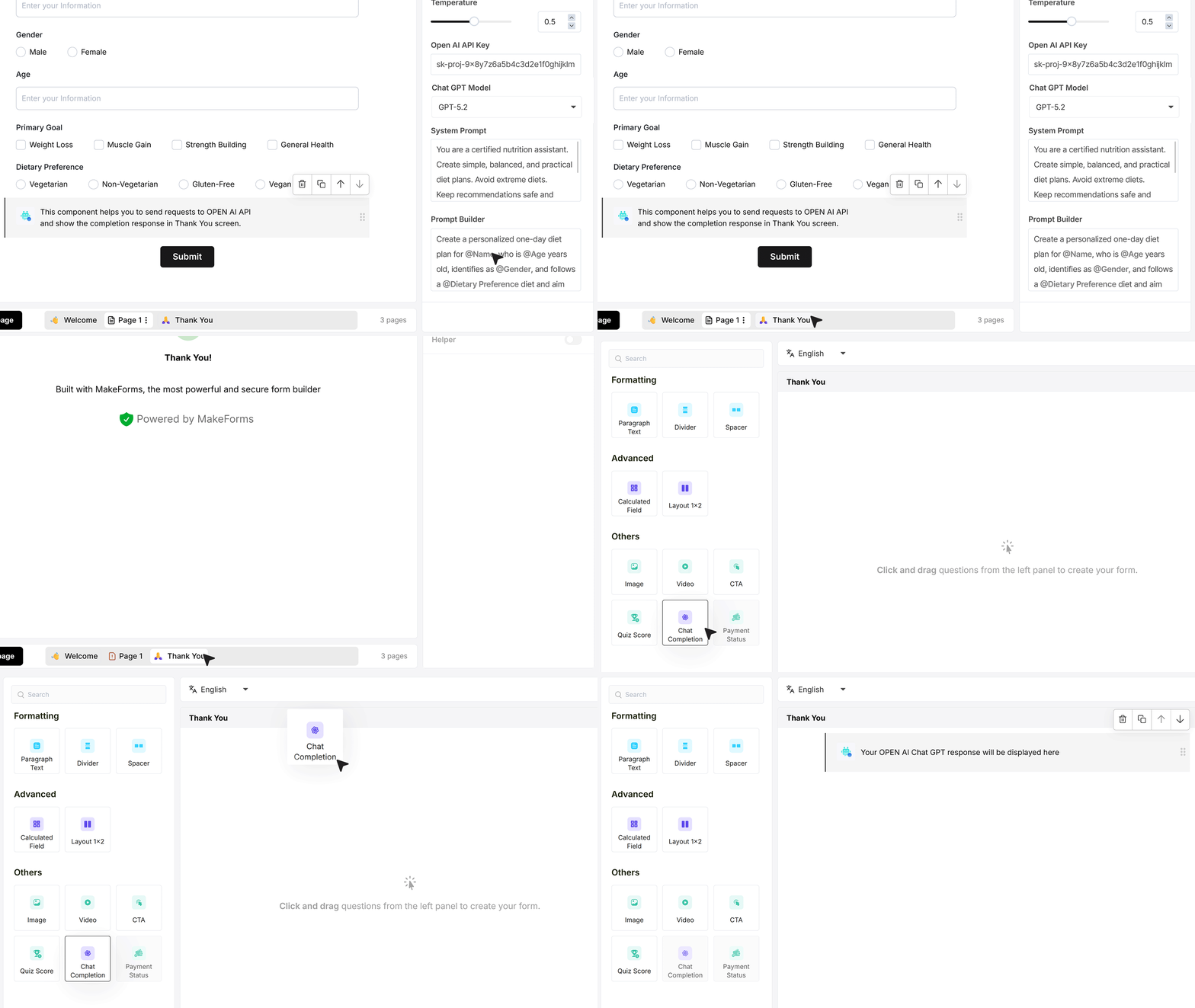
Displaying the AI Response on the Thank You Page
After configuring the Open AI Field, navigate to the Thank You Screen. By default, a confirmation message will appear. Remove the existing confirmation message. From the field panel, drag the Chat Completion Field onto the Thank You screen.
This field displays the AI-generated response to the user after submission.
How It Works on the Live Form
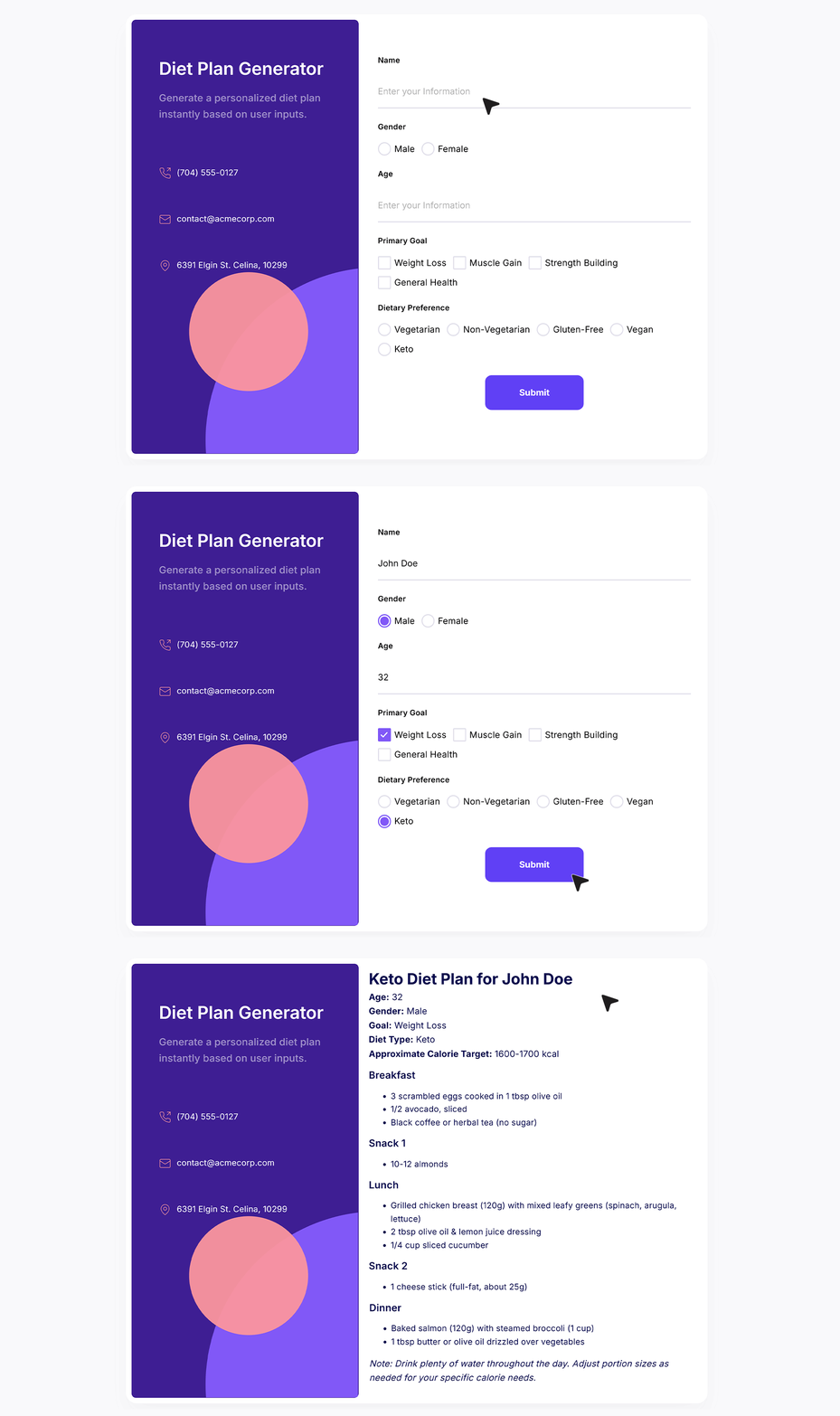
When the form is published, users fill in their name, age, gender, primary goal, and dietary preference. Upon submission, the Open AI Field processes the prompt using the selected model and settings. The AI then generates a personalized diet plan based on the provided inputs.
The response is displayed instantly on the Thank You screen, without any manual effort.
FAQ's
The Open AI Field in MakeForms lets you generate smart, personalized responses inside your form. Instead of just collecting data, the form can create outputs like plans, suggestions, or summaries instantly after submission.
The field takes user inputs like name, age, or preferences, combines them with a prompt, and sends it to an AI model. The AI then generates a response based on that data and shows it on the Thank You screen.
You can build many types of AI-powered forms, such as:
- Diet or workout plan generators
- Travel itinerary creators
- Study planners
- Business idea generators
- Personalized recommendations
Any use case where output depends on user input works well.
Yes. You need to enter your OpenAI API key in the field settings. This connects your form to the AI service and allows it to generate responses.
For structured and reliable outputs, GPT-4.1 is a good choice. It works well for use cases like plans, summaries, and detailed responses.
Temperature controls how creative the AI response is.
- Lower values like 0.2 to 0.3 give more predictable results
- Higher values like 0.7 to 0.8 give more creative responses
- Around 0.5 is a good balance for most use cases
Use the Prompt Builder to insert dynamic form fields into your prompt. This allows each response to be based on the user’s actual inputs, making the output fully personalized.
The system prompt defines how the AI should behave. It sets tone, style, and rules for the response. A clear system prompt leads to better and more accurate outputs.
The response is shown on the Thank You screen using the Chat Completion Field. This lets users see the result instantly after submitting the form.
Yes. You can guide the format through your prompt. For example, you can ask the AI to return bullet points, steps, or a structured plan.
Yes. It works well for lead generation, customer engagement, onboarding flows, and personalized recommendations. It saves time by removing manual follow-ups.
Yes. The response is generated right after form submission and displayed instantly to the user.
Yes. You can combine multiple form fields in the prompt. This helps create more detailed and accurate outputs.
If the prompt is not clear, the output may feel generic. It’s better to write specific instructions and include context to get better results.
No. You can set it up using the form builder. Just add fields, configure the prompt, and connect your API key.