CTA Field
The CTA field allows you to guide users to the next step after they submit a form. Instead of ending with a simple confirmation message, you can add a button on the Thank You screen that redirects users to a specific page. You can use it to send users to your website, a booking page, a product page, a download link, or even your social media profiles like LinkedIn, YouTube, or Instagram.
Adding the CTA Field
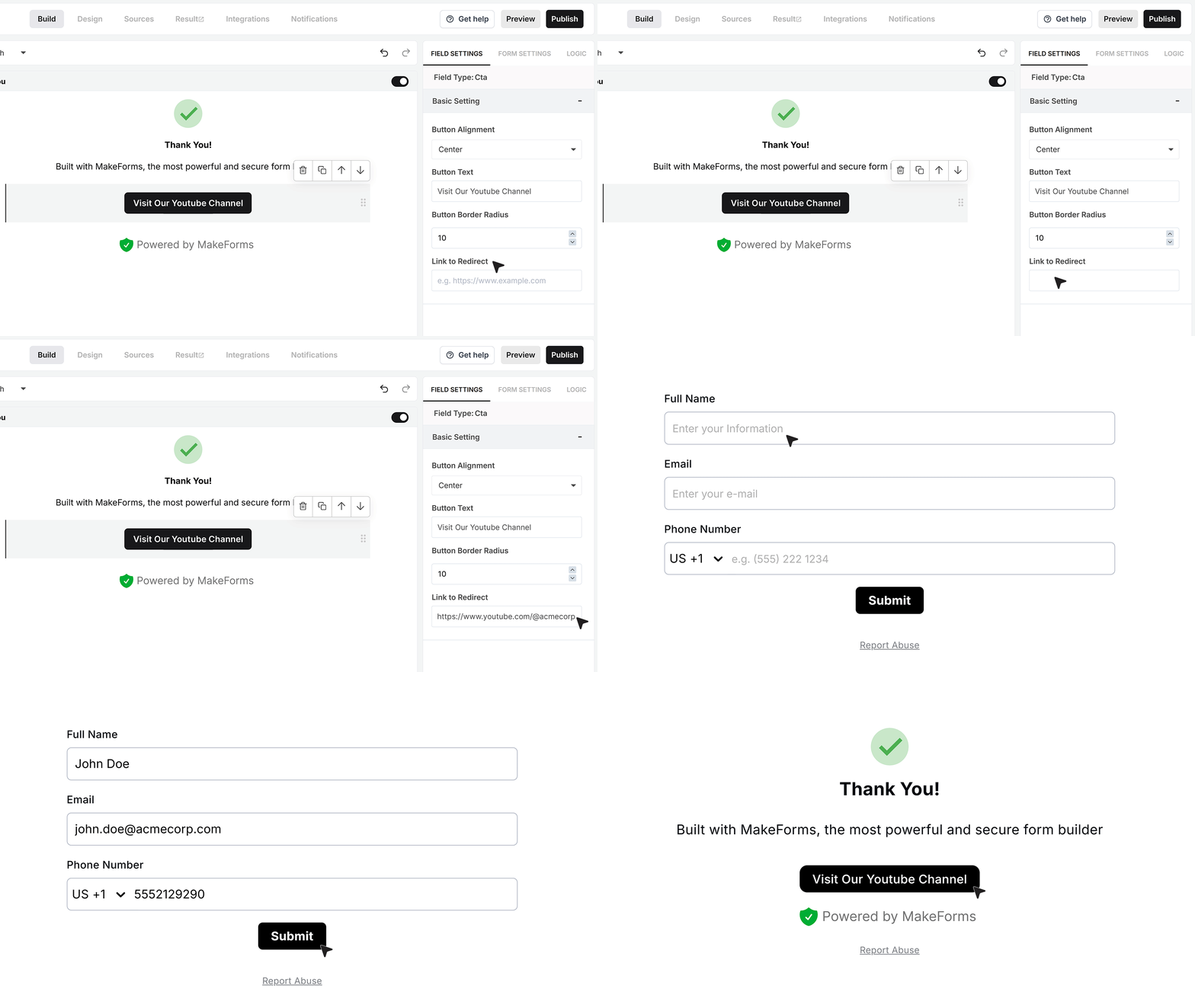
Open your form in the MakeForms editor. Go to the Thank You screen. From the field panel, drag and drop the CTA field into the layout where you want the button to appear.
Click on the CTA field to open its settings and configure it.
Basic Settings
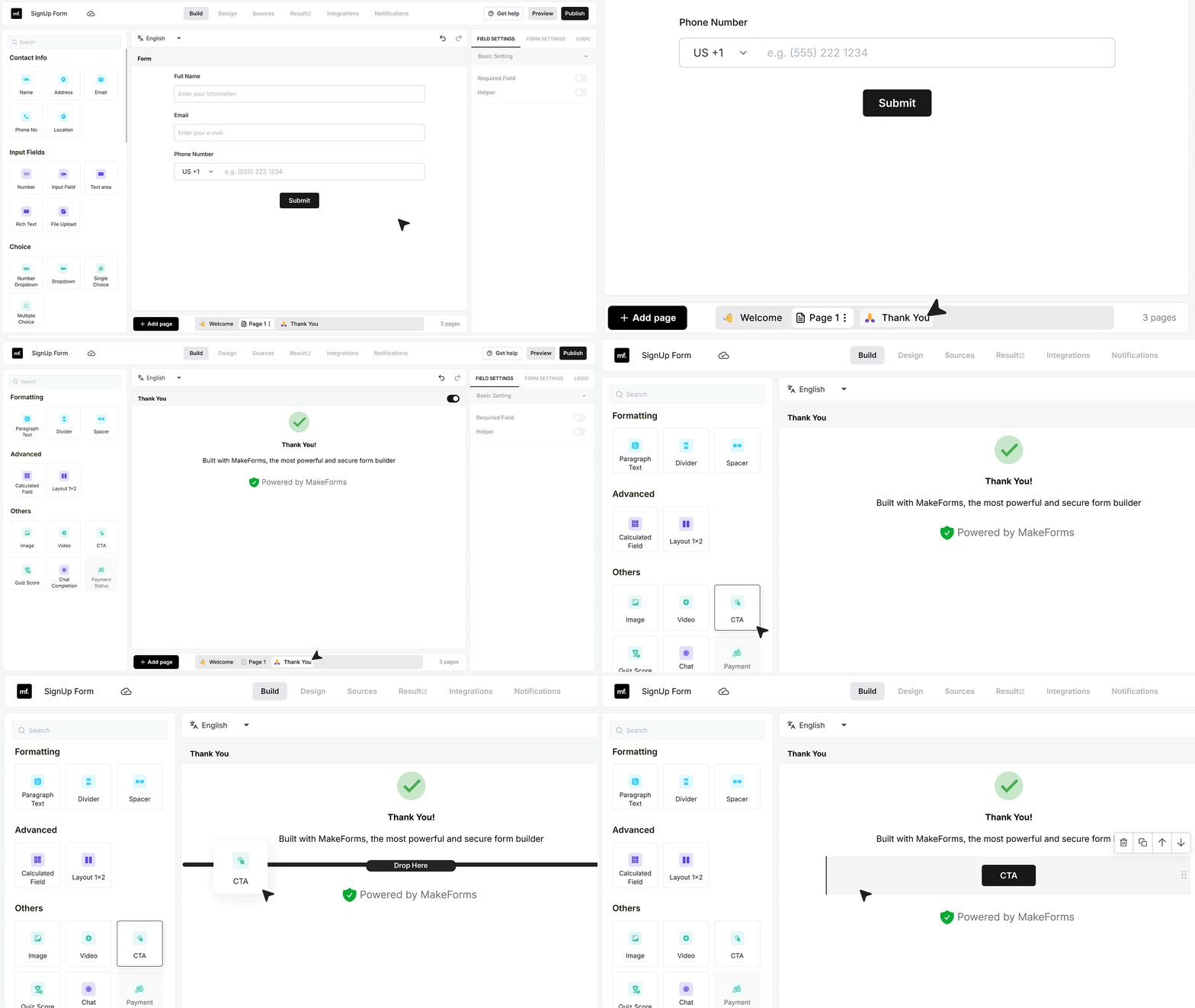
Button Alignment
This lets you control where the button appears on the Thank You screen. You can align it to the left, center, or right based on your layout preference.
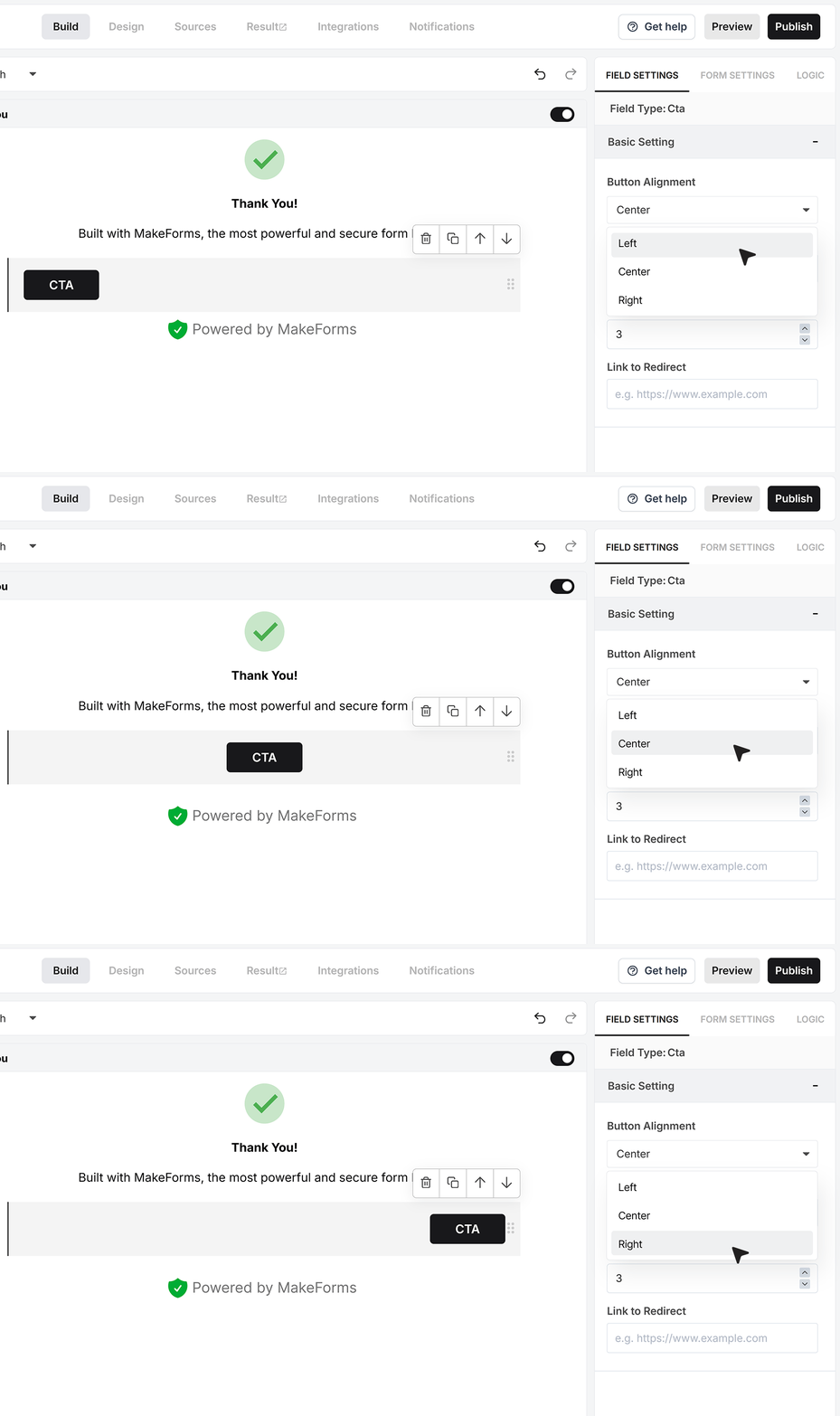
Button Text
This is the label displayed on the button. Use clear and action focused text such as Book a Demo, Download Now, or Visit Our YouTube Channel. The text should match the goal of your form.
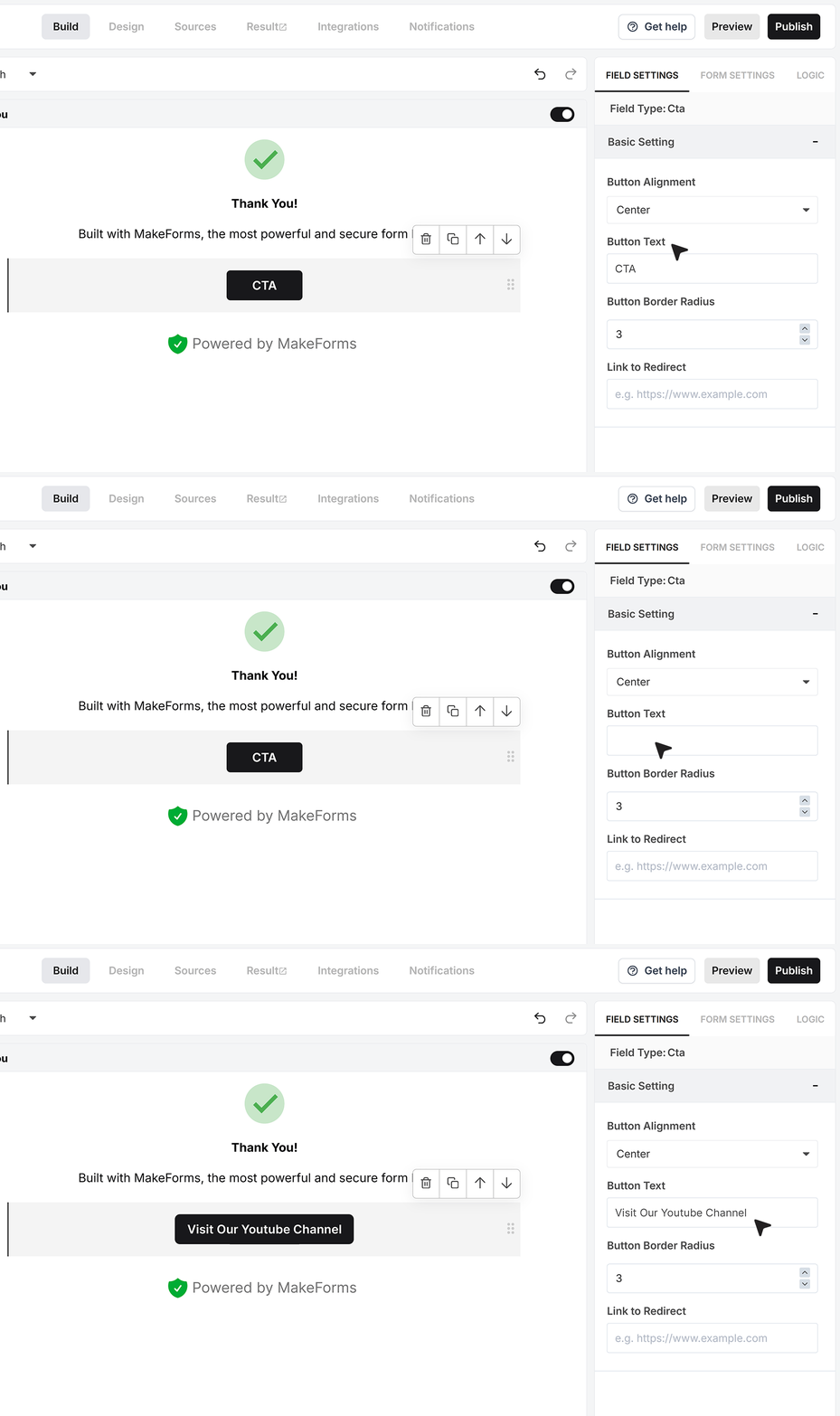
Border Radius
This controls how rounded the button corners appear. A lower value creates sharper edges, while a higher value gives the button a more rounded appearance. Adjust this setting to align with your brand’s design style.
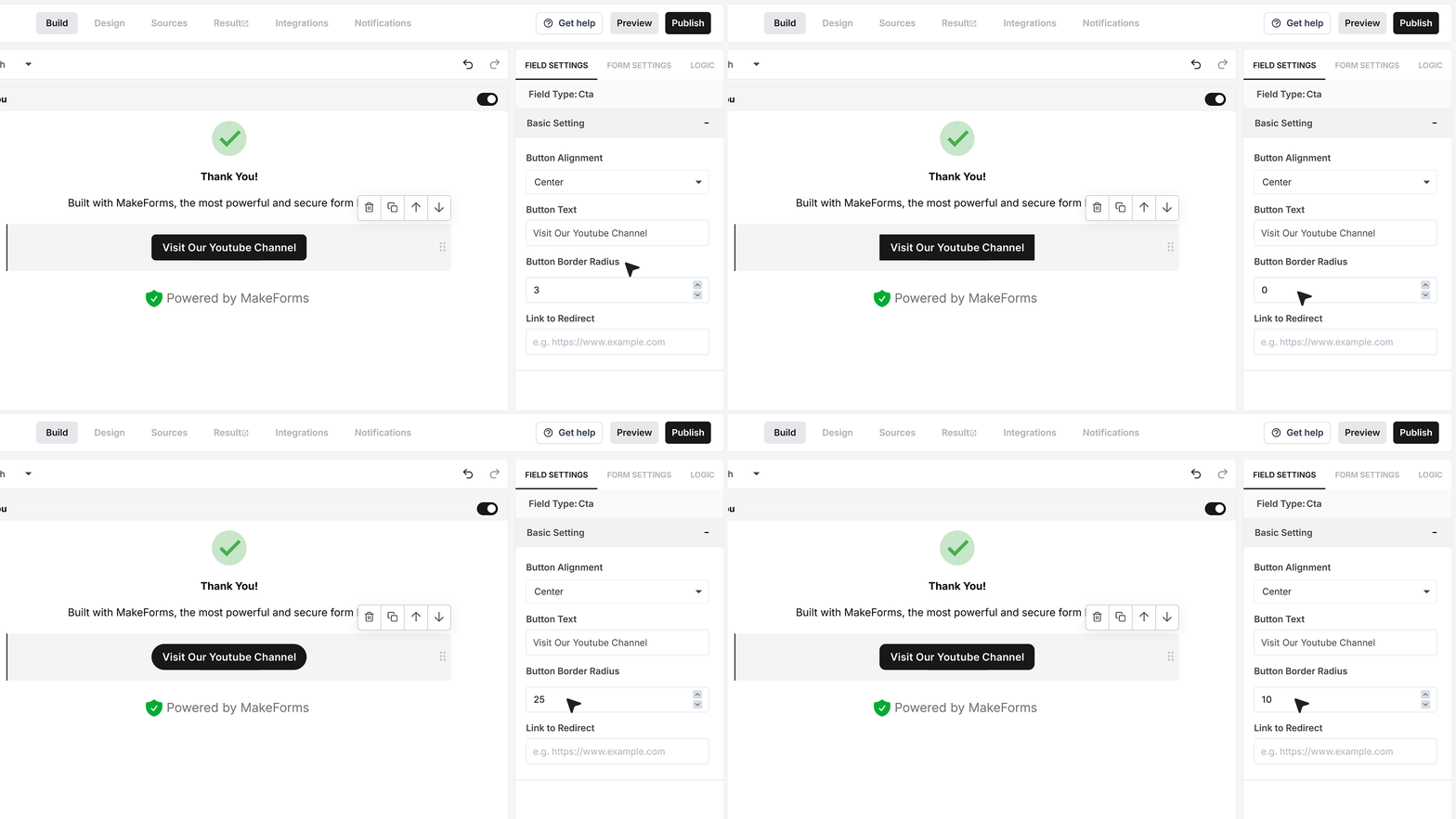
Link to Redirect
This is where you paste the URL users should be taken to after clicking the button. Make sure the link is correct and complete, including the https prefix. This could be a website page, demo booking link, video walkthrough, dashboard access page, or social media profile.
FAQ's
A CTA field in MakeForms lets you add a button on the Thank You screen after form submission. This button can send users to another page like your website, booking page, product page, or social profile. It helps you guide users to the next step instead of ending the flow after submission.
To add a CTA button, open your form in the editor and go to the Thank You screen. Drag and drop the CTA field into the layout. Then click on it to set the button text, alignment, and redirect link.
The CTA button appears on the Thank You screen, which users see after they submit the form. This is the best place to guide them to take the next action.
You can link the CTA button to any valid URL. Common use cases include:
- Booking pages for demos or meetings
- Product or pricing pages
- File downloads like PDFs or guides
- Dashboard or login pages
- Social media profiles like LinkedIn or YouTube
Yes. You can use the CTA field to send users directly to a booking page. This is useful for demo requests, consultations, or onboarding calls.
Use clear and action-focused text. Some good examples:
- Book a Demo
- Get Started
- Download Now
- View Pricing
- Watch Video
The text should match what the user expects after clicking.
Yes. You can adjust the button alignment and border radius. This helps you match the button style with your brand and layout.
Always add the full URL including the https prefix. Double-check the link before publishing your form to avoid broken redirects.
Currently, the CTA field is designed for a single action on the Thank You screen. It is best to keep one clear next step to avoid confusion.
A CTA field helps you move users forward after submission. Instead of ending the flow, you can:
- Drive traffic to your website
- Increase demo bookings
- Promote content or videos
- Guide users into your product
It improves engagement and conversion after form submission.
Yes. The CTA button is responsive and works across desktop, tablet, and mobile devices.
Yes. You can use it to send users to helpful content like guides, videos, or onboarding pages. This keeps users engaged even after they submit the form.
Yes. It is very useful for campaigns. You can guide users from form submission to the next step like a landing page, offer page, or webinar signup.