Using Matrix Values in a Calculated Field
In many forms, data is collected in a table format across multiple rows and columns. Often, this data needs to be summarized into a single final value. In this example, revenue and expenses are captured for multiple months using a Matrix Field, and a Calculated Field is used to compute the overall profit based on the totals.
Matrix Field Setup
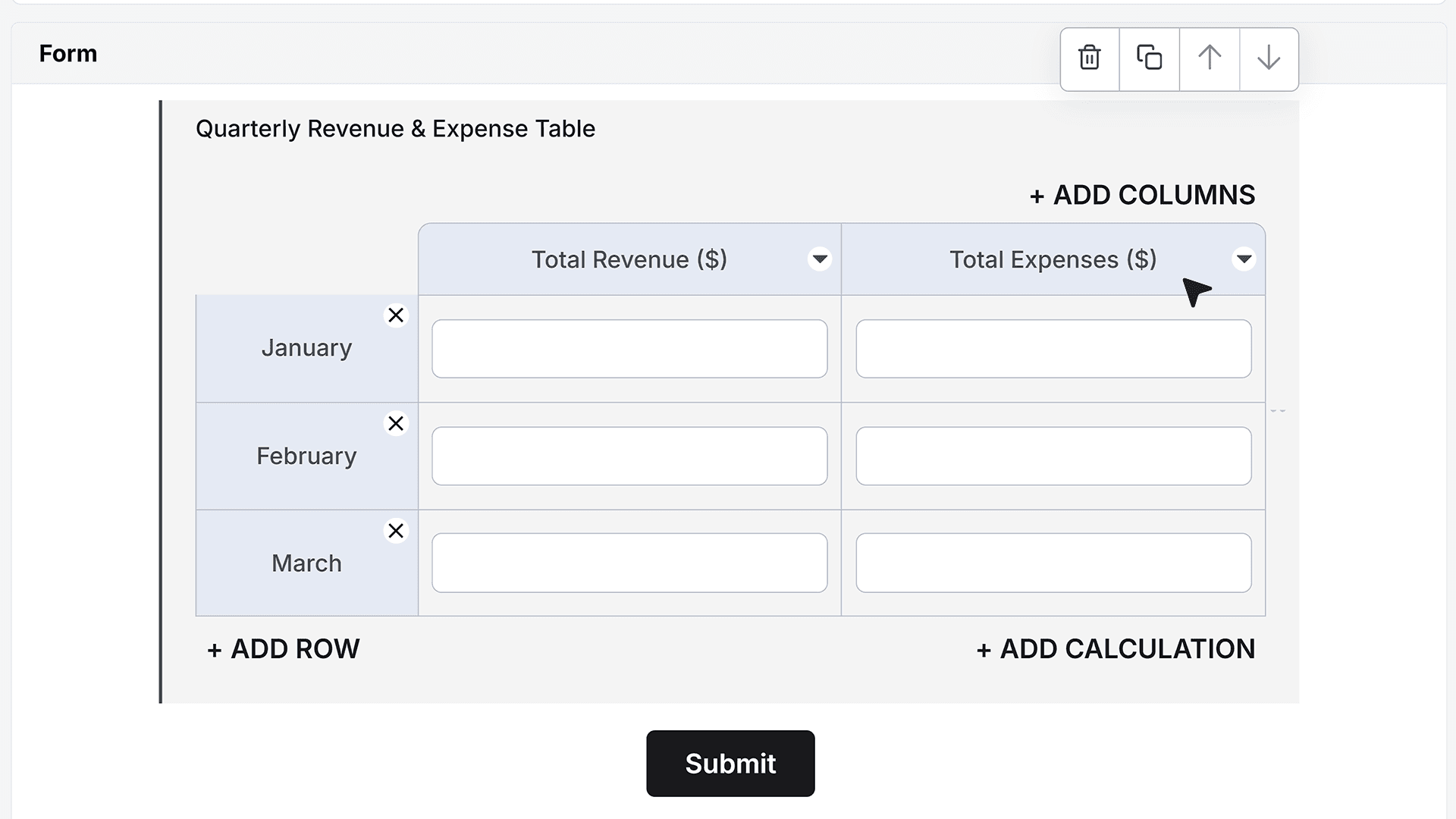
The form already includes a Matrix Field configured for financial data entry. Each row in the matrix represents a month, while the columns capture numeric values such as Revenue and Expenses. Users enter the revenue and expense amounts for each month directly into the table.
This structure allows you to collect consistent, structured data across multiple periods.
Adding a Calculation Row
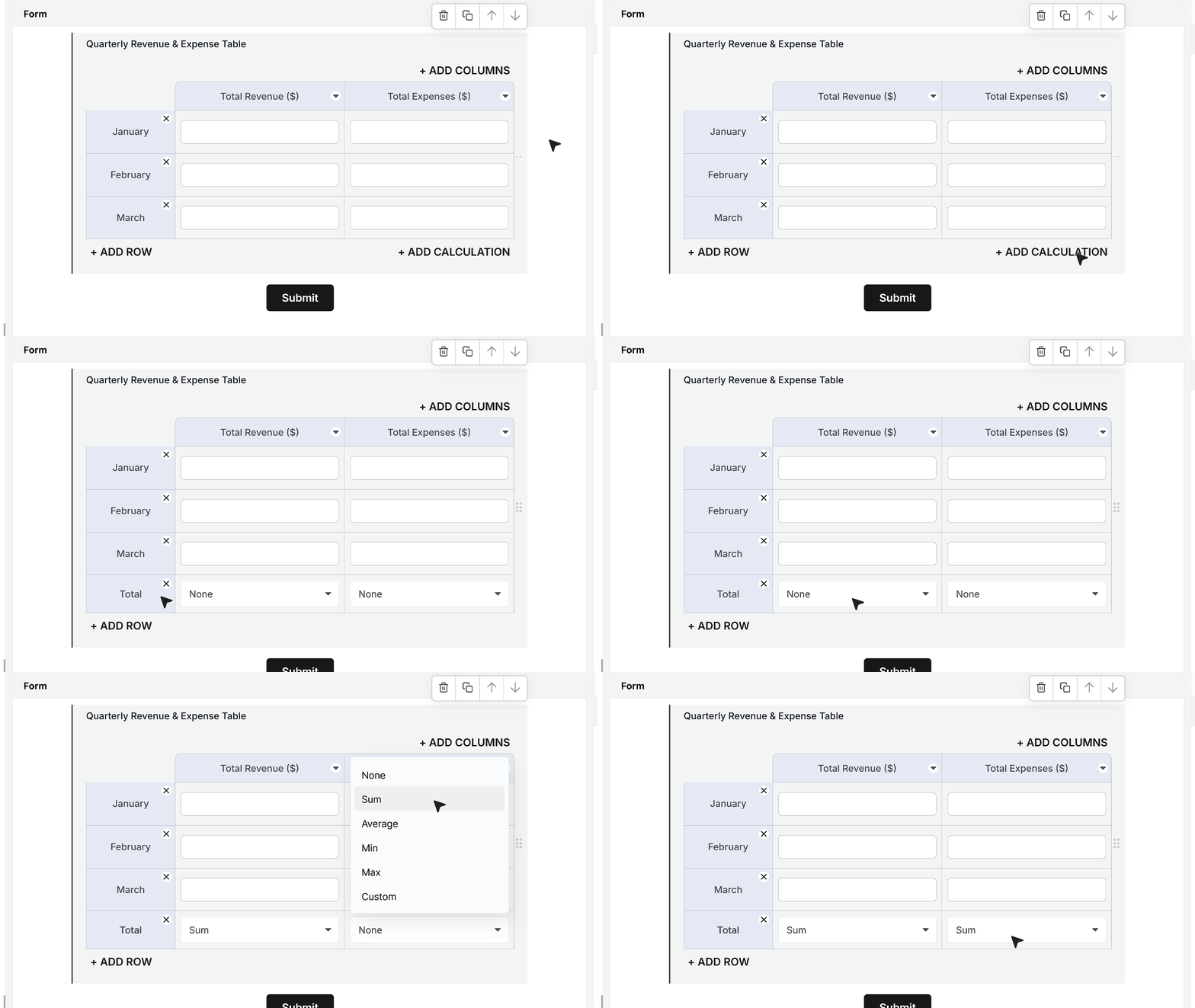
To summarize the data, a Calculation Row is added at the bottom of the matrix. Both the Revenue and Expenses columns are set to use the Sum calculation type. This automatically calculates the total revenue and total expenses across all months entered by the user.
These totals update in real time as users modify any value in the matrix.
Creating the Calculated Field for Net Profit
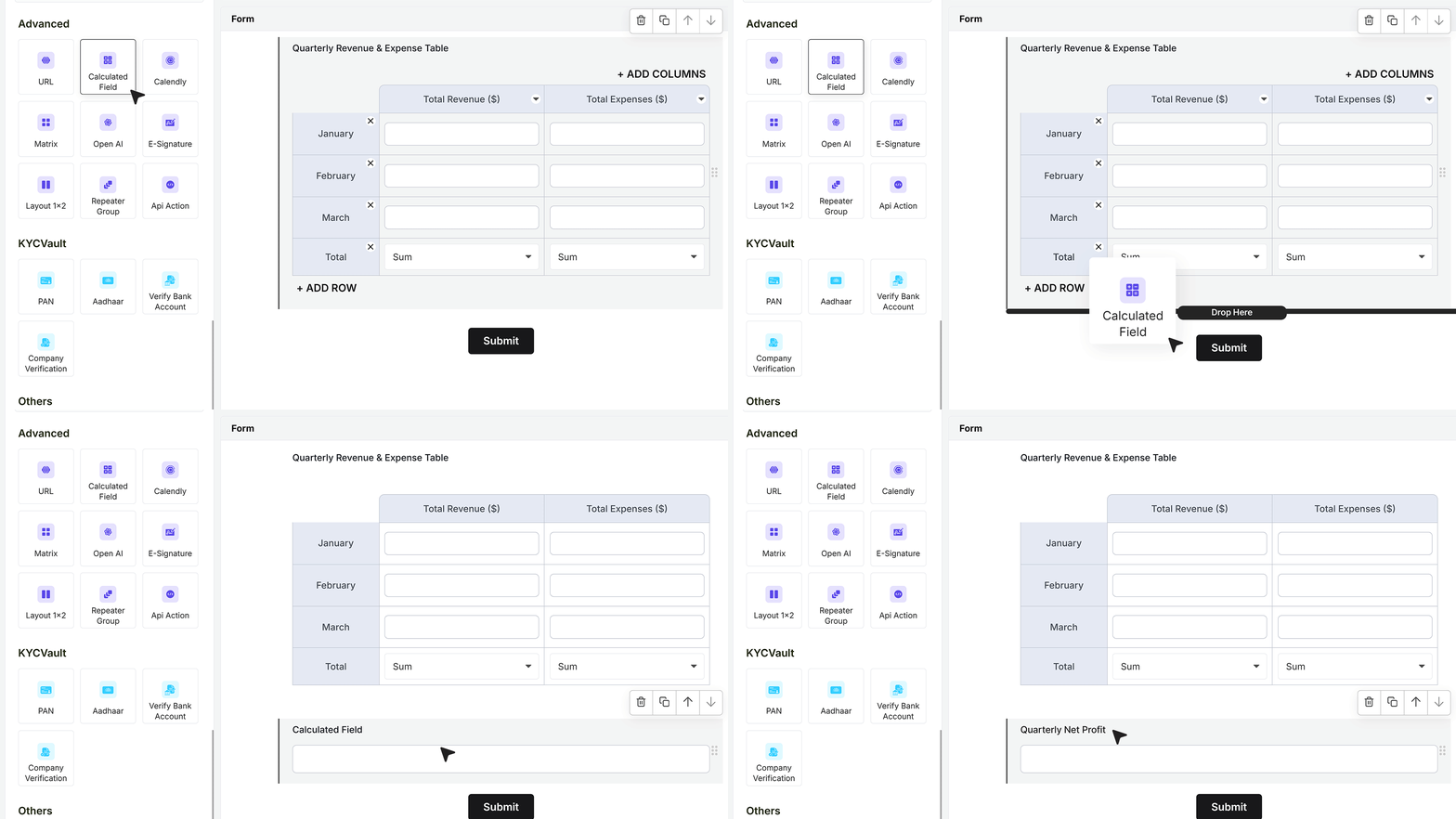
- To calculate profit, add a Calculated Field to the form and name it Quarterly Net Profit.
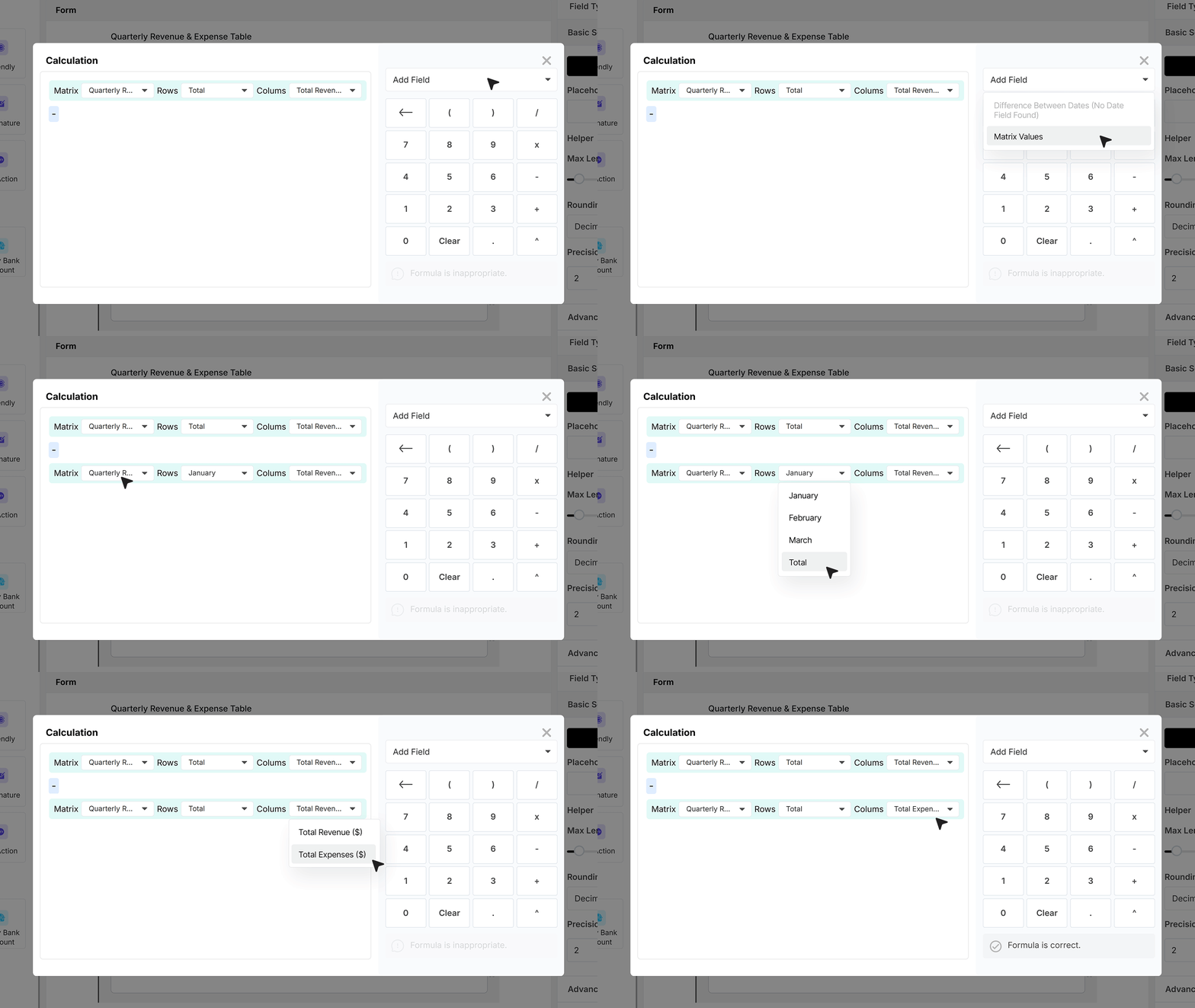
- Open the calculator to begin building the formula. Start by clicking Add Field, then navigate to the Matrix Field. Select the Total row and choose the Revenue column to insert the total revenue value into the formula. Next, enter the minus (-) operator.
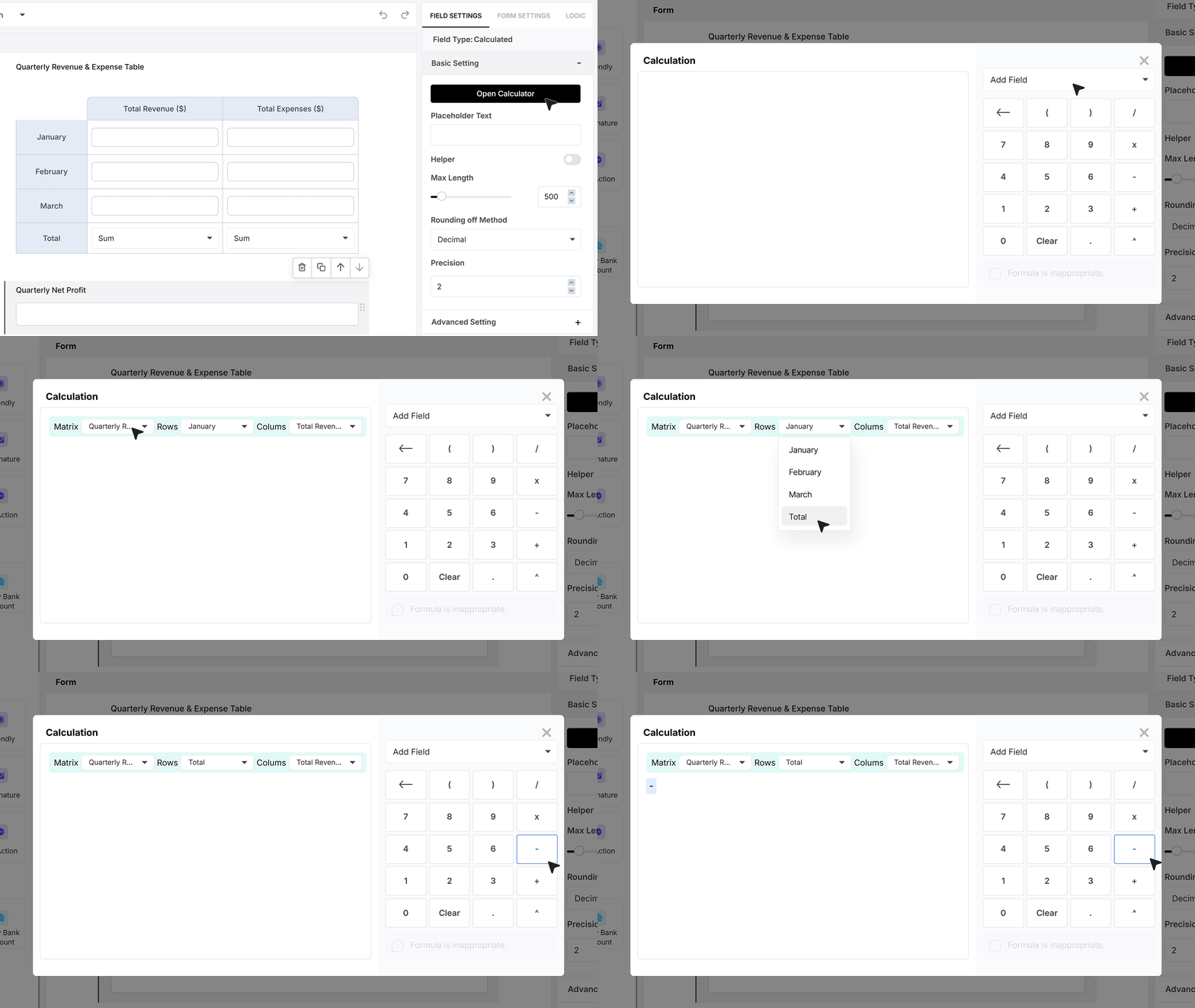
- After that, add another Matrix value by selecting the Total row again and choosing the Expenses column. This completes the formula by subtracting total expenses from total revenue. Using this same method, you can also combine values from different Matrix Fields within a single Calculated Field.
How the Calculation Works
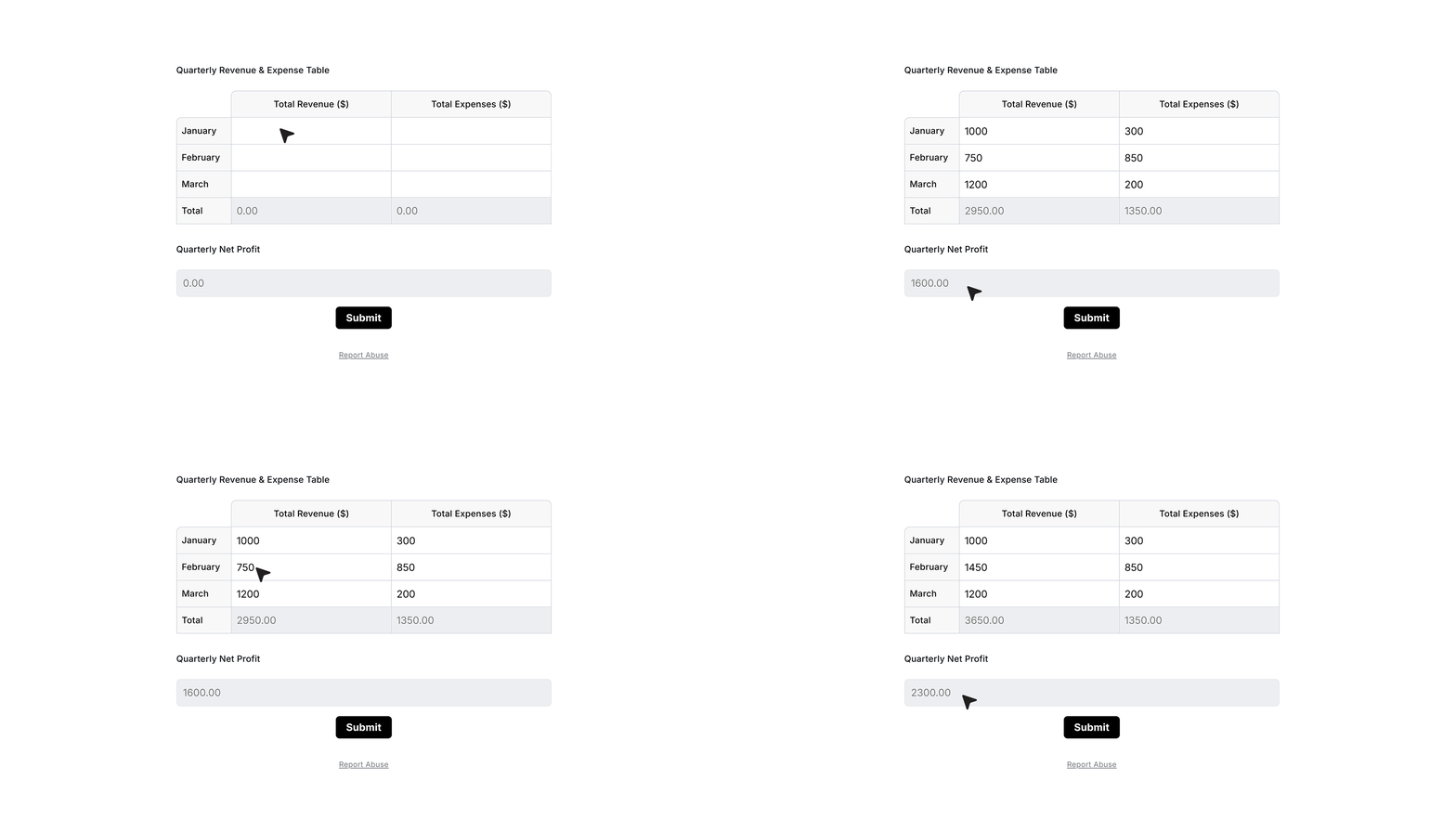
As users enter or update revenue and expense values for each month, the matrix totals recalculate automatically. The Calculated Field then uses these updated totals to compute the net profit instantly. This ensures that the displayed profit always reflects the most recent data entered in the form.
FAQ's
A matrix field lets you collect data in a table format with rows and columns. Each row can represent an item like a month, and each column can store values like revenue or expenses. It helps capture structured data in one place.
A calculated field is used to create formulas inside your form. It automatically calculates values based on user input, like totals, averages, or profit.
You first add a calculation row inside the matrix, usually using sum. Then you use those totals inside a calculated field to create your final formula, like total revenue minus total expenses.
Yes. You can add a calculation row at the bottom of the matrix and set columns to sum. This will automatically total all values entered by users.
You open the calculated field, select values from the matrix (like totals), and combine them using operators like plus or minus. For example, total revenue minus total expenses.
Yes. As users change values inside the matrix, totals update instantly. The calculated field also updates automatically with the latest data.
Yes. You can combine values from different matrix fields in a single calculated field. This is useful for complex calculations across multiple tables.
Common use cases include:
- Financial reports like profit and loss
- Survey scoring
- Budget tracking
- Performance tracking across months or teams
This usually happens if:
- The calculation row is not set correctly
- The correct matrix totals are not selected
- The formula is incomplete
Make sure you are using the total row values in your formula.
Yes. This is one of the most common uses. You can sum revenue and expenses in the matrix, then subtract expenses from revenue using a calculated field to get profit.
Yes. Matrix fields are designed to handle multiple rows of data, and calculations will still update automatically as users enter values.
No. You can build formulas using a visual calculator. You just select fields and apply basic operators.