Matrix Field
The Matrix Field lets you collect related answers in a clean table layout. It works well when users need to respond to multiple items using the same set of options. This field is useful for reviews, feedback, rate services and capture repeated information in a single, organized view.
Adding the Matrix Field
To add a Matrix Field to your form, search for Matrix Field in the field list and drag it into your form canvas. Once added, the field appears as a table where you can configure rows and columns based on your needs. Rows represent the items the user is responding to. These could be products, services, tasks, people, or questions.
Columns define how the user responds to each row. Each column represents a specific type of input, such as text, numbers, or selection-based choices.
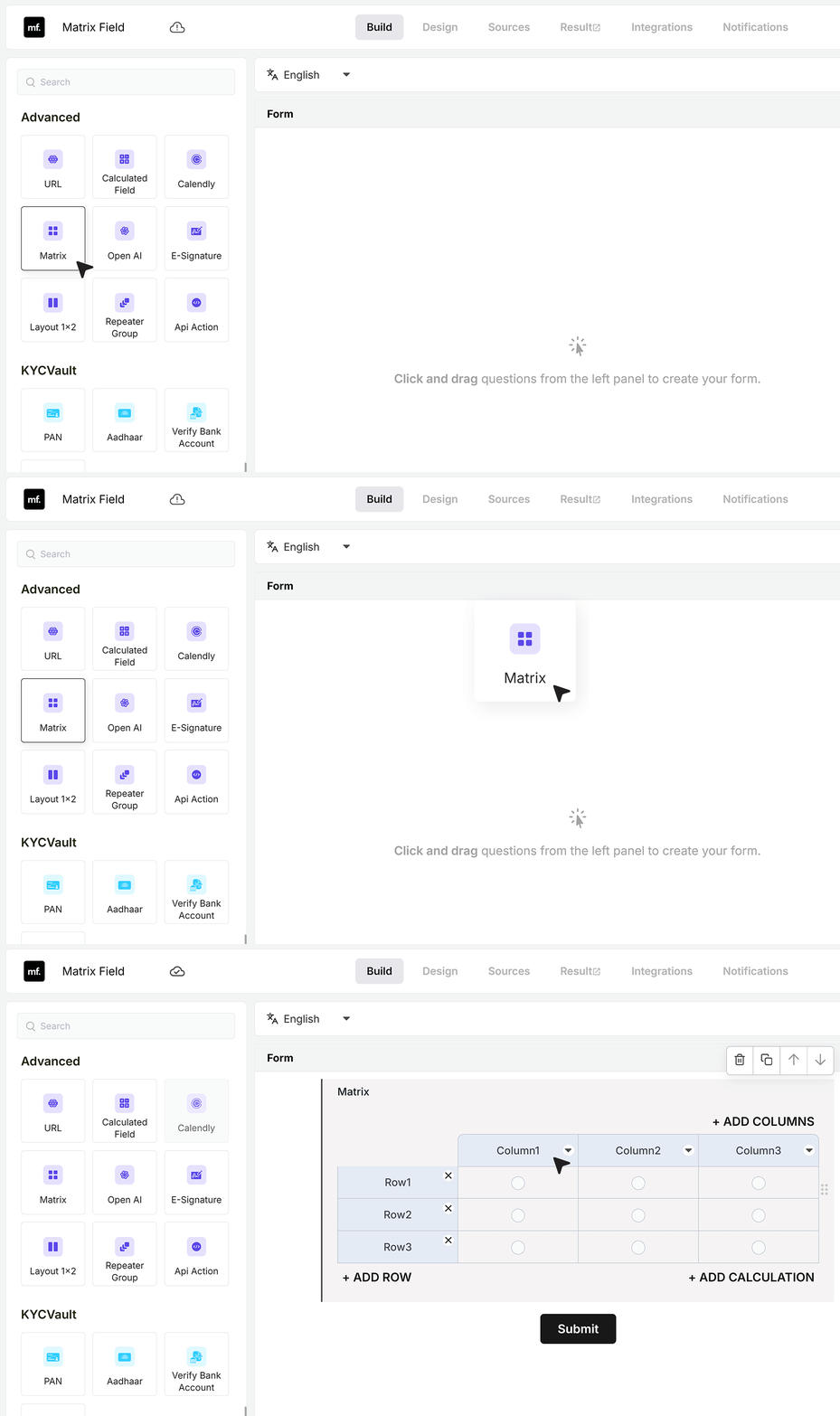
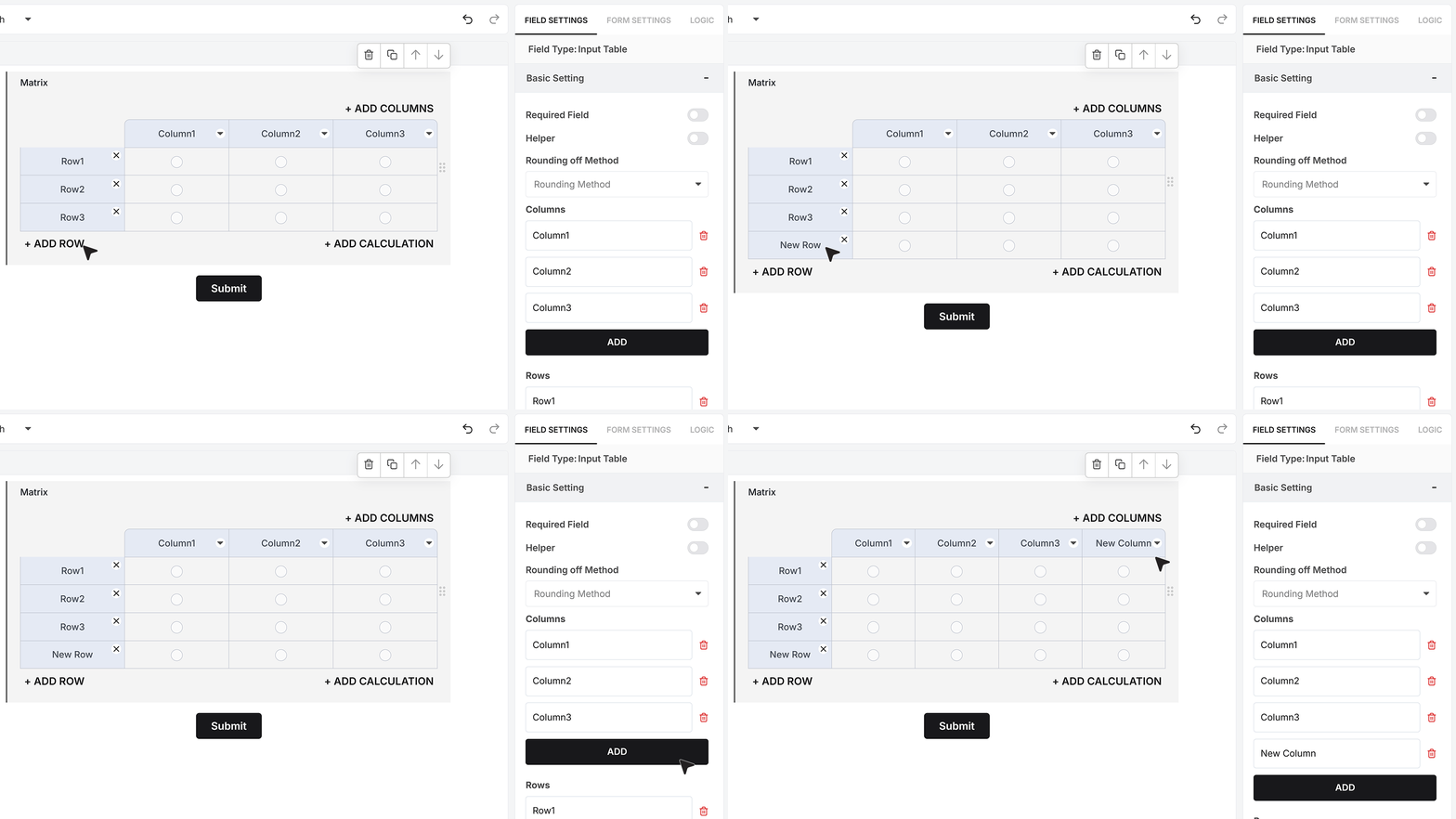
Add Row and Column
You can add as many rows and columns as required. Rows and columns can be added directly inside the field using Add Row and Add Column, or from the settings panel on the right.
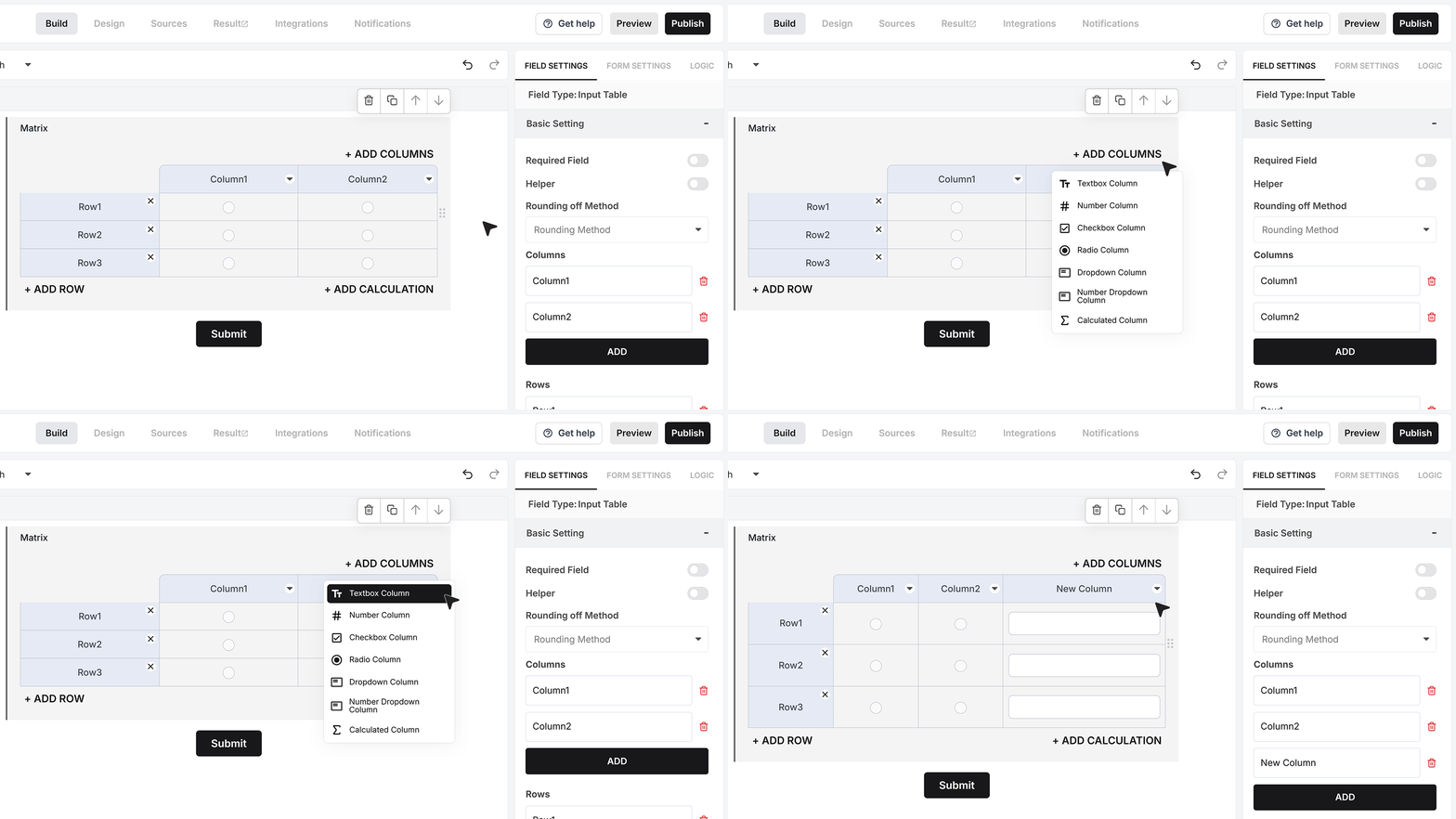
Textbox Column
When you add a column, you will see multiple column types. Each type controls how the input appears inside the table cells.
A Textbox Column allows users to type text into each cell. This is useful when responses vary and cannot be limited to fixed choices. For example, if rows list products, a textbox column can collect comments or notes for each one.
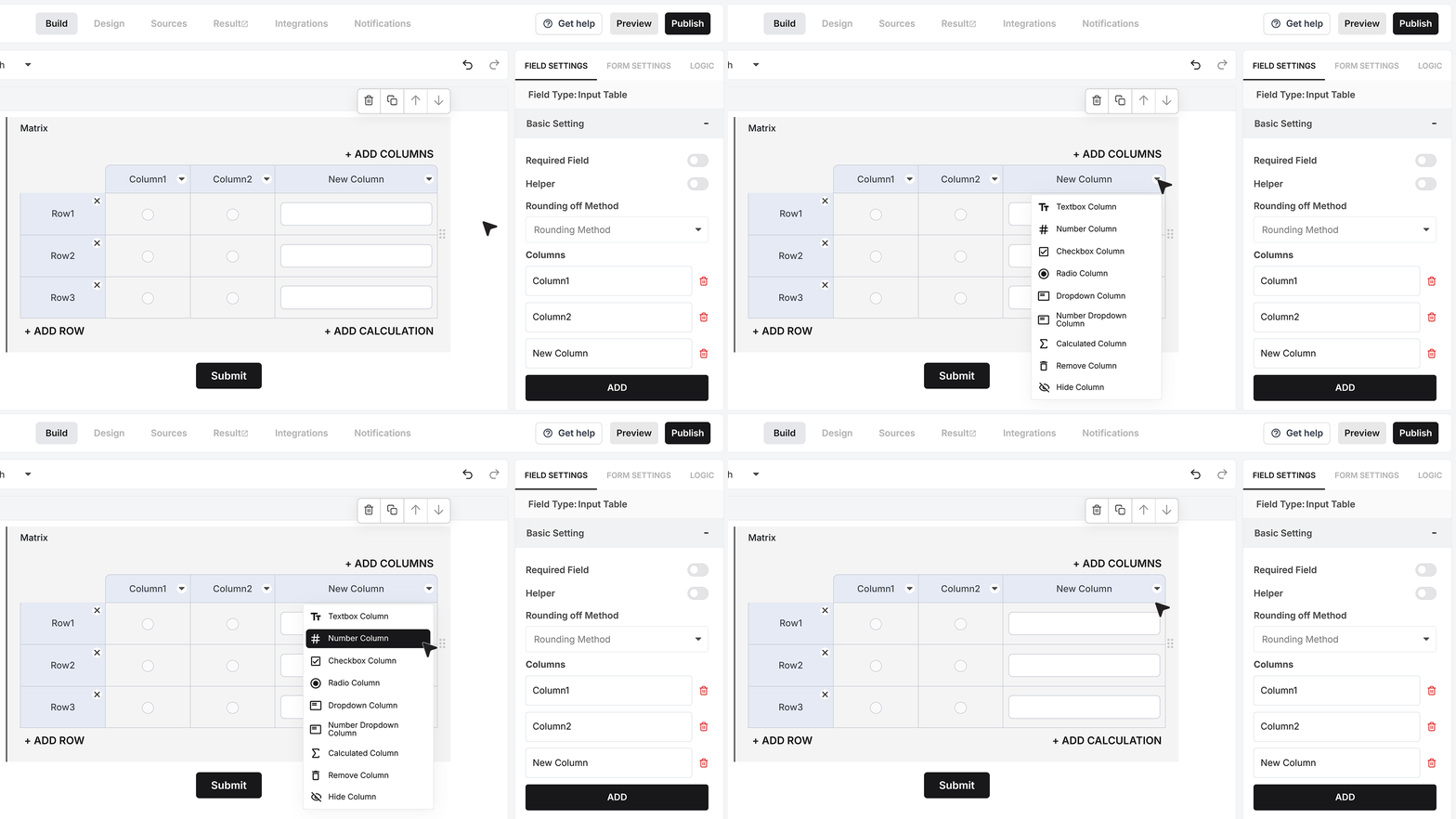
Number Column
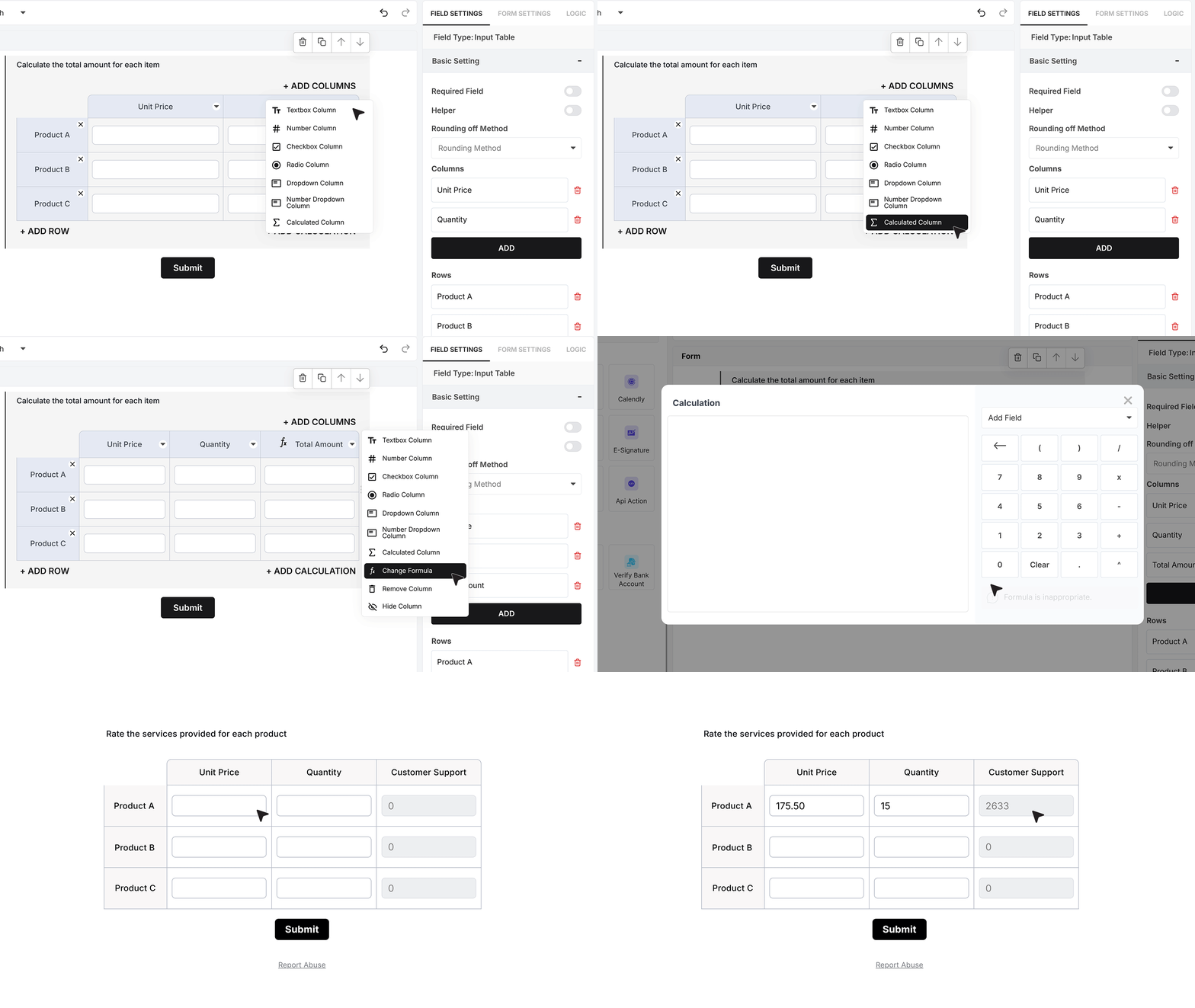
You can change a column’s type at any time using the column dropdown. If a column was initially added as a Textbox Column, it can be converted into a Number Column without removing it. A Number Column is used when the input must be numeric, such as quantities, hours, scores, or amounts.
For example, you can create a column called Quantity. If your rows represent inventory items, users can enter values like 5, 10, or 0 for each item.
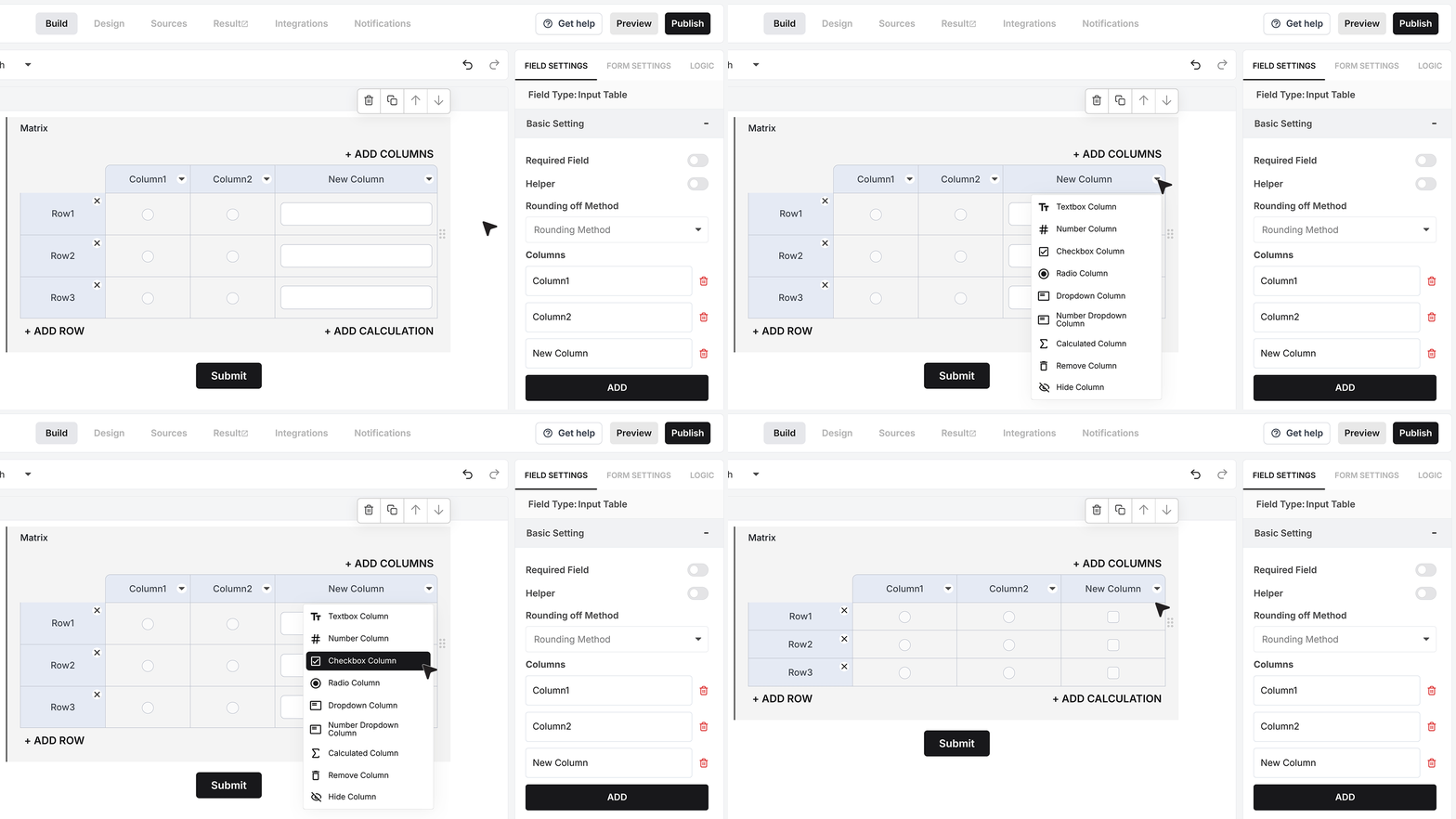
Checkbox Column
A Checkbox Column is used when more than one option can apply to the same row.
It allows users to select multiple choices for a single row, instead of being limited to just one. This column type is useful when several options may be applicable at the same time and the user needs the flexibility to choose all that apply.
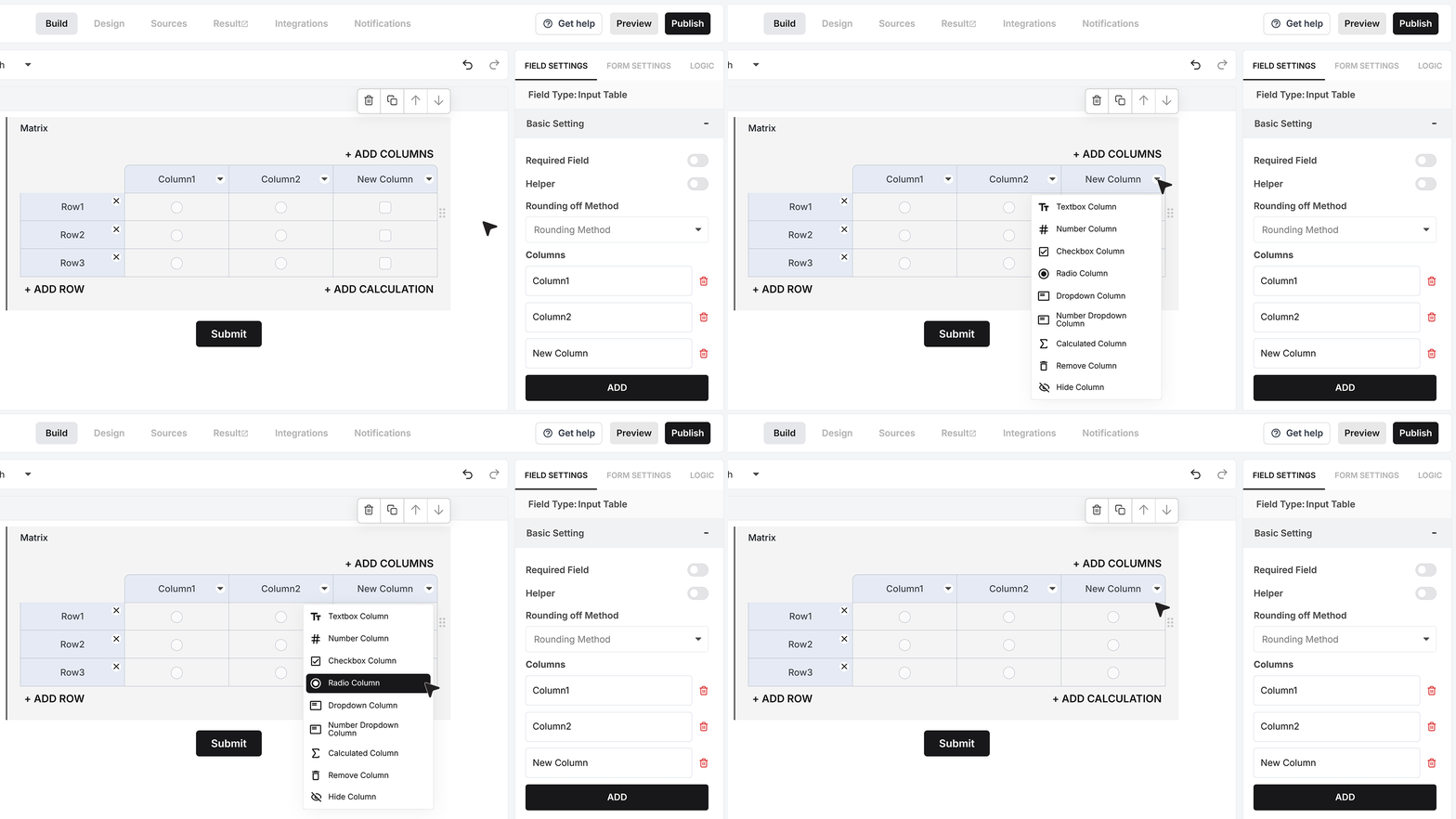
Radio Column
A Radio Column allows the user to choose only one option per row. This column type is used when only a single selection should be allowed for each row, ensuring the user makes one clear choice without selecting multiple options.
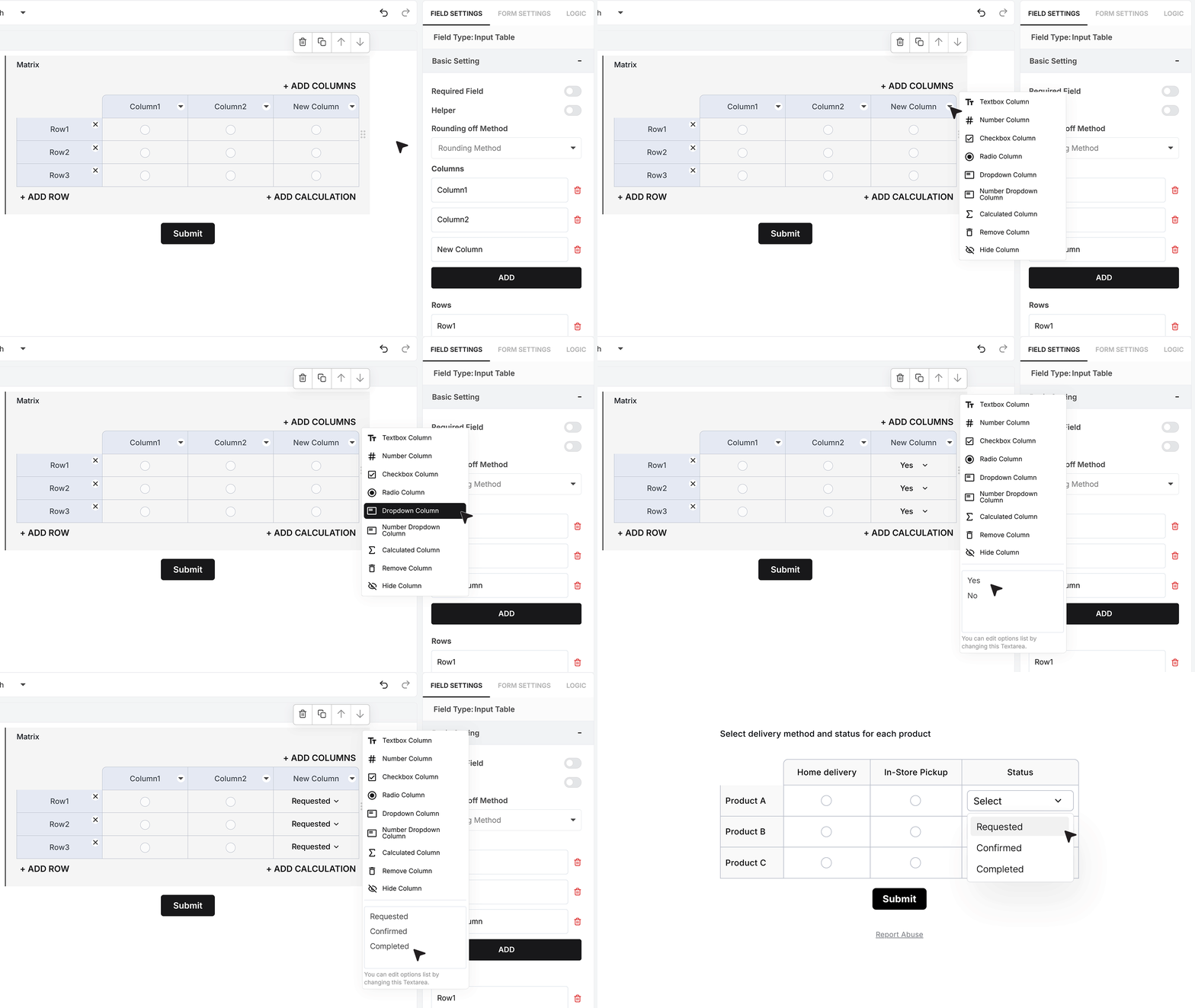
Dropdown Column
A Dropdown Column allows users to select one value from a predefined list.
When you add a dropdown column, a textbox appears directly in the same panel. This textbox is used to define the dropdown options. Each option should be entered on a new line, such as Requested, Confirmed, and Completed.
The values entered in this textbox immediately become available as selectable options for every row in the table.
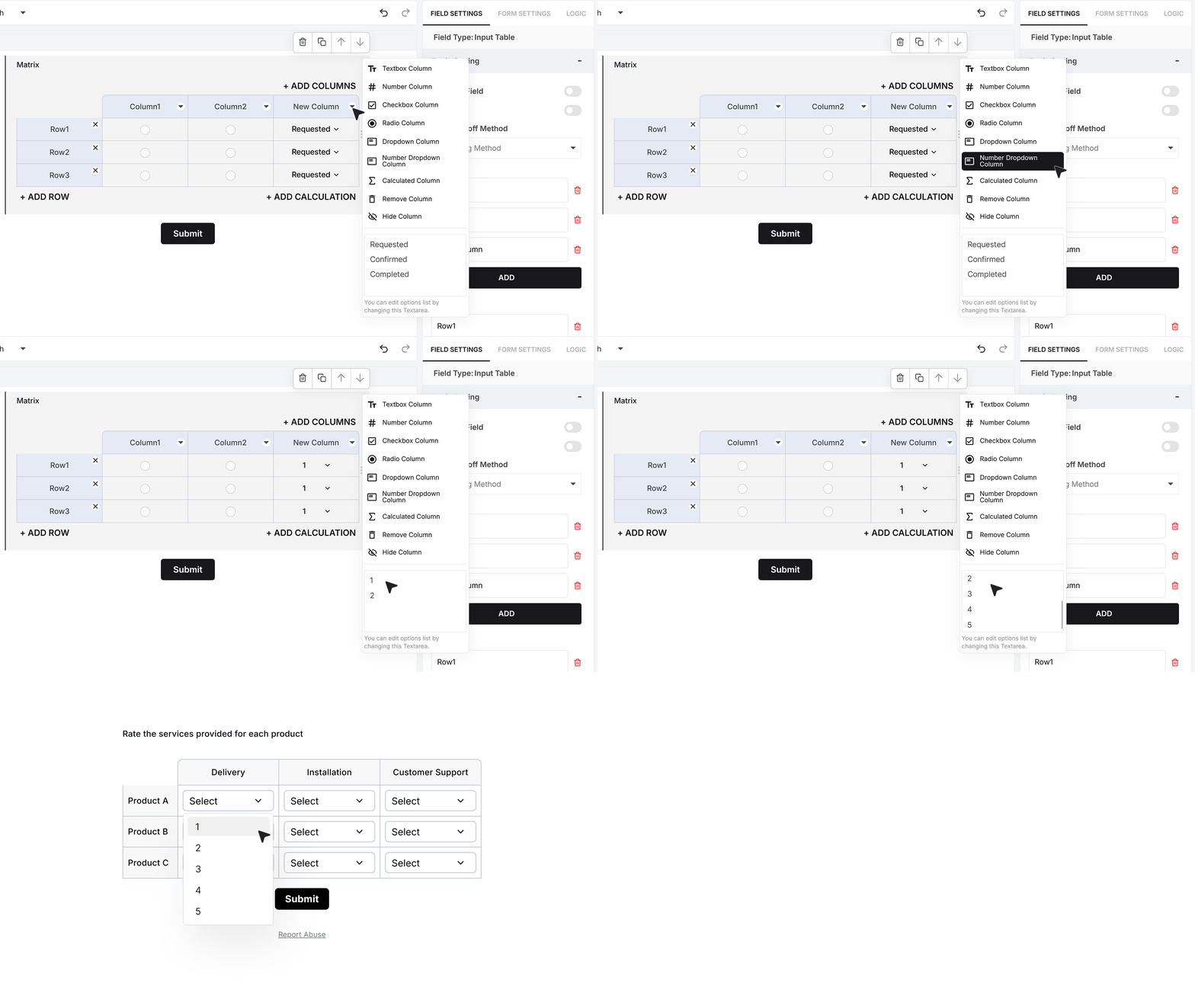
Number Dropdown Column
A Number Dropdown Column works like a dropdown, but the available choices are numeric. This column type is useful when you want users to select from fixed number values and do not want to allow free typing.
Calculated Column
A Calculated Column is used when the value should be automatically generated from other columns. For example, if one column collects Quantity and another collects Unit Price, a calculated column can display the Total for each row.
To configure this, open the column dropdown, click Change Formula, and enter the formula used to calculate the total. You can also apply a rounding method so the final value is rounded as needed. Once set, the calculated value updates automatically for every row.
Remove Column
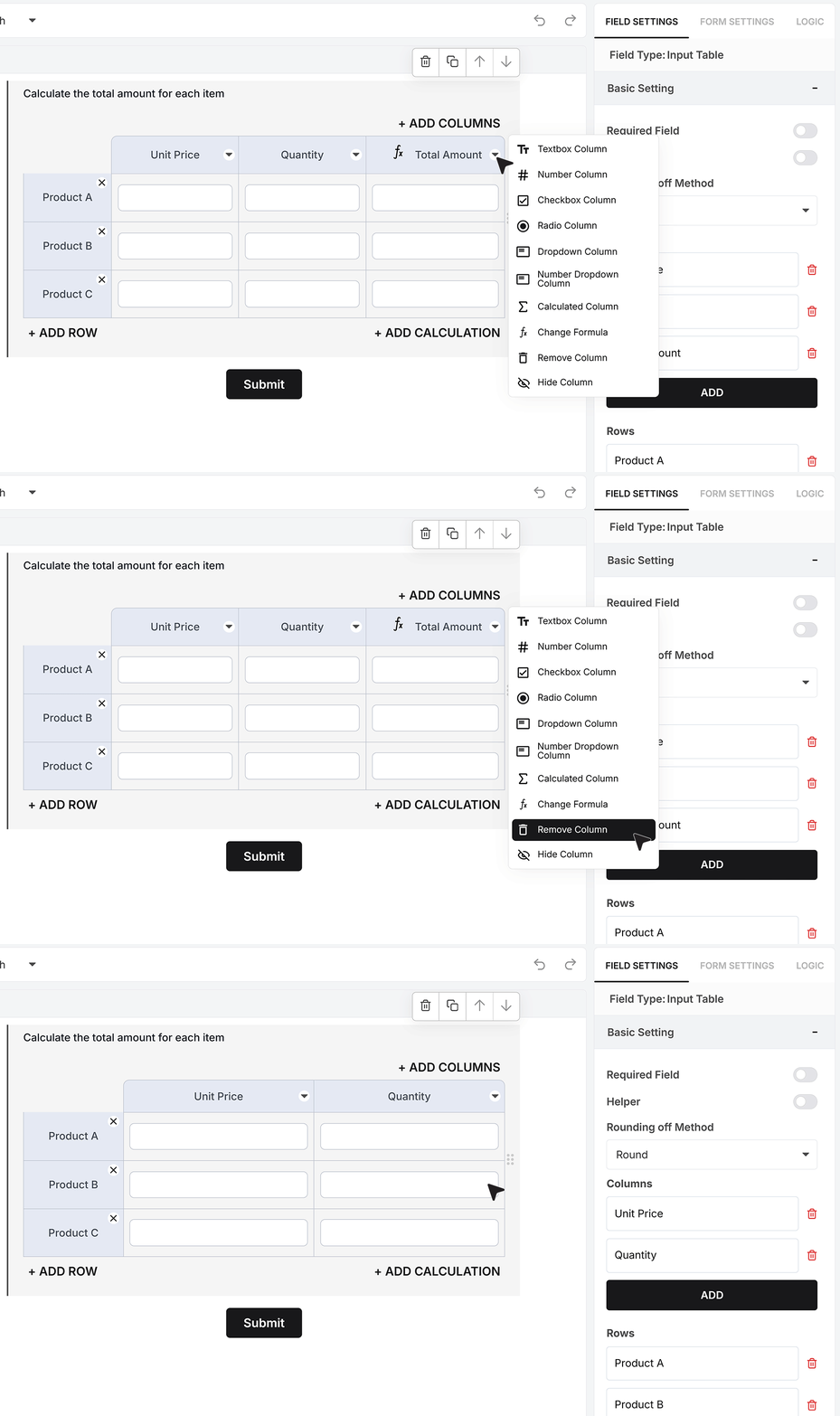
The Remove Column option deletes a column from the matrix completely. This is useful if a column was added by mistake or is no longer required.
Hide and Show Column
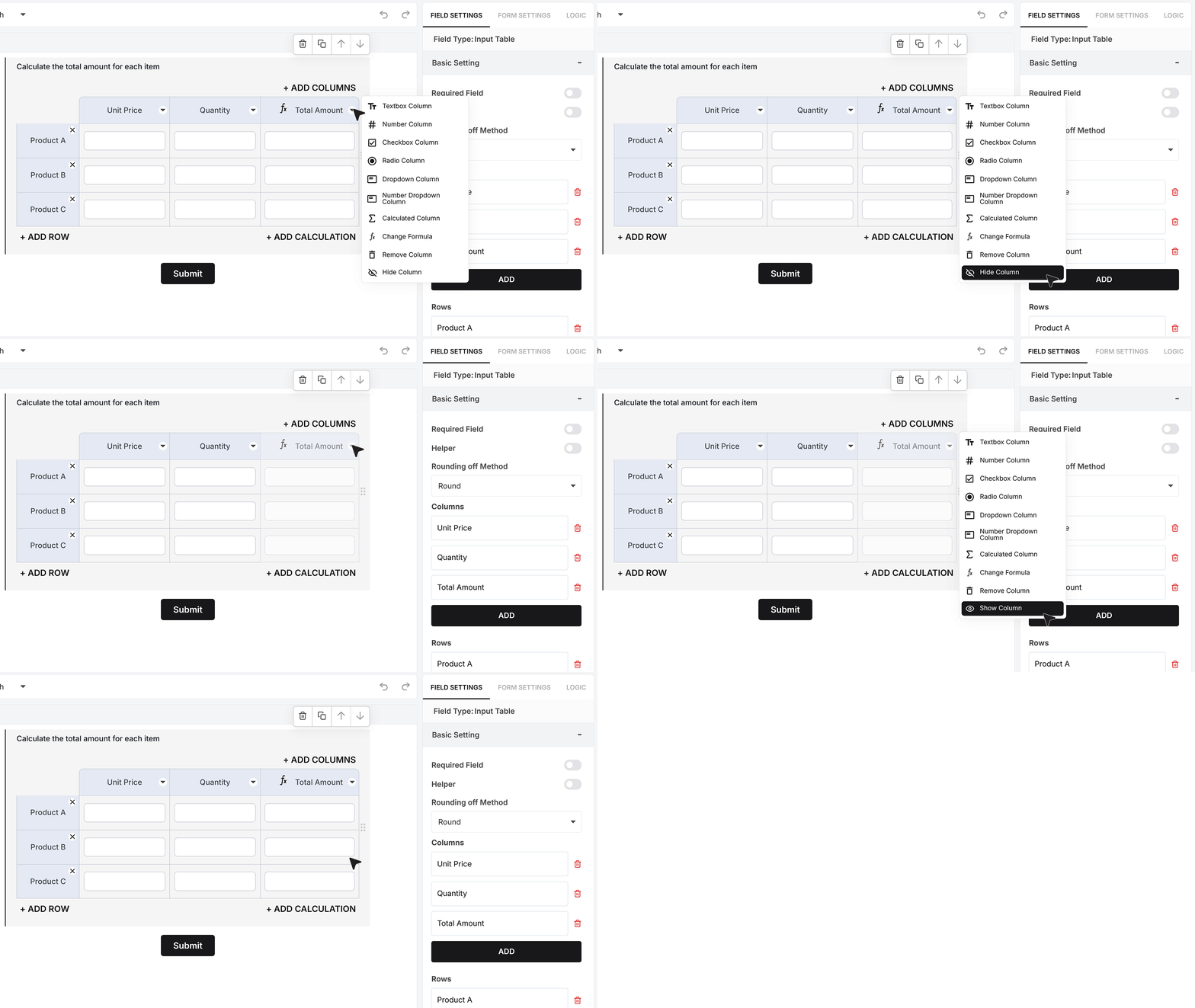
The Hide Column option keeps the column in the matrix but hides it from users filling out the form. The Show Column option makes the column visible again so users can see and interact with it. Hiding columns is useful when a column is needed for calculations or internal logic but does not need to be shown to users.
Add Calculation Row
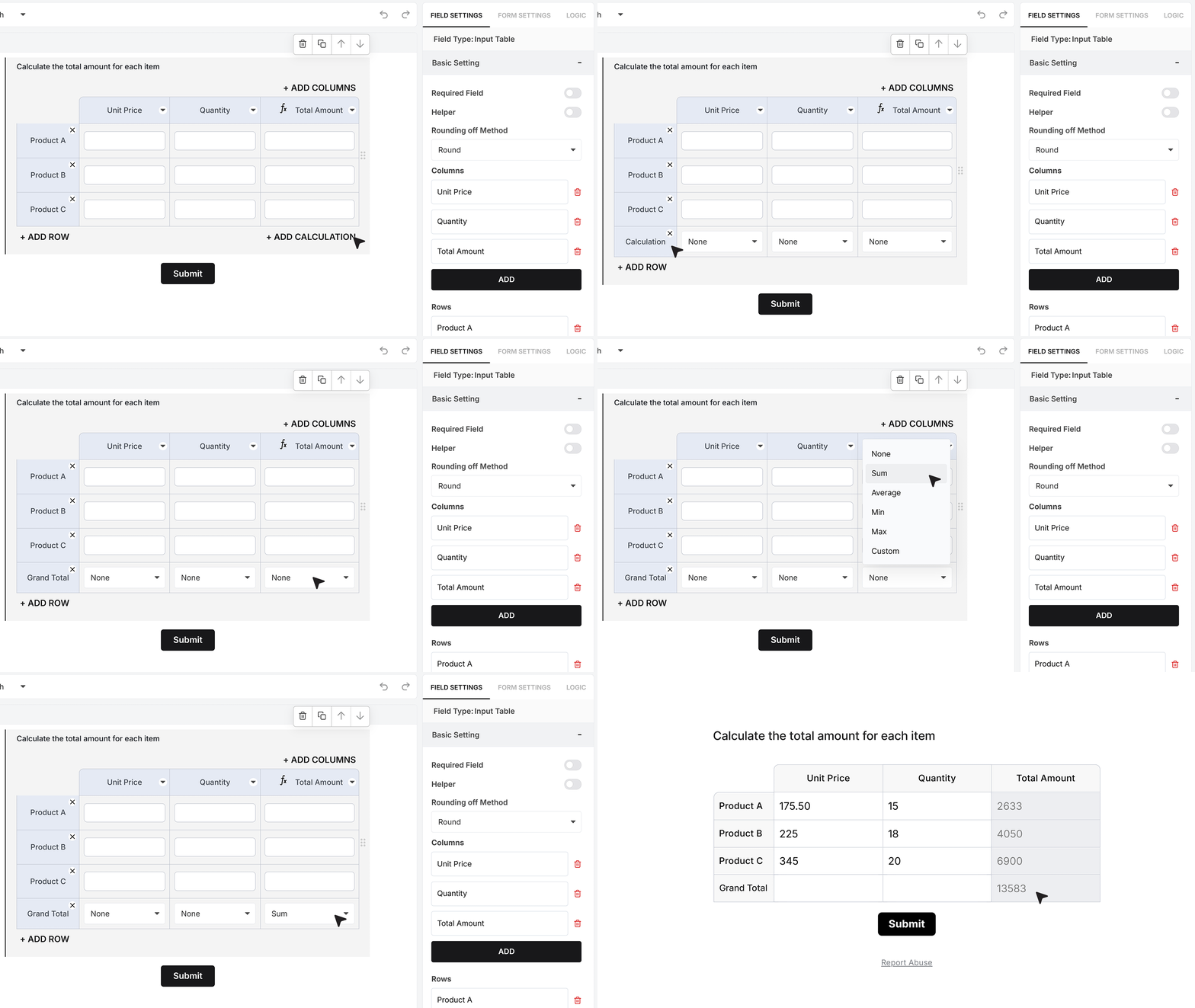
In addition to calculated columns, the Matrix Field also supports a calculation row at the bottom of the table. Click Add Calculation to add a row that calculates values across a column. You can choose from Sum, Average, Minimum, Maximum, or Custom. Selecting Custom opens the Calculator, where you can define your own formula.
For example, selecting Sum for the Total Amount column displays the Grand Total. The calculation row updates automatically as users fill the matrix and cannot be edited directly.
Basic Settings
Required Field
The Required Field setting determines whether the matrix must be filled before the form can be submitted. When this setting is enabled, a required rule dropdown appears. This dropdown controls how strict the requirement is.
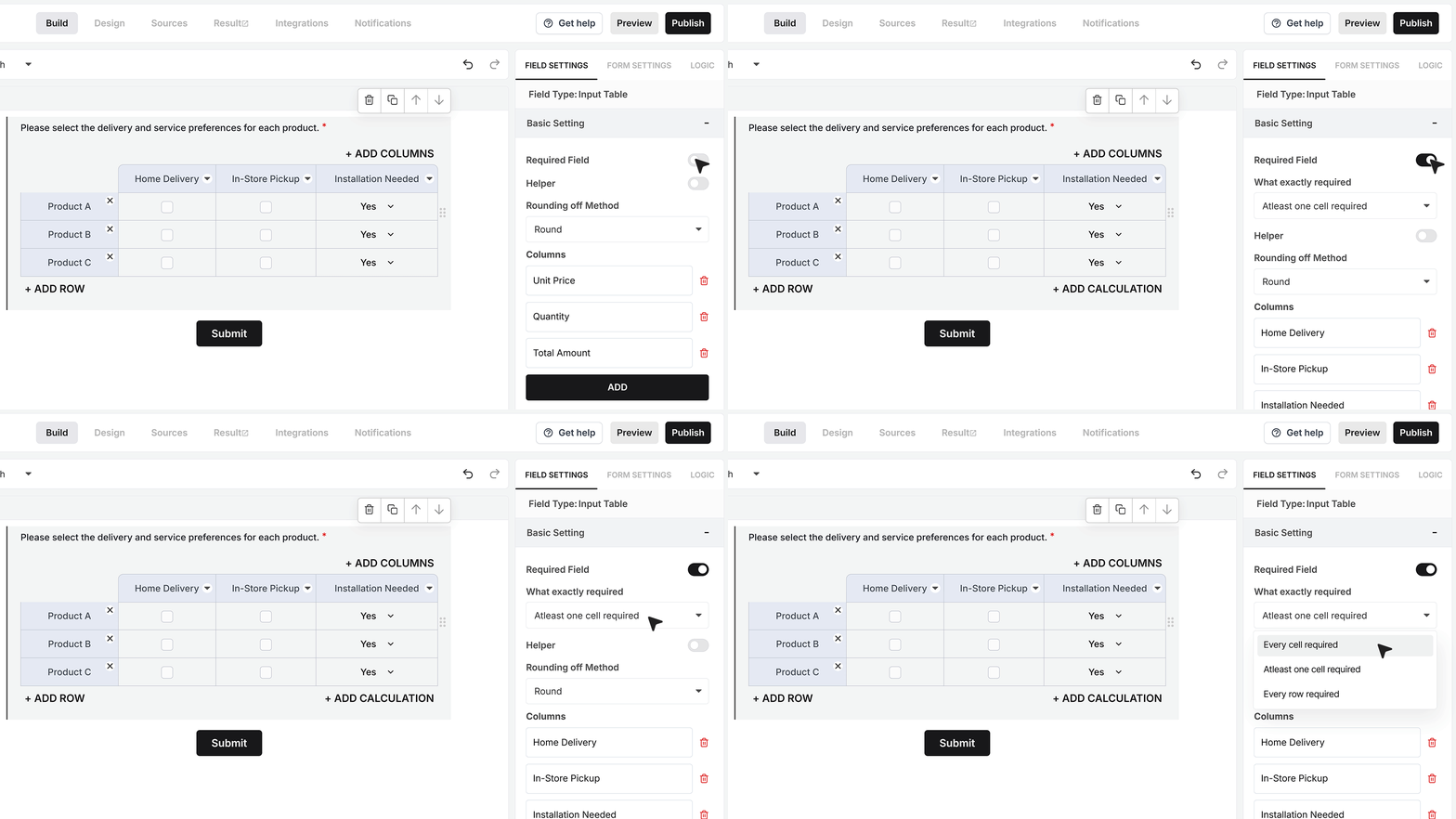
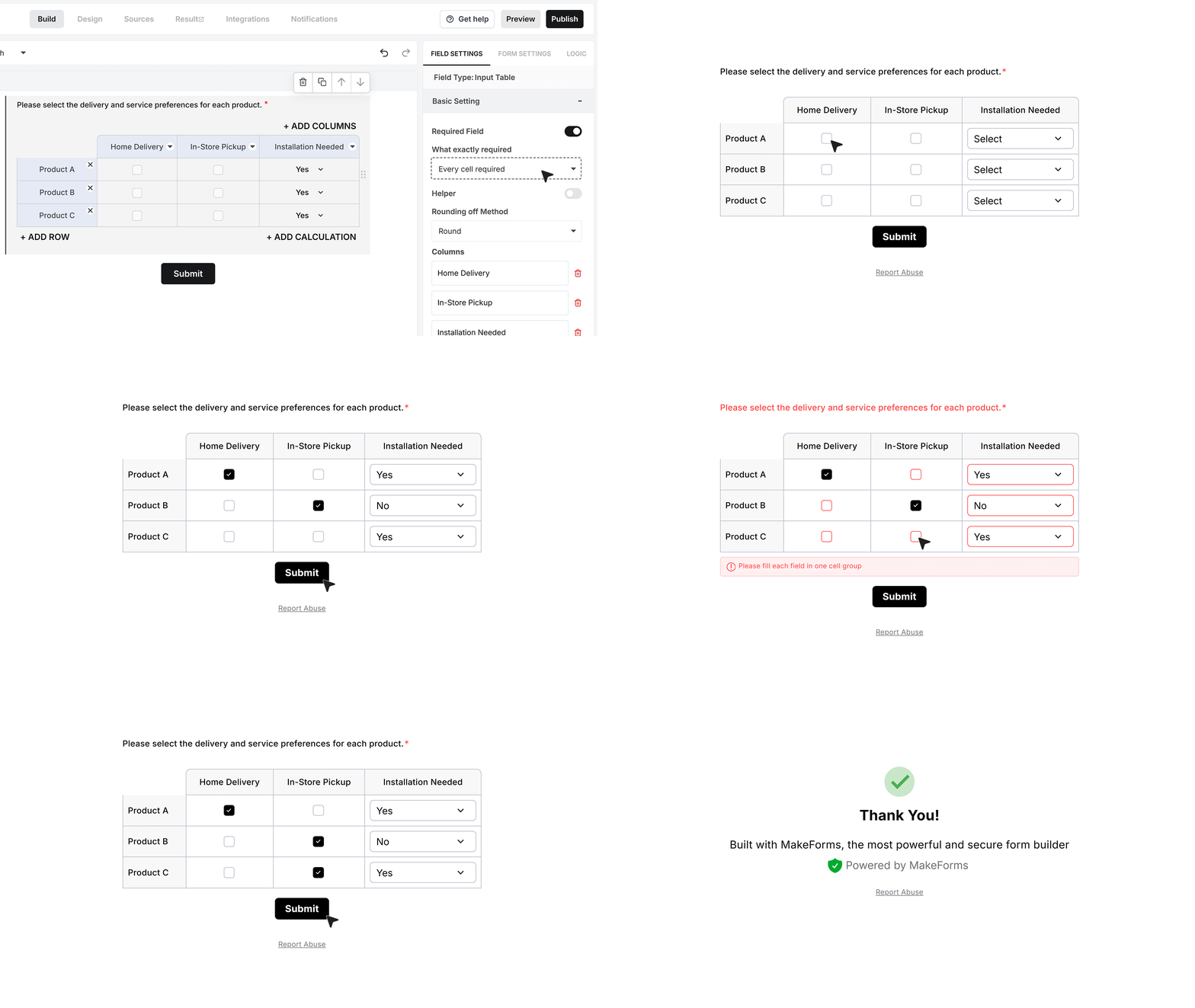
- Every cell required : When Every cell required is selected, the user must complete all required choices for each product.
For example, for every product row, the user must select either Home Delivery or In-Store Pickup, and also choose a value for Installation Needed. If any required selection is missing, the form cannot be submitted. This is useful when every product must have confirmed delivery and installation details.
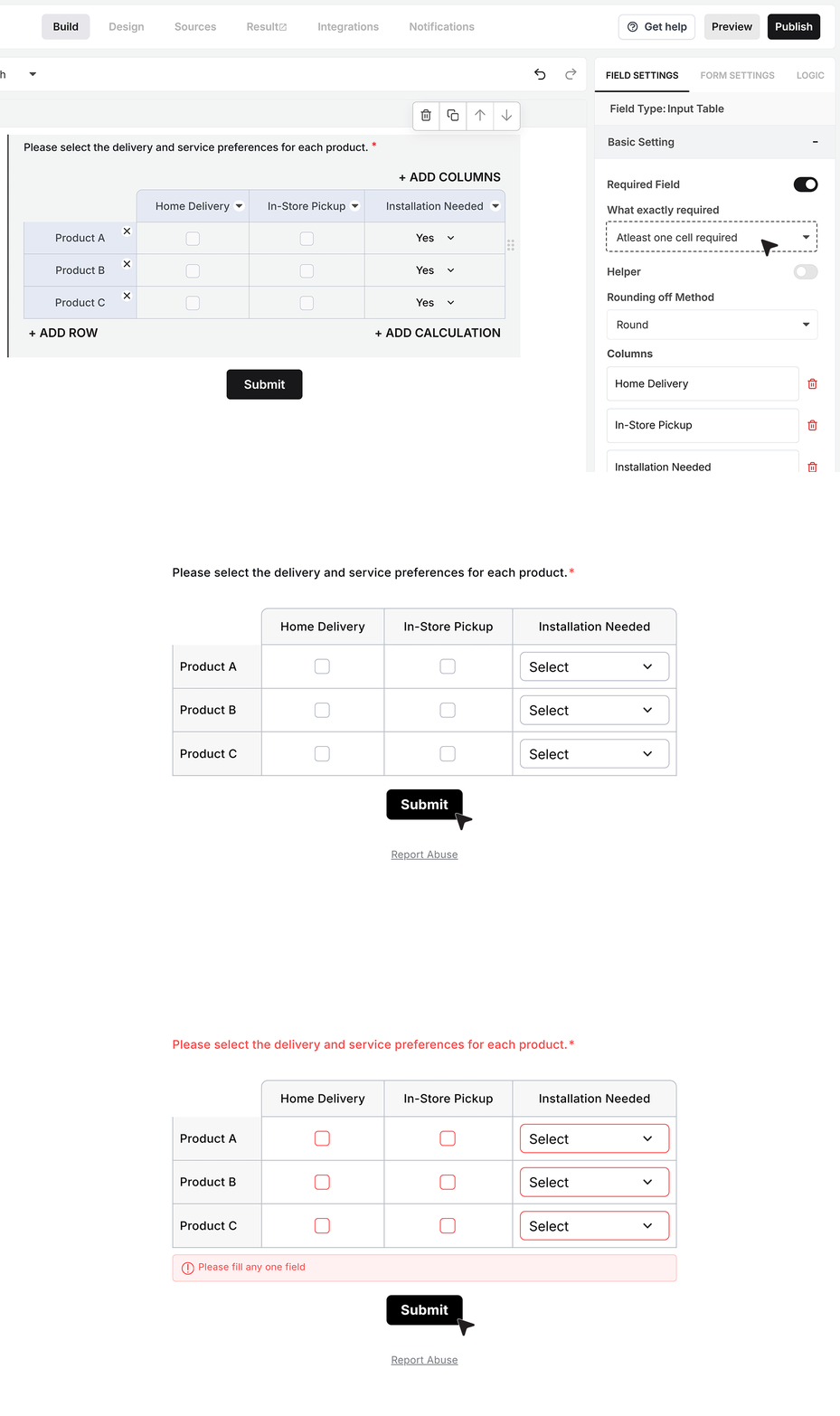
- Atleast one cell required : When at least one cell required is selected, the user must fill at least one cell anywhere in the matrix. The rest of the table can remain empty. If the entire matrix is left blank, submission is blocked. This option works well when some input is required, but not for every item.
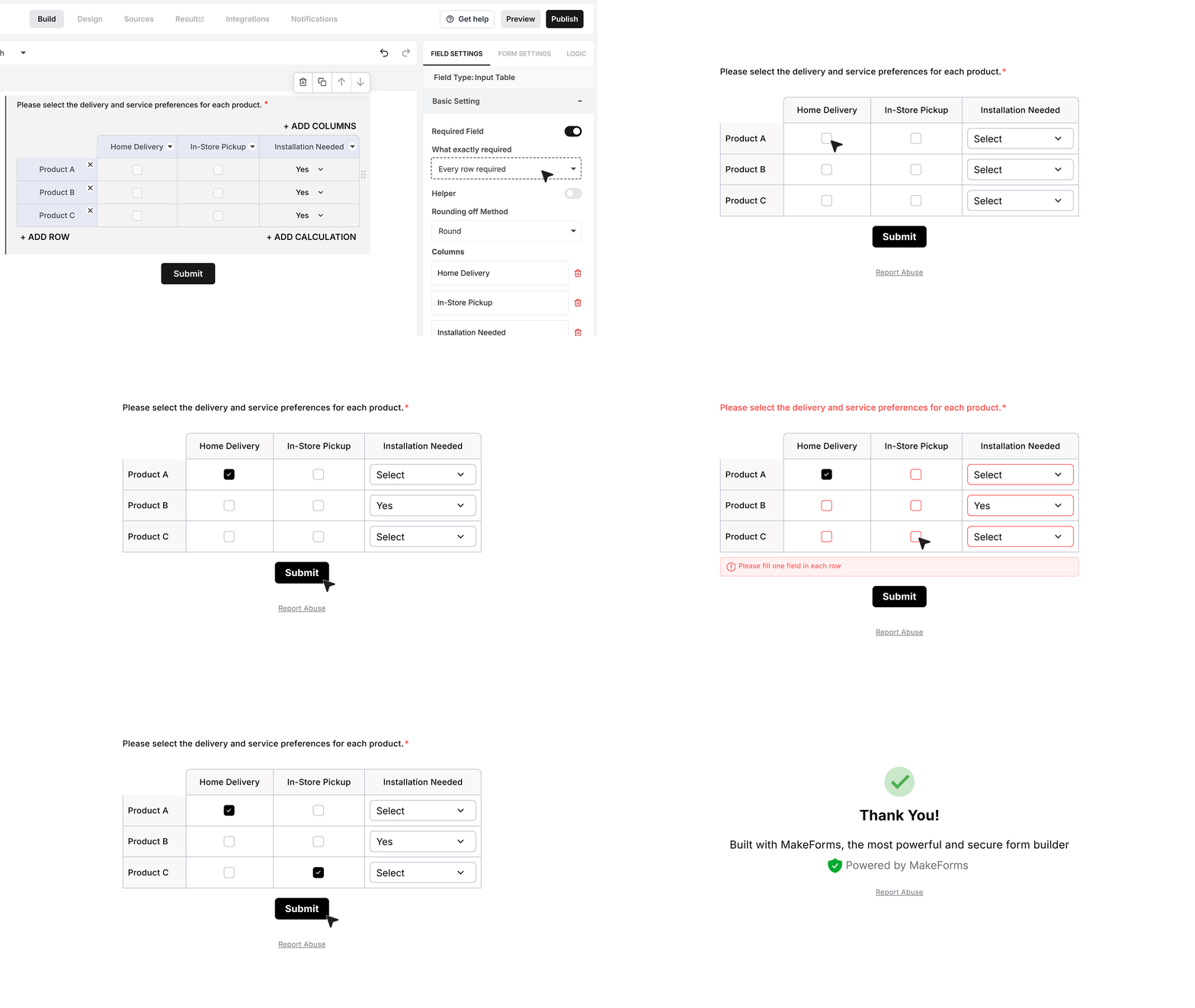
- Every row required : When Every row required is selected, the user must make at least one selection in each row. For example, for Product A, the user must choose Home Delivery, In-Store Pickup, or Installation Needed. The same applies to all other product rows.
Helper Text
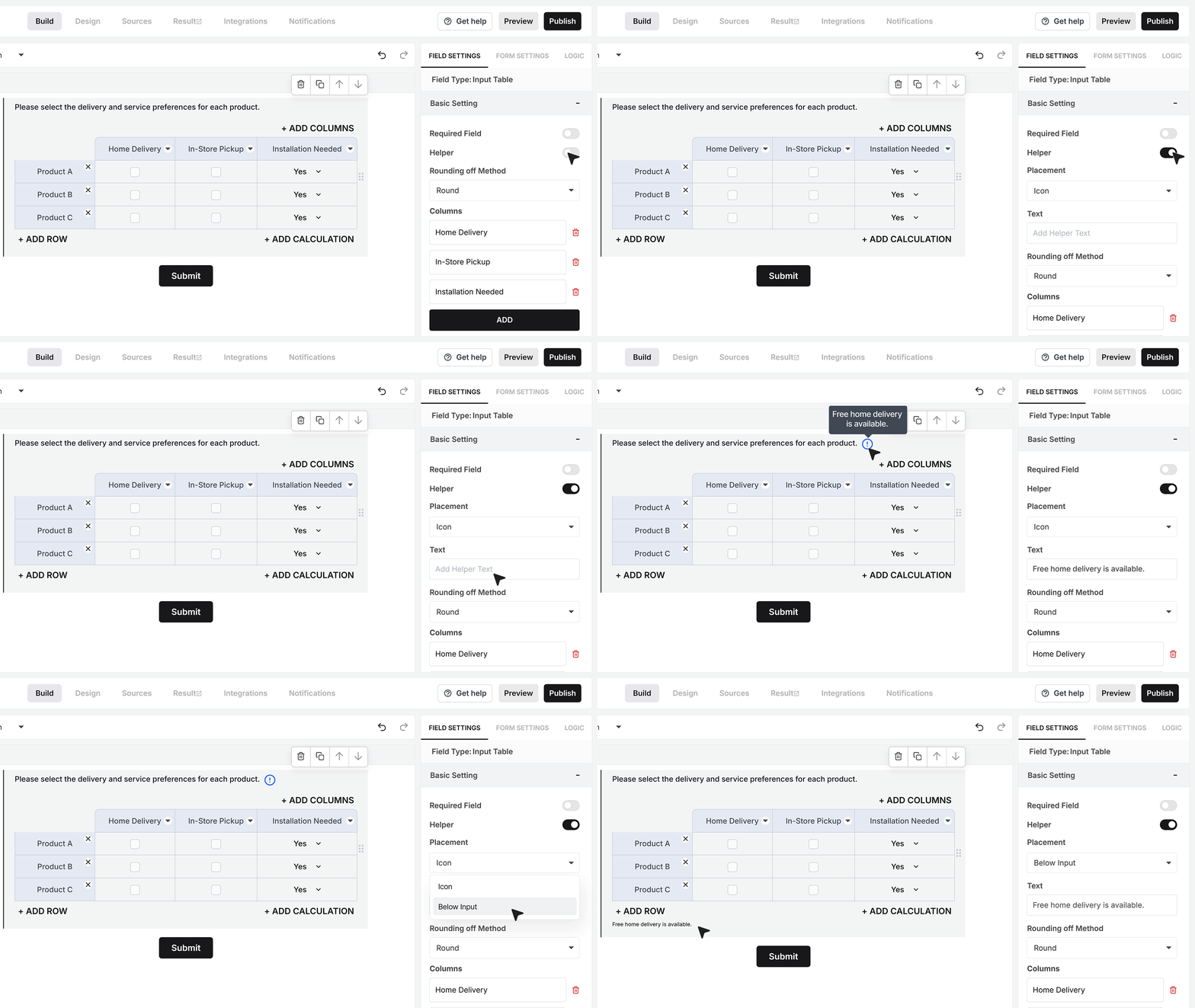
The Helper Text option lets you add a short message to guide users while filling the matrix. For this example, you can use helper text such as “Free home delivery is available.” This message can be shown as an info icon that appears on hover, or displayed below the matrix so it is always visible.
Rounding Method
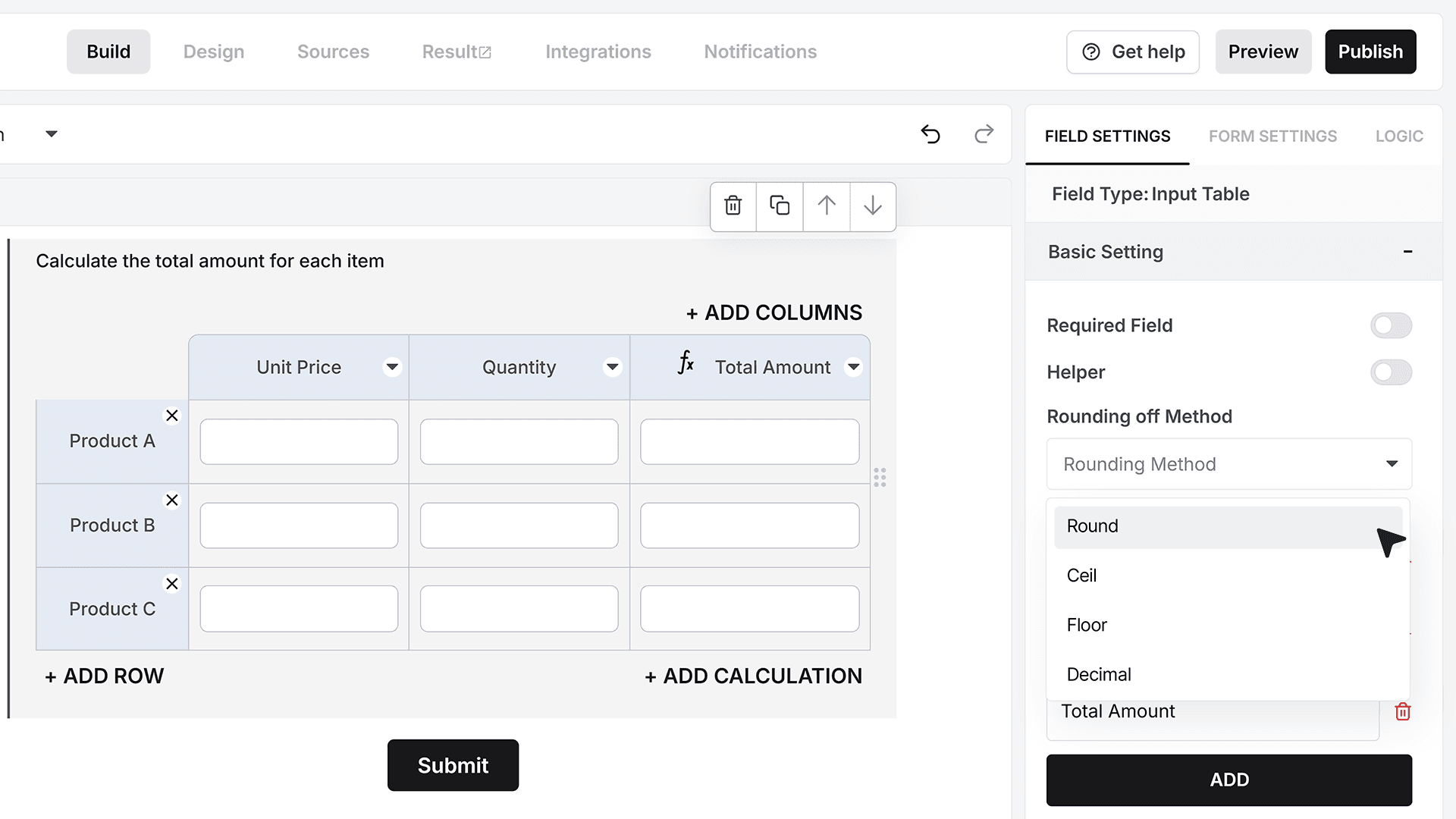
The Rounding Method controls how the calculated value is displayed.
- Round shows the nearest value based on the next digit. If the next digit is 5 or more, the value rounds up; if it is less than 5, the value remains unchanged.
- Ceil always rounds the value up to the next whole number.
- Floor always rounds the value down to the nearest whole number.
- Decimal keeps decimal places based on the selected precision setting.
FAQ's
A matrix field is a table-style input in a form builder where users can answer multiple related questions in one place. It shows rows and columns, so users can respond to many items using the same set of options.
You should use a matrix field when you need structured responses for repeated items. It works well for feedback forms, rating forms, surveys, product reviews, and comparisons where the same questions apply to multiple items.
To create a matrix field, add it from the field list into your form. Then define rows for items and columns for response types like text, numbers, dropdowns, or selections.
Rows represent the items or questions users respond to. Columns define how they respond, such as text input, ratings, dropdowns, or selections.
You can use multiple column types like text, number, checkbox, radio, dropdown, number dropdown, and calculated columns. Each type controls how users enter data in the matrix.
Yes, you can add a calculated column that automatically computes values based on other columns. For example, you can calculate total price using quantity and unit price.
A calculated column is a column where values are auto-generated using formulas. It updates in real time based on user input in other columns.
Yes, you can set rules like every cell required, every row required, or at least one cell required. This controls how much data users must fill before submitting the form.
Checkbox columns allow users to select multiple options per row. Radio columns allow only one selection per row. Use checkbox for multi-choice and radio for single-choice responses.
Yes, you can hide columns from users while still using them for calculations or internal logic. Hidden columns can be shown again anytime.
A dropdown column lets users pick one value from a predefined list for each row. It keeps responses clean and consistent.
Yes, you can add a calculation row at the bottom of the matrix. It can show sum, average, minimum, maximum, or custom values.
Matrix fields make surveys faster to fill and easier to analyze. Instead of repeating questions, users can answer everything in one structured table.
Yes, matrix fields are ideal for feedback forms. You can collect ratings, comments, and preferences for multiple items in a single view.
Yes, matrix fields are great for comparing products, services, or features. Users can rate or evaluate each item across the same criteria.