GDPR Agreement Field
The GDPR Agreement Field helps you collect clear consent before you contact someone after a form submission. It is meant for cases where you capture personal data, then follow up later by email, phone, or another channel.
Use this field in forms like contact requests, demo requests, inquiries, and lead capture forms. If you plan to reach out after the user submits, the consent should be clear and intentional. A checkbox is the simplest way to do that.
Adding GDPR Agreement Field
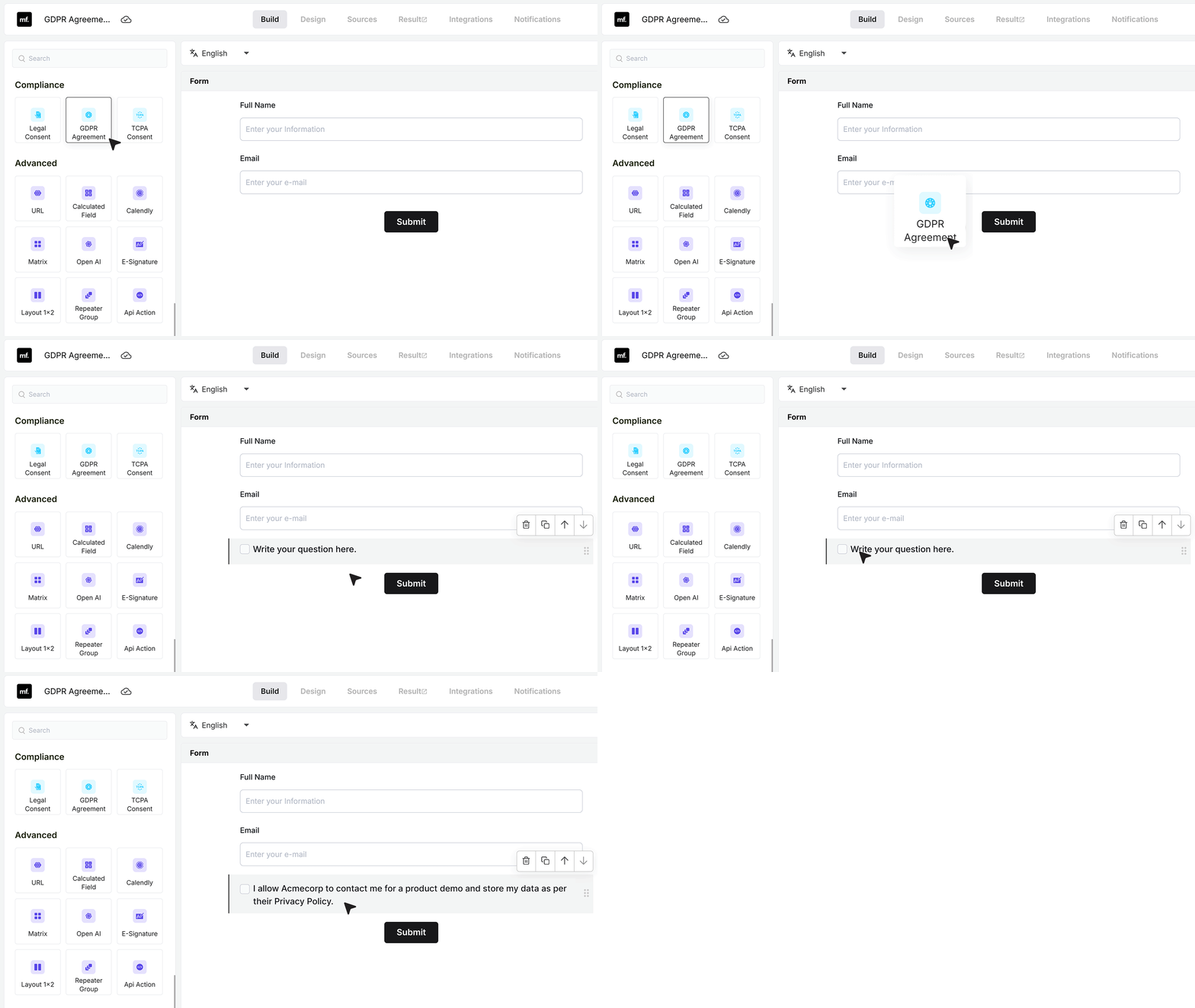
Open an existing form that already contains standard fields like name and email.
From the field list, add the GDPR Agreement field and place it near the end of the form, just before the Submit button. This ensures the user reviews and agrees to the consent statement as the final step. After adding the field, enter a clear consent message explaining what the user is agreeing to.
Linking to Privacy Policy
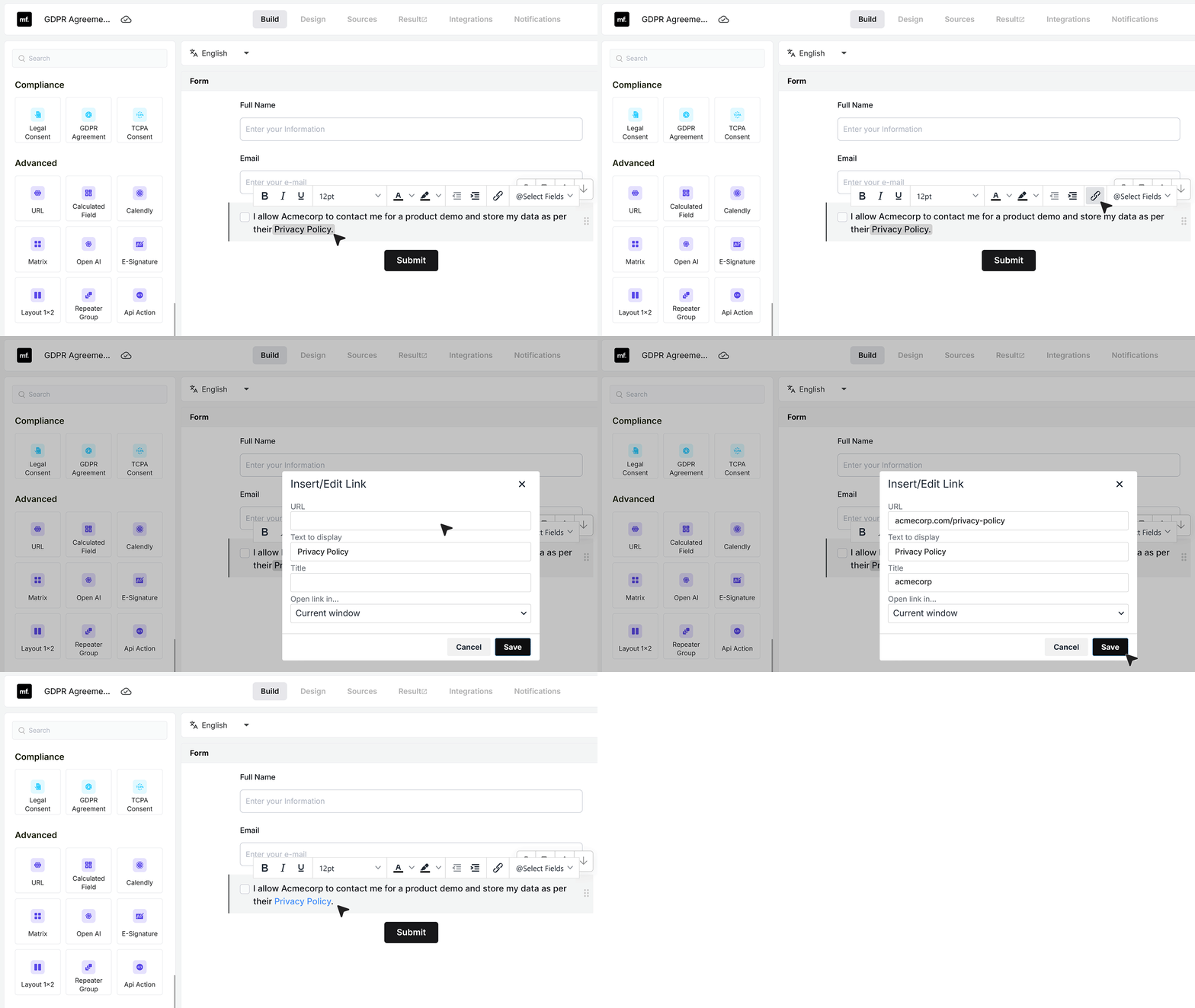
You can format parts of the text to make key words stand out, and you can link to an external page like your Privacy Policy. You can also choose whether that link opens in the same tab or a new tab.
Basic Settings
Required Field
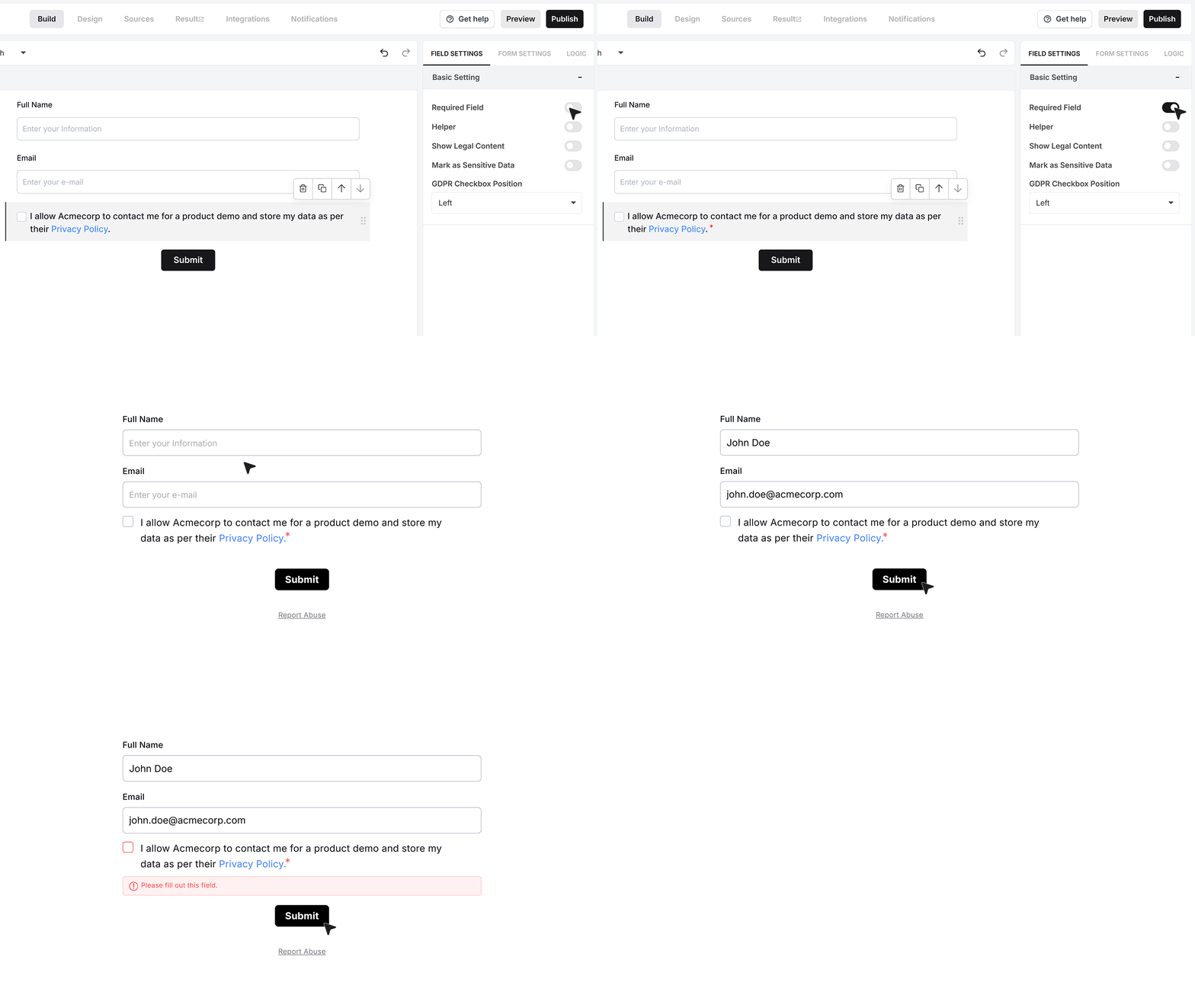
Enable Required Field to make consent mandatory.
When this option is turned on, the form cannot be submitted unless the user selects the consent option. If no selection is made, submission is blocked and a validation message is shown.
Helper text
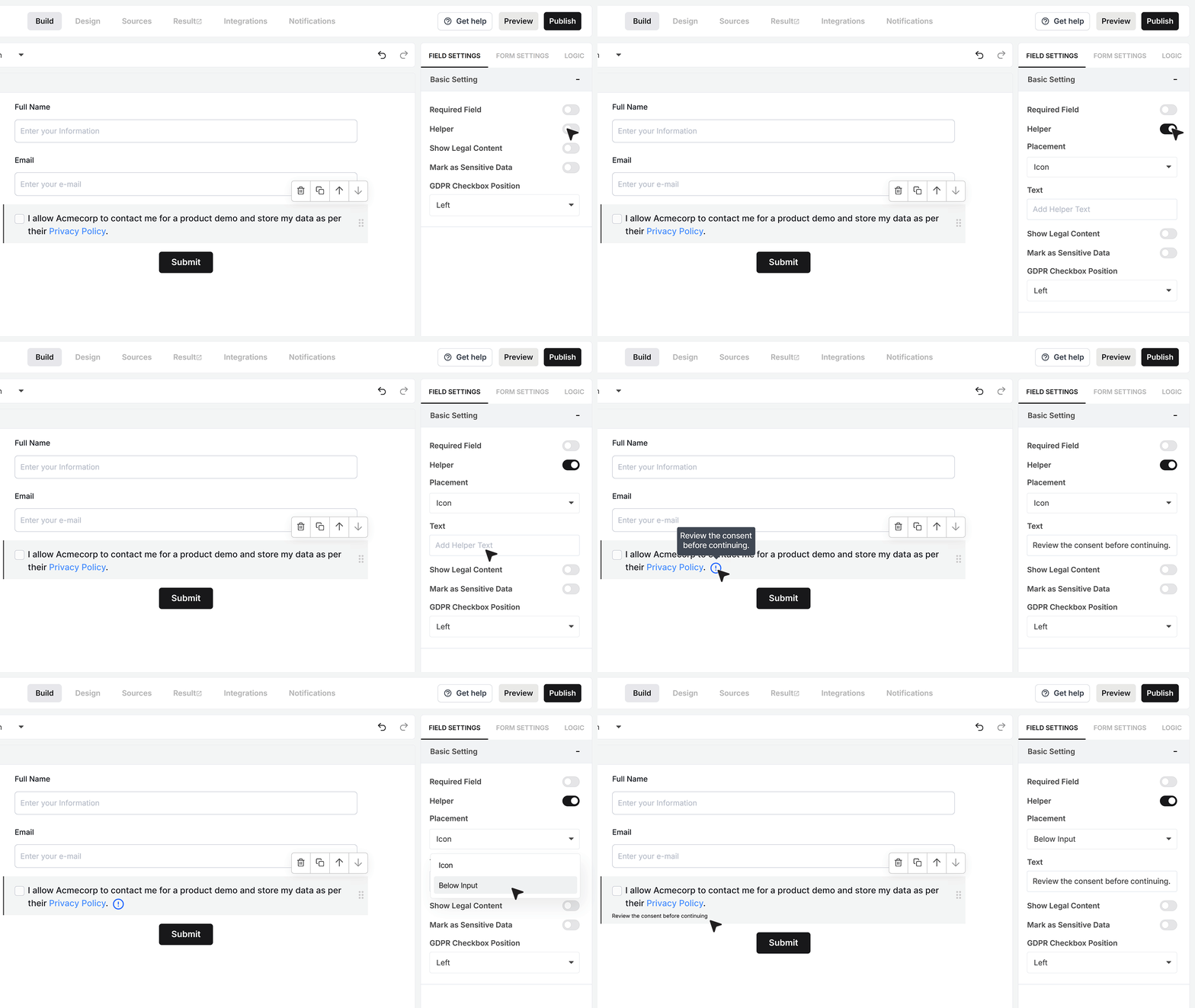
Use Helper Text to guide the user at the consent step, for example: “Review the consent before continuing.” This text can be shown as an info icon that appears on hover or as a line of text displayed directly below the field, depending on your form layout.
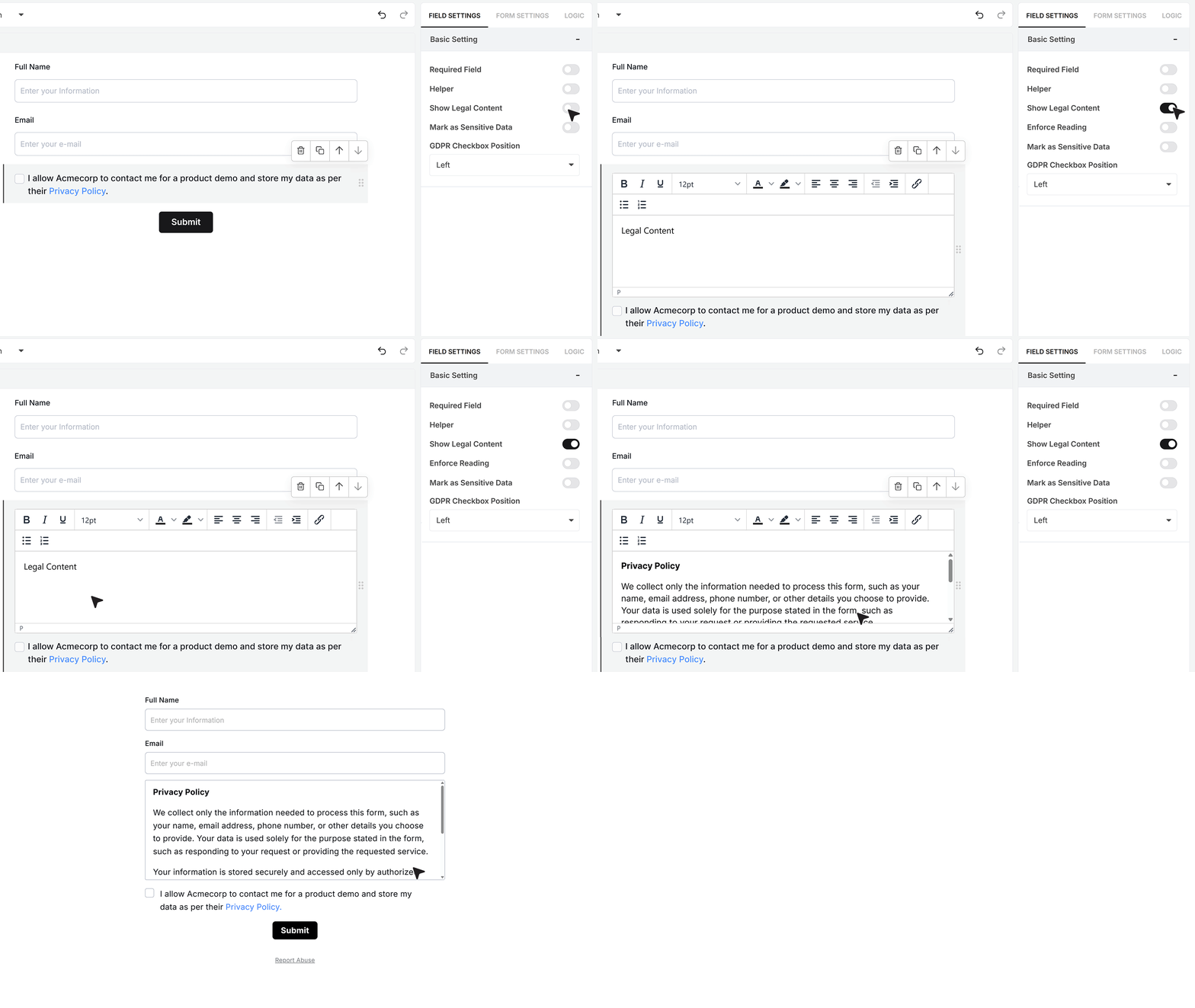
Show Legal Content
Enable Show Legal Content if you want users to read the full consent text or privacy policy directly inside the form.
When this option is turned on, the legal text appears in a scrollable section within the form itself. Users can review the entire agreement without being redirected to another page, which keeps them focused on the form and avoids interruptions.
Enforcing Reading
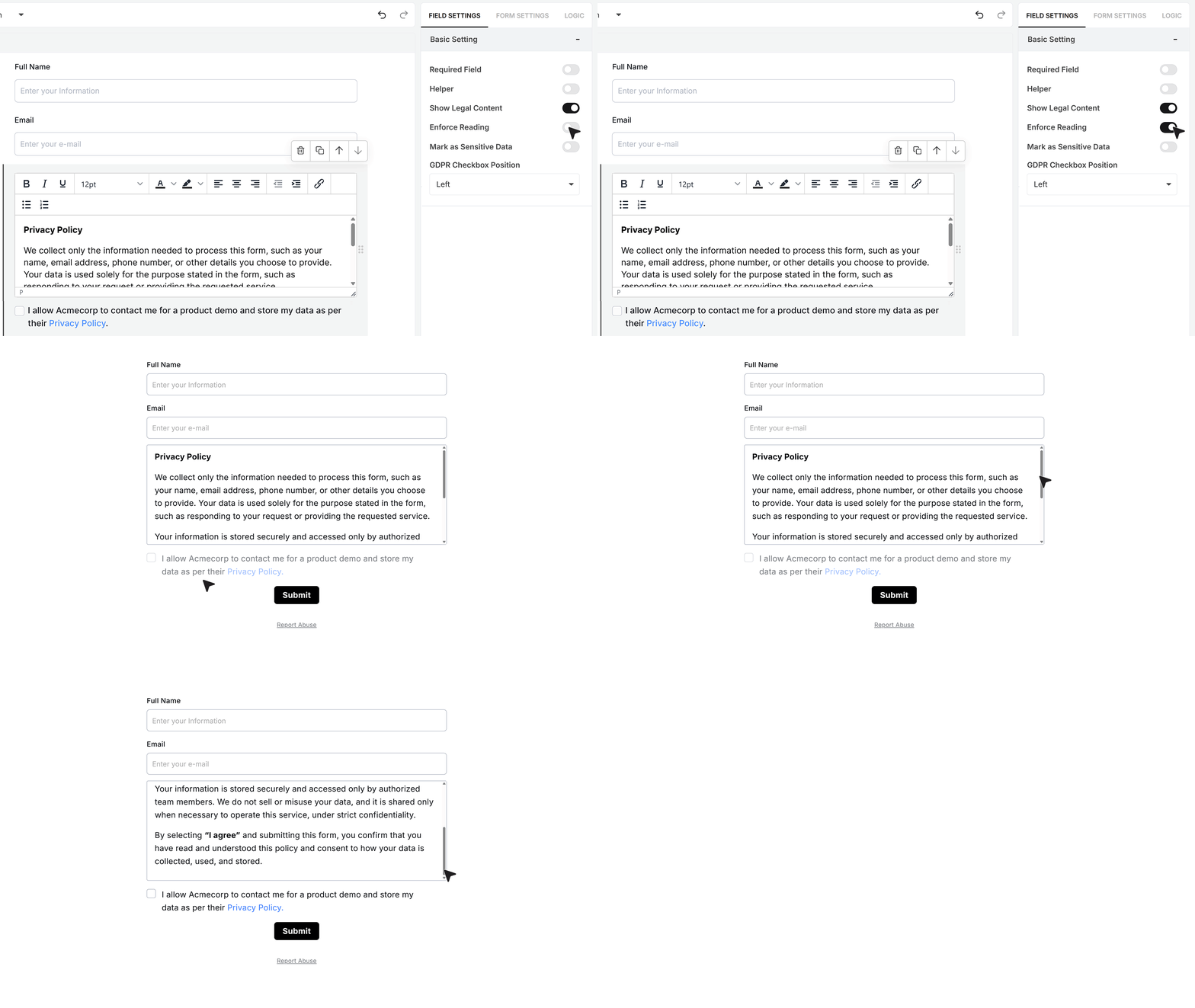
Turn on Enforce Reading if you want users to scroll through the legal text before they can check the box. With this enabled, the consent checkbox stays inactive until the user reaches the bottom of the scrollable legal content.
Mark as Sensitive Data
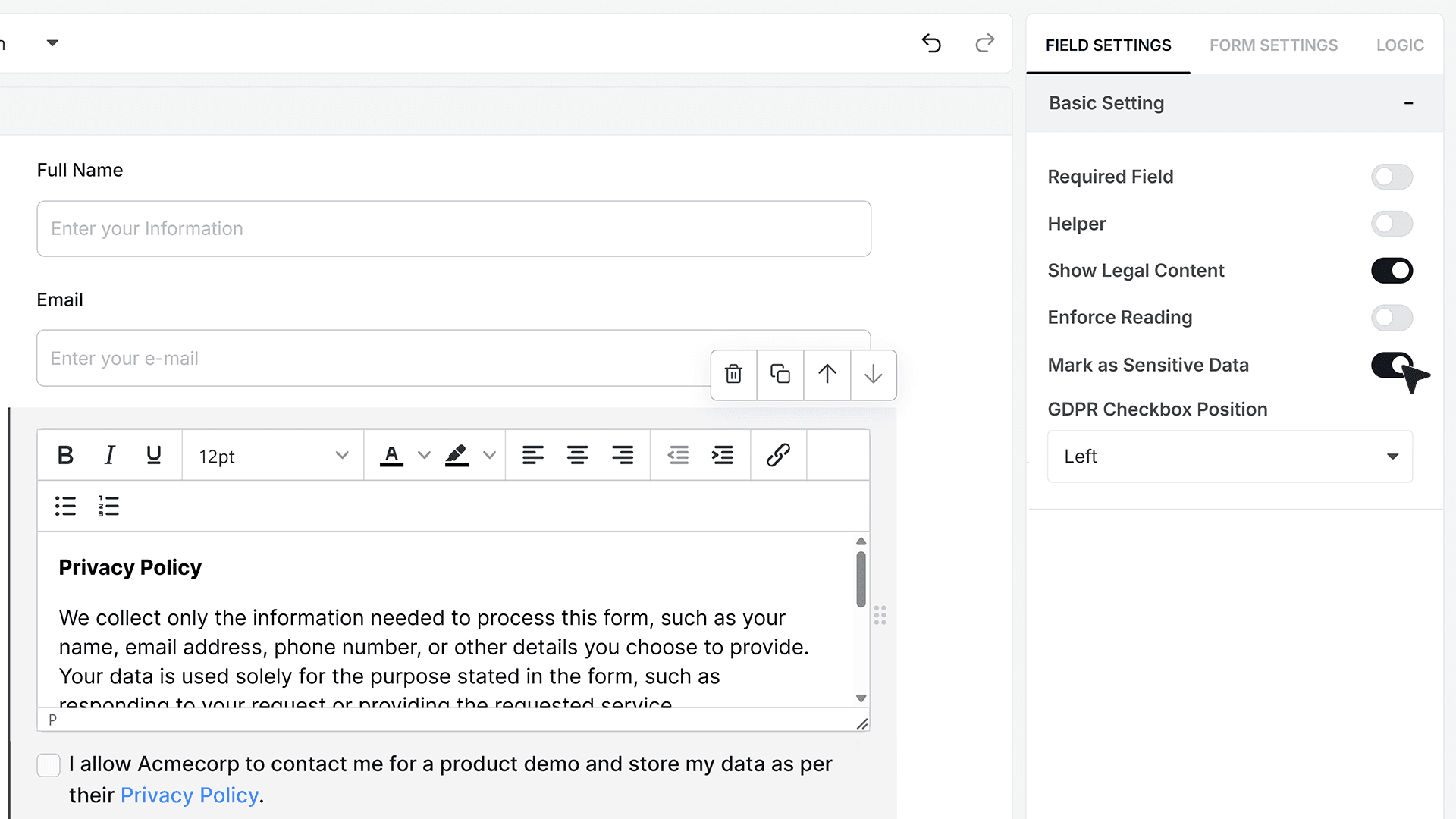
Turn on Mark as Sensitive Data if you want to restrict who can view this field’s responses.
When enabled, only team members with the right permissions can view the response in MakeForms. Other team members will not be able to access it.
GDPR Checkbox Position
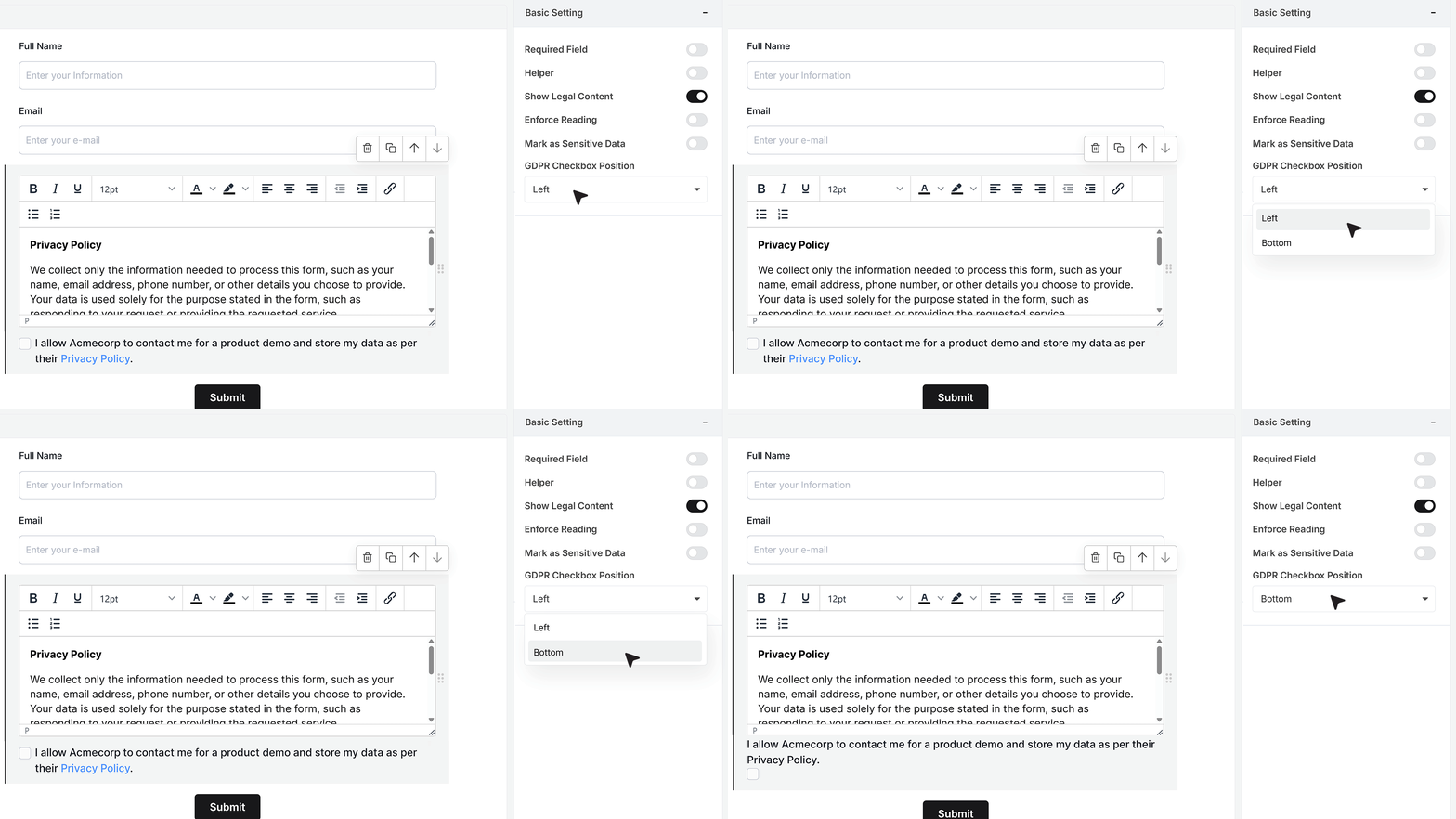
Use GDPR Checkbox Position to choose where the checkbox appears.
Choose Left to show the checkbox next to the consent text on the same line.
Choose Bottom to show the checkbox under the text, which can make the consent statement easier to read and helps the checkbox stand out.
FAQ's
A GDPR agreement field is a consent checkbox in a form that asks users to agree before you collect or use their personal data. It helps you get clear permission before you contact them after submission.
It helps you stay compliant with data privacy rules. More importantly, it makes sure users clearly agree to how their data will be used. Without it, you risk collecting data without proper consent.
You should use it in any form where you collect personal data and plan to follow up. This includes contact forms, demo requests, lead forms, and inquiry forms.
Open your form, add the GDPR Agreement field from the field list, and place it just before the submit button. Then add a clear consent message so users know what they are agreeing to.
Yes, in most cases. When you mark it as required, users cannot submit the form unless they give consent. This ensures you only collect data with permission.
Keep it clear and simple. Tell users what data you collect, how you will use it, and how you may contact them. Avoid long or confusing text.
Yes, you should. Adding a privacy policy link builds trust and gives users full details about how their data is handled.
This option shows the full legal text or privacy policy inside the form. Users can read everything without leaving the page, which helps reduce drop-offs.
This feature makes users scroll through the legal content before they can check the consent box. It ensures they at least view the full agreement.
If the field is required and the user does not give consent, the form will not submit. A validation message will show until they agree.
Yes. You can mark the field as sensitive so only authorized team members can view responses. This adds an extra layer of control.
Place it near the end of the form, just before the submit button. This ensures users see it as the final step before submitting.
Yes. You can place it next to the text or below it. Placing it below often makes the consent message easier to read.
They create a clear record that the user agreed to your terms. This helps you meet privacy rules and avoid legal issues.
Keep the consent message clear, make the checkbox required, add a privacy policy link, and place the field at the end of the form. This ensures clarity and better compliance.