Legal Consent Field
The Legal Consent Field in MakeForms allows you to collect explicit agreement from users before they submit a form. It is commonly used for accepting terms and conditions, privacy policies, and other legal agreements where consent is required.
This field helps ensure that users clearly acknowledge the content presented to them and provides an auditable record of consent.
Why the Legal Consent Field Is Important
Many forms require users to agree to legal terms before submission. This could include accepting terms and conditions, agreeing to a privacy policy, or confirming a legal agreement.
The Legal Consent Field lets you display this information directly inside the form and ensures users actively confirm their agreement before proceeding. This makes the consent process clear, intentional, and compliant.
Adding the Legal Consent Field
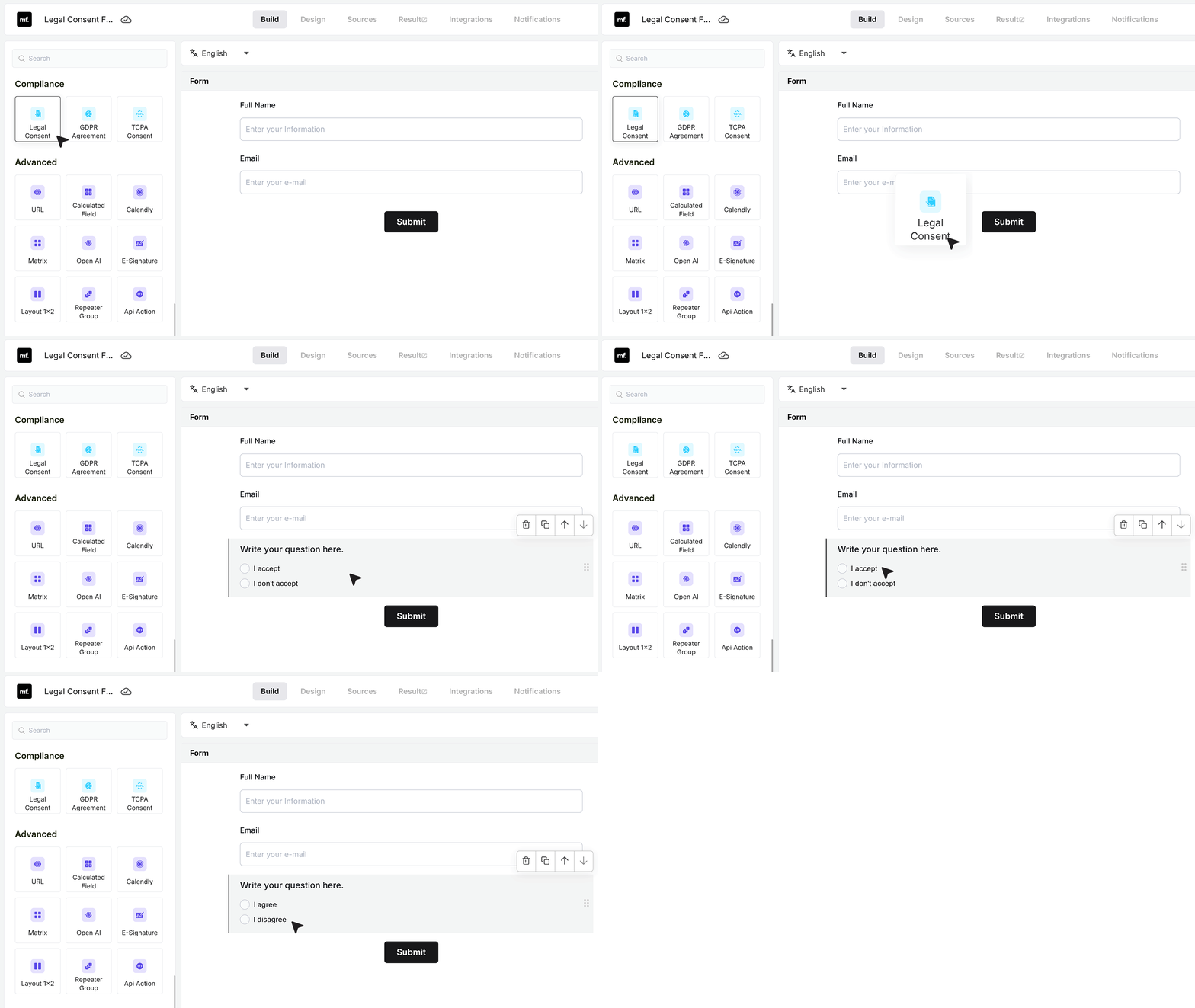
To get started, open your form and add the Legal Consent Field from the field list.
This field is typically placed near the end of the form, after collecting details such as name and email. When added, it includes default accept and decline options, which you can customize to match your use case.
Customizing the Consent Text
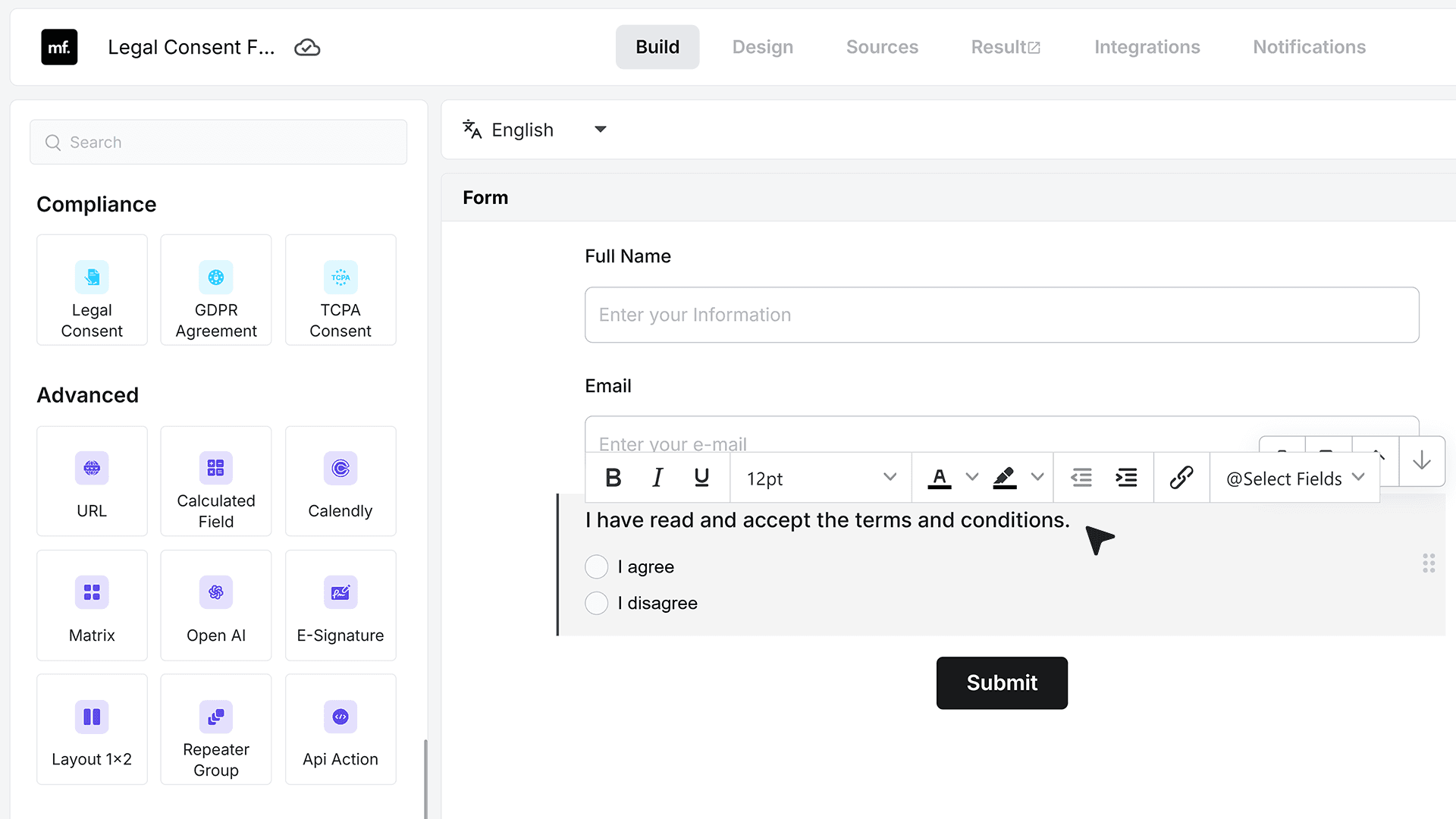
- You can edit the field label to clearly describe what the user is agreeing to. For example, you may want the label to state that the user has read and accepted your terms and conditions.
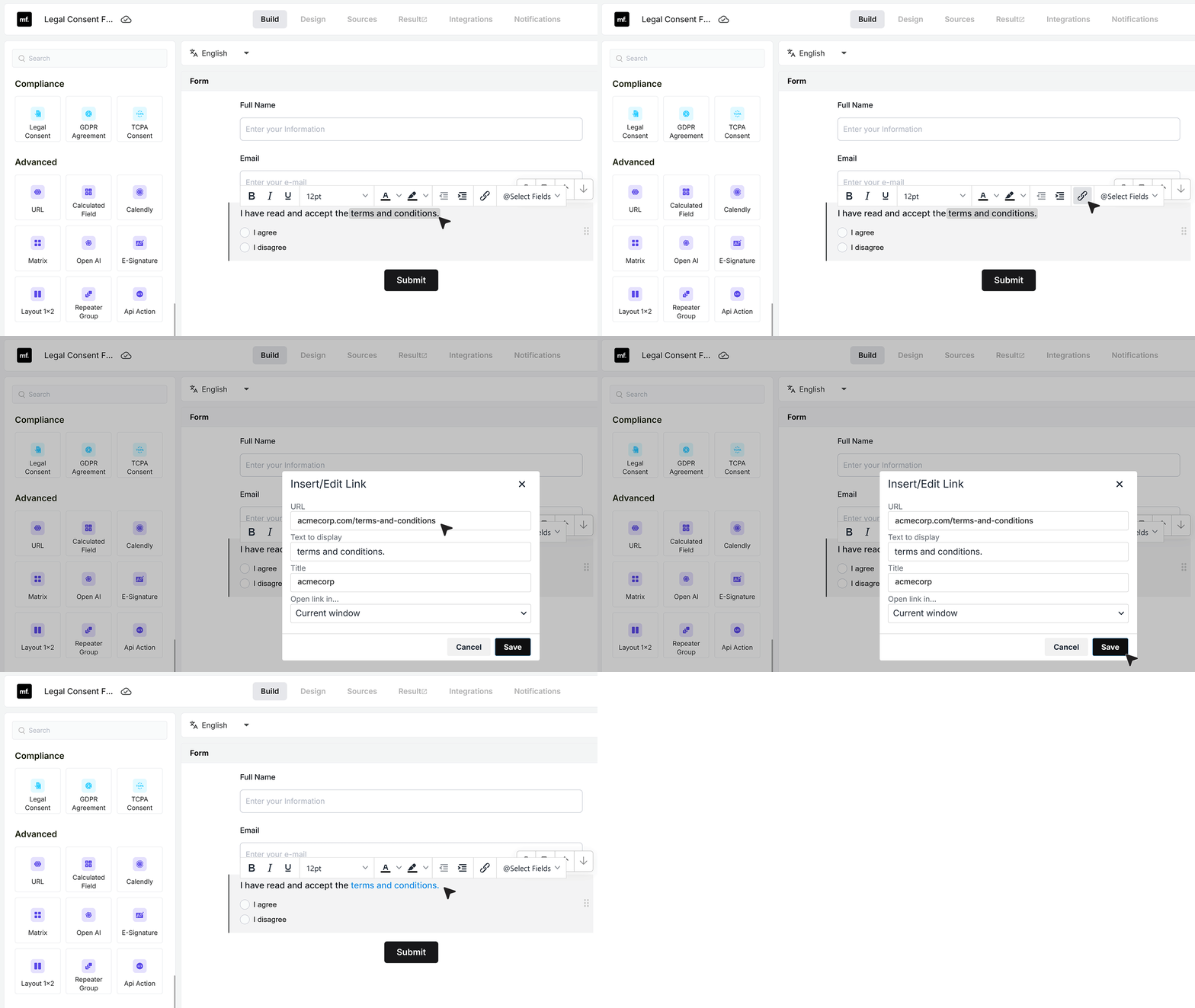
- The consent text can also be linked to an external page, such as your Terms of Use or Privacy Policy. You can choose whether this link opens in the same tab or a new window.
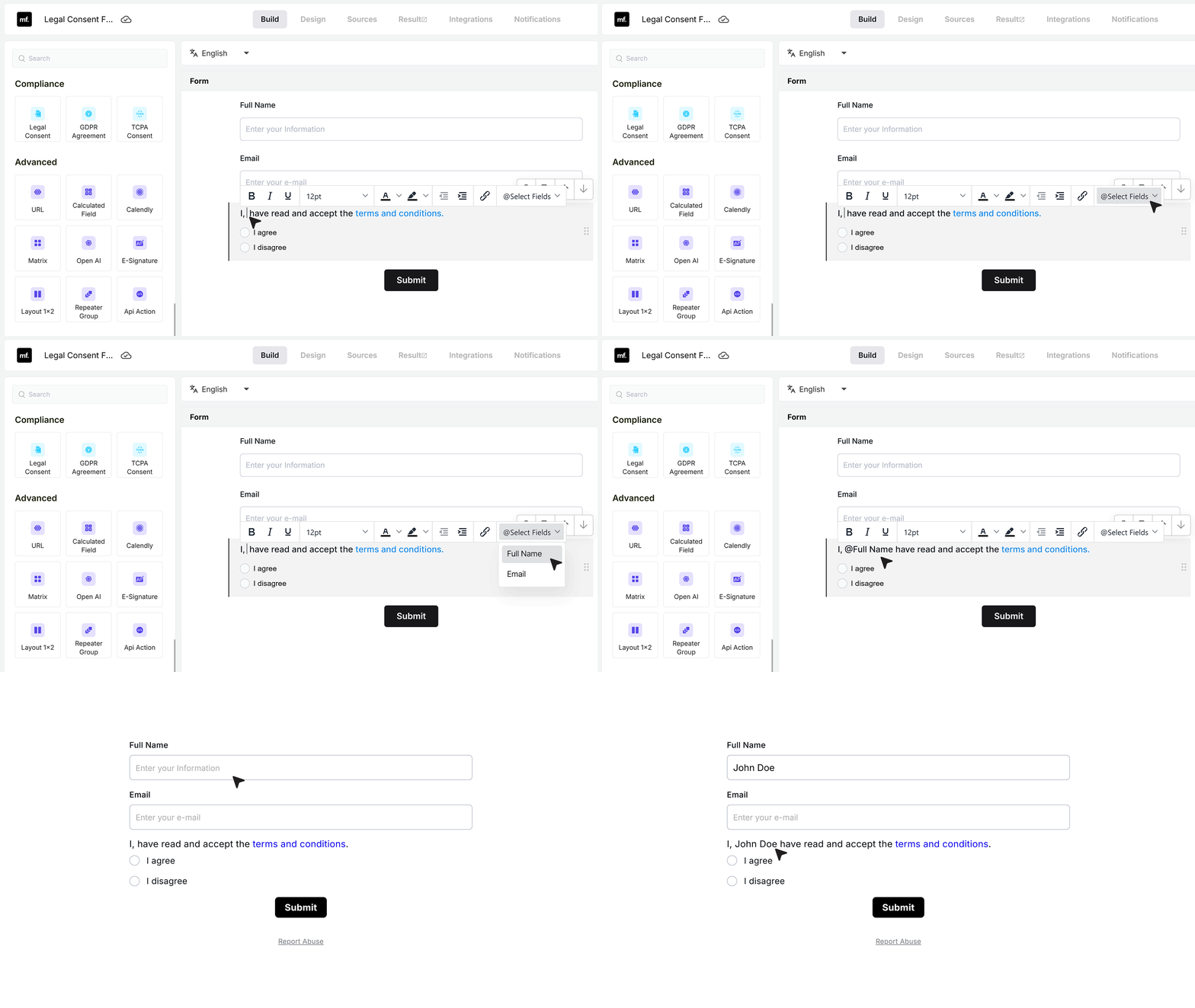
- MakeForms also allows you to insert form field values into the label, such as the user’s name. When the form is live, the consent text updates dynamically, making the agreement more explicit and personalized.
Basic Settings
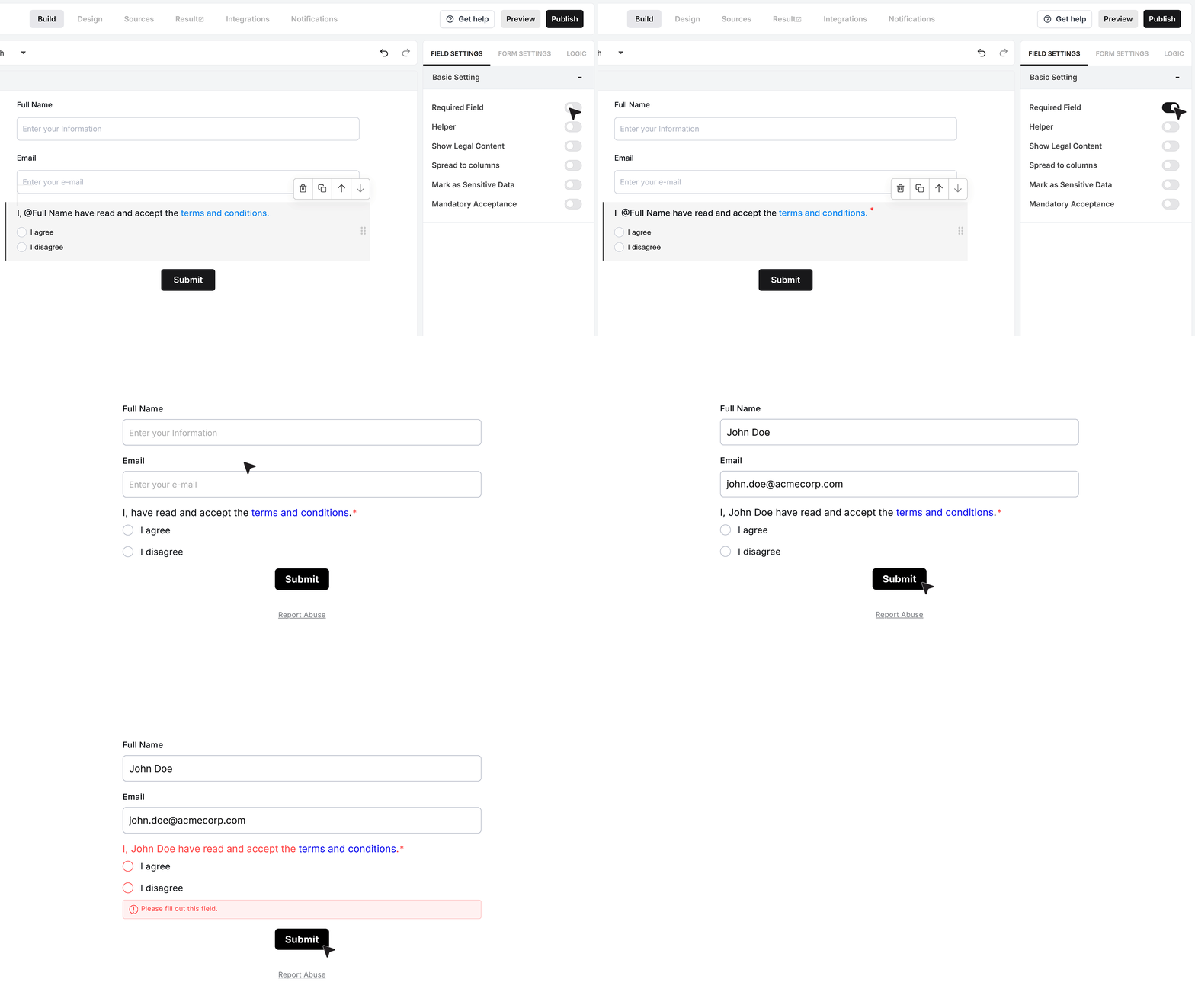
Required Field
At the top of the settings panel, you can enable the Required Field option.
When this is turned on, users must select an option in the Legal Consent Field before submitting the form. If they attempt to submit without making a selection, MakeForms displays a validation message and blocks submission until the requirement is met.
Helper text
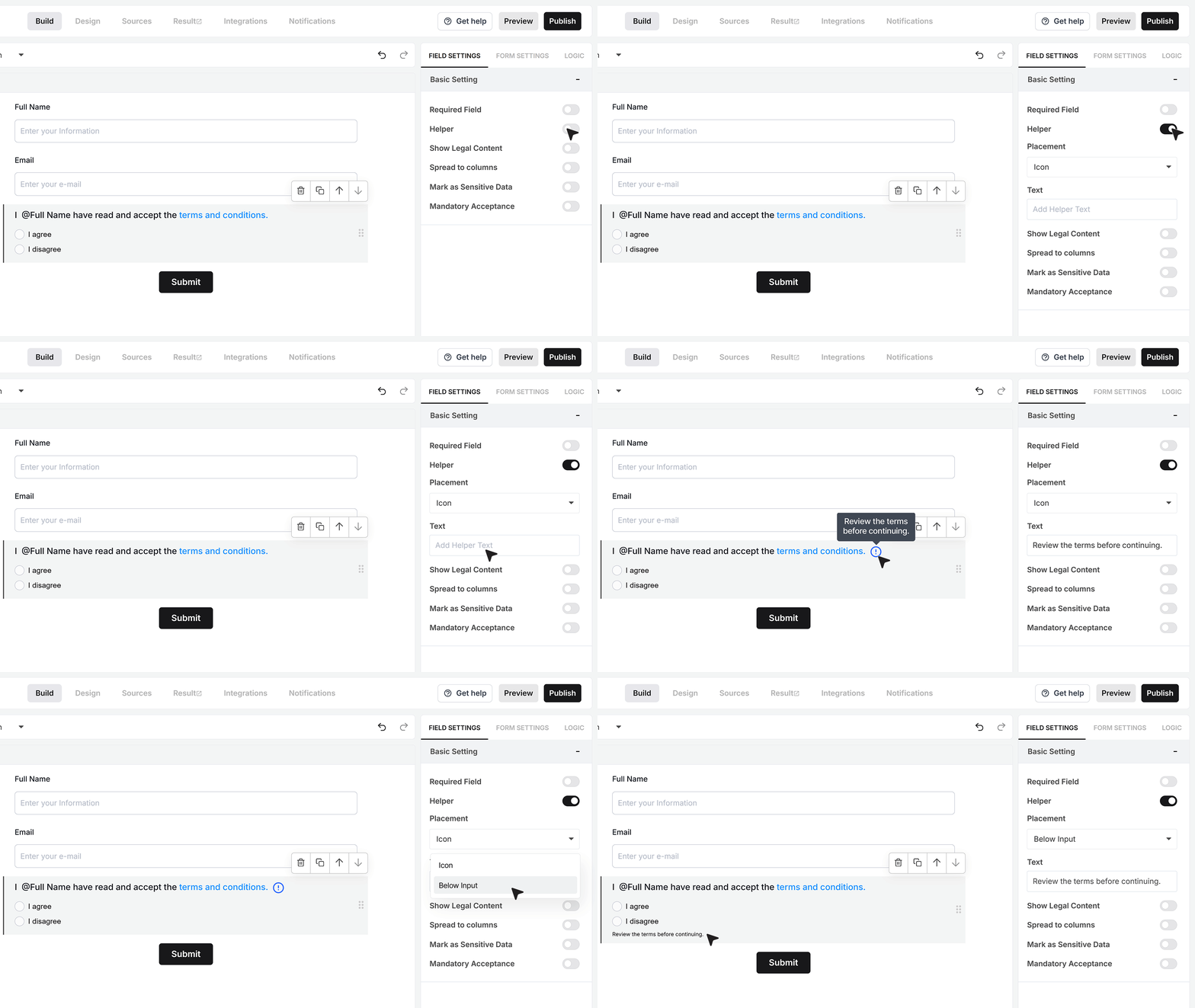
Helper Text allows you to guide users during the consent step.
You can add a short message that clarifies what is expected, such as reminding users to review the agreement before continuing. This text can be shown as an info icon that appears on hover or as a line of text displayed directly below the field, depending on your form layout.
Show Legal Content
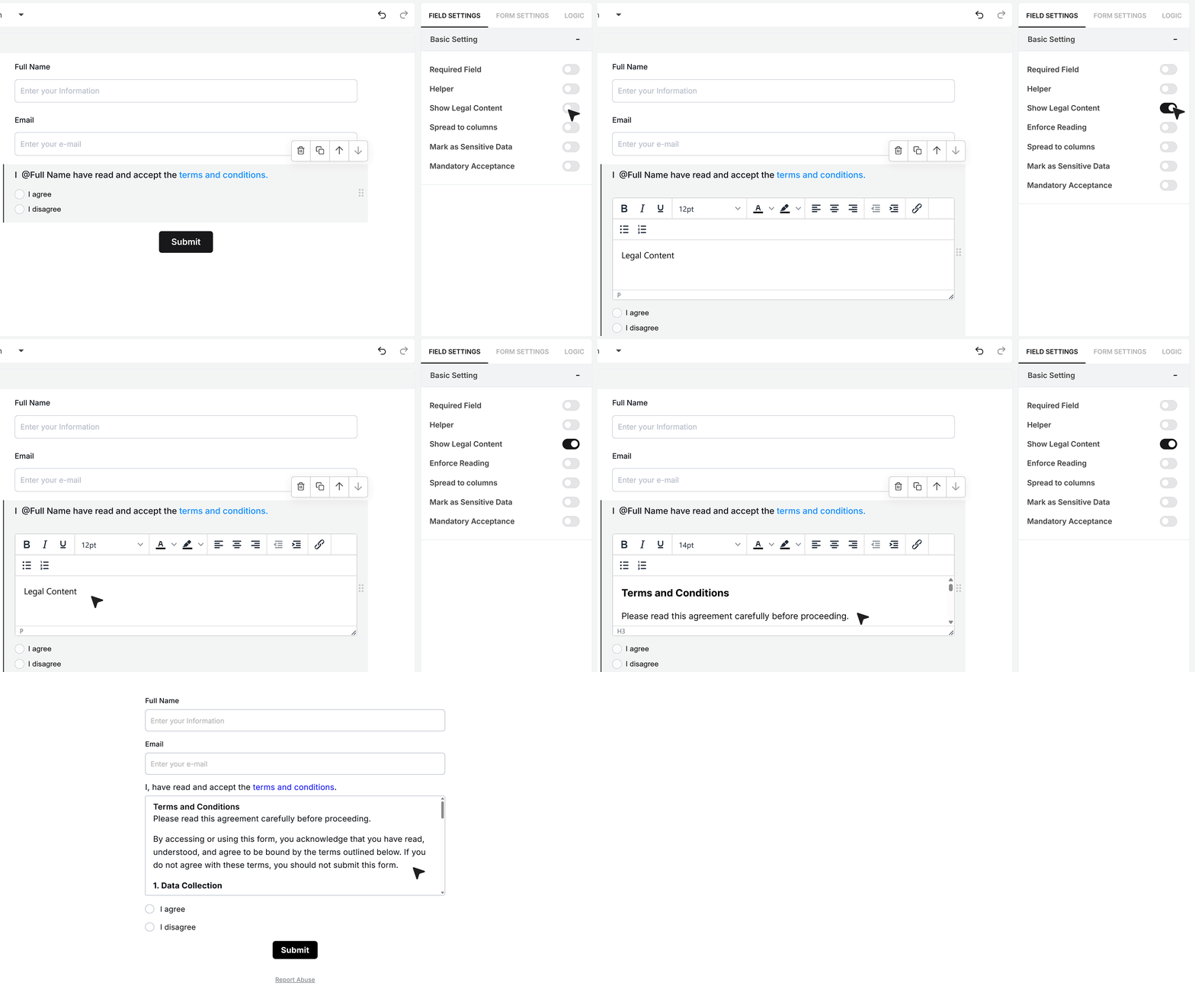
If you want users to read the agreement without leaving the form, you can enable Show Legal Content in the field settings.
Once enabled, you can paste the full terms or legal agreement directly into the field. On the live form, this content appears in a scrollable section, allowing users to review the entire agreement in place before choosing whether to accept or decline.
This keeps the experience focused and prevents users from losing context by navigating away from the form.
Enforcing Reading
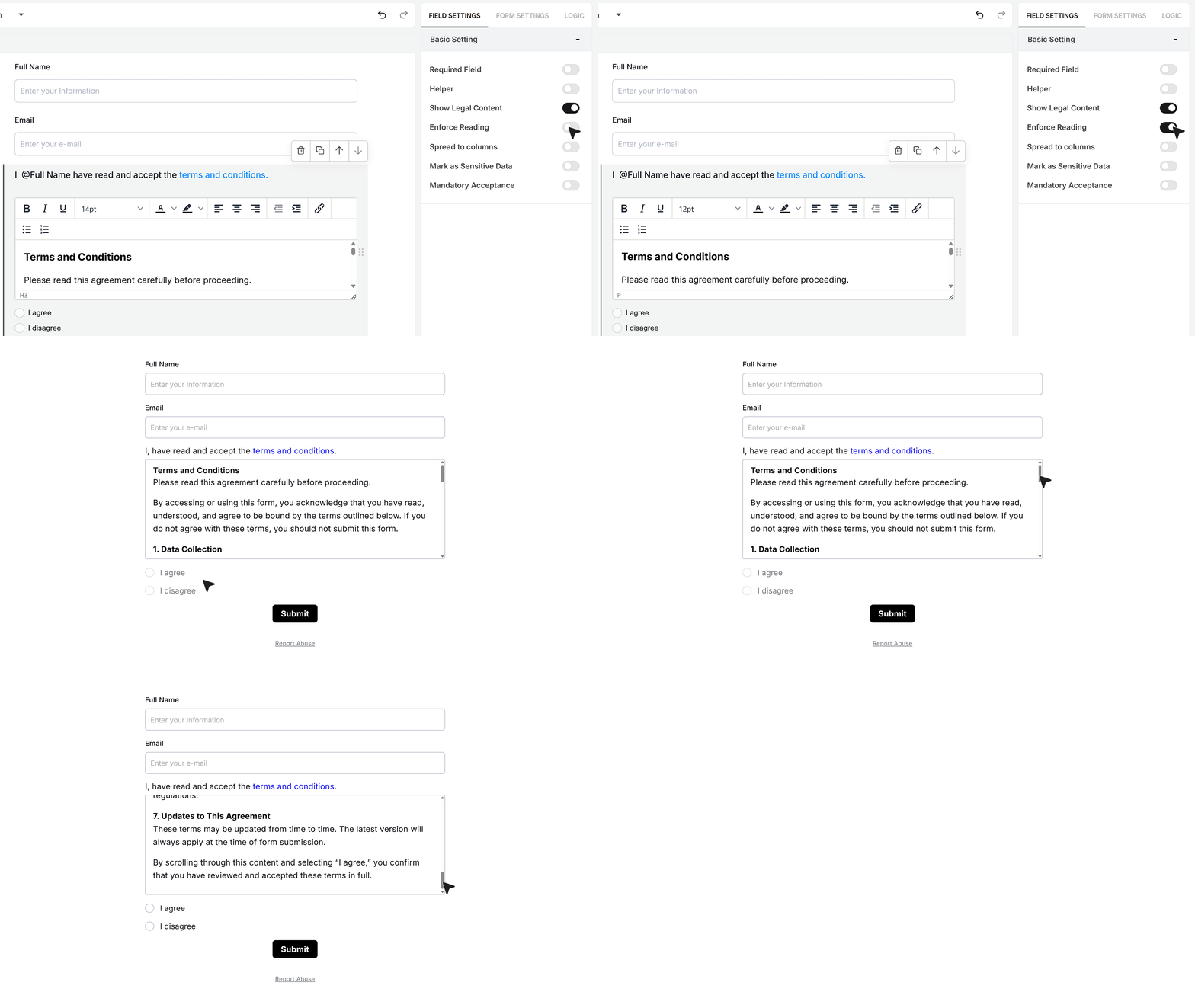
To ensure the agreement is not skipped, you can turn on Enforce Reading.
When this option is enabled, the accept and decline options remain disabled until the user scrolls to the very bottom of the legal content. Once the end is reached, the options become available and the user can continue.
This helps ensure the content is at least viewed before consent is given.
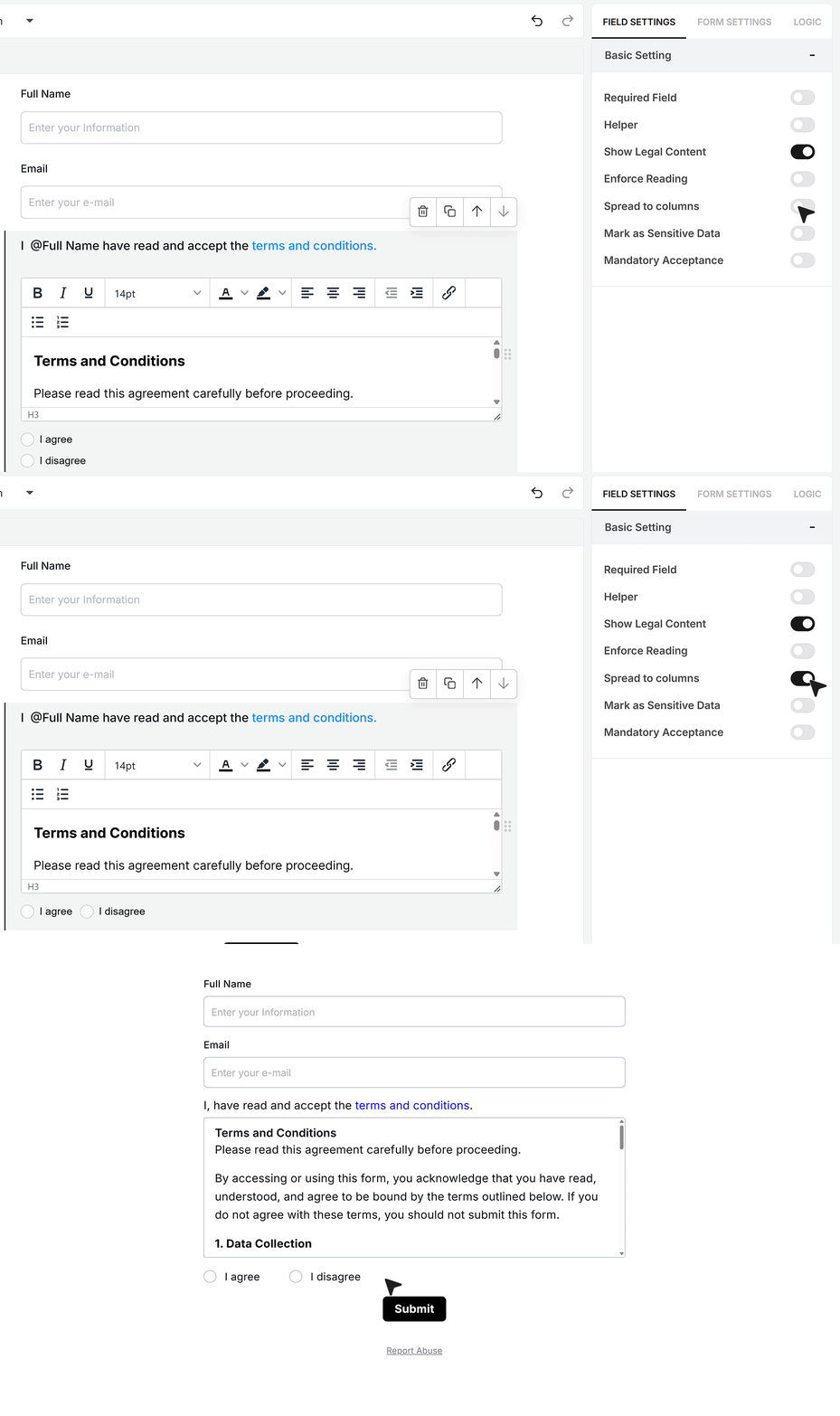
Spread to Columns
You can enable Spread to Columns to display the accept and decline options side by side.
This layout is useful when you want a more compact and balanced presentation, especially in shorter forms or tighter layouts.
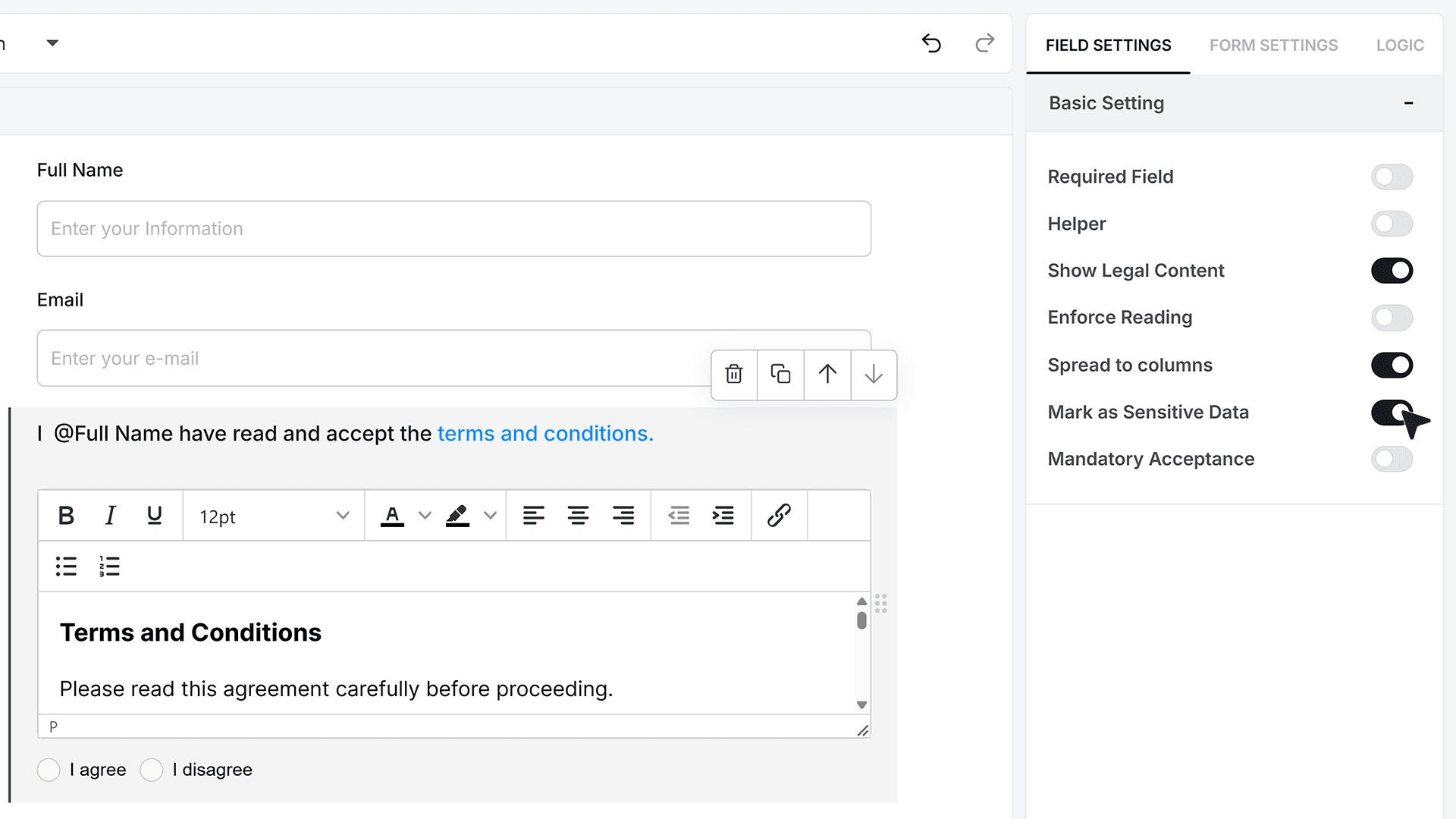
Mark as Sensitive Data
If the consent response should only be visible to specific team members, you can enable Mark as Sensitive Data.
When this option is turned on, access to this field’s responses is restricted based on user permissions in MakeForms. This adds an extra layer of privacy and control for legally sensitive data.
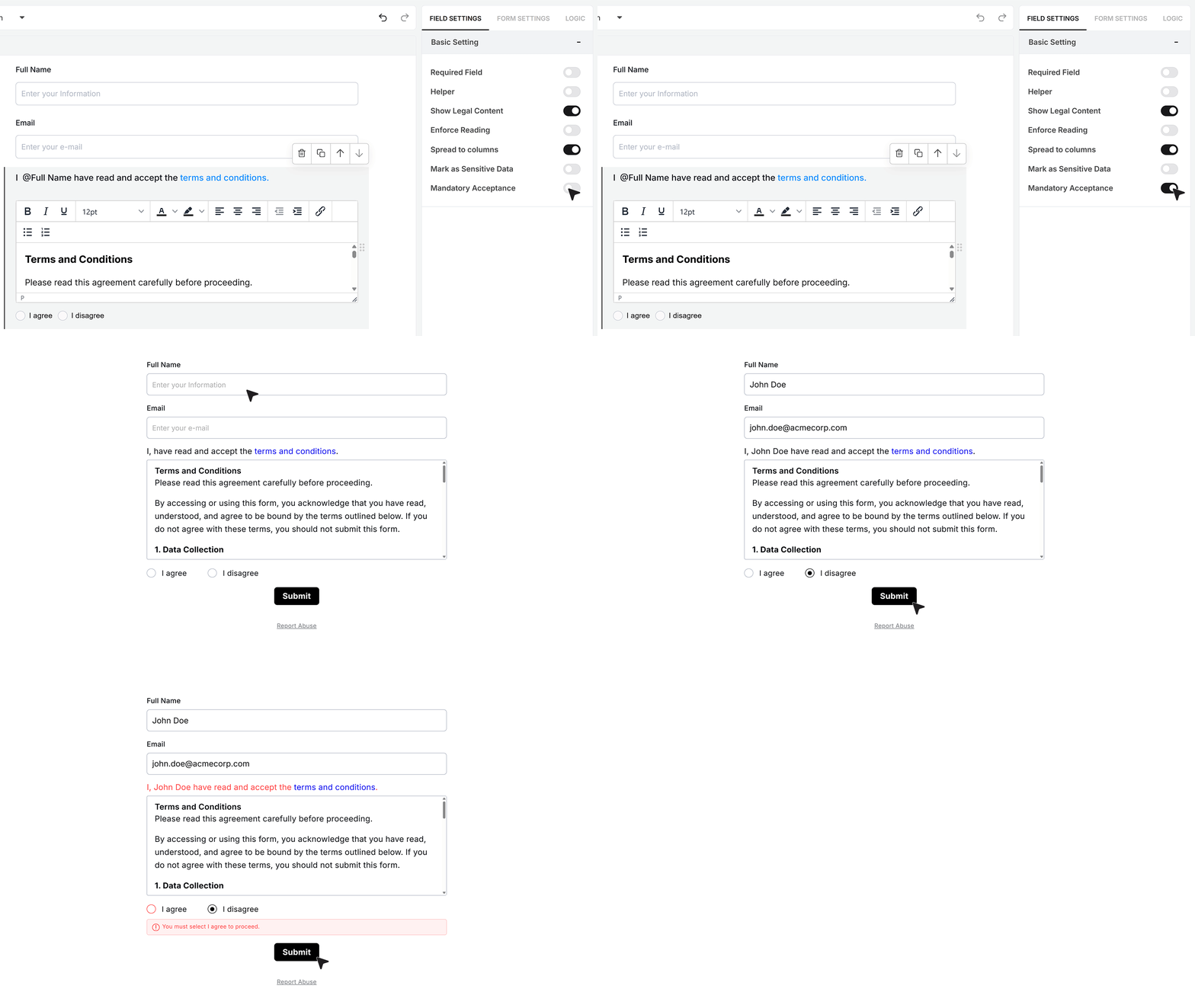
Mandatory Acceptance
In many workflows, consent must be explicitly given to proceed.
By enabling Mandatory Acceptance, users are required to accept the agreement before submitting the form. If they select the decline option or attempt to submit without accepting, the form blocks submission and displays a clear message.
This ensures that consent is always captured correctly and consistently.
FAQ's
A legal consent field is a form field that asks users to agree to terms before submitting a form. It is used for things like terms and conditions, privacy policy, or any legal agreement where user consent is required.
A legal consent field helps you collect clear user approval before processing their data. It ensures that users have seen and accepted your terms, which is important for compliance, transparency, and record keeping.
You can add the legal consent field from the field list inside your form builder. It is usually placed at the end of the form, after collecting user details like name and email.
Yes, you can fully customize the consent text. You can change the label, add your own wording, and even include links to your terms of use or privacy policy.
Yes, you can add links to external pages like your privacy policy or terms and conditions. You can also choose whether the link opens in the same tab or a new tab.
Yes, MakeForms allows you to display the full legal content directly inside the form using the “Show Legal Content” option. Users can read the agreement without leaving the form.
You can enable the “Enforce Reading” option. This ensures users must scroll to the bottom of the legal content before they can accept or decline.
Yes, you can mark the field as required or enable “Mandatory Acceptance.” This ensures users must accept the agreement before submitting the form.
If mandatory acceptance is enabled, the form will block submission when a user declines. This ensures that only users who accept the terms can proceed.
Yes, MakeForms lets you insert form field values like the user’s name into the consent text. This makes the agreement more clear and personalized.
Yes, you can add helper text below the field or as an info icon. This helps users understand what they are agreeing to before making a choice.
Yes, you can mark the consent field as sensitive data. This restricts access to responses based on team permissions, helping you control who can view legal consent records.
Yes, MakeForms stores user responses, including their consent choices. This gives you an auditable record of agreement for compliance and legal needs.
A legal consent field is commonly used for:
- Accepting terms and conditions
- Agreeing to a privacy policy
- GDPR-style consent collection
- Marketing or communication consent
- Any form that requires user approval before submission
Unlike a simple checkbox, the MakeForms legal consent field gives more control. You can show full legal text, enforce reading, require acceptance, and manage access to sensitive responses.