Phone Number Field
The Phone Number field allows you to collect accurate, verified contact numbers from your respondents. You can define the format, set a default country code, and enable verification to ensure the number is valid before submission. This is especially useful for sending OTPs, SMS alerts, WhatsApp notifications, and follow-up messages.
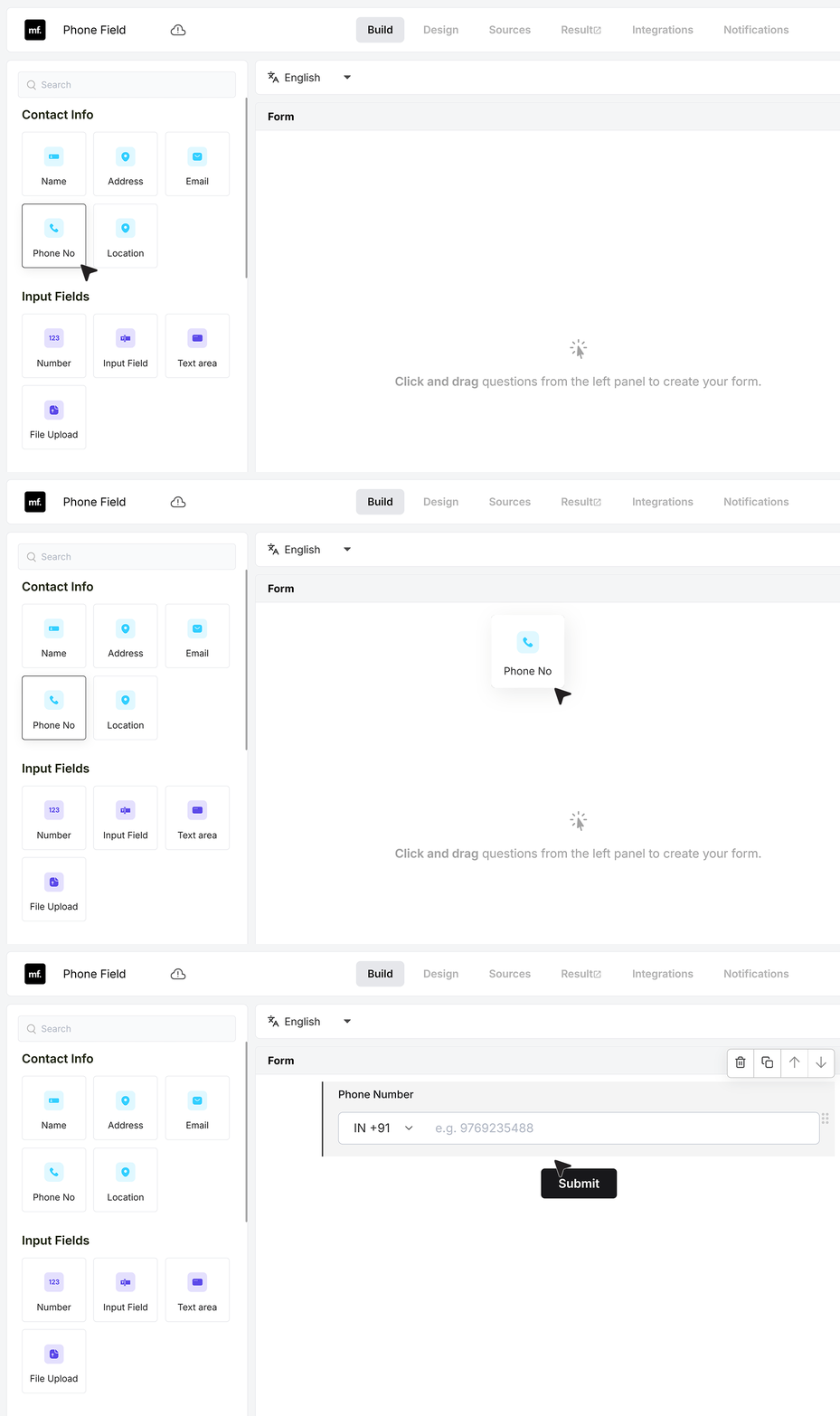
To get started, add a phone number field to your form. You can drag it from the field list or click to insert it.
Basic Settings
Required Field
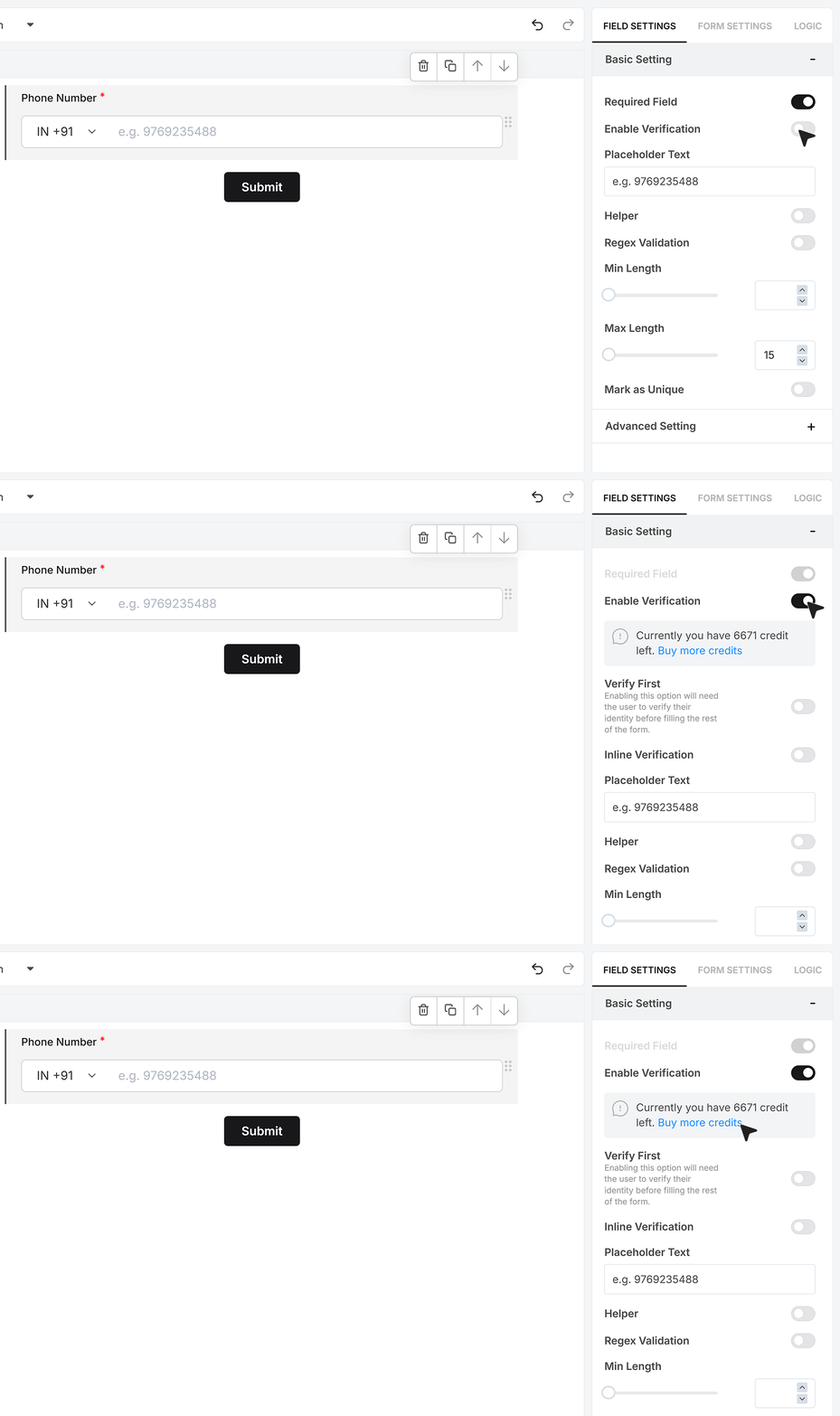
The Required Field setting ensures a phone number must be entered before the form can be submitted. If the field is left empty, the form shows an error and submission is blocked until a valid number is provided.
Phone Verification
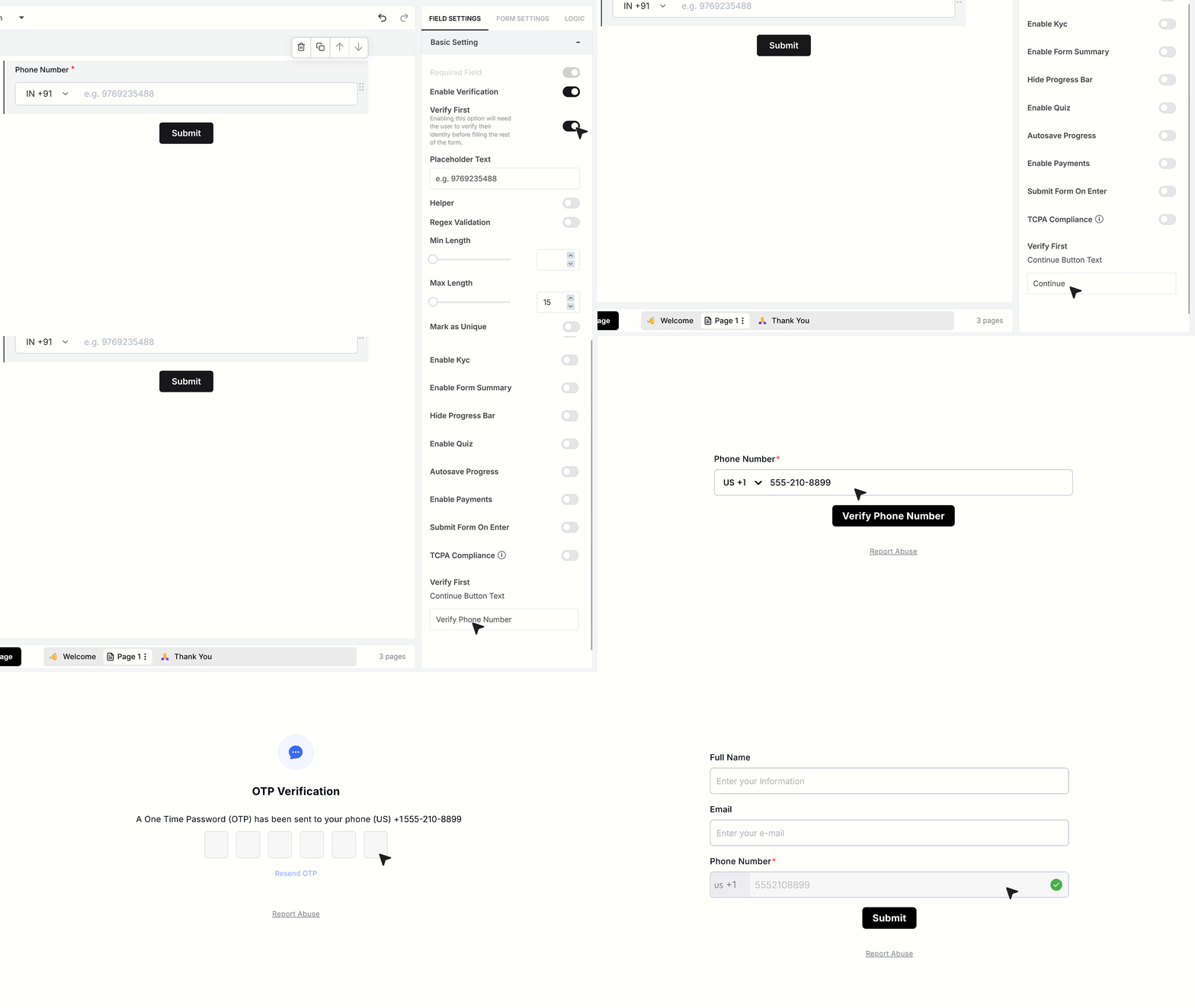
Phone Verification helps you confirm the authenticity of a number through OTP. When you enable verification, you’ll see your current verification credit balance, along with a link to purchase additional credits whenever you need them.
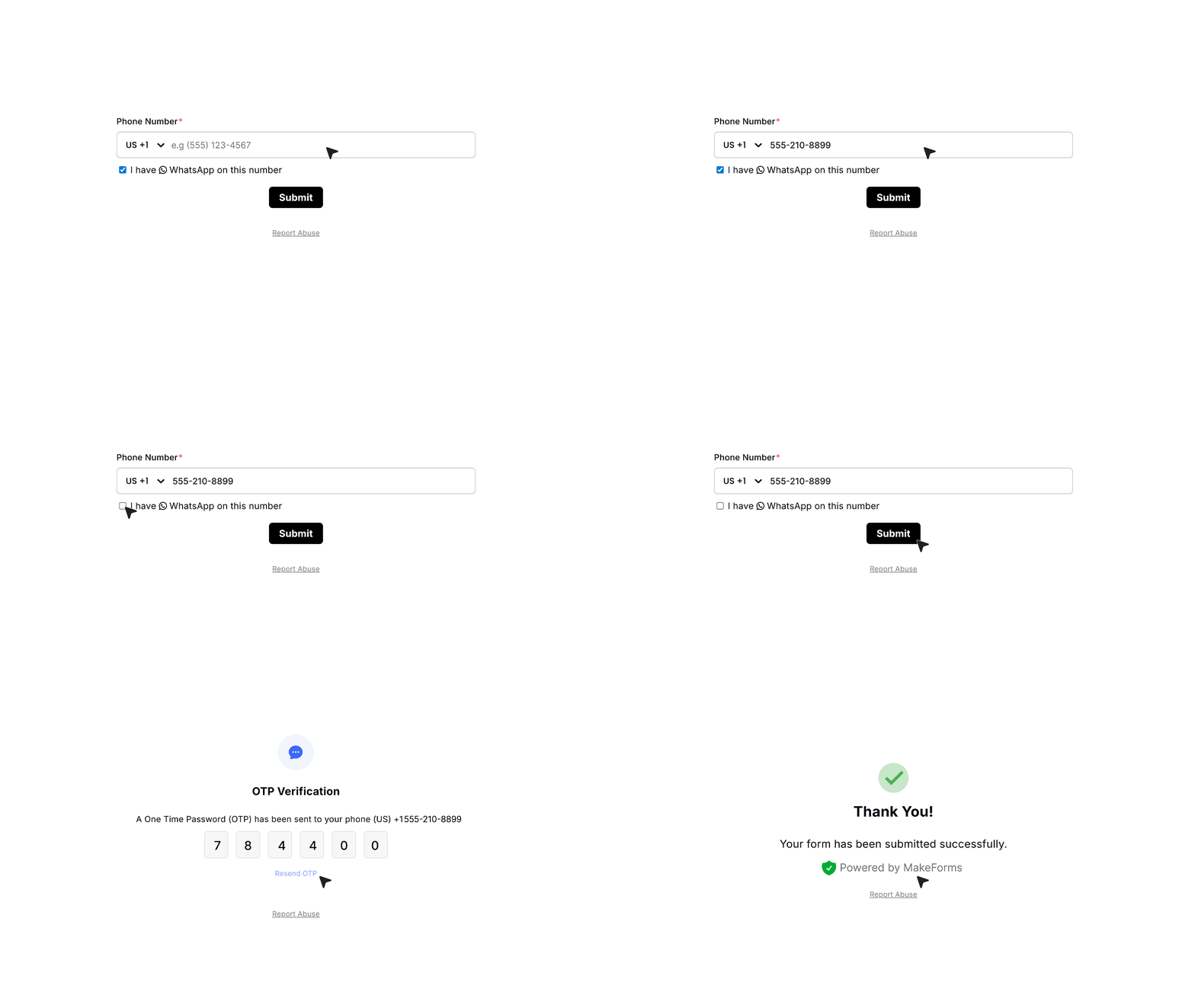
Once verification is enabled, respondents must verify their number. After they enter their phone number, they’ll see the checkbox that says I have WhatsApp on this number. If selected, the OTP is delivered through WhatsApp; if not, it’s sent via SMS. The form submits after the correct OTP is entered.
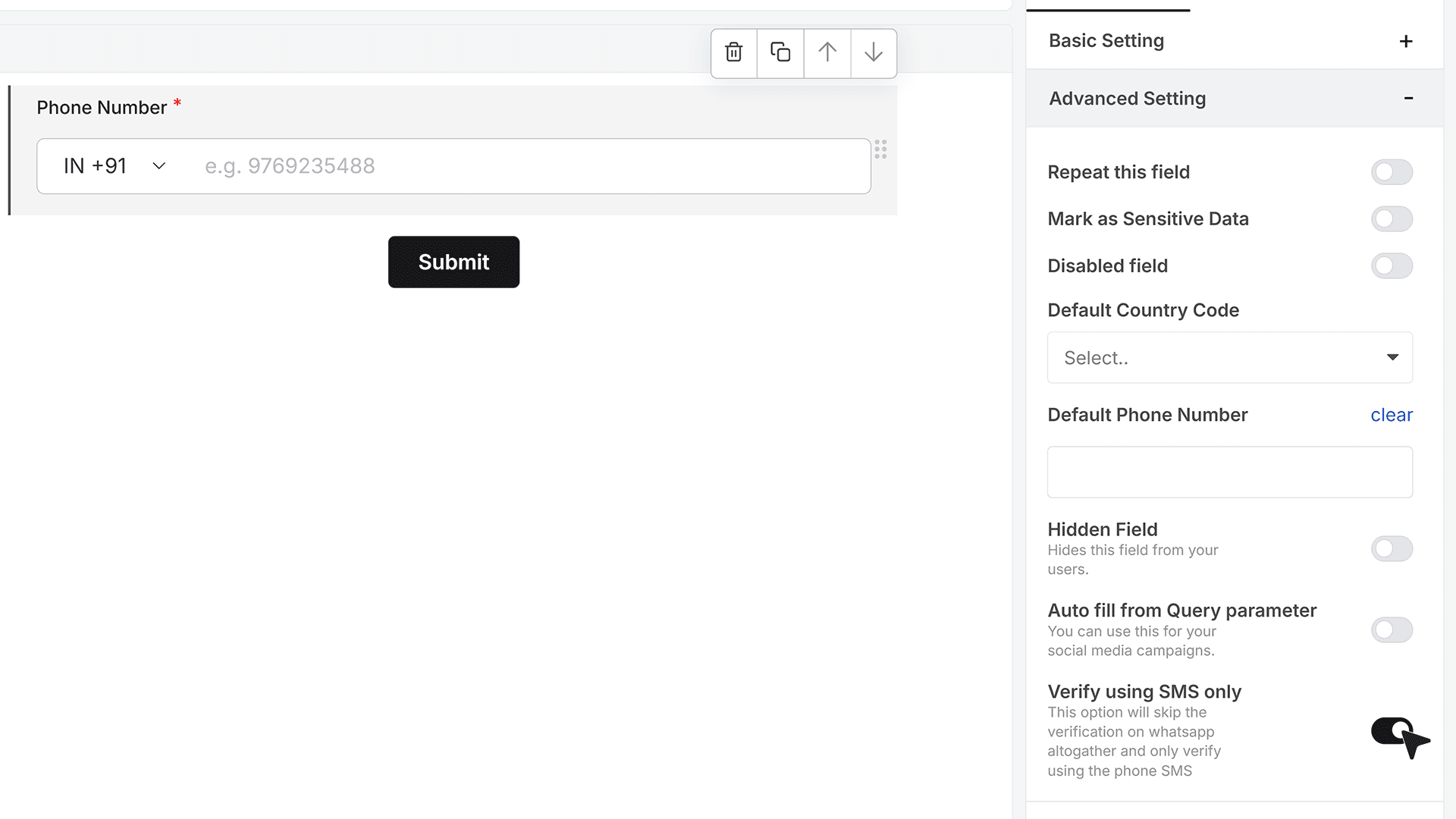
If you prefer to use SMS only, you can enable Verify Using SMS Only, which hides the WhatsApp option and sends every OTP through SMS.
Verify First
The Verify First option lets you show the full form only after the user verifies their phone number. All other fields stay hidden until the OTP is successfully confirmed.
You can also customize the button label during this step, such as changing “Continue” to “Verify Phone Number.” After the user enters the correct OTP, the field shows a green confirmation, becomes non-editable, and the full form appears for them to continue.
Inline Verification
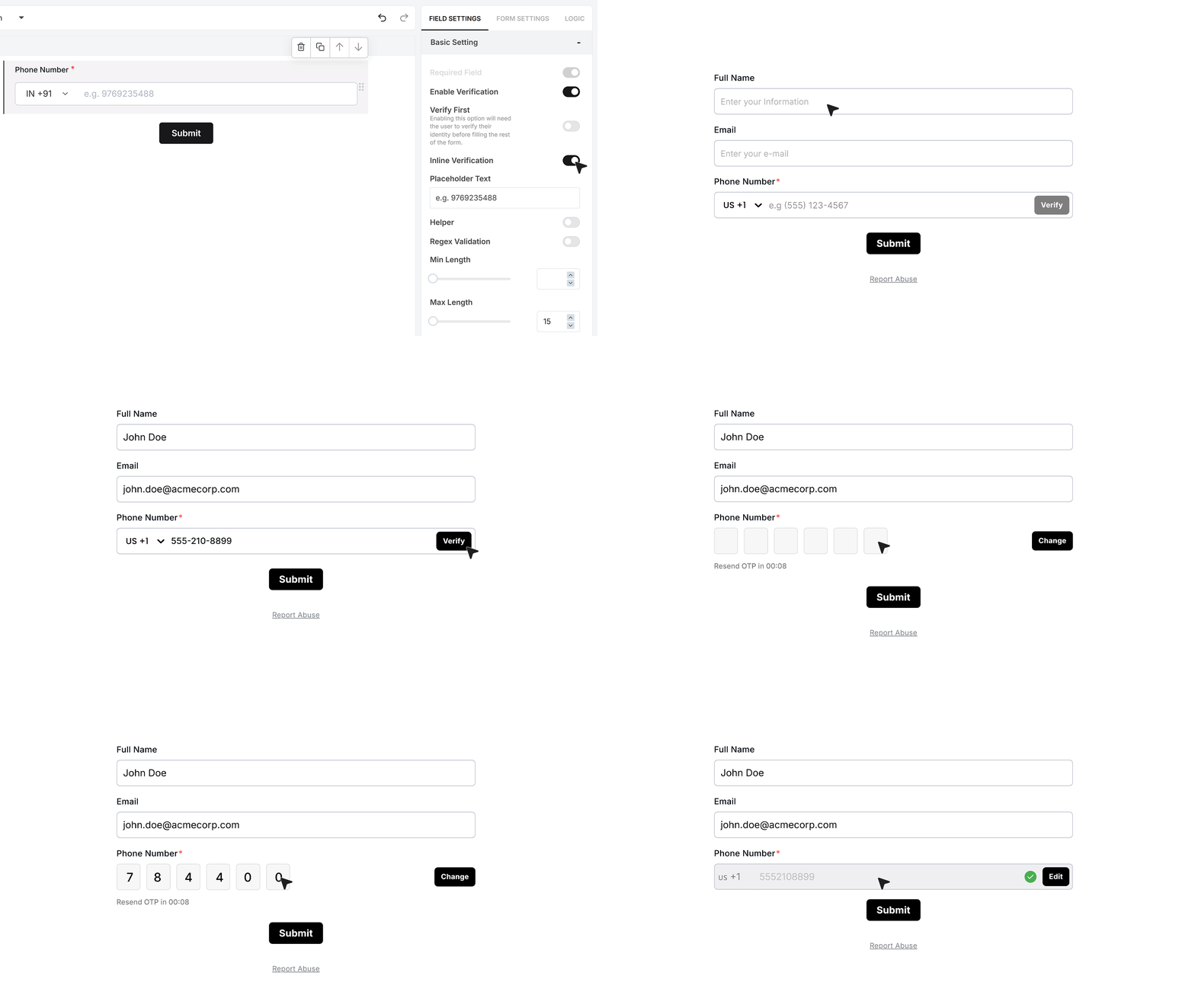
Inline Mobile Number Verification places the verification step directly within the phone field itself. Users can continue filling the form without verifying immediately, but the form will only submit once the phone number is verified through OTP. If the number isn’t verified, a clear prompt appears instructing the user to complete verification before submitting.
Regex Validation
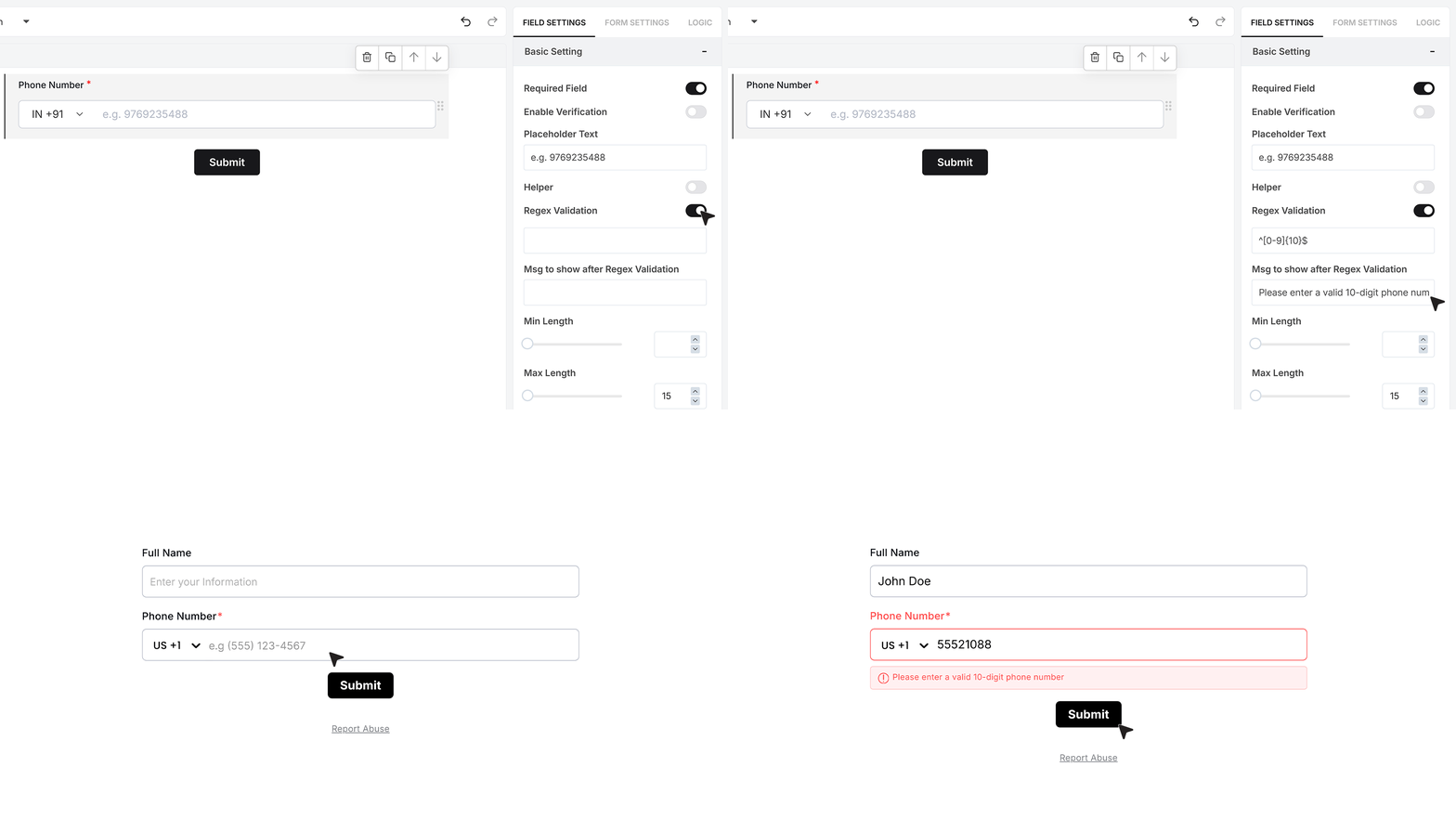
Regex Validation lets you enforce a specific formatting rule for phone numbers. Once enabled, you can enter your regex pattern and define the error message that appears if the input doesn’t match. For instance, to accept only 10-digit numbers, you can use ^[0-9]{10}$ and display a message such as Please enter a valid 10-digit phone number. The field prevents submission until the number fits the required pattern.
Mark as Unique Field
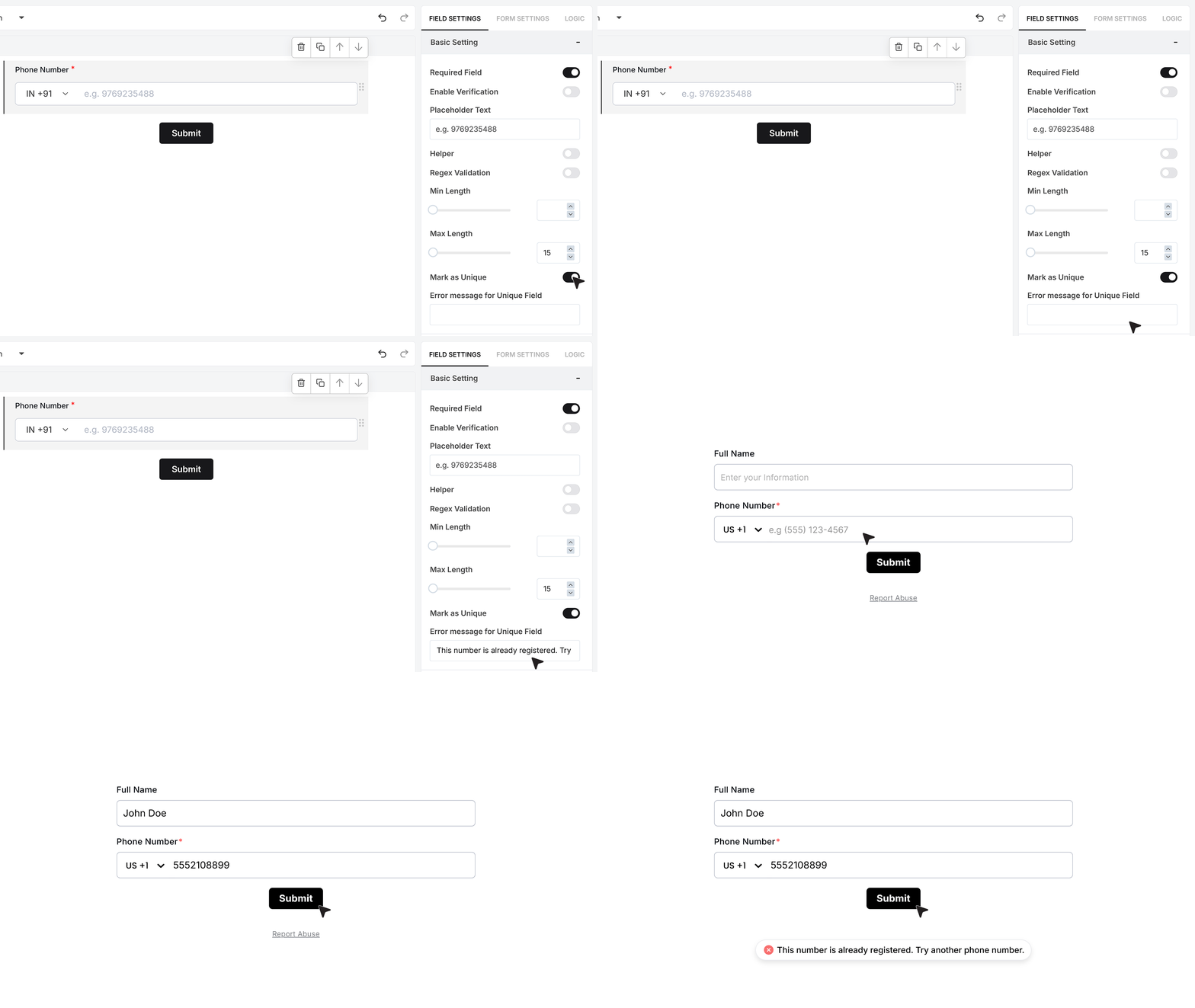
Mark as Unique Field prevents users from submitting a phone number that already exists in your database. When enabled, an additional textbox appears where you can enter the error message users should see if they attempt to submit a duplicate number. This is helpful for registrations, onboarding, and avoiding repeated contact entries.
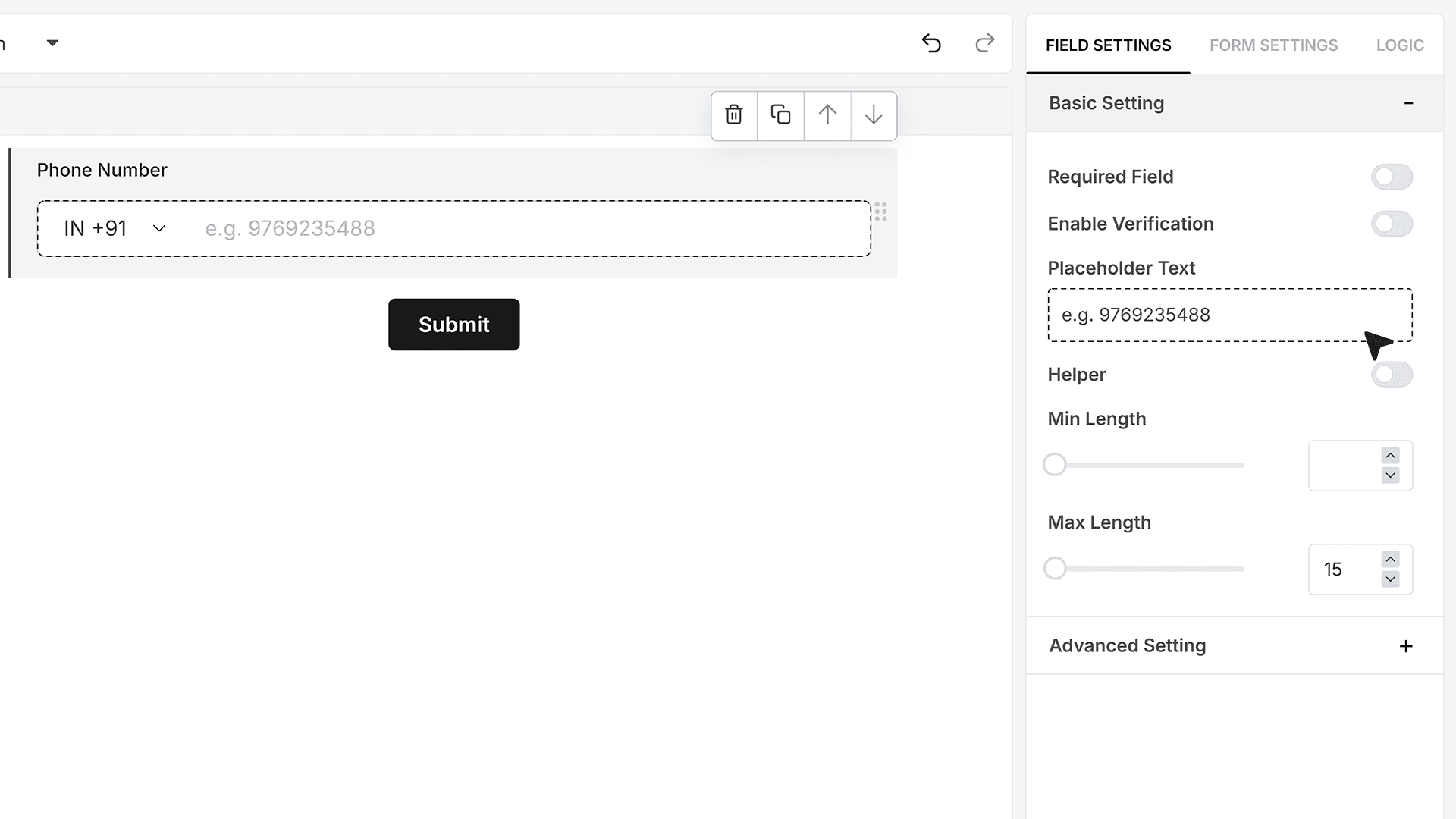
Placeholder Text
The Placeholder Text helps guide respondents by showing a hint inside the field before they enter anything. Use it to suggest formatting or the type of number expected.
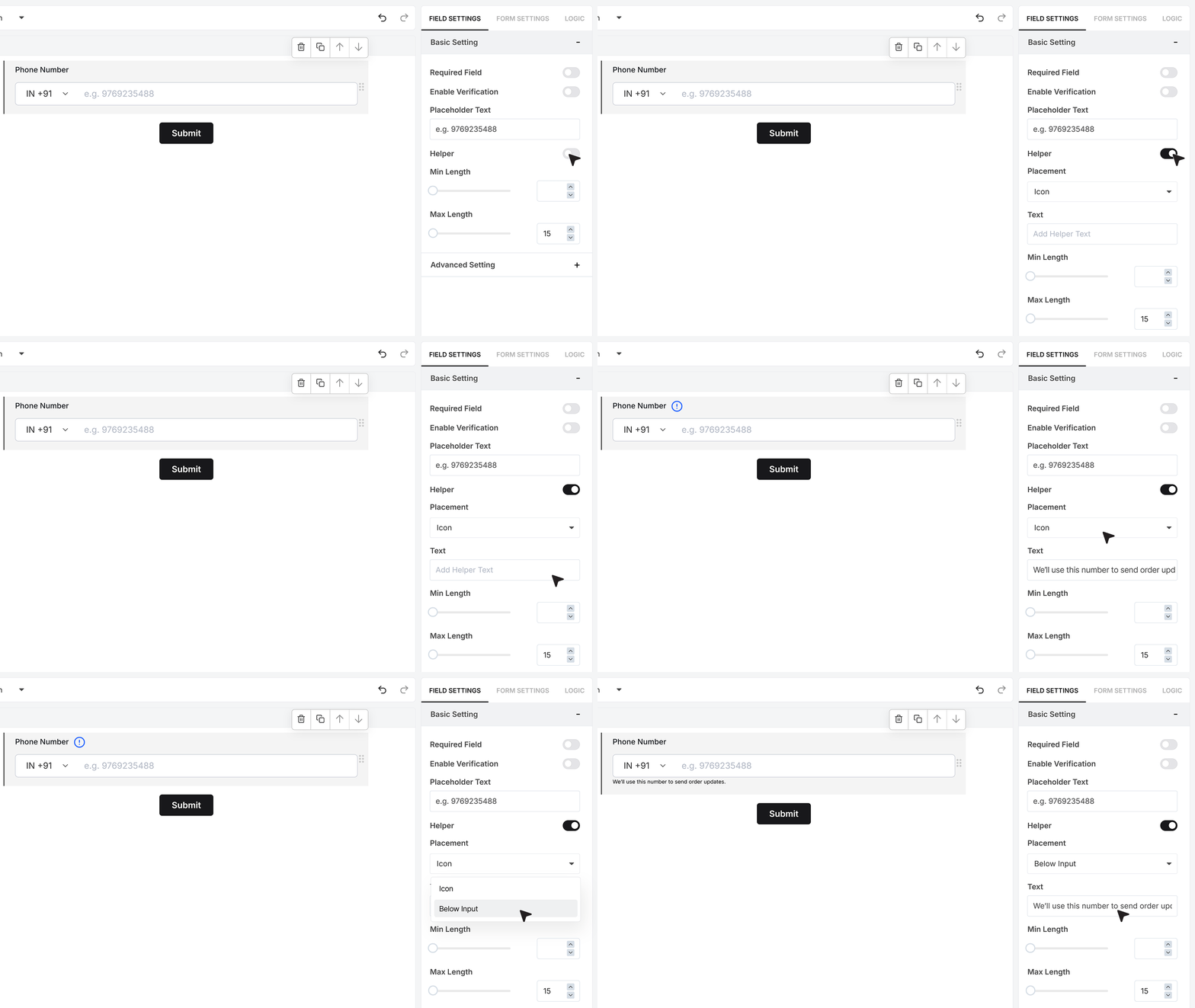
Helper Text
Helper Text lets you provide additional information that supports the user while filling out the field. Once enabled, you can customize both its text and its placement. The message may appear below the field or as an information icon beside it. This is particularly useful for instructions such as We’ll use this number to send updates.
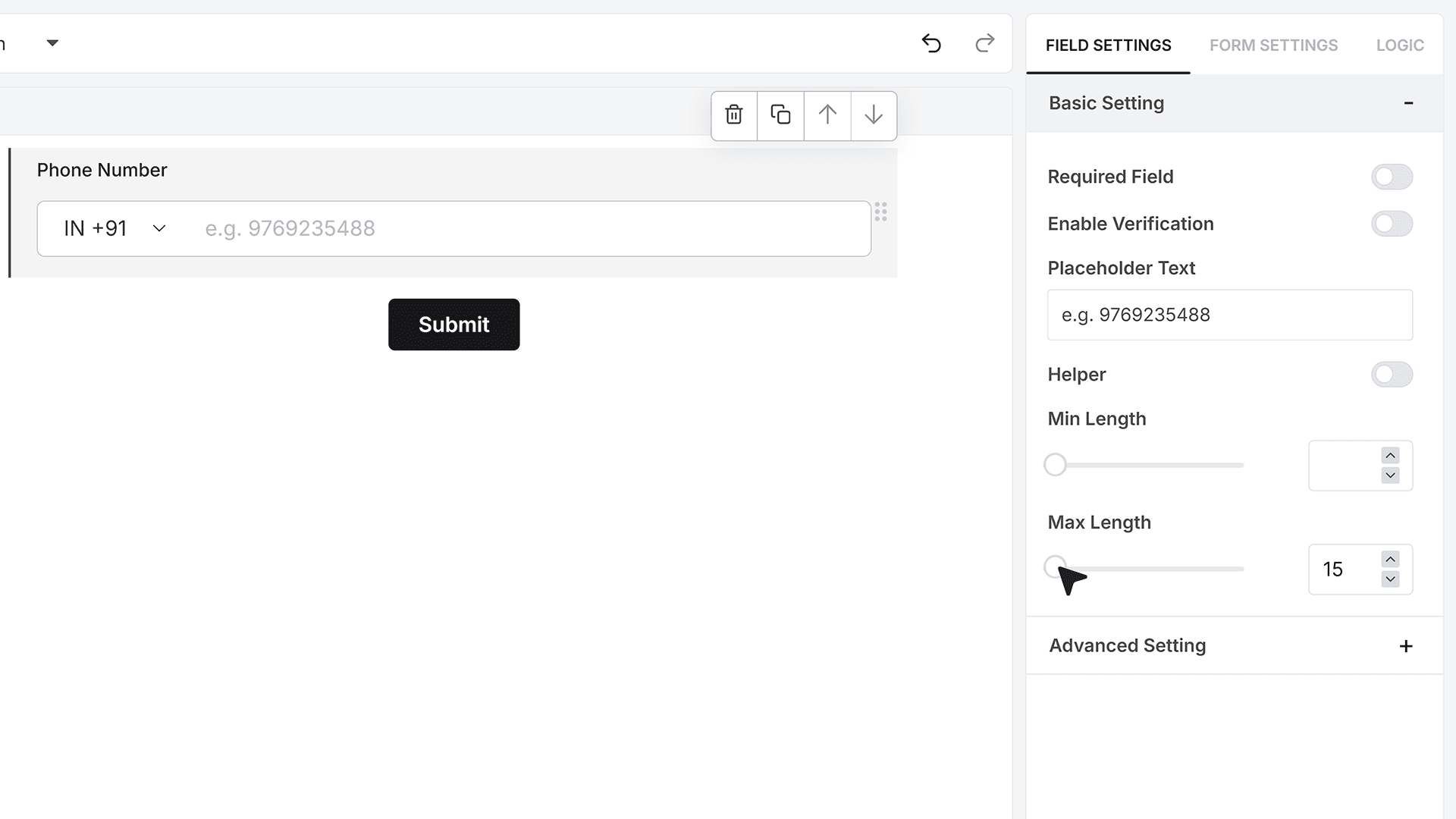
Min and Max Length
Min Length and Max Length allow you to define how short or long the phone number can be. This helps maintain consistent formatting across responses.
Advanced Settings
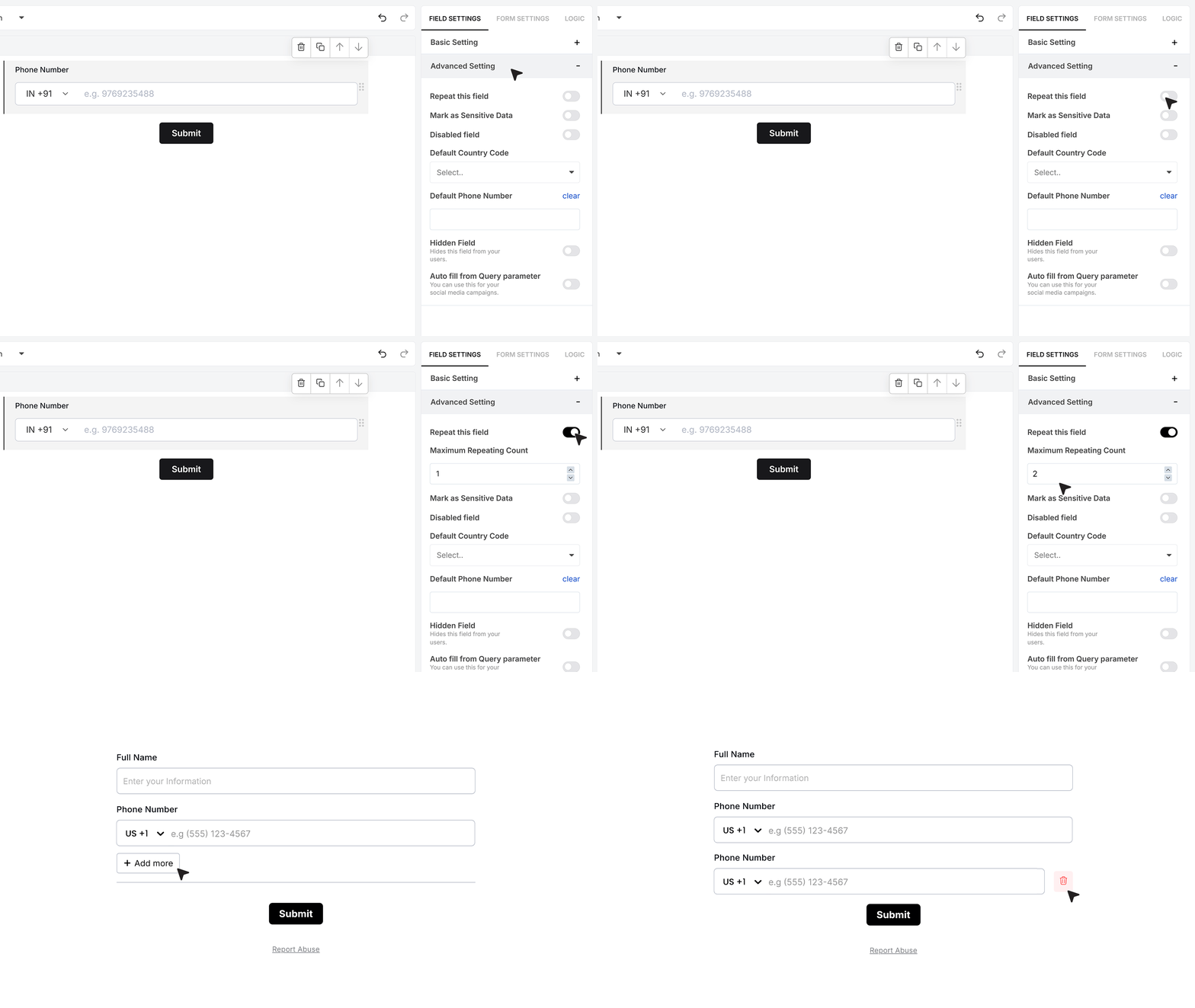
Repeat This Field
Repeat This Field allows users to submit multiple phone numbers within a single form submission. When enabled, you can also define the maximum number of phone numbers users are allowed to add. Respondents can click Add More to include alternate numbers, and they can remove any added phone number at any time while completing the form.
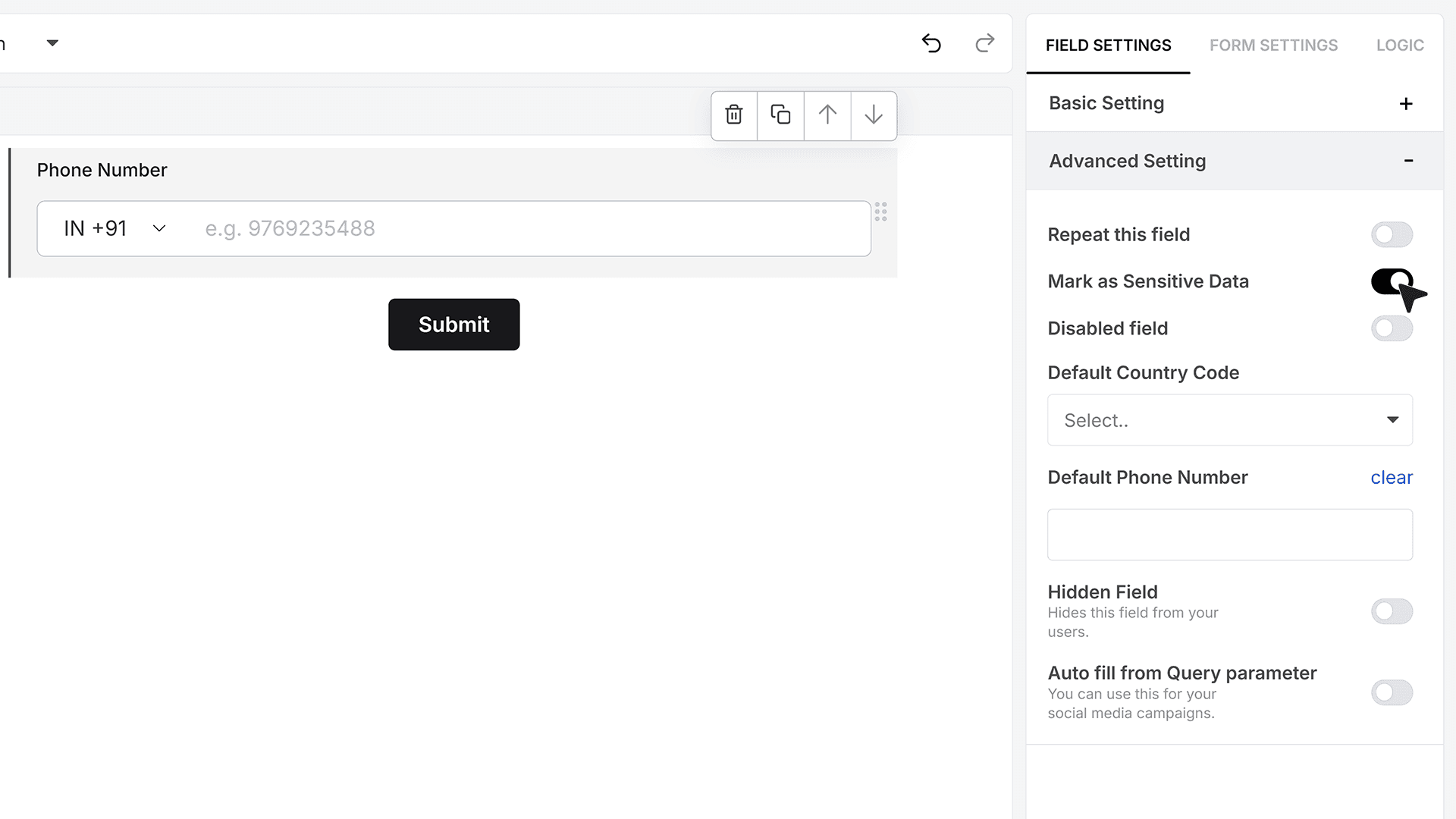
Mark as Sensitive Data
Mark as Sensitive Data designates the phone number as sensitive information. Only team members within your MakeForms account who have permission to access sensitive data will be able to view it. This provides an additional layer of privacy and security for user information.
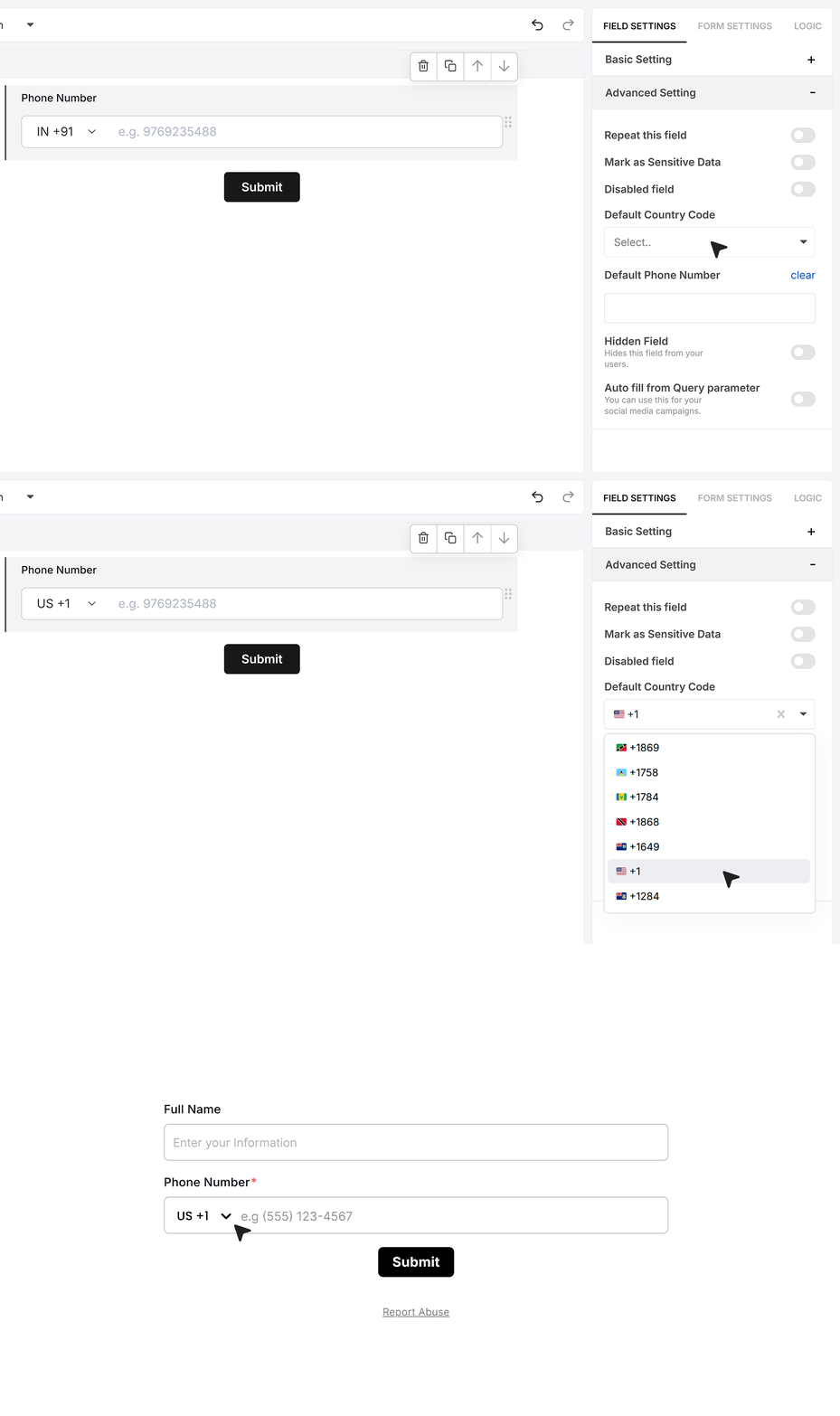
Default Country Code
You can specify a default country code for the Phone field. While MakeForms automatically detects the user’s location and selects the appropriate code by default, setting a manual default overrides this behavior. For example, if you select +1 (US), that code will appear for all respondents regardless of their location.
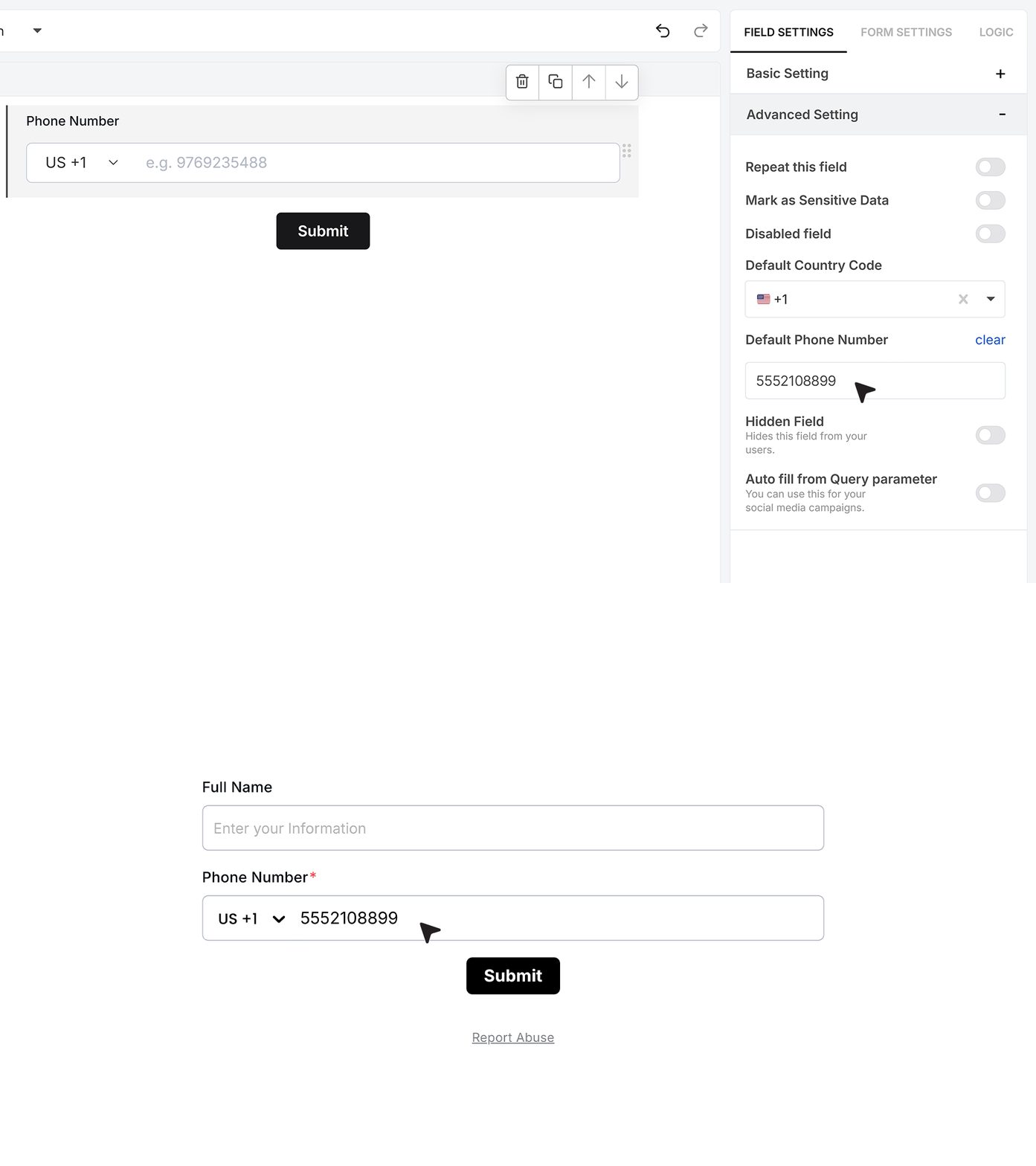
Default Phone Number
Default Phone Number lets you prefill the field with a specific number when the form loads. Respondents can choose to keep this value or replace it with their own. This feature is useful in flows where a known contact number is expected.
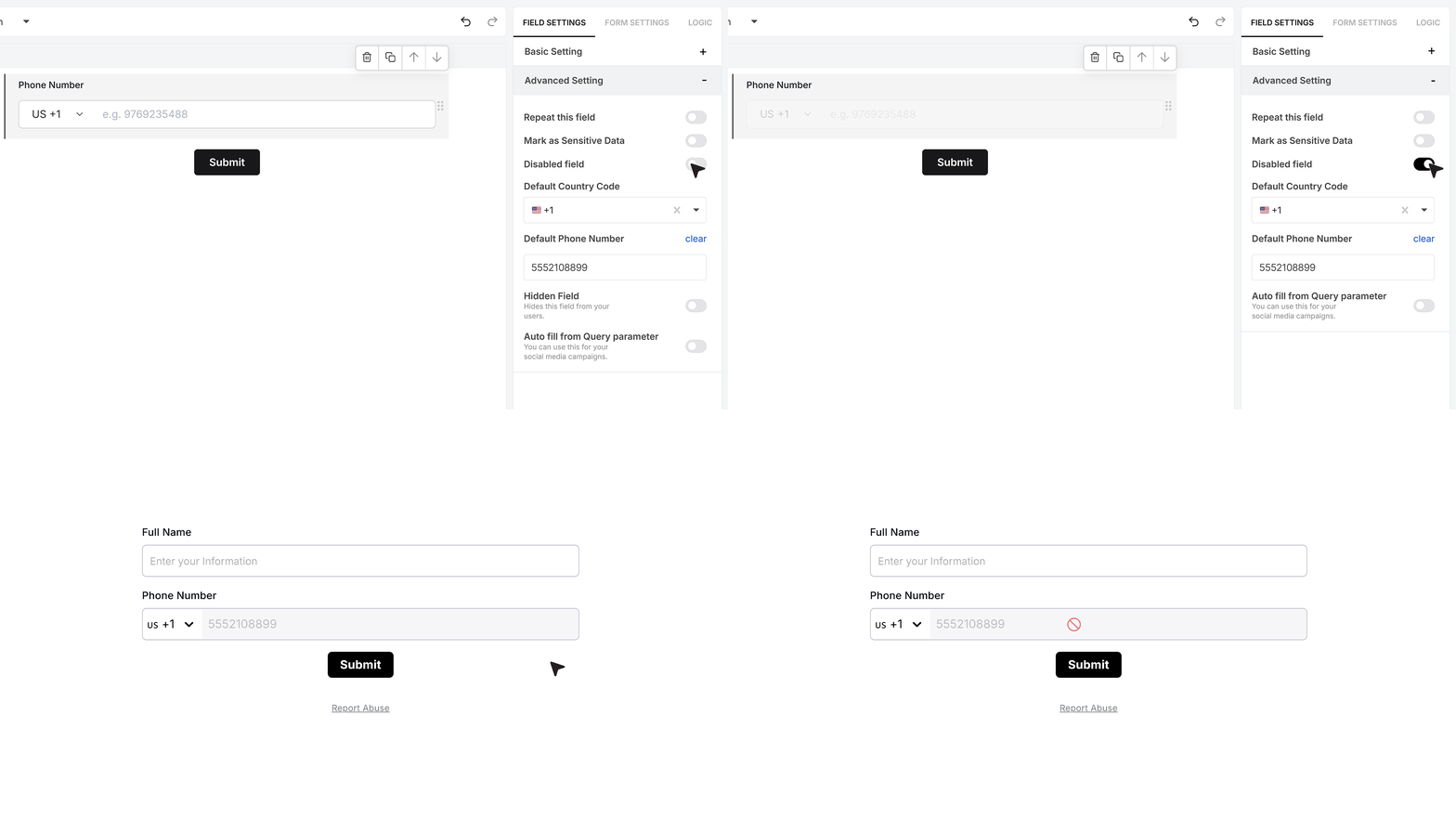
Disable Field
Disable Field makes the phone number visible but non-editable. The field displays a value coming from either a default number or a query parameter, and users can’t modify it. This is ideal for authenticated or system-driven workflows where the phone number should remain locked.
Hidden Field
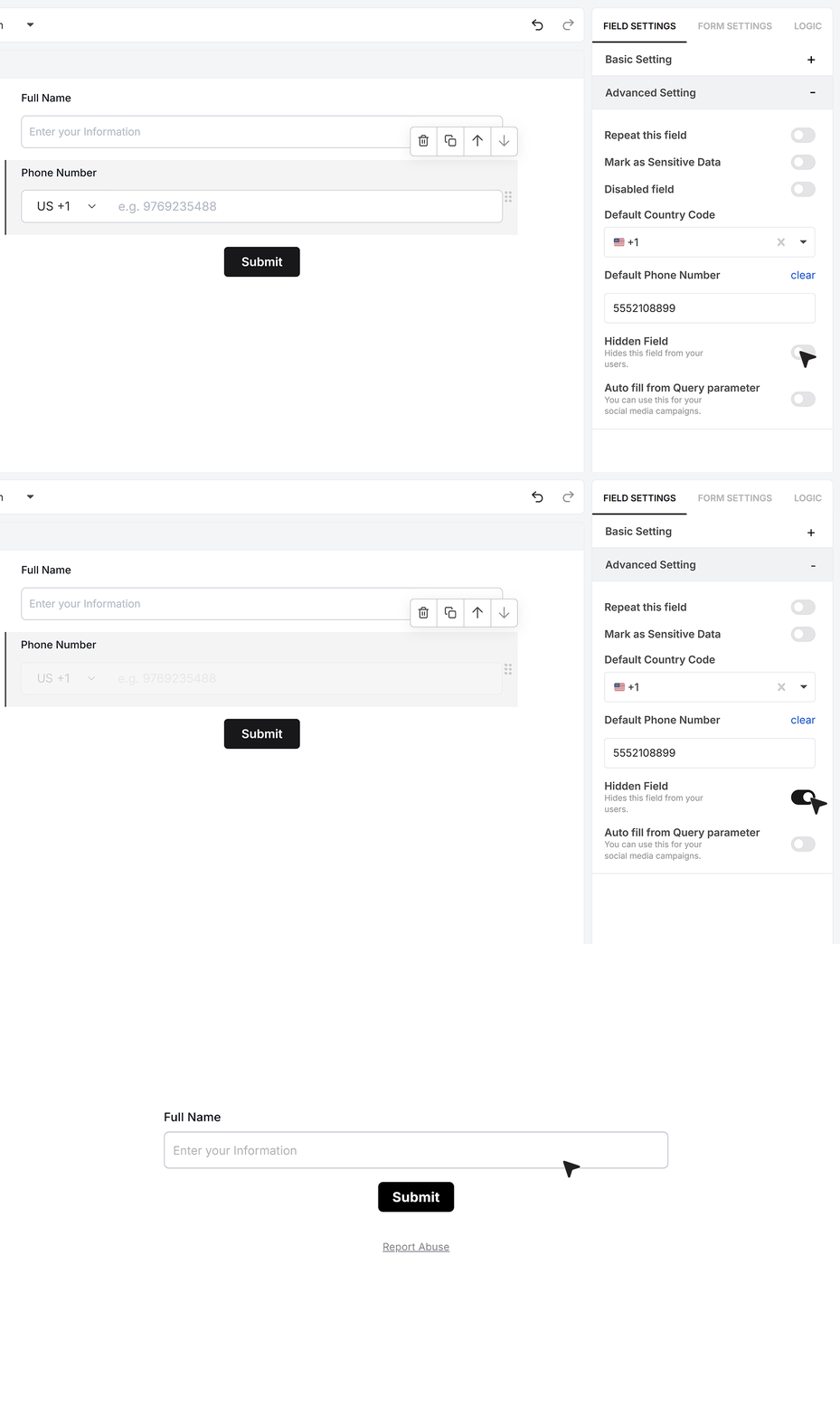
Hidden Field keeps the phone field invisible on the form while still storing a value. The number can be set using a default value or a query parameter and will be saved with the submission without appearing to the user.
Autofill from Query Parameter
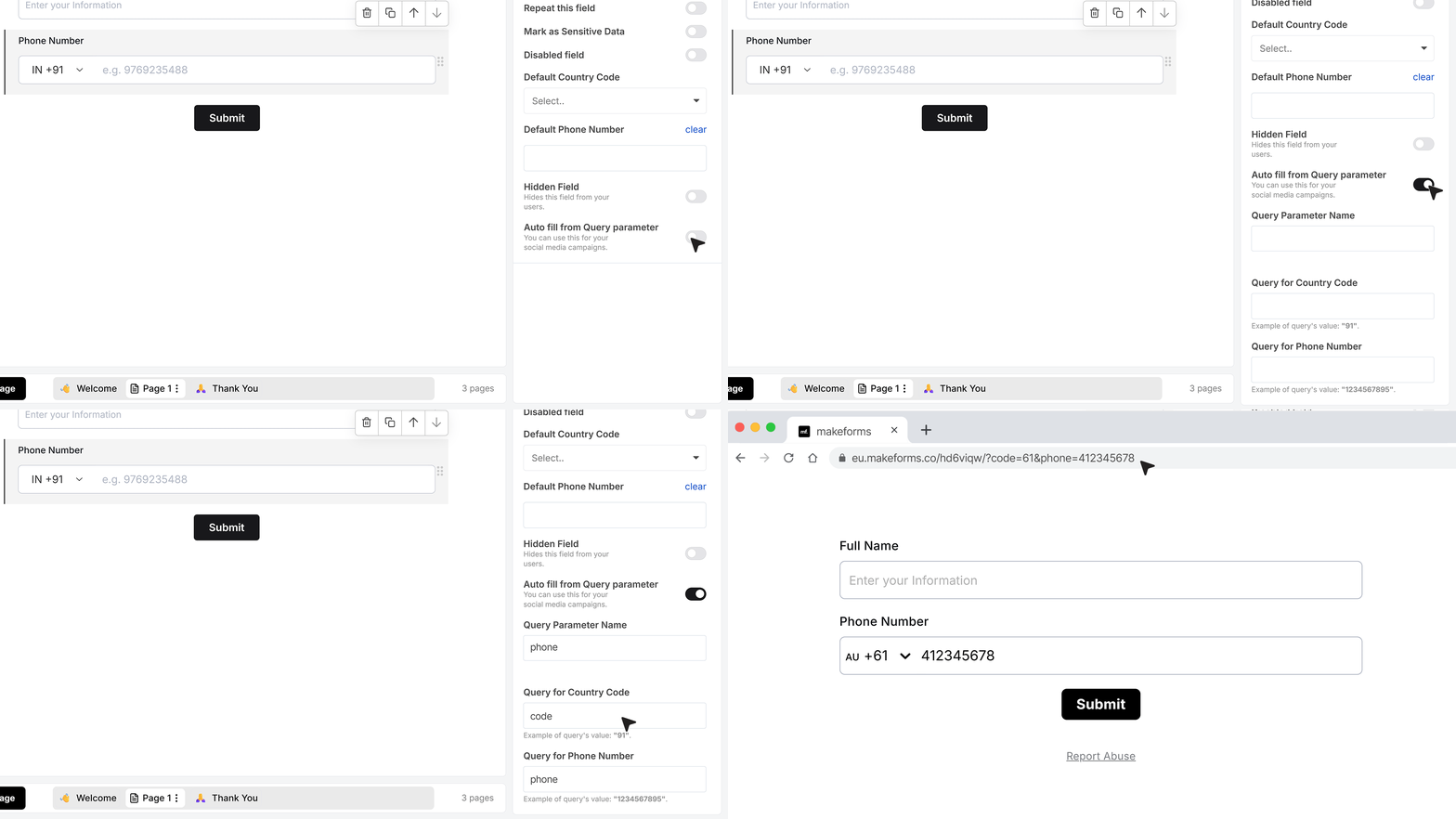
Autofill From Query Parameter lets you automatically fill the Phone field using values passed through the URL. If you want to pass the country code and phone number separately, you can use different keys — such as “code” for the country code and “phone” for the number. MakeForms combines both values and fills them into the Phone field automatically when the form loads.
FAQ's
MakeForms offers a fully customizable phone number field. You can control required status, country code, length limits, regex rules, verification, uniqueness, sensitivity, default values, and visibility.
Yes. MakeForms supports automatic validation using OTP-based phone verification and optional regex validation to enforce number format before submission.
In MakeForms, enable the Required Field option in the phone field settings. The form cannot be submitted unless a valid phone number is entered.
MakeForms provides built-in phone verification using OTP. OTP can be sent via SMS or WhatsApp. Verification can be inline or required before showing the full form.
Yes. In MakeForms, phone number fields can be used in form logic rules to control field visibility, flow, or actions based on user input.
Phone number responses in MakeForms can be exported as CSV or Excel files, which can be opened directly in spreadsheet tools.
MakeForms supports international phone numbers with country code selection, automatic country detection, and manual default country code settings.
Yes. MakeForms supports SMS notifications, OTP delivery, and message triggers using collected phone numbers.
In MakeForms, adding a Phone Number field automatically includes a country code dropdown. You can also set a fixed default country code if needed.
MakeForms allows you to preview forms and test phone number input, validation rules, OTP verification, error messages, and submission flow before publishing.
MakeForms provides submission-level data where phone number field values are stored and can be reviewed, filtered, and exported for analysis.
Yes. MakeForms includes OTP verification, uniqueness checks, and regex validation, which together help reduce fake or spam phone number submissions.
MakeForms supports autofill using query parameters. Phone numbers can be passed through the URL and automatically filled when the form loads.
In MakeForms, SMS notifications can be set up in the notification settings using the phone number field value collected during submission.
MakeForms allows exporting phone number data or sending it directly to connected tools through integrations and webhooks.
In MakeForms, phone number fields can be marked as required, verified first, or locked. They can also be passed to scheduling or booking workflows via integrations.
Yes. MakeForms allows notification rules that send phone number details to sales teams through email, SMS, or integrated tools.
MakeForms lets you customize error messages for required fields, regex validation failures, and duplicate phone number submissions.