Likert Scale Field
The Likert Scale field lets respondents rate an experience or opinion across a clearly defined numeric scale with text labels. It is useful when you want more context than a single rating number and need users to express how strongly they feel.
Adding the Likert Scale Field
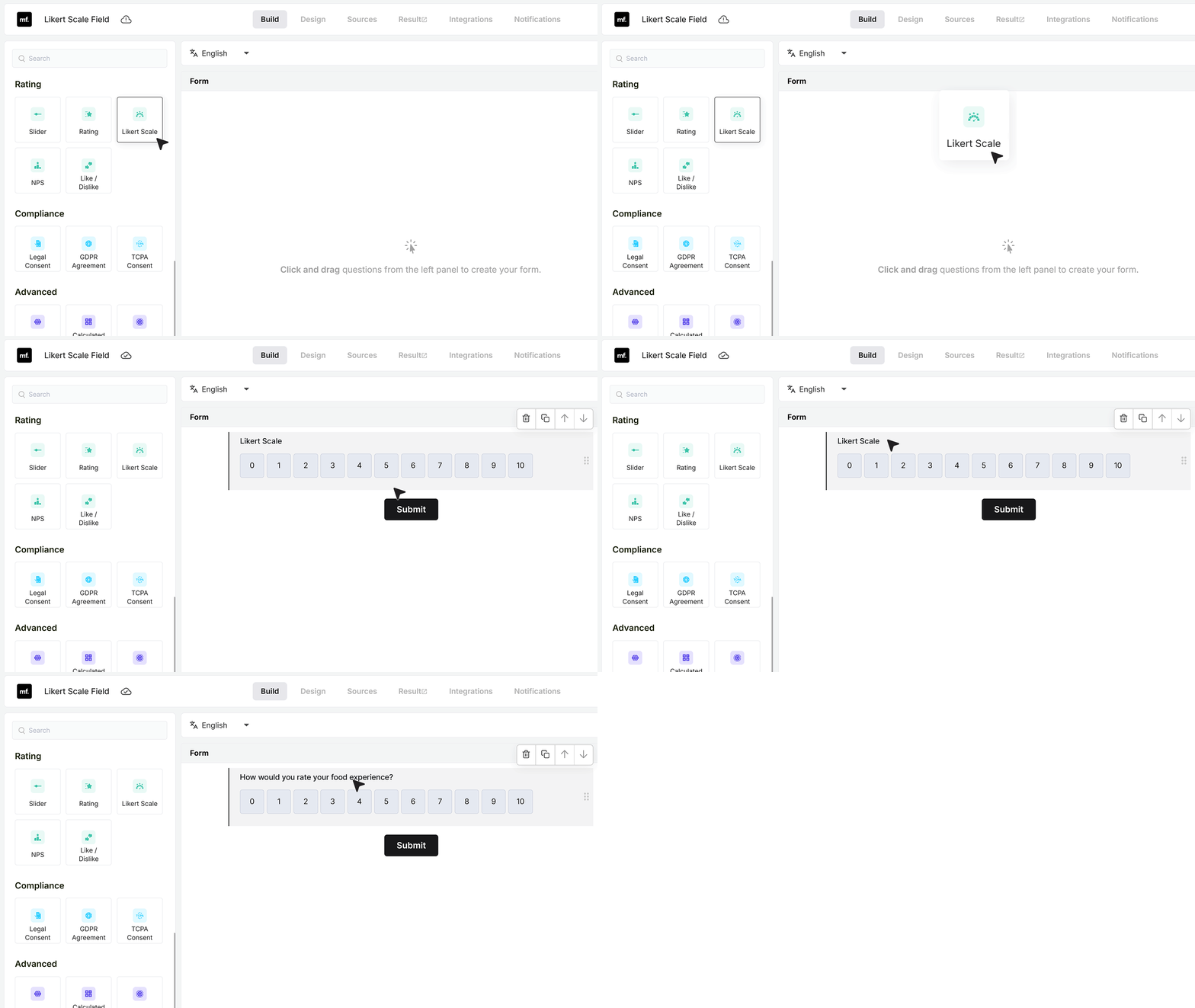
Open the form builder and drag the Likert Scale field from the field list into your form.
Click on the label and type text that fits your form. For example, you can use “How would you rate your food experience?”
Once the field is added, you can configure its settings from the panel on the right.
Basic Settings
Required Field
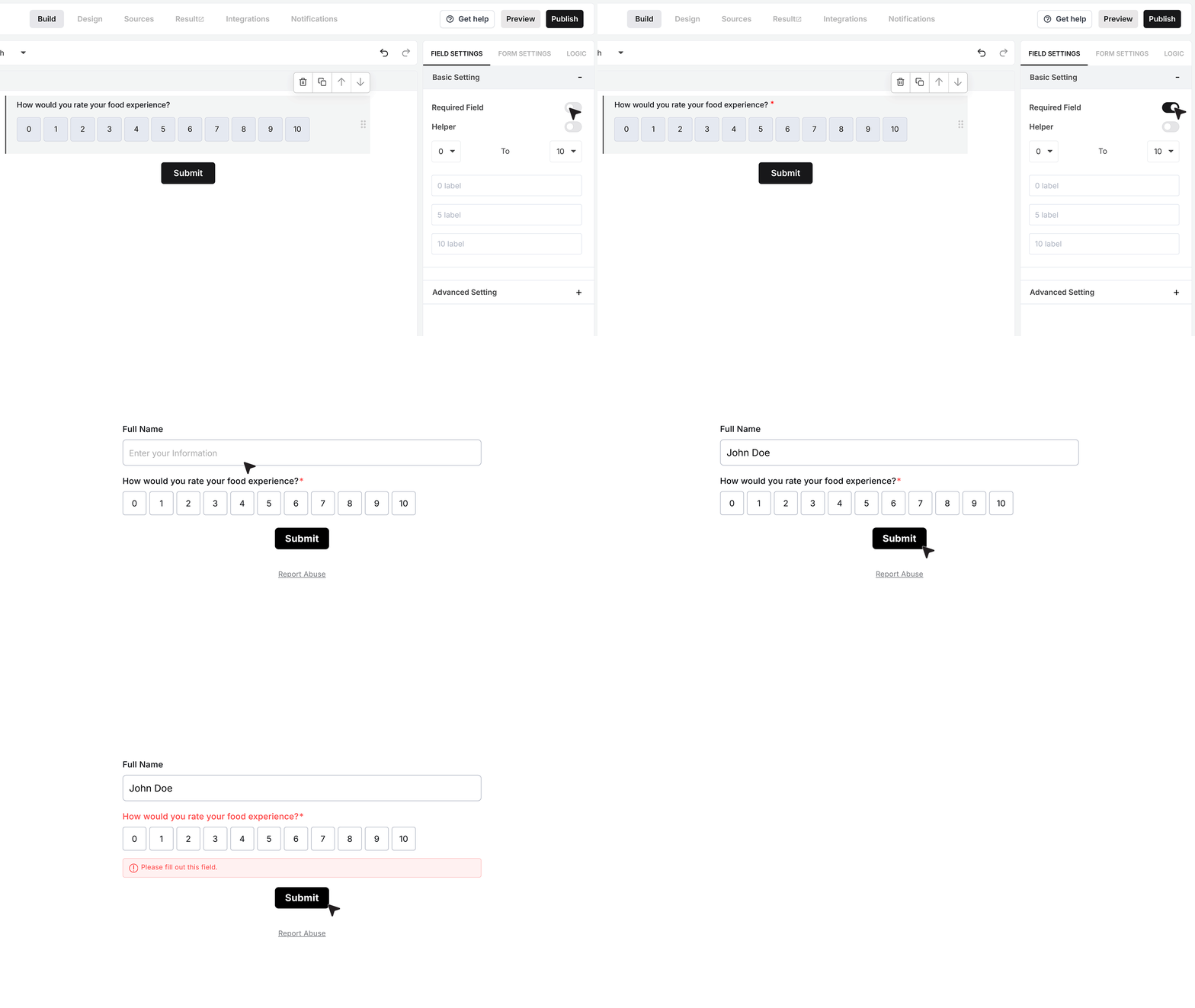
The Required Field toggle controls whether the user must select a value on the scale before they can submit the form.
If this is turned on and someone tries to submit the form without choosing a value, MakeForms shows an error and stops the submission. They must select a rating on the scale before the form goes through.
Use this when the response to this question is important for your survey or report.
Helper text
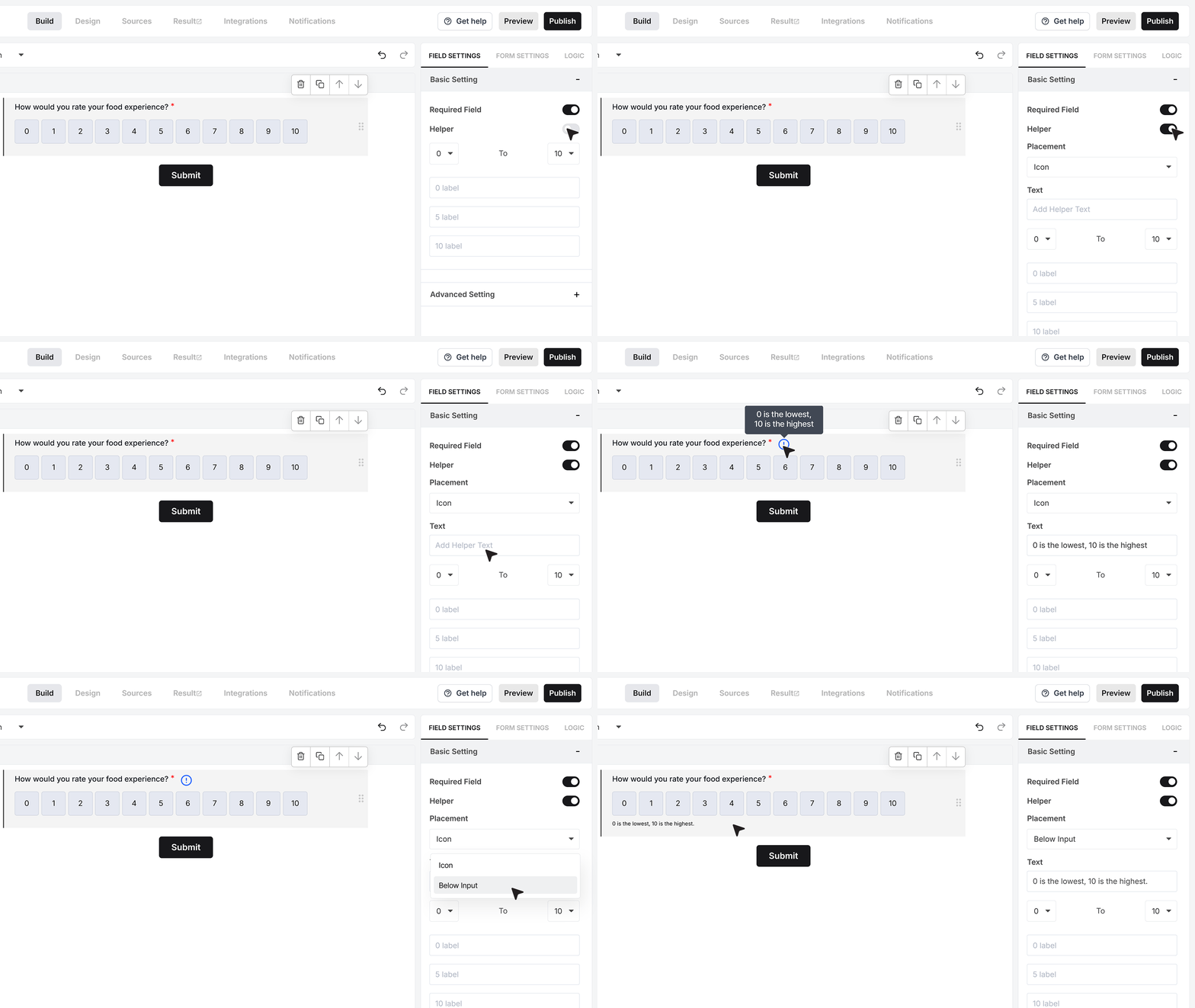
The Helper Text option is useful when you want to give extra guidance.
Turn it on and add a short note such as “0 is the lowest, 10 is the highest..” This helps users understand what the rating should be based on.
You can show this text as a small info icon that reveals the message on hover, or as a visible line of text under the Rating field. Choose the style that keeps your form clear and easy to read.
Scale Range
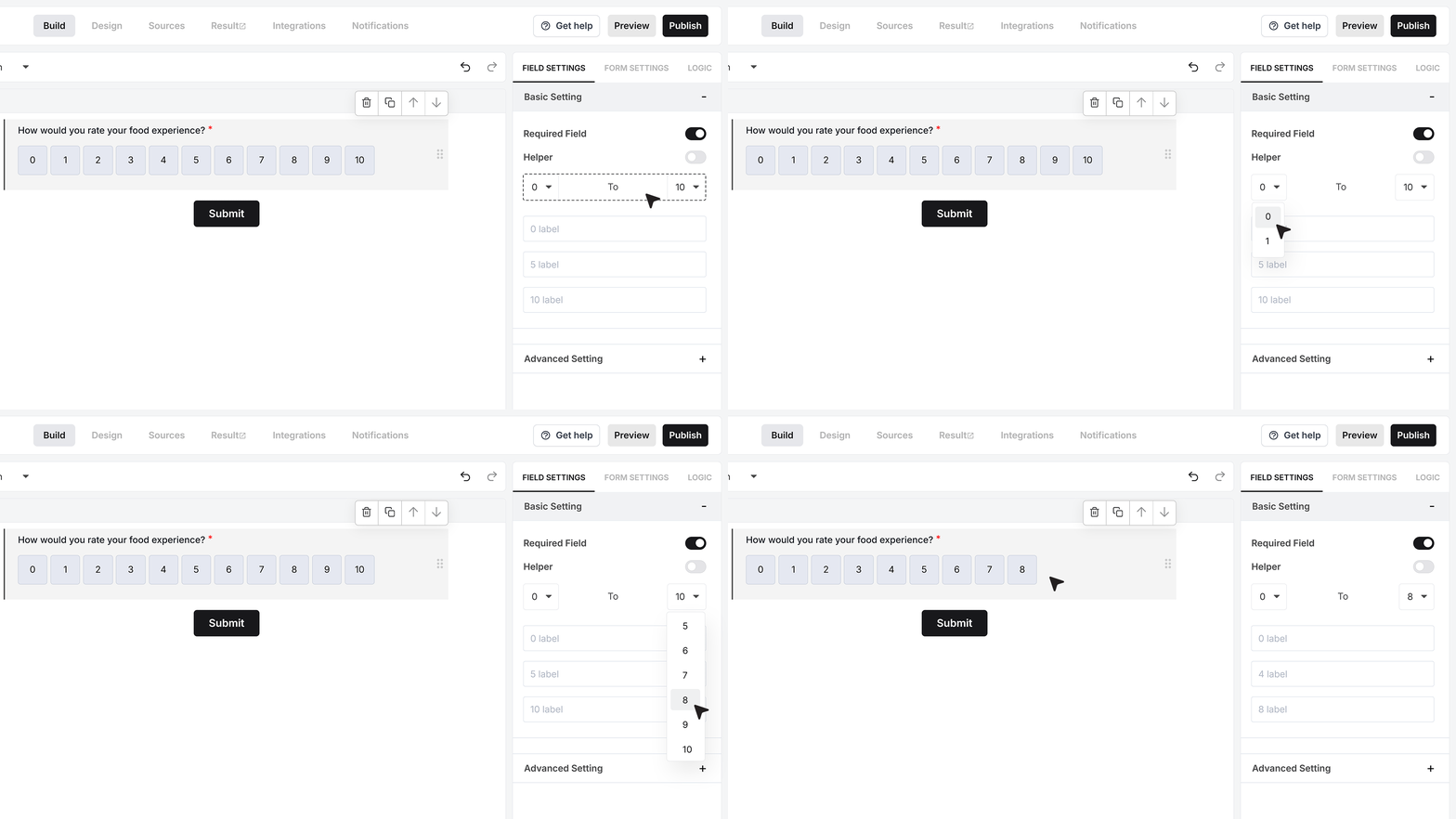
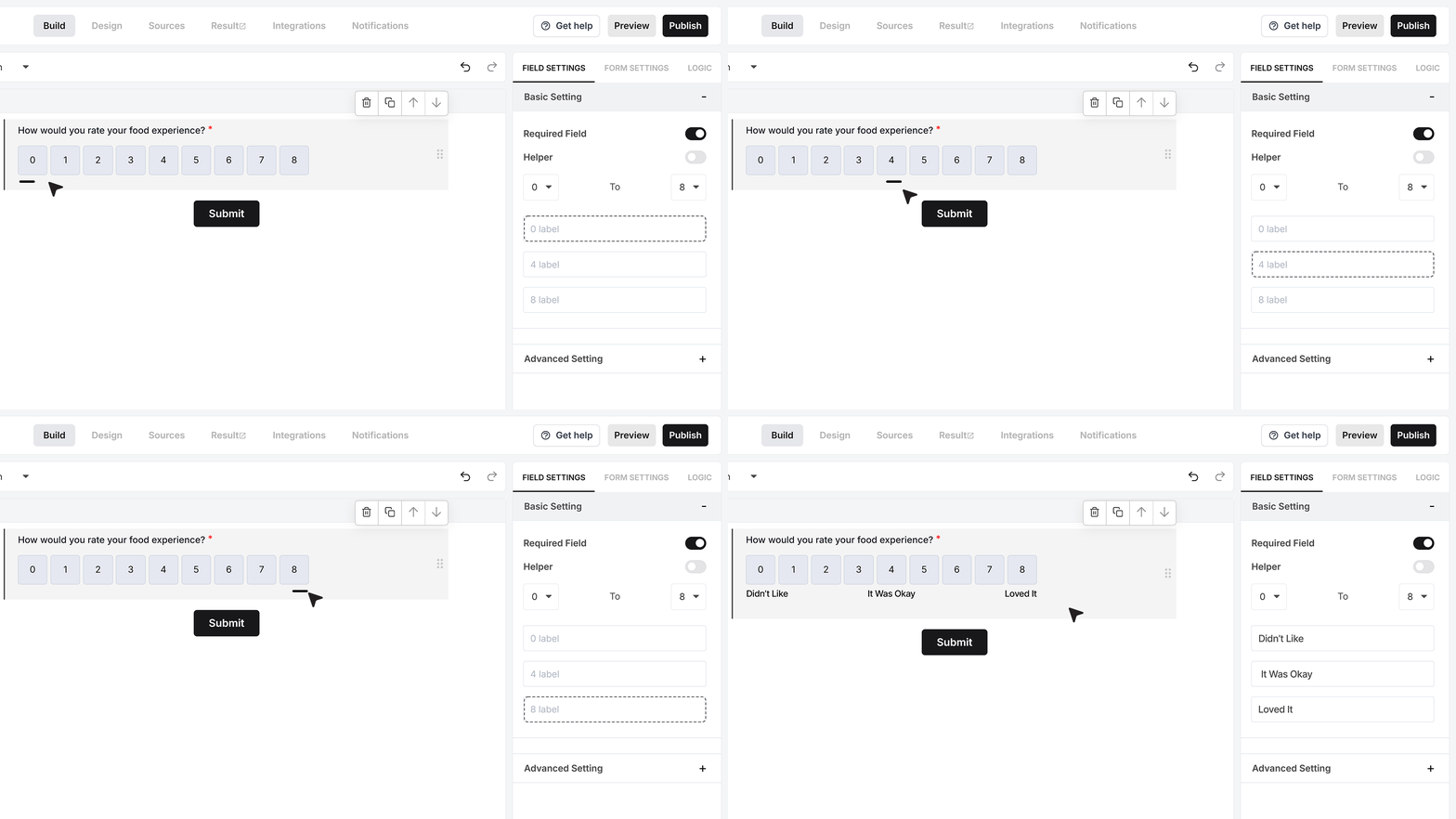
The Scale Range setting controls which numbers appear on the Likert Scale.
You can set the lowest value as 0 or 1, and the highest value anywhere between 5 and 10. For example, you can use a range of 0 to 8 if you want enough options without making the scale feel too long.
Pick a range that matches how detailed you want the feedback to be.
Labels
Under the scale range, you will see the Labels section. When you set the scale from 1 to 8, you get three label boxes. These are the text labels for the low, middle, and high points of your scale.
For a food experience question, you can set the labels to: Didn’t Like · It Was Okay · Loved It
These words show under the scale so users do not see only numbers. They also see what each key point means, which makes it easier to choose an option that matches their experience.
Advanced Settings
Mark as Sensitive Data
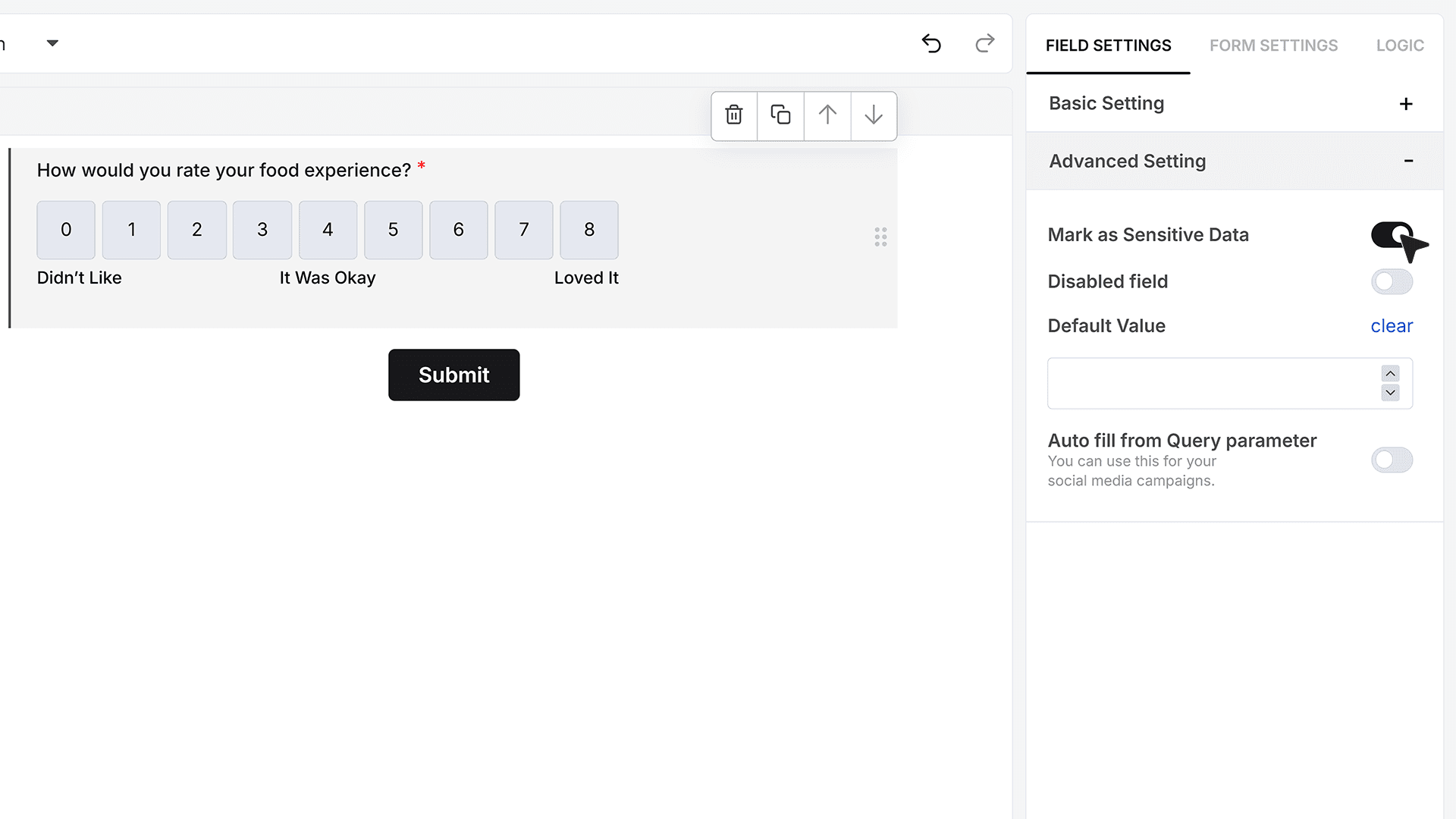
The Mark as Sensitive Data option controls who can see the rating values inside MakeForms.
Turn this on when the rating should not be visible to every team member. For example, this is helpful for internal employee feedback or any form where you want to restrict access. When this setting is active, only users with the right access level can see the scores in the Responses section.
Default Value
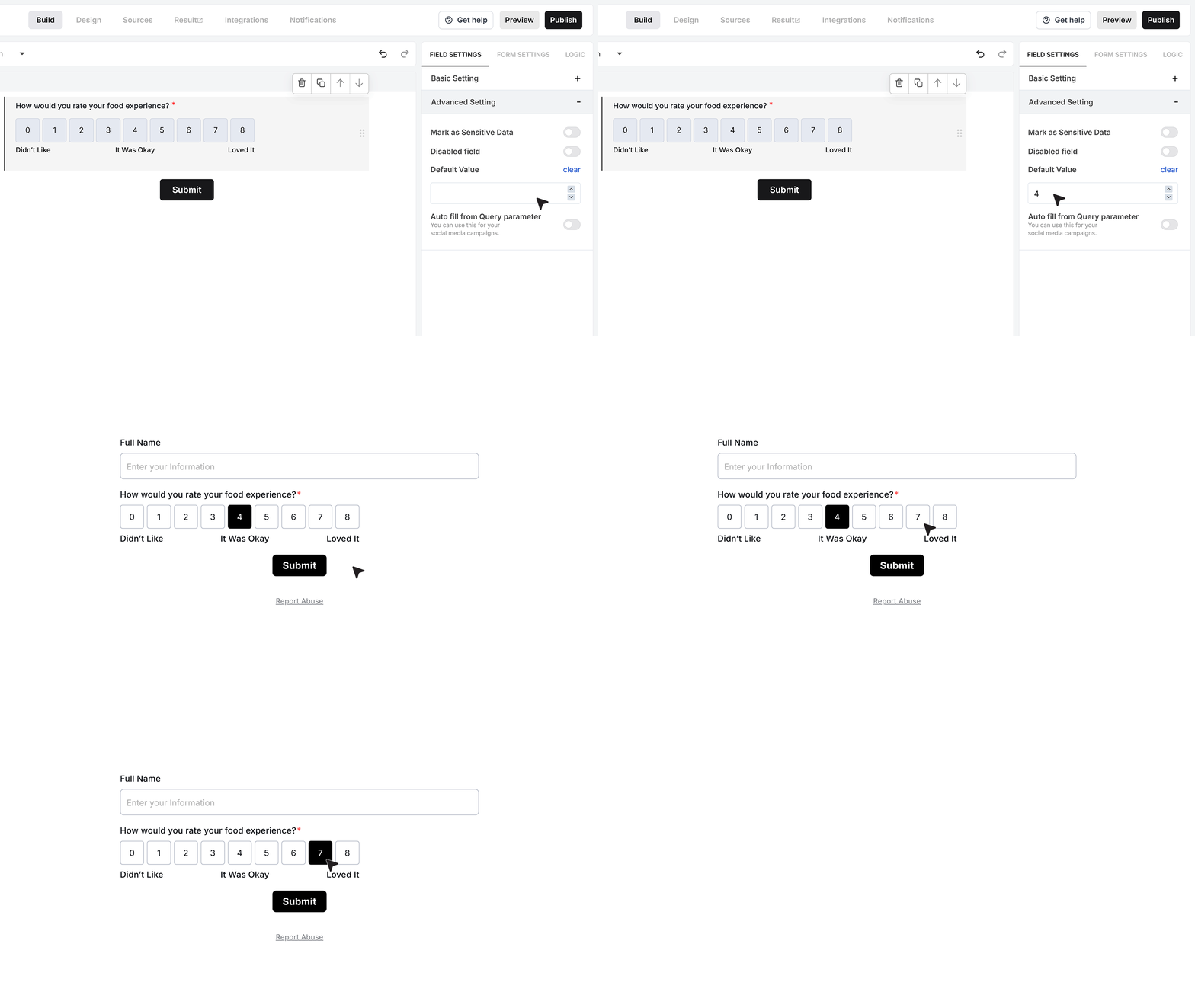
The Default Value setting lets you pre-fill the Likert Scale with a starting selection.
You can pick a number from the range you set. For example, you can use 4 on a 0 to 8 scale. When the form loads, that value is already selected on the scale. The user can still change it before submitting the form, as long as the field is not disabled.
Disable Field
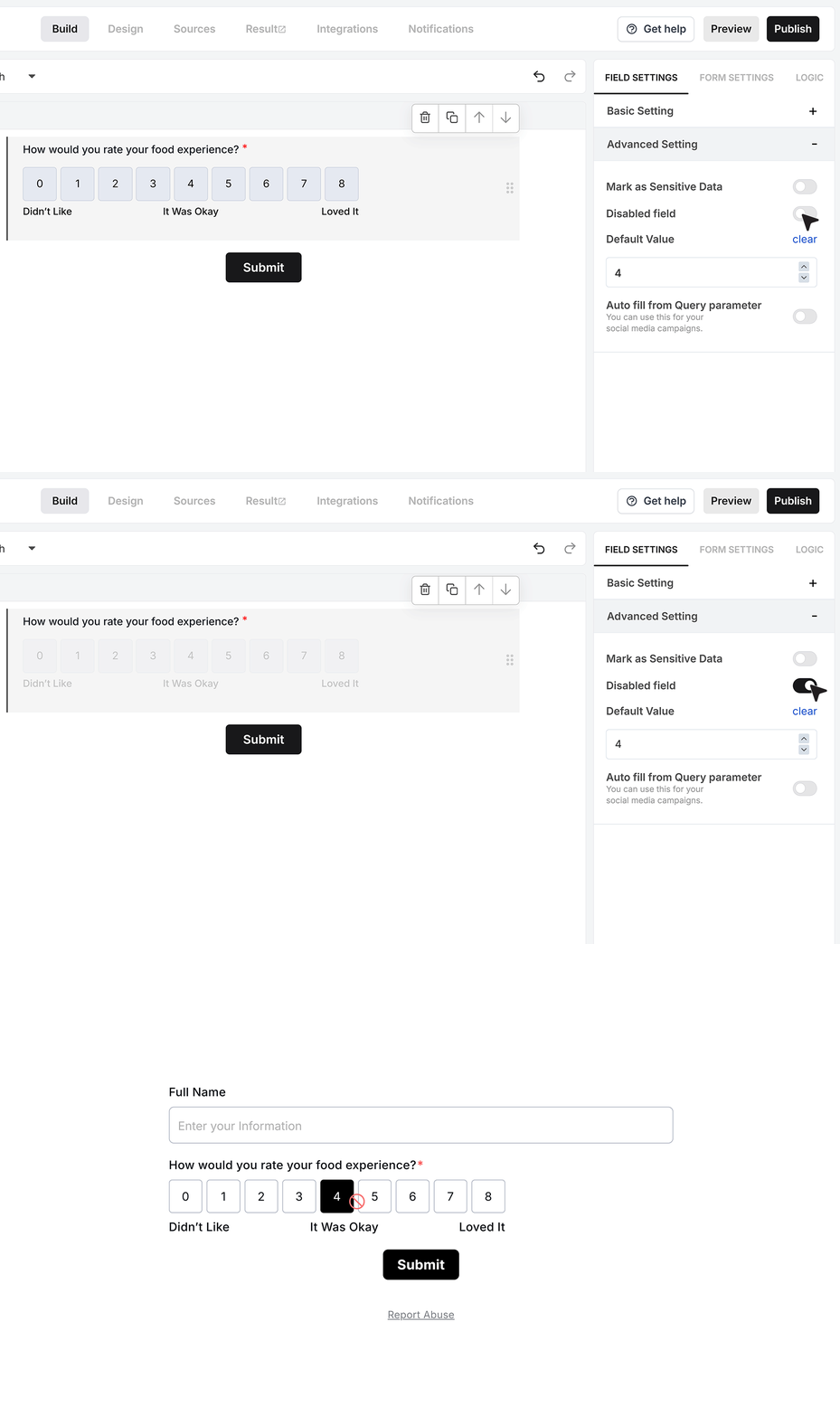
The Disable Field option turns the Likert Scale into a read-only field.
When this is enabled, users can see the scale and the selected value, but they cannot change it. This is useful when the value comes from another system or from an earlier step and you only want to show it, not collect a new response.
Autofill from Query Parameter
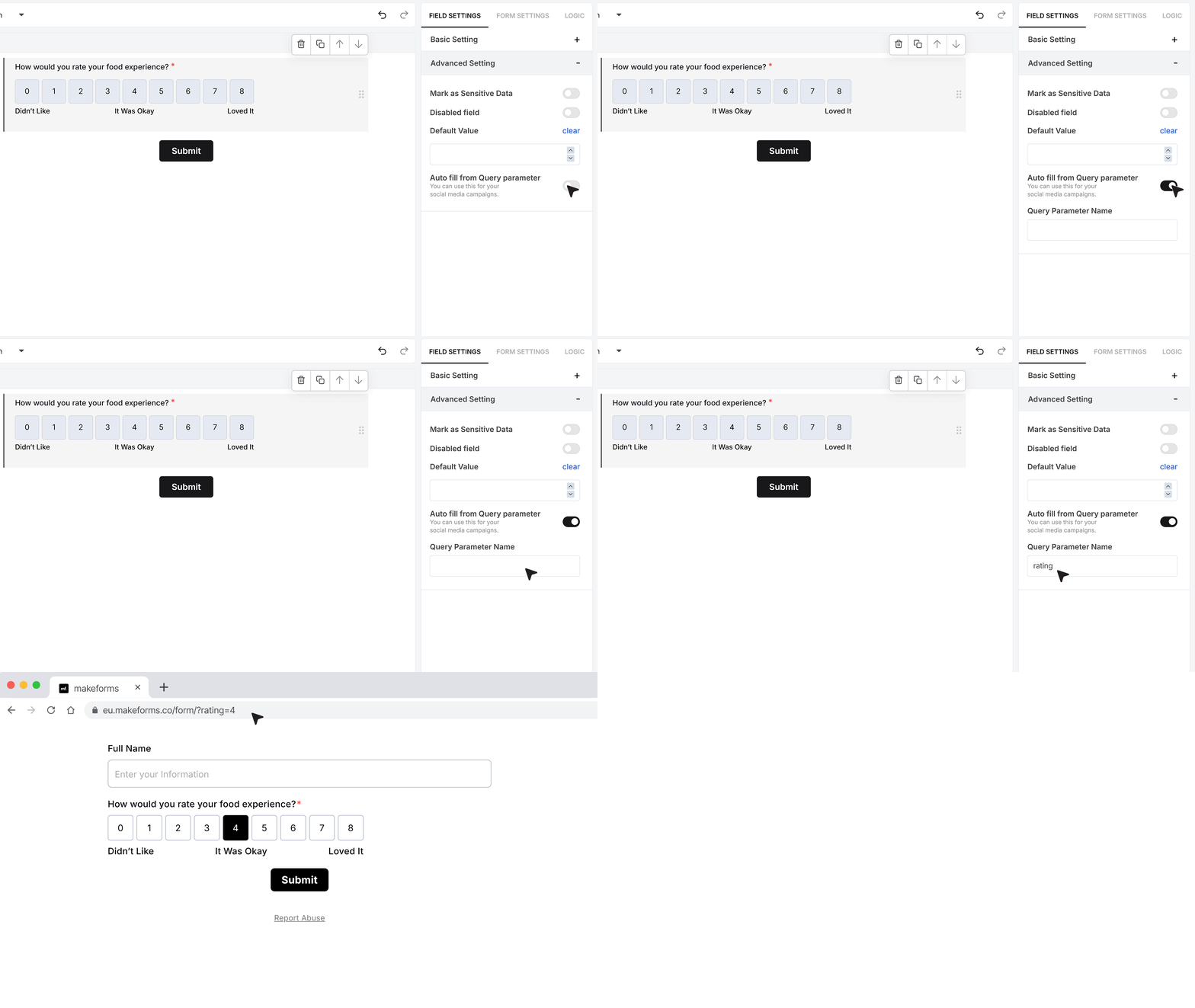
You can also fill the Likert Scale from a value in the form link using Autofill from Query Parameter.
In this setting, type a parameter name, for example rating.
When you share the form, add this parameter to the URL with a number that is inside your scale range. If your scale is 0 to 8, a link can look like:
?rating=4
When someone opens the form with this link, the Likert Scale will load that number as the selected value, as long as it is valid for the scale you have set.
FAQ's
A Likert scale field is a form field used to collect opinions, satisfaction, or feedback on a fixed numeric scale. It helps users choose a value that matches how strongly they feel about something, instead of typing a long answer.
In MakeForms, the Likert scale field also supports text labels, so users can understand what the low, middle, and high points mean more clearly.
Use a Likert scale form when you want to measure opinions, satisfaction, agreement, or experience level. It works well for feedback forms, customer satisfaction surveys, employee feedback forms, and product review forms.
A Likert scale is useful when yes or no is too limited and you need more detailed feedback.
You can add a Likert scale field by dragging it from the field list into your form. After that, you can change the question text, choose the scale range, and set the labels that match your form.
This helps you create a clear Likert scale form in just a few steps.
The right Likert scale range depends on how detailed you want the answers to be. A 1 to 5 scale is simple and easy for most surveys. A 1 to 10 scale gives more detailed feedback.
In MakeForms, you can start the scale from 0 or 1 and set the highest value up to 10.
Yes, you can set custom labels for the low, middle, and high points of the Likert scale. These labels help users understand what the numbers mean.
For example, you can use labels like Poor, Average, and Excellent, or Not Satisfied, Neutral, and Very Satisfied.
Yes, you can mark the Likert scale field as required. This means users must select a value before they can submit the form.
This is useful when the answer is important and you do not want empty responses.
Helper text is a short note that explains how the Likert scale should be used. It gives users extra context and helps them answer more accurately.
For example, you can add text like 0 is the lowest and 10 is the highest. In MakeForms, helper text can appear as an icon or as visible text below the field.
Yes, you can set a default value for the Likert scale field. This pre-selects a number when the form loads, and the user can change it before submitting.
This is useful when you want to start from a suggested value or show a saved response.
Yes, you can autofill the Likert scale field using a query parameter in the form URL. When a user opens the link, the field can already show a selected value if it matches the allowed scale range.
This is useful when you want to pass rating values through a shared form link.
Yes, you can mark the field as sensitive data. This helps limit who can view the responses inside MakeForms.
It is a good option for internal feedback forms, employee surveys, or any case where the ratings should only be visible to selected team members.
Yes, you can disable the Likert scale field. When disabled, users can see the selected value but cannot change it.
This is useful when the rating comes from another system or when you only want to display the value in the form.
Likert scale questions are useful because they turn opinions into structured responses that are easy to compare. Since the answers are numeric, you can spot patterns, measure satisfaction, and review trends more easily.
They are a strong choice for feedback forms, research surveys, and customer experience forms.