Makeforms Quiz
The Quiz feature in MakeForms allows you to transform a standard form into a fully interactive assessment. Once enabled, you gain complete control over how responses are evaluated, how scores are calculated, and how results are displayed to users.
This functionality is suitable for school exams, employee training modules, certification tests, and knowledge checks. Everything is managed within a single form interface.
Form Setup
The quiz form has already been created. In this section, we will focus entirely on configuring the quiz logic and scoring rules.
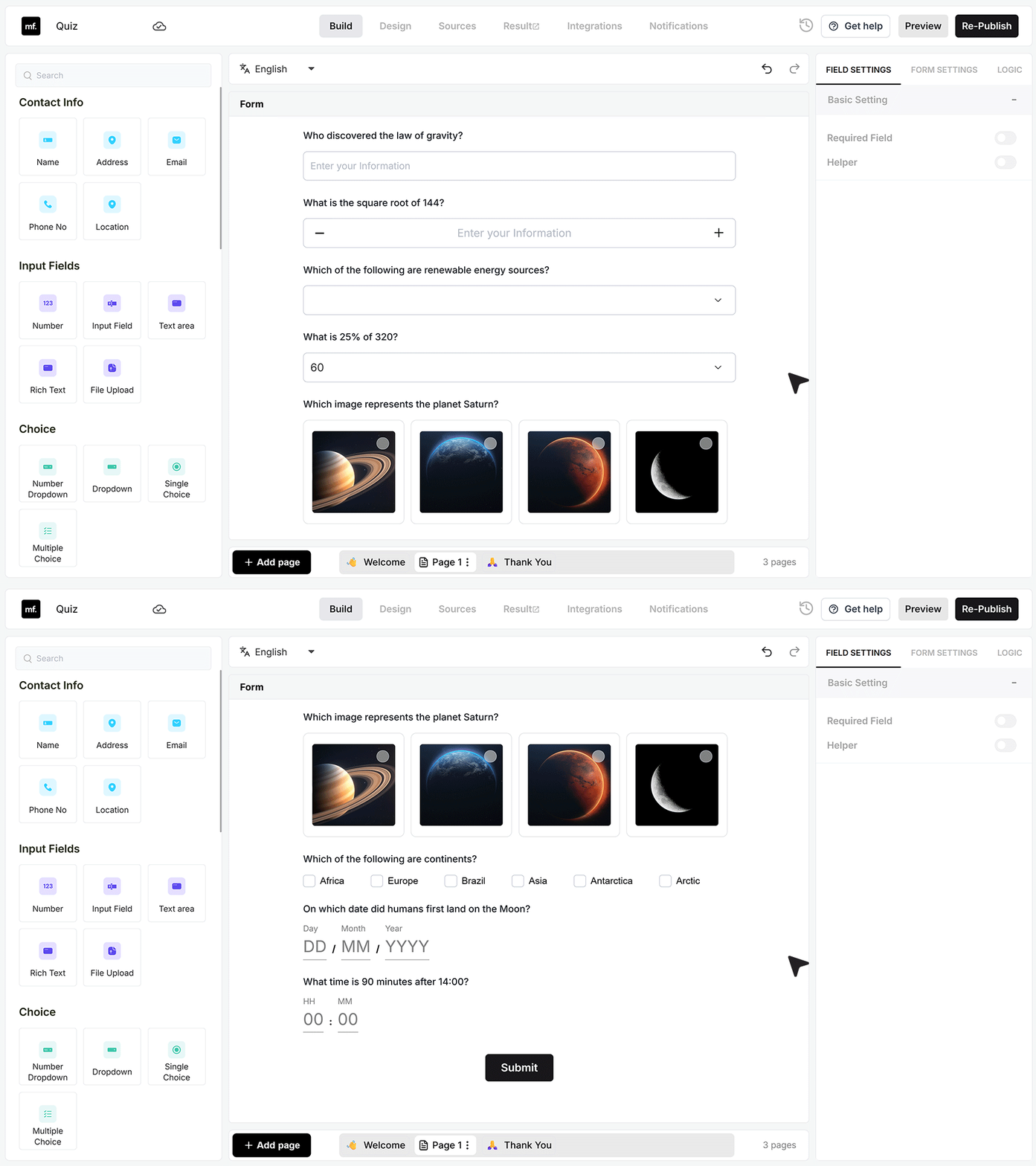
This quiz includes a combination of different field types such as text input fields, number validation, dropdown selections, image choices, multi-select questions, date pickers, and time pickers. Using multiple field types makes the assessment more interactive and engaging for users.
Enabling Quiz Mode
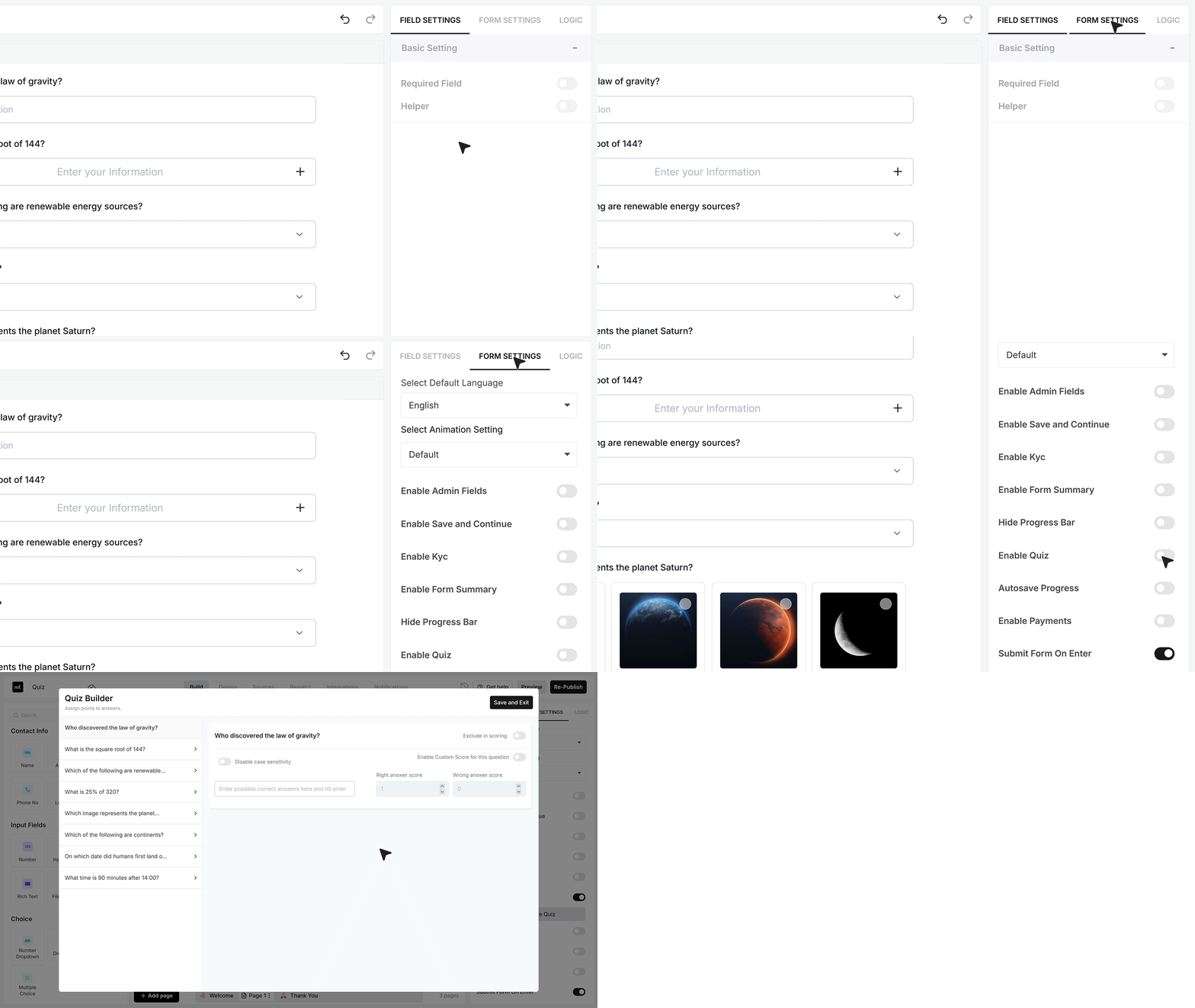
Go to Form Settings and enable Quiz. After enabling it, a dedicated Quiz configuration window appears. All questions in the form are listed on the left panel, allowing you to configure answer logic and scoring for each one individually.
Configure answers
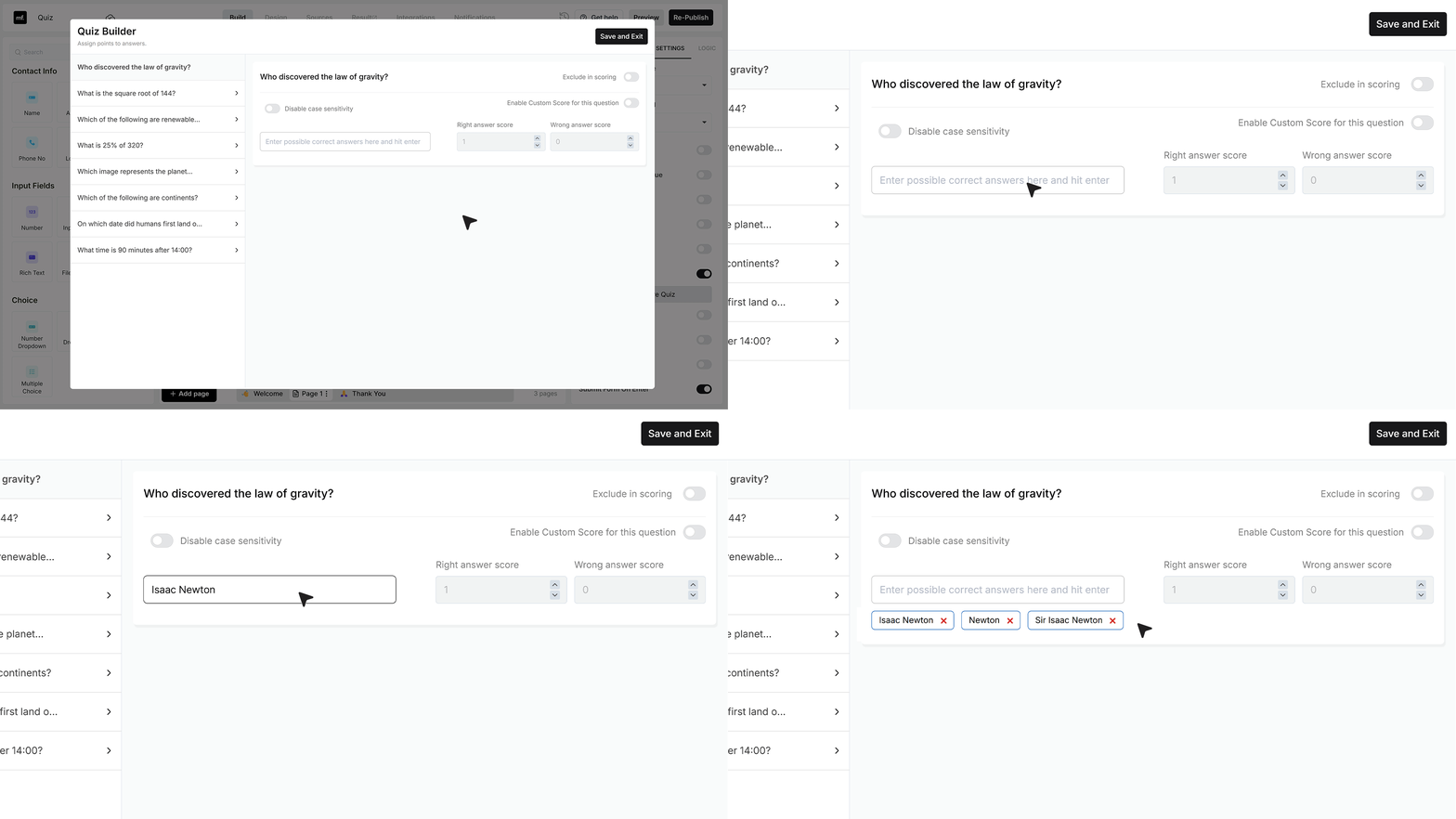
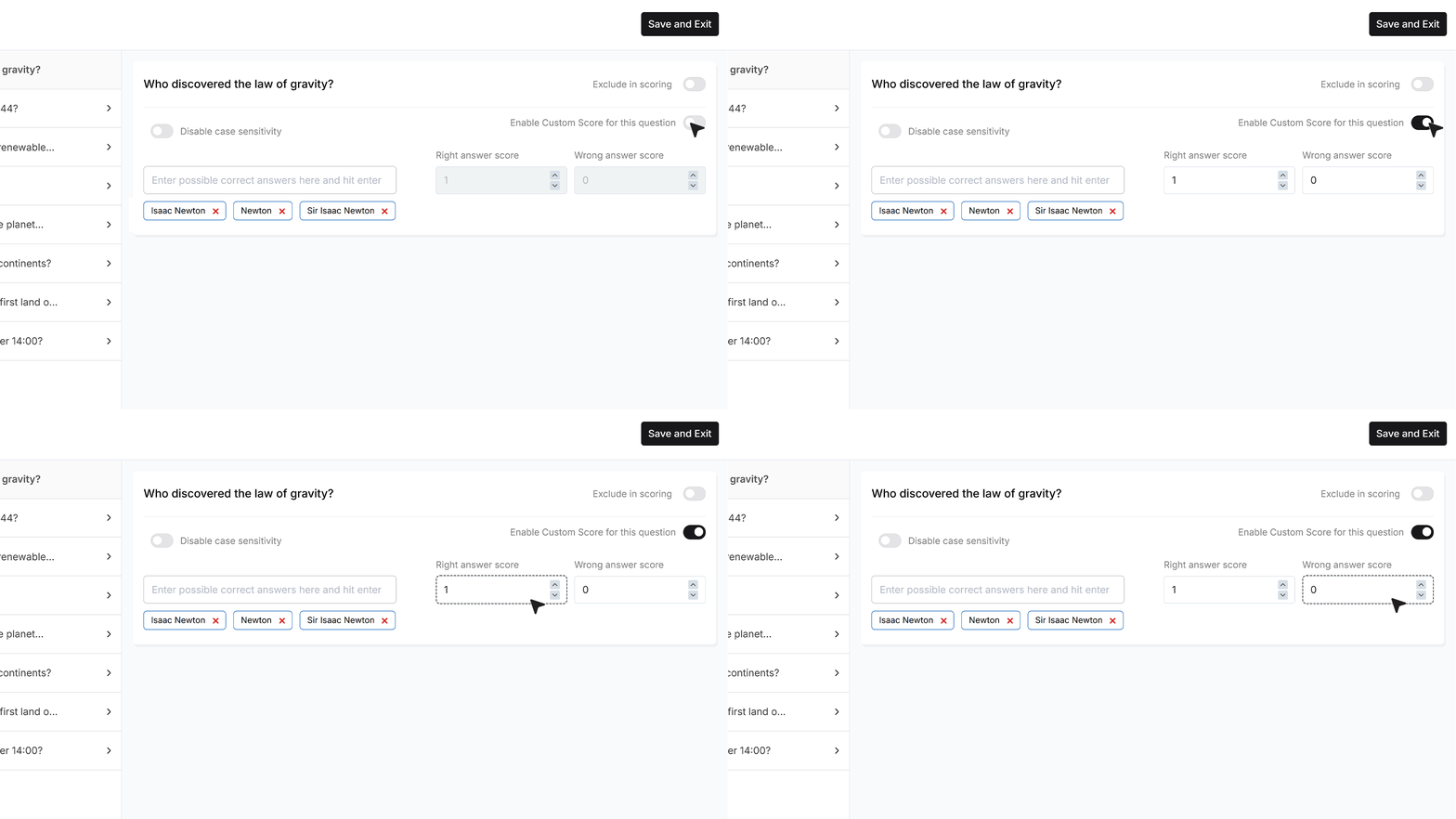
- For the law of gravity question, the correct answer is Isaac Newton. In the input field configuration, you can define multiple acceptable variations such as Isaac Newton, Newton, or Sir Isaac Newton. The system will validate user responses against these accepted entries.
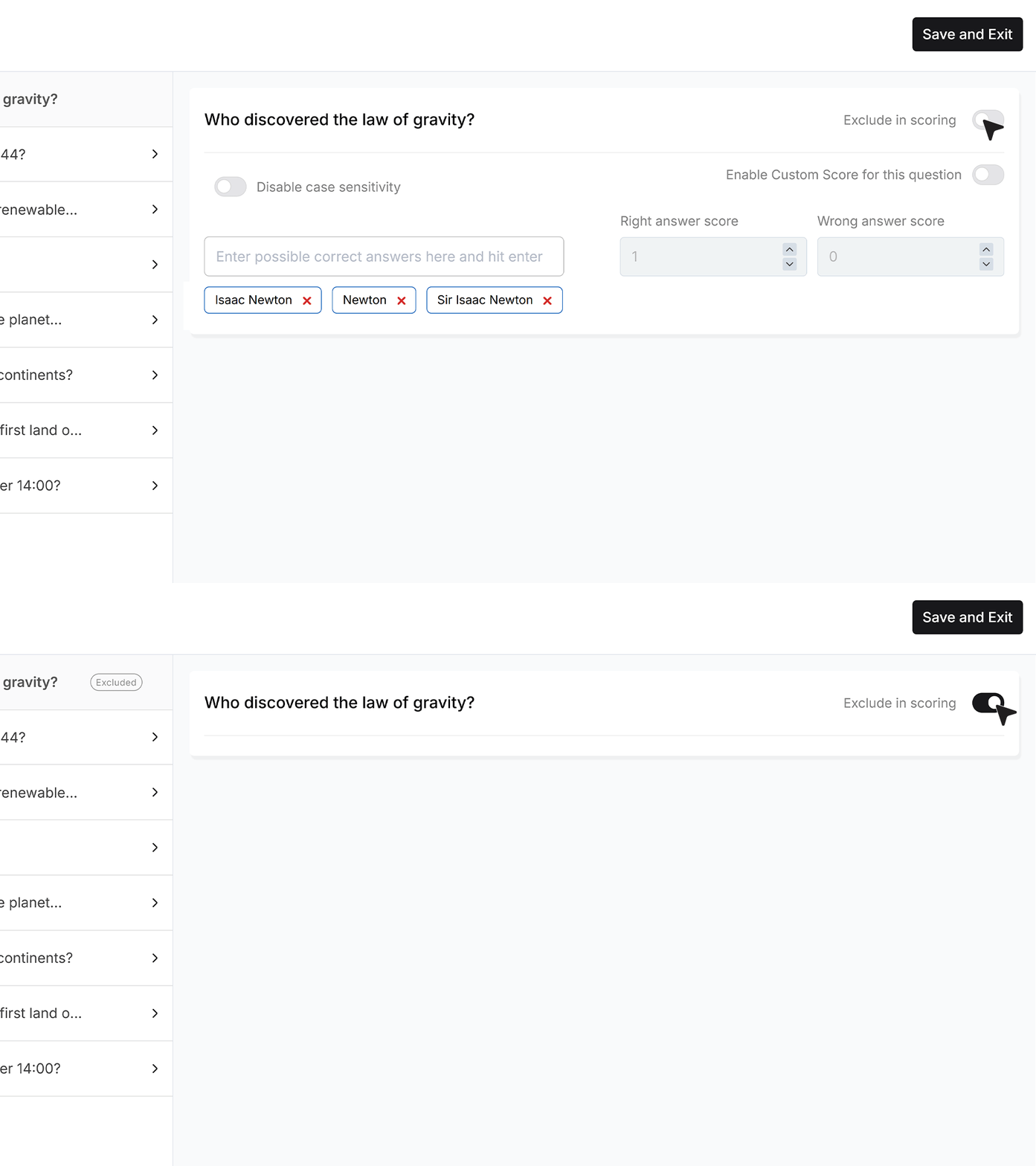
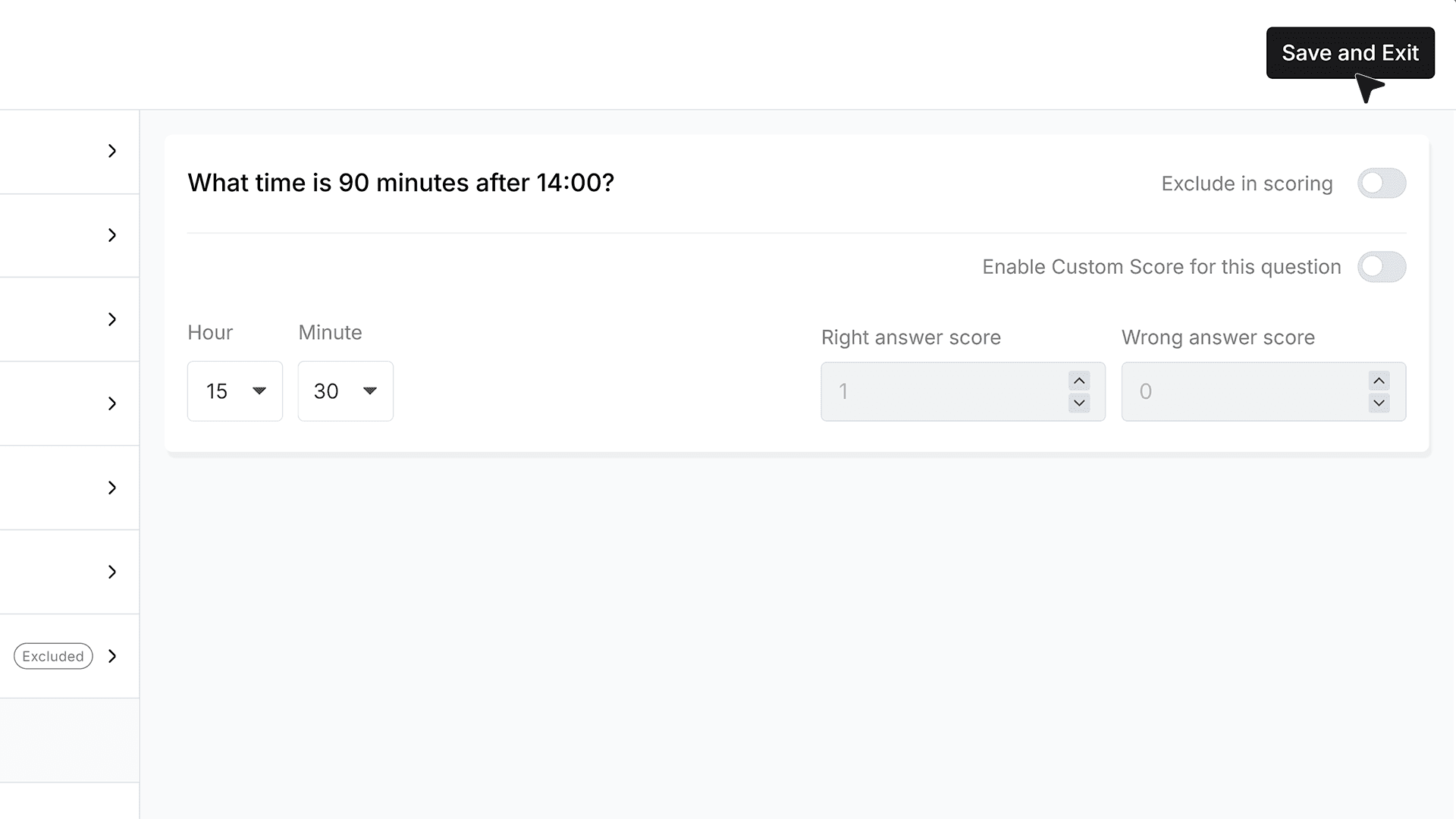
- At the top right of the quiz settings panel, you will see the Exclude in scoring option. When enabled, the question will not affect the final score.
- Below that is Enable Custom Score for this question. When activated, this allows you to override the default scoring system and define specific marks for correct and incorrect answers.
Once custom scoring is enabled, two fields appear. The right answer score determines how many points are awarded for a correct response. Wrong answer score determines how many points are applied for an incorrect response. This can be set to zero for no penalty or a negative value to deduct marks.
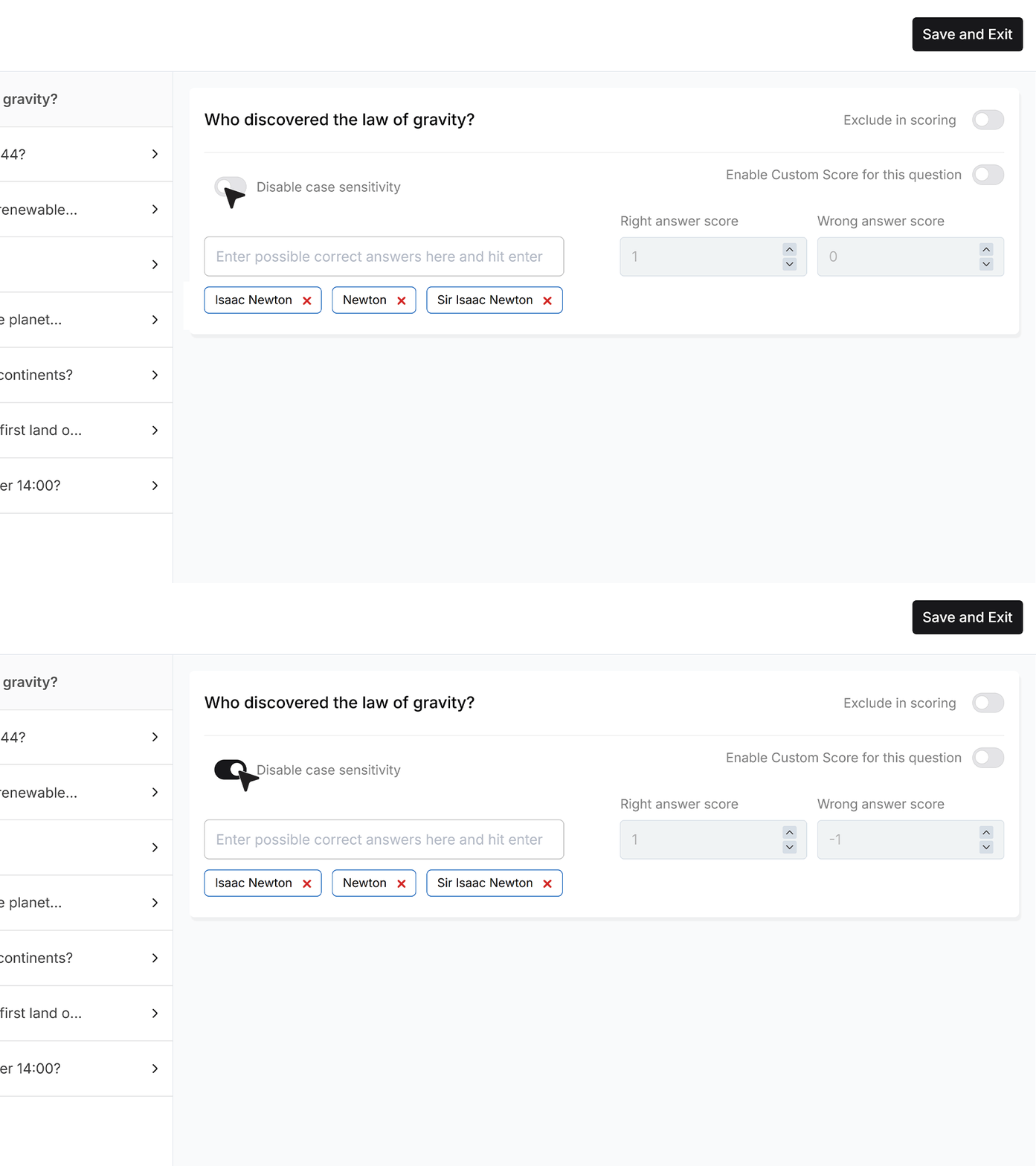
- You will also see the Disable case sensitivity option. When enabled, the system ignores capitalization differences. When disabled, answers must match the exact letter case defined in the accepted responses.
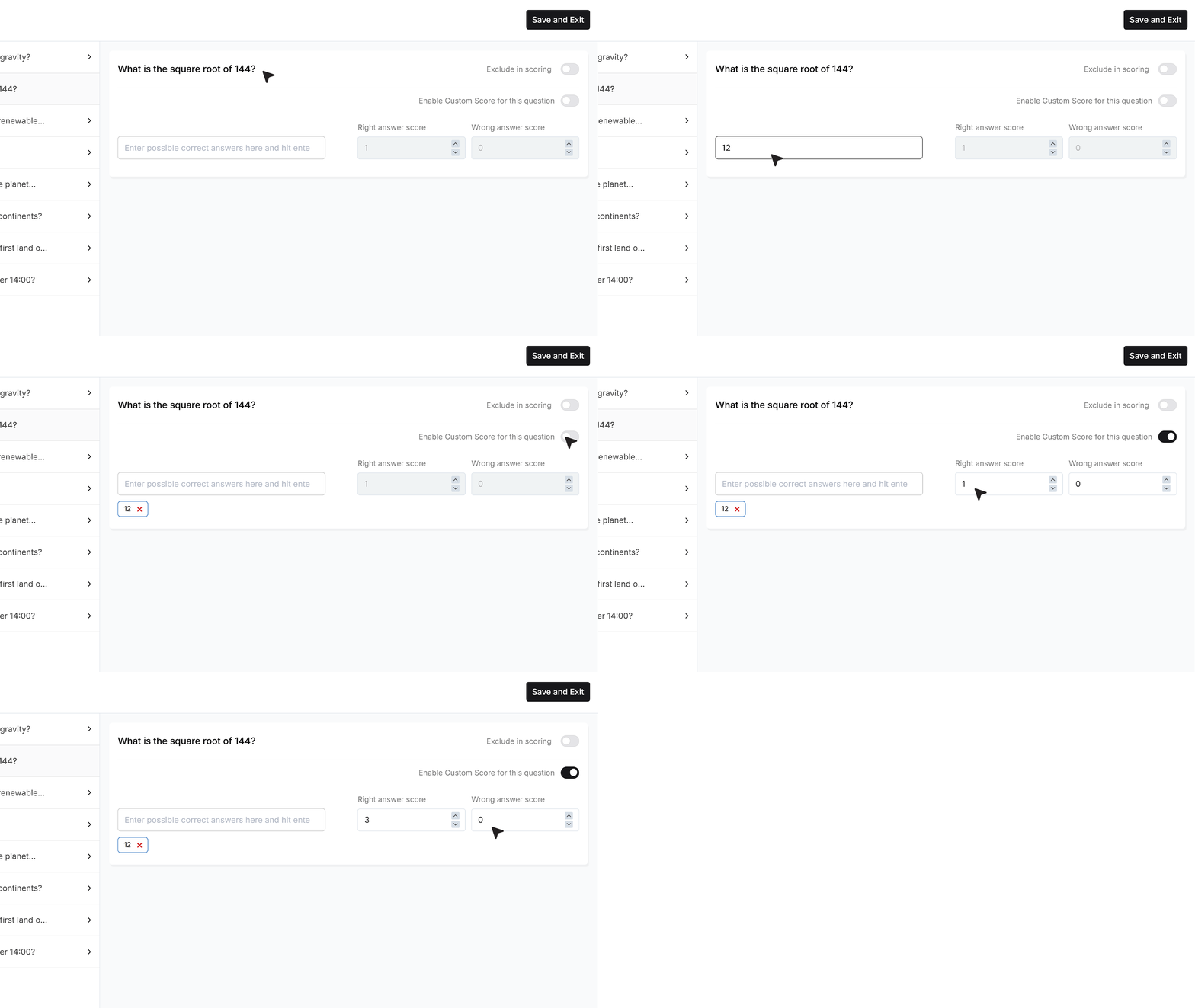
- For the “square root of 144” question, enter 12 as the correct answer. If higher weight is required for this question, enable Custom Score. Set the Right answer score to 3 and keep the Wrong answer score at 0 if you do not want to apply negative marking.
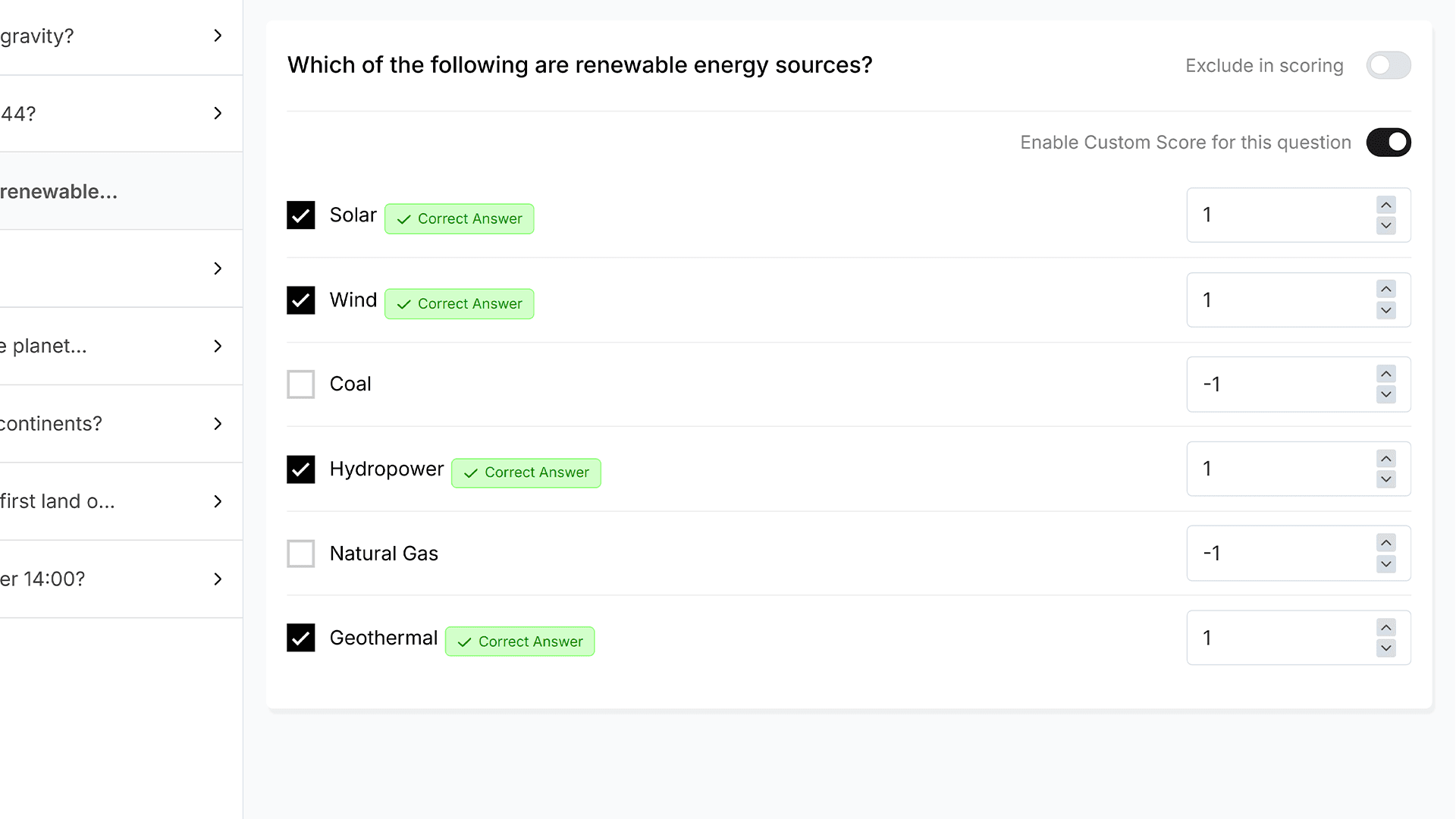
- For the renewable energy question, mark Solar, Wind, Hydropower, and Geothermal as correct options.
Since multi-select is enabled, each selected option is evaluated individually. In this configuration, correct selections award one point each, while incorrect selections such as Coal or Natural Gas deduct one point. This setup ensures that users are rewarded for accuracy and penalized for incorrect selections.
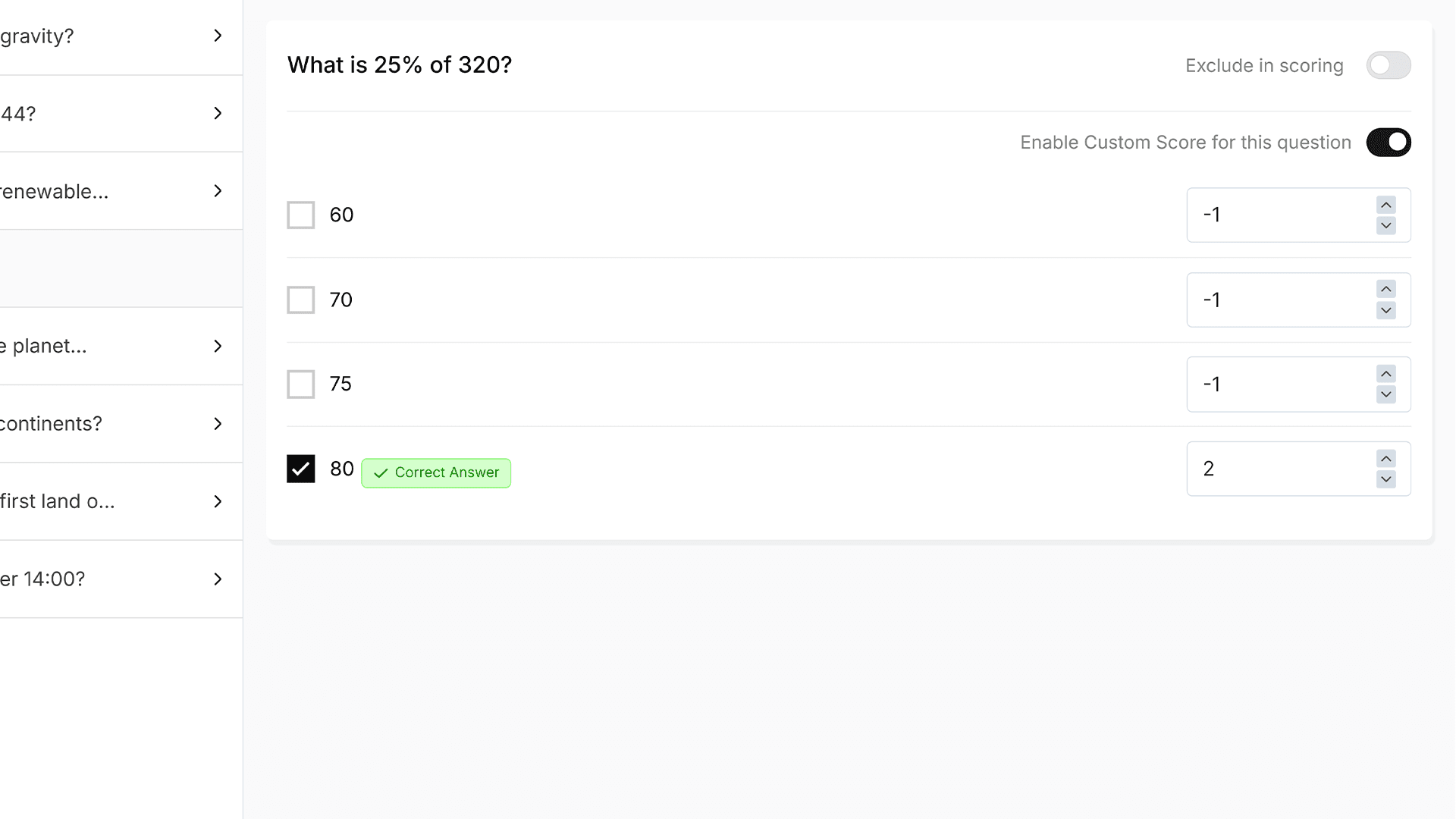
- For the percentage calculation question, select 80 as the correct answer. Enable Custom Score to override default scoring. Assign 2 points for a correct answer and set the Wrong answer score to negative 1 if you want to deduct points for incorrect attempts.
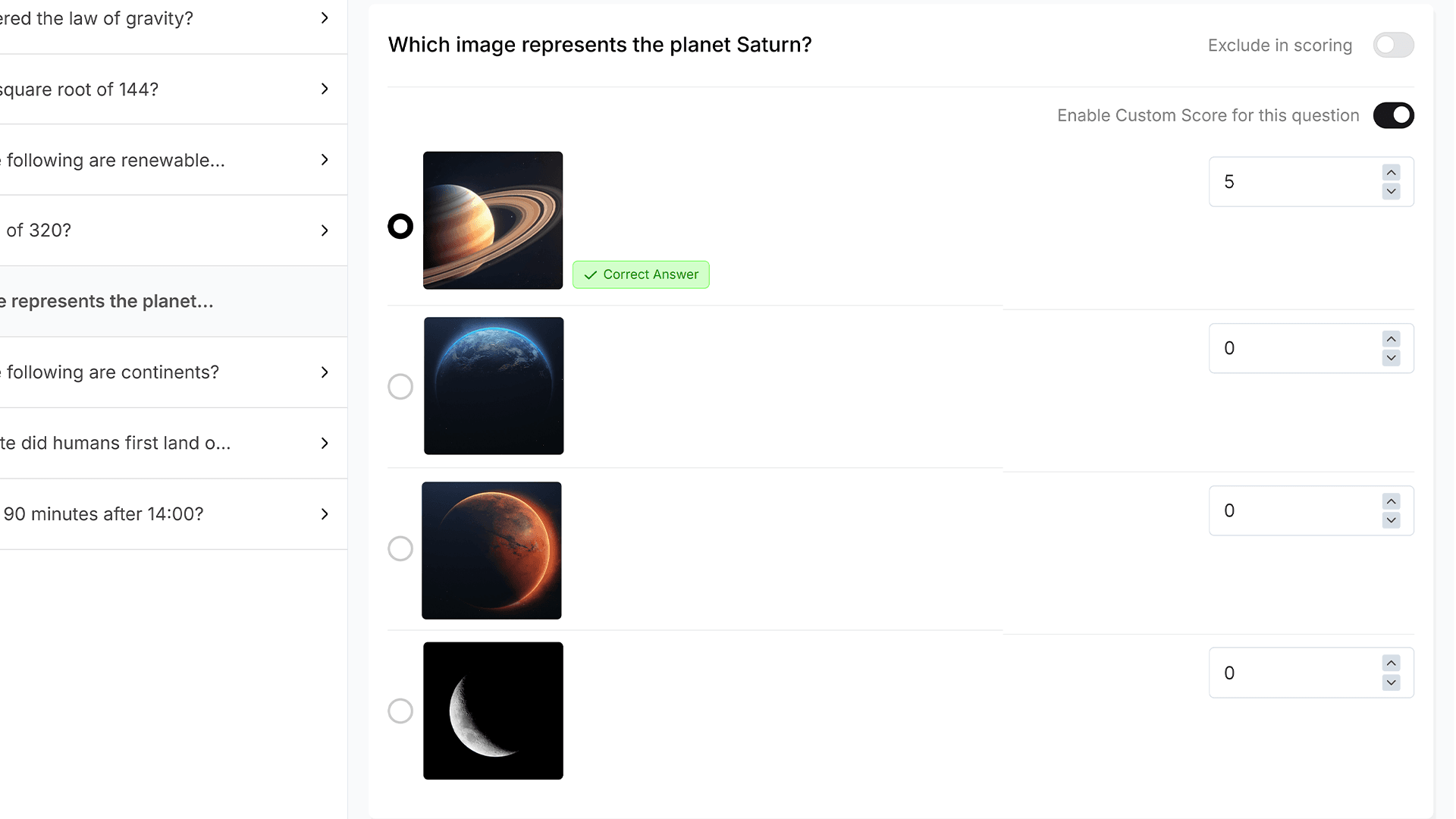
- For the planet identification question, select the image representing Saturn as the correct answer. All other images will automatically be treated as incorrect. Enable Custom Score and assign 5 points for a correct response. Keep the Wrong answer score at 0 to avoid negative marking.
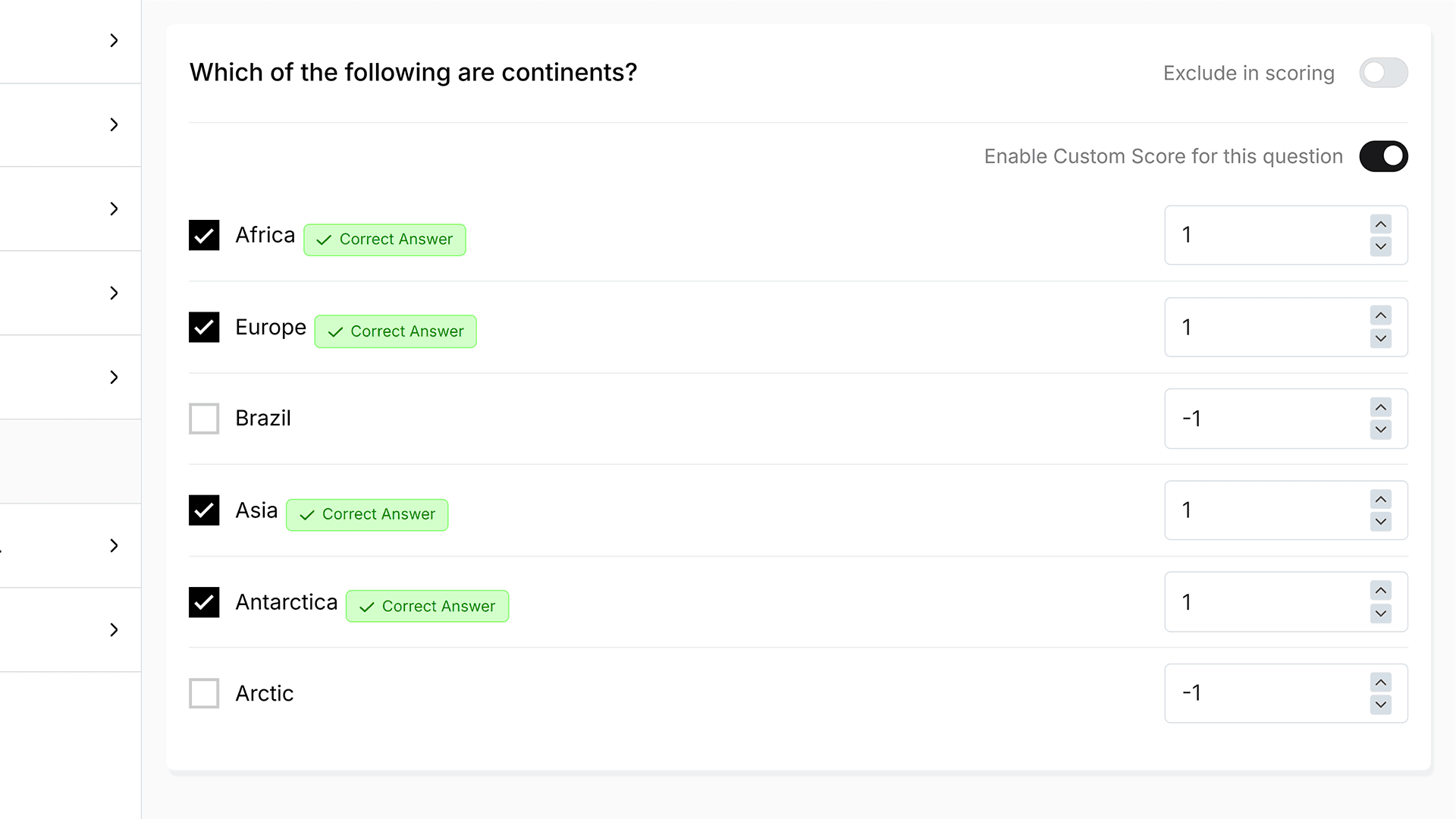
- For the continent's question, mark Africa, Europe, Asia, and Antarctica as correct answers. Enable Custom Score and assign 1 point for each correct selection. Set the Wrong answer score to negative 1 to deduct points for incorrect selections.
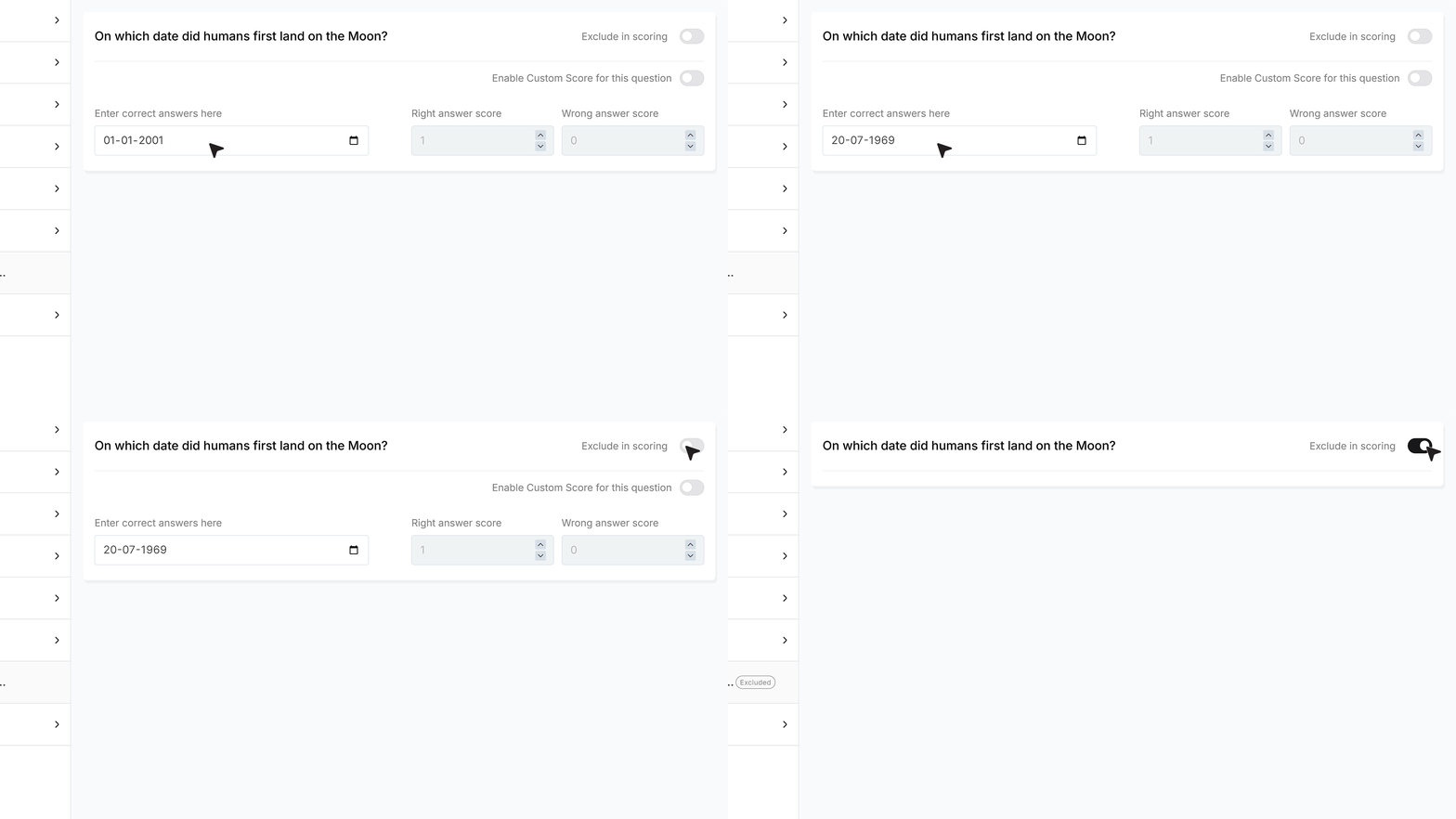
- For the moon landing question, enter 20 July 1969 as the correct date. Enable Exclude in scoring so that the user can answer the question, but it does not impact the final score.
- For the time calculation question, enter 15 hours and 30 minutes as the correct answer. Keep the scoring set to the default values. After completing the configuration, click Save and Exit to apply the changes.
Adding Quiz Score Field
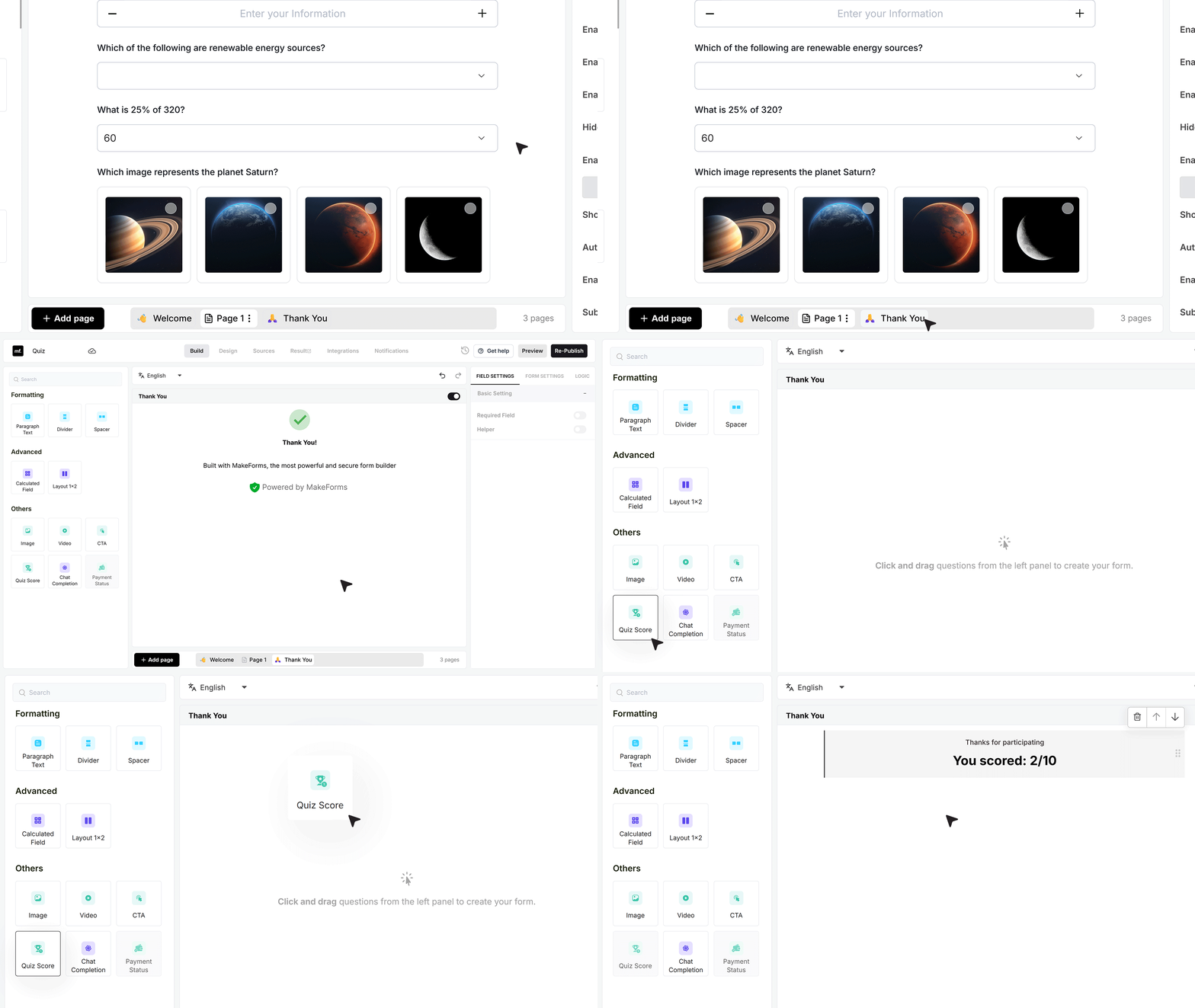
Navigate to the Thank You screen. First, delete the default Thank You message. Then add the Score field.
Basic Setting
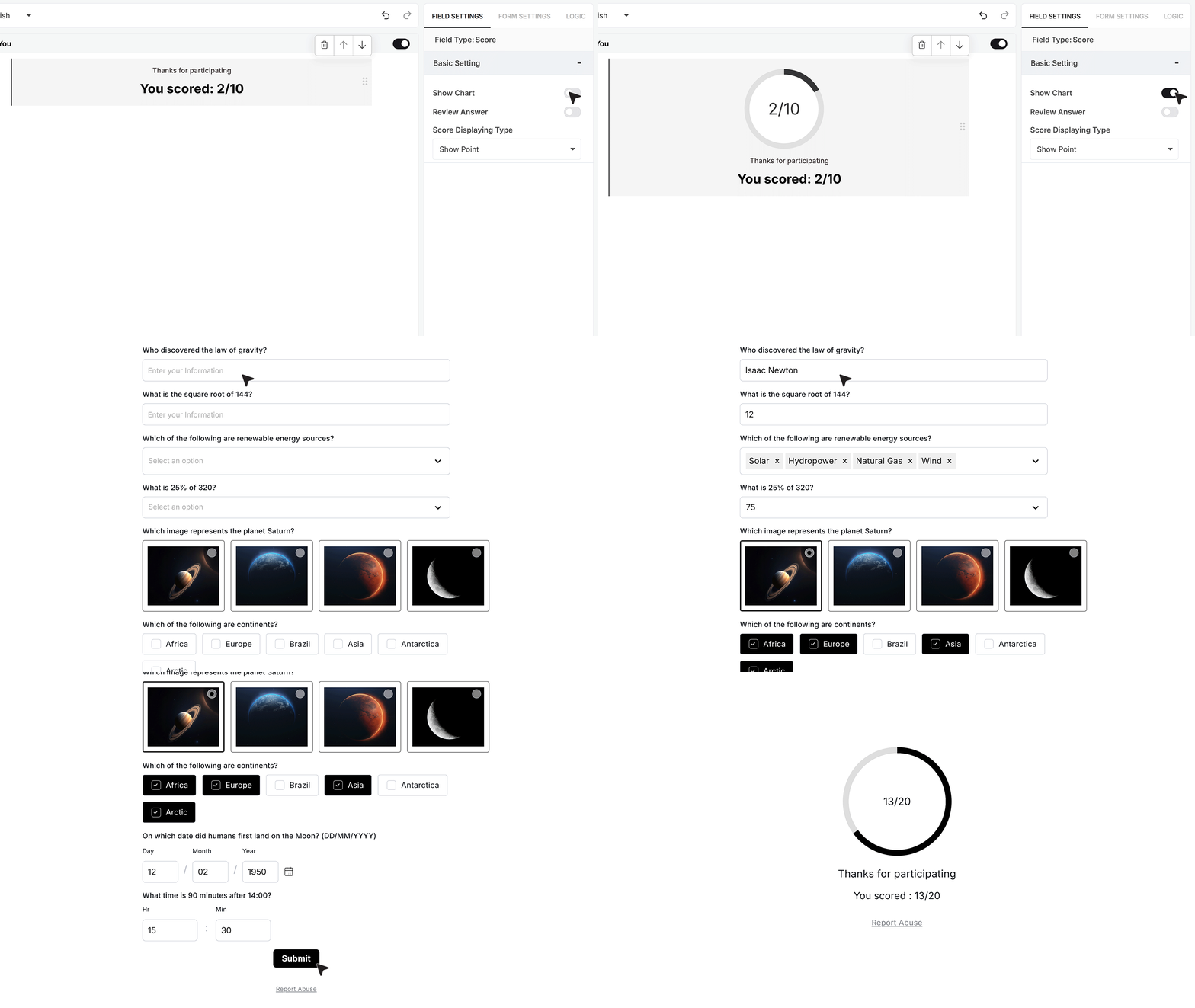
Show Chart
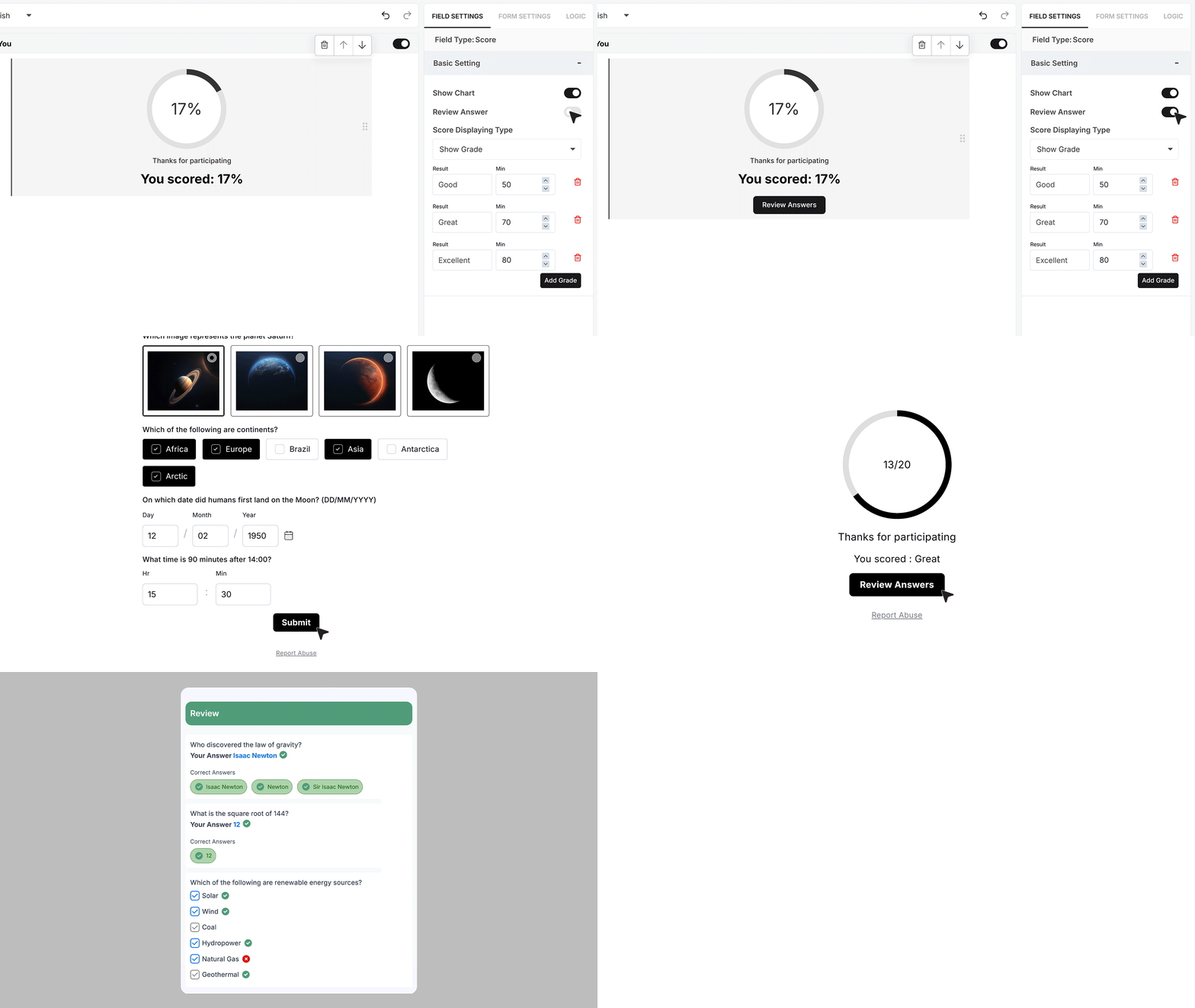
After adding the Score field, open the Field Settings panel on the right. Enable Show Chart to display a circular progress-style visual score indicator at the top of the results screen.
Test the form to verify that scores are calculated correctly. Submit responses with a mix of correct and incorrect answers to ensure that scoring logic, negative marking, and visual indicators function as expected.
Score Displaying Type
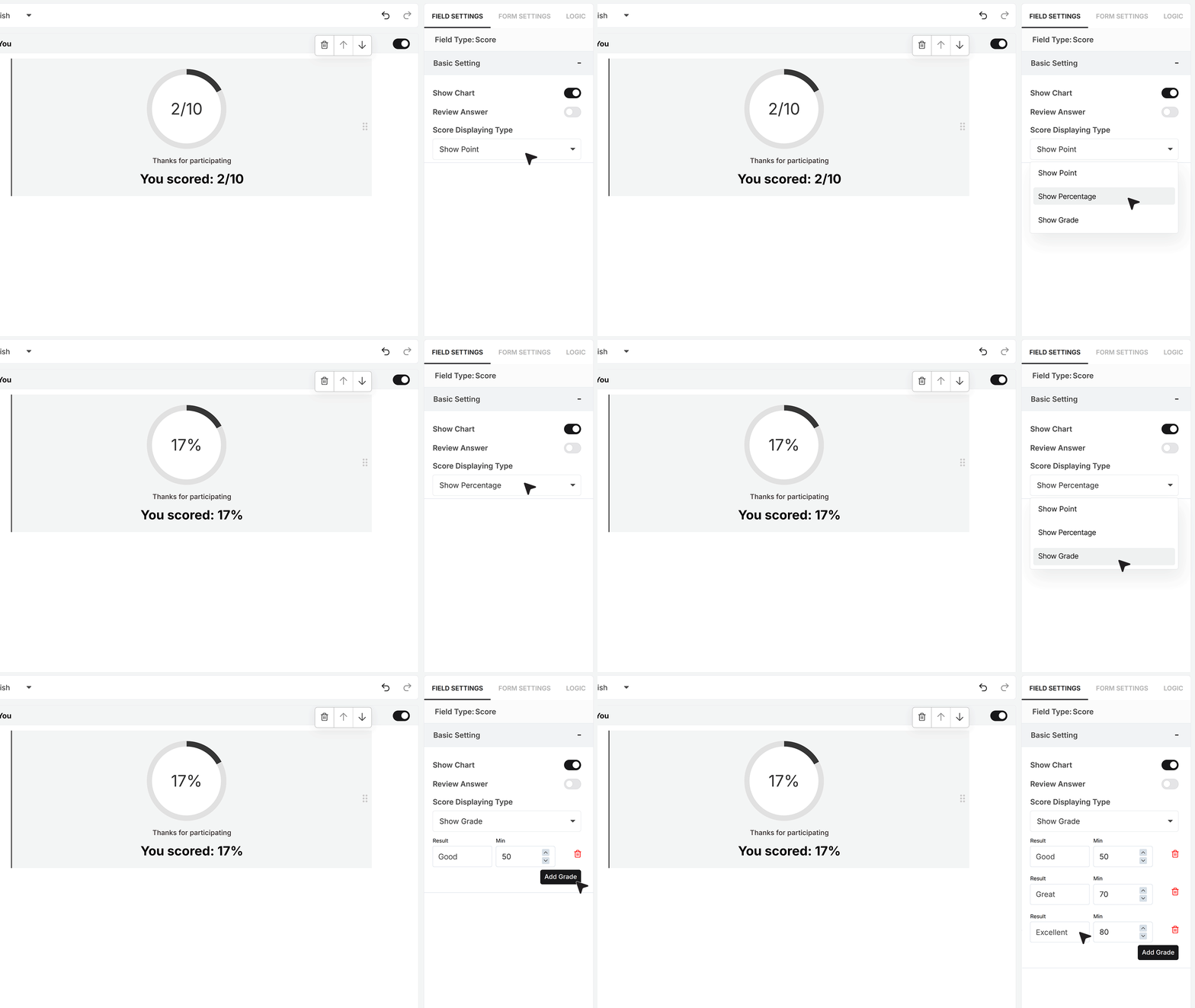
The Score Displaying Type dropdown allows you to control how results appear. If Show Point is selected, scores are displayed in points. If Percentage is selected, the system converts the total score into a percentage. If a grade is selected, the result is shown as a grade based on score ranges defined in quiz settings.
For example, you may define grading ranges such as 50 and above as Good, 70 and above as Great, and 80 and above as Excellent. When grading is enabled, users will see the assigned grade instead of a numeric score.
Review Answer
Enabling Review Answer adds a Review Answers button to the results screen. This allows users to see which responses were correct and which were incorrect.
Show Score toggle
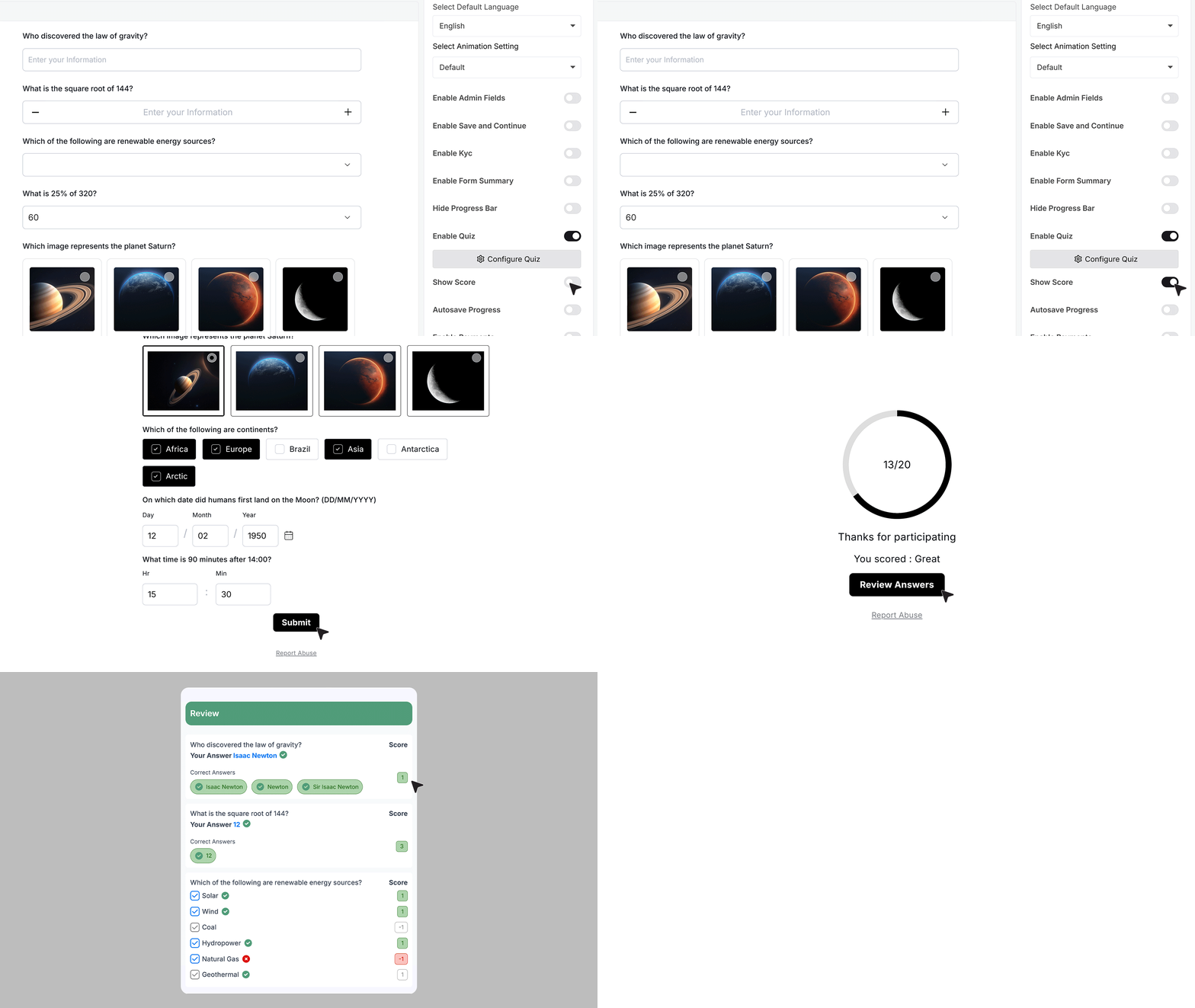
The Show Score toggle in the overall quiz settings controls whether marks earned or deducted for each individual question are displayed. If the answer is correct, the assigned marks appear. If negative marking is applied and the answer is incorrect, the deducted marks are shown. This provides a transparent breakdown of how the final score was calculated.
FAQ's
The Quiz Score Field shows the final result of a quiz after a user submits the form. It calculates scores based on correct and incorrect answers and displays them as points, percentage, or grade.
MakeForms calculates the score based on the answers you define as correct. You can assign points for correct answers, set negative marking for wrong answers, or keep wrong answers at zero. The final score is automatically calculated after submission.
Yes. You can enable custom scoring for each question. This lets you give different weights to different questions, like 5 points for important ones and 1 point for simple ones.
Yes. You can set a negative value for wrong answers. This helps reduce guessing and makes the quiz more accurate.
Yes. You can turn on “Exclude in scoring” for any question. The question will still appear in the quiz, but it will not affect the final score.
You can show results in three ways:
- Points
- Percentage
- Grade
You can choose this from the Score Displaying Type setting.
Yes. You can define grading ranges like:
- 50 and above = Good
- 70 and above = Great
- 80 and above = Excellent
Users will see the grade instead of numeric scores.
Go to the Thank You screen, remove the default message, and add the Score Field. This will display the result after submission.
Yes. You can enable “Show Chart” in the Score Field settings. This shows a circular progress-style chart for better visual feedback.
Yes. Enable the “Review Answer” option. Users will see which answers were correct and which were wrong.
Yes. Turn on the “Show Score” toggle in quiz settings. Users will see how many marks they gained or lost for each question.
Each option is evaluated separately. Correct selections can add points, and incorrect ones can deduct points if negative marking is enabled.
Yes. You can define multiple accepted answers like “Isaac Newton”, “Newton”, or “Sir Isaac Newton”. The system will match user input with these.
Yes. You can turn on “Disable case sensitivity” so answers match regardless of capital letters.
Yes. It works well for online exams, training tests, certifications, and knowledge checks. You can control scoring, grading, and result display in one place.
Yes. You should test the form by submitting sample responses. This helps confirm scoring logic, negative marking, and result display.