URL Field
Use the URL Field whenever you need users to share a link. This could be a company website, a personal portfolio, or any other relevant URL.
By validating the input format, the URL Field helps prevent incomplete or incorrect links and keeps your responses consistent.
Adding the URL Field
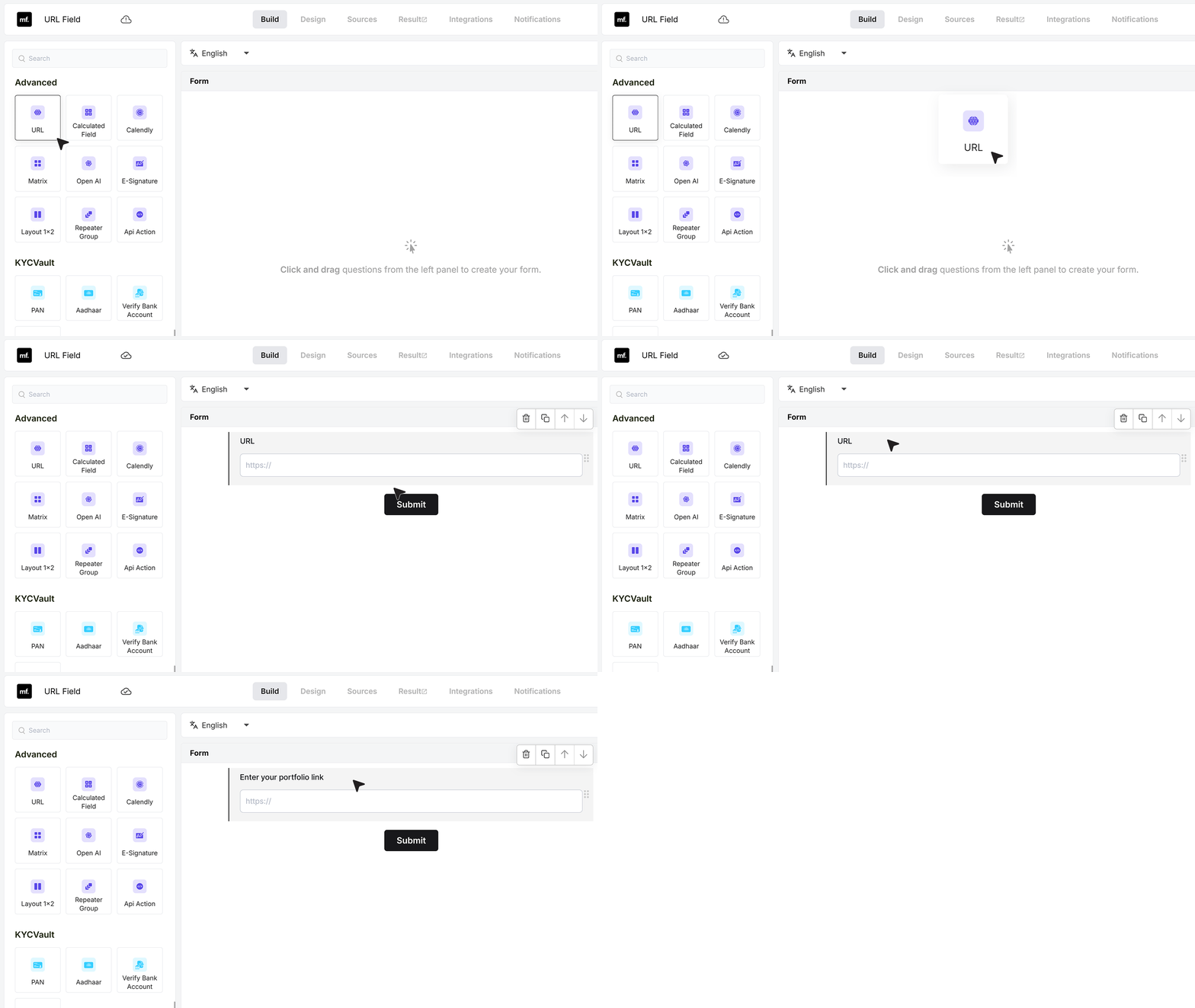
Open your form in the builder. From the field list, drag the URL Field into your form where you want to collect the link. Click the field label and rename it to match your use case. For example, you can use: Enter your portfolio link.
Click the field again to open its settings.
Basic Settings
Required Field
The Required Field toggle controls whether the user must enter a link before they can submit the form. If this is turned on and someone tries to submit the form without filling the URL Field, MakeForms shows an error and stops the submission. They must add a valid link before the form goes through.
Use this when the website or portfolio link is important for your review process.
Placeholder Text
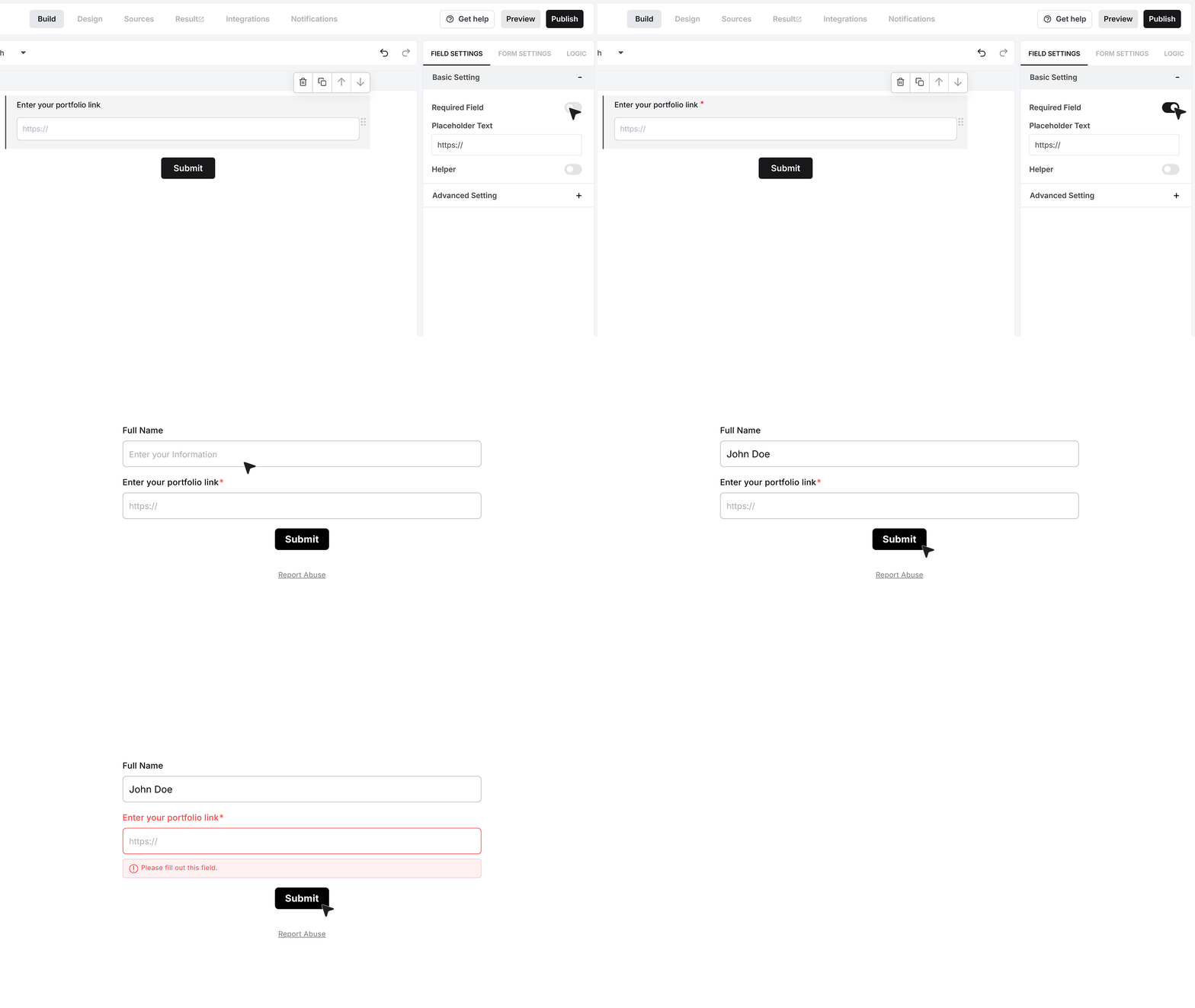
Placeholder text allows you to show an example URL inside the field. A format such as https://website.com/portfolio helps guide users to enter the link correctly.
Helper Text
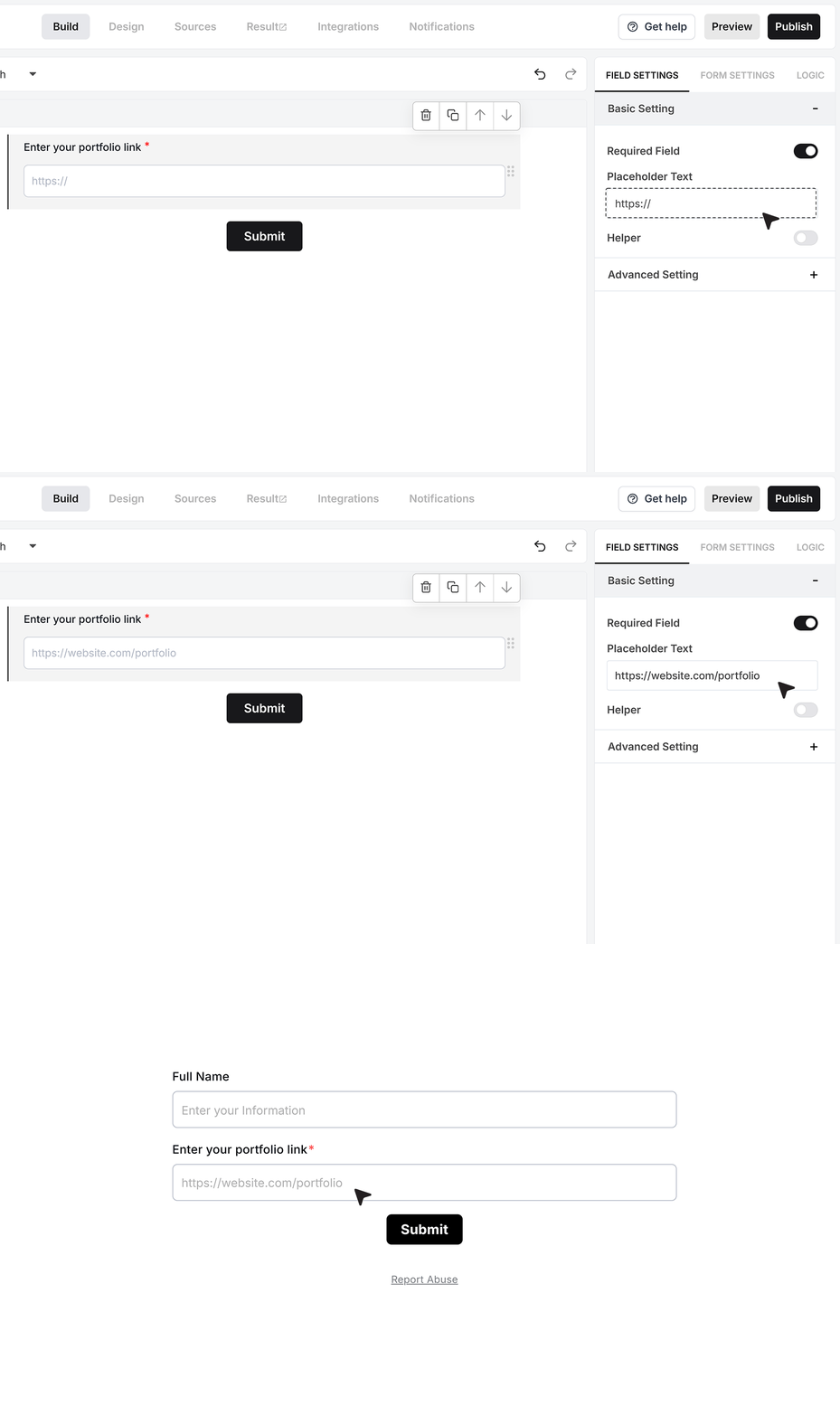
The Helper Text option is useful when you want to give extra guidance. Turn it on and add a short note such as “Add your portfolio link.” This helps users understand what you want them to share.
You can show this text as a small info icon that reveals the message on hover, or as a visible line of text under the URL field. Choose the style that keeps your form clear and easy to read.
Advanced Settings
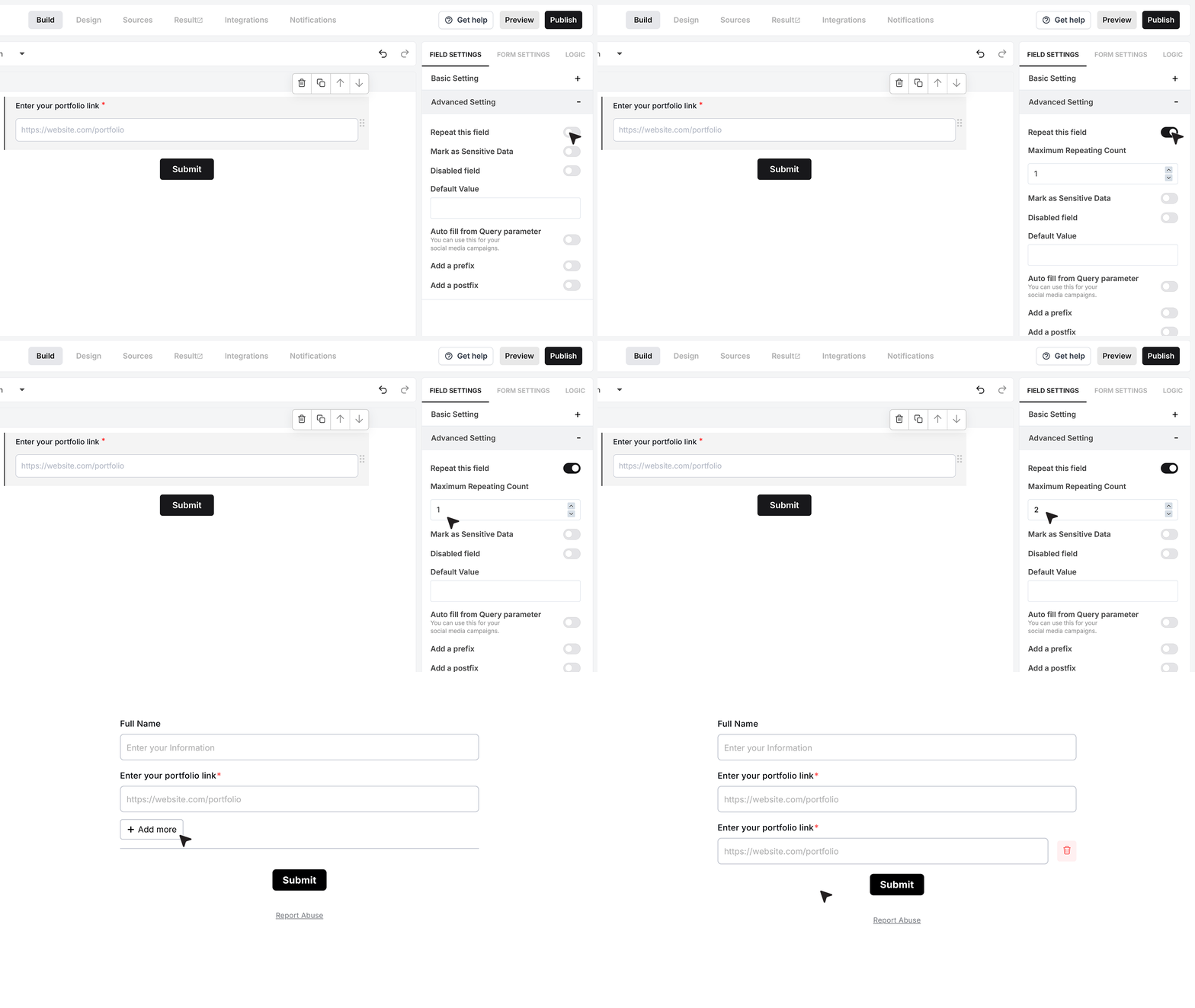
Repeat This Field
Enable this option when users may need to submit more than one link. You can set a maximum limit for how many times the field can repeat.
For example, if the limit is set to two, the form initially shows one URL Field, along with an Add more option that allows the user to add a second URL.
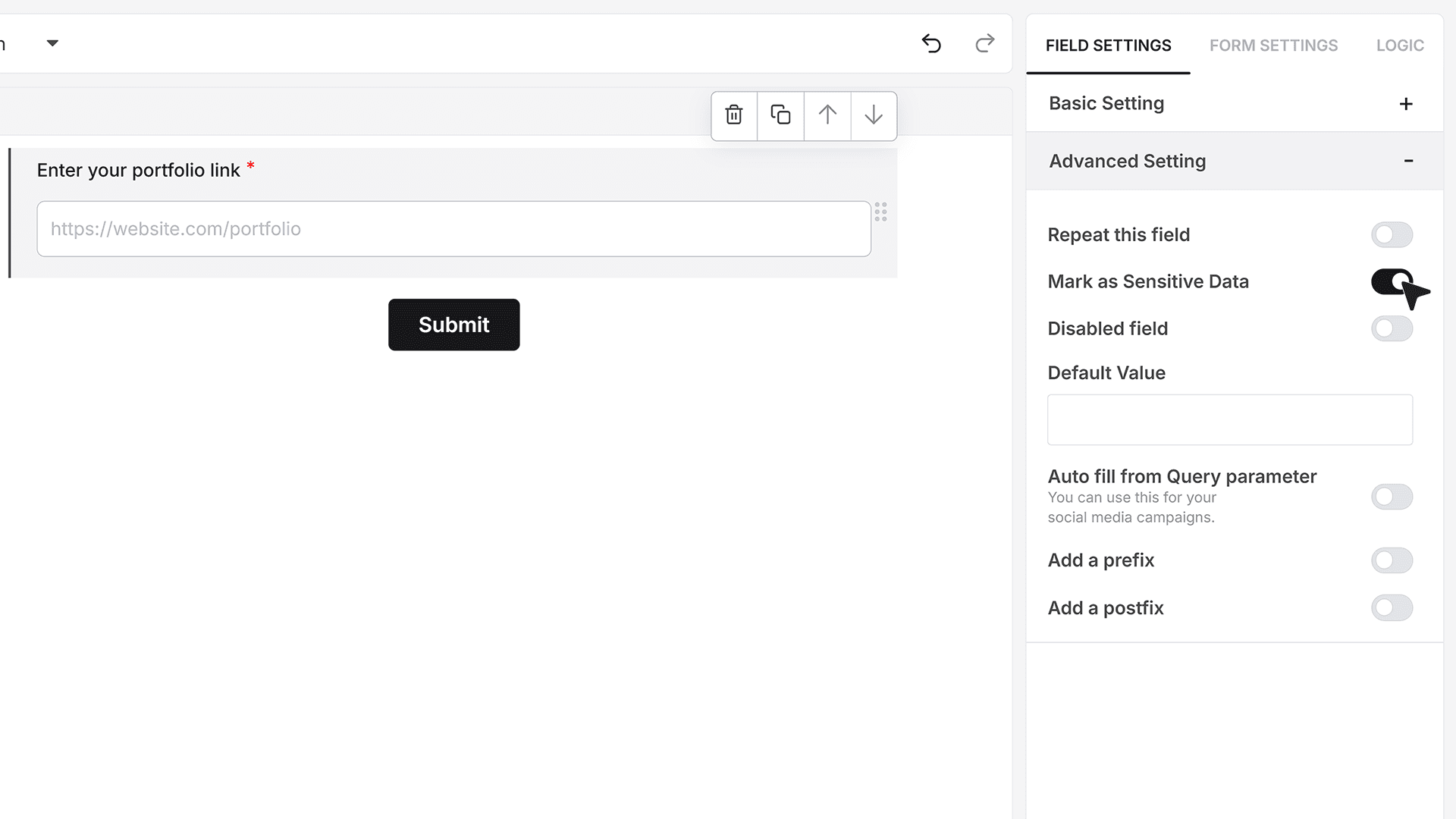
Mark as Sensitive Data
The Mark as Sensitive Data option controls who can see the URL values inside MakeForms.
Turn this on when the submitted links should not be visible to every team member. Only users with the right access level can view the URL values in the Responses section.
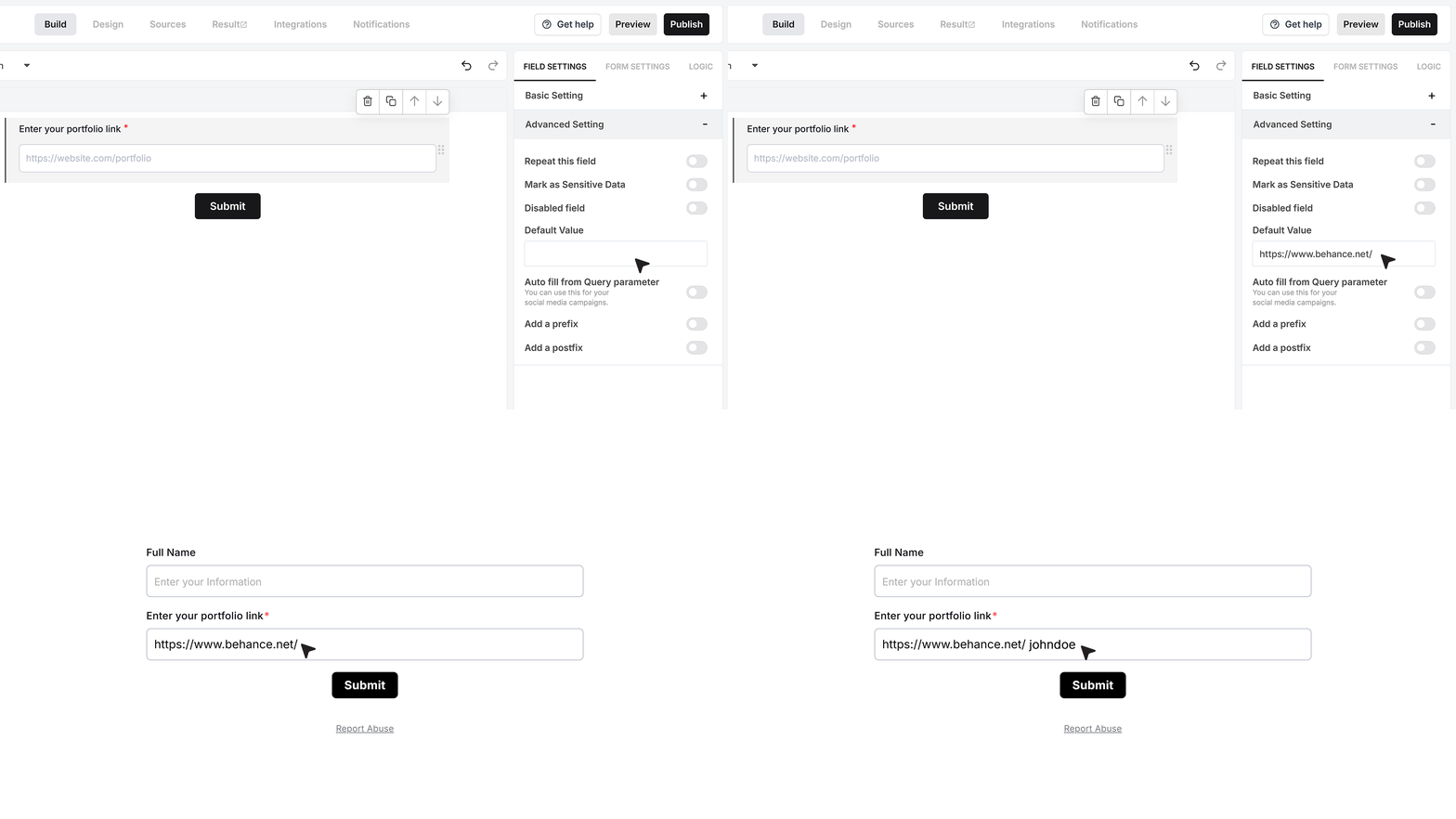
Default Value
The Default Value setting lets you pre-fill the URL Field with a starting link.
For example, if you are collecting a Behance portfolio, you can set the default value to https://www.behance.net/. When the form loads, the user already sees this base link and only needs to add their profile name at the end.
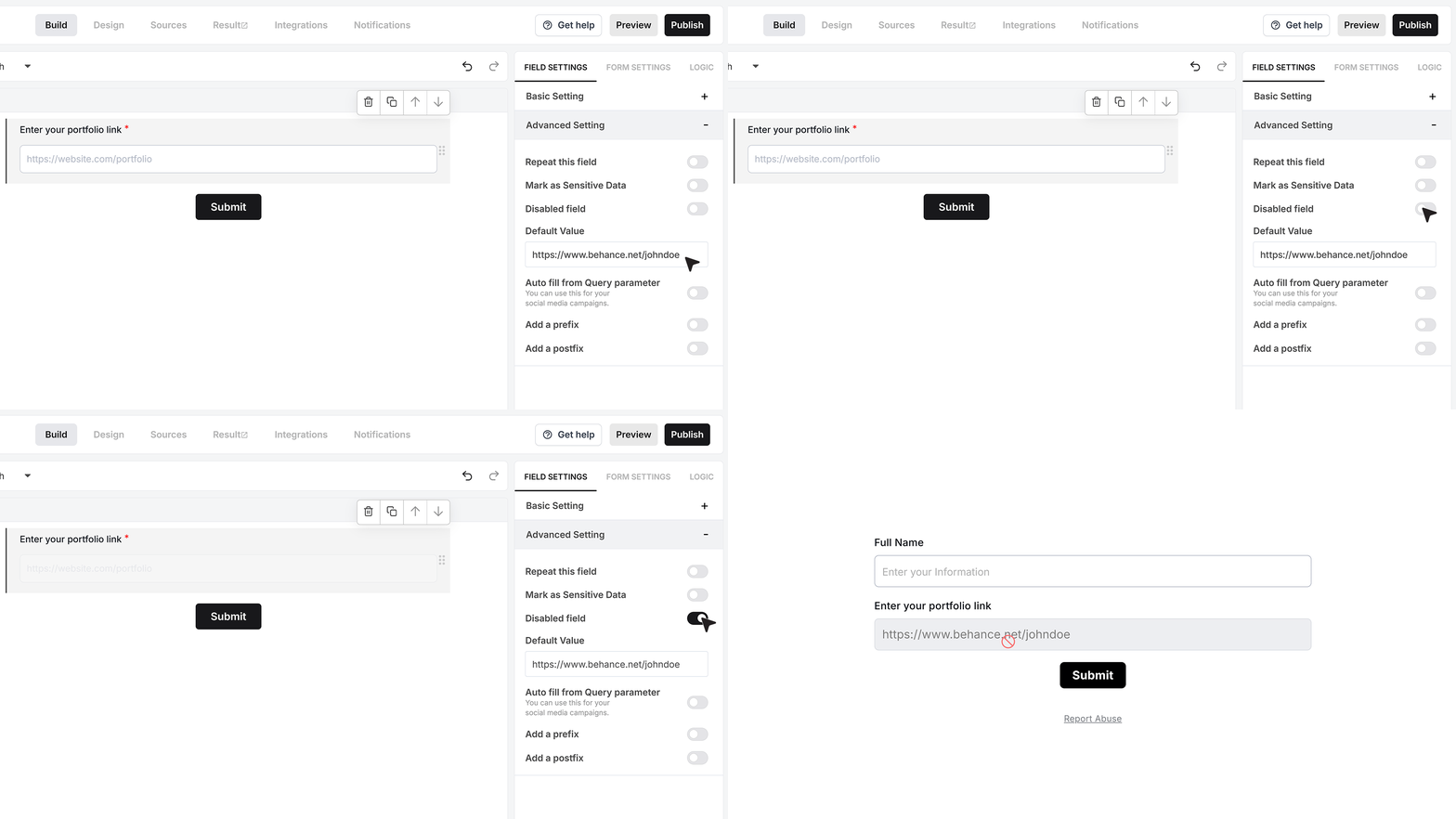
Disable Field
The Disable Field option turns the URL Field into a read-only field. When this is enabled, users can see the URL, but they cannot edit it. This is useful when the link comes from another system or an earlier step and you only want to show it, not collect a new value.
For example, you can prefill https://www.behance.net/johndoe and disable the field so the user can confirm it but cannot change it.
Autofill from Query Parameter
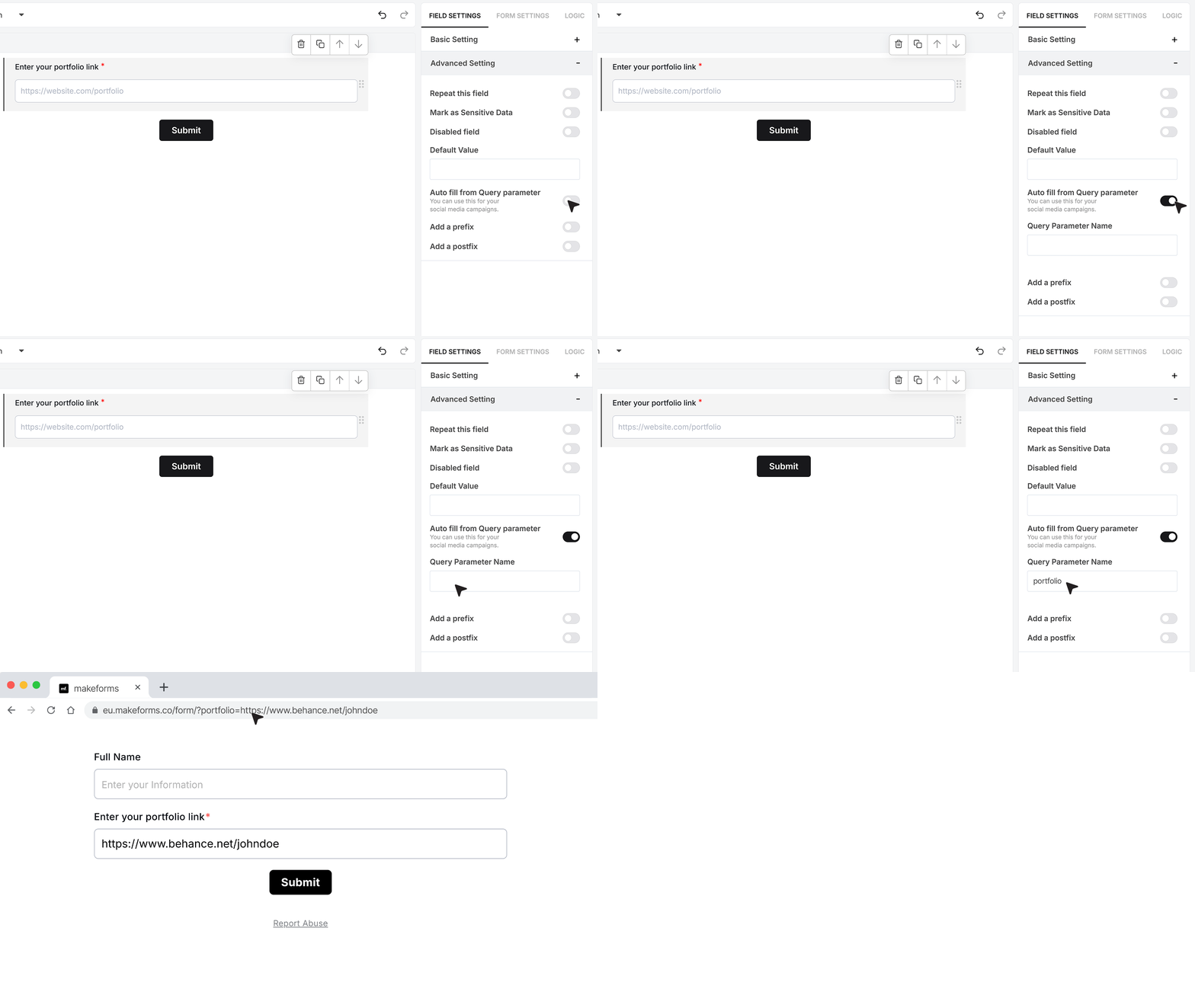
You can also fill the URL Field from a value in the form link using Autofill from Query Parameter.
In this setting, type a parameter name, for example portfolio.
When you share the form, add this parameter to the URL with a full link. For example:
?portfolio=https://www.behance.net/johndoe
When someone opens the form with this link, the URL Field will load that portfolio URL automatically.
Prefix
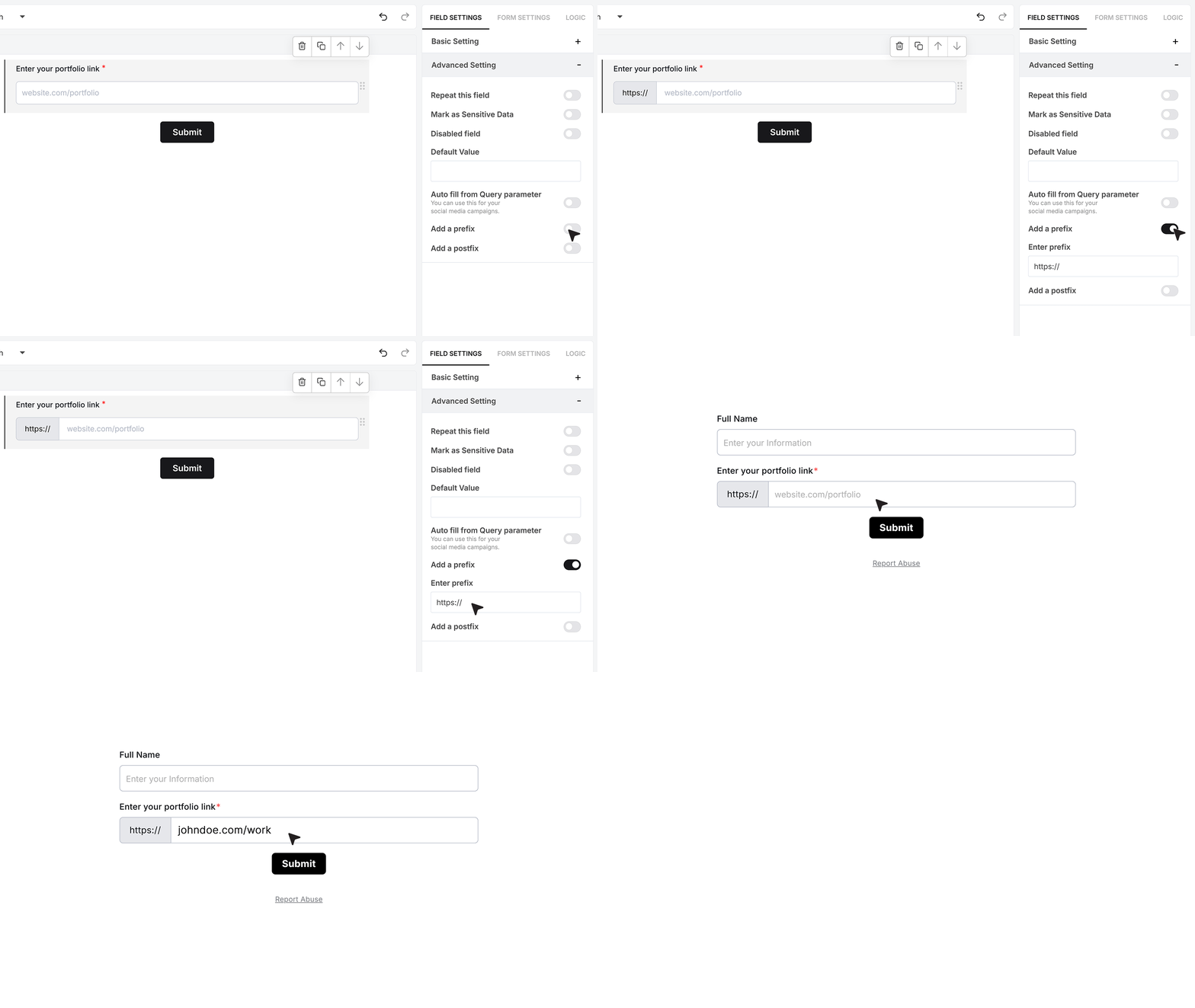
When you use a Prefix, the text you set appears before the input area. For example, setting the prefix to https:// ensures that every URL starts with the correct protocol. The user does not need to type this part and can focus only on entering the rest of the link. This is useful when all links are expected to be secure and follow the same starting pattern.
Postfix
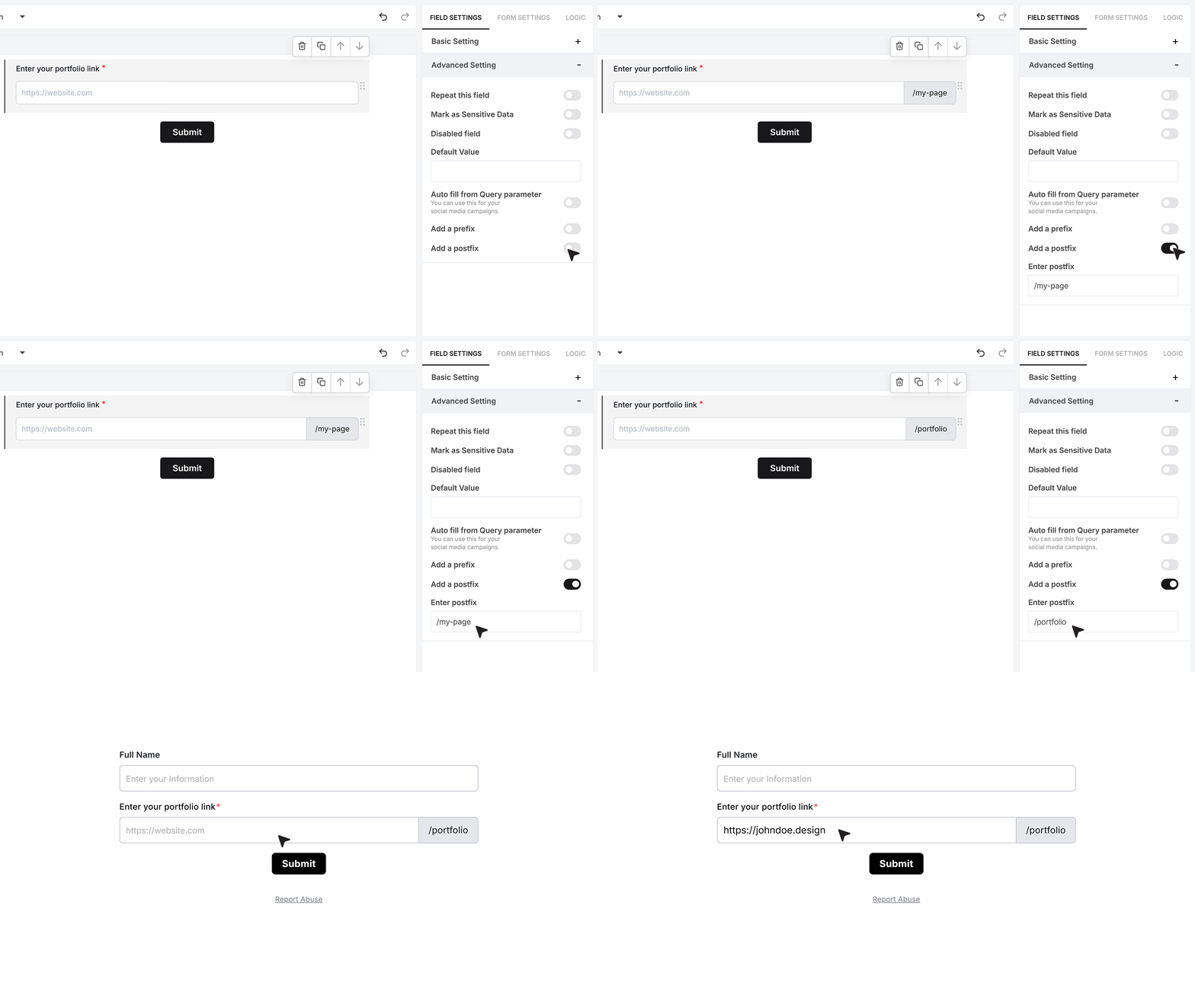
The Postfix option adds fixed text at the end of the URL field.
Turn it on when every link should end the same way. For example, if you only want portfolio links that end with /portfolio, set the postfix to /portfolio. On the form, the user only types the main website part, like https://johndoe.design, and the field completes it as https://johndoe.design/portfolio.
FAQ's
A TCPA consent field is a section in your form where users agree to receive calls or text messages. It helps you collect clear permission before contacting leads. This is important if you collect phone numbers and plan to call or send messages.
TCPA consent helps you stay compliant with communication rules. It ensures users know who will contact them and how. Without proper consent, calling or texting leads can create legal risks.
You should add it whenever your form collects a phone number and you plan to call or text the user. It is best placed near the submit button so users can review it before submitting.
Single company consent is used when only your business will contact the user.
Multiple company consent is used when leads may be shared with other companies. Users can choose which companies they allow to contact them.
In multiple company mode, you add a list of companies. The form shows checkboxes for each one. Users can select all or choose specific companies. This gives users full control over who can contact them.
Yes. You can edit the default consent text or replace it with your own. You can update company names, contact methods, and links. This helps match your legal and branding needs.
Your consent text should clearly mention:
- That the user agrees to receive calls or messages
- Who will contact them
- The type of communication, like calls or SMS
- That consent is not required to make a purchase
Keep the message simple and easy to read.
It should be placed at the end of the form, just above the submit button. This ensures users see it clearly before they submit their details.
Yes, in multiple company mode. Users can select specific companies instead of giving blanket consent. This improves trust and gives users better control.
Yes, if you plan to send SMS messages, you must collect clear consent. The TCPA consent field helps you do this in a proper way.
Yes. When users clearly agree to be contacted, they are more likely to respond. This leads to better engagement and fewer complaints.
Yes. You can change font size, color, alignment, and add links. You can also highlight key parts to make the consent easy to read.
If you contact users without consent, it can lead to complaints or legal issues. It can also damage trust with your users.
Yes. You can remove the default text and add your own. Make sure your wording clearly explains consent and follows your legal needs.
Yes. MakeForms gives you a ready template. You only need to update your details like company name or contact method.