Net Promoter Score Field Field
The Net Promoter Score field, also called NPS, is used to measure customer loyalty. It helps you understand how happy your customers are and how likely they are to recommend your business to others.
NPS is always asked on a fixed scale from 0 to 10. This makes it easy to compare results over time, across teams, or across different customer groups.
Promoters, Passives, Detractors
NPS groups responses into three categories.
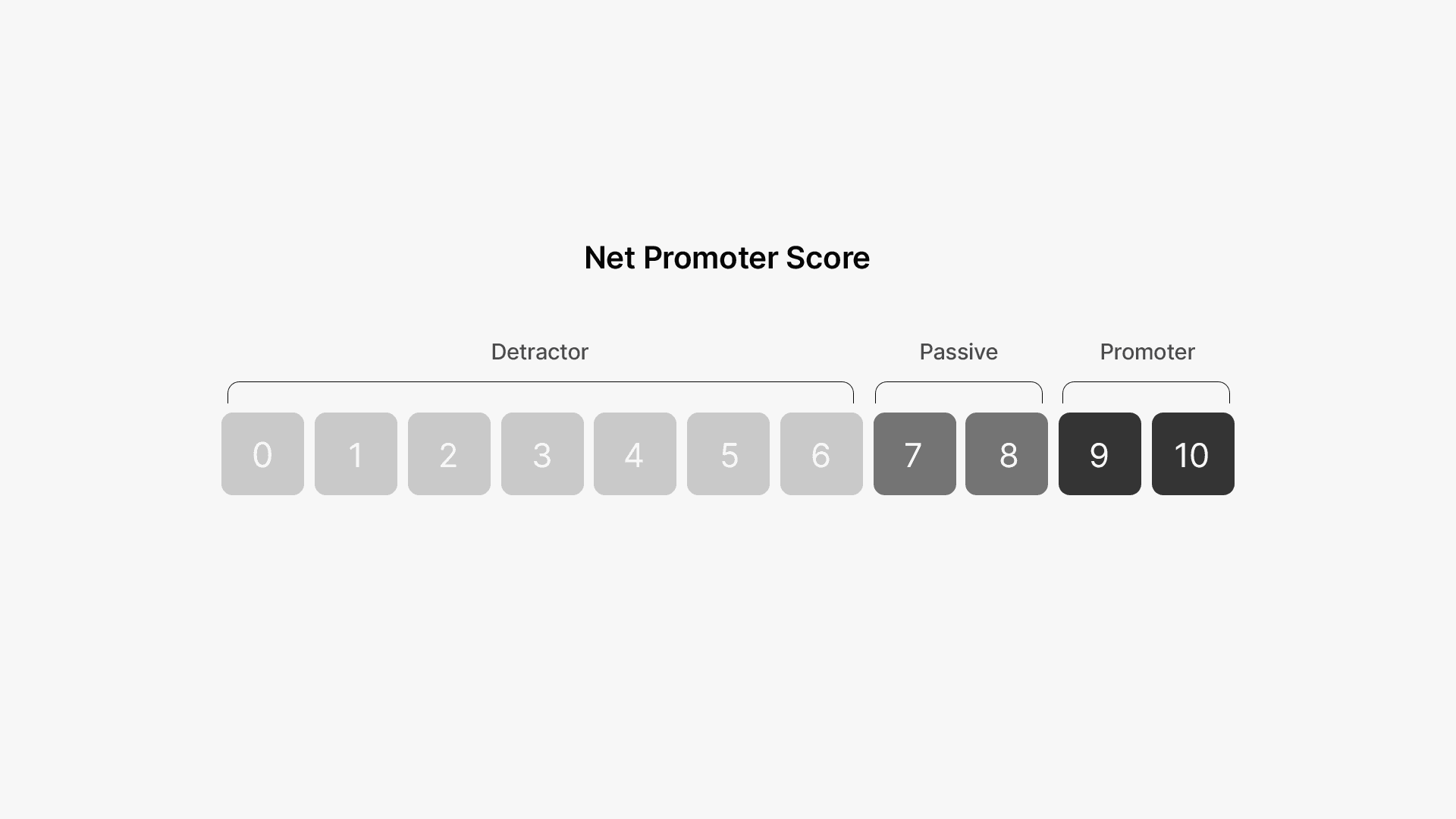
Customers who give a score of 9 or 10 are called Promoters. These are your happiest customers, and they are the most likely to recommend you.
Scores of 7 or 8 are classified as Passives. These customers are reasonably satisfied, but not loyal enough to actively promote your business. If they get a better offer or better service elsewhere, they may switch.
Any score of 6 or below falls under Detractors. These customers are unhappy with your service and are unlikely to recommend you.
How NPS is calculated
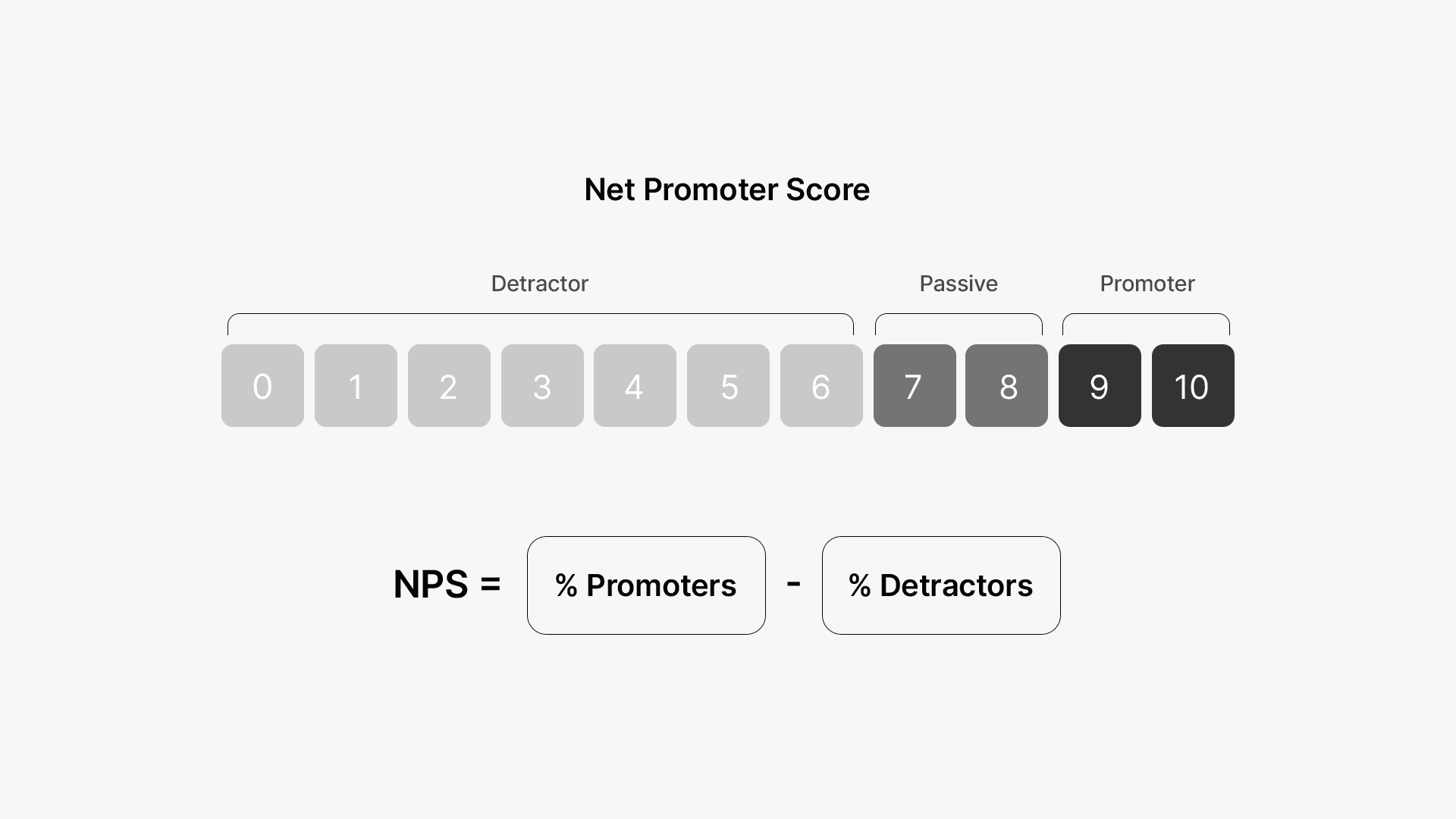
Now let’s understand how the Net Promoter Score is calculated. The formula is:
NPS = % Promoters - % Detractors
So if 60% are Promoters and 20% are Detractors, your NPS is 40. One limitation of NPS is that it does not take Passives into account at all.So if your survey response rate is low, the score can sometimes look misleading.
For example, imagine you send a survey to 5,000 customers, but only 1,000 respond. If a large number of your Detractors respond and most Promoters do not, your NPS could look very low or even negative, even if most of your full customer base is actually happy.
This is something to keep in mind when interpreting NPS results.
Now, let’s look at how you can create and calculate NPS using MakeForms.
Adding the Net Promoter Score Field Field
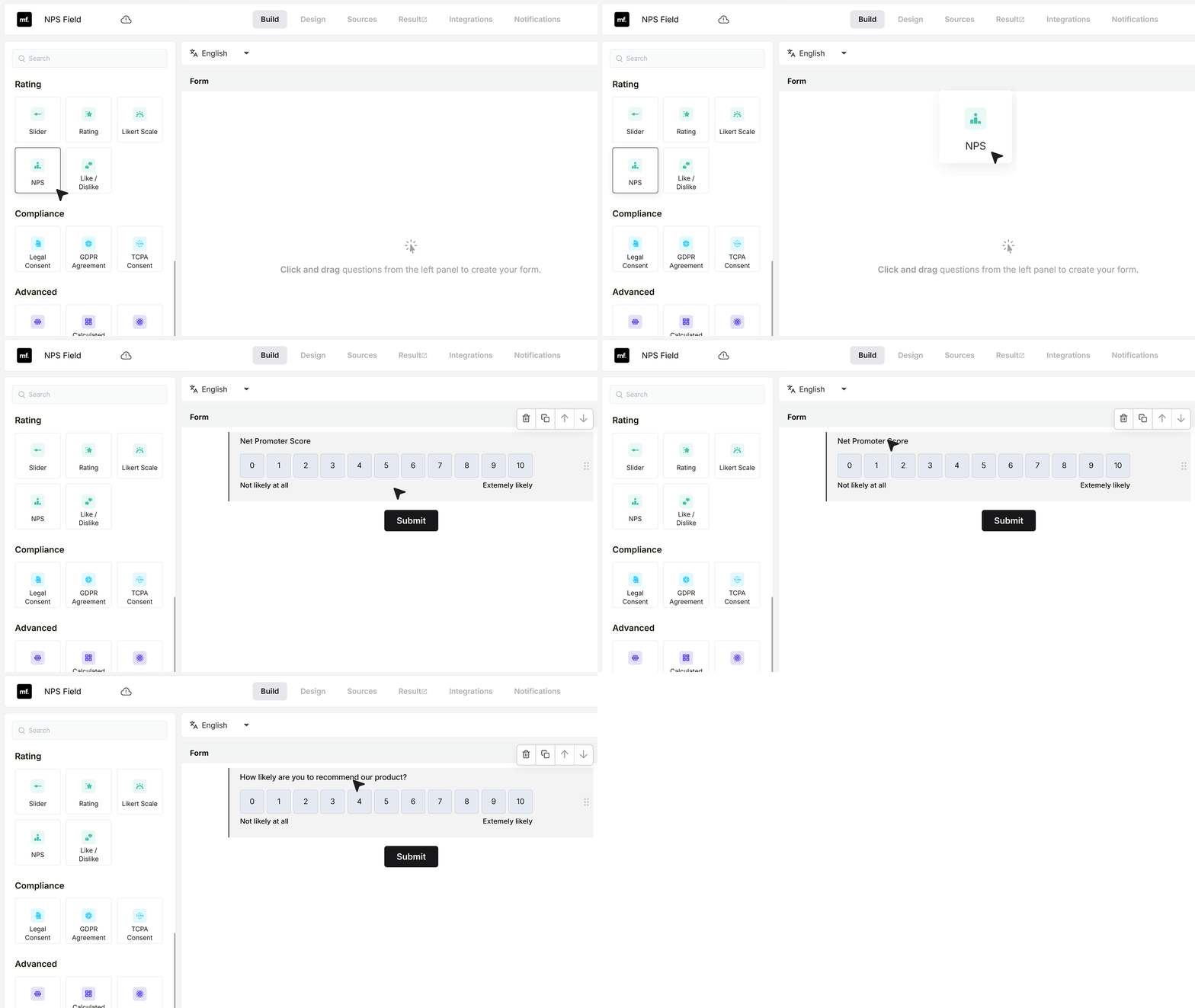
Open the form builder and drag the Net Promoter Score field from the field list into your form.
Click on the label and type text that fits your form. For example, you can use “How likely are you to recommend our product?”
Once the field is added, you can configure its settings from the panel on the right.
Basic Settings
Required Field
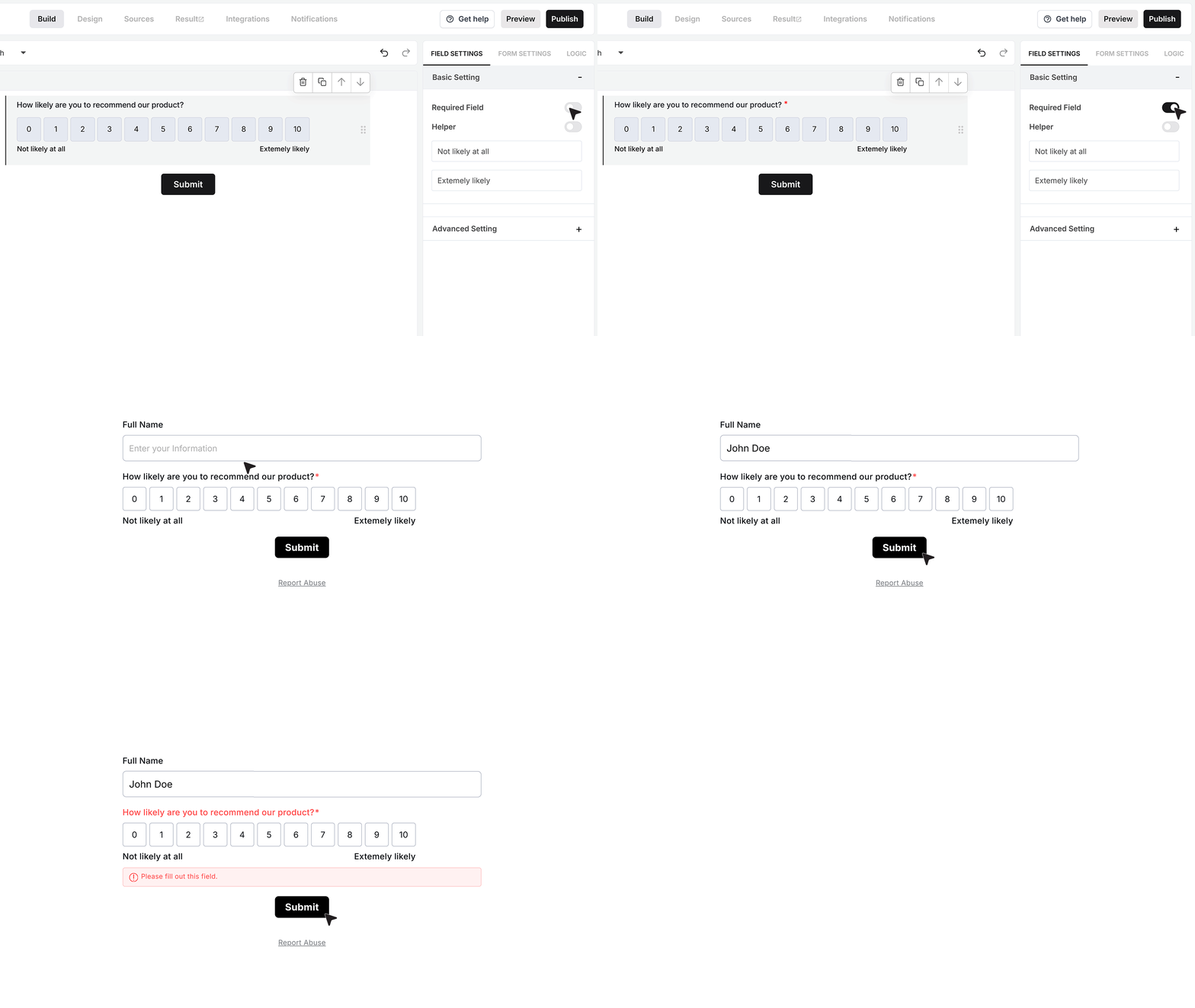
The Required Field toggle controls whether the user must select a score before they can submit the form.
If this is turned on and someone tries to submit the form without choosing a score, MakeForms shows an error and stops the submission. They must select a number on the scale before the form goes through.
Use this when the response to this question is important for your survey or report.
Helper text
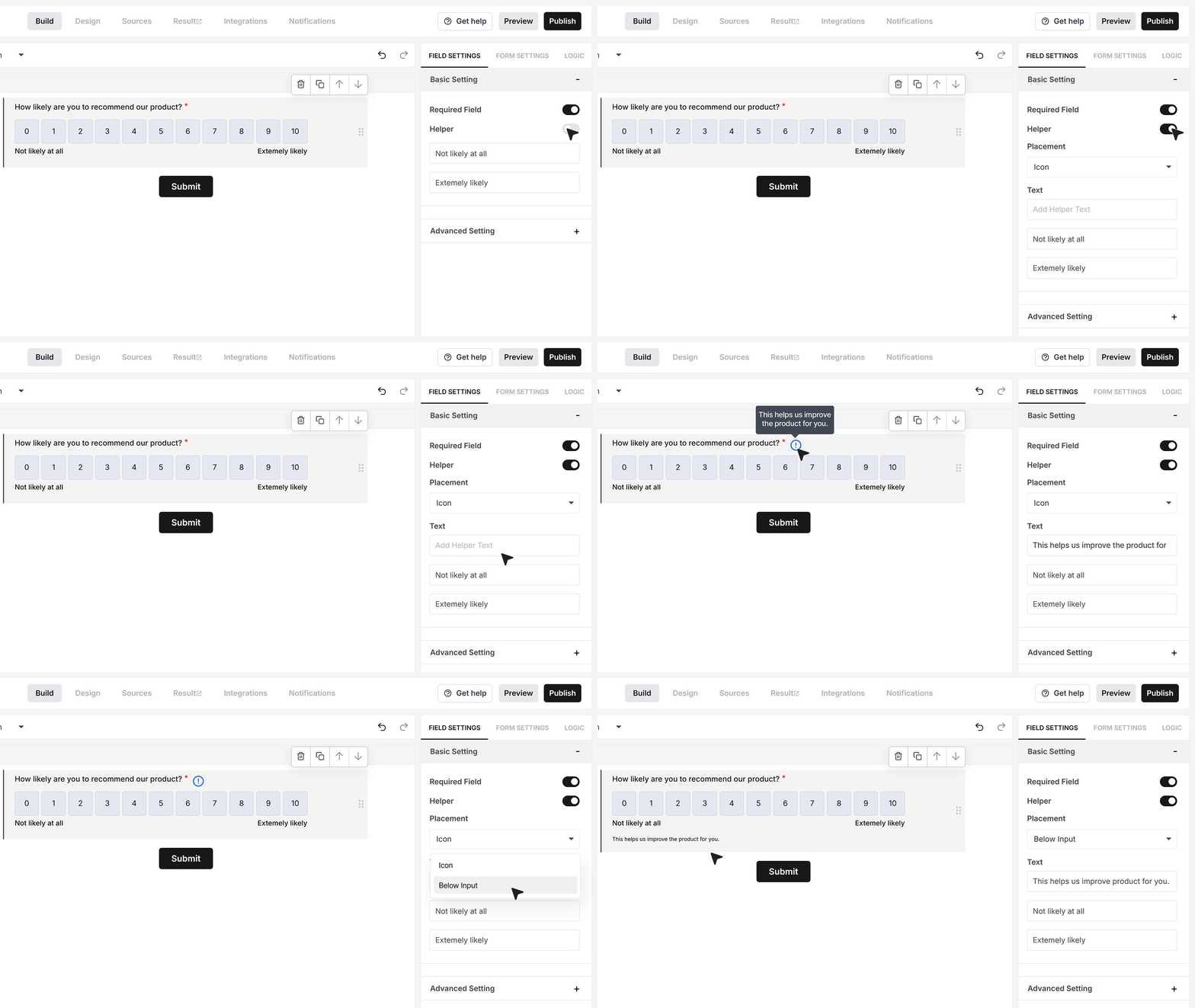
The Helper Text option is useful when you want to add a short note for context.
Turn it on and add a message such as “This helps us improve the product for you.” This helps users understand why the question is being asked.
You can show this text as a small info icon that reveals the message on hover, or as a visible line of text under the field. Choose the style that keeps your form clear and easy to read.
Labels
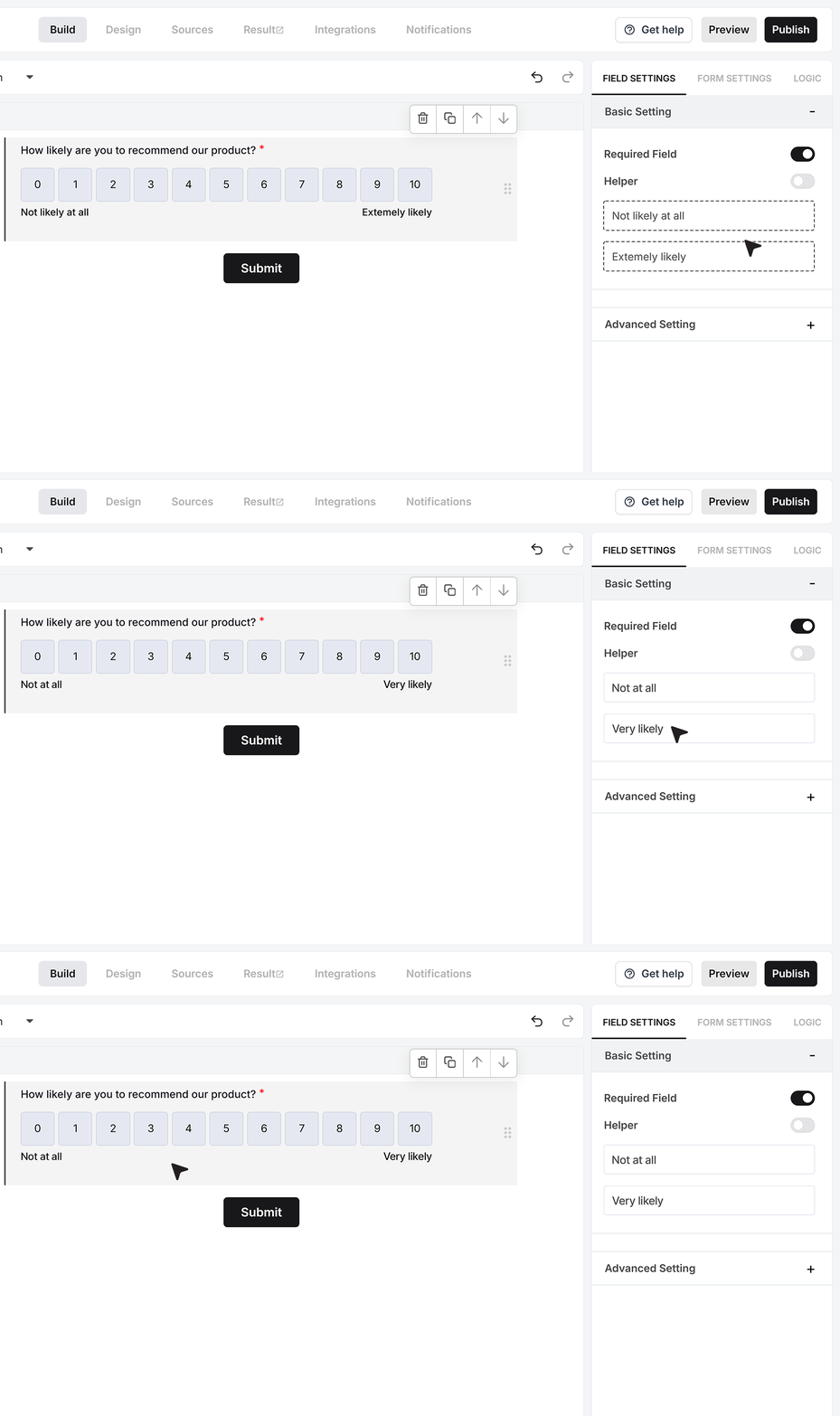
Under the field settings, you will see the Labels section. These labels explain what the ends of the scale mean.
For example, you can set the left label to “Not at all” and the right label to “Very likely.” These labels do not change the 0 to 10 scale. They only make it easier for users to choose the right score.
Advanced Settings
Mark as Sensitive Data
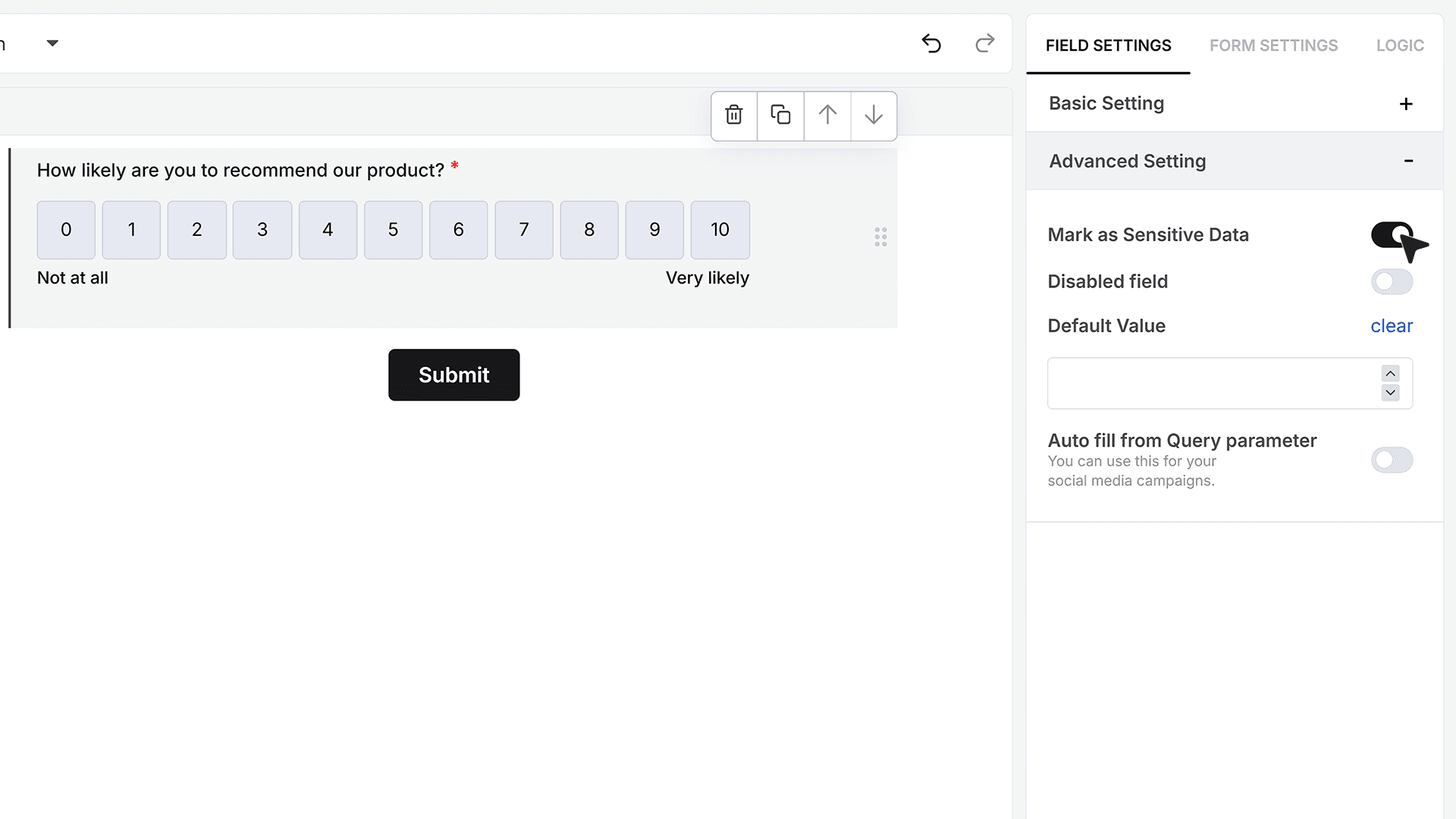
The Mark as Sensitive Data option controls who can see the NPS values inside MakeForms.
Turn this on when the score should not be visible to every team member. For example, this is helpful for internal feedback or any form where you want to restrict access. When this setting is active, only users with the right access level can see the scores in the Responses section.
Default Value
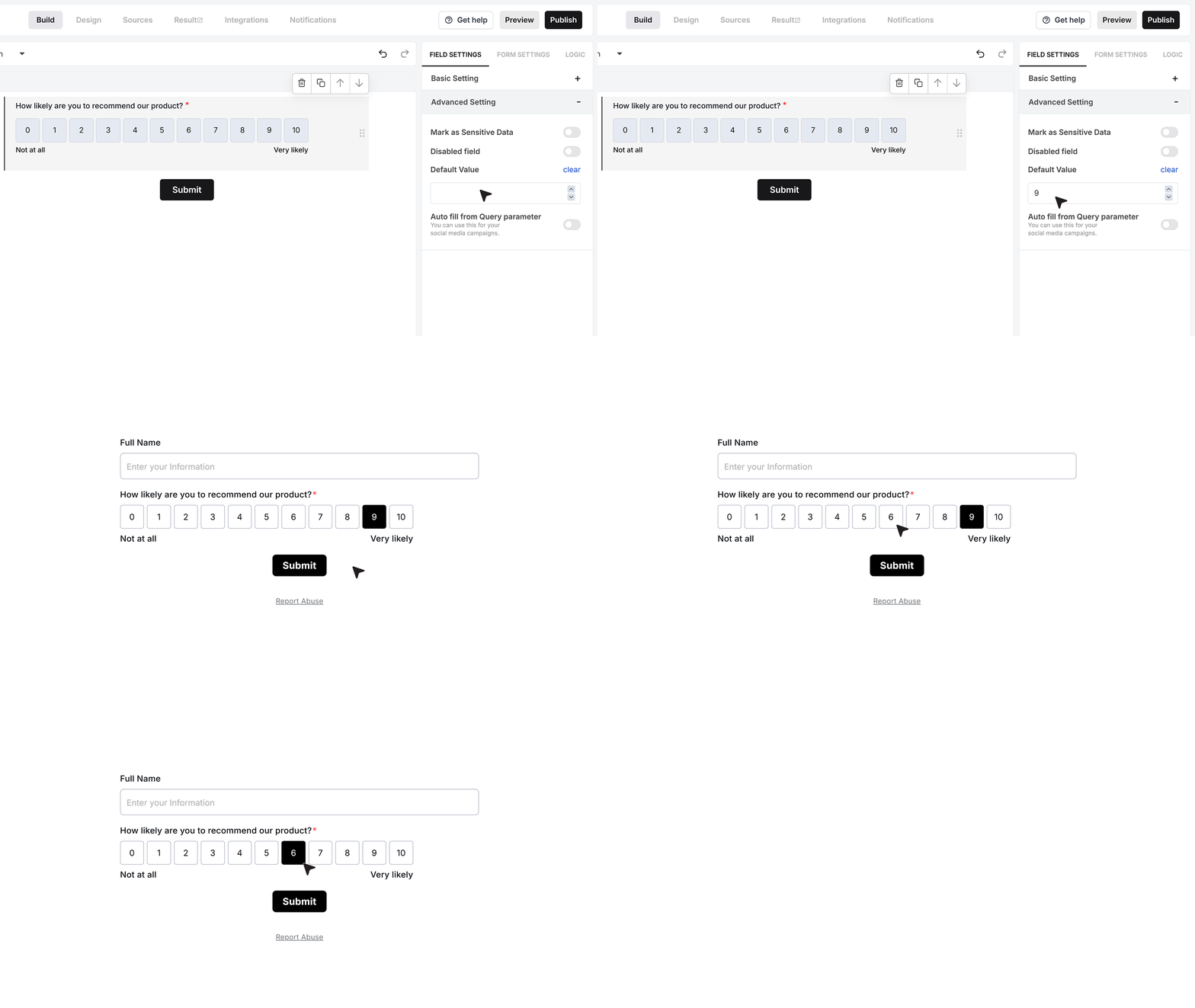
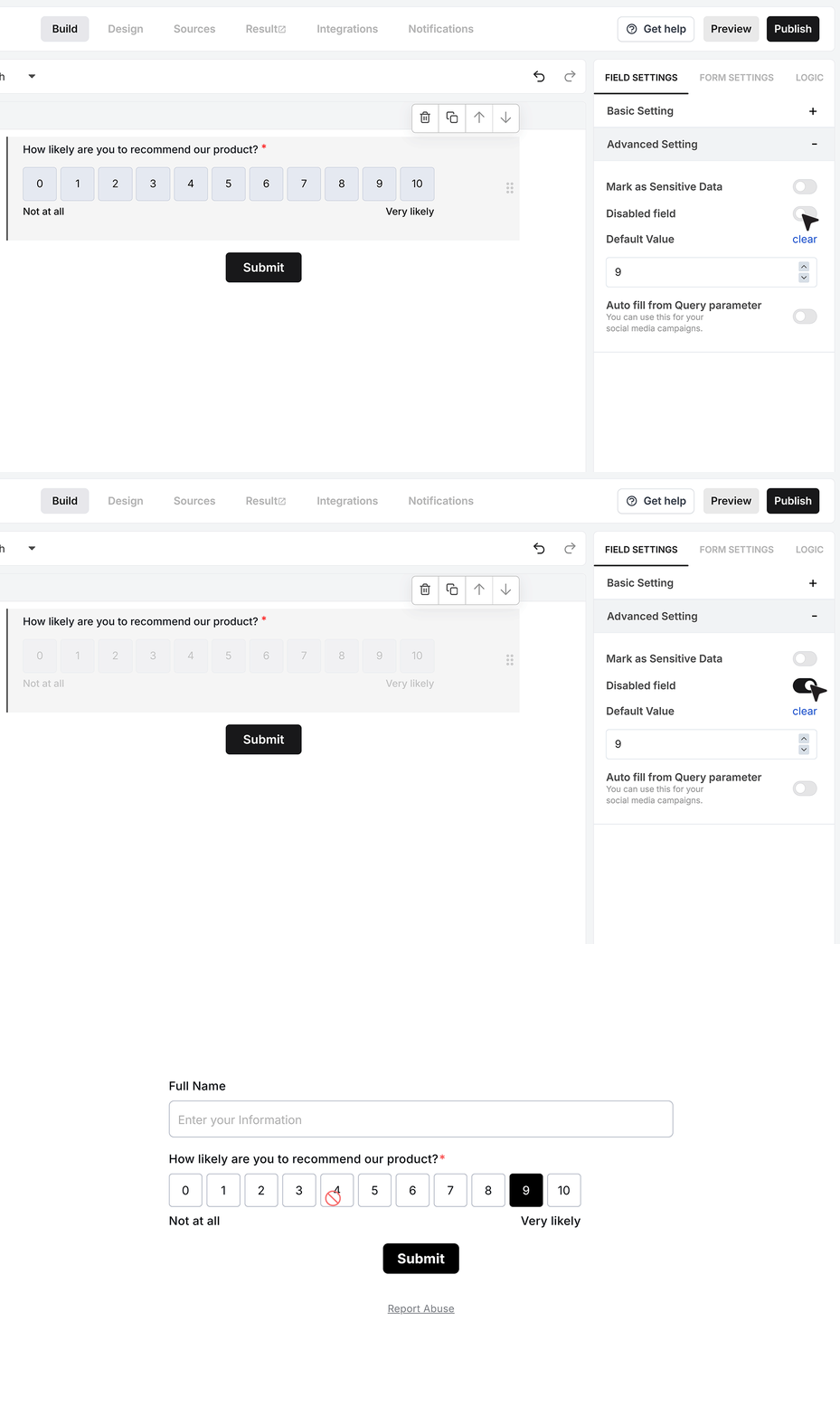
The Default Value setting lets you pre-fill the NPS field with a starting selection.
You can pick a number from 0 to 10. For example, you can set 9 as the default. When the form loads, that value is already selected. The user can still change it before submitting the form, as long as the field is not disabled.
Disable Field
The Disable Field option turns the NPS field into a read-only field.
When this is enabled, users can see the scale and the selected value, but they cannot change it. This is useful when the value comes from another system or from an earlier step and you only want to show it, not collect a new response.
Autofill from Query Parameter
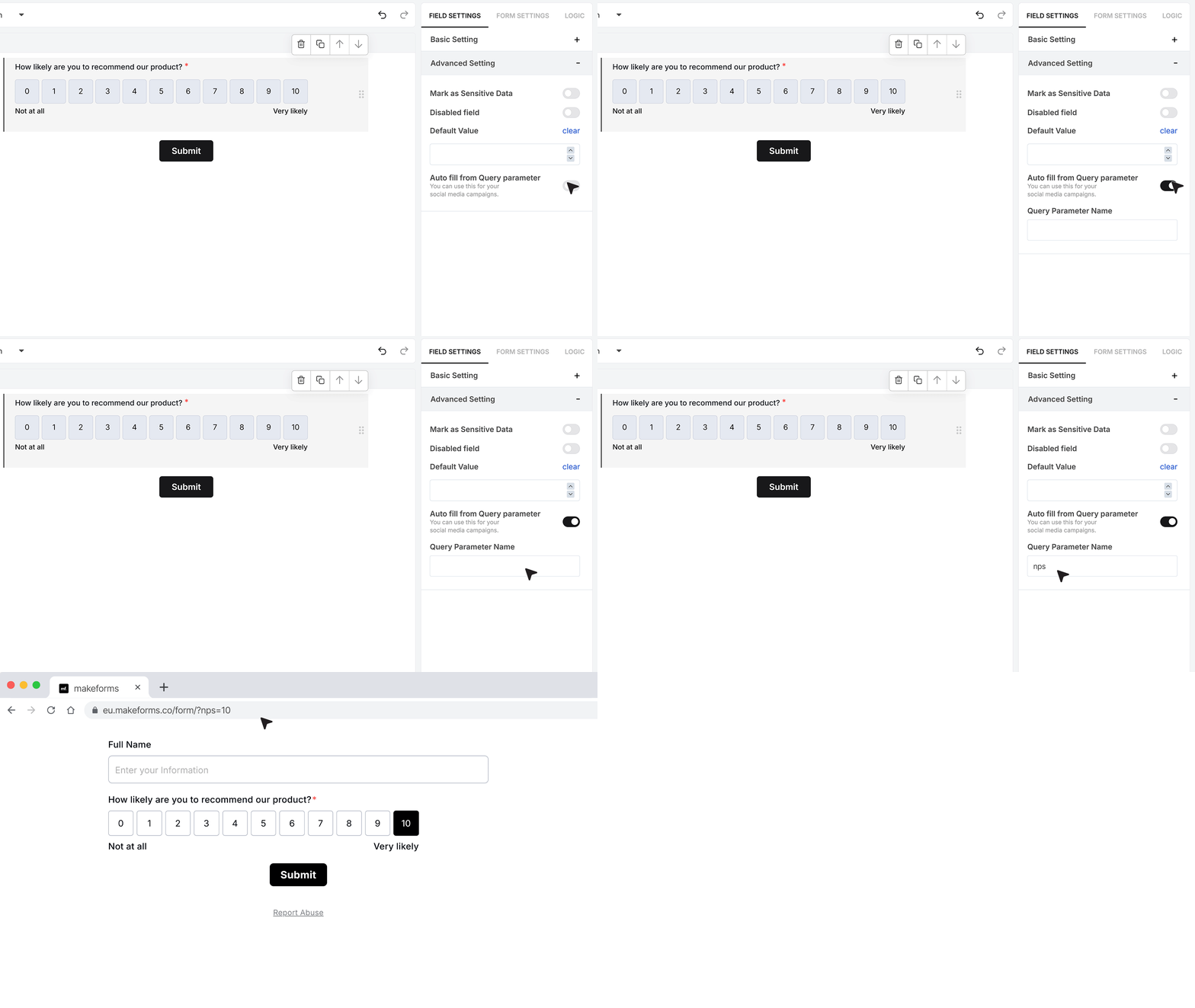
You can also fill the NPS field from a value in the form link using Autofill from Query Parameter.
In this setting, type a parameter name, for example nps. When you share the form, add this parameter to the URL with a number from 0 to 10. A link can look like:
?nps=10
When someone opens the form with this link, the NPS field will load that number as the selected value
Collect responses and view the score
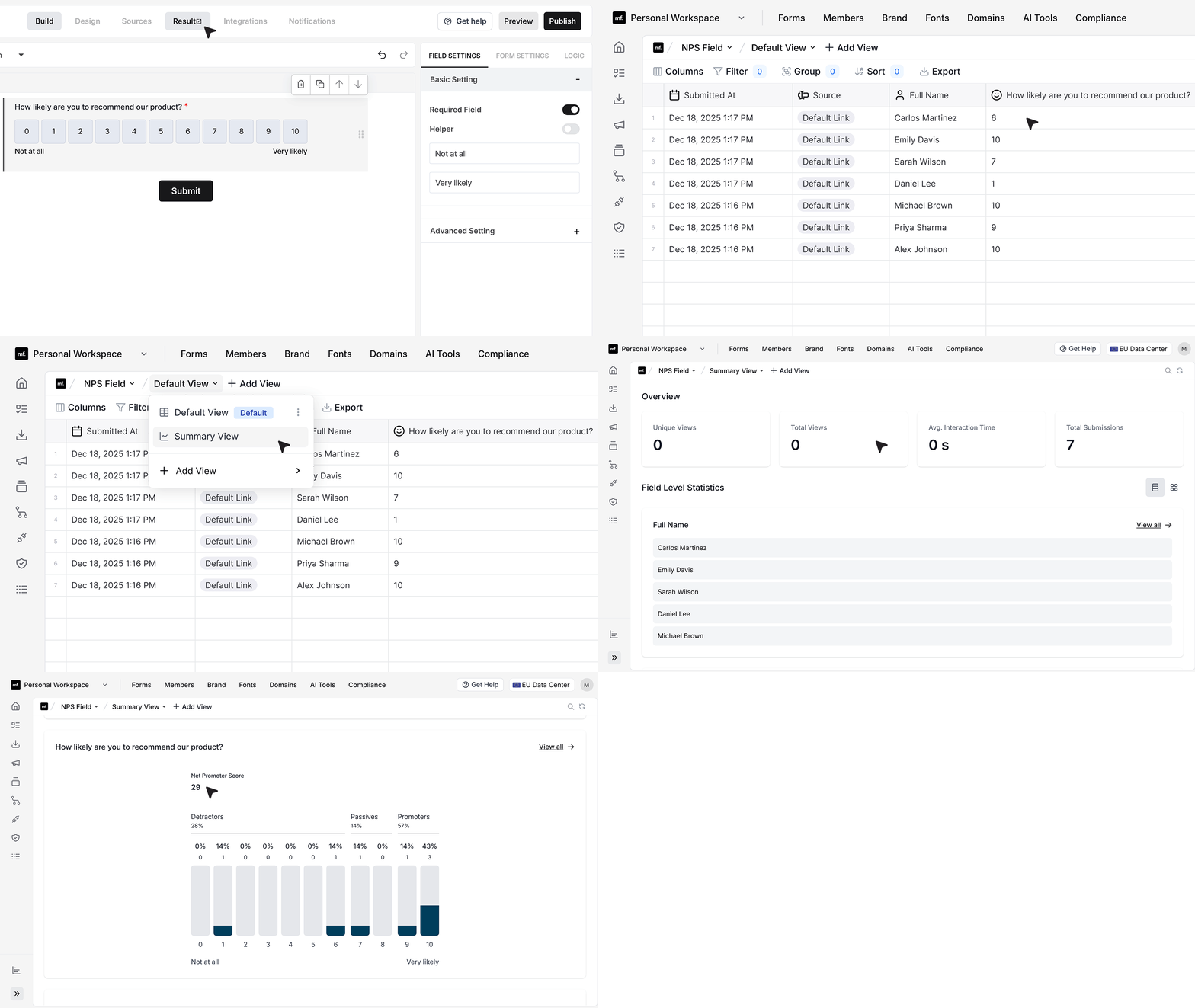
After responses start coming in, open your form and go to the Results tab. In the Summary View, MakeForms automatically groups responses into Promoters, Passives, and Detractors, then calculates the Net Promoter Score for you.
For example, if the summary shows 57% Promoters and 28% Detractors, MakeForms will show your NPS as 29. This score updates automatically as new responses are received.
FAQ's
Net Promoter Score, or NPS, is a simple way to measure customer loyalty. It asks users how likely they are to recommend your product or service to others on a scale from 0 to 10.
This score helps you understand how satisfied your customers are and how likely they are to promote your business.
The NPS scale always ranges from 0 to 10.
Based on the score, responses are grouped into three categories. Scores of 9 or 10 are Promoters. These are your most satisfied customers. Scores of 7 or 8 are Passives. They are satisfied but not strongly loyal. Scores from 0 to 6 are Detractors. These users are unhappy and unlikely to recommend your product.
This standard scale makes it easy to compare results across time and different user groups.
Net Promoter Score is calculated by subtracting the percentage of Detractors from the percentage of Promoters.
If 60 percent of your users are Promoters and 20 percent are Detractors, your NPS is 40.
Passives are not included in the calculation.
The most common NPS question is simple and direct.
How likely are you to recommend our product to a friend or colleague
You can adjust this question slightly based on your use case, such as product feedback, service feedback, or event feedback.
Yes, you can edit the label of the NPS field to match your form.
You can also add helper text to explain why you are asking the question. This helps users give more thoughtful responses and improves data quality.
If the NPS response is important for your analysis, you can enable the required field setting.
This ensures users must select a score before submitting the form.
You can pre fill the NPS field using a default value or by passing a value through the form link.
For example, you can use a query parameter to set a score when the form loads. This is useful for tracking campaigns or passing data from other systems.
MakeForms groups all responses into Promoters, Passives, and Detractors.
It then calculates the Net Promoter Score automatically in the Results tab. The score updates as new responses come in.