Number Dropdown Field
The Number Dropdown Field in MakeForms allows you to present users with a predefined list of numeric options. It’s useful for scenarios where the user must choose a specific number, such as selecting quantities, age brackets, session counts, or any situation where the number choices need to remain controlled.
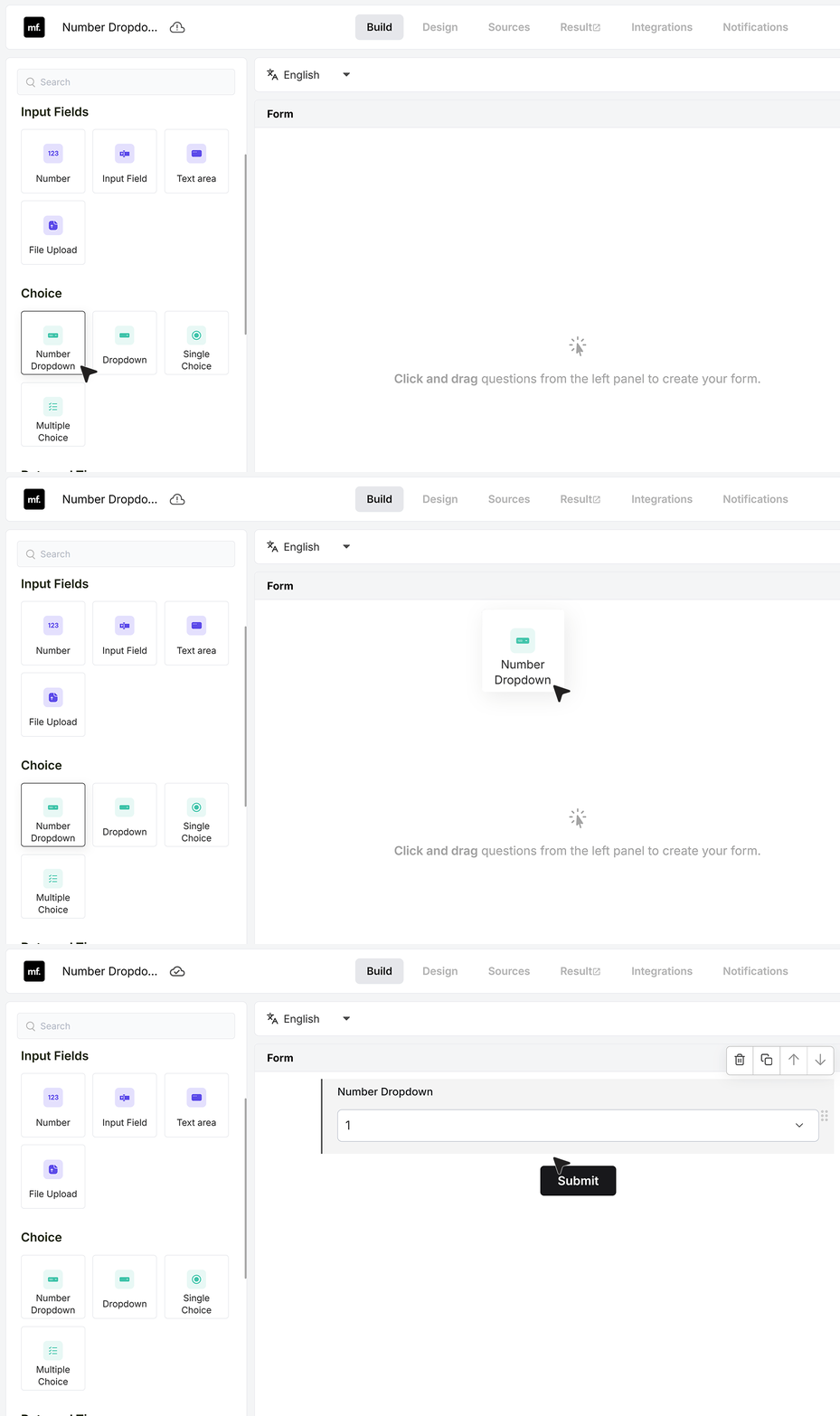
To get started, add a number dropdown field to your form. You can drag it from the field list or click to insert it.
Basic Settings
Required Field
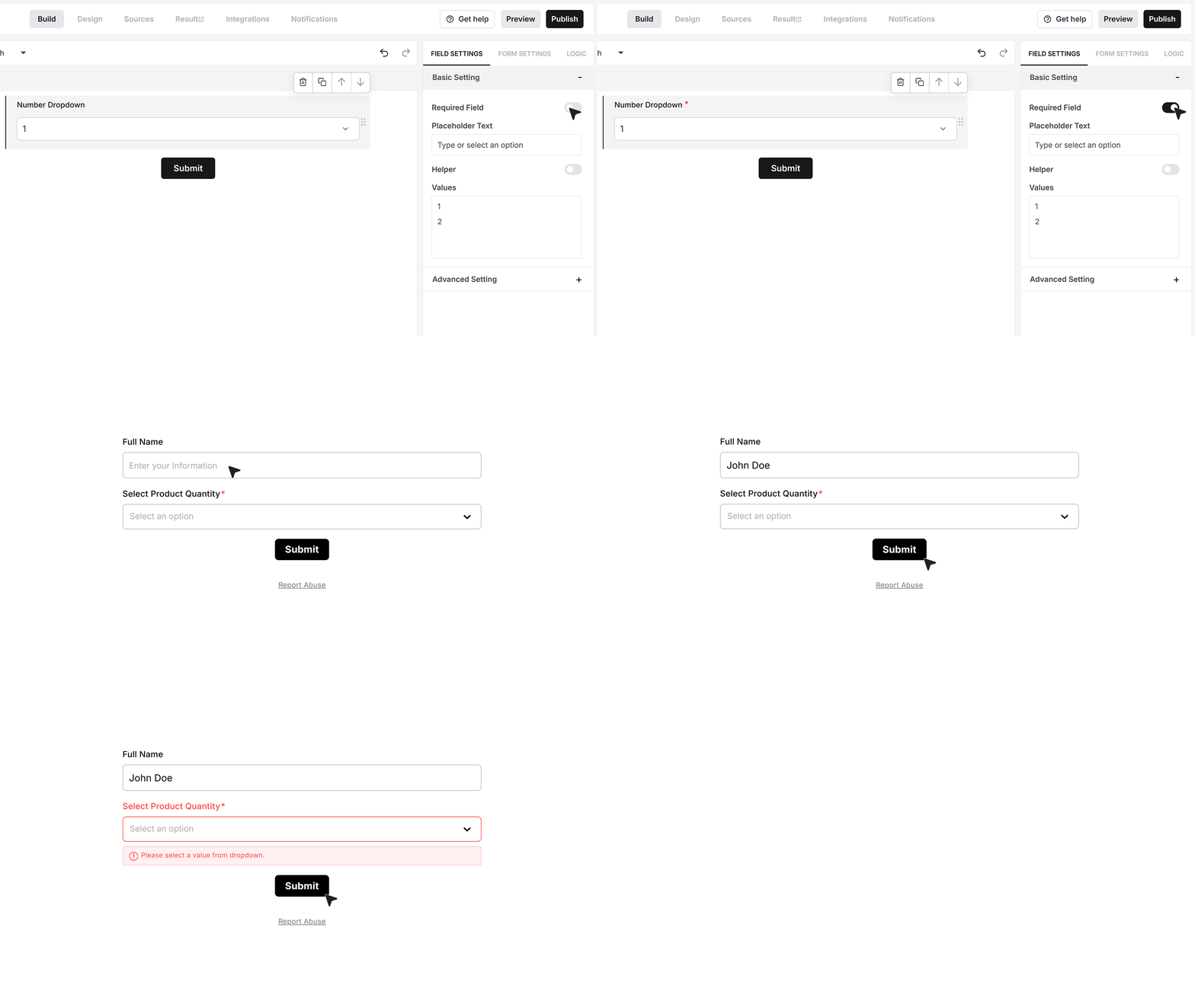
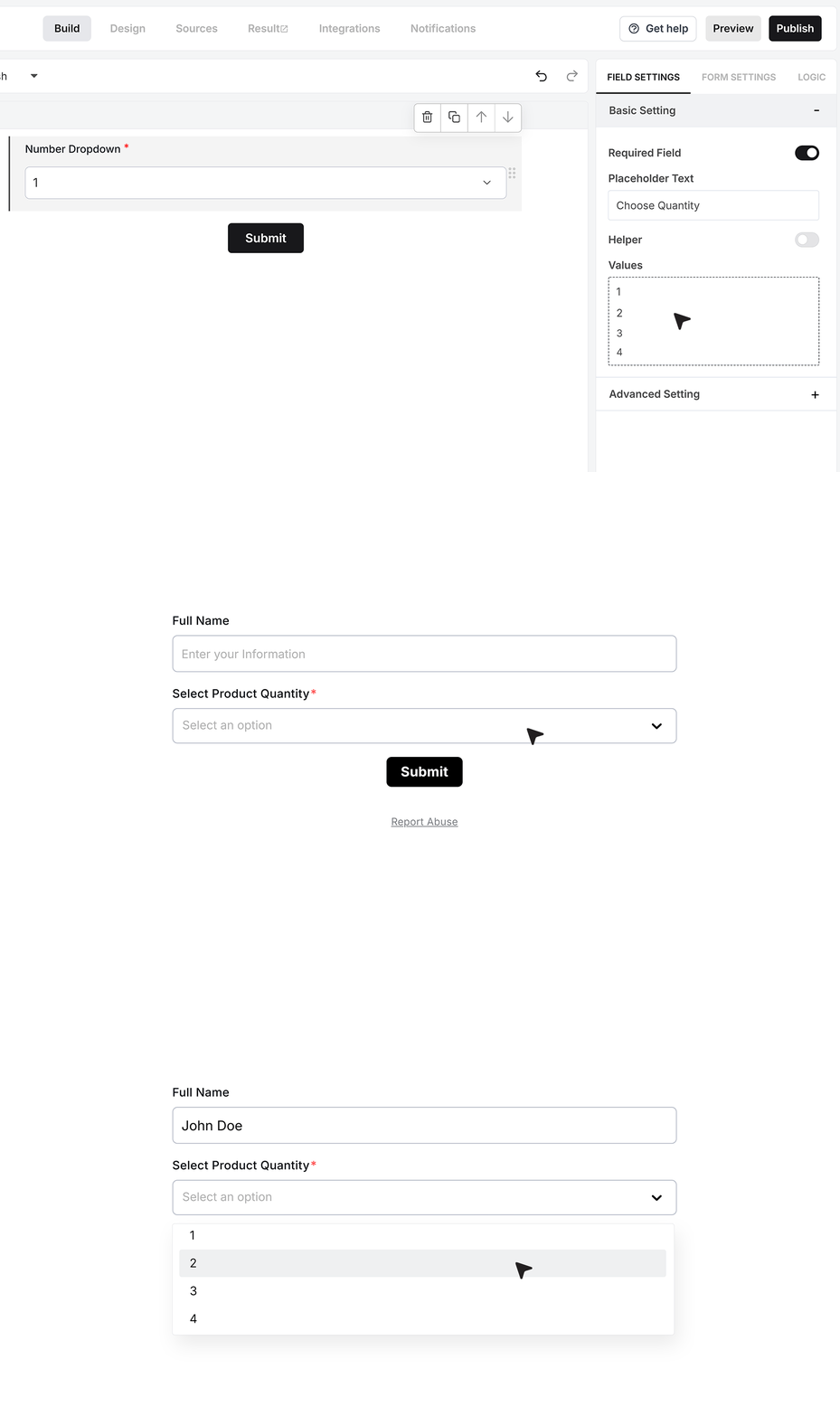
The Required Field setting ensures that the user must select a number before submitting the form. When this is enabled, the form displays a validation message if the field is left unselected, preventing accidental or incomplete submissions.
Placeholder Text
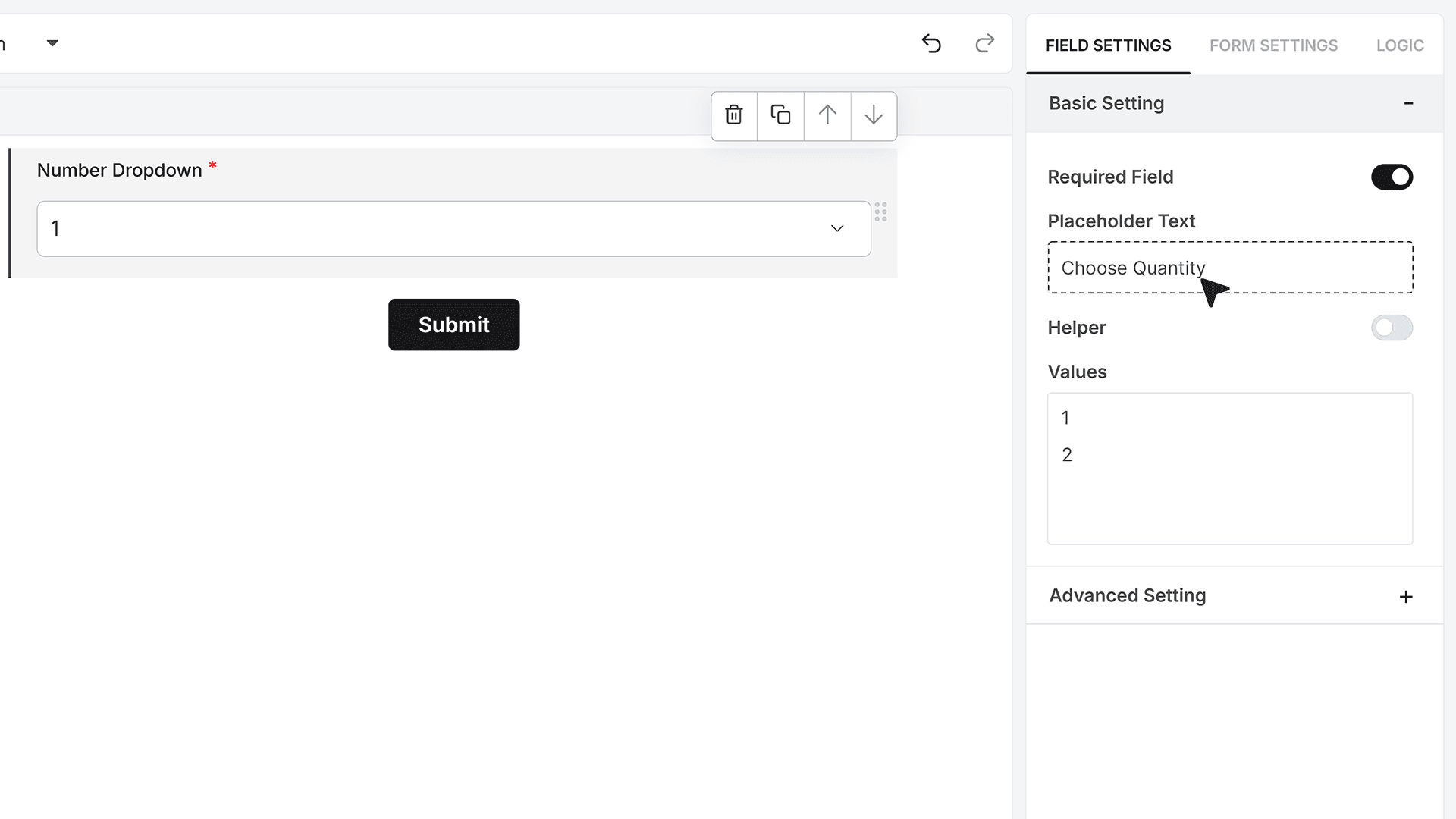
Placeholder Text appears in the dropdown before the user makes a selection. It acts as a temporary hint, guiding them with short lines such as “Choose Quantity” or “Select Number.” The placeholder disappears immediately after a number is chosen, helping keep the field clean and intuitive.
Helper Text
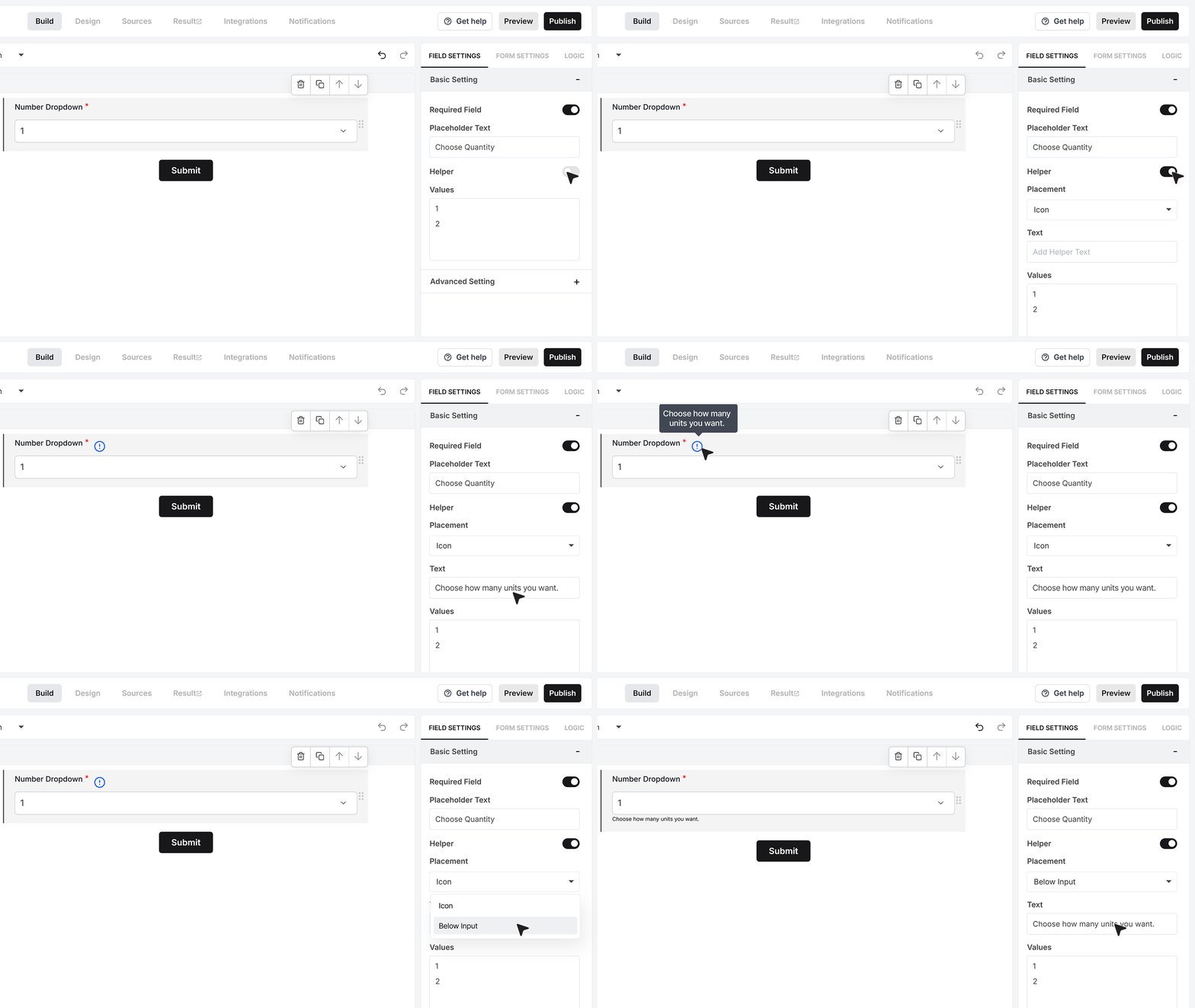
Helper Text lets you add a short instruction for the user, like “Choose how many units you want.” You can show this message through an info icon that appears on hover, or place it visibly under the field for immediate clarity.
Values
In the Values section, you decide which numbers the user can select. This is where you create the full list of allowed options, such as a simple sequence like 1, 2, 3, 4, or any custom range your form requires. The numbers you add here become the actual selectable items in the dropdown.
Advanced Settings
Repeat This Field
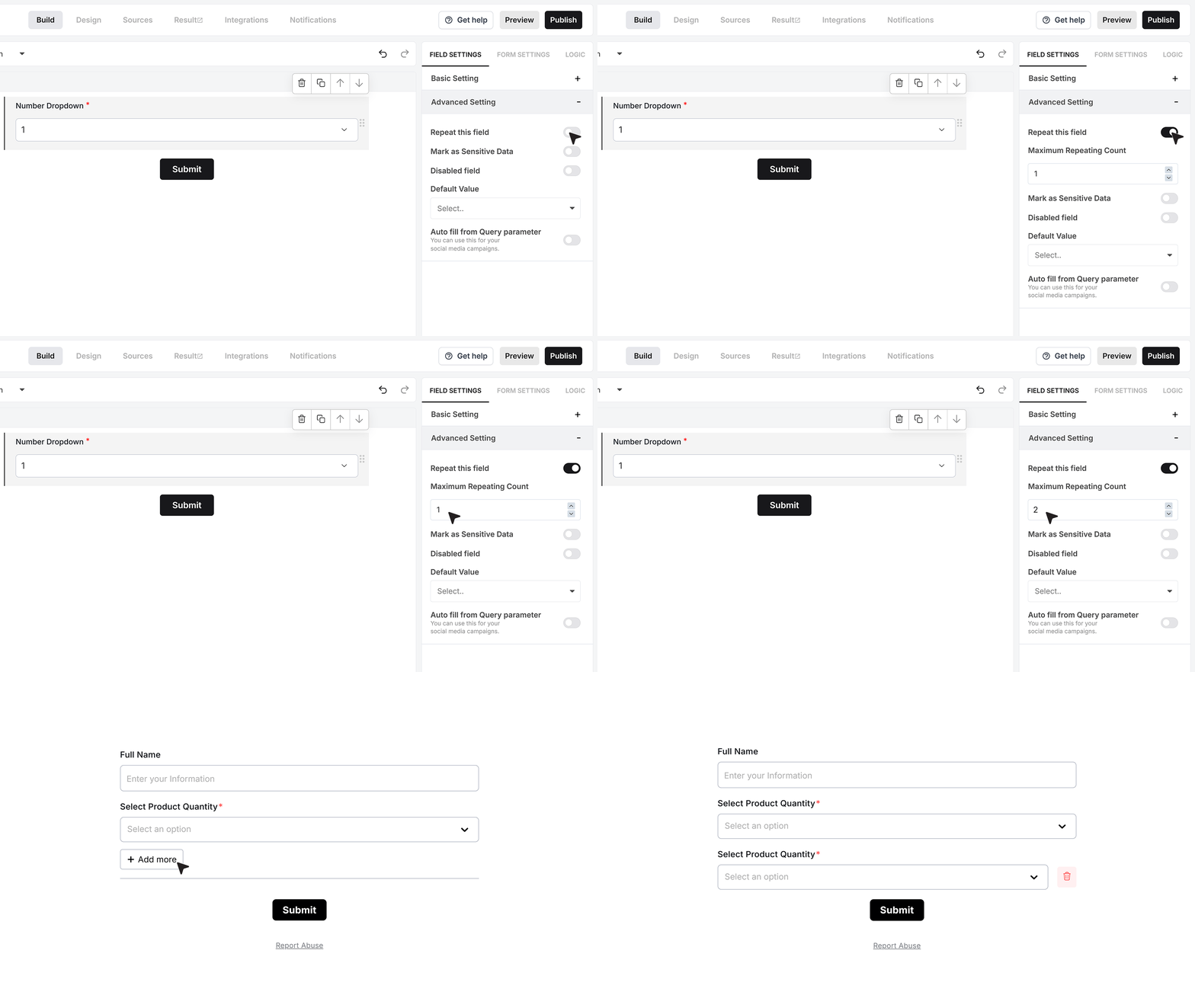
Advanced Settings give you finer control over how the Number Field behaves. Repeat This Field allows users to add multiple numeric entries within the same field area. When activated, users can click an “Add More” button and add as many values as allowed, making it easy to collect numbers without creating multiple fields.
Mark as Sensitive Data
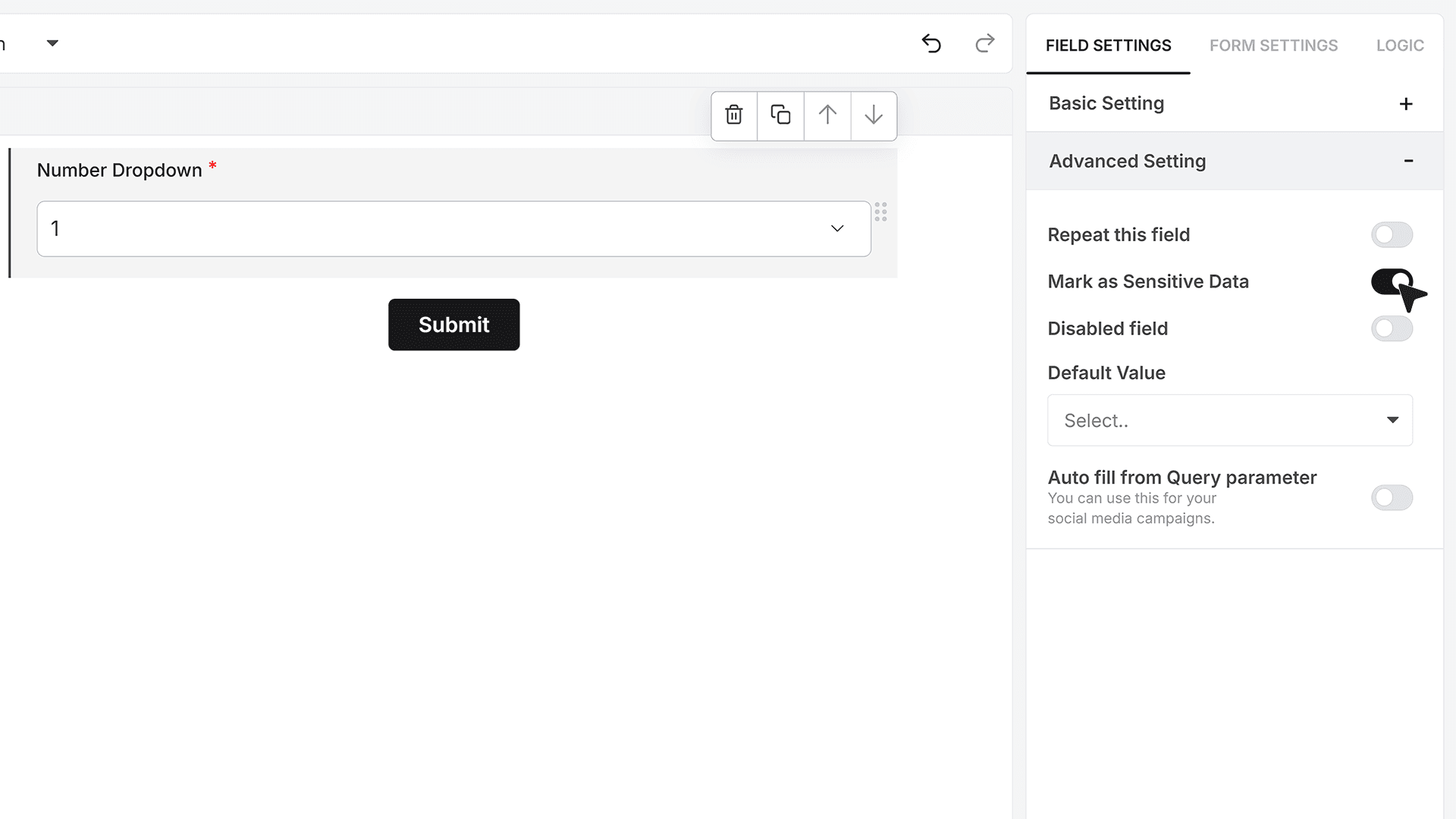
Enable this setting when the selected number contains private or restricted information. Once turned on, only team members with sensitive-data access inside your MakeForms account will be able to view the value in the Responses section.
Default Value
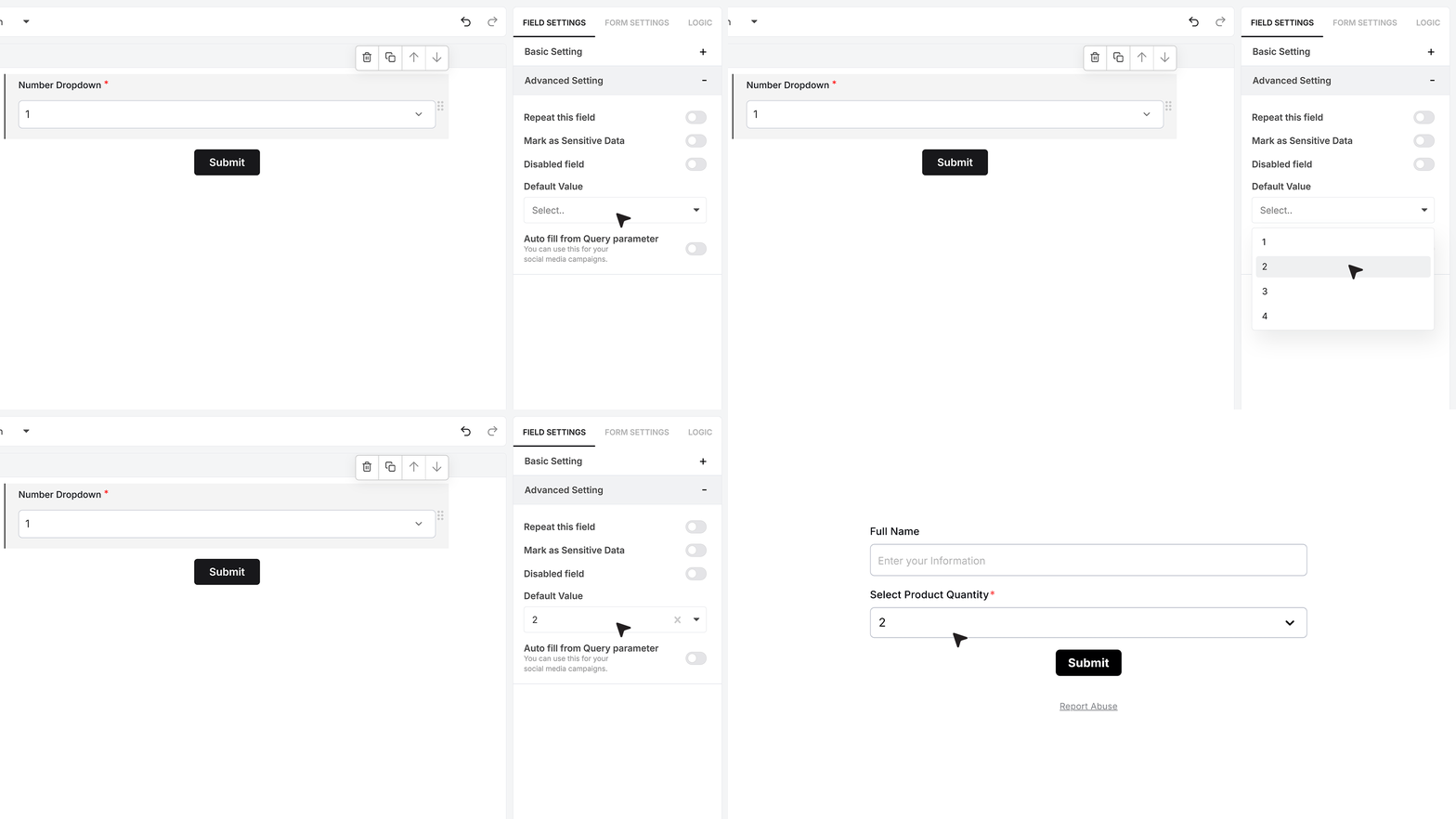
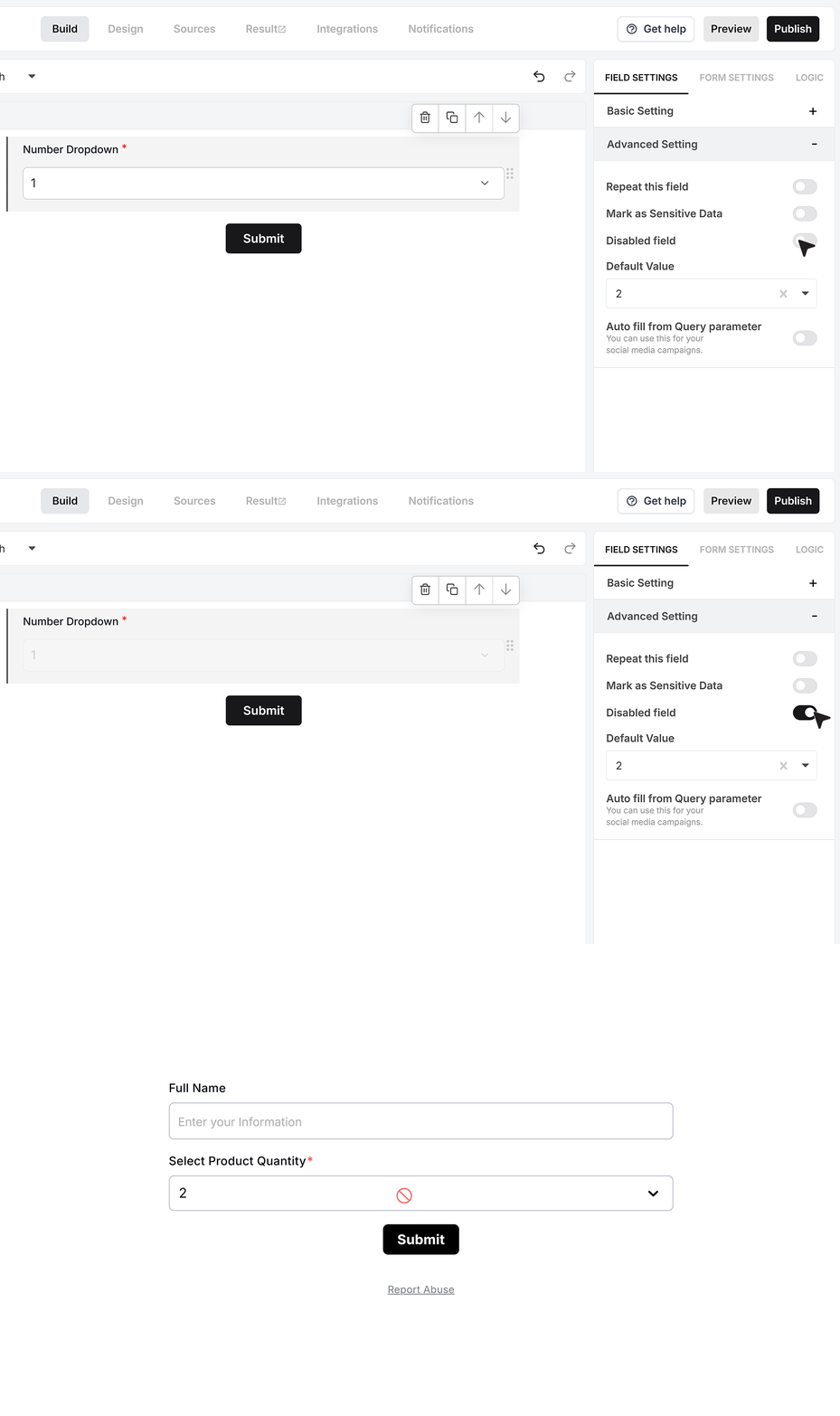
The Default Value setting lets you preselect one number from the Values list so the dropdown has a ready-made selection when the form loads. For example, if your list contains 1 to 4, you can choose 2 to appear by default. Users can keep this value or pick another from the list.
Disable Field
Disable Field keeps the number visible but prevents the user from changing it. This is ideal when showing pre-generated data or system-based values that should not be edited.
Autofill from Query Parameter
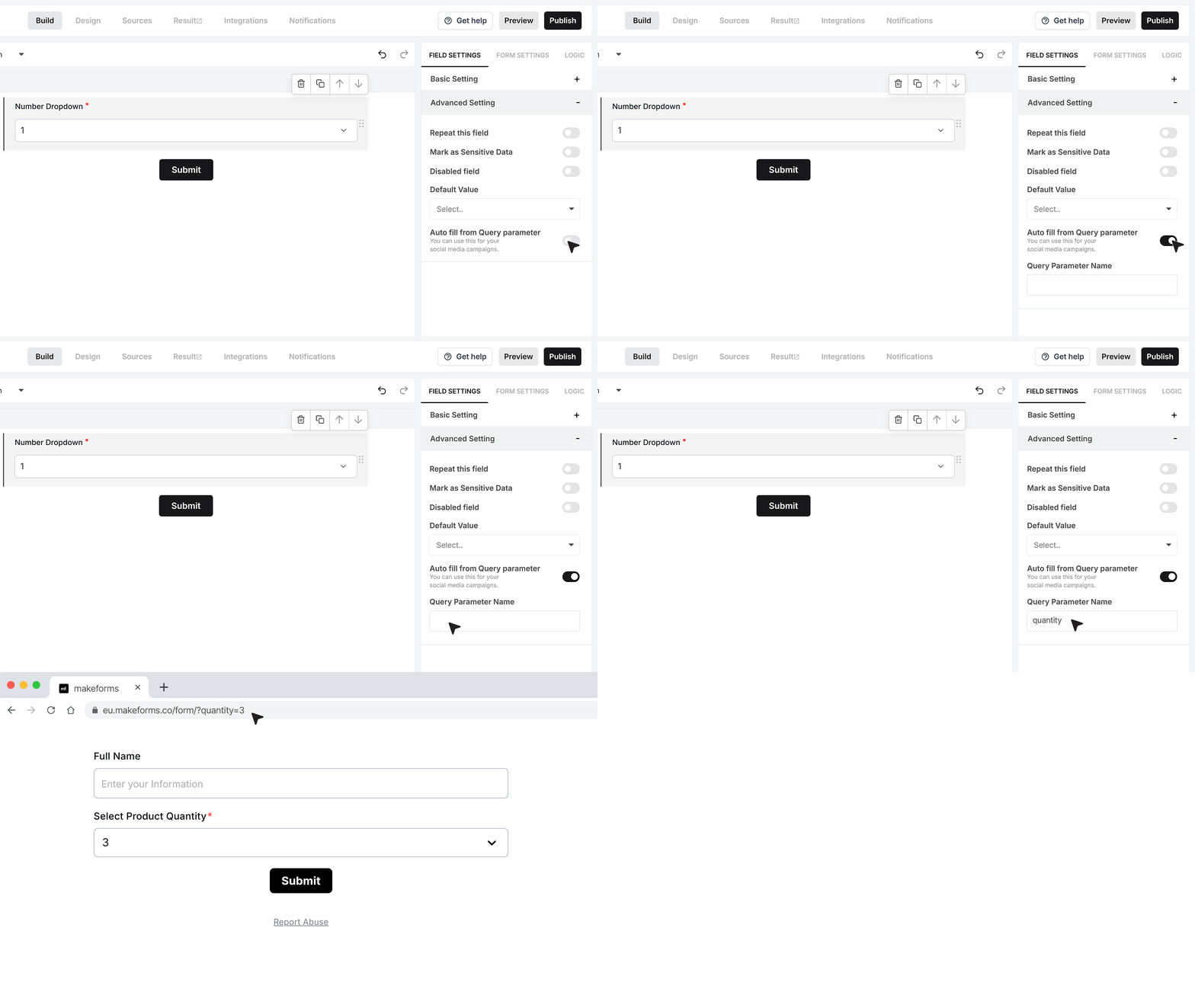
This option automatically selects a number based on a value passed through the form’s URL using a query parameter name you define. If your parameter name is “quantity” and the incoming value is 3, the Number Dropdown will load with 3 already selected—provided that 3 exists in your Values list.
FAQ's
Most online form builders let you create a dropdown and fill it with numbers. In MakeForms, this is a built-in field made for controlled numeric choices.
Yes. In MakeForms, you control the allowed numbers from the Values section by entering the exact list you want, like 1 to 10, or any custom set.
If you want a dedicated numeric dropdown field with clear settings, MakeForms covers the basics well—required, placeholder, helper text, values list, and defaults. Other popular SaaS form builders also support dropdowns that can hold numeric options, but the setup and limits vary by product and plan.
In MakeForms, open the form editor, add the numeric dropdown field from the field list, then set the Values list to the numbers you want users to pick. Use Placeholder Text to show a hint like “Select number”, and enable Required Field if the form should not submit without a selection.
This numeric dropdown field exists as a standard field in MakeForms, but the PDF you shared does not list plan or pricing details. Check your MakeForms pricing page or your workspace plan screen to confirm what your plan includes.
In MakeForms, only the numbers you enter in the Values list can be selected, so the field is automatically limited to that set. If you also want a preselected option, set a Default Value from that same list.
Many form builders support logic rules using dropdown values as conditions. The MakeForms editor includes a Logic area in the form builder UI, and this numeric dropdown is a choice-style field, so it can be used in rule conditions when logic is enabled for your plan.
Yes. Dropdown inputs are mobile-friendly in general because they map well to mobile pickers. In MakeForms, the field is a standard dropdown input, so you should test it using Preview on a phone before publishing.
For numeric dropdowns, the main things to compare are how easy it is to manage values, whether logic rules are available, and how the field behaves on mobile and in embeds. MakeForms supports a dedicated numeric dropdown field with values control, required validation, default value, and access controls for sensitive responses.
Yes. Surveys often use numeric choices for quantities, age brackets, ratings, or counts. MakeForms’ numeric dropdown field is designed for exactly that kind of controlled numeric selection.
Security depends on platform controls, not the dropdown itself. In MakeForms, you can mark the field as Sensitive Data so only team members with sensitive-data access can view that value in Responses.
Most SaaS form builders let you style fields through a theme or design settings rather than per-field CSS. In MakeForms, you can set user-facing text like placeholder and helper text on the numeric dropdown, and styling is typically handled through the form’s design settings in the editor.