Layout 1×2 Field
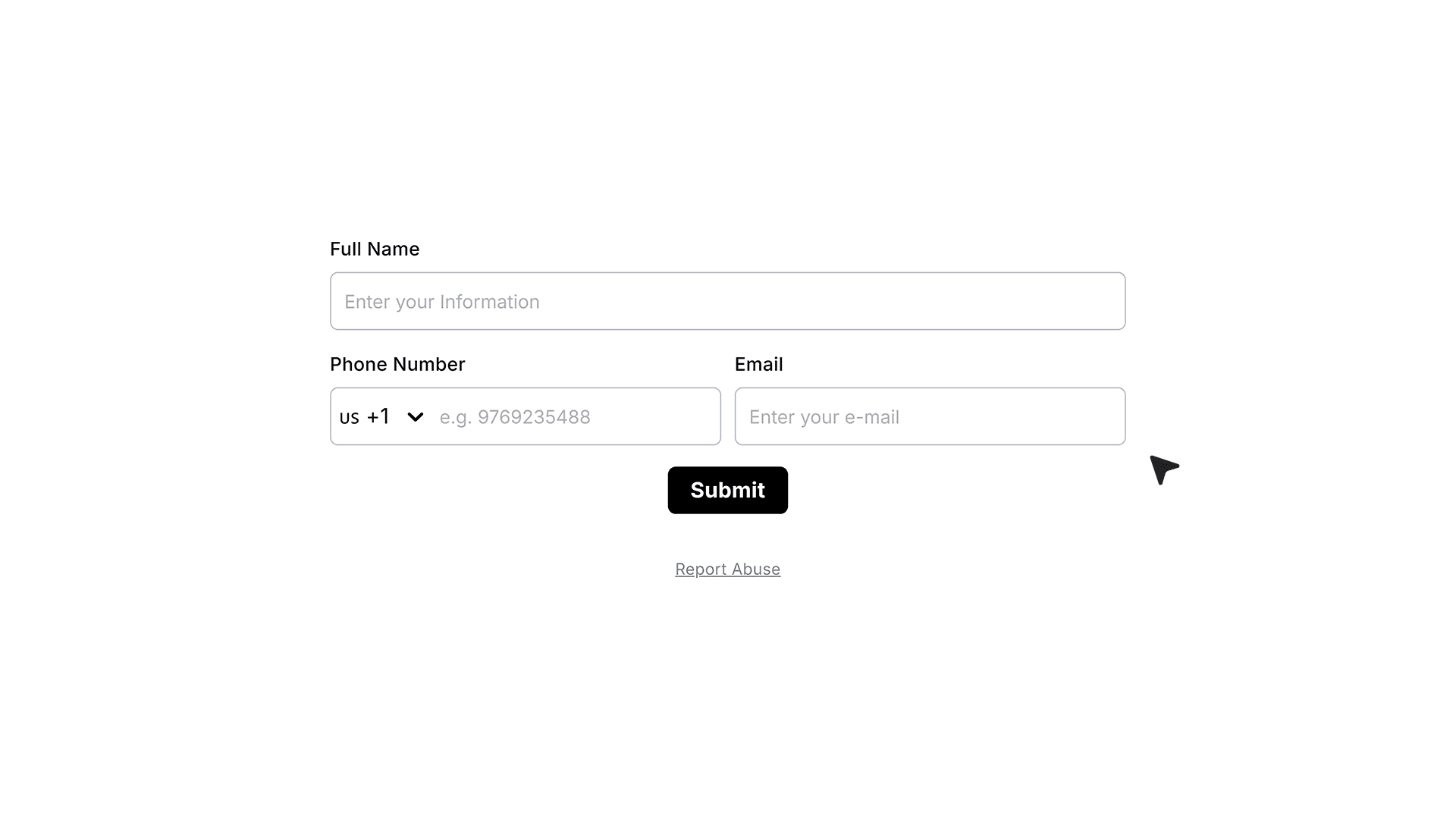
The Layout 1×2 field allows you to place two fields side by side in a single row. It helps you group related inputs and create cleaner, more organized forms while reducing unnecessary vertical scrolling.
Adding the Layout 1×2 Field
To get started, open your form in the editor.
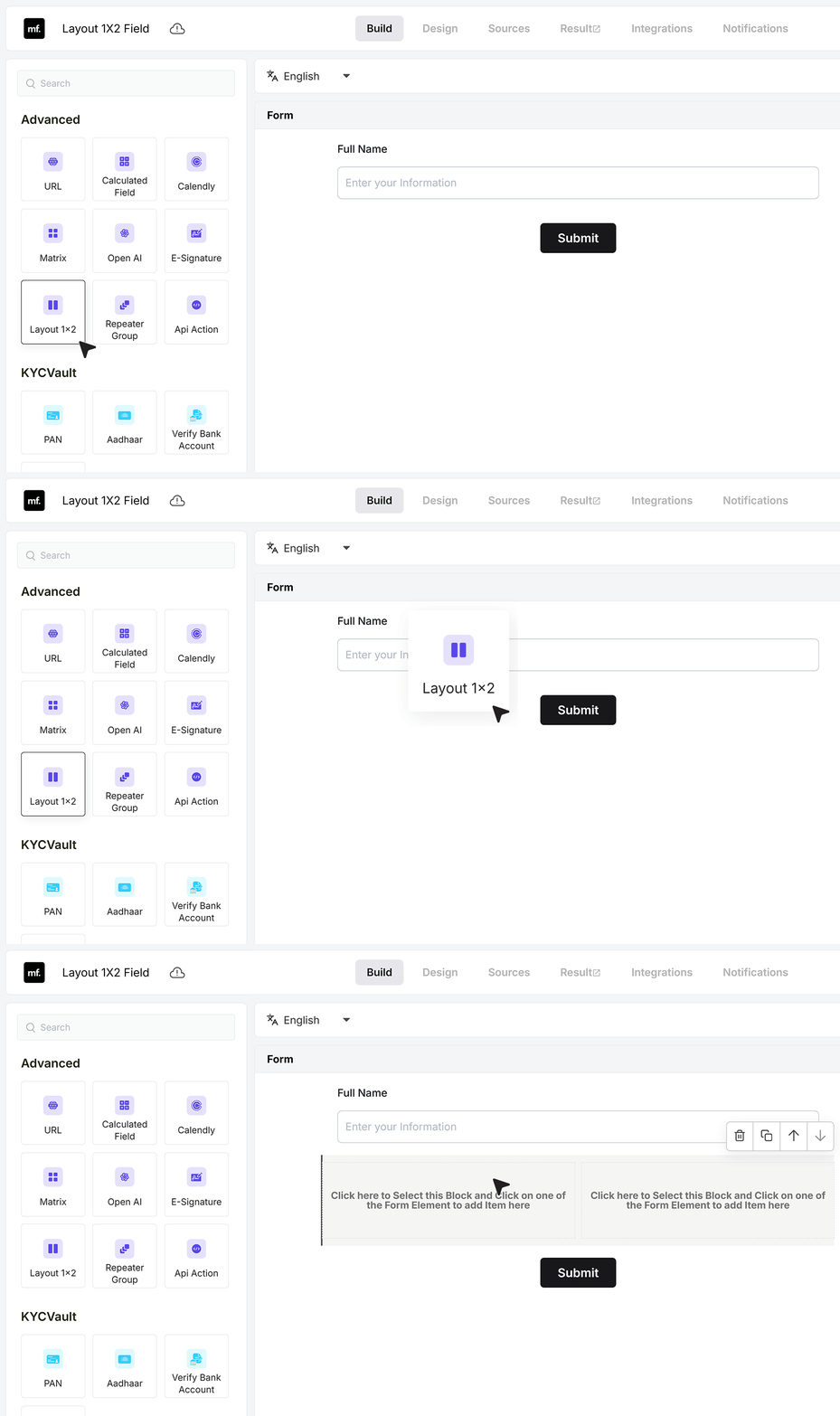
From the field panel, drag the Layout 1×2 field and drop it into your form at the position where you want a two-column layout. Once added, the layout container appears with two empty columns ready to accept fields.
Adding Fields Inside the Layout
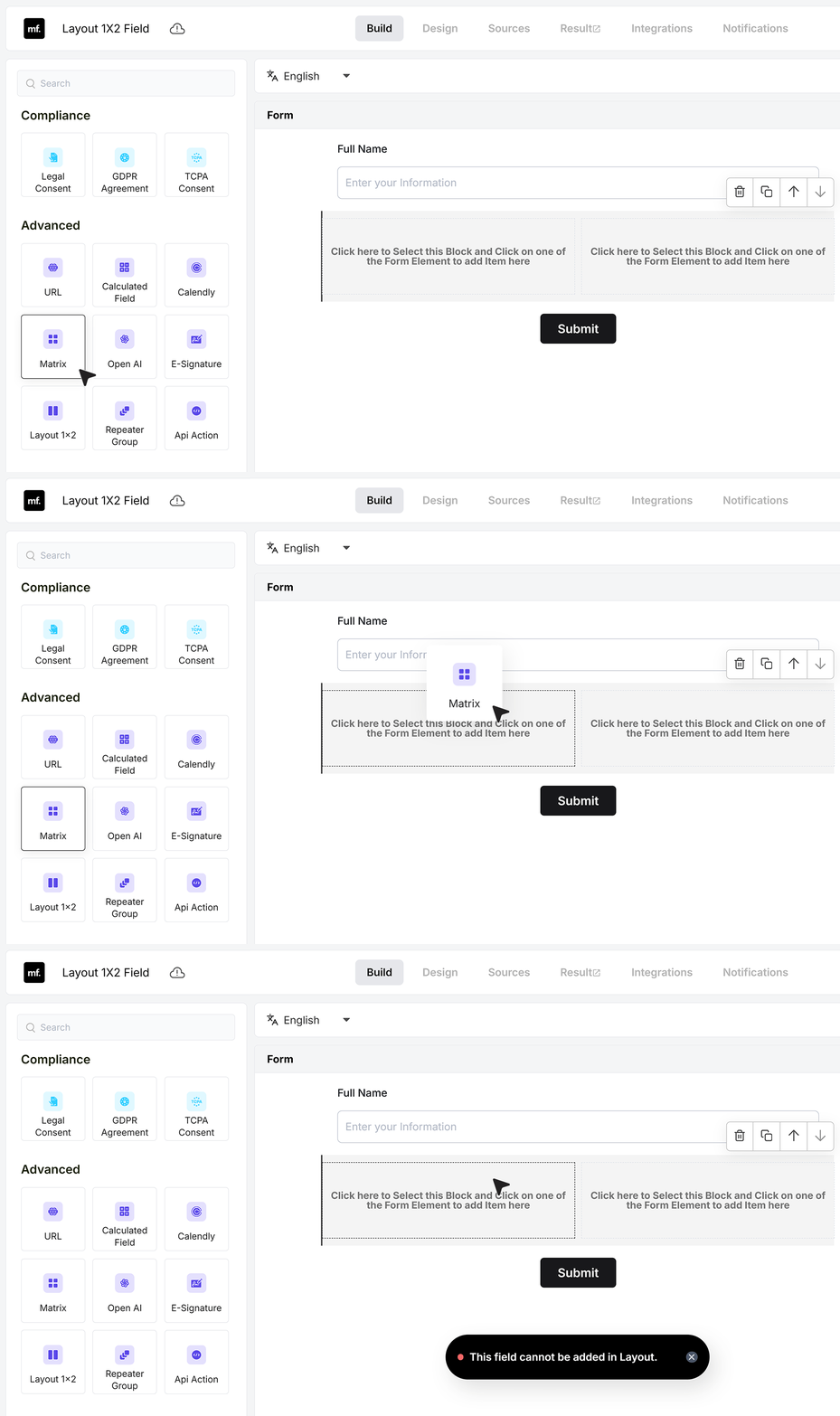
- Before adding fields, it’s important to note that some fields cannot be placed inside a layout. Fields such as Likert Scale, NPS, Calendly, and Matrix are designed to span the full width of the form and must be added outside the layout container.
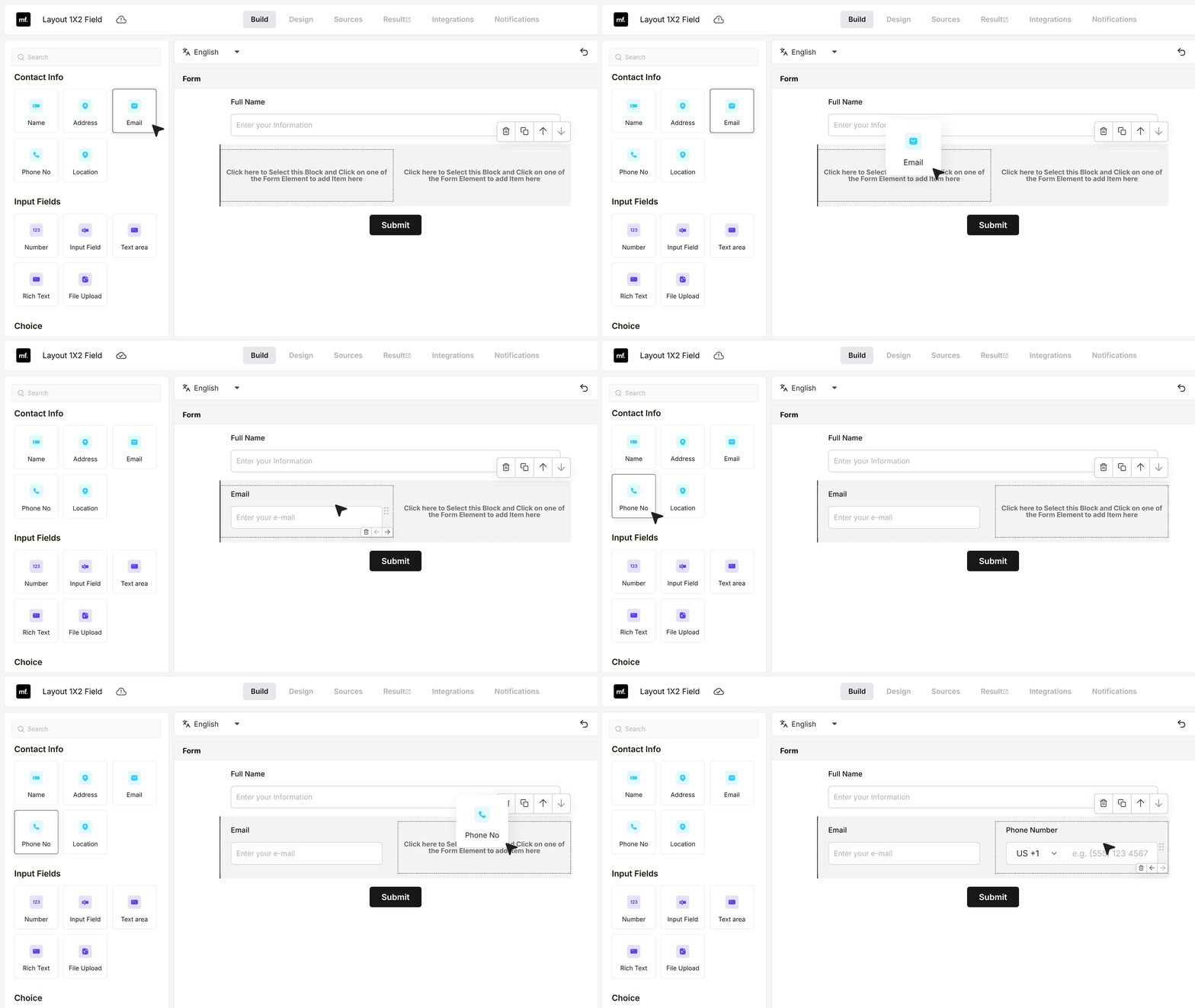
- You can now add supported fields by dragging and dropping them into the layout columns. For example, you can place an Email field in the left column and a Phone Number field in the right column to display both fields side by side.
- After placing the fields, you can rearrange or interchange them within the layout as needed. Each field inside the layout behaves the same way as it does outside the layout. You can mark fields as required, add helper text, and apply validations without any limitations.
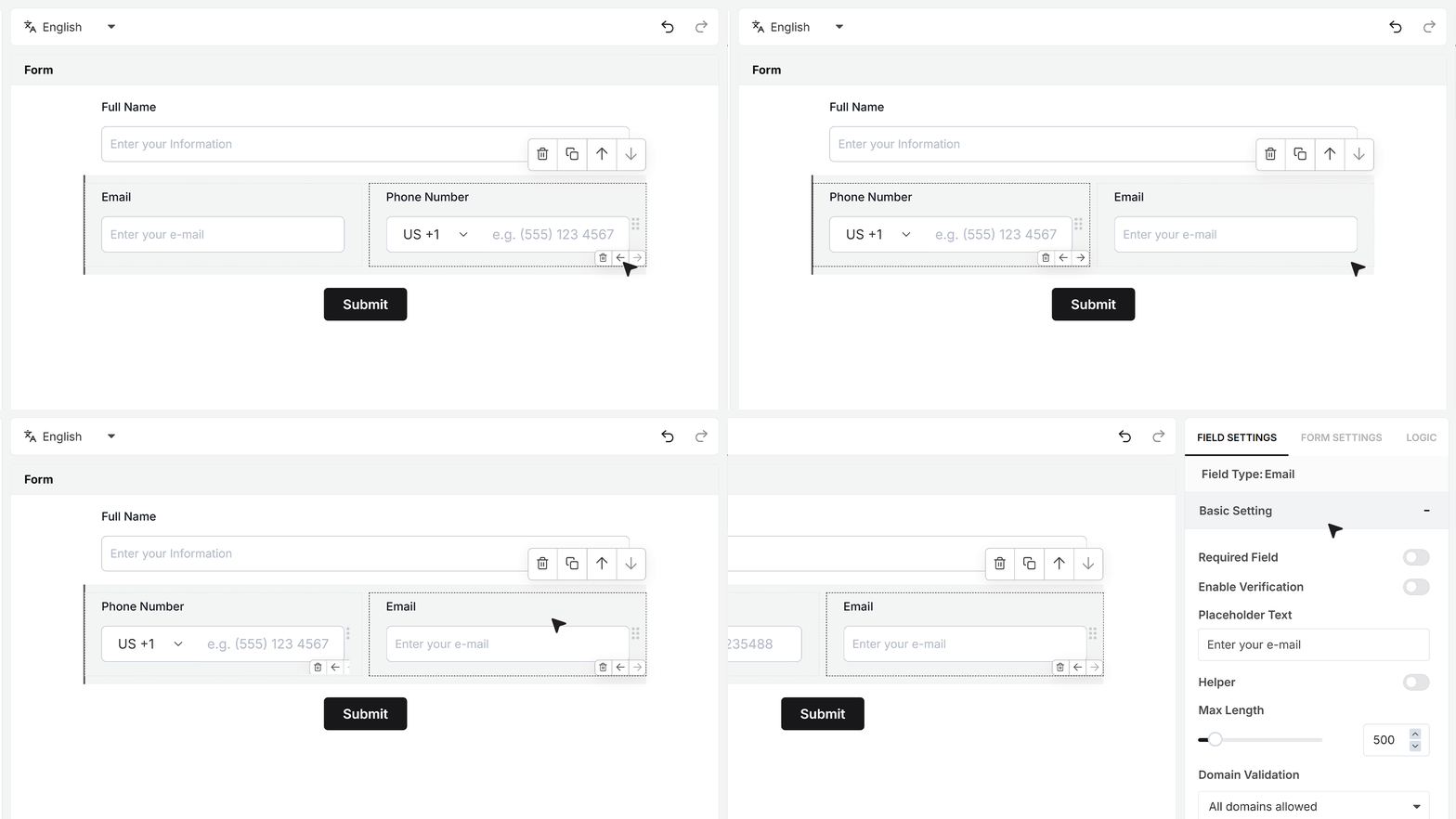
- Fields placed inside the Layout 1×2 are displayed side by side within the same row, helping maintain a clean and balanced form layout.
FAQ's
A Layout 1x2 field lets you place two form fields side by side in a single row. It helps you create a clean two column form layout instead of stacking fields one below another. This reduces scrolling and improves how the form looks.
A 1x2 layout helps you group related fields like name and phone, or email and company. It makes the form easier to scan and faster to fill. This improves user experience and can increase form completion rates.
Open your form editor, drag the Layout 1x2 field into your form, and then drop supported fields into each column. Once added, you can adjust and arrange fields as needed.
Most standard fields like text, email, and phone can be used inside the layout. These fields behave normally, you can mark them required, add validation, and include helper text.
Some fields need full width and cannot be placed inside the layout. These include Likert Scale, NPS, Calendly, and Matrix fields. These should be added outside the layout container.
Yes, you can easily move fields between columns or switch their positions. This helps you fine tune your form layout without rebuilding it.
Yes. A well-structured two column form layout reduces visual clutter and scrolling. This makes forms feel shorter and easier to complete, which can improve submission rates.
Yes. On smaller screens, the fields automatically stack one below another. This ensures your form stays easy to use on mobile devices.
Use a 1x2 layout when you have related fields like:
- First name and last name
- City and state
- Email and phone
Avoid using it for long or complex fields where full width is needed.
Yes. All fields inside the Layout 1x2 support validation, required settings, and helper text just like regular fields.
No. It only changes the visual layout of your form. It does not impact form speed or data handling.
A standard form stacks fields vertically. A 1x2 layout places two fields in one row. This creates a more compact and structured form design.
Yes. You can add multiple Layout 1x2 sections in a single form to organize different groups of fields.
Yes. It is widely used in lead forms, contact forms, and registration forms to keep the layout clean and professional.
Keep fields short and related, avoid mixing unrelated inputs, and do not overload the form. Use full-width fields where clarity is more important than compact layout.