Location Field
The Location field helps you capture precise place information from your users. It is powered by the Google Maps API, allowing users to search for locations instantly and letting you store accurate map data within your form responses.
This is especially useful for office addresses, delivery locations, service visits, or any workflow that relies on verified place details.
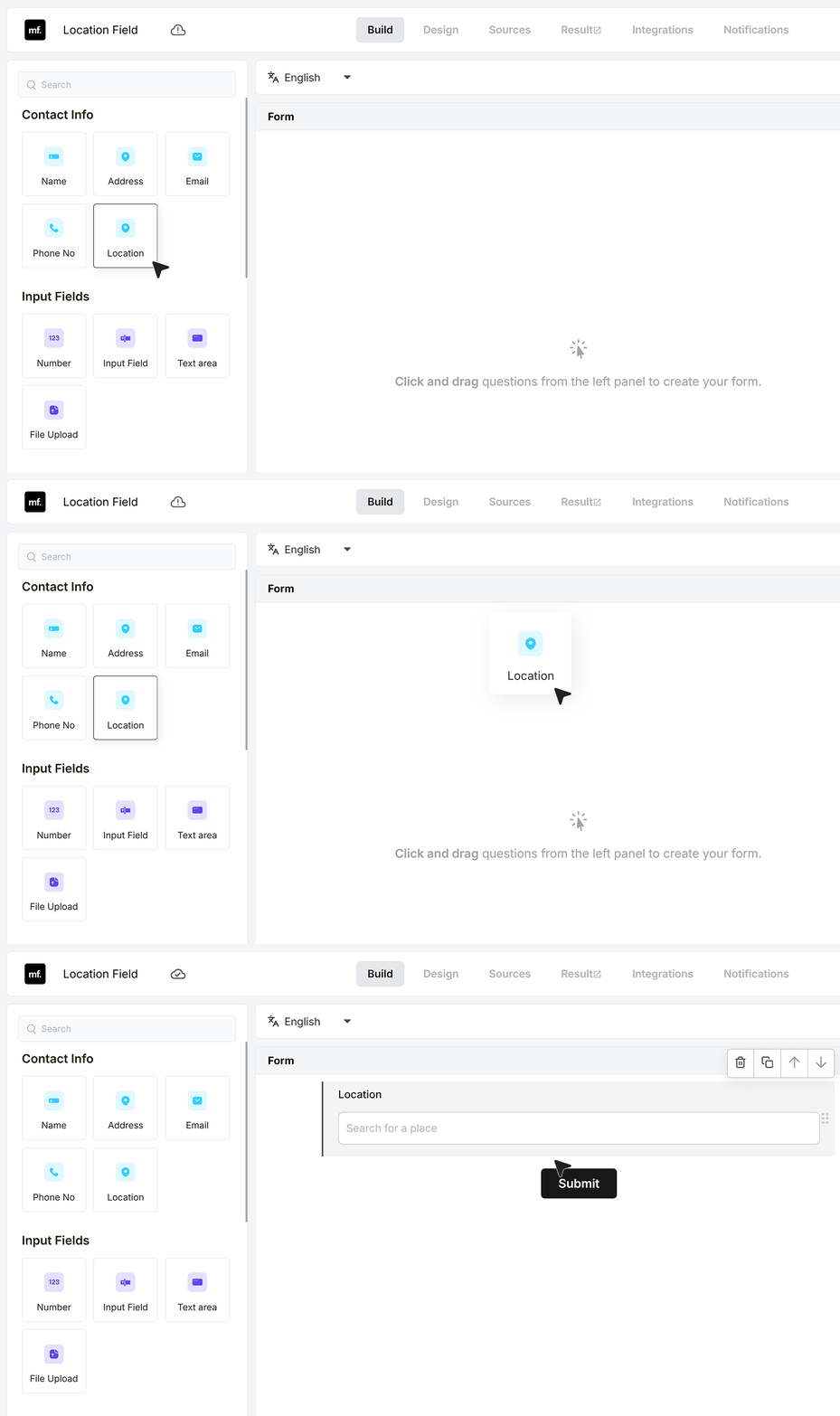
To begin, add a Location field to your form.
Basic Settings
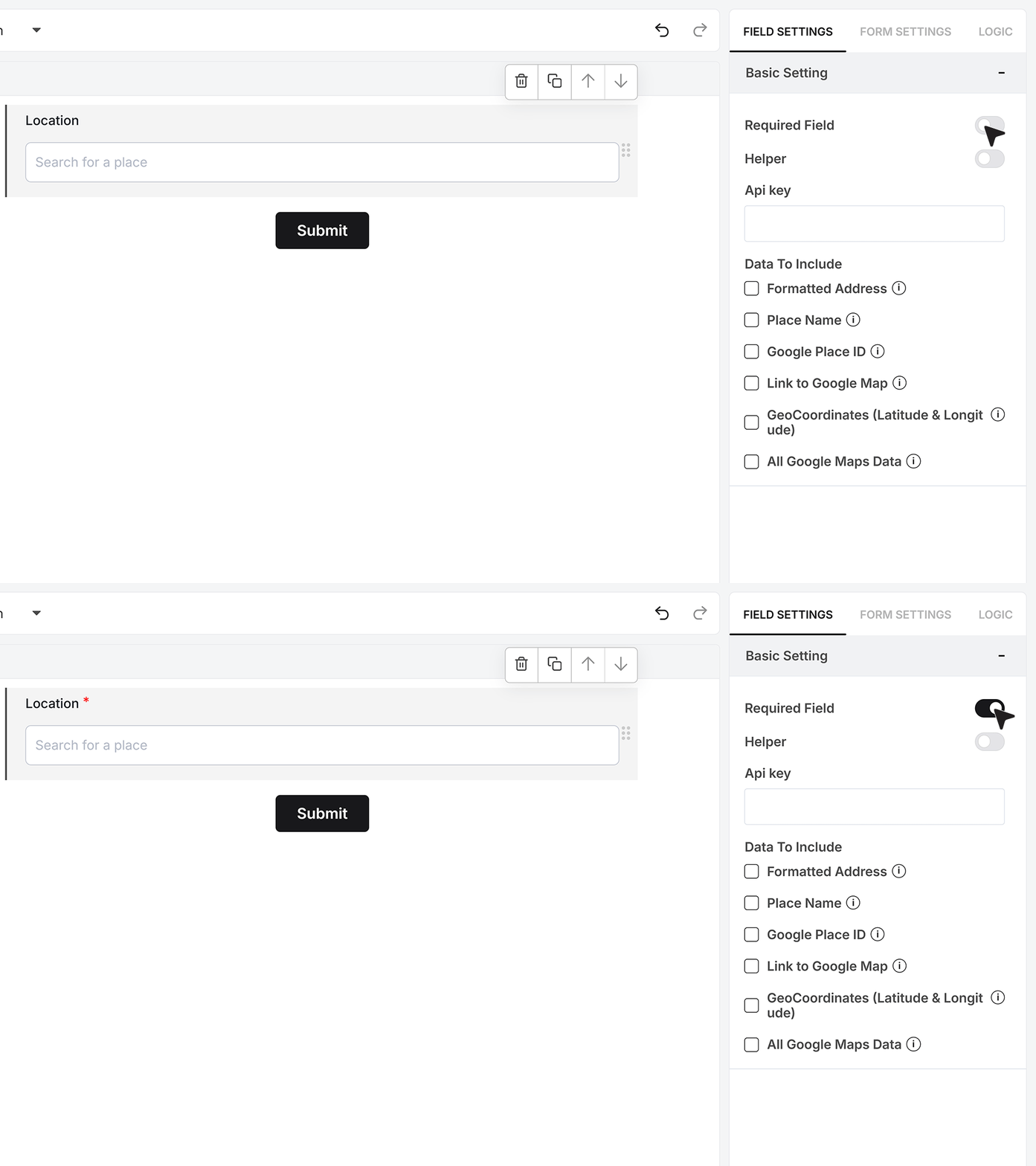
Required Field
At the top of the settings panel, you’ll find the Required Field toggle. Enable this if the user must select a location before submitting the form. If left incomplete, the form displays an error and prevents submission until a valid location is chosen.
Helper Text
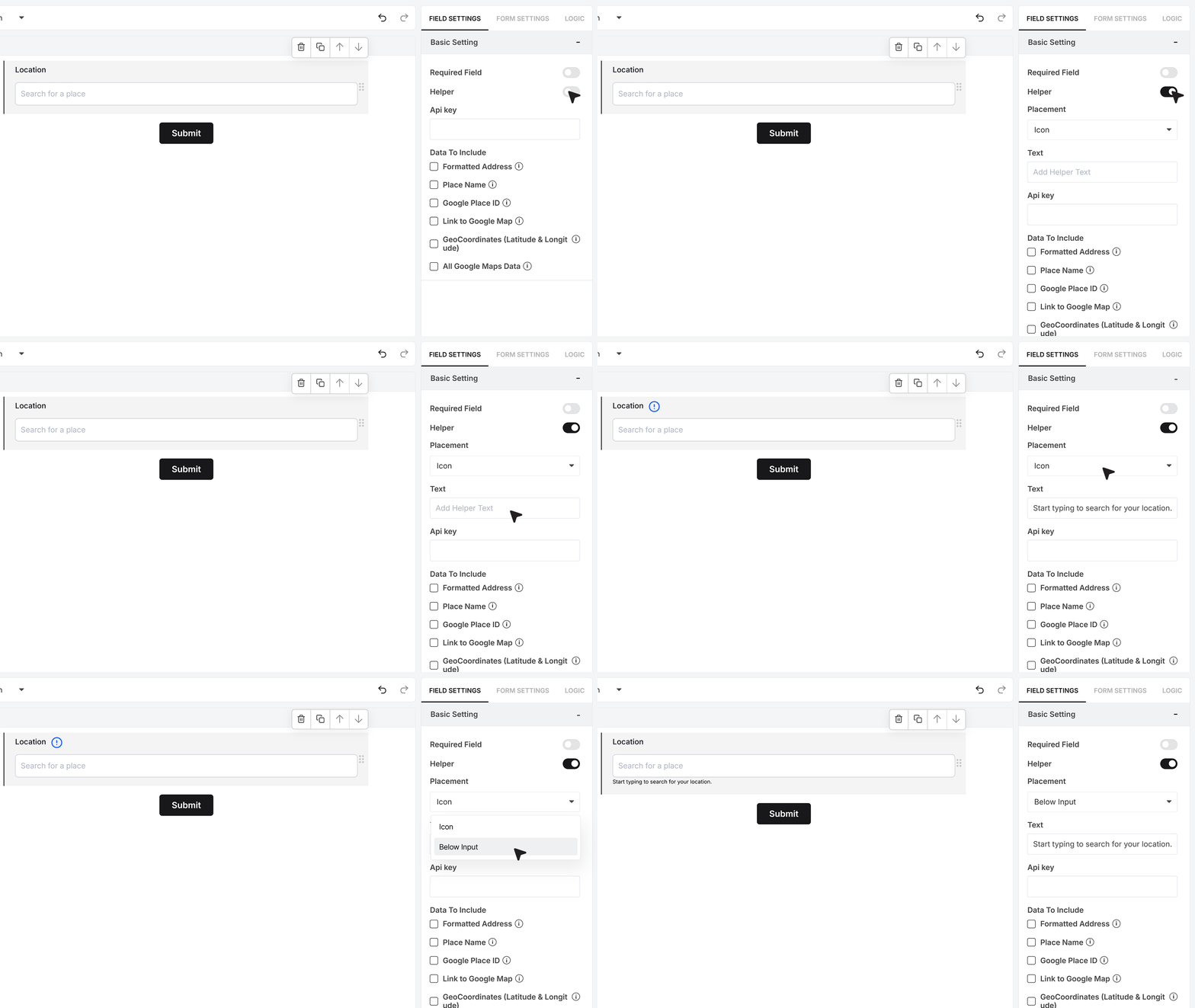
Below that, you’ll see the Helper Text setting. When you enable it, you can write a short message to guide the user — for example, “Start typing to search for your location.” You can also choose where this helper appears: first, as an info icon beside the field that users can hover over to read the message, or as a small line of text below the input box.
Google Maps API Key
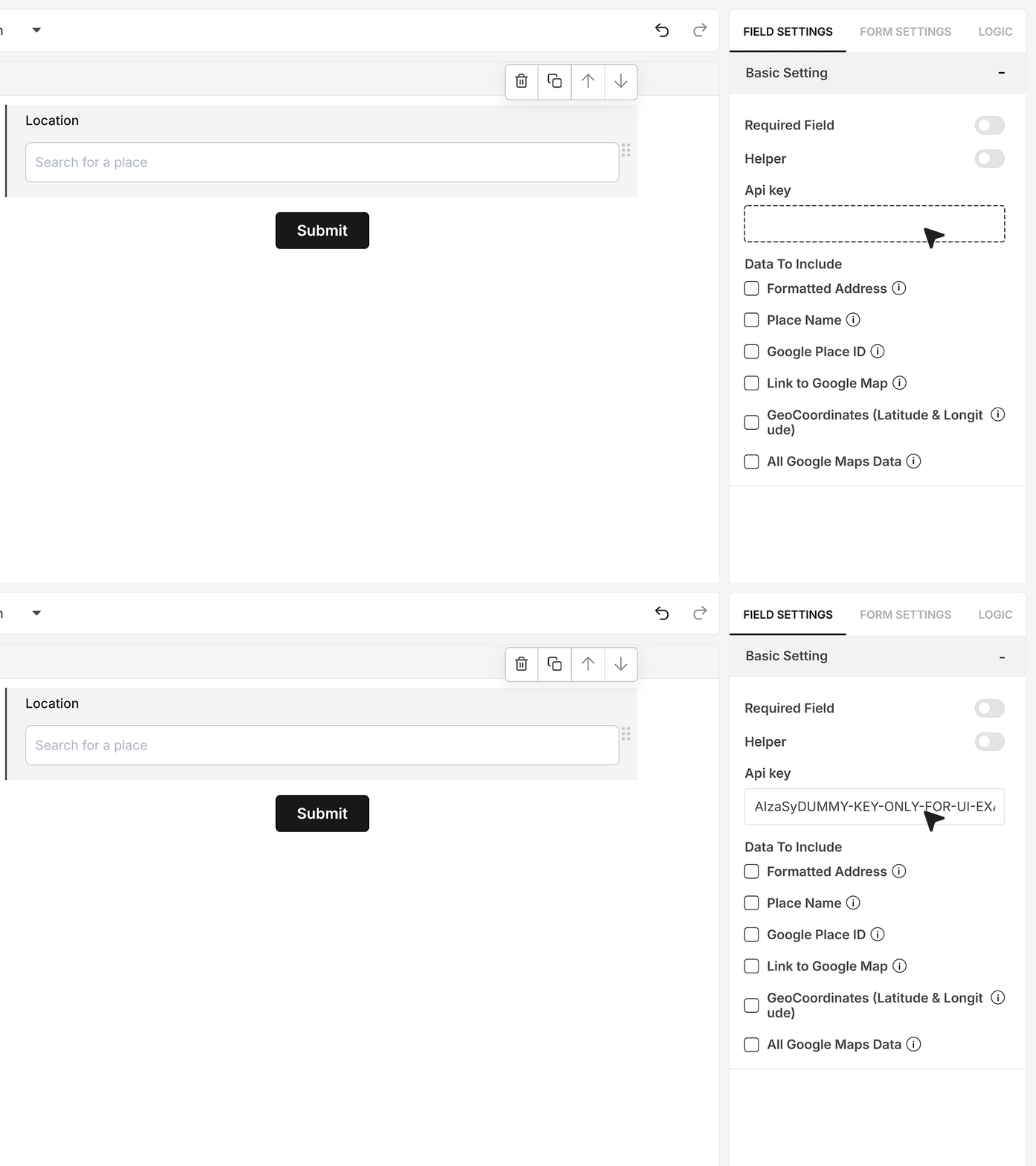
To enable place search, the Location field needs a valid Google Maps API Key.
You can generate this key from the Google Cloud Platform. Once it’s ready, paste it into the API Key box inside the Location field settings. Without this key, the search function will be disabled. Once added, MakeForms connects to Google Maps in real-time, fetching accurate and relevant place suggestions as the user types.
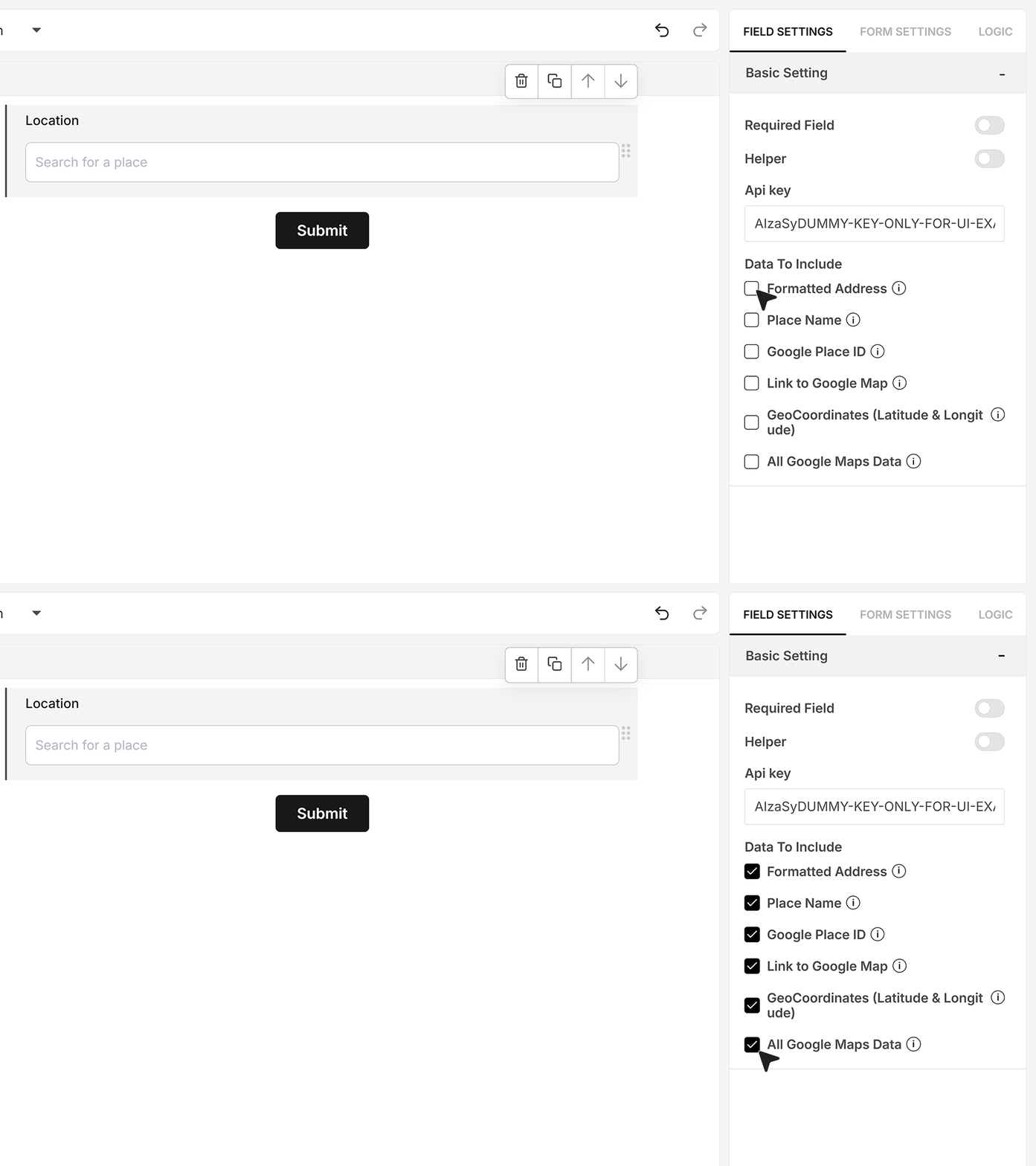
Choose What Data to Save
MakeForms lets you control which location details are stored in your responses, giving you the flexibility to keep only the data you actually need.
You can also enable All Google Maps Data to save the full response returned by Google. This is helpful when integrating with CRMs, automation tools, or custom workflows that use detailed geolocation data.
Select only the information relevant to your process for cleaner responses and optimized data handling.
Live Form Demo
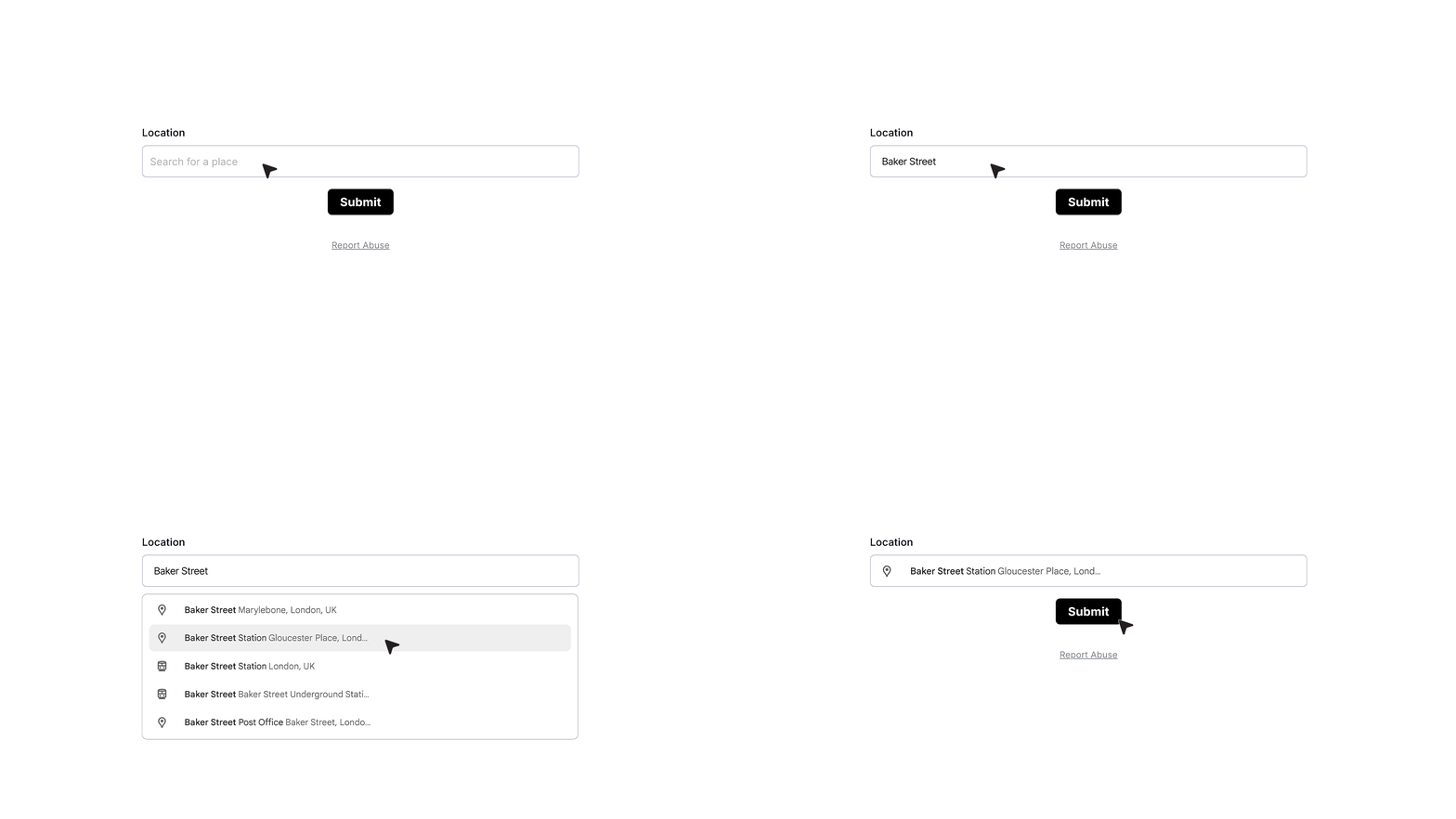
Once your form is published, the Location field works as an interactive search bar where users can begin typing the name of any place. As they type, Google Maps suggestions appear automatically, allowing them to select the correct location with a single click.
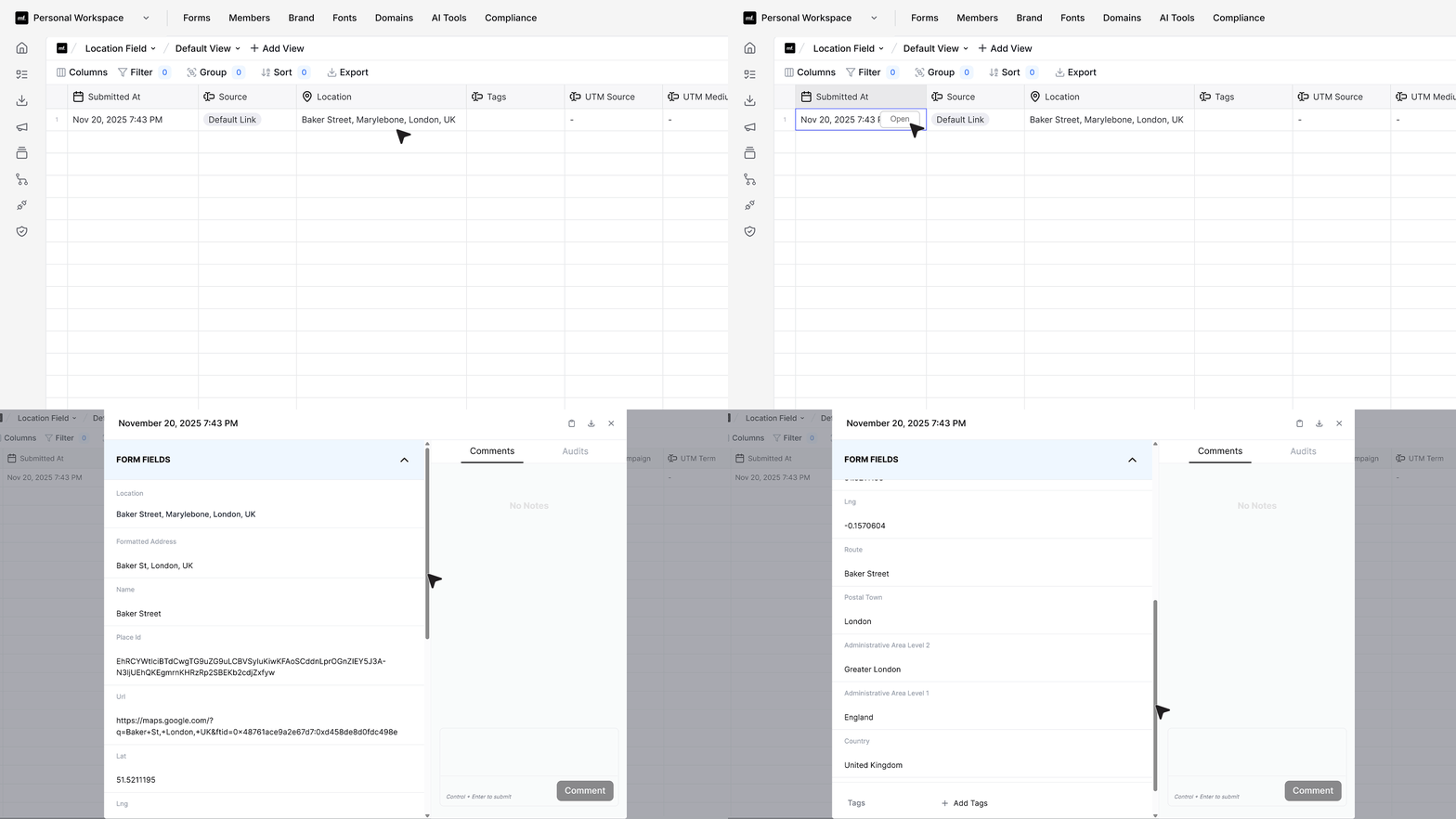
In the Responses section, the captured location data appears neatly organized. You’ll see the formatted address, place name, Google Place ID, a direct Maps link, and the latitude and longitude values, based on the options you enabled in the field settings.
FAQ's
MakeForms offers a Location field that captures place data using the Google Maps API, so you can store geolocation details like latitude and longitude along with the selected place.
In MakeForms, the Location field works as a Google-powered place search where users type and pick a location from suggestions. You can also store a direct Google Maps link for the selected place, which you can open for map confirmation.
The Location field in MakeForms is built on Google Maps API and requires a Google Maps API key, so the native location search is tied to Google. If you need a different provider, you typically handle it via a custom integration flow (for example, collect an ID in a text field and enrich it via your backend) because that is not described as a built-in option for this field.
Add a Location field to the survey, paste a valid Google Maps API key, and decide what to store in responses, for example formatted address, place name, place ID, map link, and coordinates. Make the field required if the survey should not submit without a valid location.
Use a location value that your form builder can evaluate in rules, like formatted address, place name, or Google Place ID. In MakeForms, you can choose to store these values, including the full Google response if you enable All Google Maps Data, then use those saved values in your logic rules if your logic layer supports referencing this field.
In MakeForms, use the Location field for autocomplete. Add the field, set the Google Maps API key, and the input becomes an interactive search that shows Google suggestions as the user types.
The MakeForms doc does not mention a built-in heatmap view. What it does support is saving latitude and longitude (and even the full Google payload), which you can export and use to build heatmaps in your BI or mapping tool.
Enable the specific location fields you want to store, or enable All Google Maps Data when your CRM needs richer place details. Then send the saved output (formatted address, place ID, map link, coordinates) through your CRM connector, webhook, or automation flow.
The Location field is a search-based picker, not a city/state dropdown. If you need dropdown city and state, use separate dropdown fields (City, State) or an Address field, and keep the Location field only when you need verified place data like Place ID or coordinates.
The Location field can be required, which blocks submission until a valid location is selected. For an explicit confirmation step, add a checkbox like “I confirm this is the correct location” after the Location field, or add a review page if your form flow supports it, and show the stored formatted address or map link for verification.