Rating Field
The Rating field lets you collect quick feedback on a product, service, or piece of content using stars or emojis. It is a good choice when you want a simple score instead of a long text reply.
Adding the Rating field
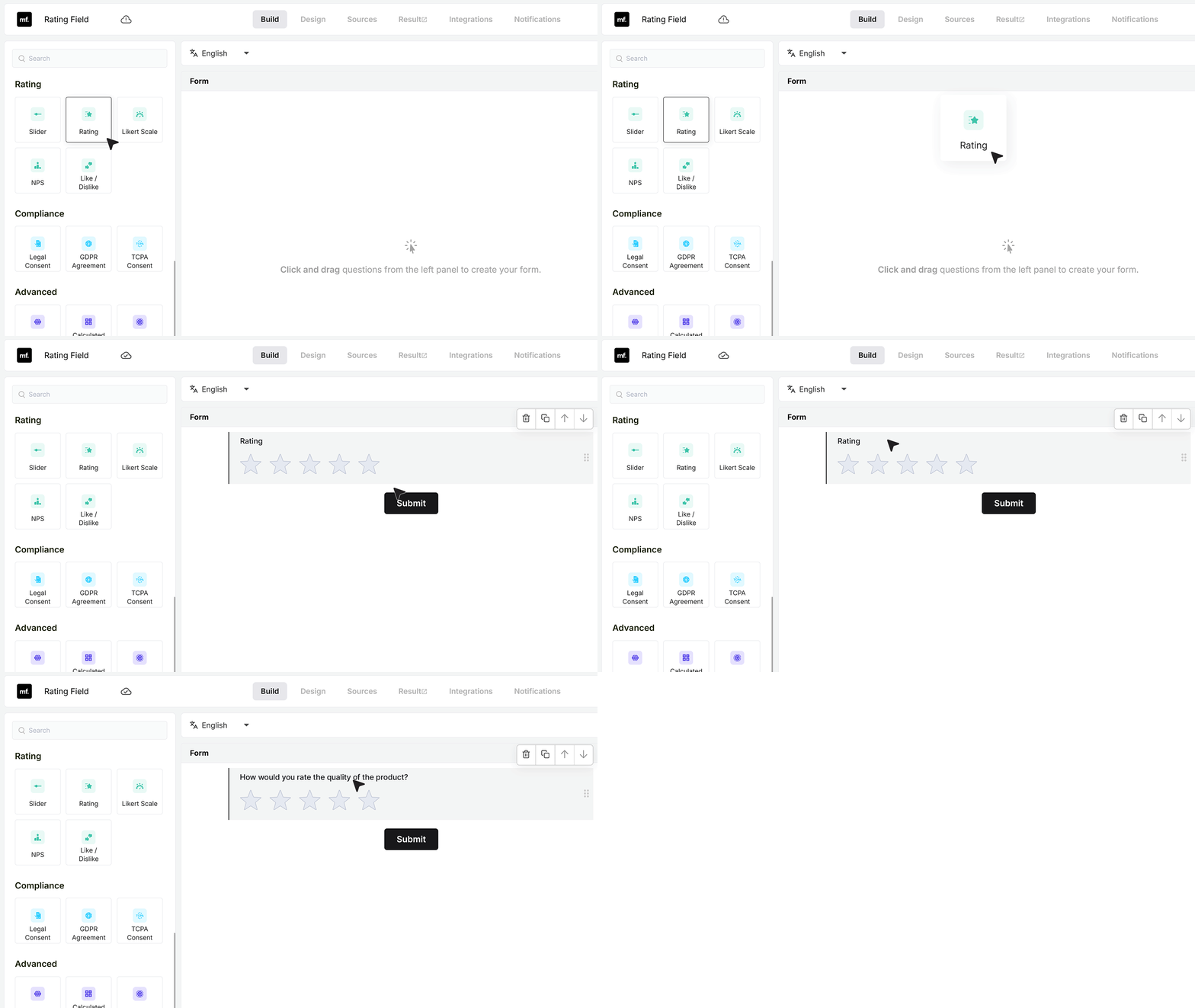
In the form builder, open the field list and add the Rating field to your form. Click on the label and rename it. For example, you can name it “How would you rate the quality of the product?”
Basic Settings
Required Field
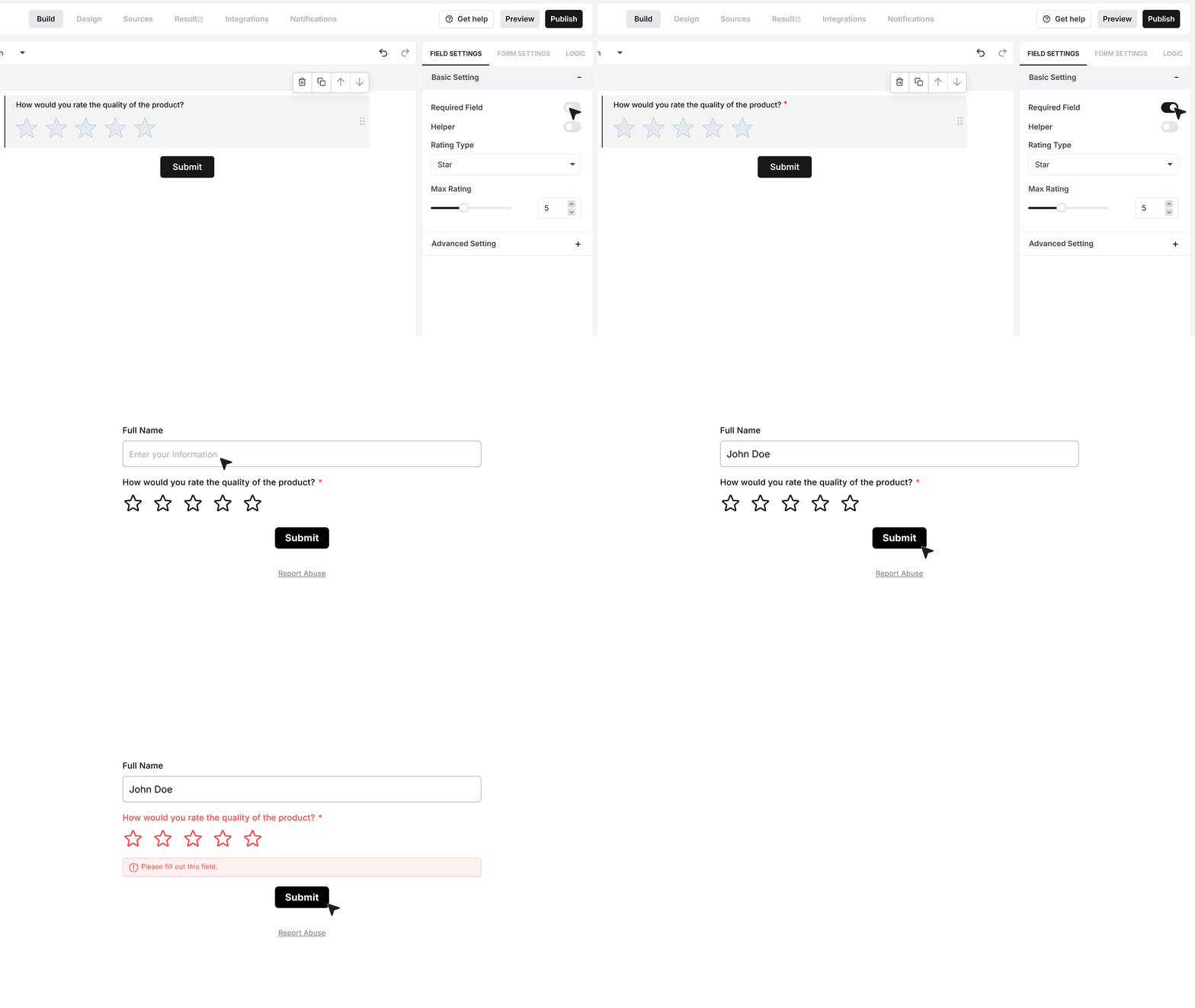
The Required Field toggle controls whether the user must select a rating before they can submit the form.
If this is turned on and someone tries to submit the form without choosing a value, MakeForms shows an error and stops the submission. They must select a rating before the form goes through. Use this when the rating is important for your review or survey.
Helper text
The Helper Text option is useful when you want to give extra guidance.
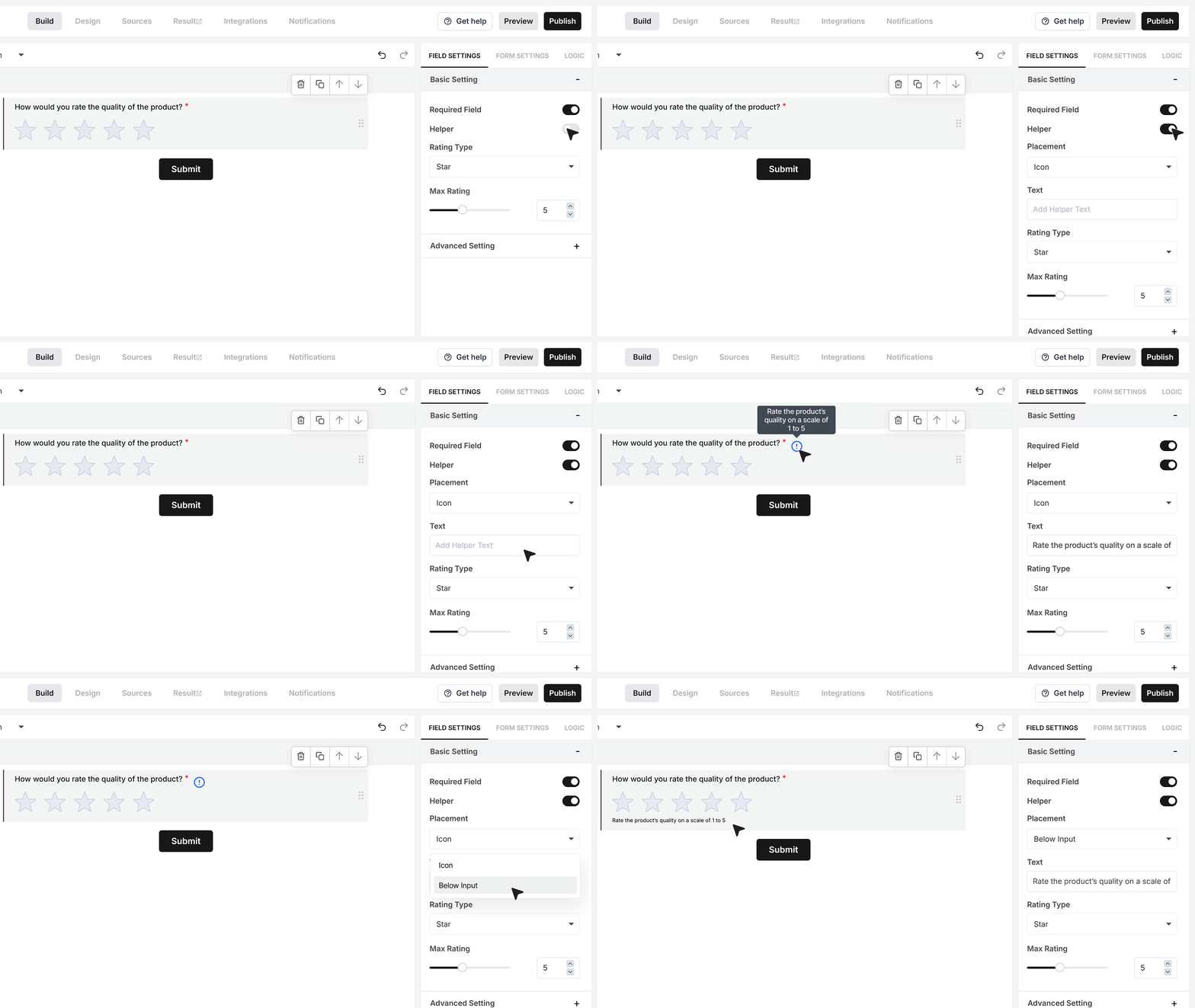
Turn it on and add a short note such as “Rate the product’s quality on a scale of 1 to 5.” This helps users understand what the rating should be based on.
You can show this text as a small info icon that reveals the message on hover, or as a visible line of text under the Rating field. Choose the style that keeps your form clear and easy to read.
Rating Type
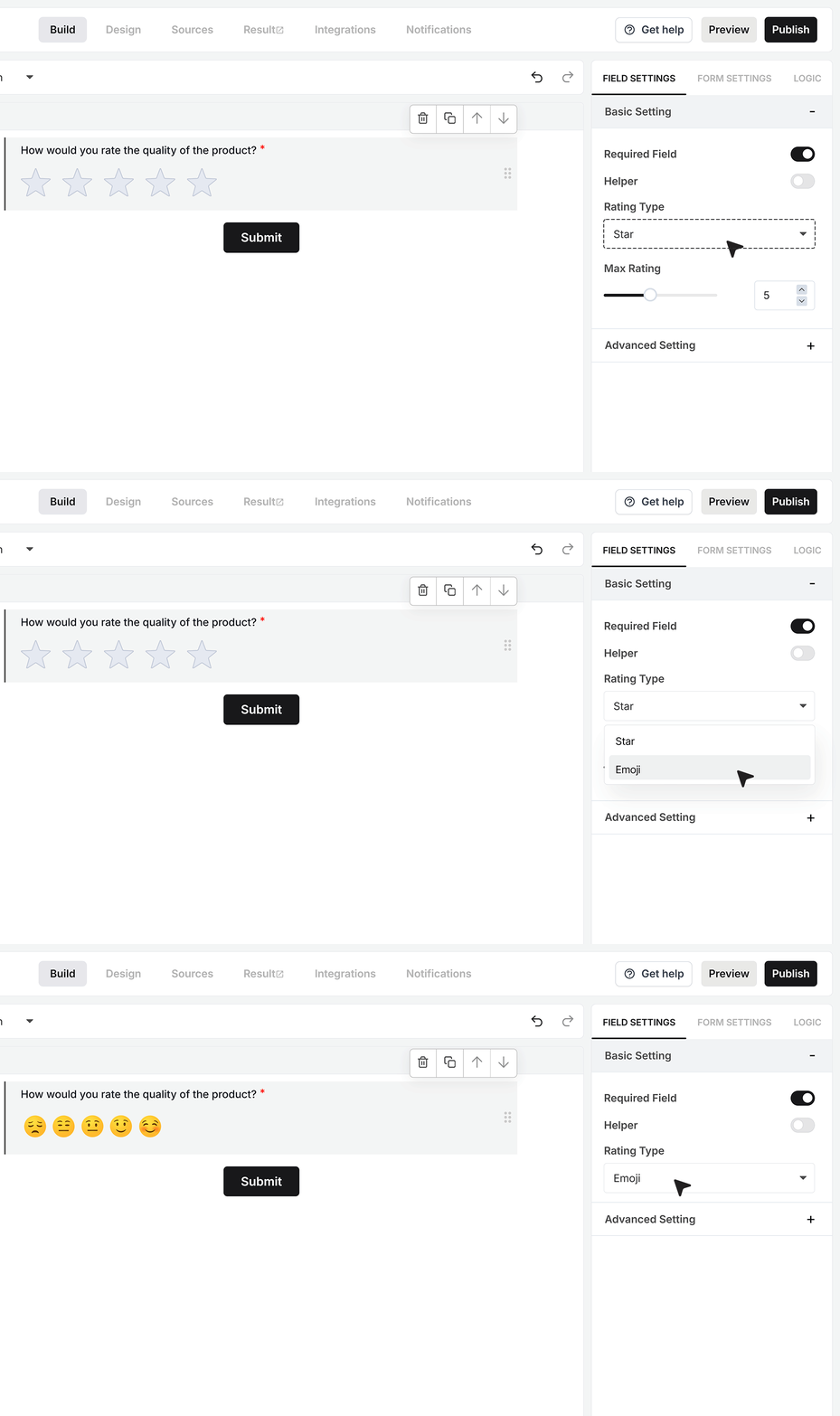
The Rating Type setting changes how the rating is shown. By default, the field uses Stars. In this mode, users see star icons and click one of them to set their score.
You can switch the type to Emoji Rating. In this mode, the stars change to emoji faces that move from unhappy to very happy as the rating goes up. This works well when you want a more casual and friendly feel, like in app feedback or content reactions.
Max Rating
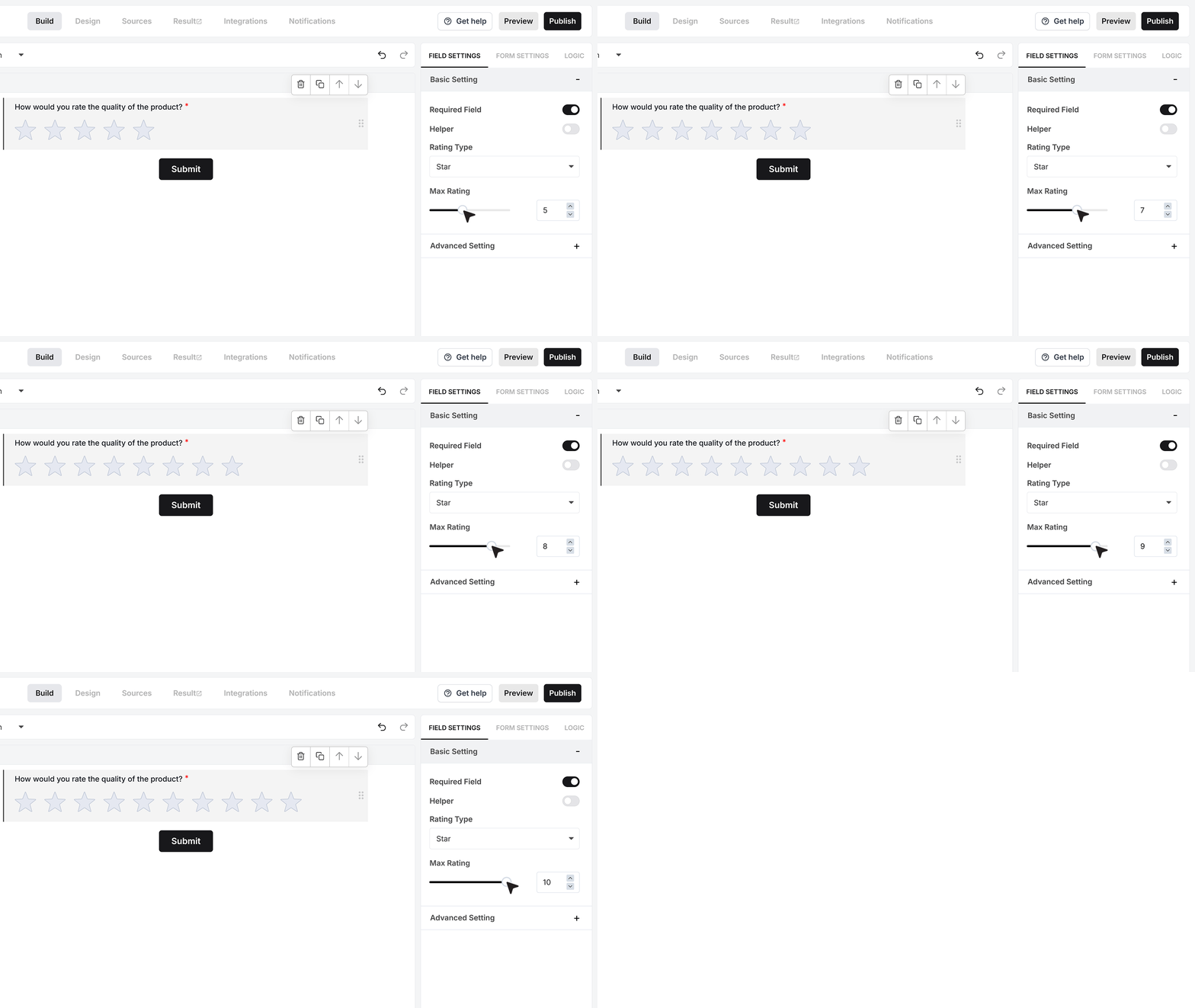
The Max Rating setting decides how many points the scale has when the type is set to Stars.
By default, the Rating field usually shows five stars. You can increase this up to ten if you want a more detailed scale. This setting applies only when the Rating Type is set to Stars.
Advanced Settings
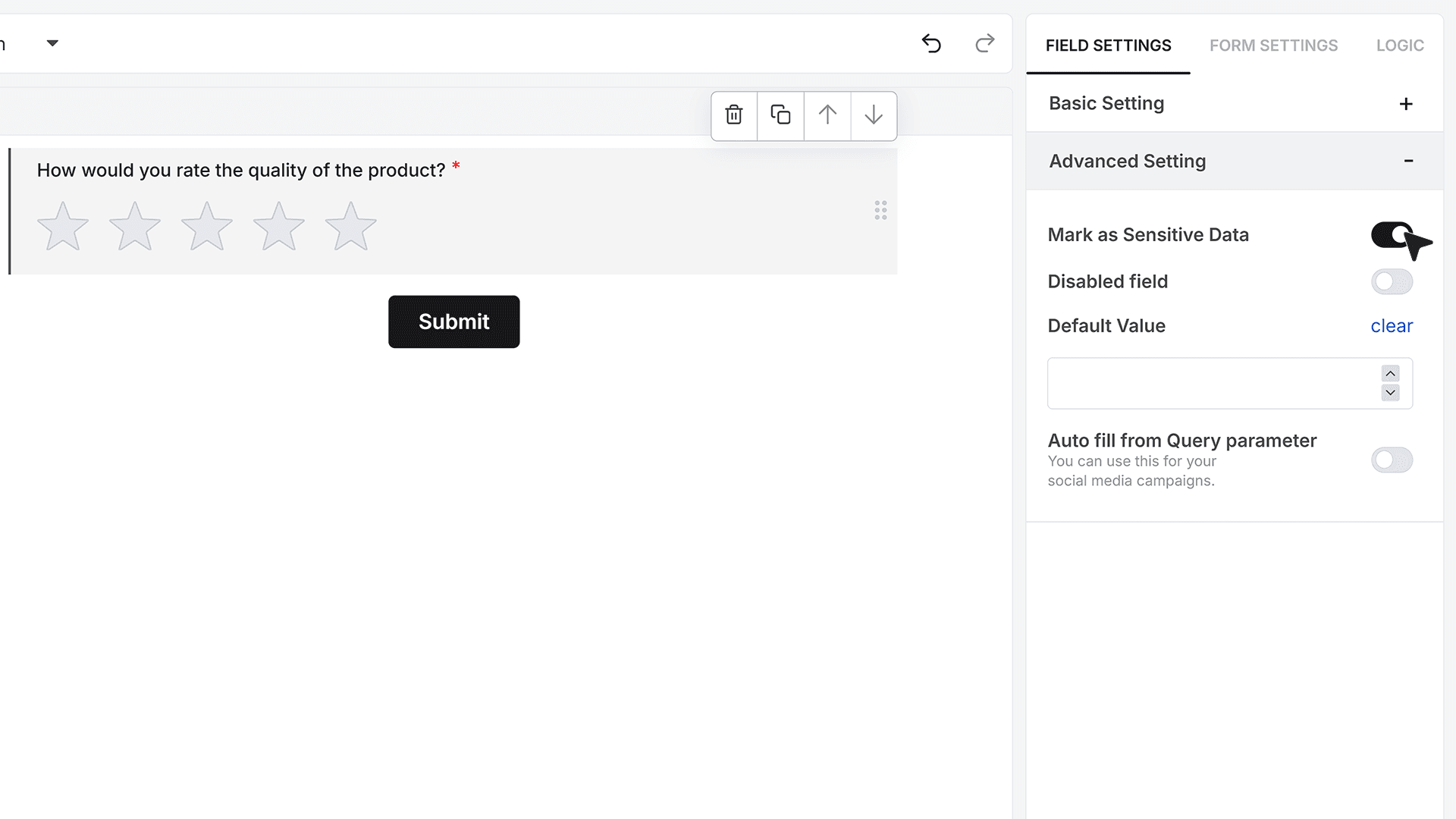
Mark as Sensitive Data
The Mark as Sensitive Data option controls who can see the rating values inside MakeForms.
Turn this on when the rating should not be visible to every team member. For example, this is helpful for internal employee feedback or any form where you want to restrict access. When this setting is active, only users with the right access level can see the scores in the Responses section.
Default Value
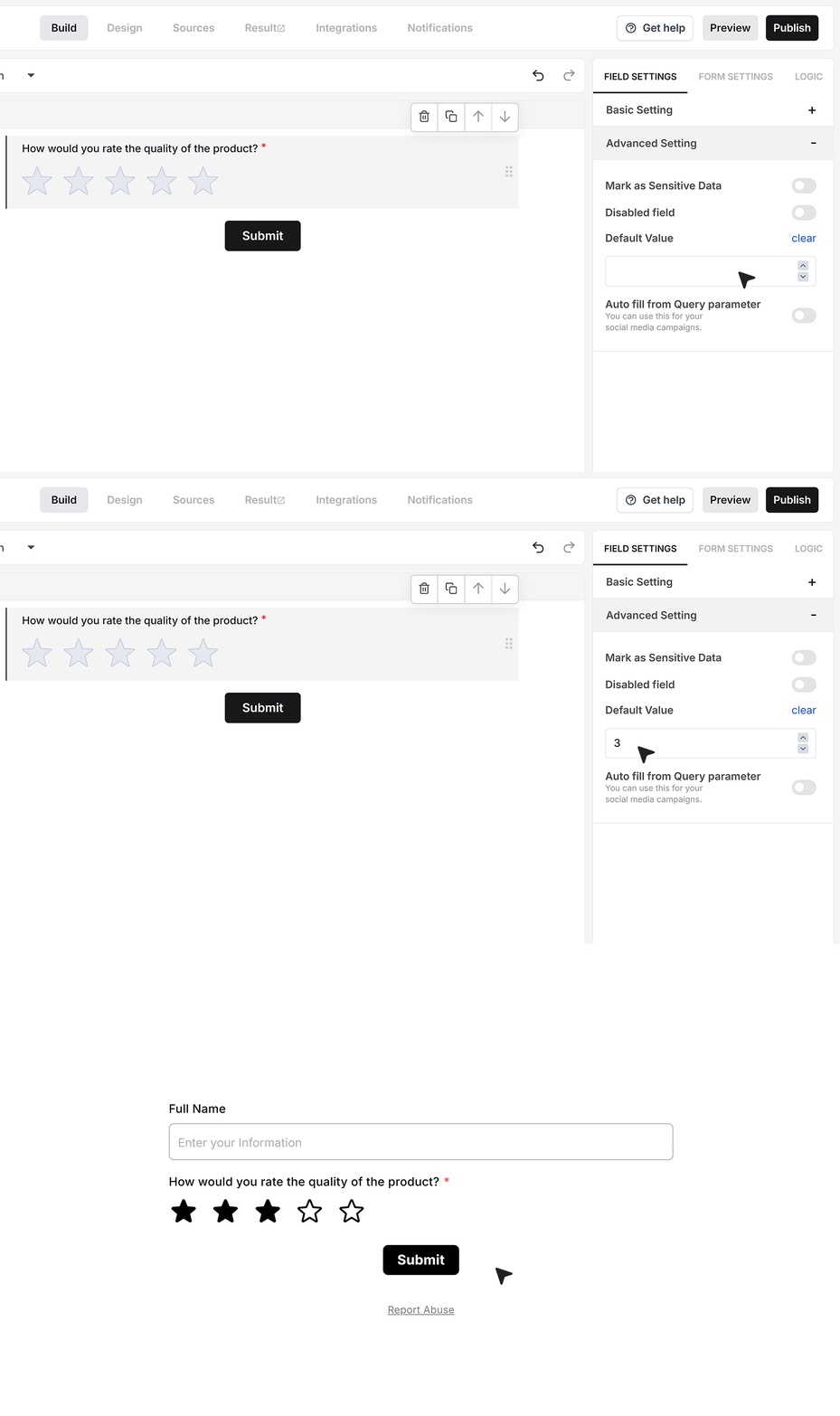
The Default Value setting lets you pre-fill the Rating field with a starting score.
You can set a value such as 3 out of 5. When the form opens, the Rating field already shows that score. The respondent can still change it before submitting, as long as the field is not disabled.
This is useful when you want to start from a neutral score instead of leaving the field empty.
Disable Field
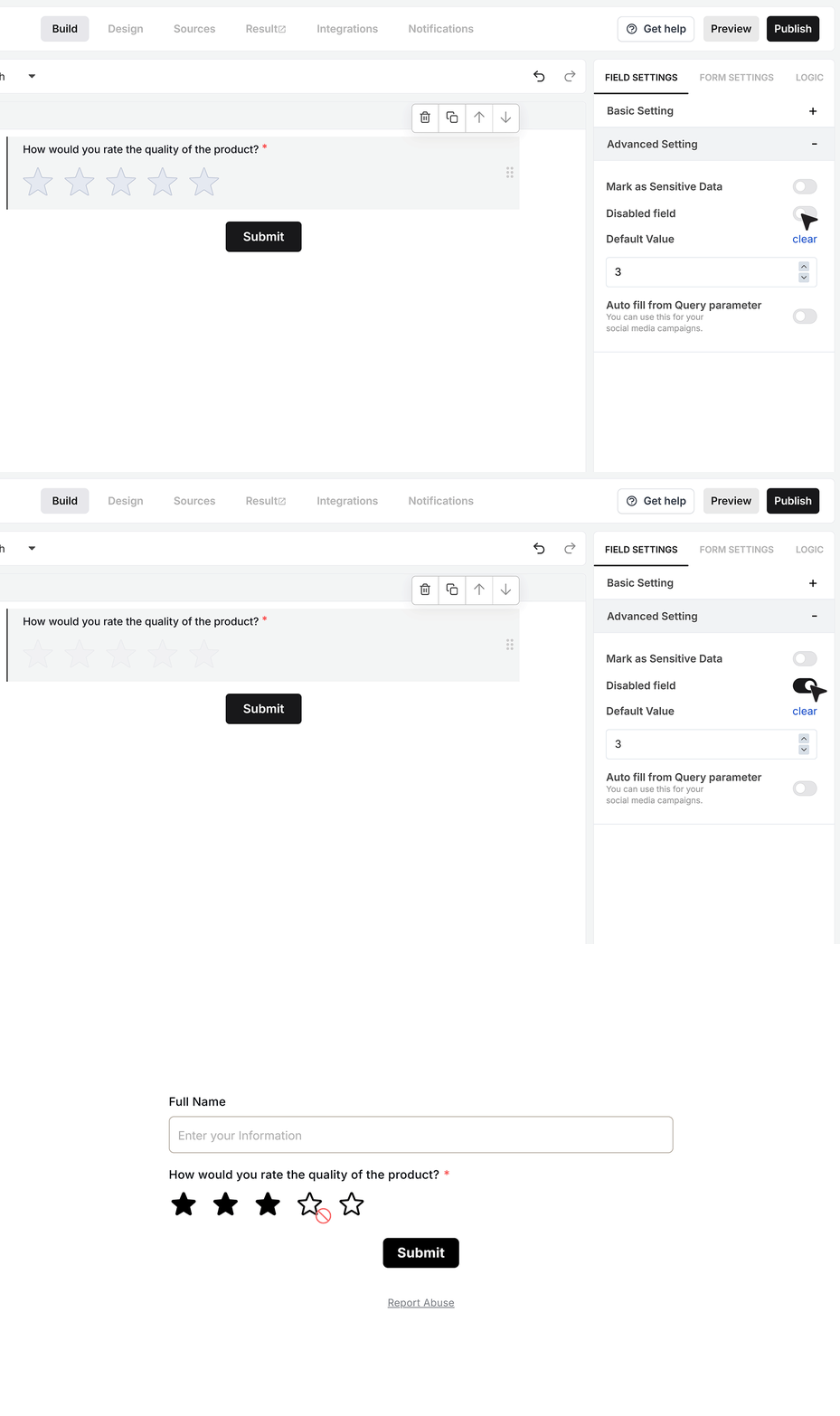
The Disable Field option turns the Rating field into a read only field.
When this is enabled, users can see the rating but cannot change it. This is useful when the rating comes from another system and you are only displaying it on the form. In this case, the field acts as a display field, not an input.
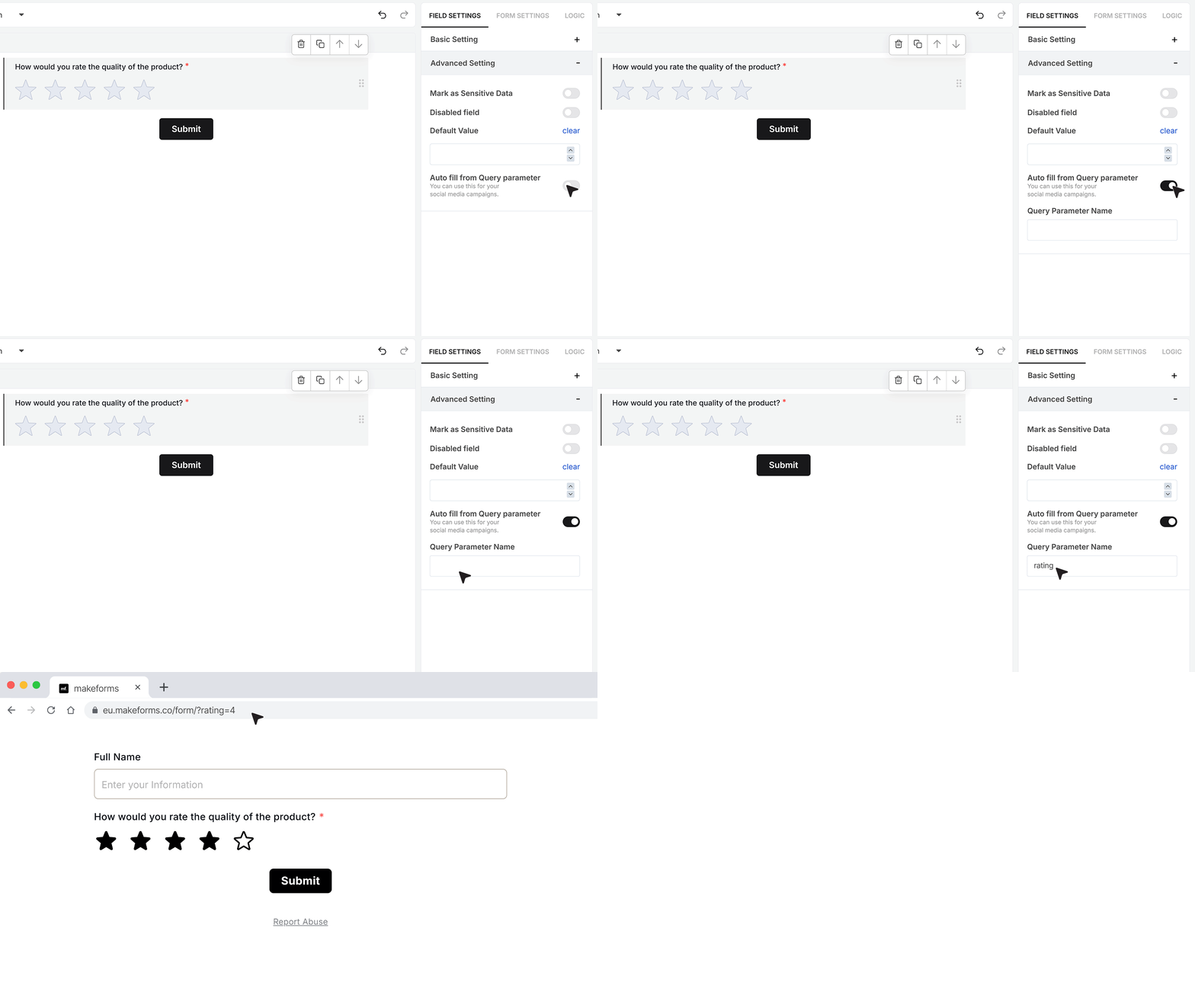
Autofill from Query Parameter
The Autofill from Query Parameter setting links the Rating field to a value in the form URL.
To use this, enter a parameter name, for example rating. When you share the form link, add that parameter with a value that fits the allowed rating range. If the maximum rating is 5, you can share a link like ?rating=4.
When someone opens the form with this URL, the Rating field reads that value and fills it in, as long as it is valid for the current scale.
FAQ's
The Rating Field in MakeForms lets you collect quick feedback using stars or emoji ratings. It works well when you want a simple score instead of a long text answer, such as product feedback, service reviews, or content reactions.
To add a Rating Field, open the form builder, choose the Rating Field from the field list, and place it in your form. You can then rename the field label to match your question, such as “How would you rate your experience?”
Yes. In MakeForms, you can show the Rating Field as Stars or switch it to Emoji Rating. Stars work well for standard reviews, while emoji ratings are useful when you want a more friendly and casual look.
Yes. You can turn on the Required Field setting to make sure people select a rating before they submit the form. If they skip it, MakeForms will show an error and stop the submission until they choose a value.
Yes. You can add helper text to explain what users should rate. For example, you can ask them to rate product quality on a scale of 1 to 5. The helper text can appear as an info icon or as visible text under the field.
Yes. When the rating type is set to Stars, you can choose the maximum rating value. By default, the field usually shows 5 stars, and you can increase it up to 10 if you want a more detailed scale.
Yes. You can pre-fill the Rating Field with a default score, such as 3 out of 5. This is useful when you want to start from a neutral value that users can keep or change before submitting the form.
Yes. You can disable the Rating Field to make it read only. This means users can see the rating but cannot change it. It is useful when the value comes from another system and is shown only for reference.
Yes. MakeForms lets you autofill the Rating Field using a query parameter in the form URL. For example, if your parameter name is rating, you can pass a value like ?rating=4 and the field will be filled automatically if the value matches the allowed rating range.
Yes. You can mark the Rating Field as sensitive data to restrict who can view the response values inside MakeForms. This is useful for internal feedback, employee reviews, or any case where rating data should only be visible to users with the right access.