Like and Dislike Field
The Like and Dislike field is made for quick feedback with two clear choices. It works well when you want a fast response, without asking the person to type anything.
Adding the Like and Dislike Field
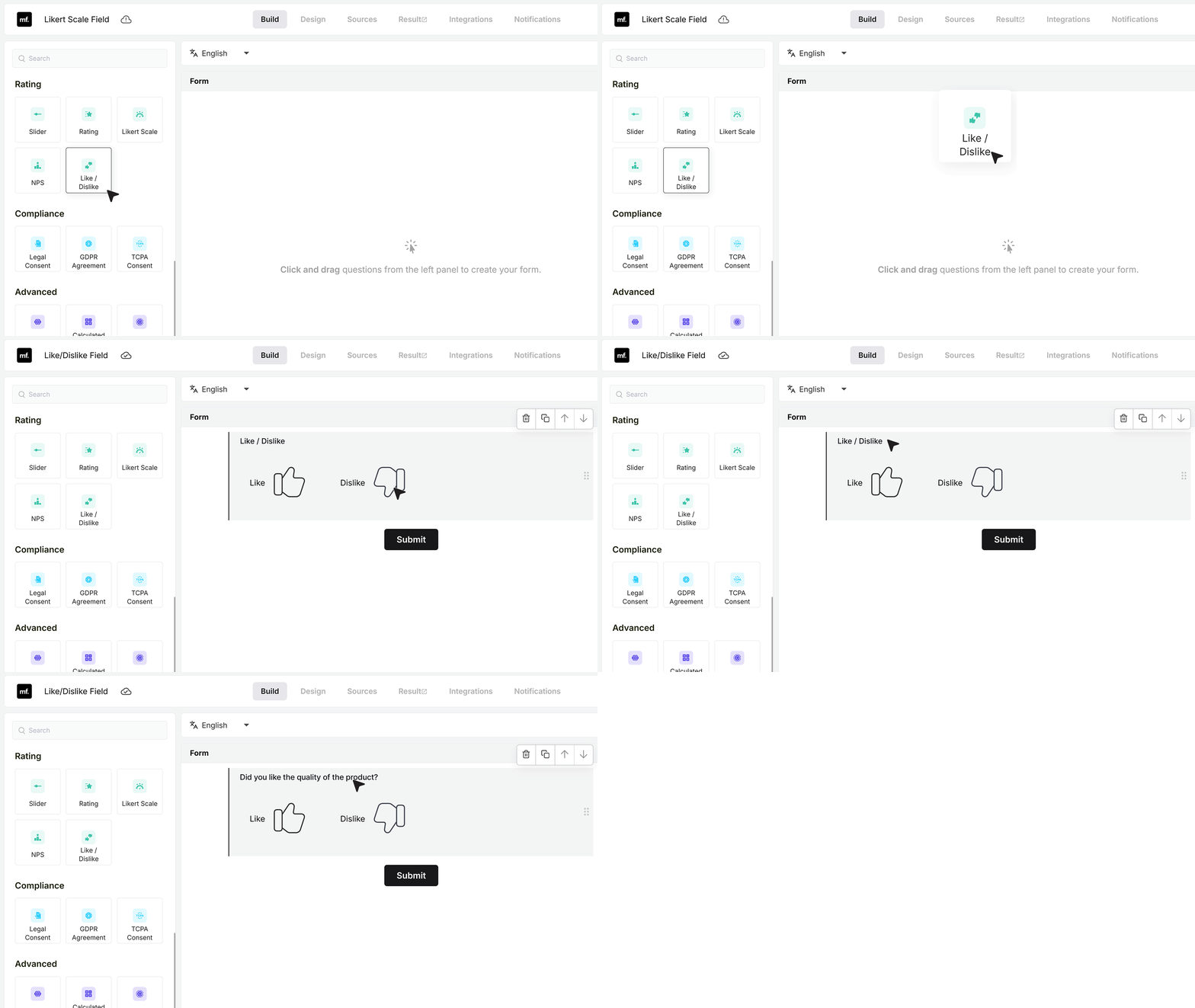
Open the form builder and drag the Like and Dislike field from the field list into your form. Click the label and type a question that fits your form. For example, “Did you like the quality of the product?”
Once the field is added, you can change its settings from the panel on the right. You will also see two thumb icons in the field, Like on the left and Dislike on the right.
Once the field is added, you can configure its settings from the panel on the right.
Basic Settings
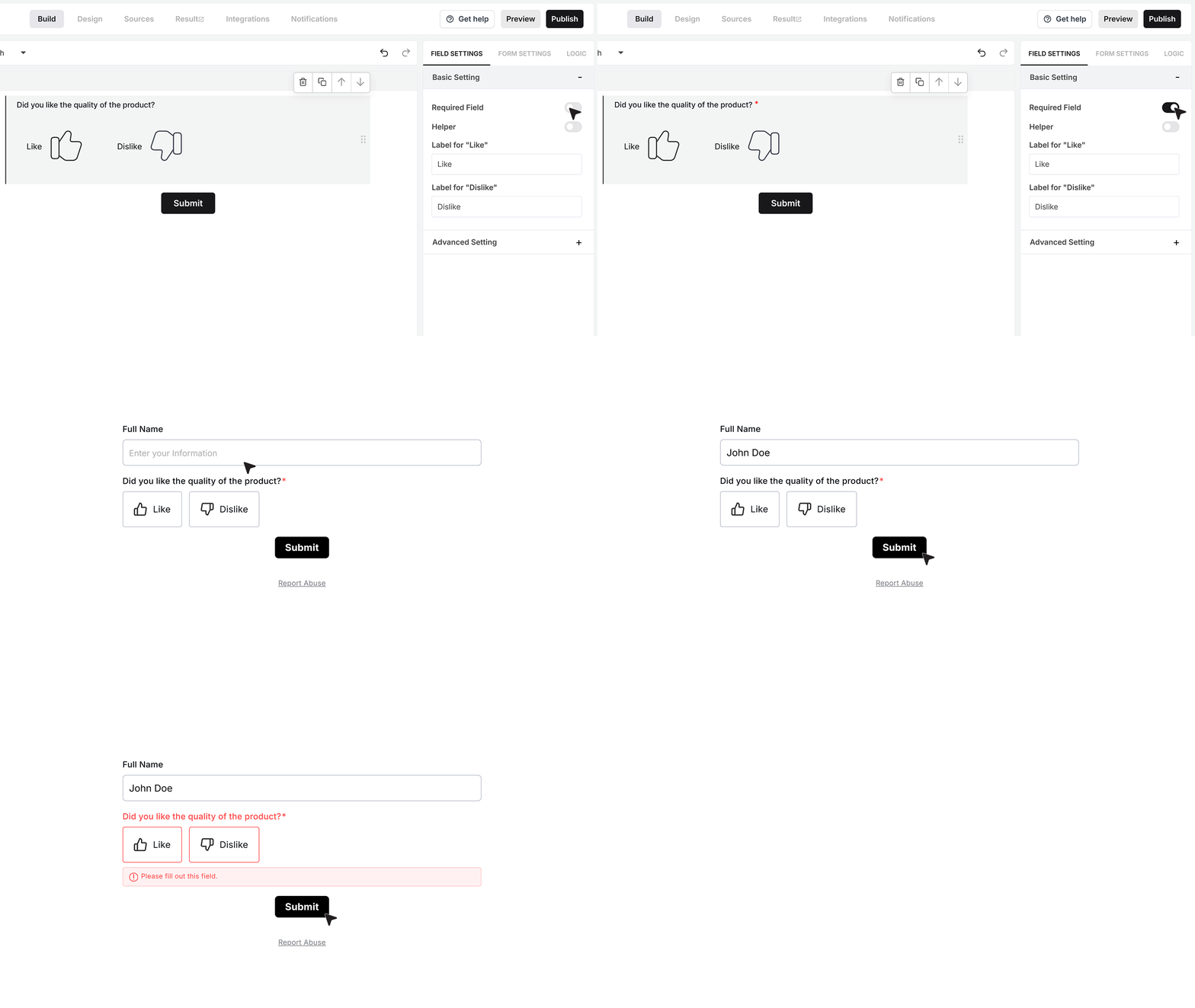
Required Field
The Required Field toggle controls whether the person must pick Like or Dislike before they can submit the form.
If this is turned on and someone tries to submit without choosing an option, MakeForms shows an error and blocks the submit until they select one.
Use this when the feedback is important and you do not want it skipped.
Helper text
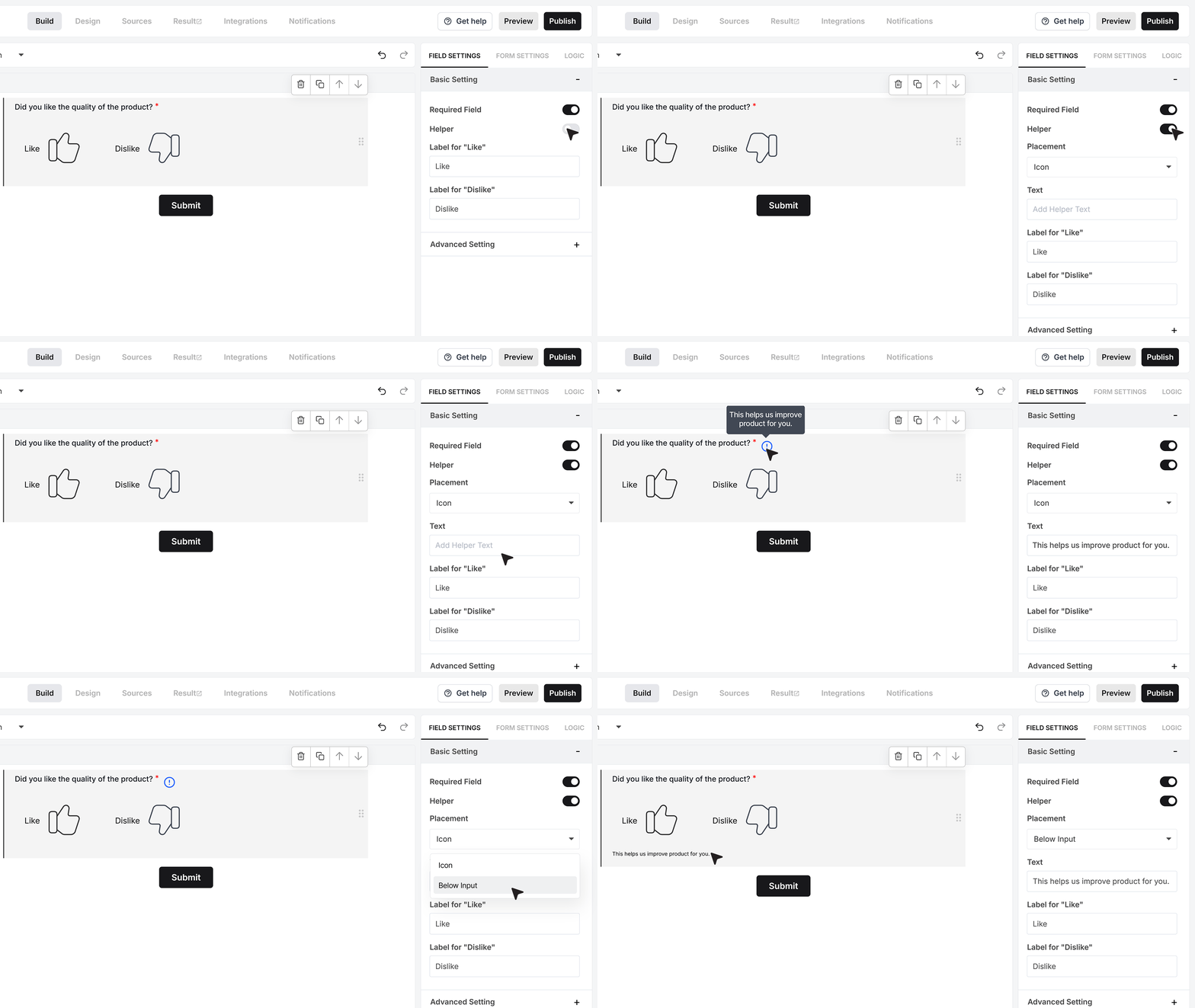
The Helper Text option is useful when you want to explain what the feedback is for.
Turn it on and add a short note, for example, “This helps us improve the product.”
You can show this text as an info icon that shows the message on hover, or as a visible line under the field. Choose the style that keeps your form easy to read.
Labels
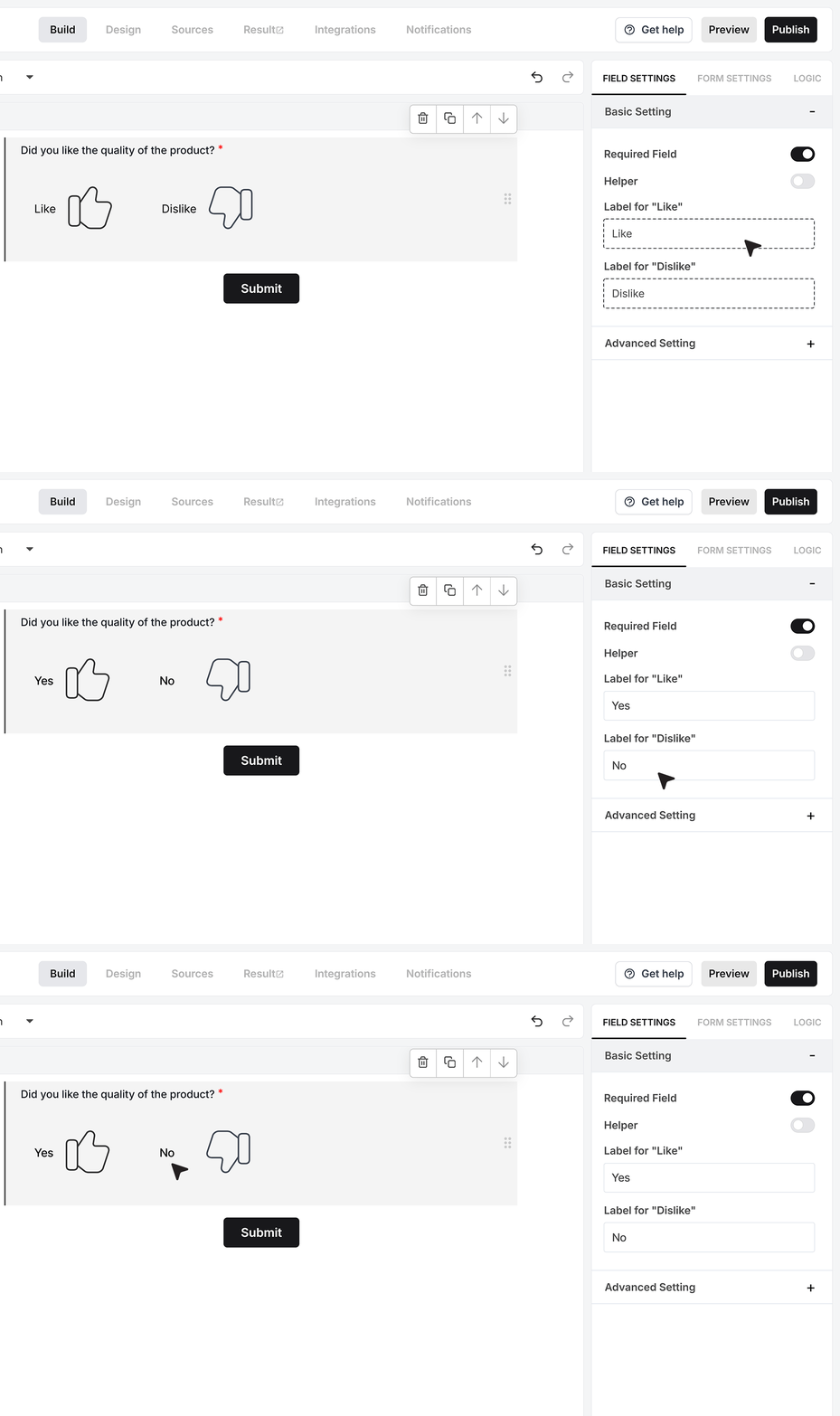
In the Labels section, you can rename the text shown next to the icons.
By default, the labels are Like and Dislike. You can change them to match your use case, for example, Yes and No.
Only the visible label changes. The stored option values remain Like and Dislike, and that is what MakeForms saves in responses and uses for defaults and autofill.
Advanced Settings
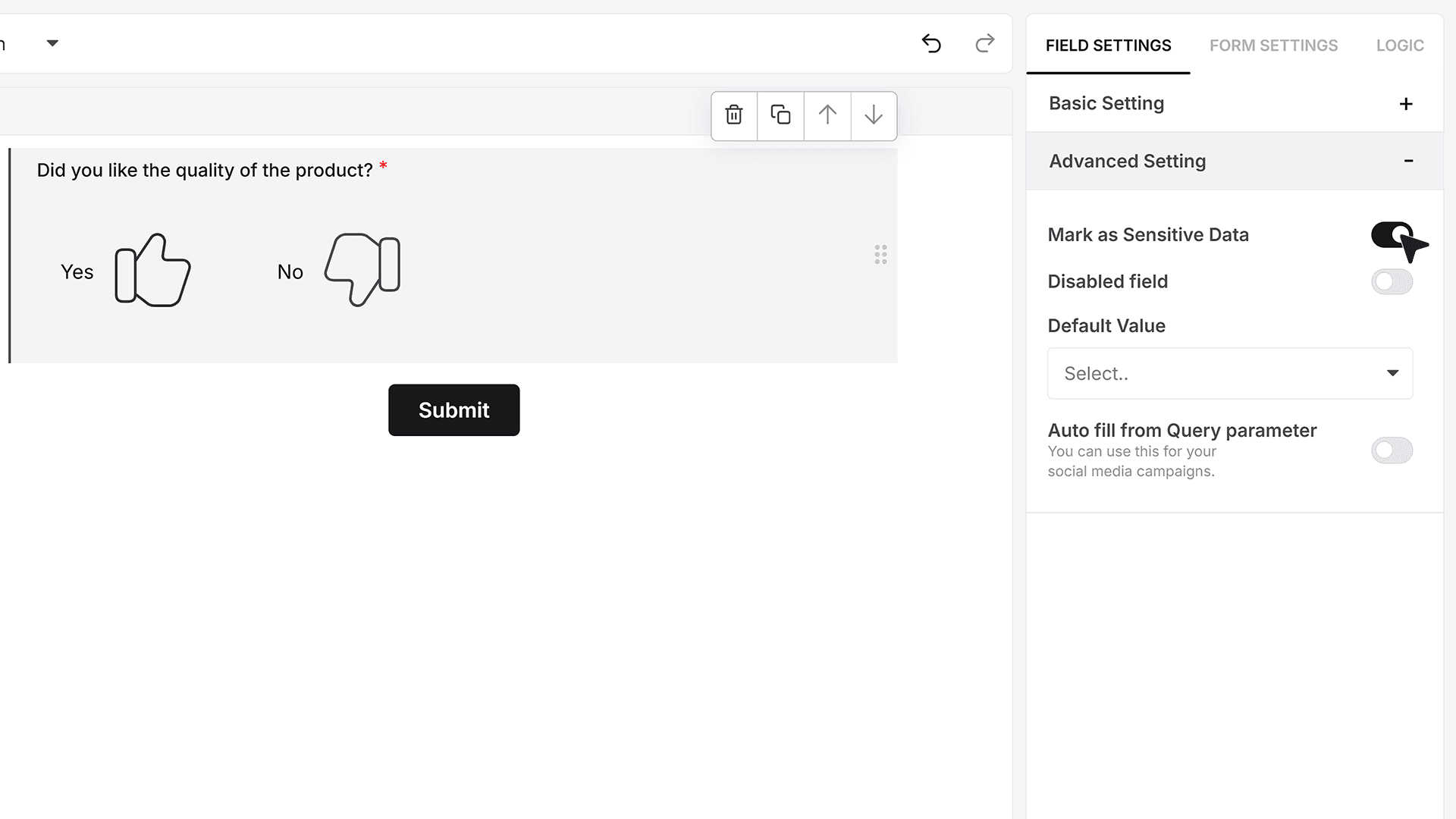
Mark as Sensitive Data
The Mark as Sensitive Data option controls who can see the responses inside MakeForms.
Turn this on when you do not want every team member to view this field’s answers. When this setting is active, only users with the right access level can view the values in the Responses section.
Default Value
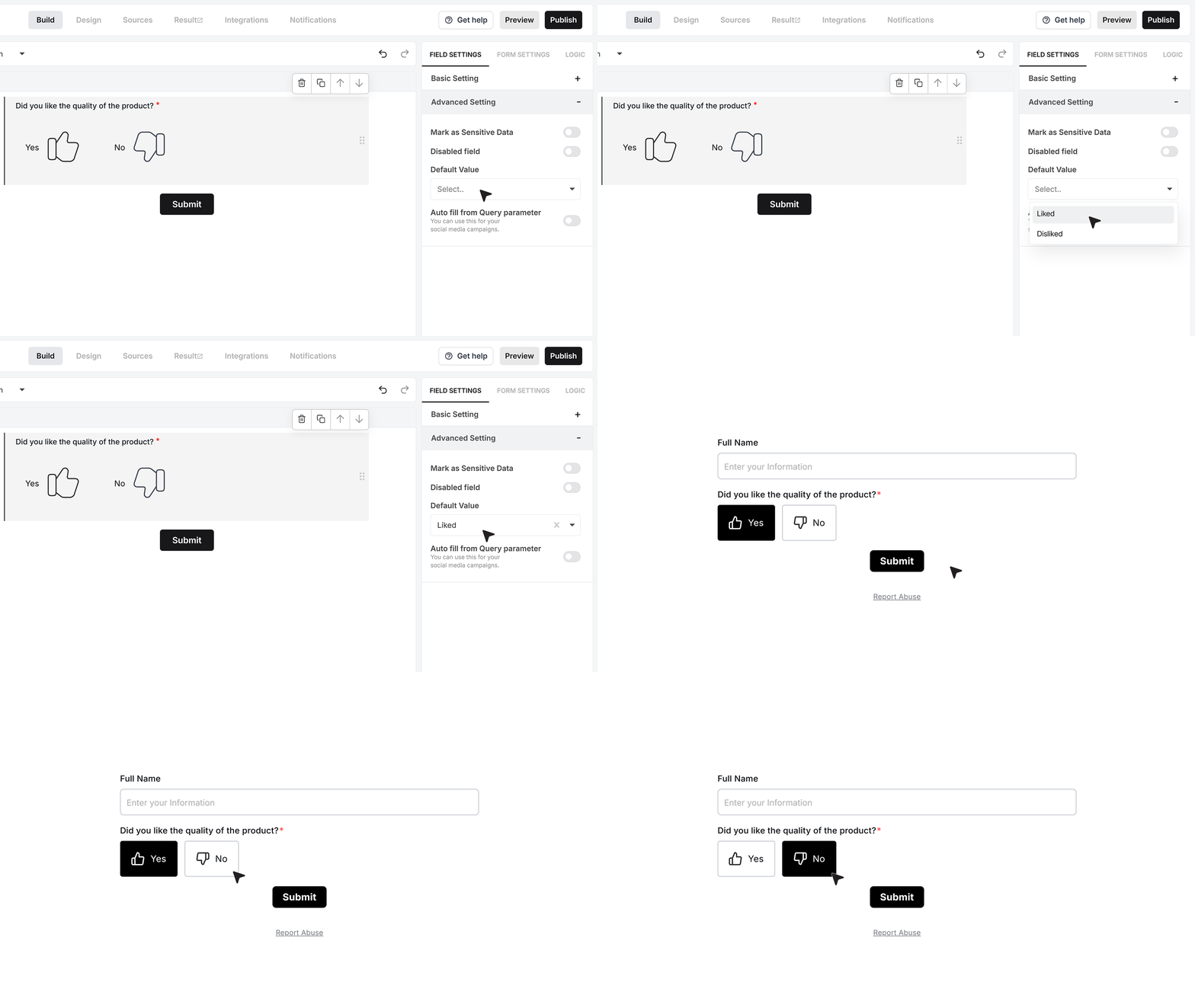
The Default Value setting lets you preselect an option before the form loads. You can choose Liked or Disliked as the default. When the form opens, that option is already selected.
If you change the visible labels to Yes and No, the default still works based on the real values Like and Dislike, not the label text. The user can still change the selection before submitting, as long as the field is not disabled.
Disable Field
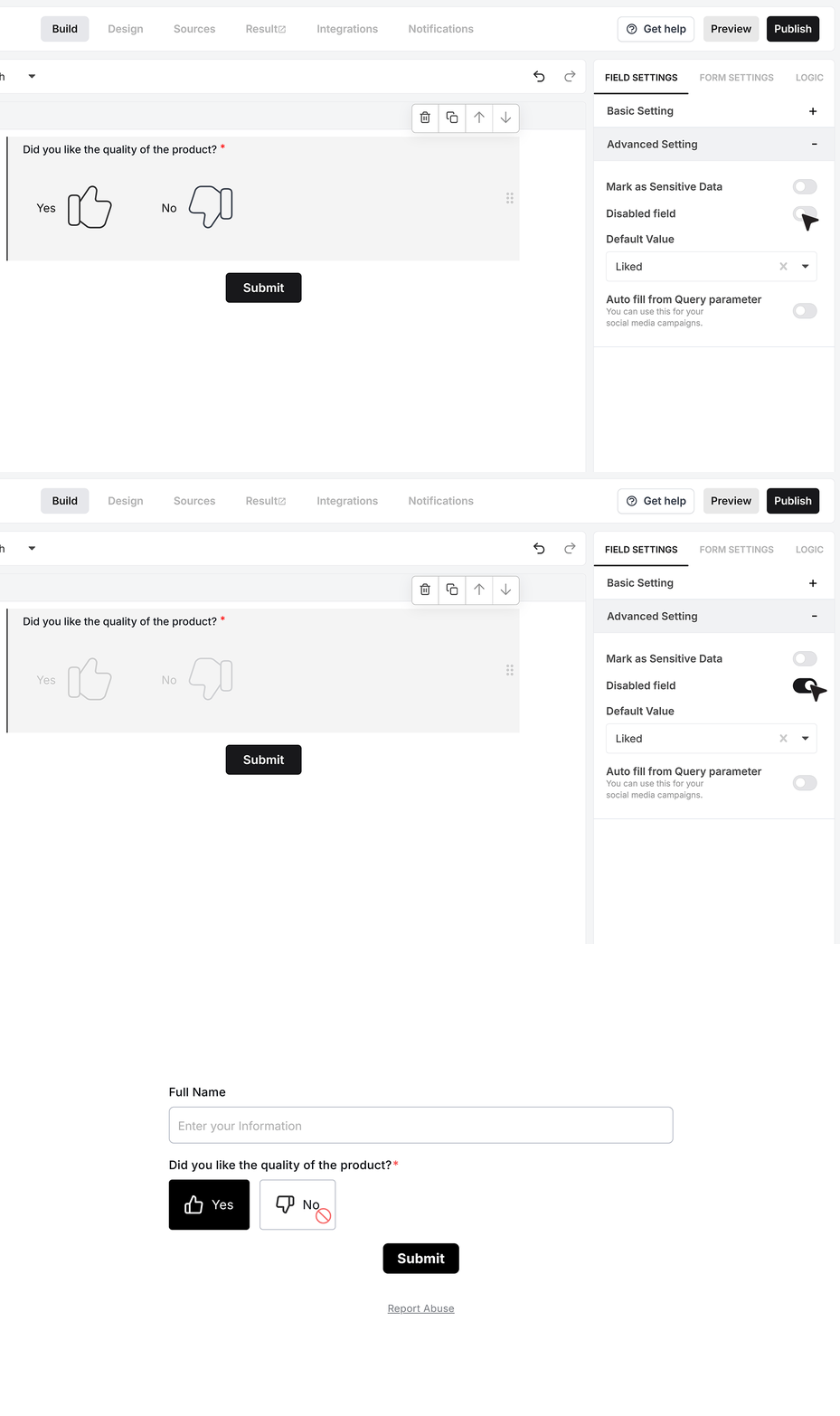
The Disable Field option turns the field into a read-only field.
When this is enabled, users can see the icons and the selected option, but they cannot change it. This is useful when you want to show a fixed choice, not collect a new one.
Autofill from Query Parameter
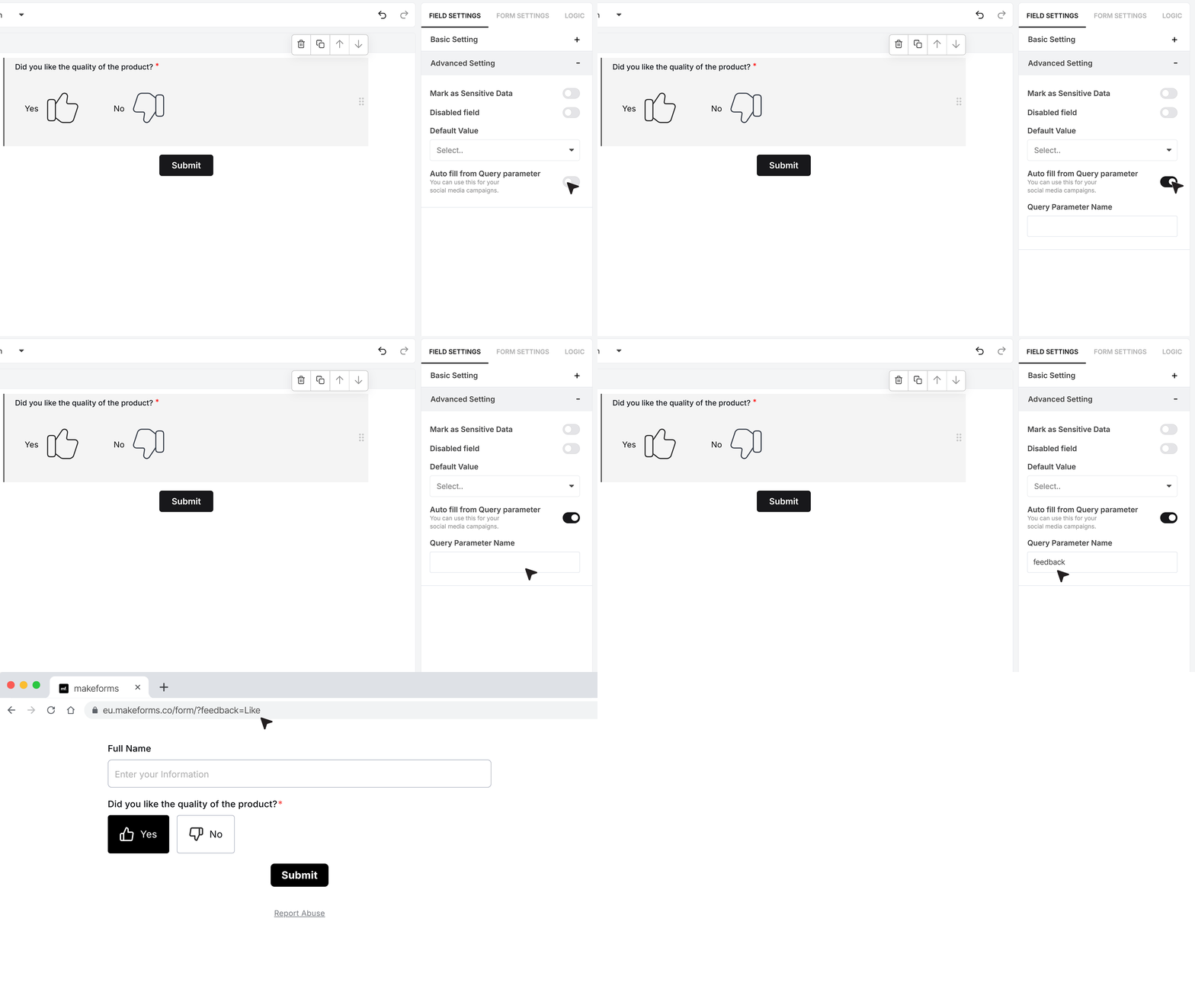
You can also set the value from the form link using Autofill from Query Parameter. In this setting, type a parameter name, for example feedback.
When you share the form, add the parameter to the URL using Like or Dislike as the value, for example: ?feedback=Like or ?feedback=Dislike
Even if your labels show Yes and No, the link value must still be Like or Dislike so it matches correctly. When someone opens the form with this link, MakeForms will preselect the value from the parameter.
FAQ's
A Like and Dislike field is a simple feedback field that lets users choose between two options, usually positive or negative. It is used when you want quick feedback without asking users to type long answers.
Use a Like/Dislike field when you want fast, clear feedback. It works well for product reviews, customer satisfaction, event feedback, or checking if users liked a feature.
Yes, you can change the labels to anything like Yes and No, Good or Bad, or Agree and Disagree. The system will still store the original values as Like and Dislike in the backend.
No, it is optional by default. You can turn on the Required setting if you want users to select an option before submitting the form.
Enable the Required Field option in the settings. This ensures users must select either Like or Dislike before submitting the form.
Yes, you can preselect either Like or Dislike as the default value. This helps guide users or speed up form submissions.
Yes, users can change the selected option unless the field is disabled.
You can pass a value through the form URL. For example, using ?feedback=Like or ?feedback=Dislike will automatically select that option when the form opens.
Yes, but the URL must still use Like or Dislike as values. Custom labels like Yes or No will not work in the URL.
Yes, you can enable the Sensitive Data setting. This limits visibility so only authorized users can see the responses.
Short and clear questions work best. For example:
- Did you like the product quality?
- Was this feature useful?
- Did you find this page helpful?
Yes, you can add helper text to give more context. This can appear as a tooltip or below the field.
Yes, it is ideal for customer feedback because it is quick to answer and increases response rates.
Yes, since it requires only one click, users are more likely to complete the form compared to long text fields.
Yes, it works well in surveys where you want quick opinion-based answers instead of detailed responses.
Keep it short and clear. Ask one thing at a time so users can quickly choose an option.