Number Field
The Number Field in MakeForms is designed for collecting any numeric value from your users, such as age, price, quantity, or measurable data. It accepts only numbers and ensures clean, validated inputs every time.
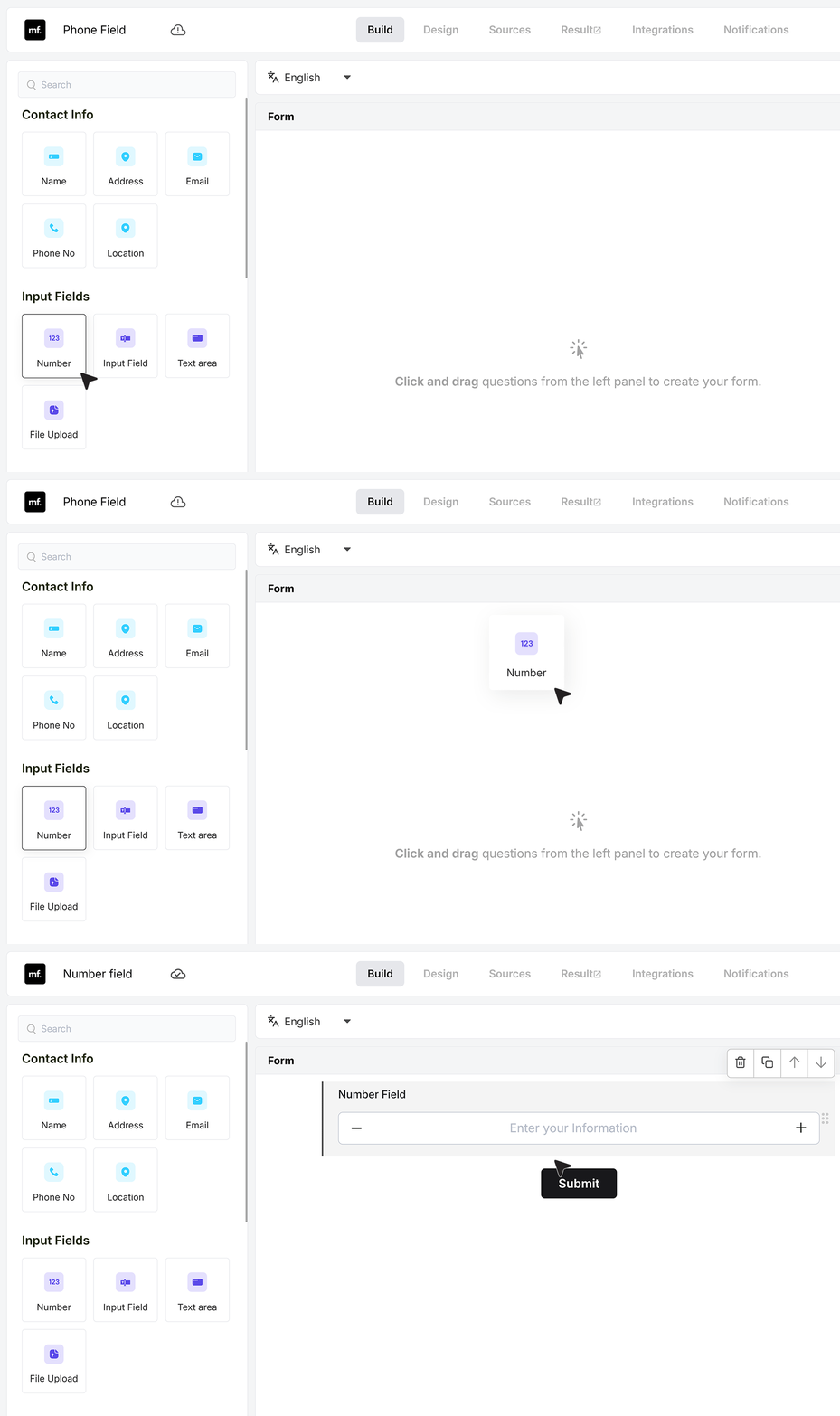
To get started, add a number field to your form. You can drag it from the field list or click to insert it.
Basic Settings
Required Field
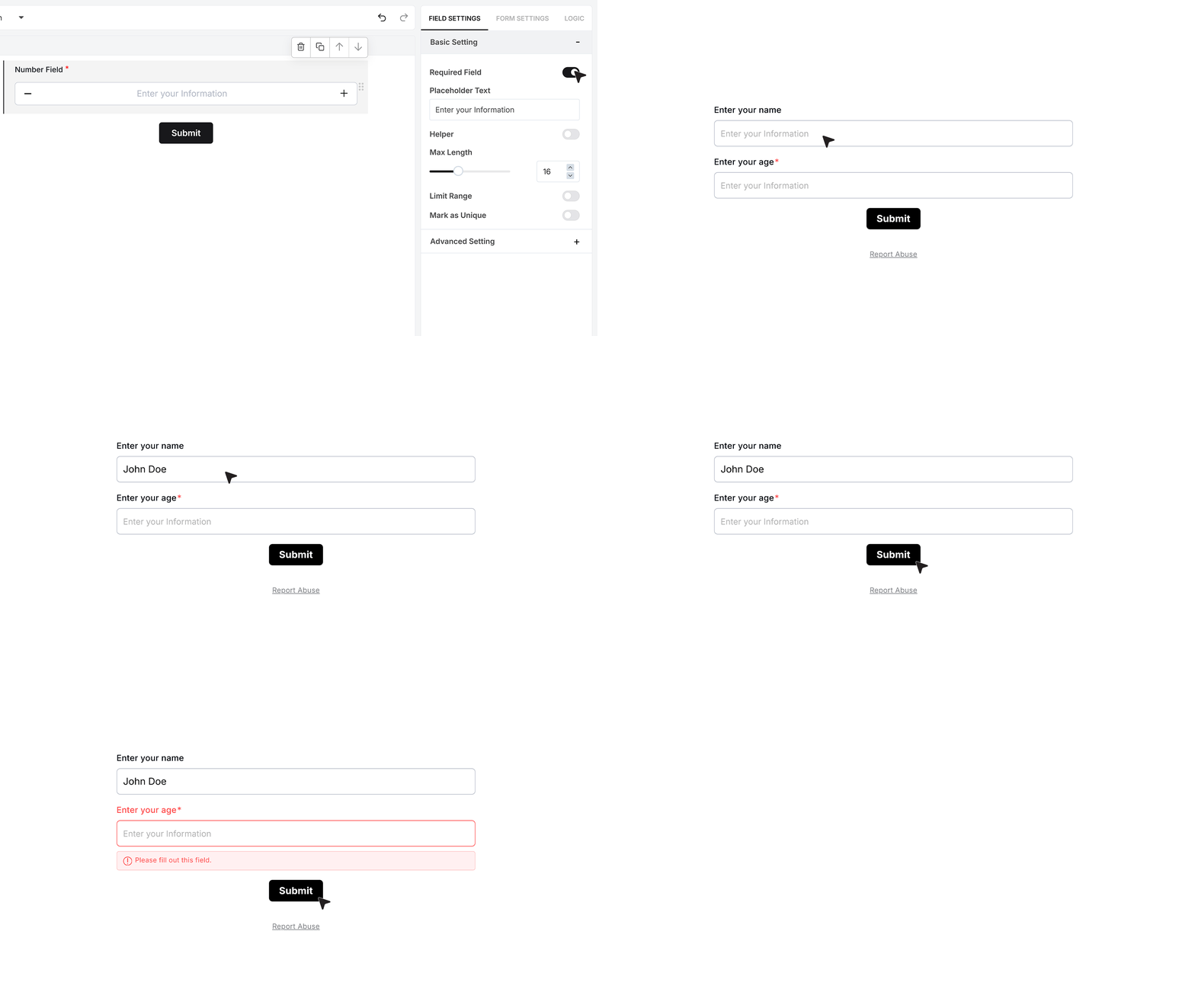
The Required Field option appears at the top of the settings panel. When enabled, the user must enter a valid numeric value before the form can be submitted. If the field is left empty, the submission is blocked until a number is provided.
Placeholder Text
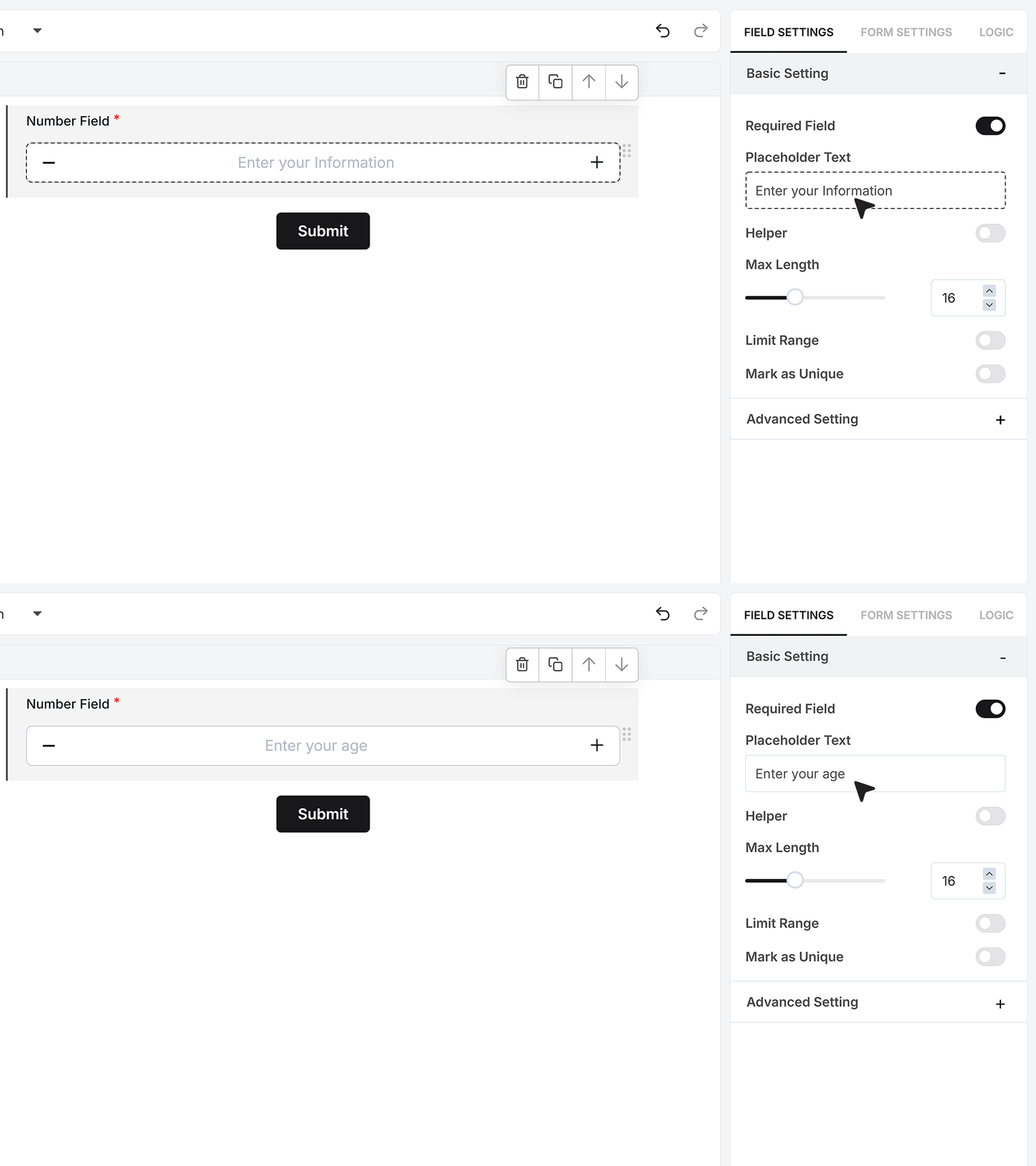
The Placeholder Text appears inside the field before the user begins typing. This helps communicate what kind of number should be entered. You can use text such as “Enter your age” or “Enter total quantity” to guide the user clearly.
Helper Text
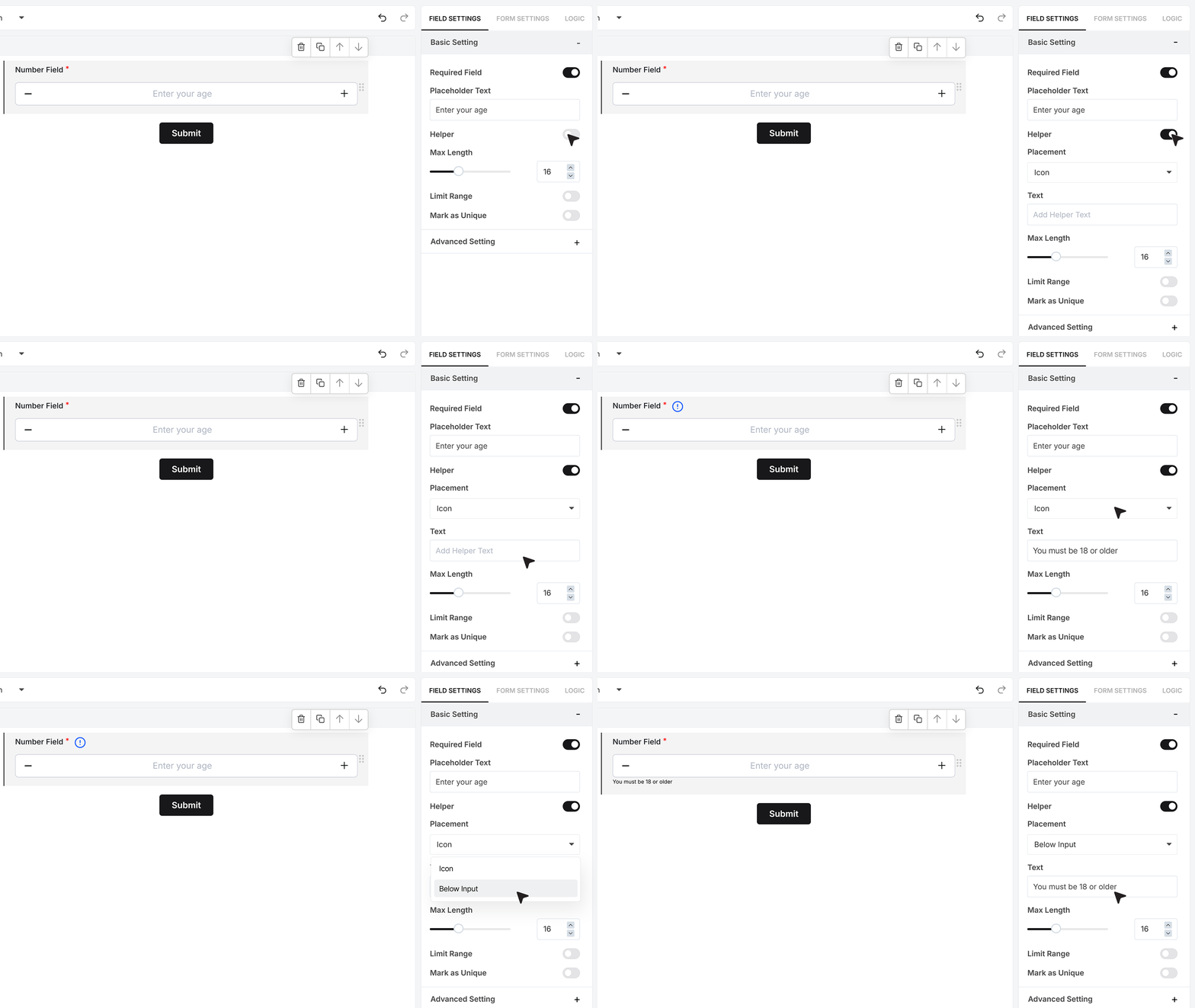
Helper Text allows you to add a small note that appears along with the field or as an info icon. This is useful for adding instructions such as “You must be 18 or older” or any additional guidance that supports the user.
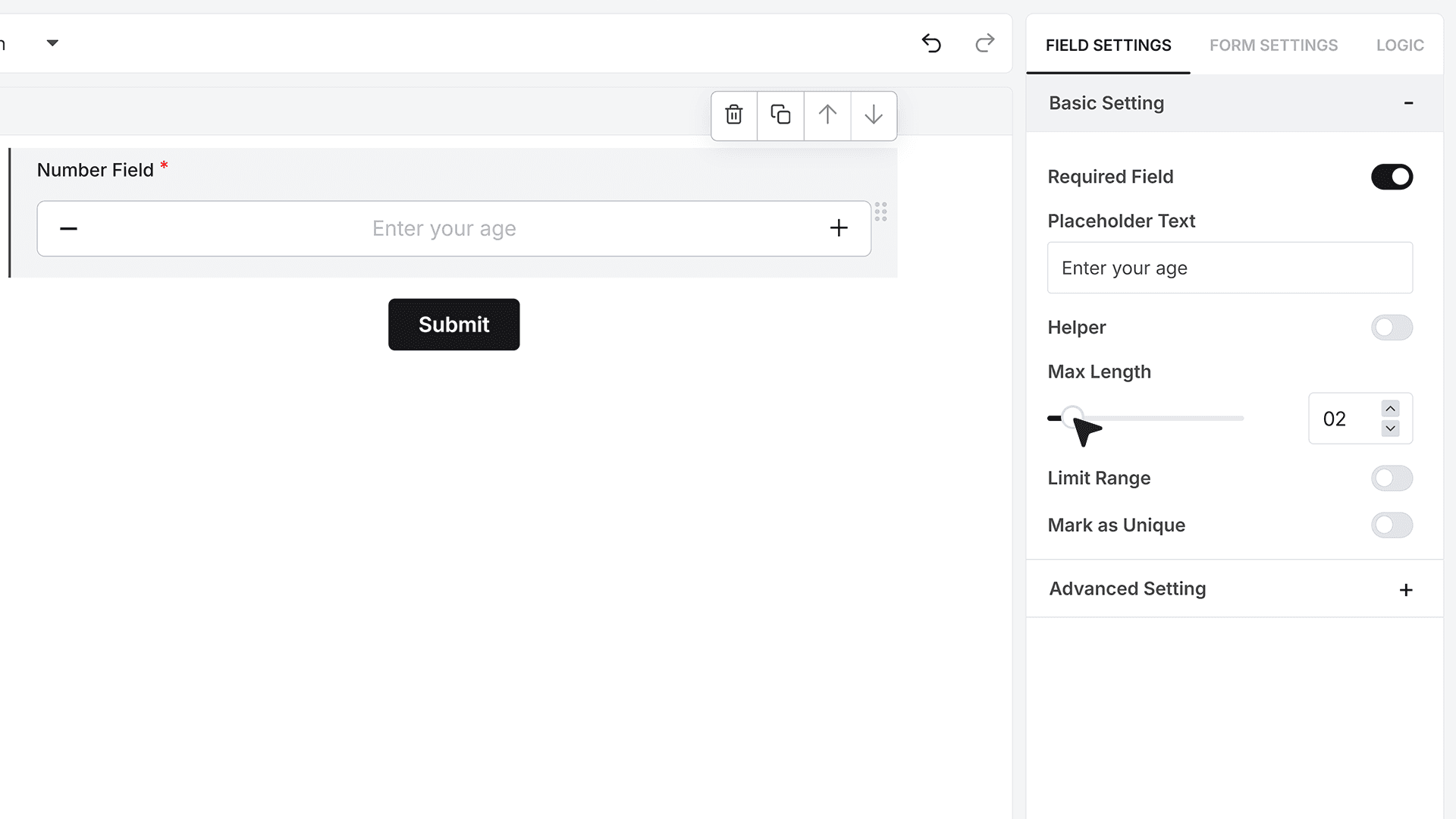
Maximum Length
Maximum Length controls how many digits the user can type inside the field. This helps you limit inputs to the right size, such as two digits for age-based inputs or three digits for quantities.
Limit Range
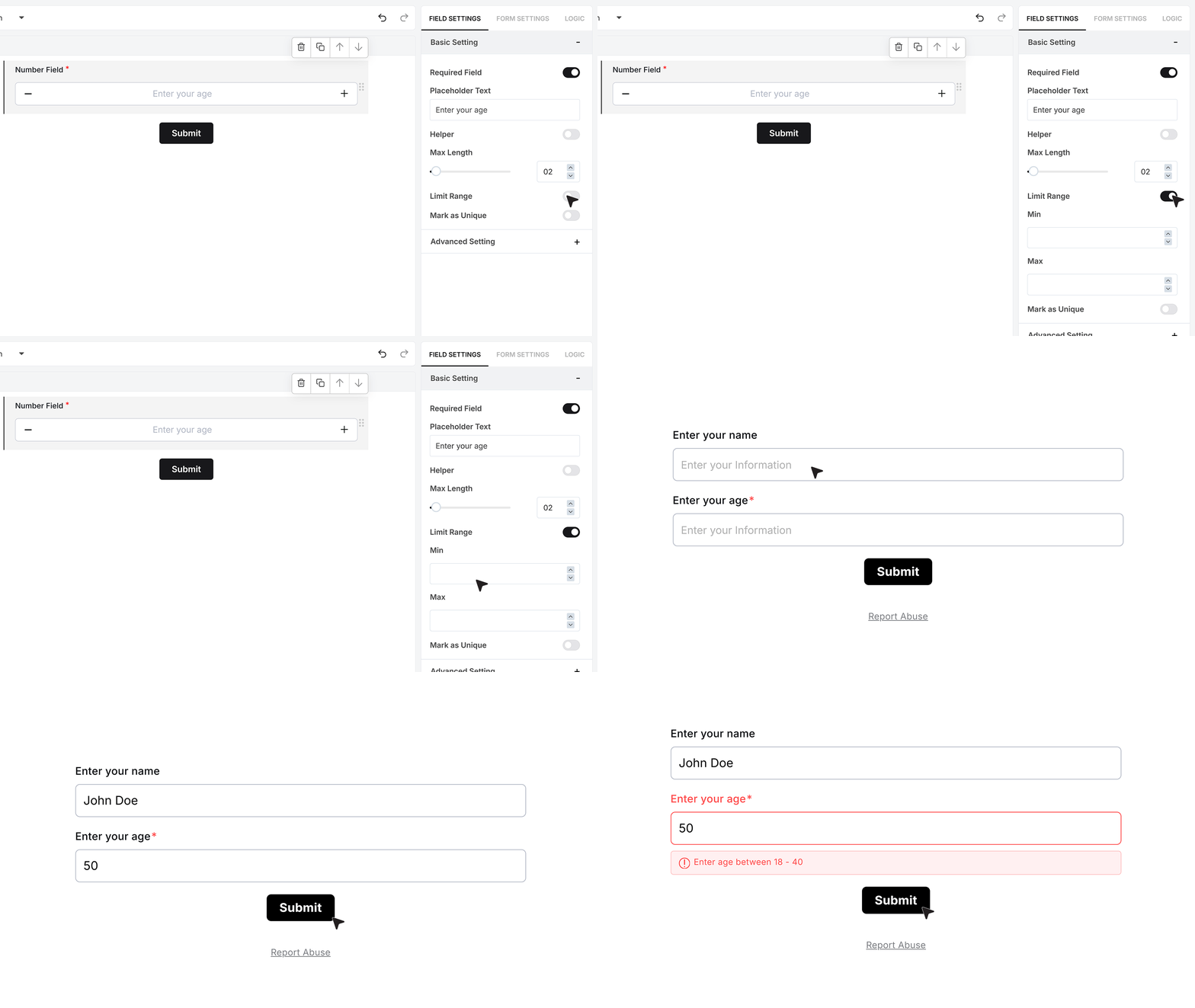
Limit Range allows you to set the minimum and maximum numeric values the field should accept. If the user enters a number outside this defined range, the field shows an inline error message. This is particularly helpful for fields such as age limits, allowed counts, or numeric thresholds.
Mark as Unique Field
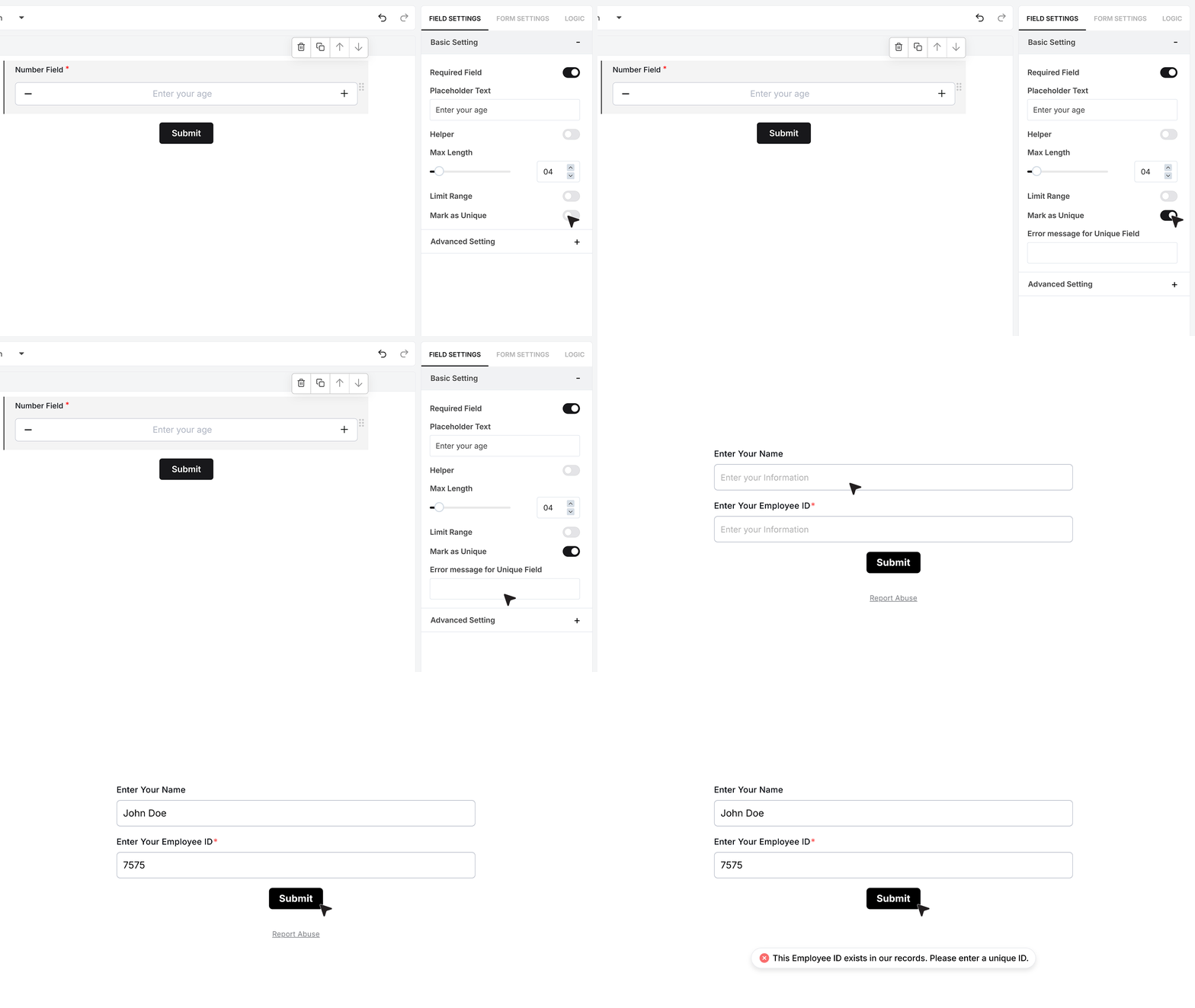
When Required is enabled, you will also see the Mark as Unique Field option. This feature prevents duplicate numbers from being submitted across responses. If the number must remain unique—such as an employee ID or registration number—the user will see a custom error message if a duplicate is detected.
Advanced Settings
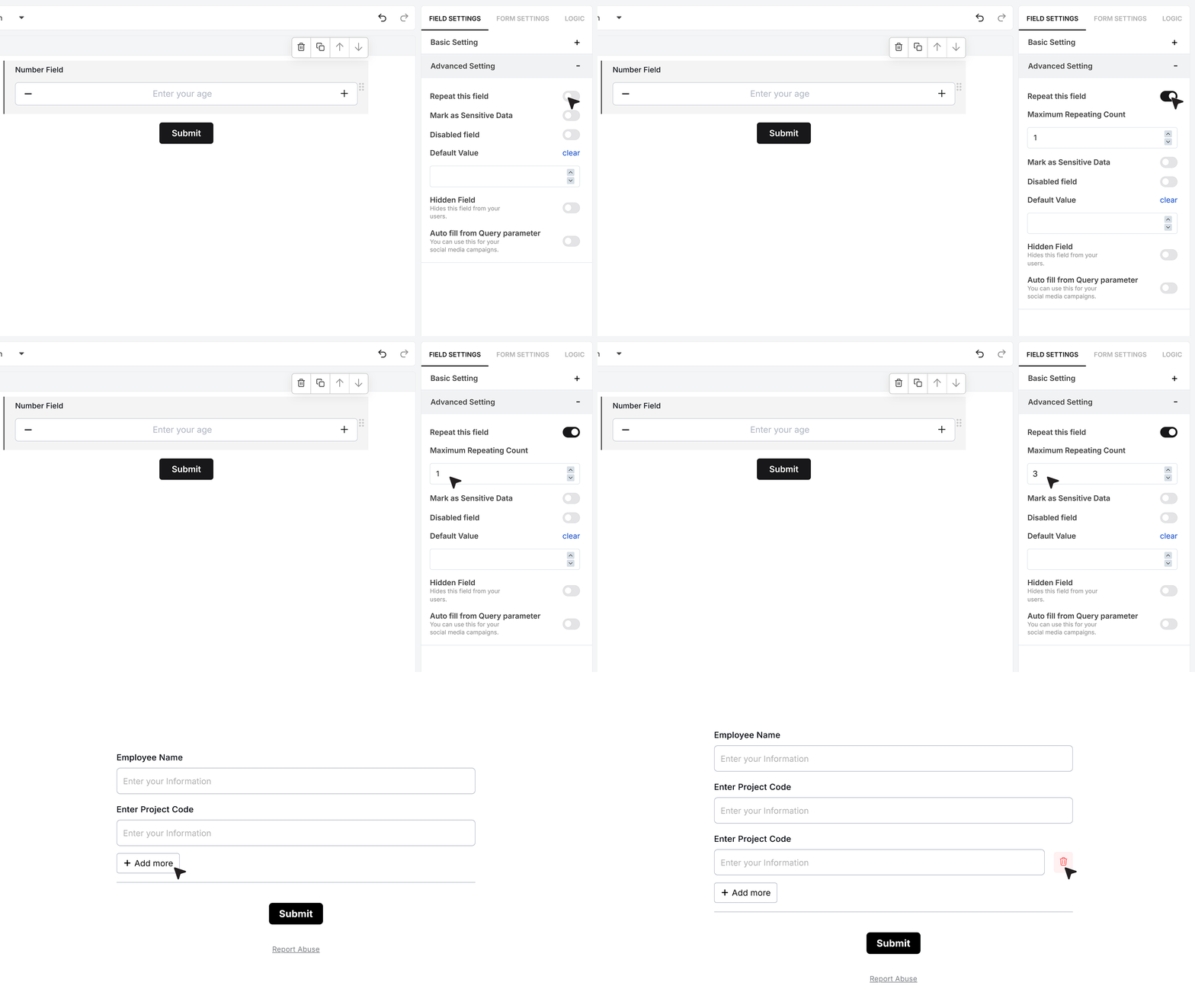
Repeat This Field
Advanced Settings give you finer control over how the Number Field behaves. Repeat This Field allows users to add multiple numeric entries within the same field area. When activated, users can click an “Add More” button and add as many values as allowed, making it easy to collect lists of numbers without creating multiple fields.
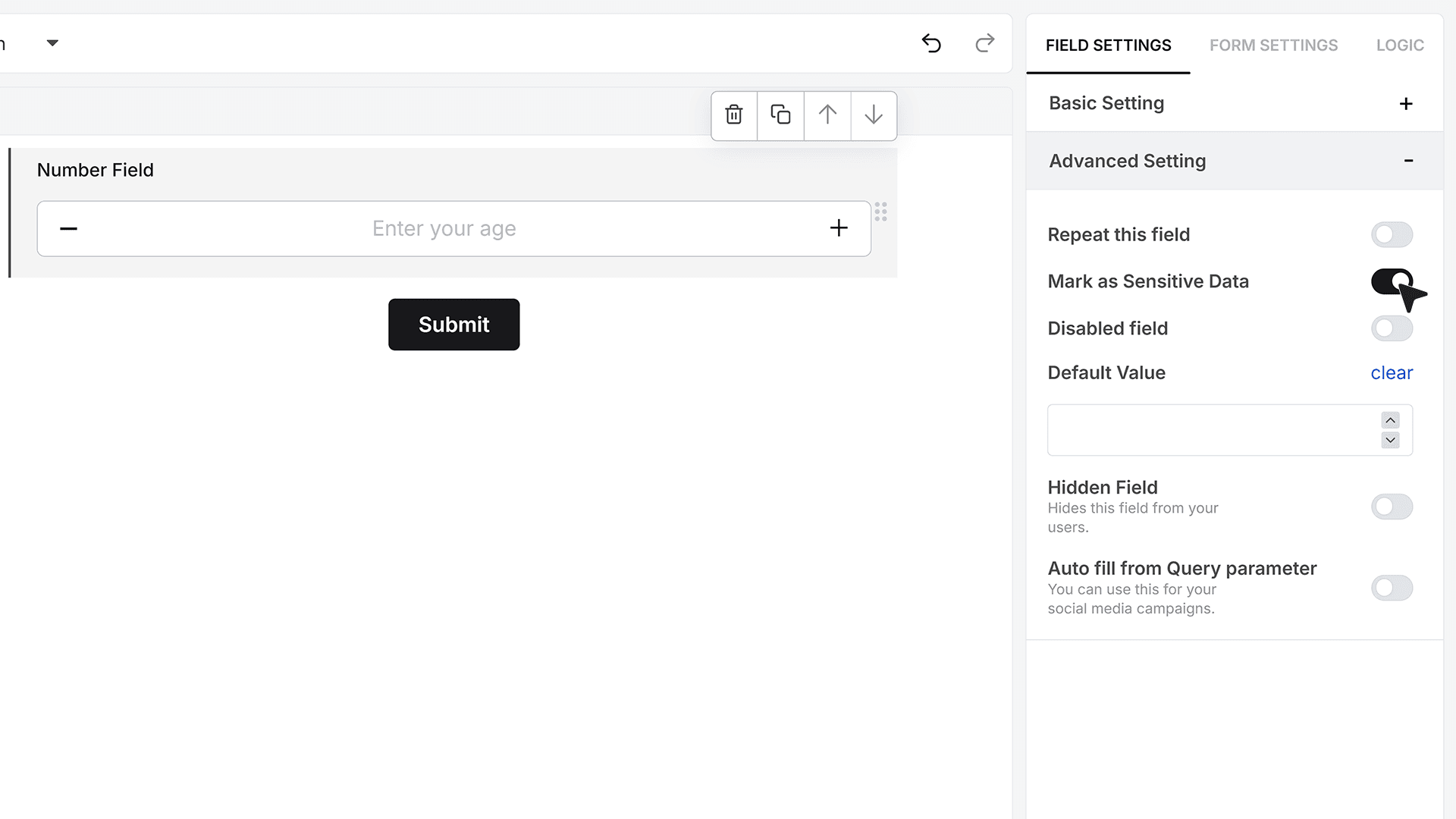
Mark as Sensitive Data
Mark as Sensitive Data protects the field’s value inside the Responses section. Only team members with the required permissions will be able to view this number. This is useful for private codes, internal identifiers, or any numeric value that requires restricted access.
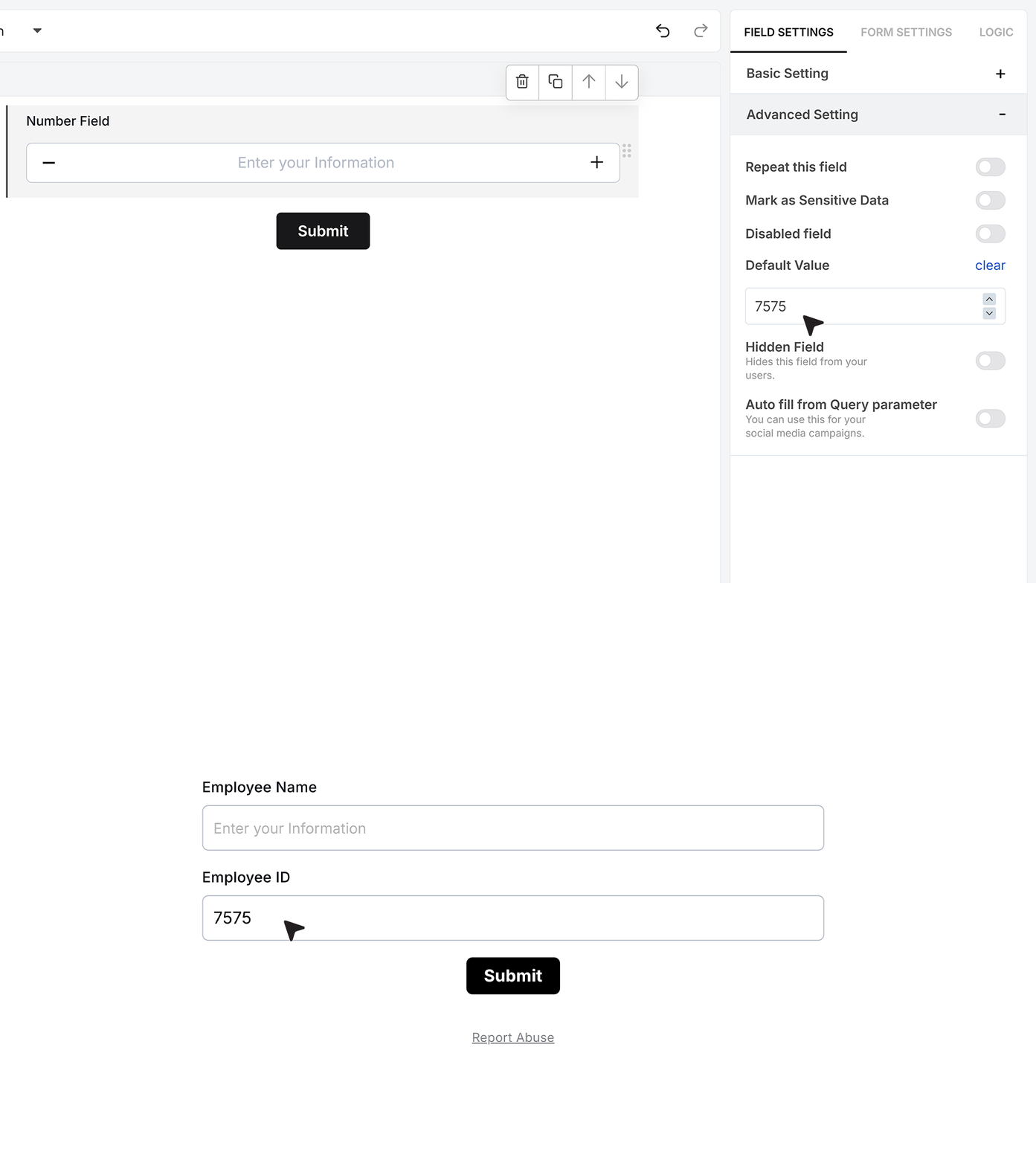
Default Value
Default Value lets you pre-fill the field automatically when the form loads. This is helpful when you want to display a preset value such as a standard quantity or a known number for internal users.
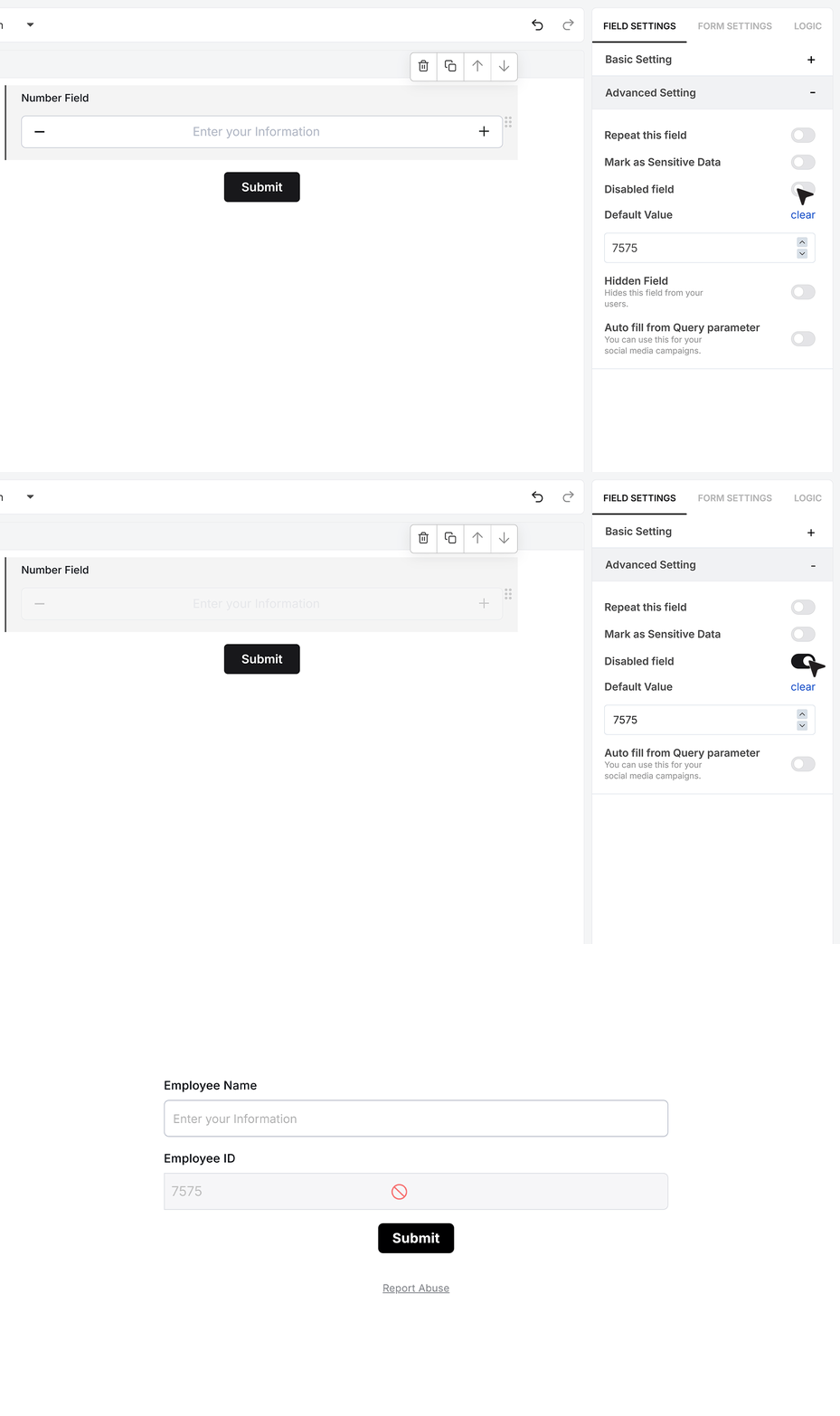
Disable Field
Disable Field keeps the number visible but prevents the user from changing it. This is ideal when showing pre-generated data or system-based values that should not be edited.
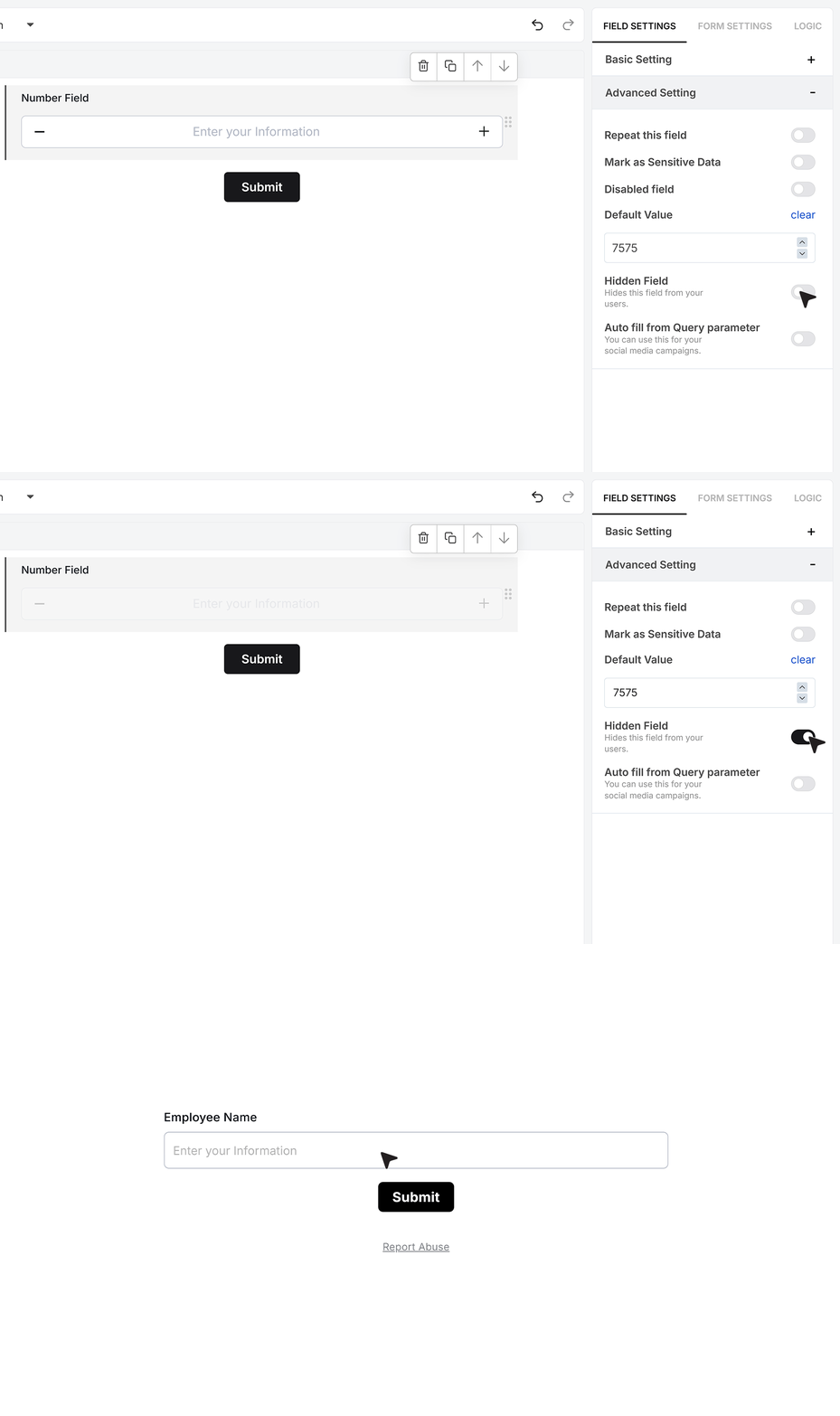
Hidden Field
Hidden Field removes the field entirely from the form’s visible layout. Users do not see it, but the number—whether default or auto-filled—is still included in the final submission.
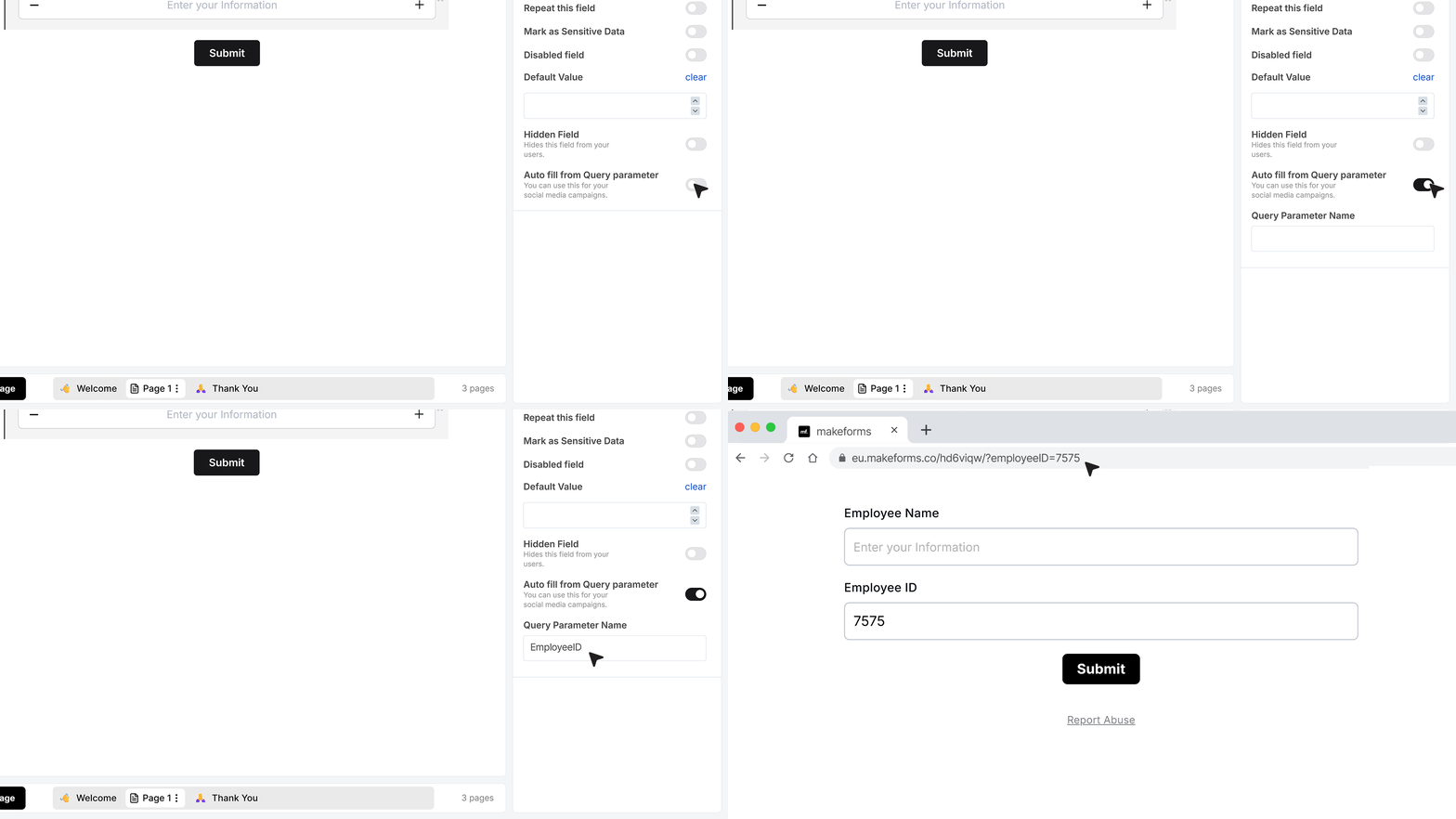
Autofill from Query Parameter
Autofill from Query Parameter allows the Number Field to automatically populate using data passed in the form URL. If your query key is “age” and the link includes “?age=45,” the field loads with the number 45 immediately. This works well for personalised or automated form flows.
FAQ's
In your form editor, add a Number field from the field list. In MakeForms, you can drag it into the form or click to insert it. The field is meant for numeric values only, like age, price, or quantity.
Yes. Common rules are required, min and max value, max digits, decimal control, and unique values. In MakeForms you can enable Required, set Maximum Length (digit count), set Limit Range (min and max), control decimals and decimal places, and prevent duplicates with Mark as Unique Field.
Use a Number field (not a text field) so mobile devices show a numeric keypad. Keep input simple by adding clear placeholder text, setting a max digit length, and adding min and max limits to block invalid values early.
It is possible, but it is usually a bad idea. Number fields are meant for numeric values and often break phone data like leading zeros, country codes, and formatting. Use a dedicated Phone field when you need country code selection, formatting, and phone-specific validation.
Many builders support display formatting through a prefix or postfix. In MakeForms, Prefix can show a currency symbol before the number and Postfix can show units after it. The prefix and postfix are visual only, the stored value stays numeric.
Yes, many builders let you create rules like greater than, less than, or equals on number values to show or hide fields, or to block submit. If your builder has a Logic or Rules area, use conditions on the Number field value and test edge cases (min, max, empty, decimals).
Only collect it if you must. Use TLS, restrict access, and avoid exposing the value in notifications or exports. In MakeForms, use Mark as Sensitive Data so the value is protected in Responses and only visible to users with permission. Also set strict validation (fixed length, no decimals, range rules if used), add audit logging on access, and set a retention policy so it is not stored longer than needed.
Store the amount as a Number field, and capture the currency code in a separate field (dropdown or single choice). For display, you can show a currency symbol using Prefix, but do not rely on that for the actual currency type because prefix is visual only. In downstream exports and integrations, always use amount plus currency code together.
Use a min and max range rule. In MakeForms, Limit Range lets you set the minimum and maximum accepted value, and it shows an inline error if the user enters a value outside the range.
Use a calculated field (sum of the relevant number fields) if your form builder supports formulas, so users can see totals before submitting. If your builder does not support calculations in the form, calculate totals after submit in an integration or workflow step (for example, in a webhook handler or automation) using the raw numeric values.