Divider Field
The Divider field is a visual element you can use to break your form into clear sections. It does not collect any data and it is not clickable. It simply shows a horizontal line, so people filling the form can see where one part ends and the next part begins.
This is useful when your form has a mix of text, rules, and input fields and you want things to feel organized instead of stacked on top of each other.
Adding a Divider field
We already have an appointment form with a Heading at the top, a Paragraph showing clinic rules, and fields like Name, Phone Number, and Appointment Date.
To make the layout easier to read, we will place a Divider between the clinic rules text and the first input field. This makes it clear where the information ends and the actual form begins.
Drag the Divider field into your form and place it between the clinic rules and the first input field.

Basic Settings
Divider styles
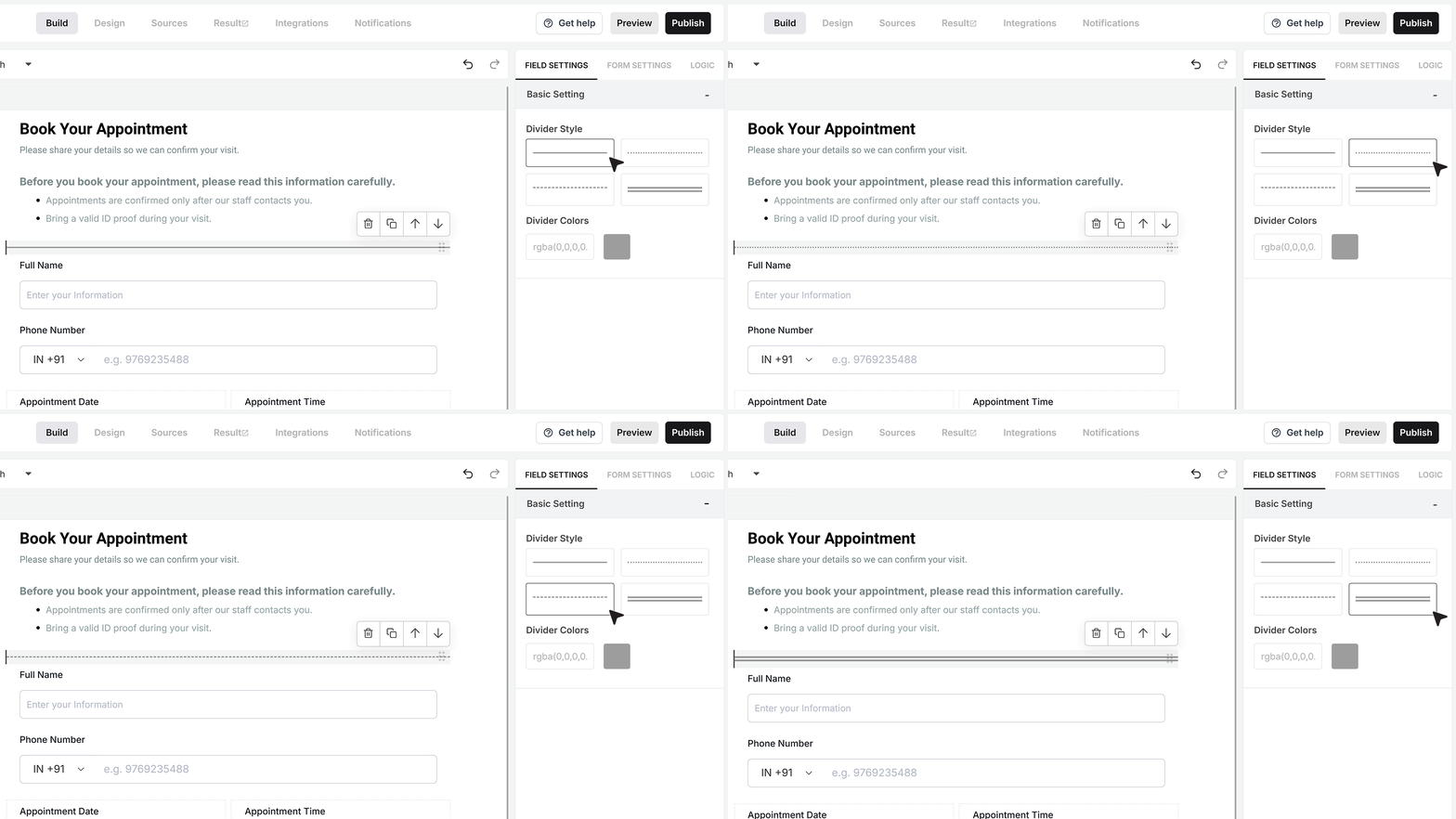
When you click the Divider field in the builder, its settings open on the right side.
Here you can change how the line looks. You can choose from straight, dotted, dashed, or double lines. For a clean appointment form, a simple straight line usually works well because it separates sections without drawing too much attention.
Divider Color
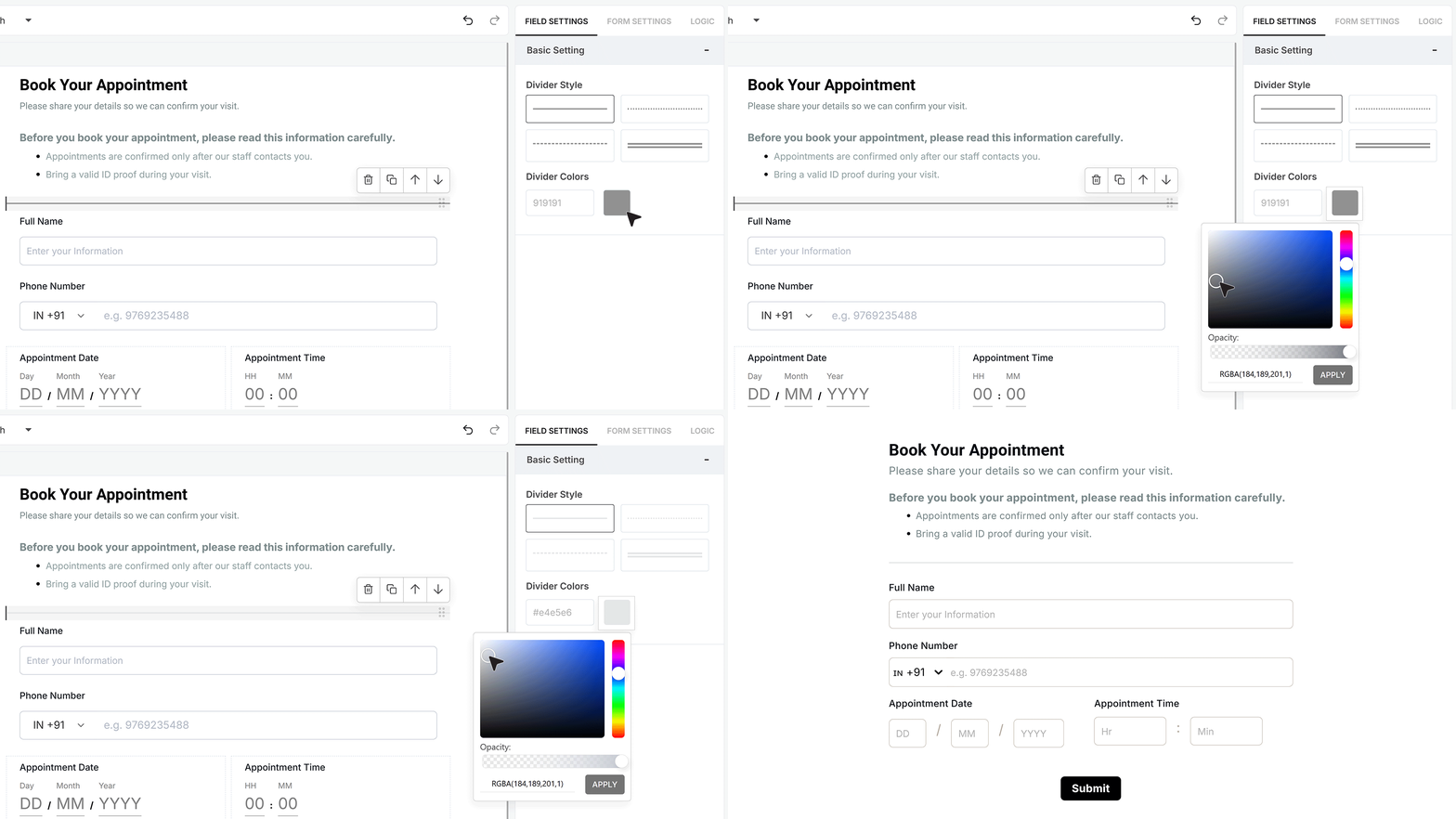
You can also set the color of the Divider so it matches your form theme. A darker color creates a strong break between sections. A lighter color keeps the separation softer while still giving a clear visual guide.
FAQ's
A Divider field is a visual line used to separate sections in your form. It does not collect any data and users cannot interact with it. It simply helps make the form easier to read.
Use a Divider when your form has multiple sections like instructions, rules, or grouped questions. It helps users clearly see where one part ends and the next part starts.
No. The Divider is only for layout. It does not store any user input and does not affect form submissions.
No. It is not clickable and has no action. It only displays a line on the form.
You can place it anywhere, but it works best:
- After long text like instructions or rules
- Before starting input fields
- Between different sections of questions
Yes. You can change the style of the line. Options include straight, dotted, dashed, and double lines.
Yes. You can set the color to match your form design. A darker color creates a strong separation, while a lighter color keeps it subtle.
It won’t break anything, but too many Dividers can make the form look cluttered. Use them only where they add clarity.
Yes. The Divider is visible on desktop and mobile, helping keep the layout clean across all screen sizes.
Yes. If you want everything on one page but still organized, Dividers are a good way to separate sections without splitting the form.
No. It is a simple visual element and does not impact performance.
No. Since the Divider is not an interactive field, it does not support conditional logic.
For most forms, a simple straight line works best. It keeps the form clean and easy to scan without distracting users.