Multi-Level Dropdown
Multi-Level Dropdowns let you build linked dropdowns where each choice depends on the previous one. Instead of one flat list, you can create a step-by-step flow, such as Level 1, Level 2, and Level 3, all connected to each other. You can set this up inside a normal Dropdown field, without writing any code.
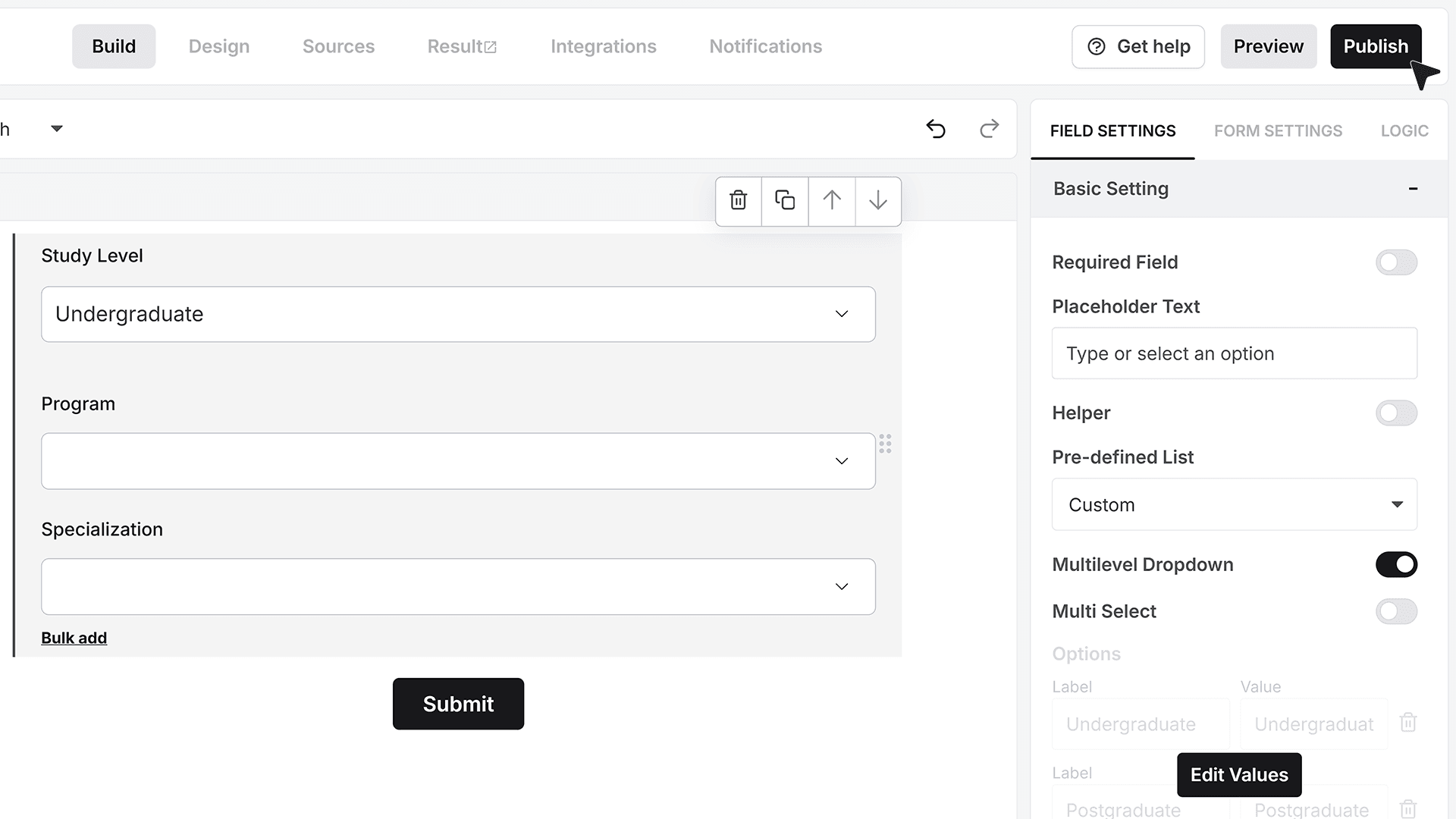
- Start by adding a Dropdown field to your form. In the field settings, you’ll find the Multi-Level Dropdown toggle. Once you enable it, an Edit Values button appears.
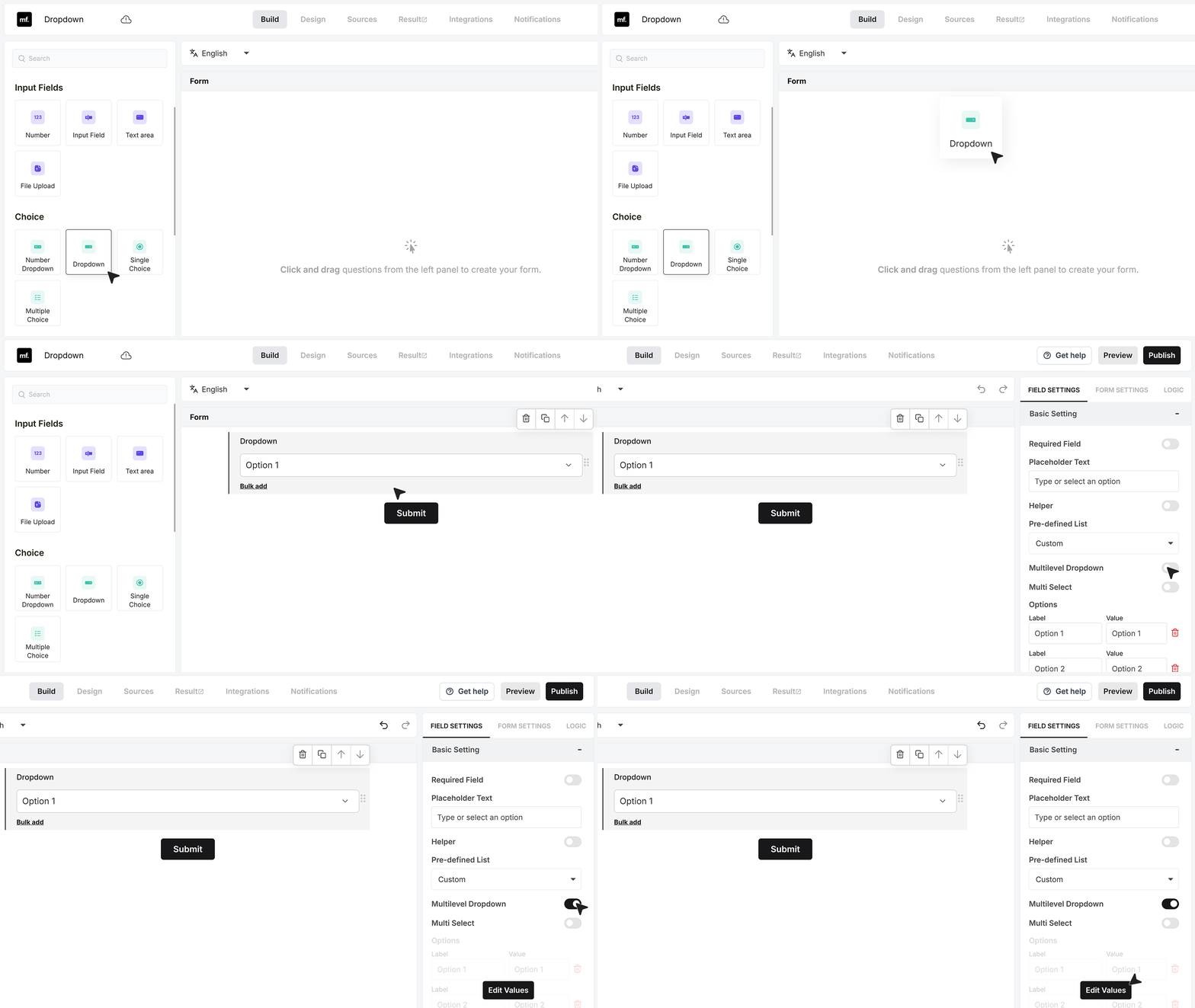
- Click Edit Values to open the Multi-Level Dropdown editor.
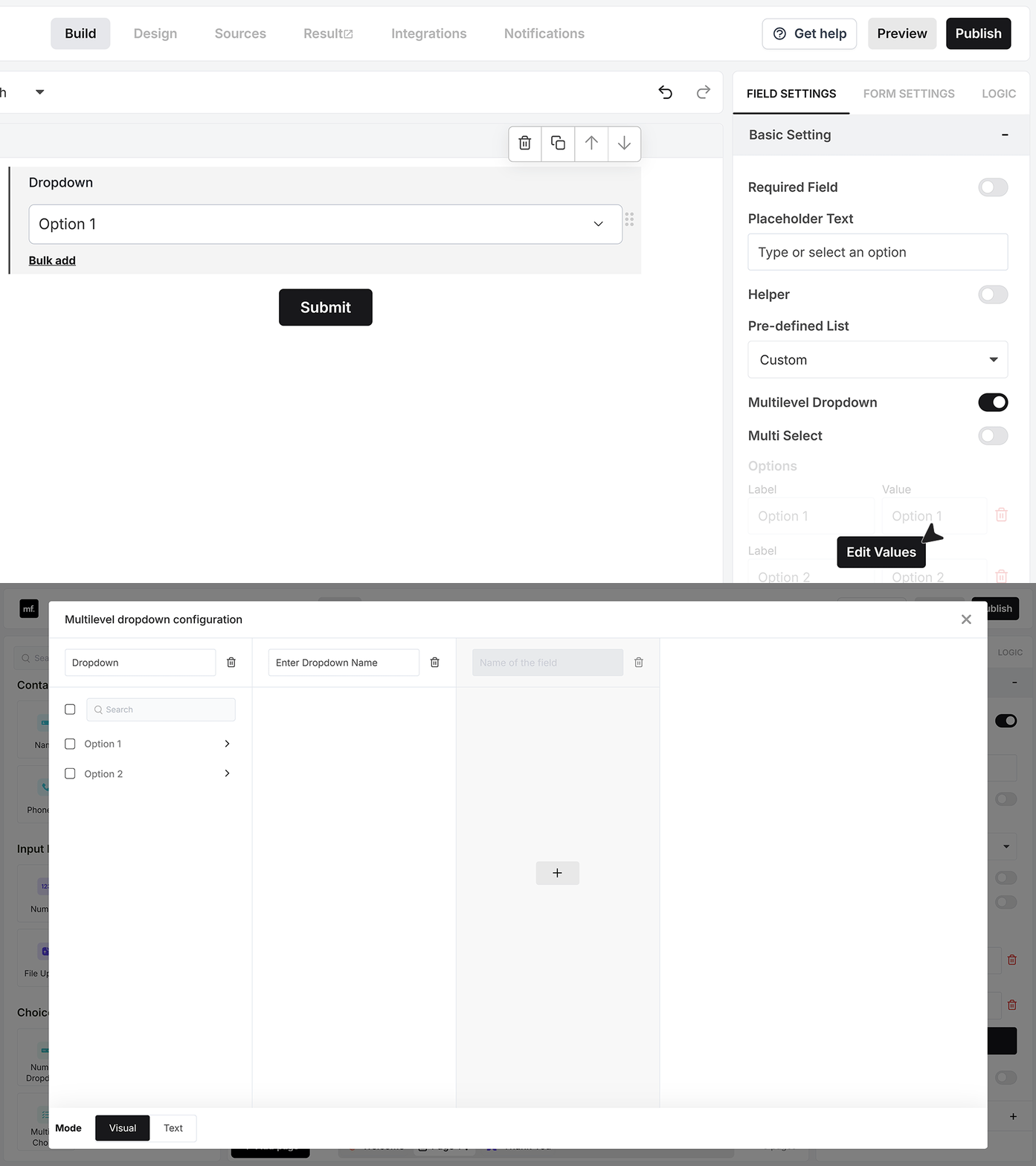
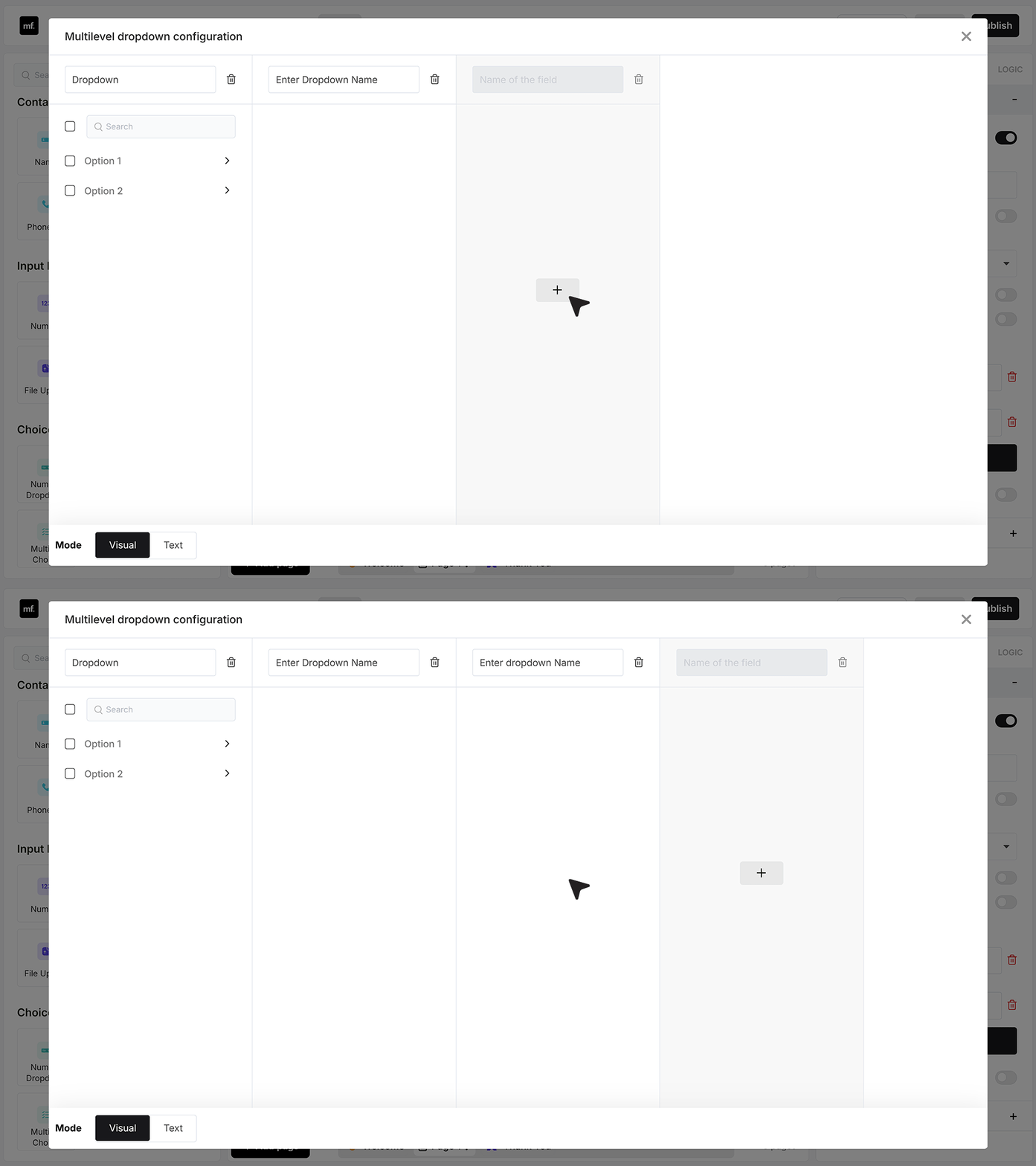
- You will see a structure with Level 1, Level 2, Level 3, and so on. These are your dropdown layers. You can keep just two or three levels, or add more if your use case needs a deeper hierarchy. For this example, we will build a three-level flow for a university form.
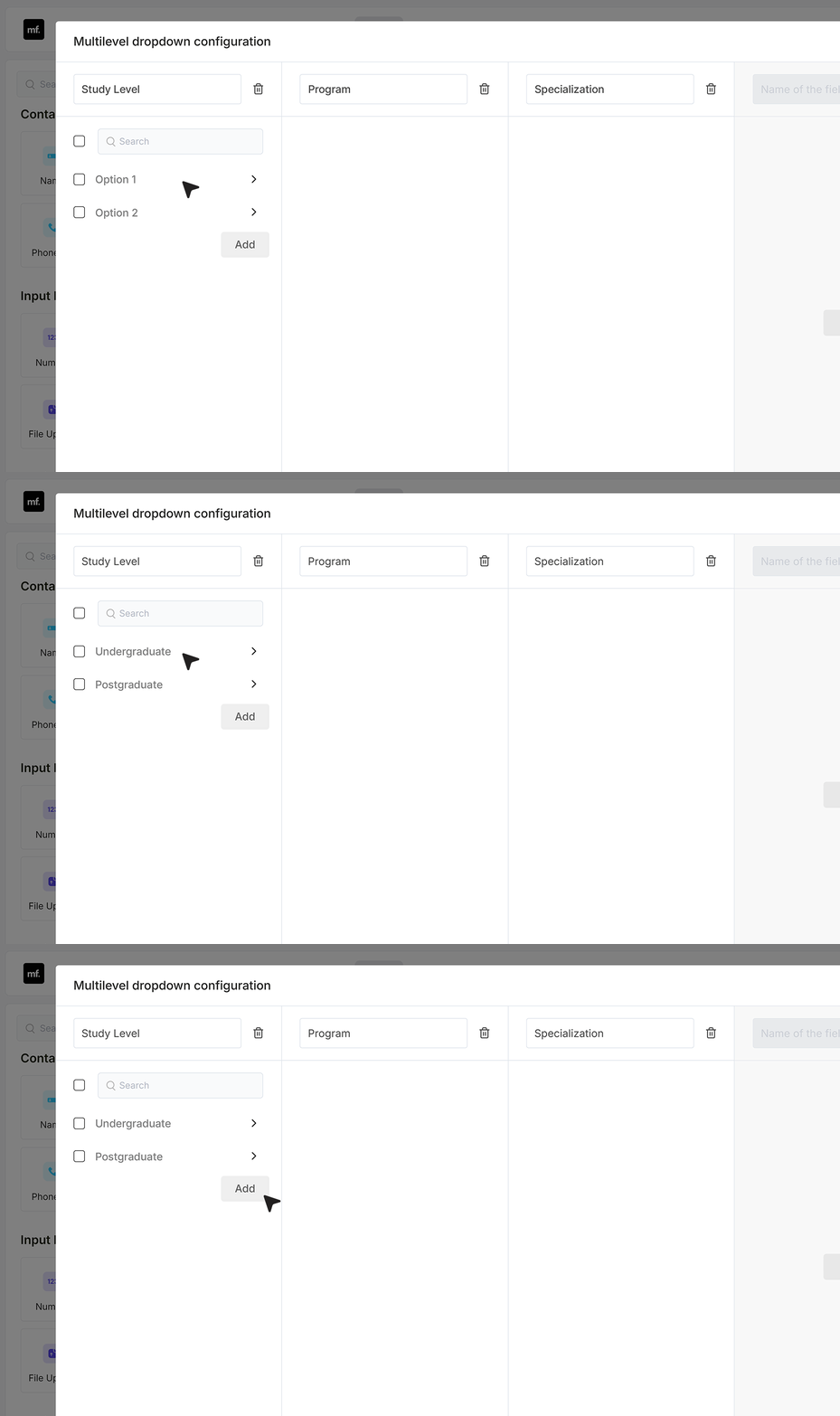
- First, rename the levels so they are clear for you and your users. Level 1 becomes Study Level, Level 2 becomes Program, and Level 3 becomes Specialization.
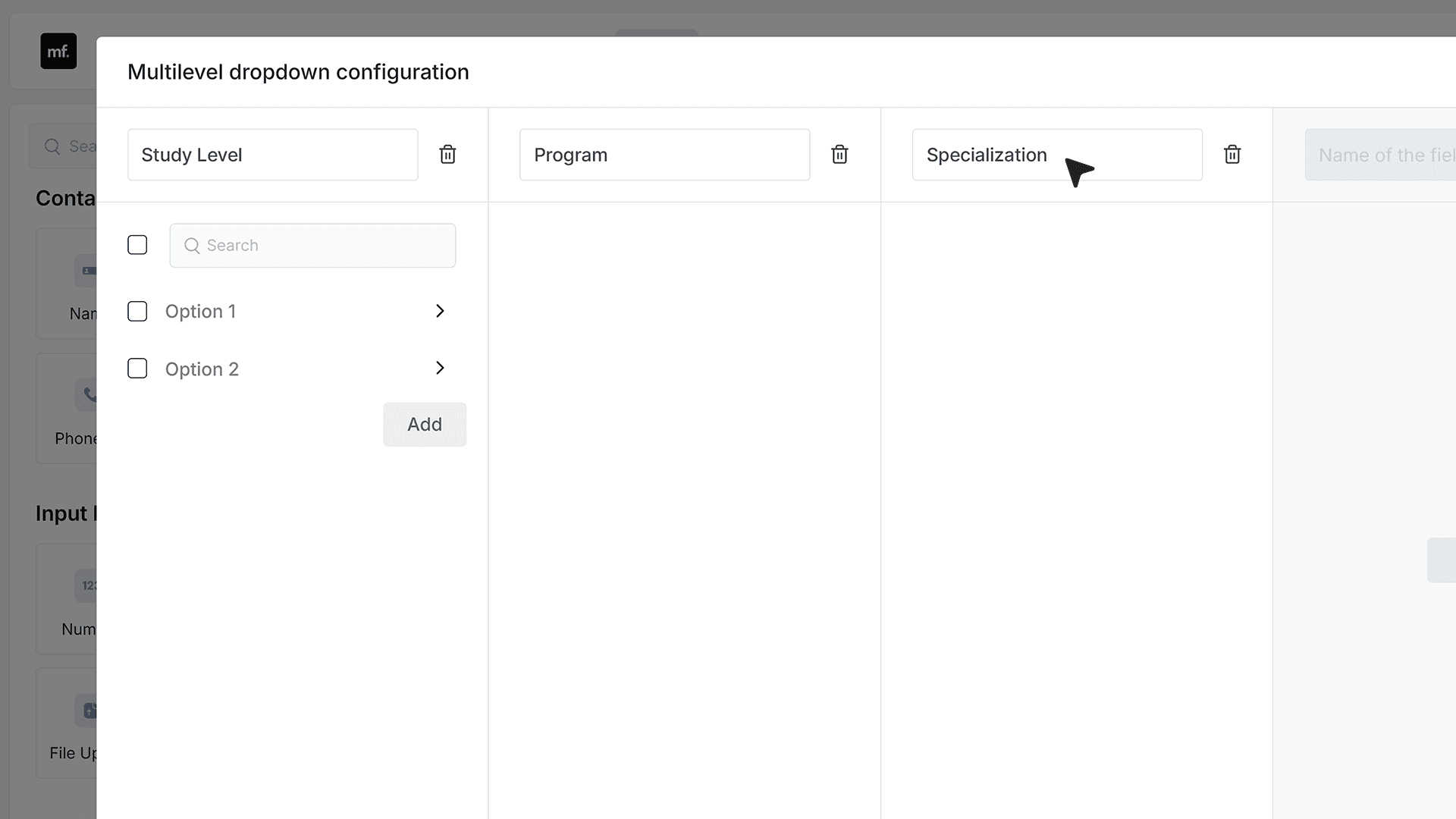
- Next, add values under Study Level. You can start with options like Undergraduate and Postgraduate. These are the first choices the user will see. If you need more study levels later, you can click the Add option button to add more values to this list.
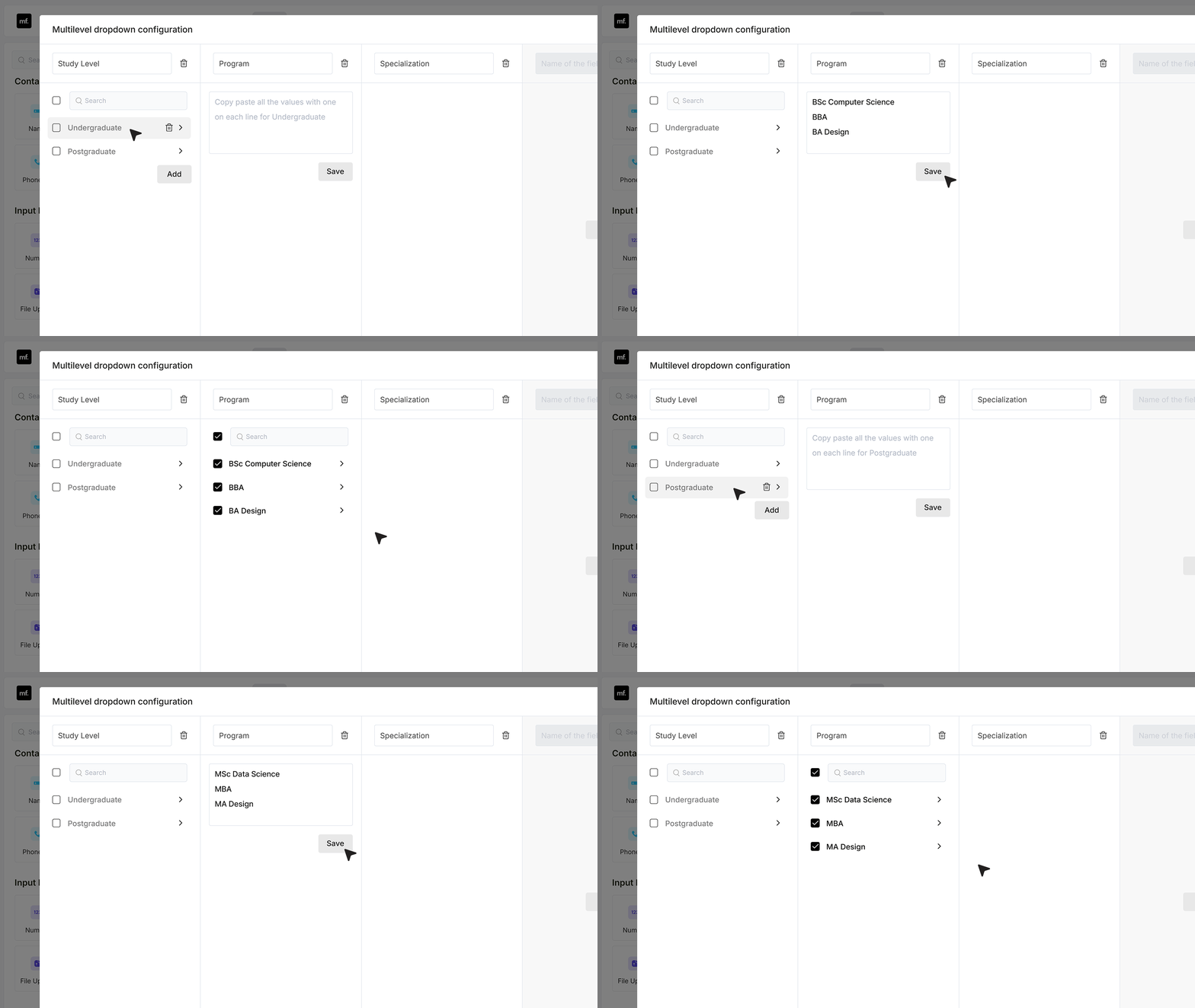
- Now move to Level 2, which is Program. Under Undergraduate, add the programs that belong to this level, such as BSc Computer Science, BBA, or BA Design. Under Postgraduate, add programs like MSc Data Science, MBA, or MA Design.When you save, MakeForms links these programs to their study level.
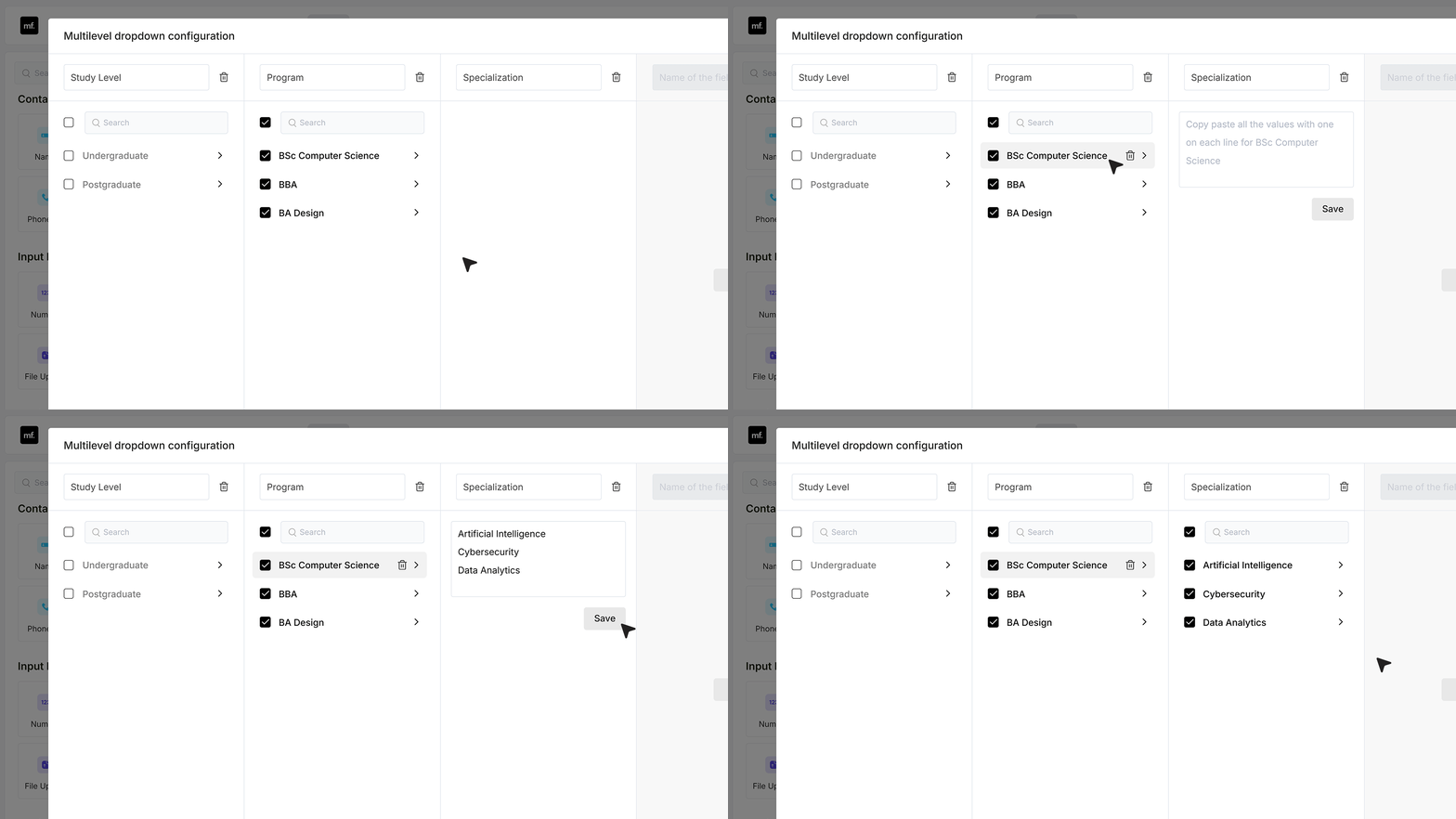
- Next, go to Level 3, which is Specialization. For each program, open it and add the specializations that belong under it. For example, under BSc Computer Science you might add a set of related specializations, and you can do the same for every other program under both Undergraduate and Postgraduate.
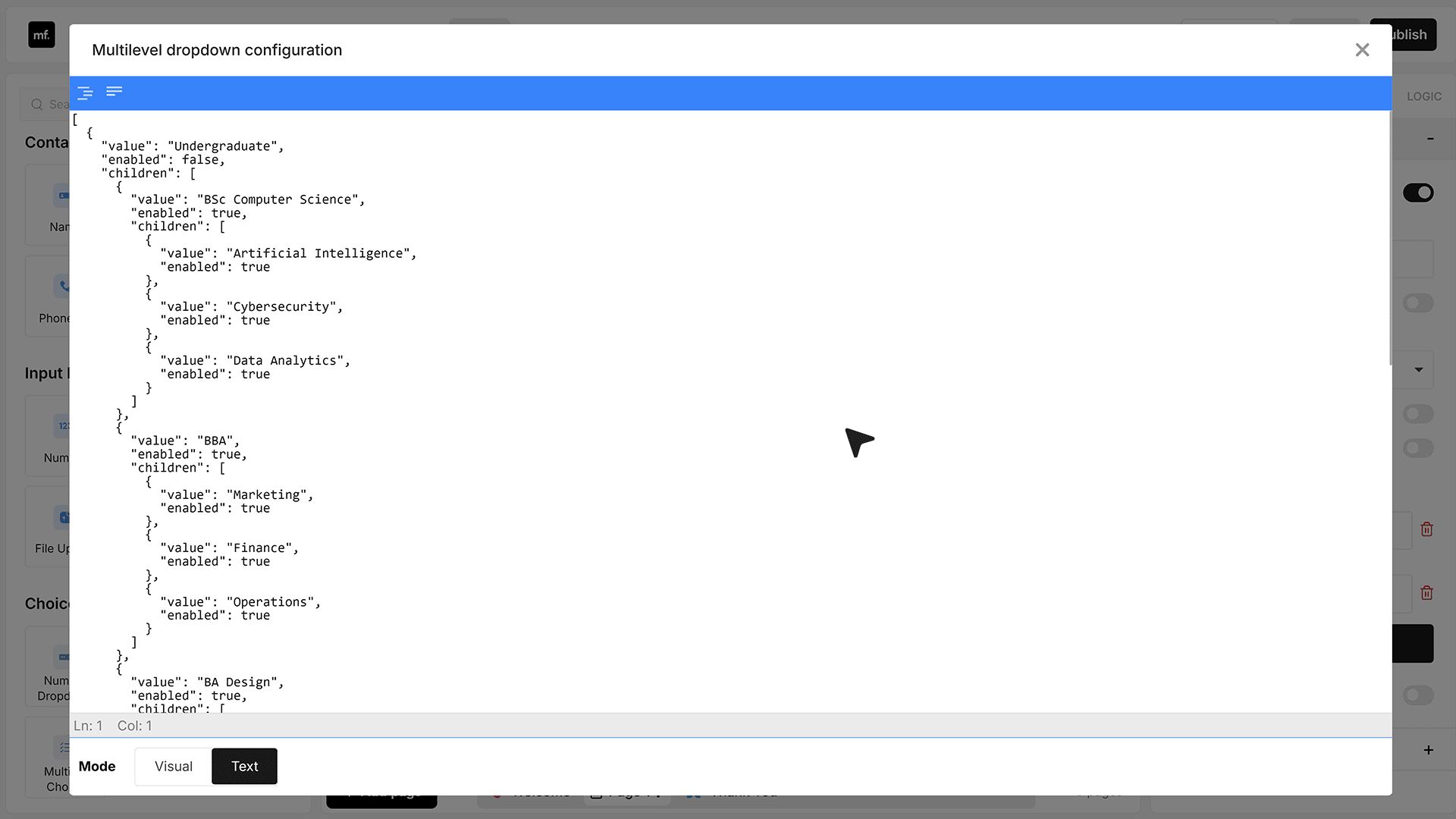
- If you have a lot of values, or your data already lives in a database, you may not want to enter everything manually. For that, you can use Text Mode inside the Multi-Level Dropdown editor.
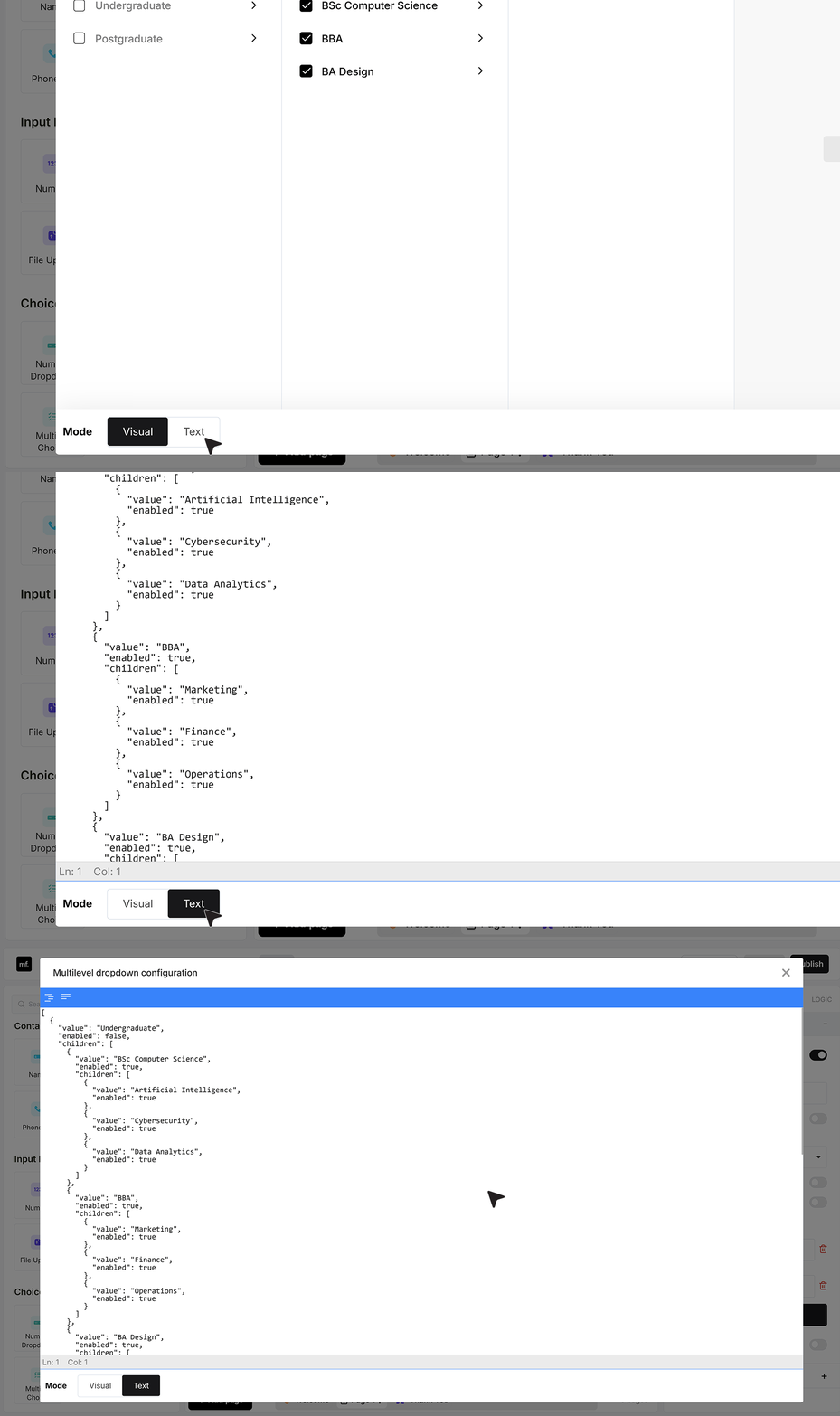
- You can copy this JSON and share it with your developer. They can generate the full structure from your database in the same JSON format. Once you receive the updated JSON, you simply paste it back into Text Mode and save. The Multi-Level Dropdown is then ready, filled from your data, without you having to click through and add every value by hand.
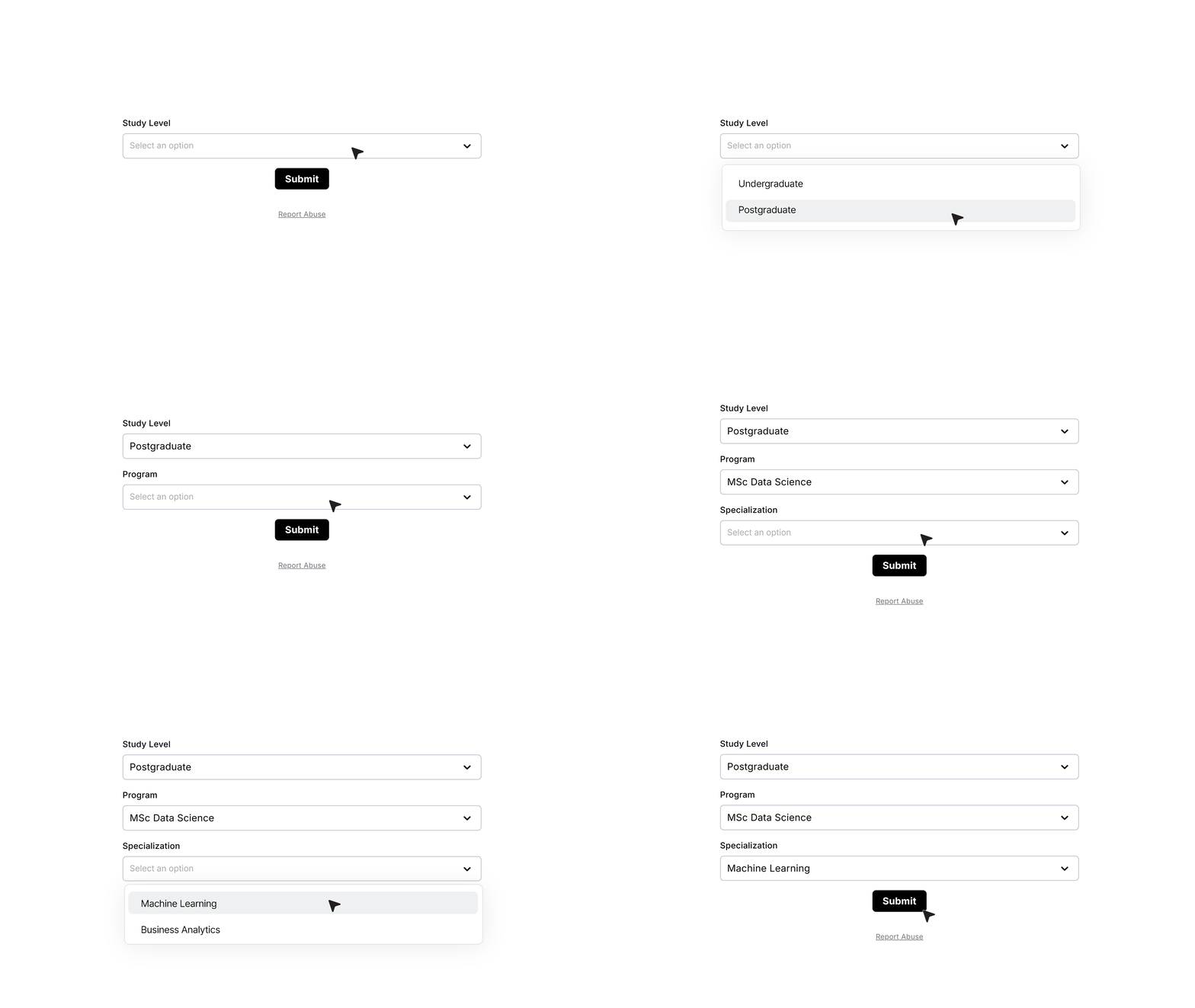
- Once the form is published, the Multi-Level Dropdown behaves in a stepwise manner for the user.
- They first choose a study level. If they pick Postgraduate, the Program dropdown immediately updates and shows only Postgraduate programs. When they then choose a program, for example MSc Data Science, the Specialization dropdown updates again to show only the specializations for that program.
FAQ's
Most builders support this as a cascading setup, where one dropdown controls the next dropdown. Examples include Jotform (Dependent Dropdown), Cognito Forms (rules + lookup/data), Zoho Forms (field rules), Formstack (logic + data), and WordPress builders like Gravity Forms using chained selects add-ons. Many tools do not have a single “nested dropdown” field, they implement multilevel dropdowns using multiple dropdown fields plus logic.
Add the first dropdown for the top level choice, for example Country. Add the second dropdown for the next level, for example State. Keep the second dropdown hidden by default. Create logic so when Country = USA, the State field shows and its options are set to US states, and when Country = Canada, State shows with Canadian provinces. If you need a third level, add a City dropdown and repeat the same pattern, City stays hidden until a State is selected. Test in preview on desktop and mobile, then publish.
You usually customize each level as its own field. Set label, placeholder, required state, default value, and option labels vs stored values. Use logic to control when each level appears. If the builder supports it, load options from a data source like a table, CSV import, or an API, so you do not have to maintain long option lists by hand. Also check if the dropdown supports search, since long lists are hard to use on mobile.
Yes. The common setup is to use the dropdown selection to pick a product, plan, or amount, then pass that to the payment step (Stripe, PayPal, Razorpay, etc, depends on the tool). Some builders let you map the selection directly to a price, others require a calculated field that sets the final amount based on selected values across the dropdown levels.
Use the value chosen in any level as a trigger. Typical actions are show or hide fields, jump to a page, set a calculated field, change a payment amount, set a hidden tag, or route submissions to different emails and webhooks. For reliable logic, use stored option values (stable IDs) instead of option labels, so renaming the label does not break rules.
Yes, as long as the form is responsive and dropdowns use native select behavior on mobile. The main limits on mobile are long lists and too many levels. Use search-enabled dropdowns when possible, keep option lists short, and avoid loading huge lists unless the tool supports async loading or lookup-based dropdowns.