Difference Between dates using the Calculated Field
The Calculated Field in MakeForms allows you to automatically compute values based on user input. One of the most common use cases is calculating the difference between two dates. This eliminates manual calculations for users and ensures consistent, accurate results.
This guide explains how to calculate a user’s current age by finding the difference between their Date of Birth and today’s date.
Form Setup
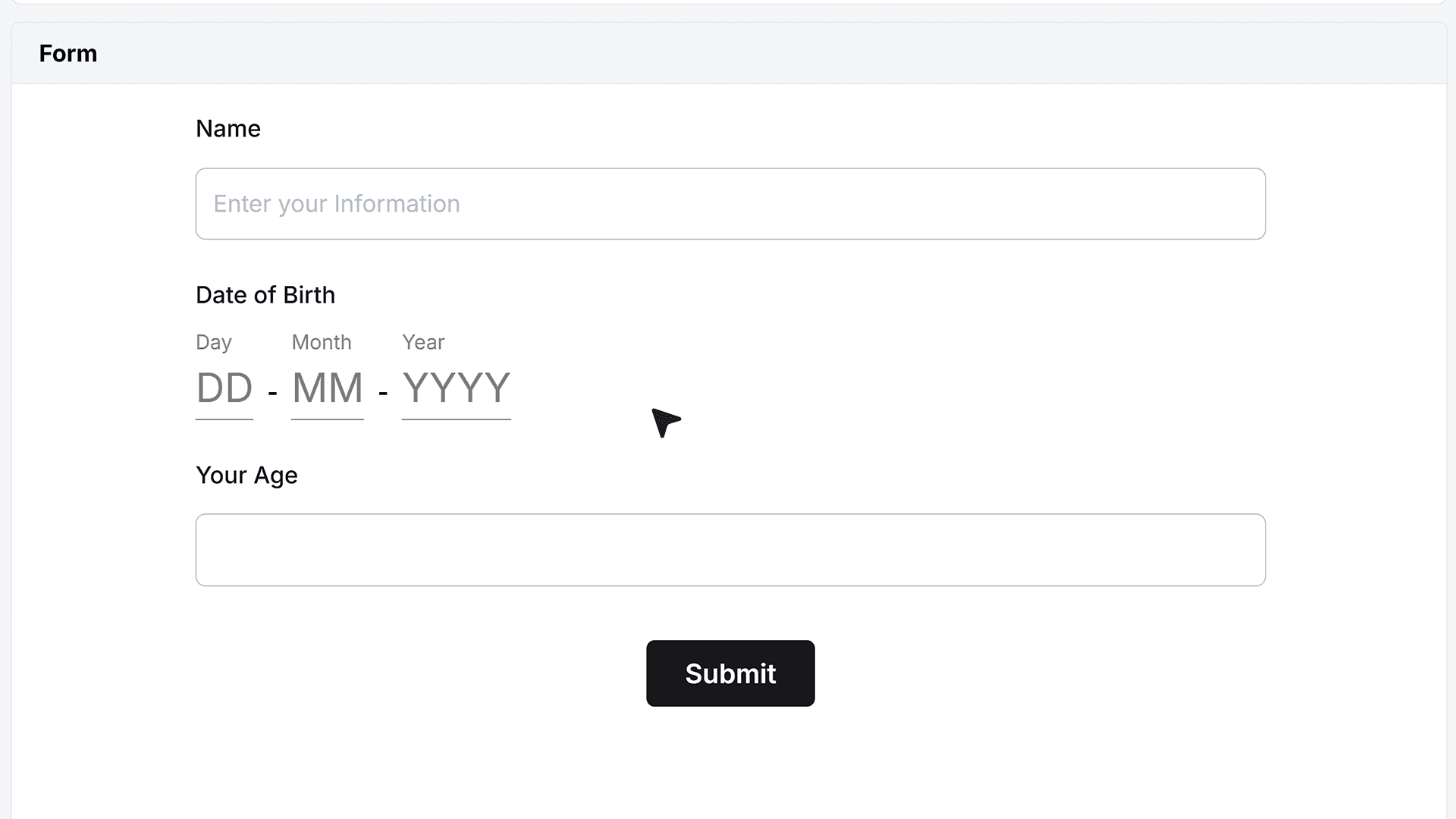
Start by adding a Date field to your form and label it Date of Birth. This field collects the user’s birth date.
Next, add a Calculated Field and label it Your Age. This field will display the calculated result and does not require any user input.
Configure the Calculation
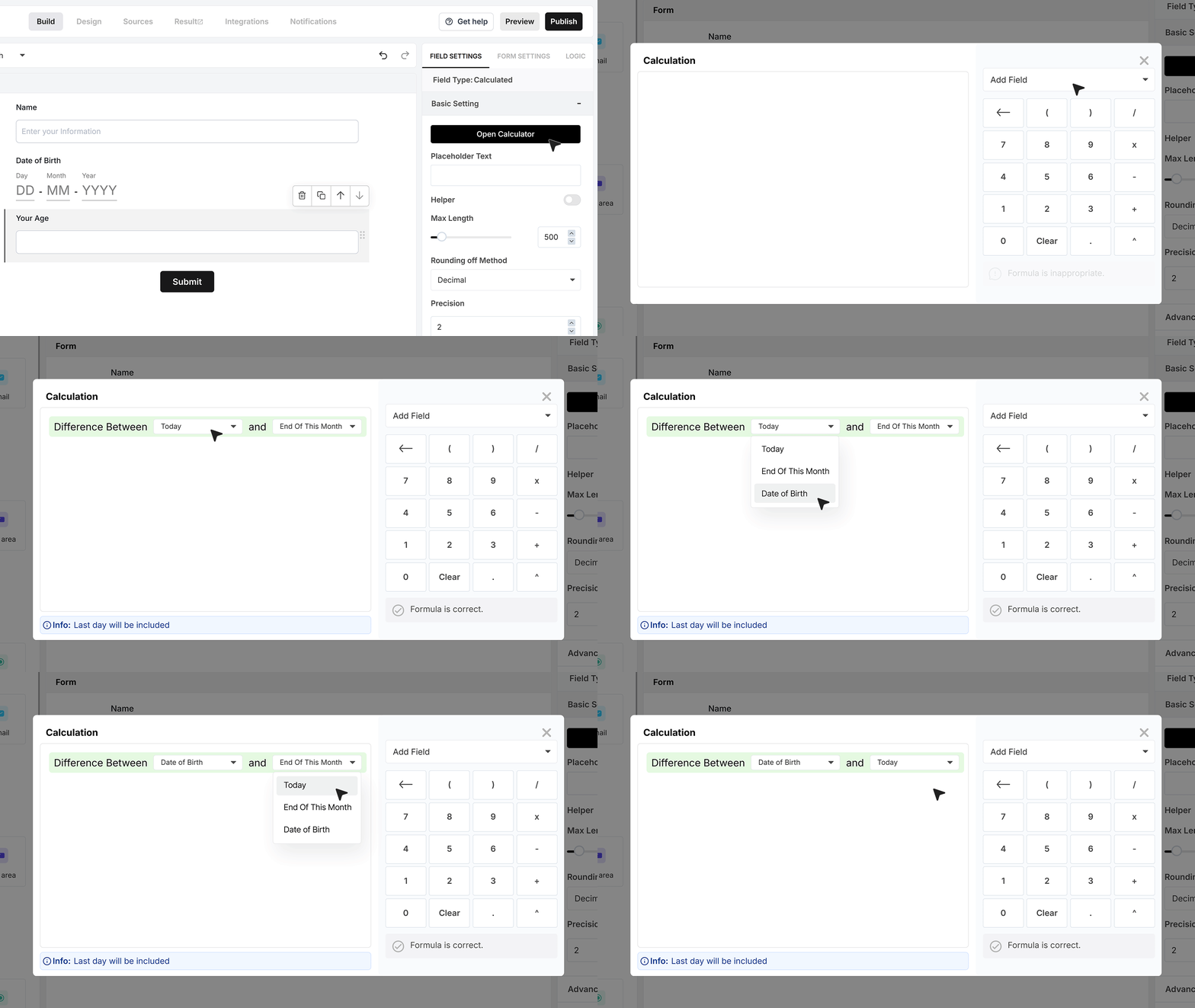
Go to the Calculated Field settings and open the Calculator, where the formula logic is defined. From the right-side panel, click Add Field and select Difference Between Dates. This inserts a calculation block that compares two dates. In the first dropdown, select Date of Birth. In the second dropdown, select Today.
At this stage, the calculation returns the difference between the two dates in days.
Convert Days to Years
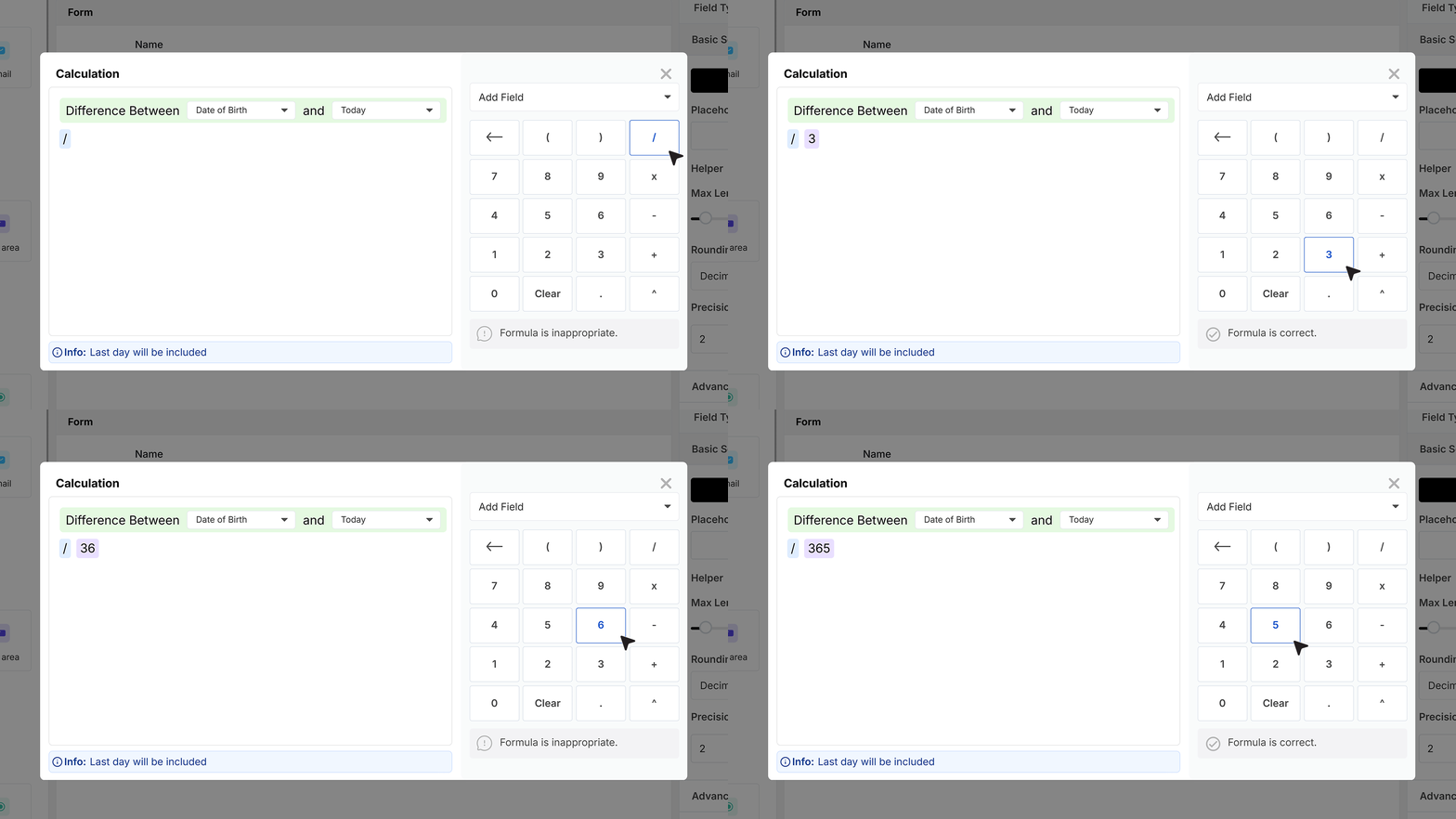
Age is typically displayed in years, not days. To convert the result, divide the calculated value by 365. This converts the total number of days into years. The calculation now returns the age in years, but it may include decimal values.
Adjust Rounding
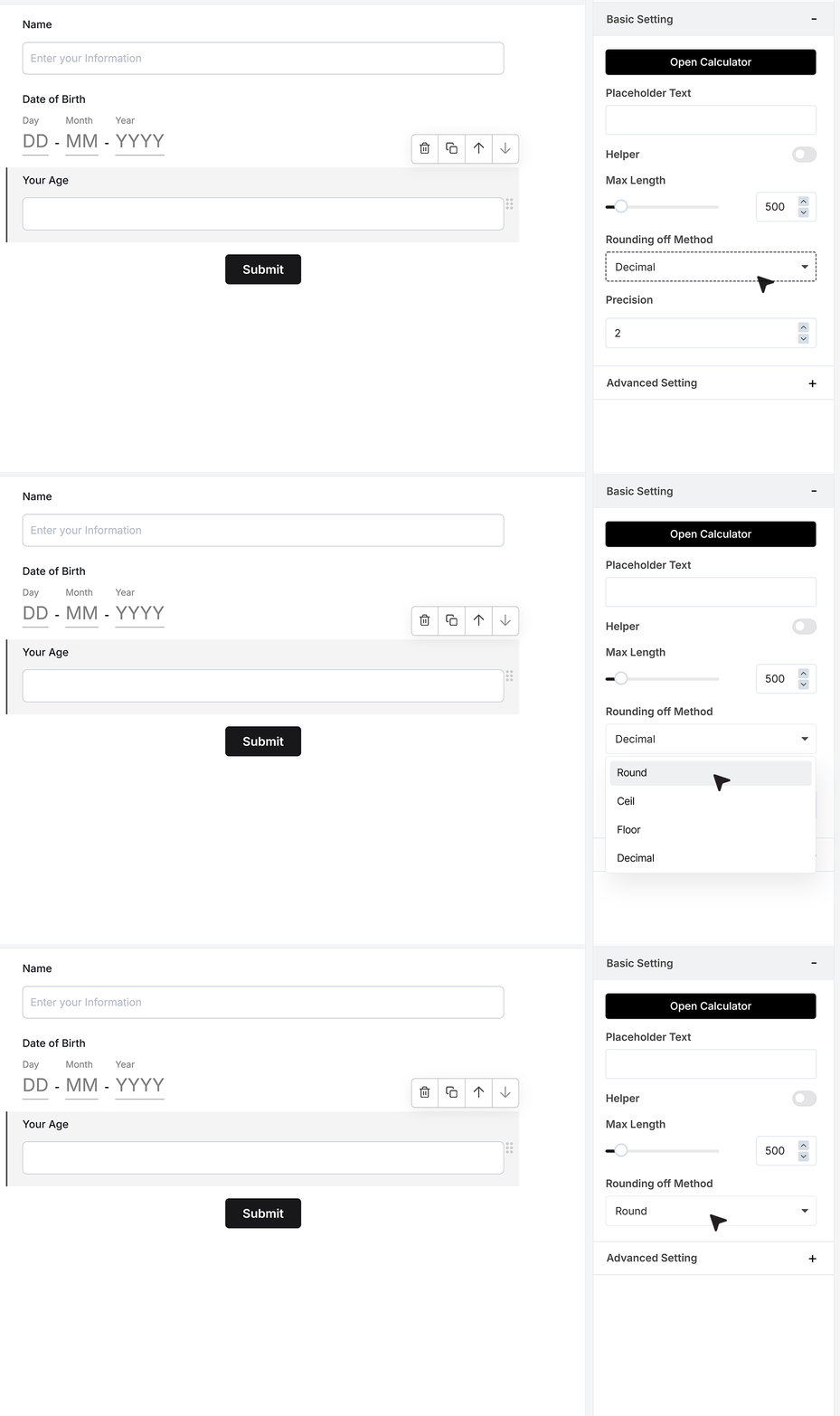
By default, rounding is enabled and set to Decimal. To display a whole number, change the Rounding option to Round. This ensures the Age field shows a clean, readable value.
Publishing the form
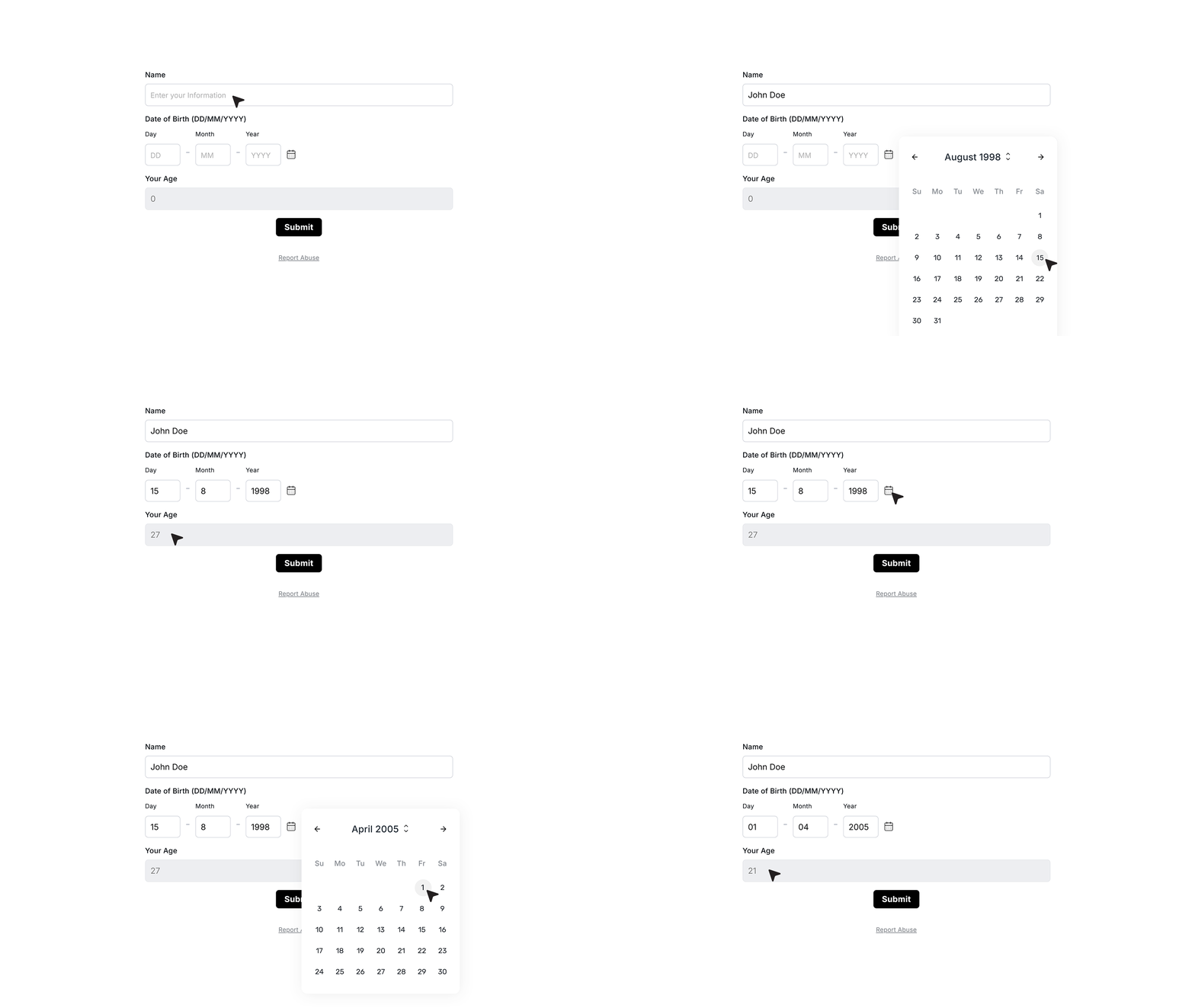
To verify the setup, enter a Date of Birth such as 15 August 1998. The Age field will automatically calculate the current age based on today’s date.
If the Date of Birth is changed, the Age value updates instantly without any manual input.
FAQ's
You can use the Calculated Field and select the “Difference Between Dates” option. Choose your two date fields, for example Date of Birth and Today. The form will automatically calculate the time between them without any manual input.
Add a Date field for Date of Birth and a Calculated Field. Use the Difference Between Dates function, then divide the result by 365 to convert days into years. Apply rounding to show a clean age value.
Yes. By default, the result is in days. You can convert it to years by dividing the value by 365 inside the calculator. This is useful for age, tenure, or duration tracking.
Use the rounding option in the Calculated Field settings. Set it to “Round” instead of “Decimal” to display a whole number.
Yes. You can select any two date fields, like Start Date and End Date. The system will return the total number of days between them automatically.
Yes. The value updates instantly when the user changes any of the selected date fields. No refresh or manual action is needed.
Yes. You can select “Today” as one of the inputs in the Difference Between Dates function. This is useful for calculating age or time passed since a specific date.
The calculation is accurate and based on real-time inputs. For age in years, dividing by 365 gives a close estimate. For exact age logic, you may adjust formulas further if needed.
The default output is in days. You can convert it:
- Divide by 30 for months (approx)
- Divide by 365 for years
This gives a quick and practical result for most use cases.
Some popular use cases include:
- Age calculation from date of birth
- Project duration tracking
- Subscription or membership period
- Days between booking and event
- Employee tenure
This happens when you convert days into years or months. You can fix this by enabling rounding in the field settings.
No. The Calculated Field is automatic. Users only fill the date fields, and the result is generated instantly.
Yes. You can add multiple Calculated Fields and run different date comparisons across your form.
Yes. It removes manual calculation, reduces errors, and improves user experience by showing instant results.
Yes. The calculation works across all devices and also when the form is embedded on a website.