Video Field
The Video Field in MakeForms allows you to display a video directly inside your form. It is a non-input field, which means it does not collect any responses from users. Instead, it is used to provide visual context, explain concepts, or share content such as product demos, walkthroughs, or instructions.
Add an Image Field to your form
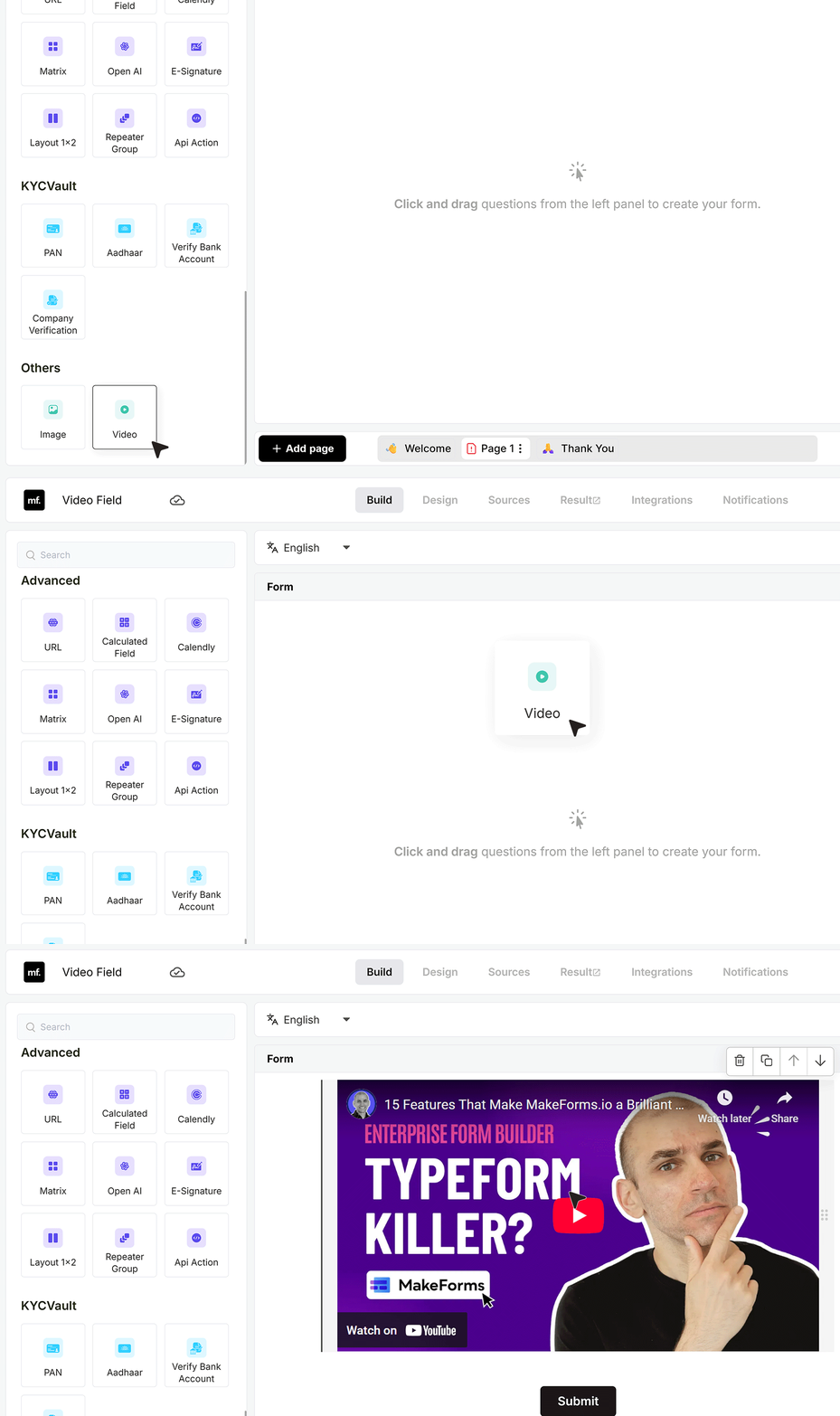
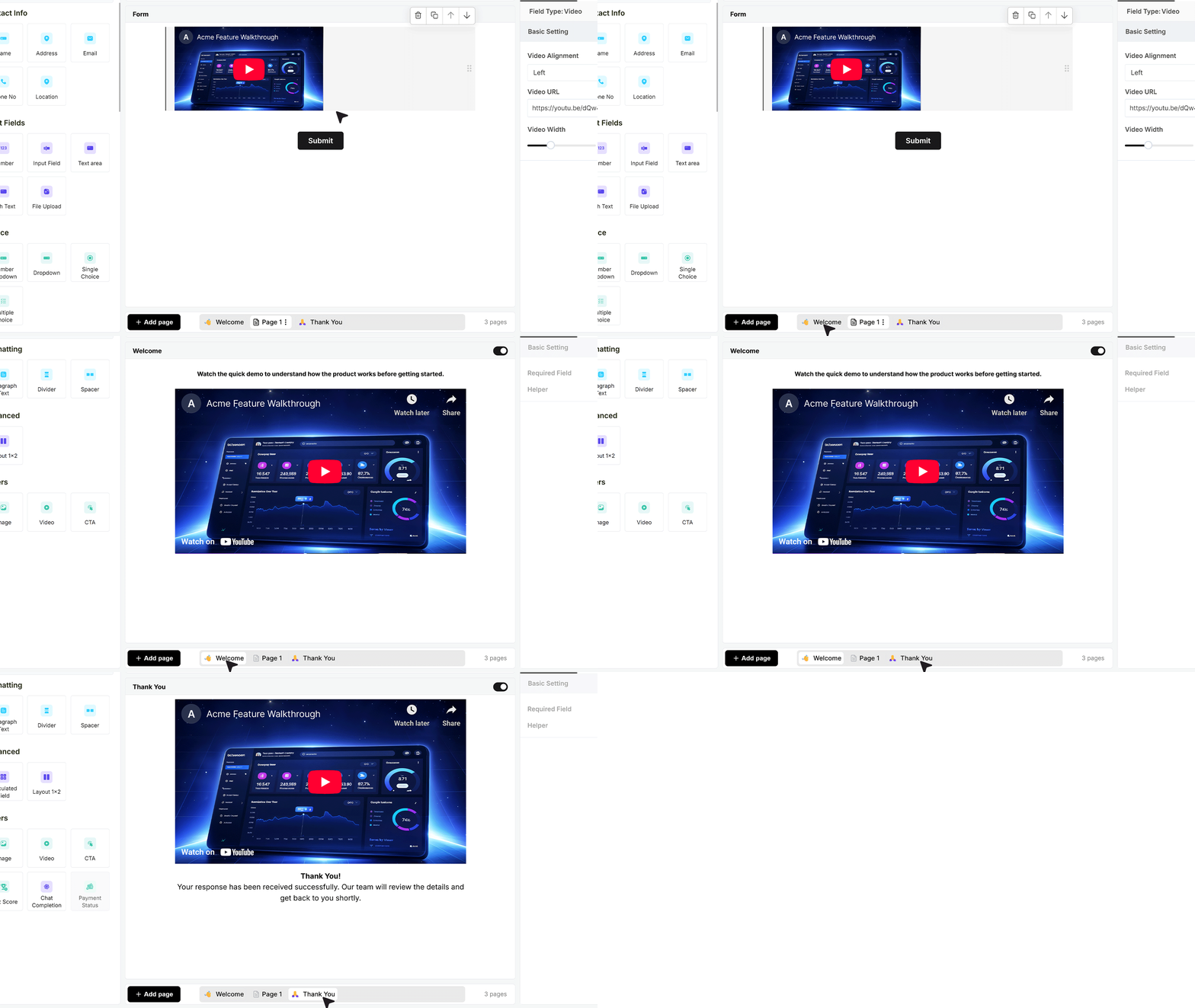
To add a video to your form, drag and drop the Video Field from the field panel into your form layout. As soon as the field is added, a default video appears automatically. By default, the video is displayed at full width, spanning the entire form container. This helps you immediately understand how video content will appear within the form.
Basic Setting
Video URL Setting
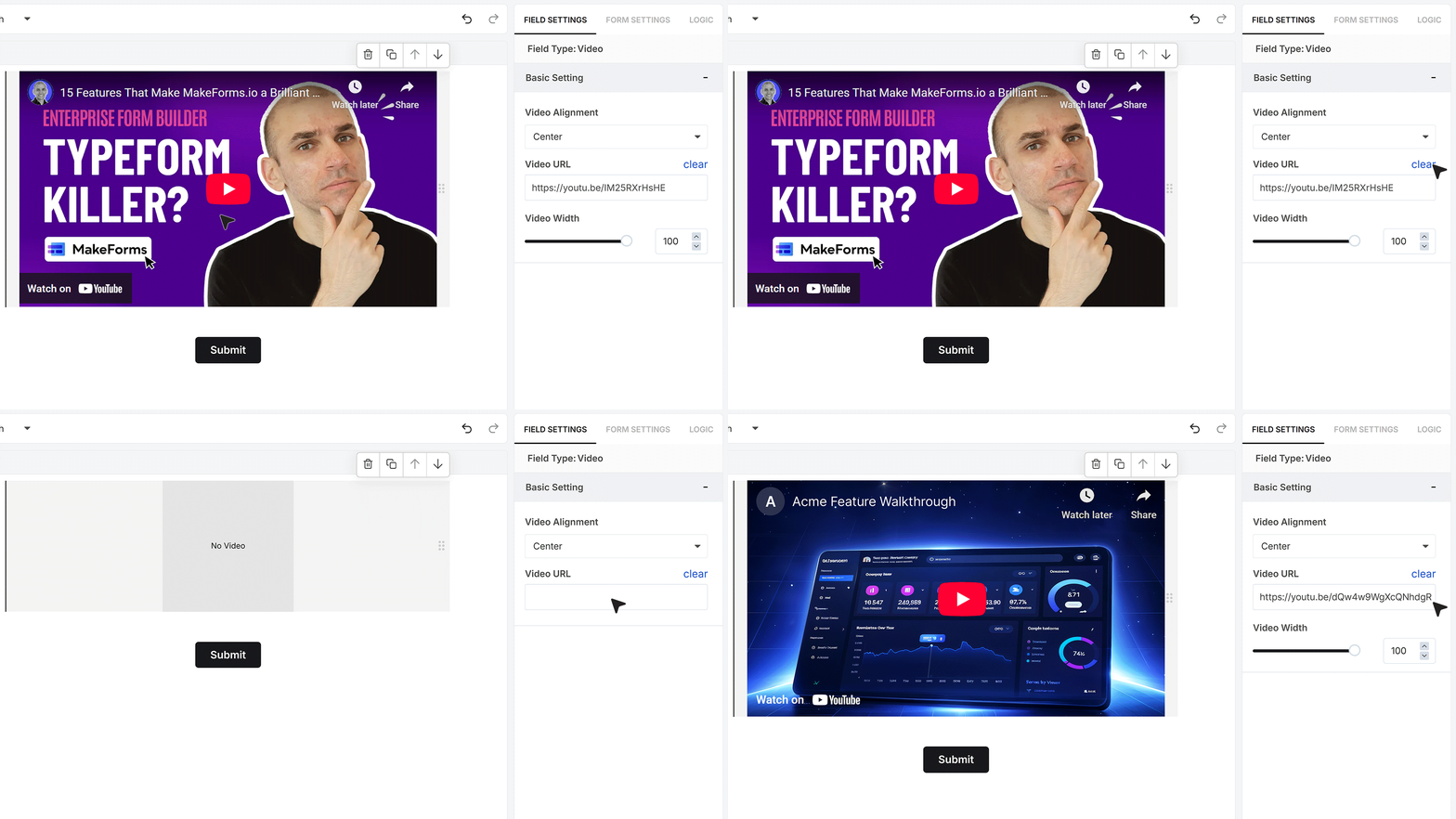
After adding the Video Field, open its settings from the right-side panel. You will find the Video URL field here. Clear the existing URL and paste the link to the video you want to display. Once the URL is added, the video updates instantly in the form preview, allowing you to quickly verify how it looks.
Video Width
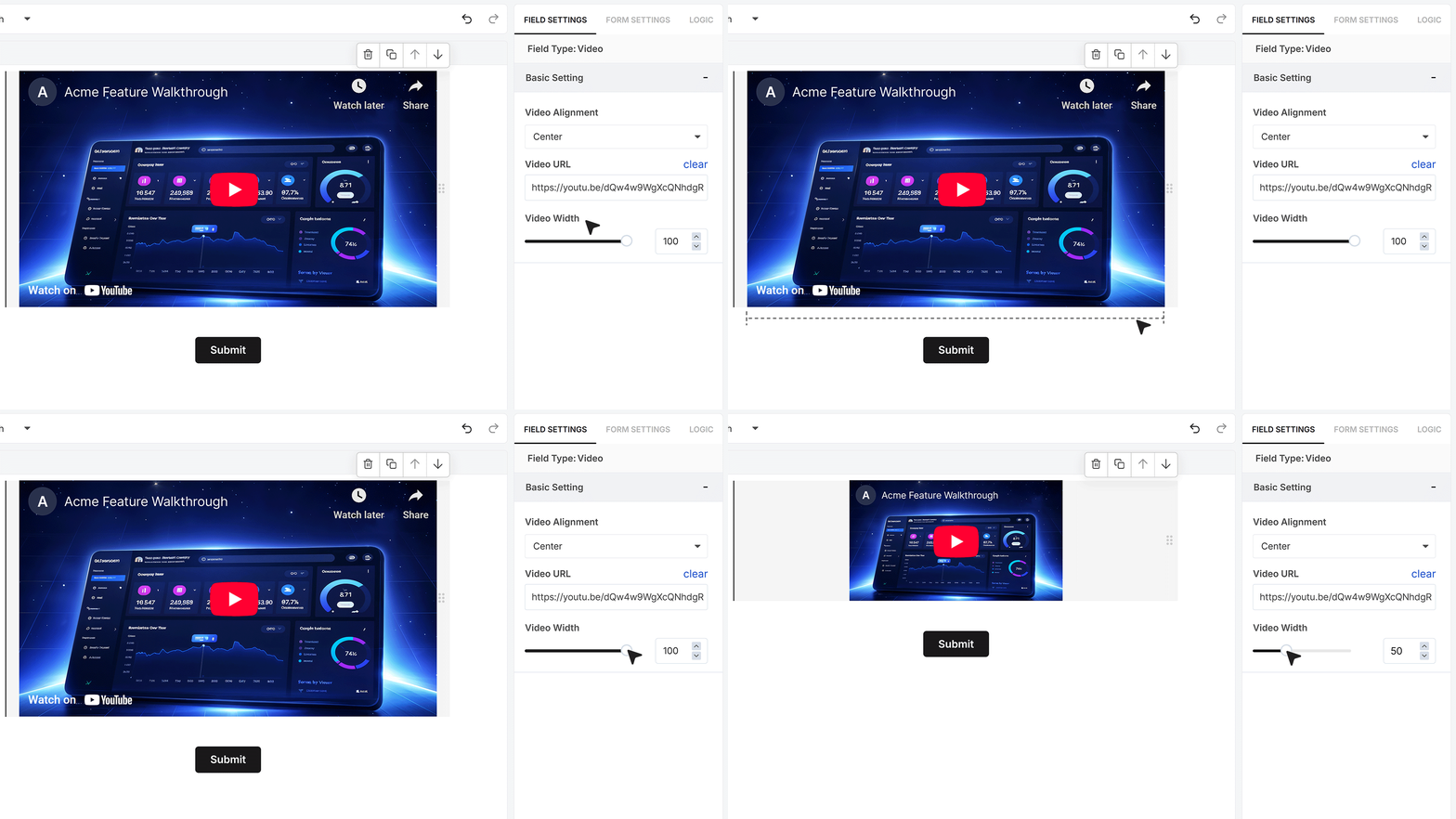
The Video Width setting lets you control how much horizontal space the video occupies within the form. When the video is set to full width, it spans edge to edge across the form container. Reducing the width gives you more layout flexibility and allows you to position the video more precisely within the form.
Video Alignment
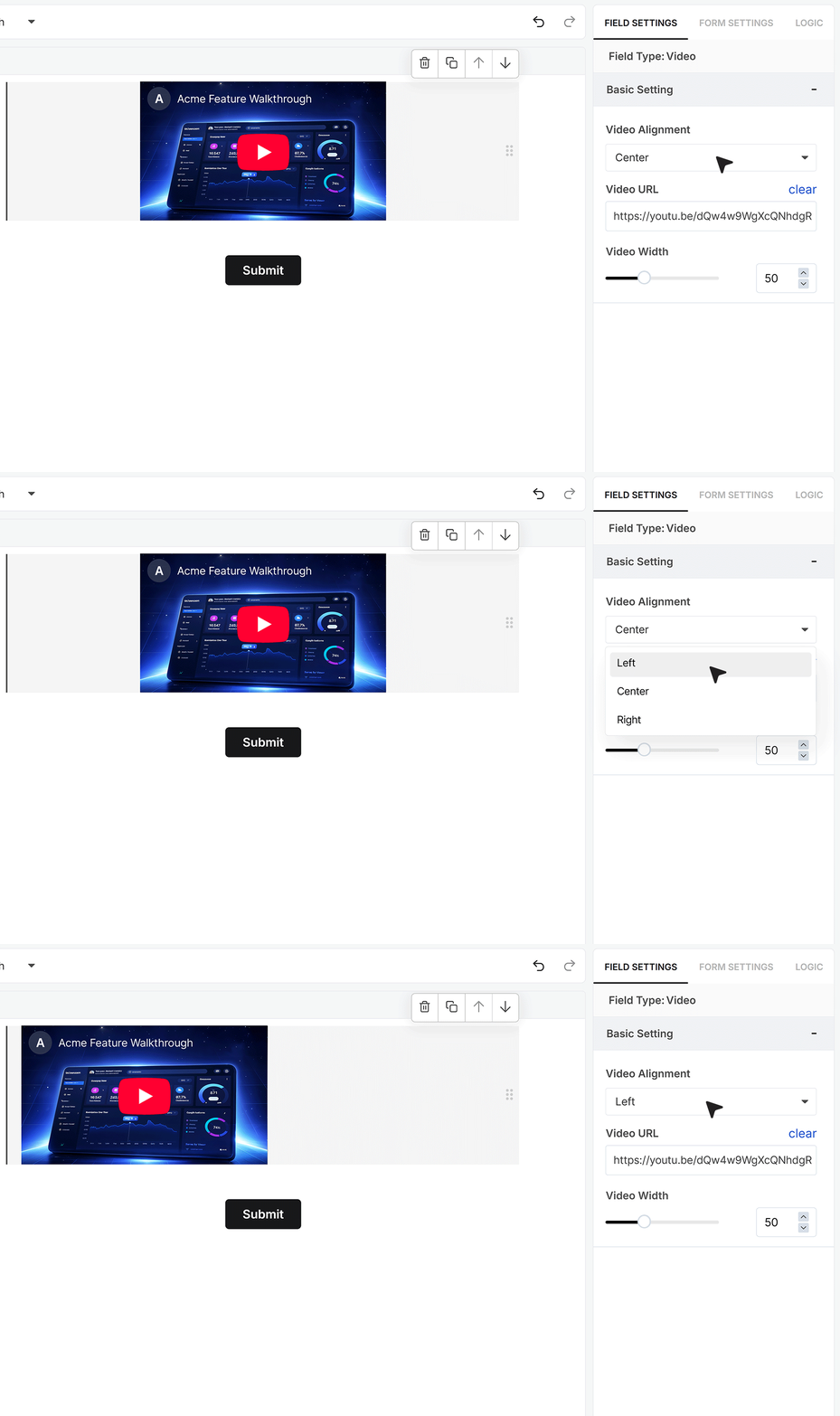
The Video Alignment setting controls where the video sits inside the form layout. You can align the video to the left, center, or right. Alignment options are most effective when the video is not using full width, as full-width videos already occupy the entire container.
Using the Video Field Across the Form
The Video Field can be used in multiple areas of your form, including the main form flow, the Welcome Screen, and the Thank You page. This makes it suitable for introducing the form, setting expectations before users begin, or displaying a follow-up video after submission, especially in signup and onboarding scenarios.
Publishing the form
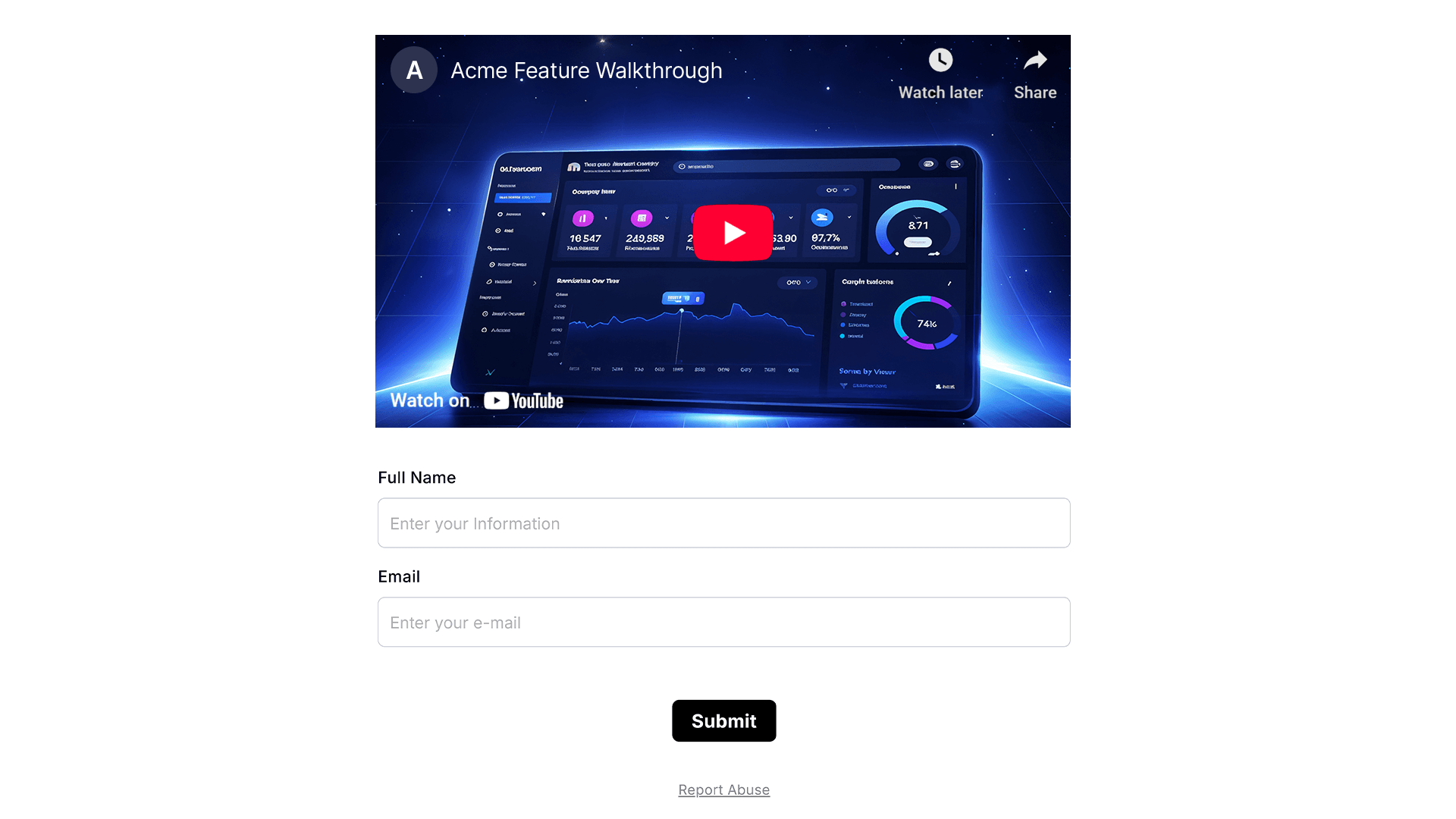
After configuring the Video Field, publish the form to make it live. Once published, the video plays directly within the same field as part of the form experience, without redirecting users away from the form.
FAQ's
A video field in a form lets you display a video inside the form without collecting any input. It is useful to explain a question, show a demo, or guide users before they fill the form.
You can add a video to your form by dragging the Video Field into your form layout. Then paste your video URL in the settings panel. The video will appear instantly in the preview so you can check how it looks.
Yes. The video plays directly inside the form. Users do not leave the page, which helps keep them focused and improves completion rate.
You can use standard video URLs from popular platforms. Just paste the link in the Video URL setting, and the form will display the video automatically.
Yes. You can adjust the video width to fit your layout. You can keep it full width or reduce it to match your design needs.
Yes. You can align the video to the left, center, or right. This works best when the video is not set to full width.
You can use the video field anywhere in your form, including the main form, welcome screen, and thank you page. This helps you guide users before and after submission.
You can use video in forms to explain questions, show product demos, share onboarding steps, or collect better responses. Adding video helps users understand faster and complete forms more easily.
Yes. Video fields are useful for job application forms, onboarding flows, and signup forms. You can explain roles, show instructions, or guide applicants clearly.
No. A video field is a non-input field. It is only used to display content and does not store any user data.
After creating your form with a video field, you can publish it and embed it on your website using the provided embed options. The video will display inside the form on your site.
Yes. You can use video fields to show example testimonials or guide users on how to give feedback. This improves response quality and clarity.
Yes. Video fields are responsive and adjust to different screen sizes, so users can watch videos easily on mobile devices.
No major impact if you use proper video links. The video loads within the form, and users can interact without delay.
Keep videos short and clear. Place them before important sections. Use them to explain complex questions. Avoid adding too many videos in one form.