Text Area Field
The Text Area Field in MakeForms is designed for collecting long, multi-line text such as descriptions, feedback, comments, or any detailed information that requires more space than a regular input field.
To begin using it, add a Text Area field to your form and set a clear label so users know what to write - for example, Share your feedback or Describe your issue in detail.
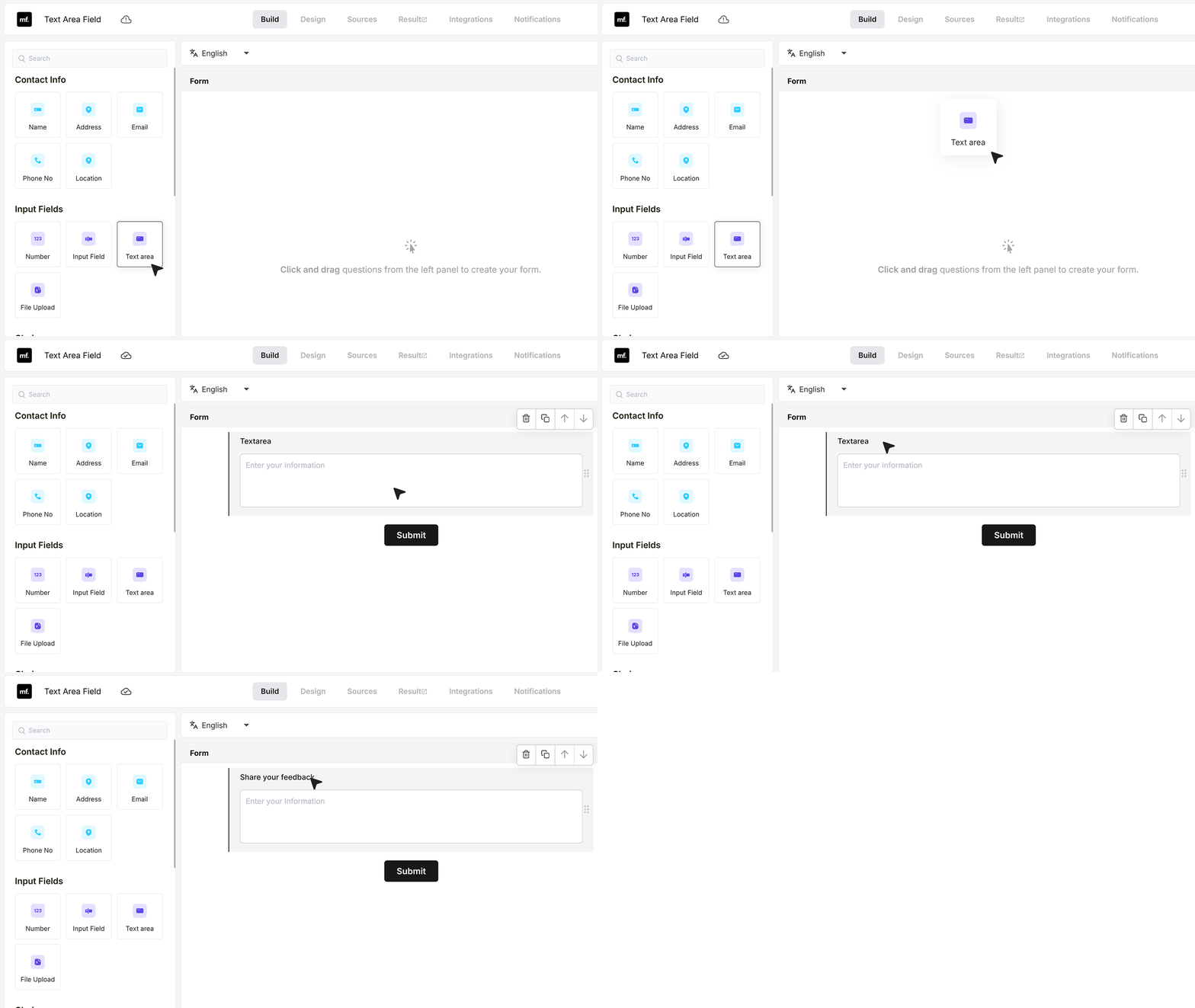
Basic Settings
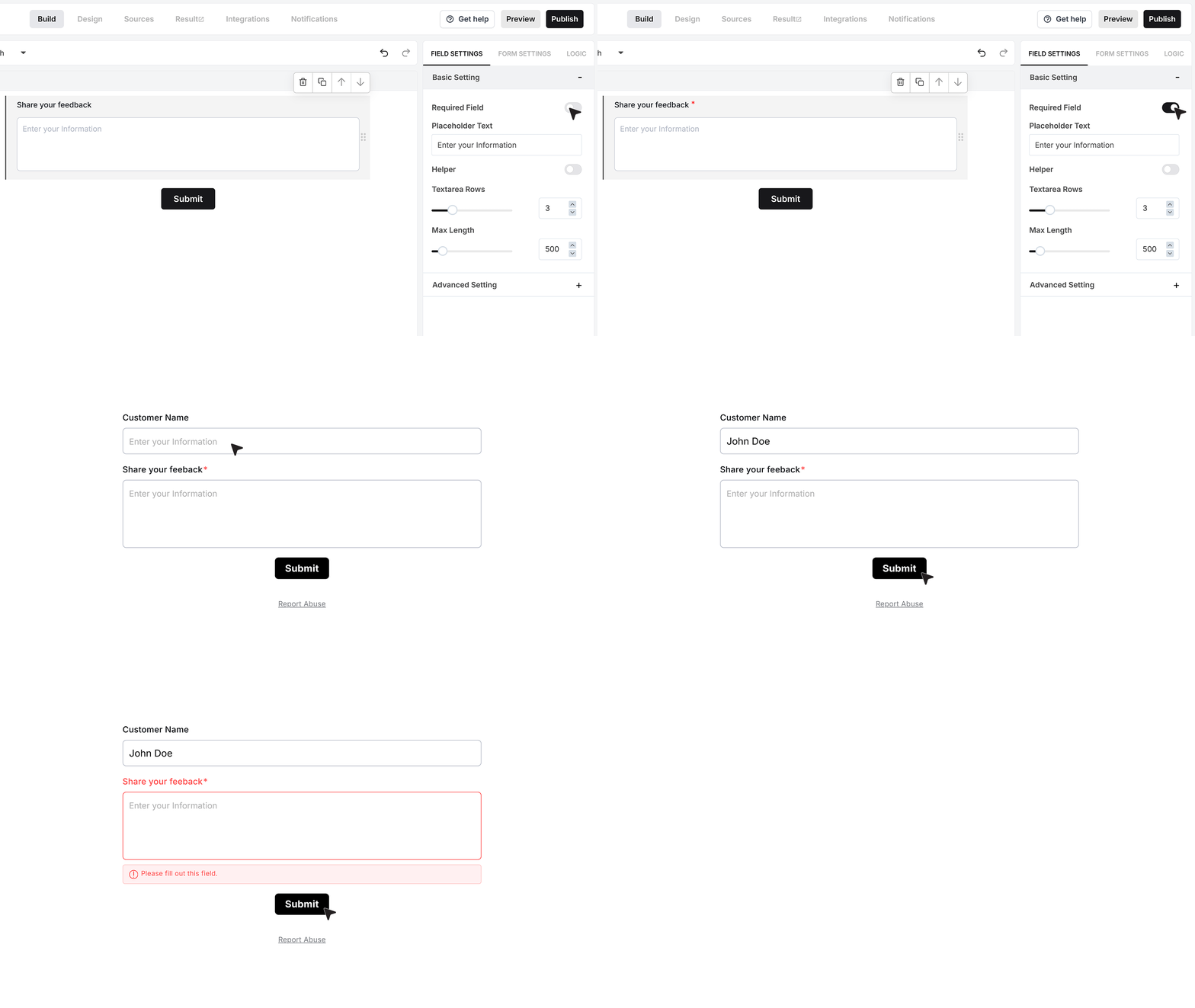
Required Field
At the top of the settings panel, the Required Field option ensures that users enter text before submitting the form. If left empty, the form shows an inline error and blocks submission until the response is provided.
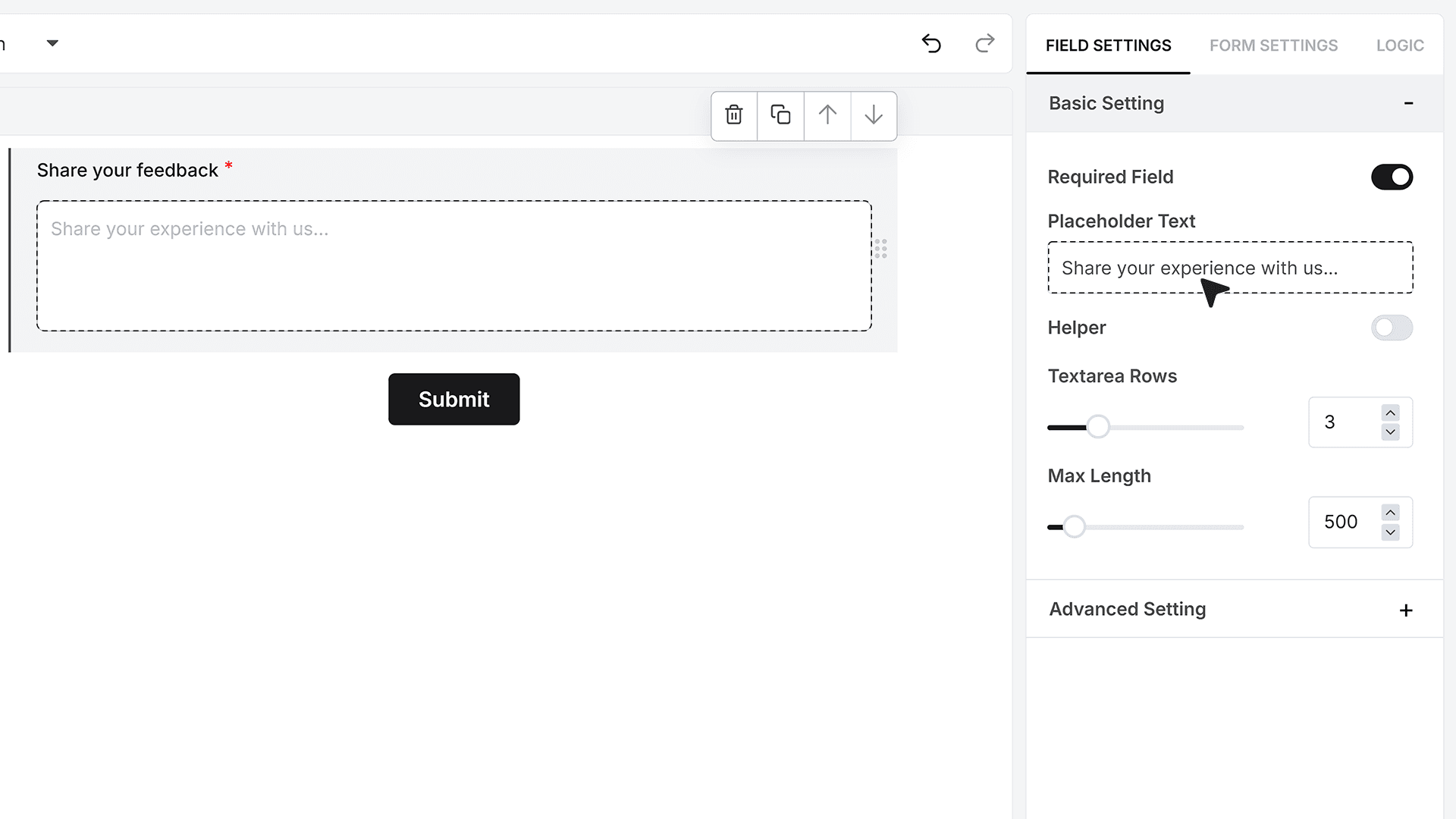
Placeholder Text
Placeholder Text appears inside the Text Area before the user starts typing. It acts as a soft prompt that suggests what the user should write. Examples like Share your experience with us… help guide responses and set expectations.
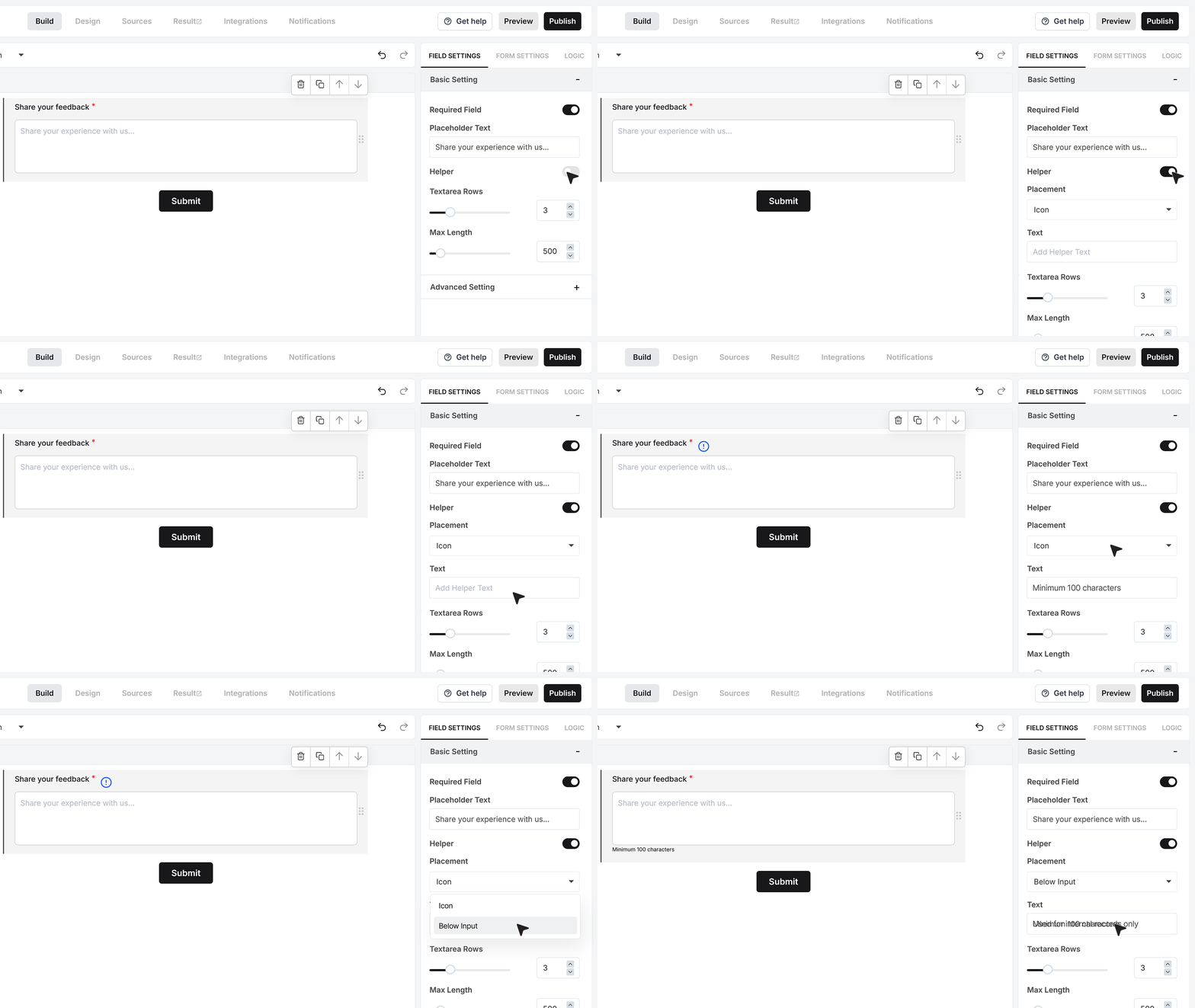
Helper Text
Helper Text lets you add supportive instructions—such as “Minimum 100 characters”—to guide users while they type. Under Placement, you can choose to display this message as an info icon for a cleaner look or show it below the field for clearer visibility.
Textarea Rows
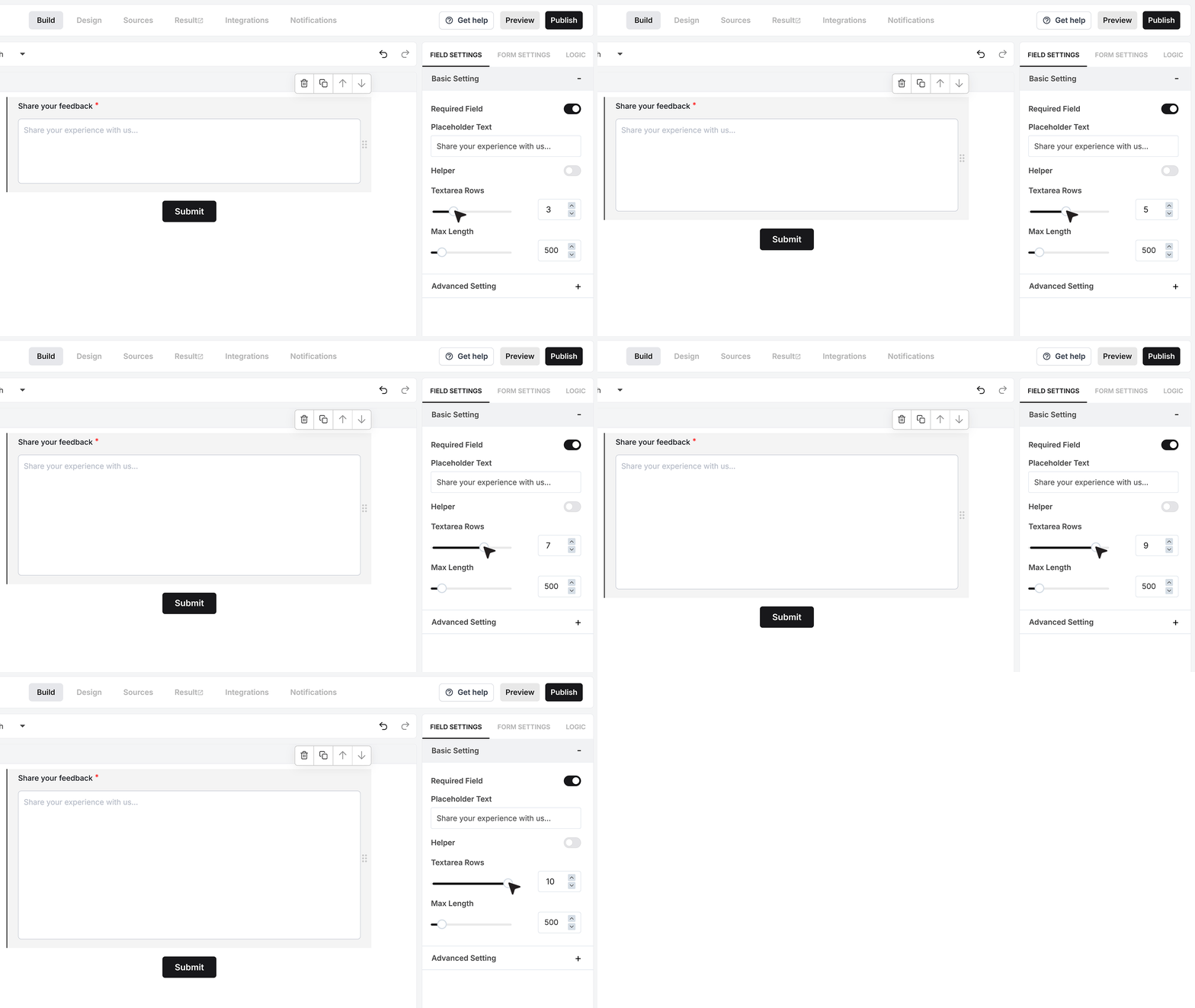
Textarea Rows control how tall the Text Area looks in the form. Increasing the rows creates a larger writing space suitable for longer messages. Reducing them keeps the field compact when only brief inputs are expected. This affects appearance, not the character limit.
Maximum Length
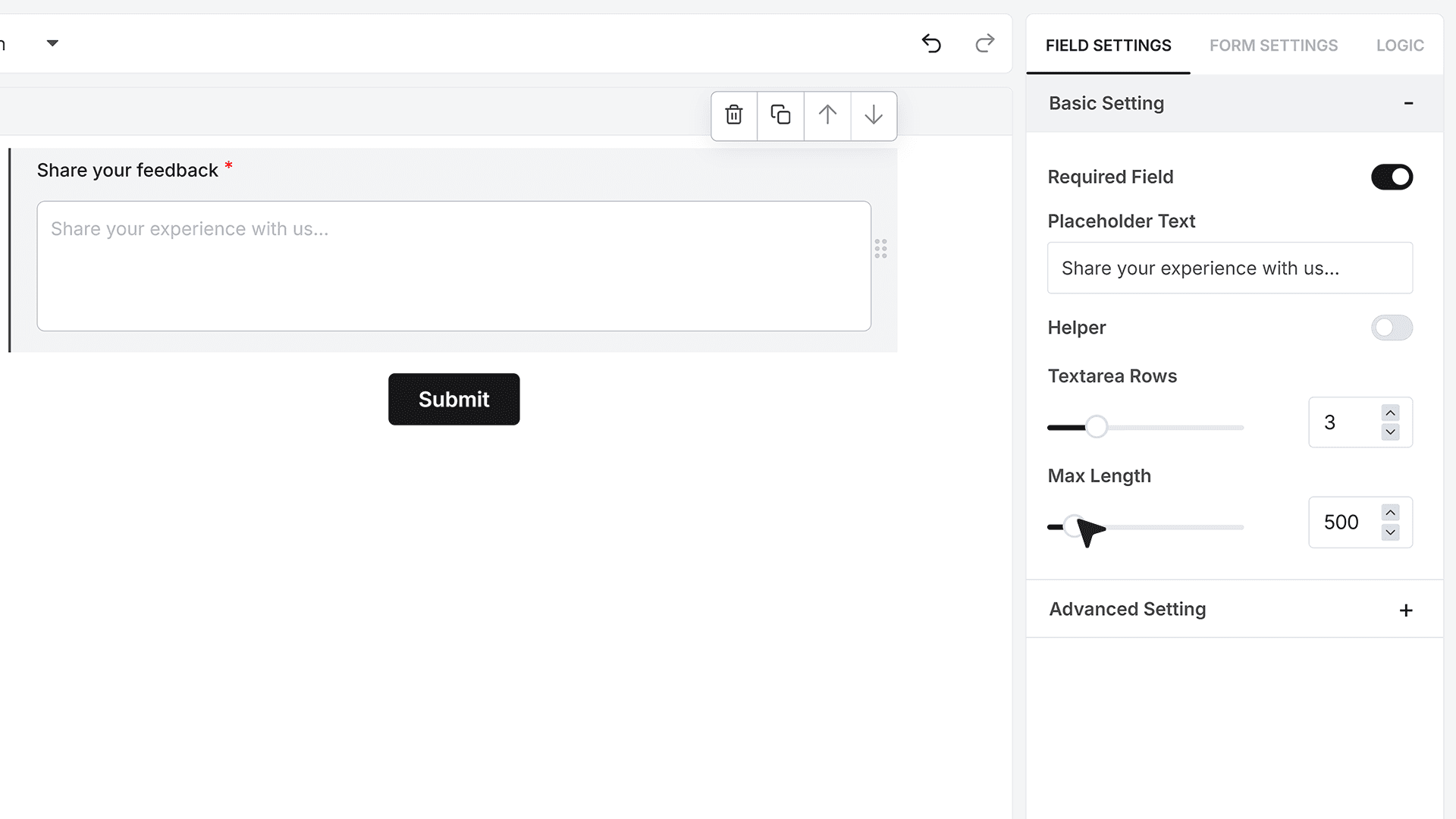
Maximum Characters allow you to define the maximum length of the response. This is useful when collecting structured feedback, controlled descriptions, or any text where you want to limit verbosity.
Advanced Settings
Repeat This Field
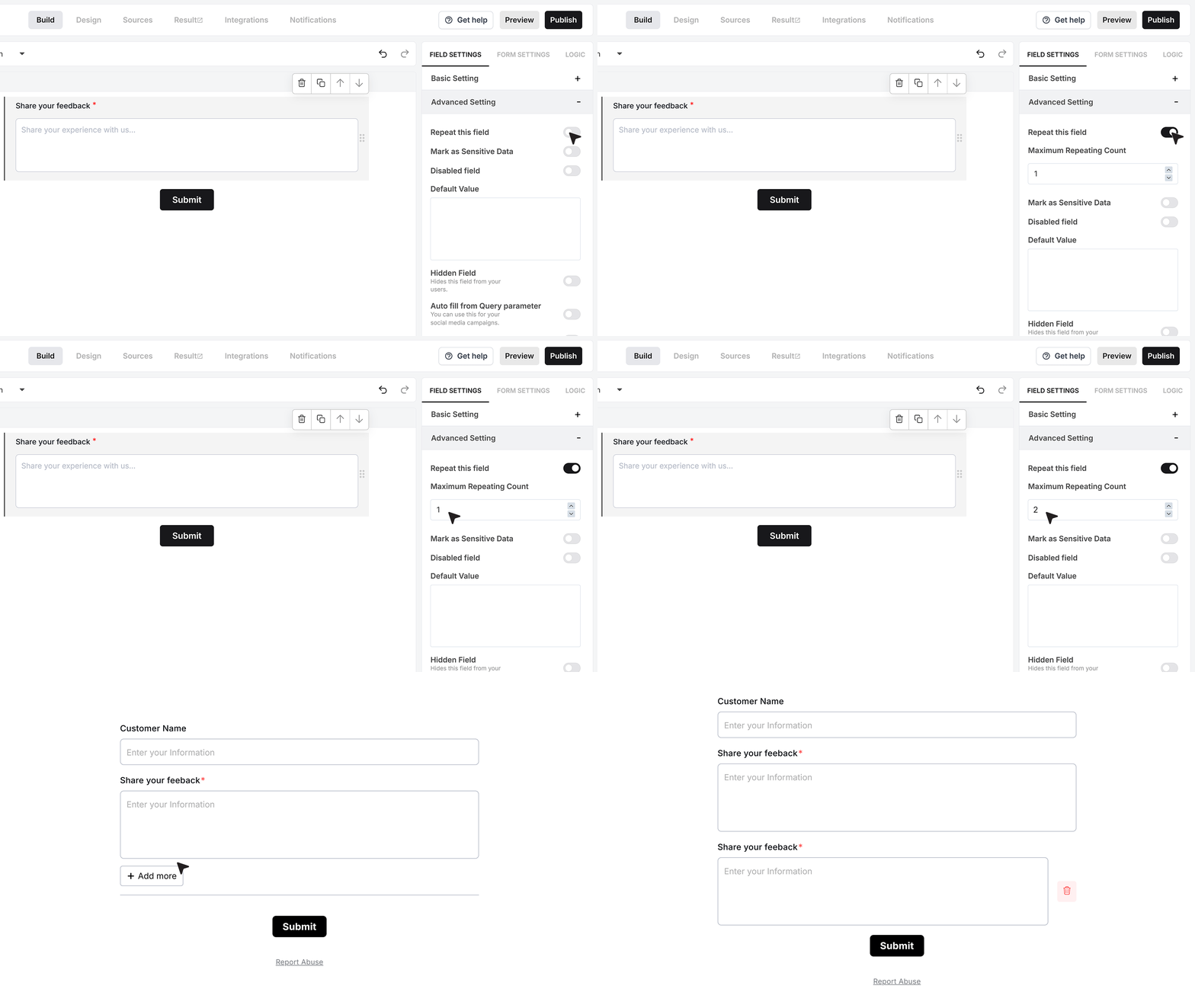
The Repeater Field allows users to create multiple Text Area blocks inside one form section. When you enable it, you can define how many blocks they’re allowed to add. An “Add More” button appears below the field, letting users insert additional text sections until they reach the limit.
Mark as Sensitive Data
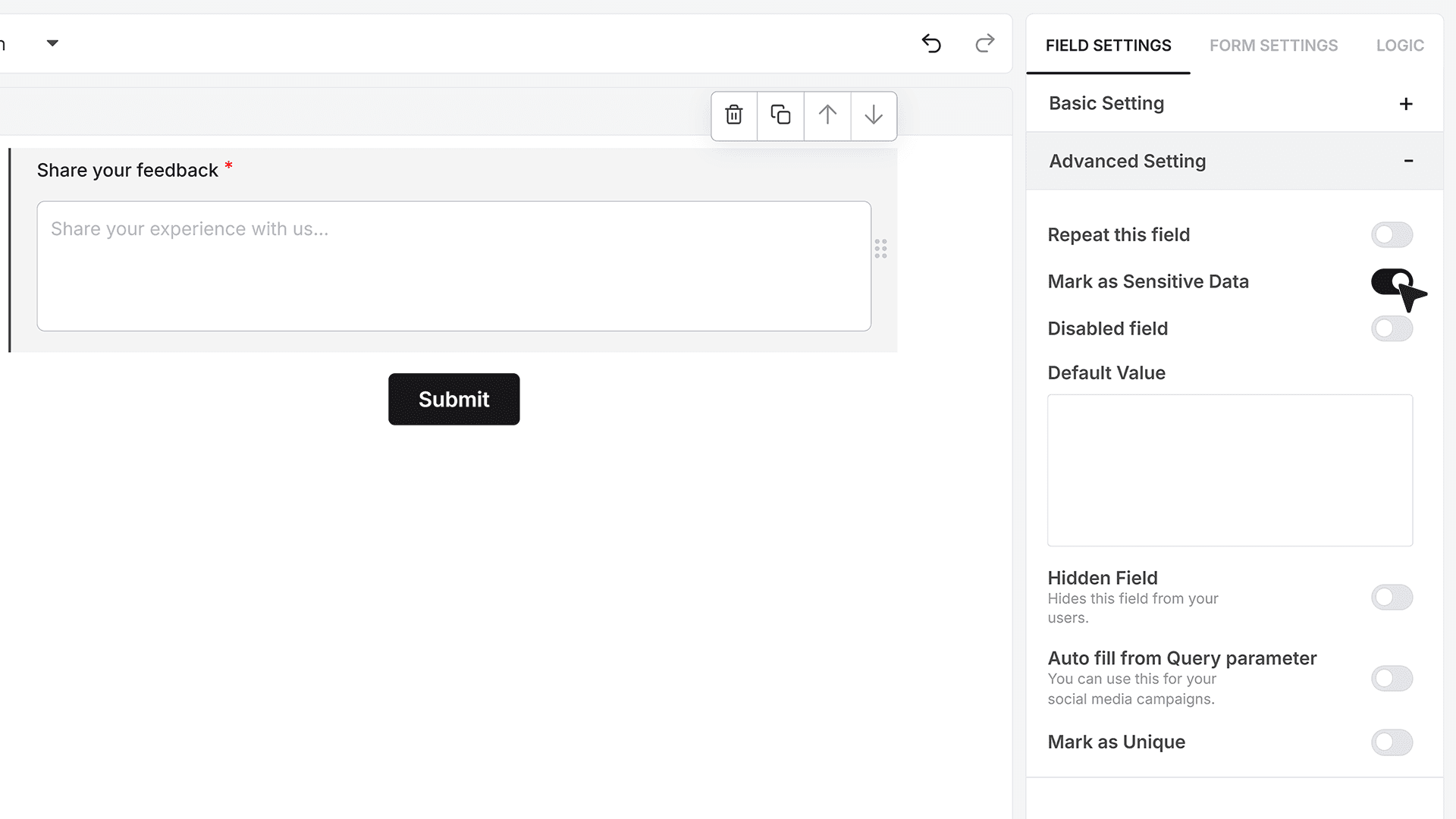
Mark as Sensitive Data protects the entered text inside the Responses dashboard. Only authorized team members can view it, making this ideal for confidential messages, private notes, or sensitive descriptions.
Default Value
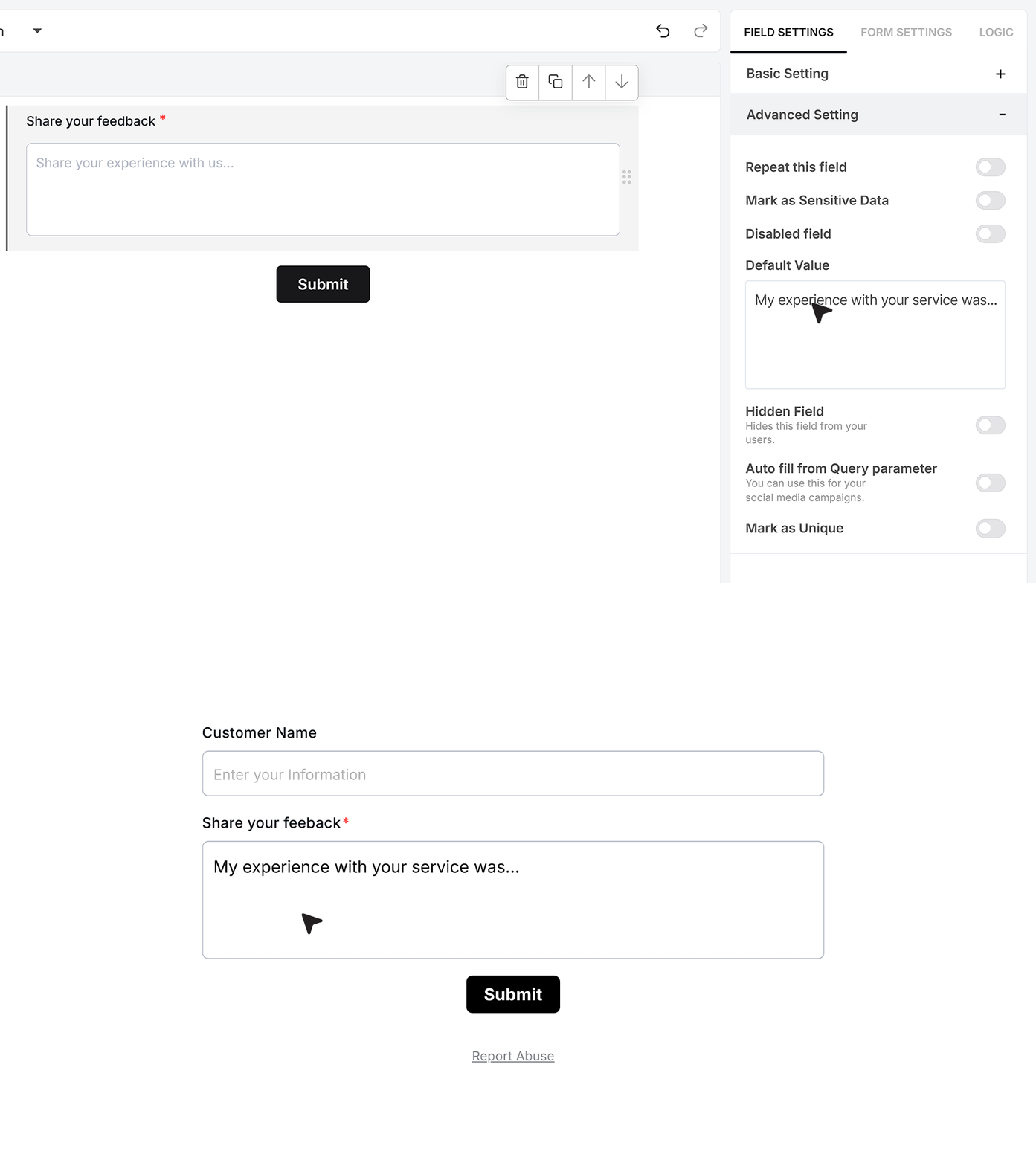
Default Value allows the Text Area to open with pre-filled text already inside it. This is useful when you want to guide the response or start with a prompt. In a feedback form, you may pre-fill it with My experience with your service was… so users can continue naturally.
Disable Field
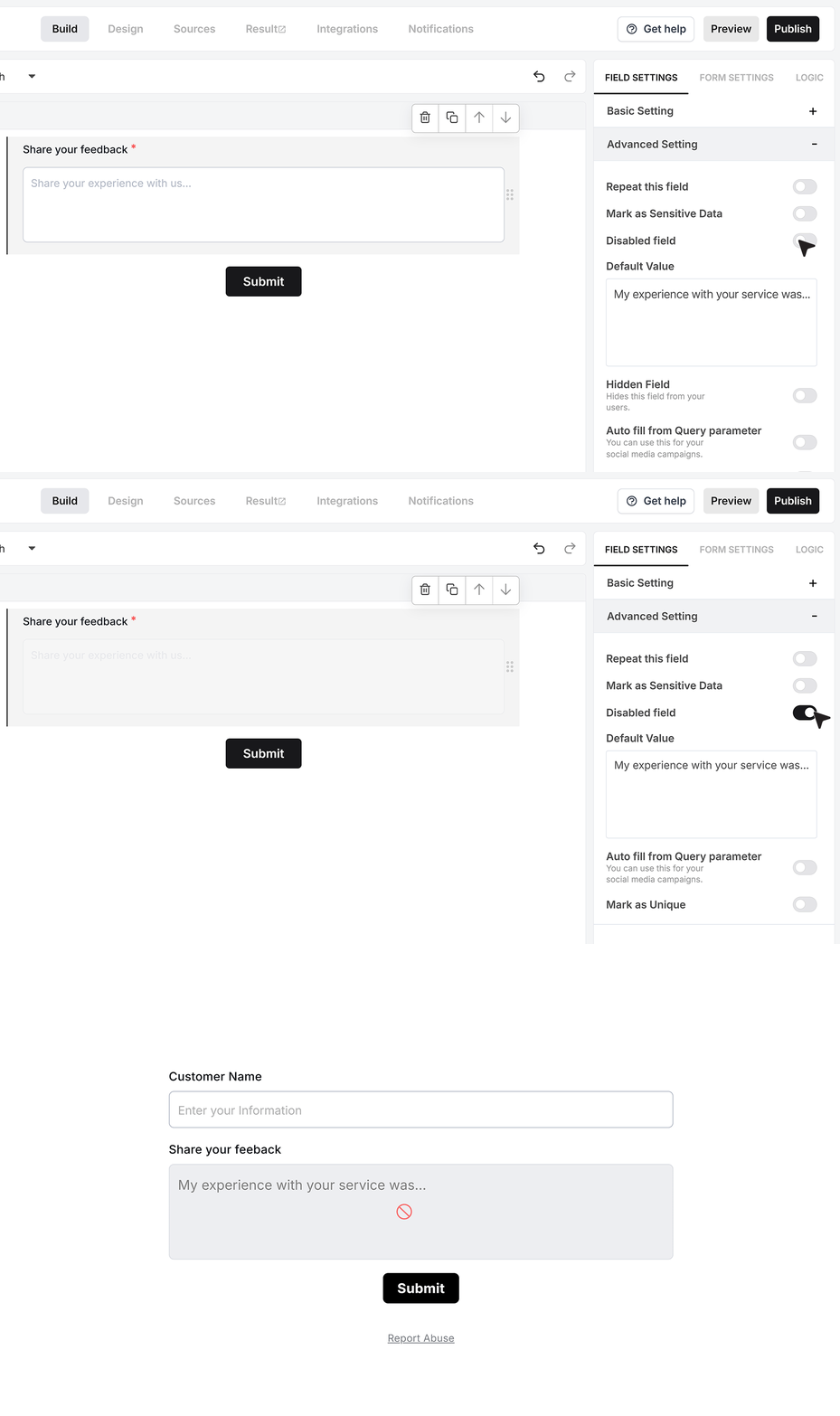
Disable Field keeps the value visible but uneditable. This works well when showing system-generated descriptions, summary notes, or any text you want displayed but not changed.
Hidden Field
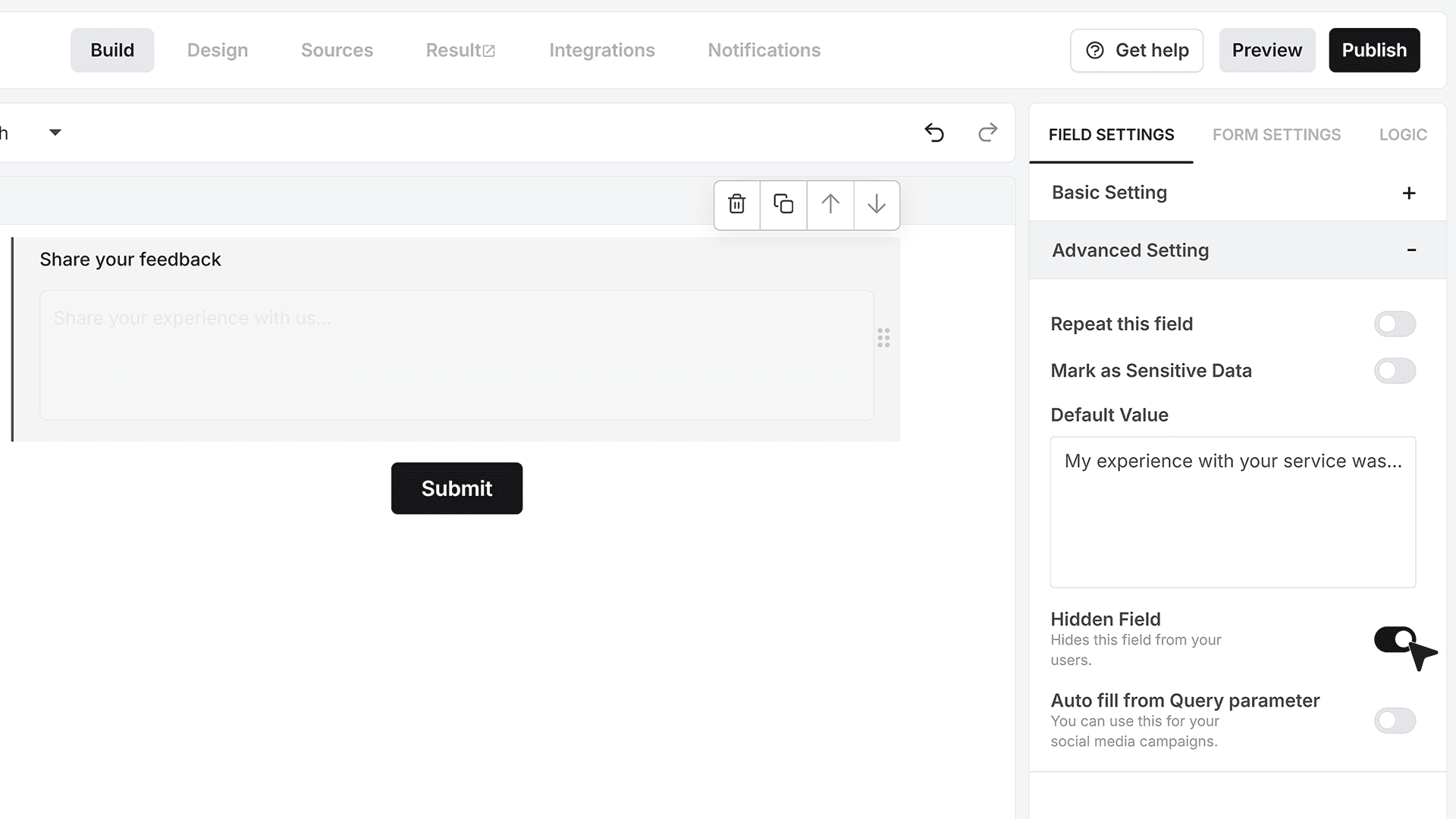
Hidden Field removes the Text Area from the visible form entirely while still submitting its value. This is commonly used for metadata, invisible flags, or internally managed information.
Autofill from Query Parameter
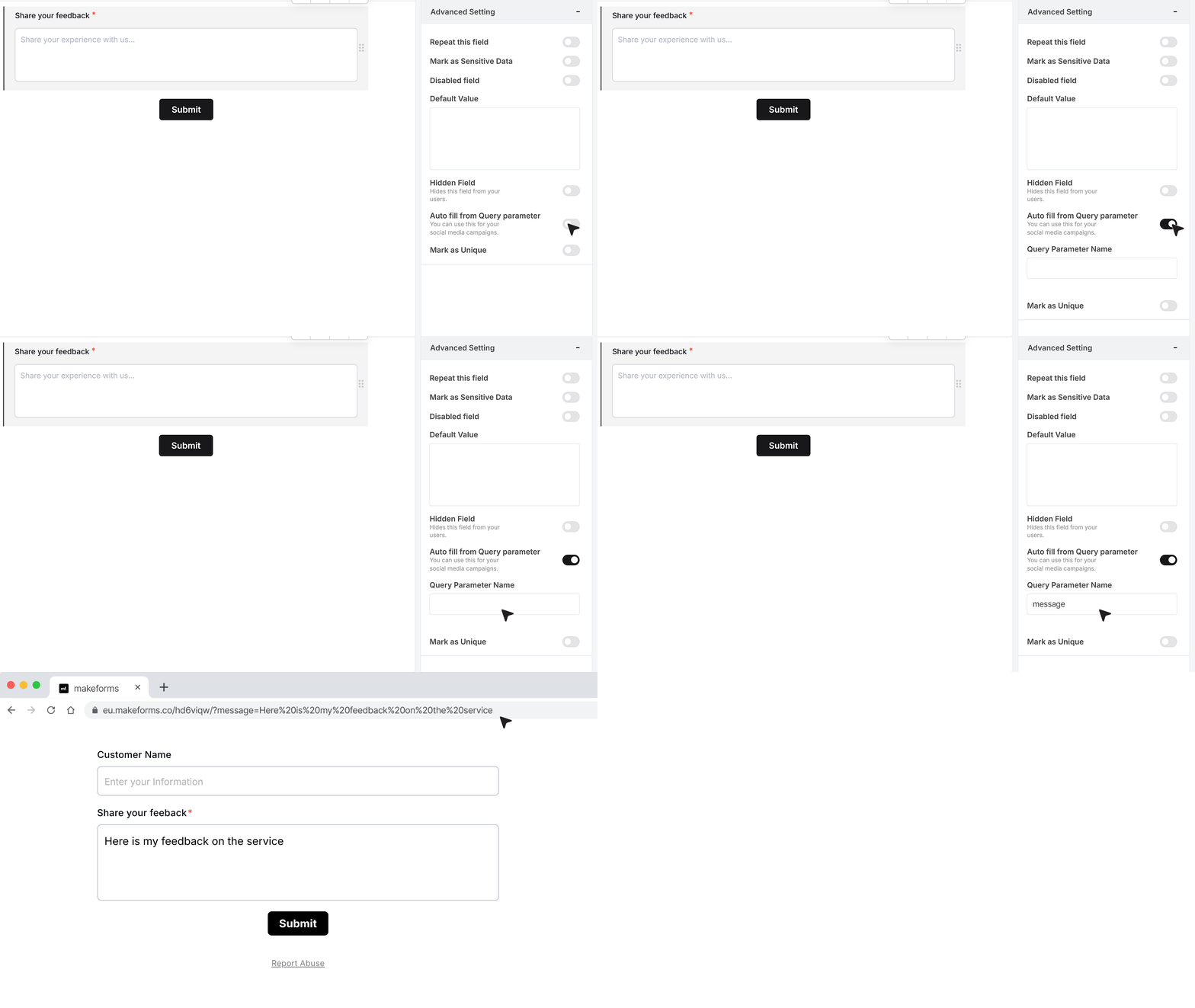
Autofill from Query Parameter lets you automatically populate the Text Area using a parameter passed through the URL. For example, using ?message=Here is my feedback on the service pre-fills the field when the form loads, making it ideal for personalized or automated workflows.
Mark as Unique Field
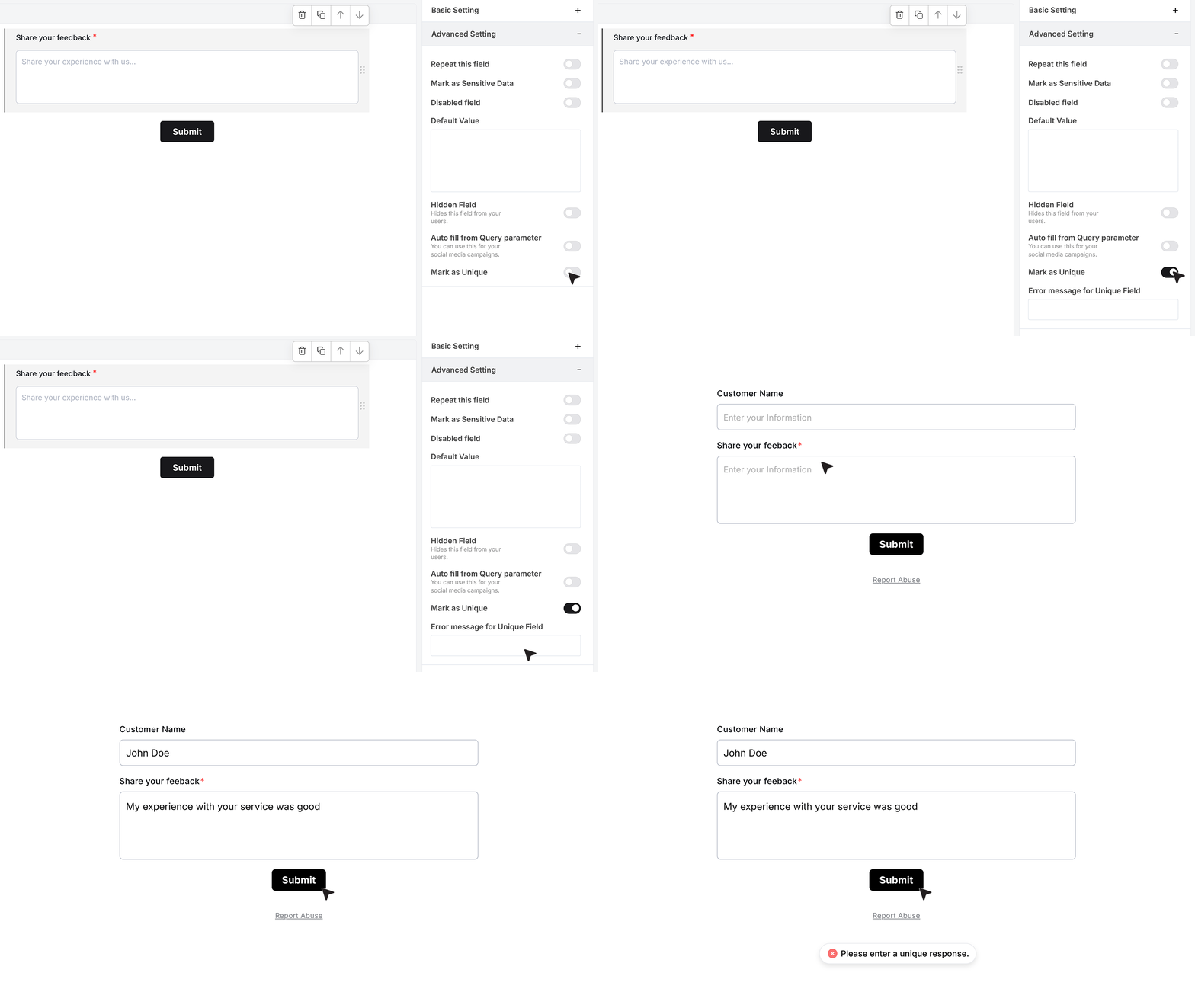
When you enable Mark as Unique Field, the Text Area accepts only responses that haven’t been submitted before. This ensures every entry remains unique and prevents different users from entering the same text. If someone submits a duplicate value, the form displays an error message letting them know that the response has already been used.
FAQ's
In MakeForms, open your form in the builder, then add the Text Area Field from the field list. Set a clear label so users know what to enter, for example feedback, comments, or a detailed description
The MakeForms Text Area Field is meant for long, multi-line plain text input. This field setup does not mention rich text controls (bold, links, formatting). If you need rich text, you typically need a “rich text editor” field type, which is not part of this Text Area Field config.
In MakeForms, use the Maximum Characters (Max Length) setting to increase the allowed response size.
Yes, in MakeForms you can use the form’s logic rules to show, hide, or require fields based on values. For a Text Area, common checks are “is empty” or “has value”. The Text Area Field settings themselves focus on input controls (required, max length, etc), not logic setup.
In MakeForms, styling is normally handled through the form’s design and theme settings, so the Text Area follows the form’s font, border, and color styles. The Text Area Field settings shown here cover behavior like required input, placeholder, helper text, rows, and max length, not per-field styling controls.
In MakeForms, open the Text Area Field settings and set Placeholder Text. It shows inside the field before the user types and helps guide what they should write.
MakeForms Text Area is a standard multi-line input that works well on mobile as part of a responsive form. You should still test the form on mobile preview to confirm spacing and keyboard behavior for long text entries.
In MakeForms, send Text Area responses to your CRM using integrations, automation tools (Zapier/Make), or a webhook to your backend, then map the Text Area value to the right CRM field. If the text is confidential, you can mark it as sensitive so only authorized team members can view it in the Responses dashboard.
Yes, usually through the form’s design and theme settings. The Text Area Field settings shown here do not include font or color controls, they focus on field behavior like placeholder, helper text, rows, and max length.
In MakeForms, you control the visible height using Textarea Rows. This sets how tall it appears, it does not change the character limit. Auto-growing height is not listed as a setting in this field’s config, so if you need a larger input area, increase Textarea Rows.
This Text Area Field config does not include an AI suggestion mode. A practical MakeForms approach is to prefill text using Default Value or Autofill from Query Parameter via the form URL, where your app generates the text and passes it into the form.
Yes. In MakeForms, create multiple steps (pages/sections), then place Text Area fields on the step where you need long answers. Use Required Field if the user must fill it before moving forward, and use Max Length if you need to cap the response size